> ## Documentation Index
> Fetch the complete documentation index at: https://docs.cassidyai.com/llms.txt
> Use this file to discover all available pages before exploring further.
# Create Excel from template
> Generate a Microsoft Excel spreadsheet from a template, filling in placeholders with Workflow data.
Creates an Excel document (.xlsx) from a template by filling in placeholders with dynamic values from your [Workflow](/workflows/overview).
With Cassidy's Excel document templates, you can:
* **Generate standardized invoice reports** that consolidate data from multiple PDF invoices into a consistent format
* **Create financial summaries** with automatically calculated totals and formatted currencies
* **Produce inventory sheets** that expand horizontally and vertically based on your data
* **Build dynamic pricing tables** that adapt to product lists of any size
* **Generate expense reports** with formulas that compute totals, taxes, and approvals
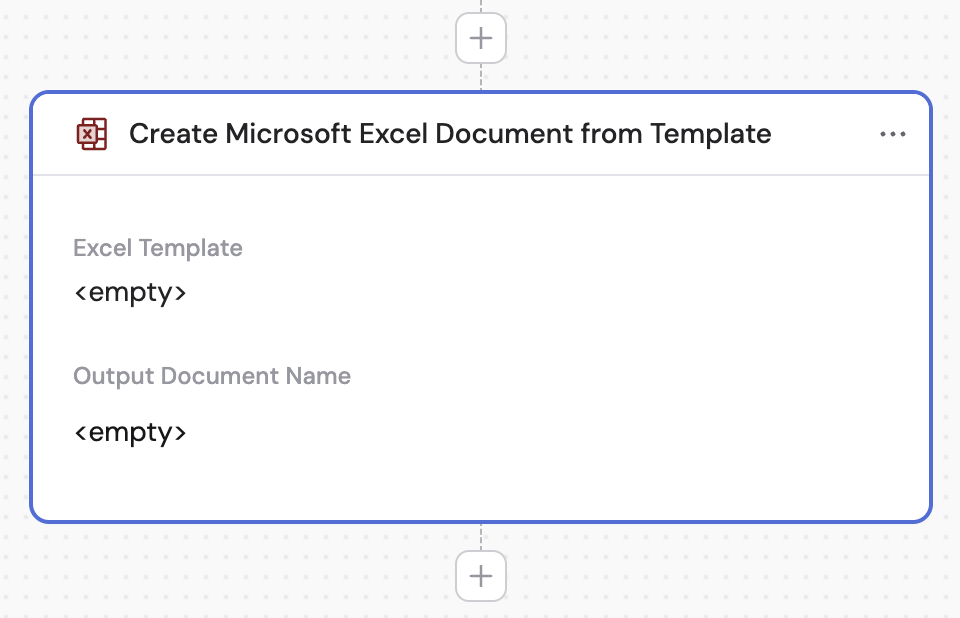
In the Workflow builder, click **+** between blocks and select **Create Microsoft Excel Document from Template** from the action library.
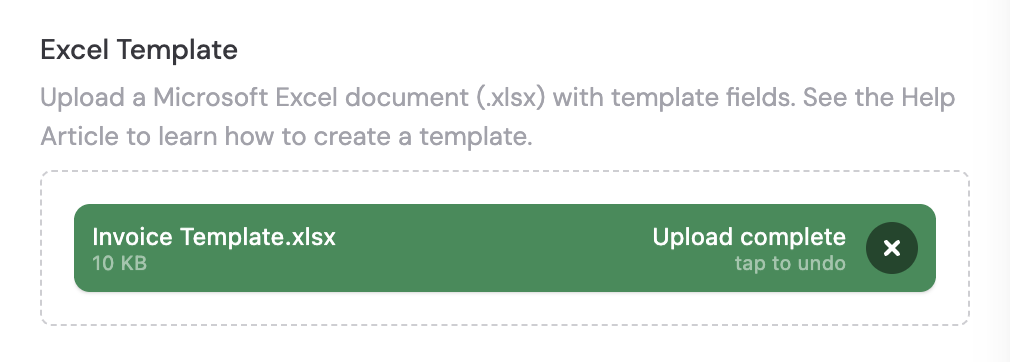
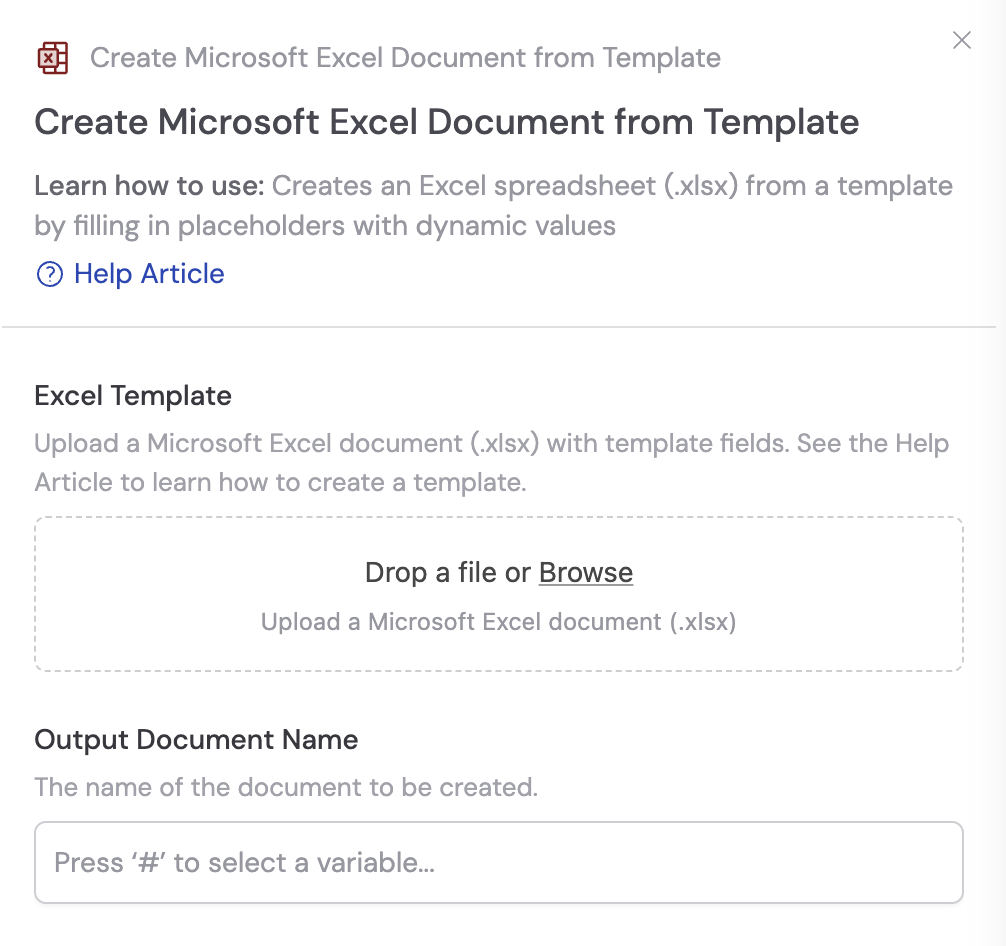 Click to upload your Excel document template (.xlsx file) that contains placeholders for dynamic content. See [Template placeholders](#template-placeholders) below for how to set up your template.
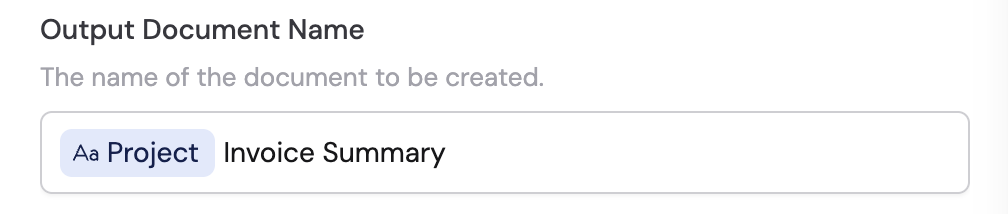
 Provide a name for the generated Excel document. This will be the filename when the document is created. You can use variables from previous steps.
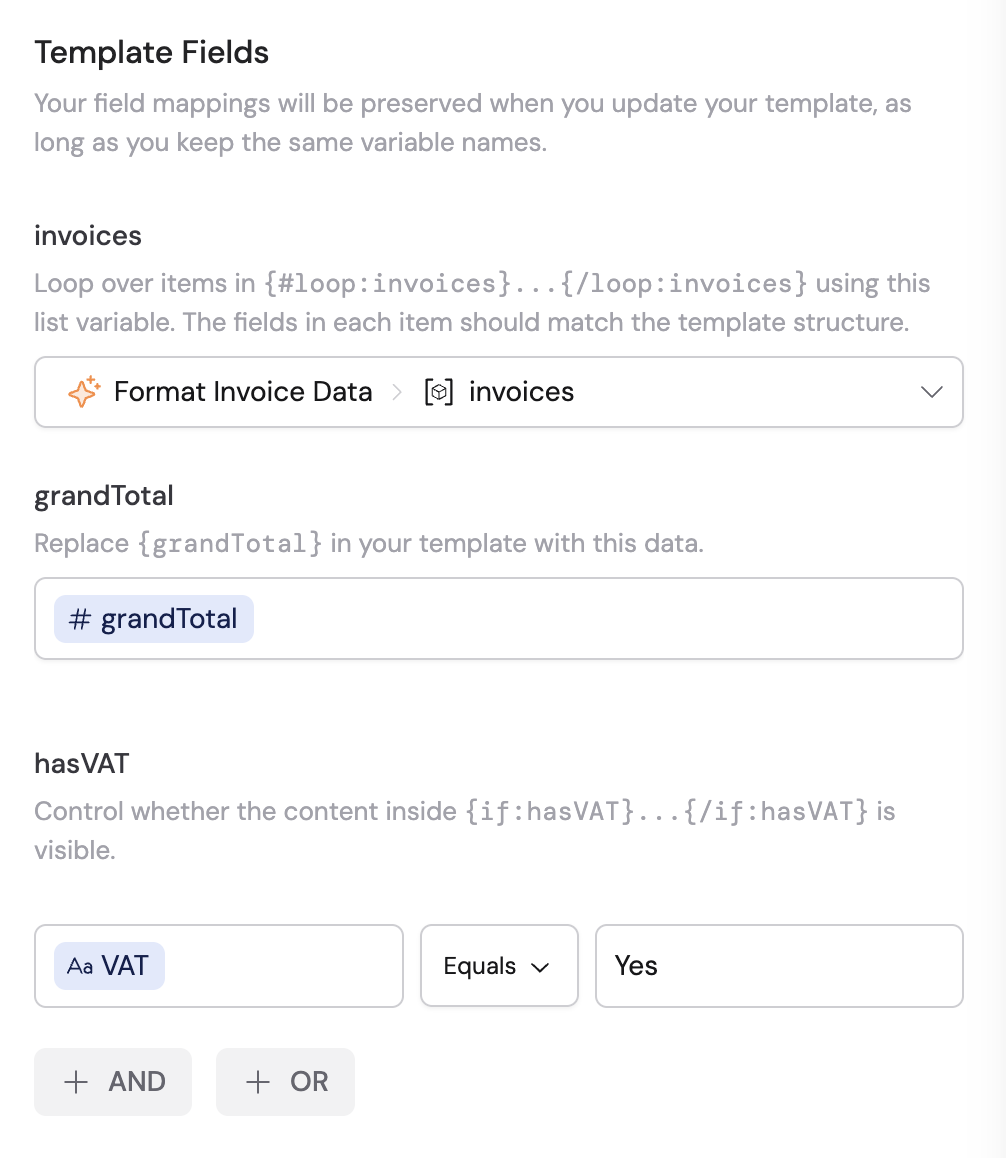
 Under the **Template Fields** section, map each placeholder in your template to a variable from previous Workflow steps or trigger inputs.
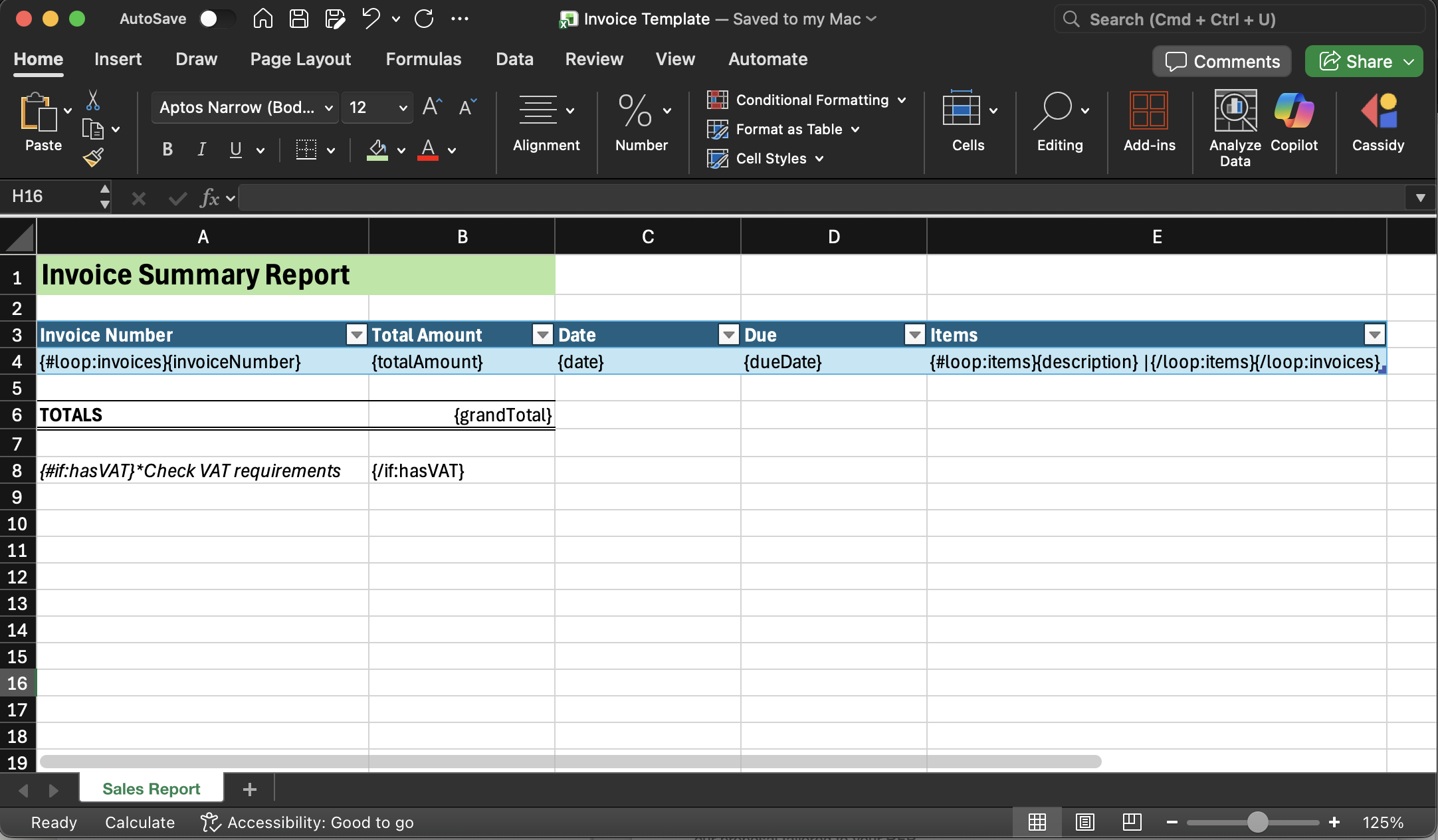
For example, in an invoice summary template:
* **\{invoices}** maps to a list variable containing objects with "invoiceNumber", "totalAmount", "date", "dueDate", and "items" properties
* **\{grandTotal}** maps to a calculated total from your data processing
* **\{hasVAT}** maps to a boolean variable that controls whether to show the VAT requirements row
Under the **Template Fields** section, map each placeholder in your template to a variable from previous Workflow steps or trigger inputs.
For example, in an invoice summary template:
* **\{invoices}** maps to a list variable containing objects with "invoiceNumber", "totalAmount", "date", "dueDate", and "items" properties
* **\{grandTotal}** maps to a calculated total from your data processing
* **\{hasVAT}** maps to a boolean variable that controls whether to show the VAT requirements row
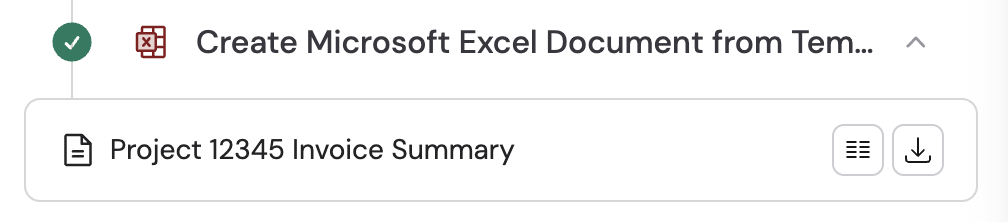
 After running the Workflow, preview the generated Excel document and download it by clicking the icons next to the action in the results panel.
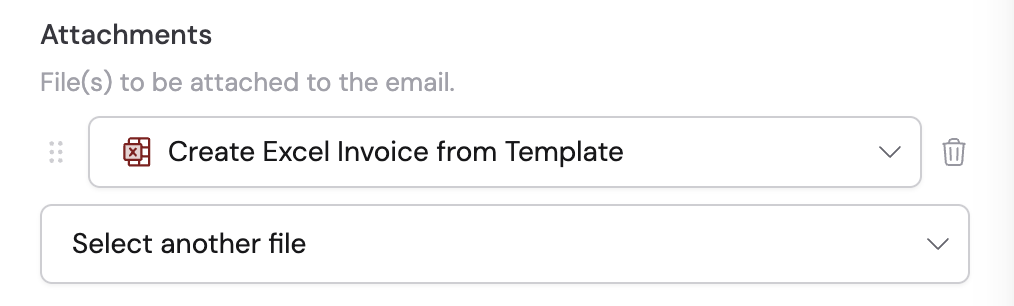
 You can use the generated Excel document as an attachment in other actions like [Send Email](/reference/actions/send-email). Reference the Excel document output from this action when configuring email attachments.
 ## Template placeholders
Use placeholders in your Excel template to define where dynamic content should appear. Cassidy detects these placeholders when you upload the template and lets you map them to Workflow variables.
## Template placeholders
Use placeholders in your Excel template to define where dynamic content should appear. Cassidy detects these placeholders when you upload the template and lets you map them to Workflow variables.
 ### Text placeholders
Use text placeholders to insert text, numbers, or formatted content from your Workflow data.
**Syntax:** `{variableName}`
### Text placeholders
Use text placeholders to insert text, numbers, or formatted content from your Workflow data.
**Syntax:** `{variableName}`
 ### Conditionals
Use conditionals to display rows or cells only when certain conditions are true, or to show alternative content when conditions are false.
**Syntax:**
* Standard: `{#if:conditionName}` ... `{/if:conditionName}`
* Inverse: `{^if:conditionName}` ... `{/if:conditionName}`
The beginning and end of the conditional must be on the **same row** but in **different cells**.
### Conditionals
Use conditionals to display rows or cells only when certain conditions are true, or to show alternative content when conditions are false.
**Syntax:**
* Standard: `{#if:conditionName}` ... `{/if:conditionName}`
* Inverse: `{^if:conditionName}` ... `{/if:conditionName}`
The beginning and end of the conditional must be on the **same row** but in **different cells**.
 ### Loops
Use loops to create multiple rows or columns from arrays of data.
**Syntax:**
* Vertical loops (for rows): `{#loop:arrayName}` ... `{/loop:arrayName}` — the beginning and end must be on the **same row** but in **different cells**
* Horizontal loops (for columns): `{>loop:arrayName}` — no closing tag needed, place child properties in the same cell
### Loops
Use loops to create multiple rows or columns from arrays of data.
**Syntax:**
* Vertical loops (for rows): `{#loop:arrayName}` ... `{/loop:arrayName}` — the beginning and end must be on the **same row** but in **different cells**
* Horizontal loops (for columns): `{>loop:arrayName}` — no closing tag needed, place child properties in the same cell
 To render correctly, items must be a list where each item has the necessary properties (such as `description` in this case).
### Inner loops
When the loop start and end are in the **same cell**, content repeats within that cell instead of creating new rows.
**Template:**
To render correctly, items must be a list where each item has the necessary properties (such as `description` in this case).
### Inner loops
When the loop start and end are in the **same cell**, content repeats within that cell instead of creating new rows.
**Template:**
 **Output:**
 ### Horizontal loops
Use the `>` prefix to expand data horizontally across columns.
**Template:**
### Horizontal loops
Use the `>` prefix to expand data horizontally across columns.
**Template:**
 **Output:**
 ### Nested loops
You can nest loops to handle multi-level data like invoices with multiple line items.
**Template:**
### Nested loops
You can nest loops to handle multi-level data like invoices with multiple line items.
**Template:**
 **Output:**
 ### Variable scope in loops
When you're inside a loop, you can access both properties of the current item and properties from outside the loop:
1. **Properties of the current item** — use the field names directly
2. **Properties from outside the loop** — these remain accessible
### Data format for loops
If your template has this loop structure:
```
{#loop:items}{description}{/loop:items}
```
Your data must have an array with properties that match the placeholder names exactly:
```json theme={null}
{
"items": [
{"description": "Web Design Services"},
{"description": "Monthly Hosting"}
],
"grandTotal": "$2,500.00",
"hasVAT": true
}
```
## Troubleshooting
If you see template tags like `{invoiceNumber}` in the final output, double-check that:
* The variable names in your data match the tag names exactly (case-sensitive)
* Your data is properly formatted JSON
## Related
* [Create Word from Template](/reference/actions/create-word-from-template)
* [Create PowerPoint from Template](/reference/actions/create-powerpoint-from-template)
* [Export as Excel](/reference/actions/export-as-excel)
* [Create files with Workflows](/guides/create-files)
### Variable scope in loops
When you're inside a loop, you can access both properties of the current item and properties from outside the loop:
1. **Properties of the current item** — use the field names directly
2. **Properties from outside the loop** — these remain accessible
### Data format for loops
If your template has this loop structure:
```
{#loop:items}{description}{/loop:items}
```
Your data must have an array with properties that match the placeholder names exactly:
```json theme={null}
{
"items": [
{"description": "Web Design Services"},
{"description": "Monthly Hosting"}
],
"grandTotal": "$2,500.00",
"hasVAT": true
}
```
## Troubleshooting
If you see template tags like `{invoiceNumber}` in the final output, double-check that:
* The variable names in your data match the tag names exactly (case-sensitive)
* Your data is properly formatted JSON
## Related
* [Create Word from Template](/reference/actions/create-word-from-template)
* [Create PowerPoint from Template](/reference/actions/create-powerpoint-from-template)
* [Export as Excel](/reference/actions/export-as-excel)
* [Create files with Workflows](/guides/create-files)