> ## Documentation Index
> Fetch the complete documentation index at: https://docs.cassidyai.com/llms.txt
> Use this file to discover all available pages before exploring further.
# Create PowerPoint from template
> Generate a Microsoft PowerPoint presentation from a template, filling in placeholders with Workflow data.
Creates a PowerPoint presentation (.pptx) from a template by filling in placeholders with dynamic values from your [Workflow](/workflows/overview).
With Cassidy's PowerPoint presentation templates, you can:
* **Generate personalized client presentations** that pull account details from your CRM
* **Create dynamic Quarterly Business Reviews** with usage metrics, feedback, and roadmap updates
* **Produce sales decks** that automatically adapt content based on prospect requirements
* **Build executive summaries** that populate with data from multiple business systems
* **Generate training materials** with participant information and customized content
In the Workflow builder, click **+** between blocks and select **Create Microsoft PowerPoint Presentation from Template** from the action library.
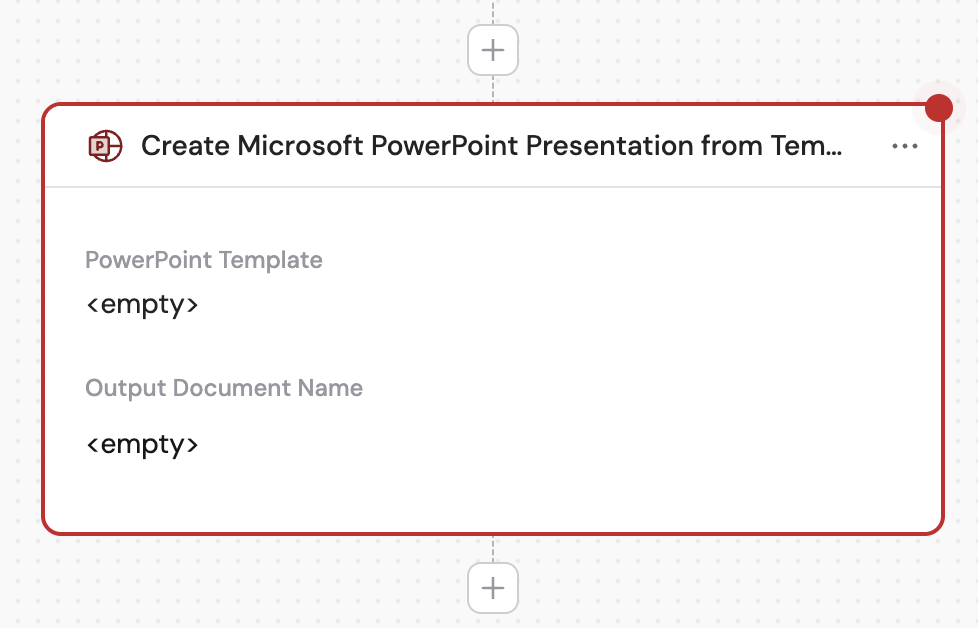
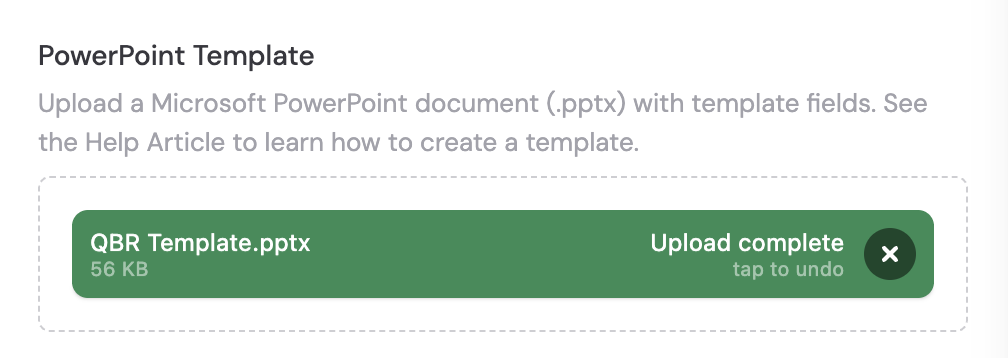
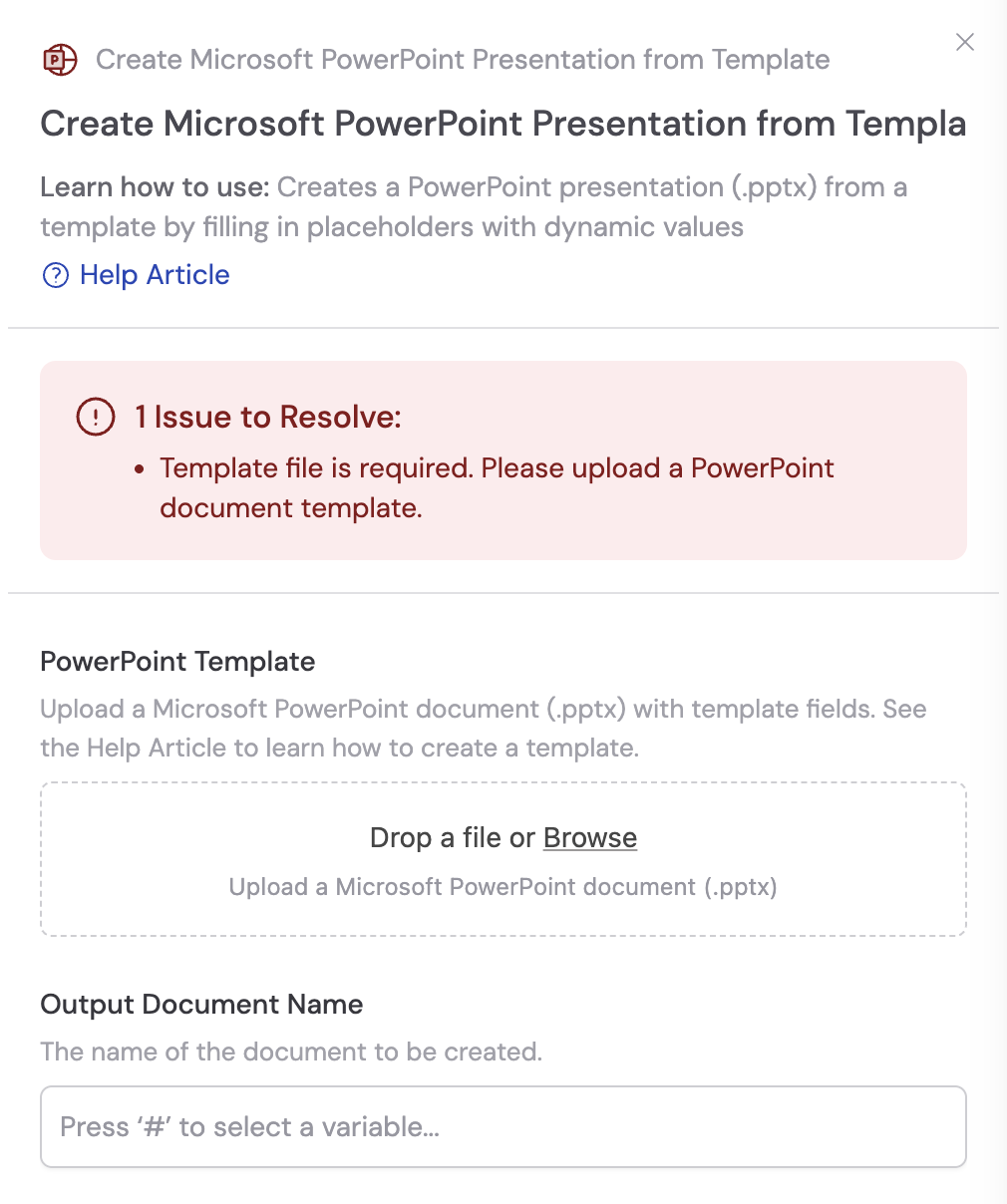 Click to upload your PowerPoint presentation template (.pptx file) that contains placeholders for dynamic content. See [Template placeholders](#template-placeholders) below for how to set up your template.
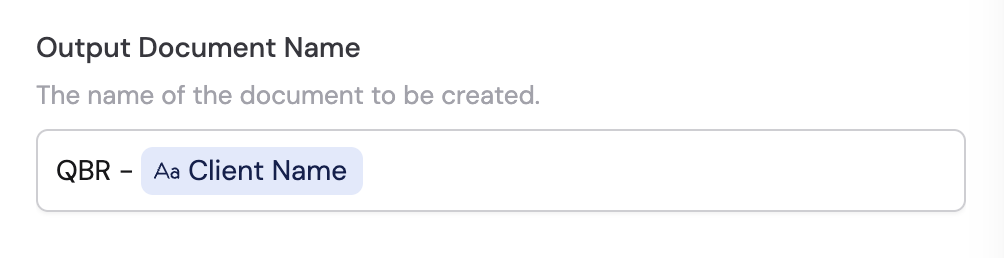
 Provide a name for the generated PowerPoint presentation. This will be the filename when the presentation is created. You can use variables from previous steps.
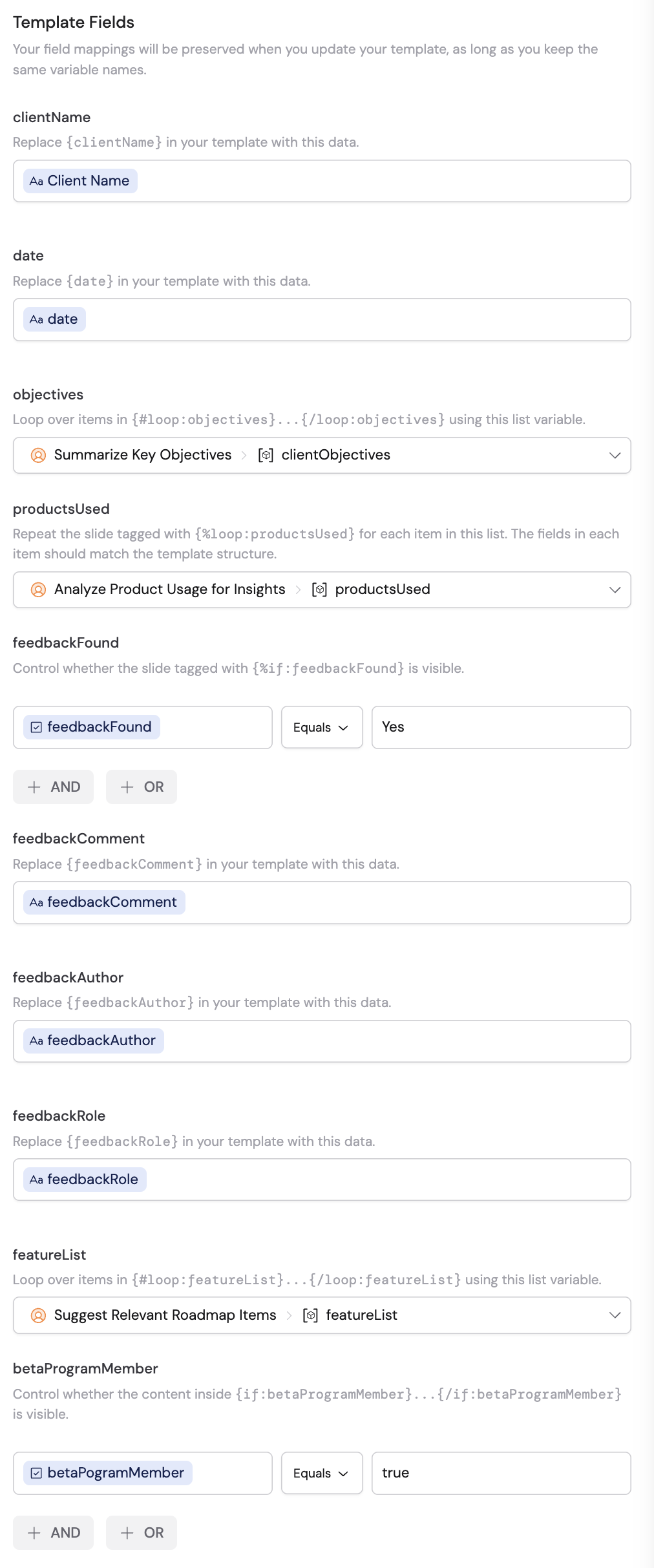
 Under the **Template Fields** section, map each placeholder in your template to a variable from previous Workflow steps or trigger inputs.
For example, in a QBR presentation template:
* **\{clientName}** maps to your client company variable from your CRM data
* **\{date}** maps to the QBR date variable
* **\{objectives}** maps to a list variable containing objects with "objectiveTitle" and "objectiveDescription" properties
* **\{productsUsed}** maps to an array of products for a slide loop, creating separate slides for each product
* **\{feedbackFound}** maps to a boolean that controls slide visibility
* **\{betaProgramMember}** maps to a boolean that controls whether to show beta program messaging
Under the **Template Fields** section, map each placeholder in your template to a variable from previous Workflow steps or trigger inputs.
For example, in a QBR presentation template:
* **\{clientName}** maps to your client company variable from your CRM data
* **\{date}** maps to the QBR date variable
* **\{objectives}** maps to a list variable containing objects with "objectiveTitle" and "objectiveDescription" properties
* **\{productsUsed}** maps to an array of products for a slide loop, creating separate slides for each product
* **\{feedbackFound}** maps to a boolean that controls slide visibility
* **\{betaProgramMember}** maps to a boolean that controls whether to show beta program messaging
 After running the Workflow, preview the generated PowerPoint presentation and download it by clicking the icons next to the action in the results panel.
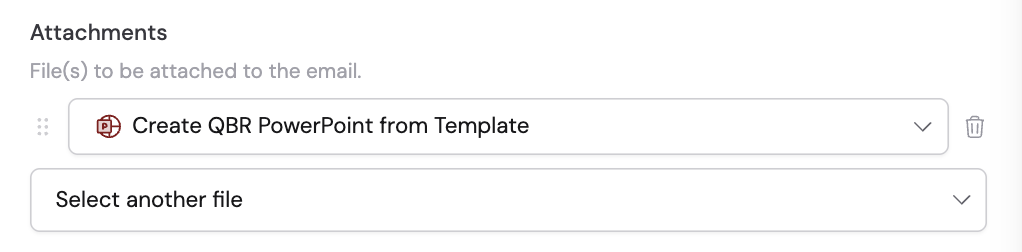
 You can use the generated PowerPoint presentation as an attachment in other actions like [Send Email](/reference/actions/send-email). Reference the presentation output from this action when configuring email attachments.
 ## Template placeholders
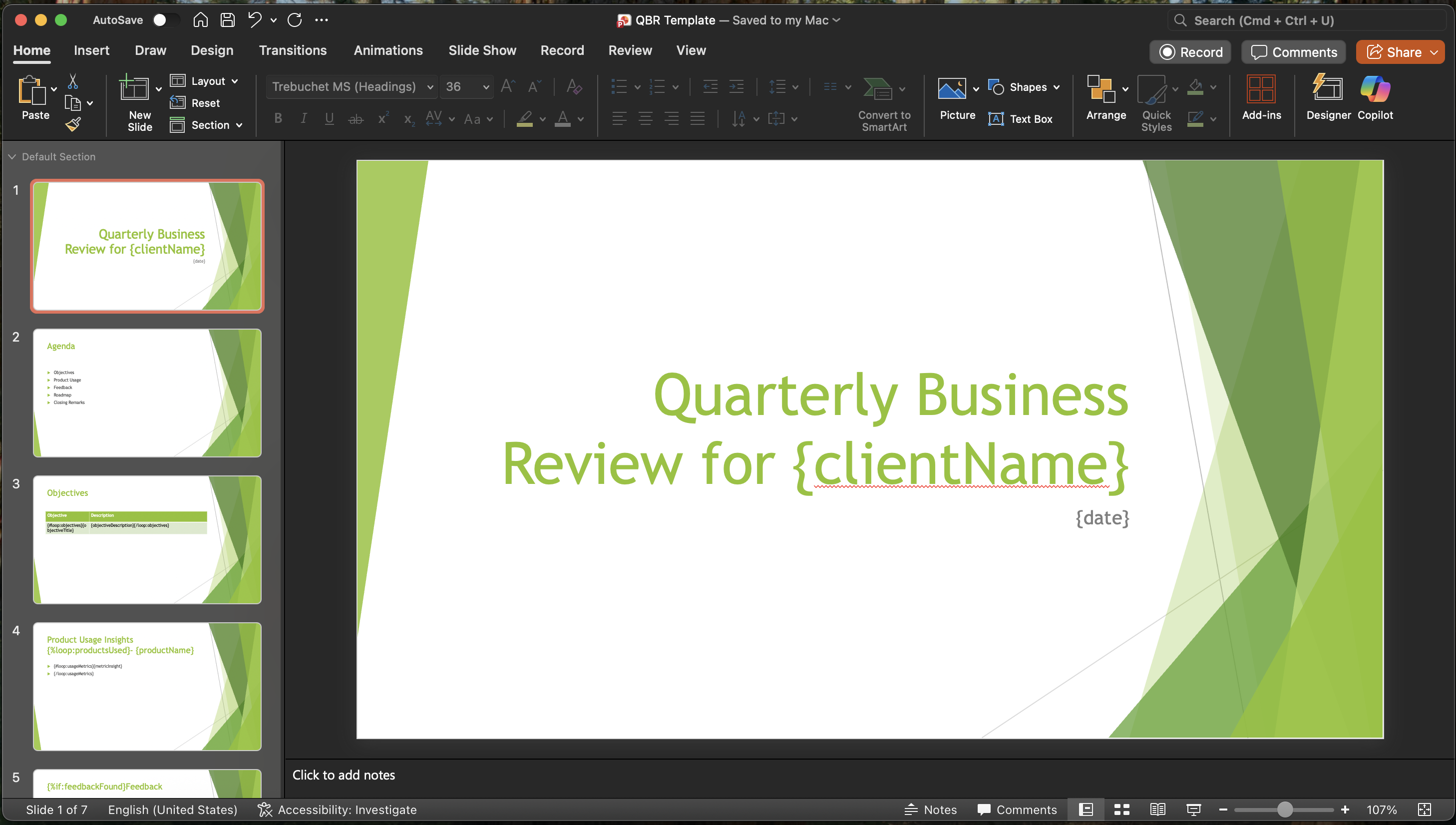
Use placeholders in your PowerPoint template to define where dynamic content should appear. Cassidy detects these placeholders when you upload the template and lets you map them to Workflow variables.
## Template placeholders
Use placeholders in your PowerPoint template to define where dynamic content should appear. Cassidy detects these placeholders when you upload the template and lets you map them to Workflow variables.
 ### Text placeholders
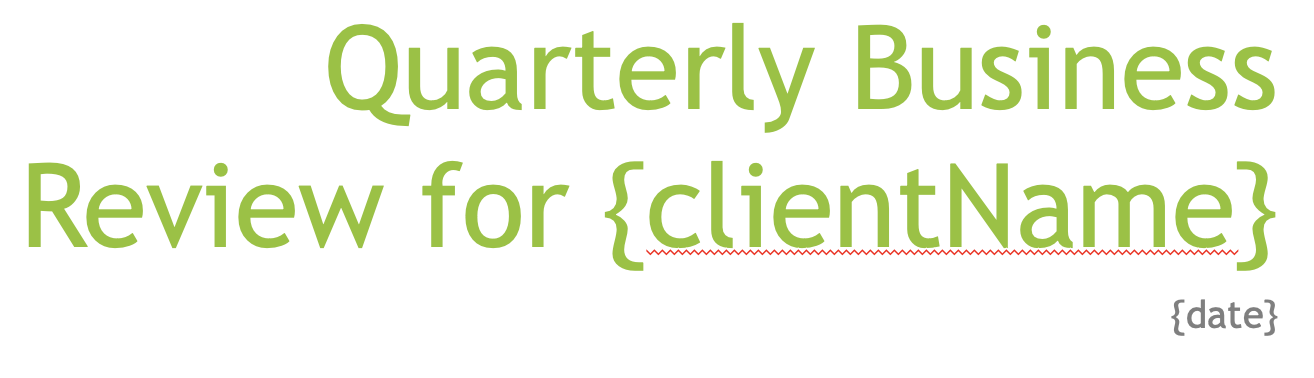
Use text placeholders to insert text, numbers, or formatted content from your Workflow data.
**Syntax:** `{variableName}`
### Text placeholders
Use text placeholders to insert text, numbers, or formatted content from your Workflow data.
**Syntax:** `{variableName}`
 ### Conditionals
Use conditionals to display sections only when certain conditions are true, or to show alternative content when conditions are false.
**Syntax:**
* Standard: `{#if:conditionName}` ... `{/if:conditionName}`
* Inverse: `{^if:conditionName}` ... `{/if:conditionName}`
### Conditionals
Use conditionals to display sections only when certain conditions are true, or to show alternative content when conditions are false.
**Syntax:**
* Standard: `{#if:conditionName}` ... `{/if:conditionName}`
* Inverse: `{^if:conditionName}` ... `{/if:conditionName}`
 ### Loops
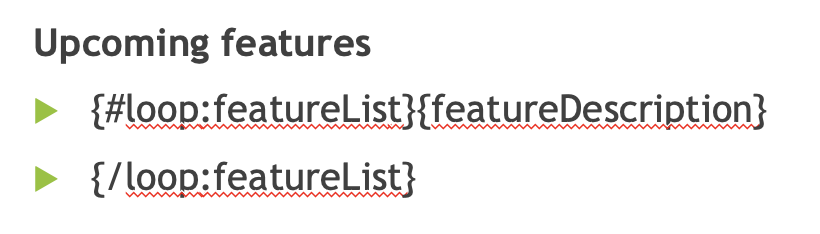
Use loops to display repeating content for arrays of data within text boxes.
**Syntax:** `{#loop:arrayName}` ... `{/loop:arrayName}`
### Loops
Use loops to display repeating content for arrays of data within text boxes.
**Syntax:** `{#loop:arrayName}` ... `{/loop:arrayName}`
 ### Slide conditionals
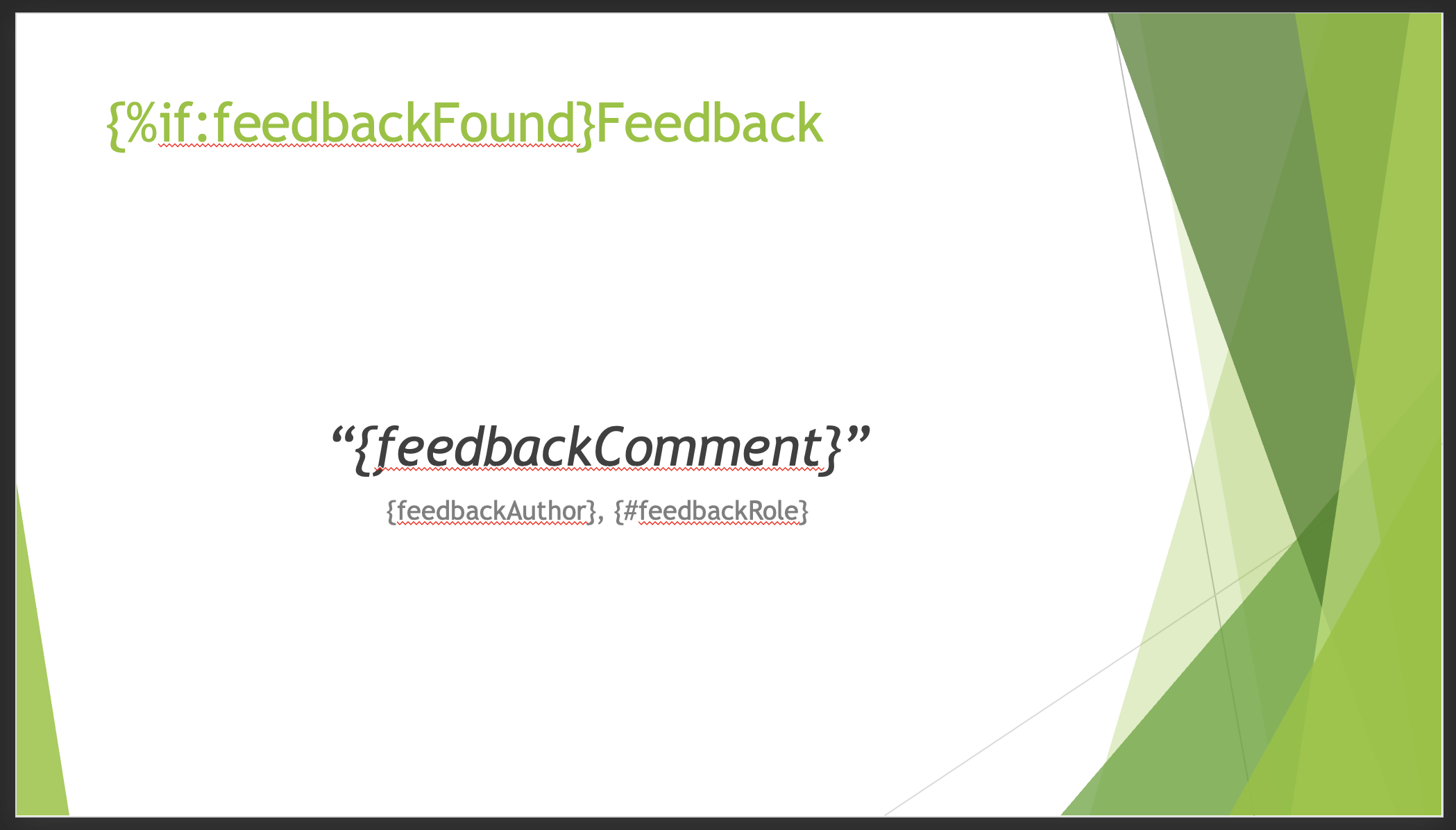
Use slide conditionals to show or hide entire slides based on your data.
**Syntax:** Add `{%if:conditionName}` anywhere in a text box on the slide to show that slide only when the condition is true.
### Slide conditionals
Use slide conditionals to show or hide entire slides based on your data.
**Syntax:** Add `{%if:conditionName}` anywhere in a text box on the slide to show that slide only when the condition is true.
 ### Slide loops
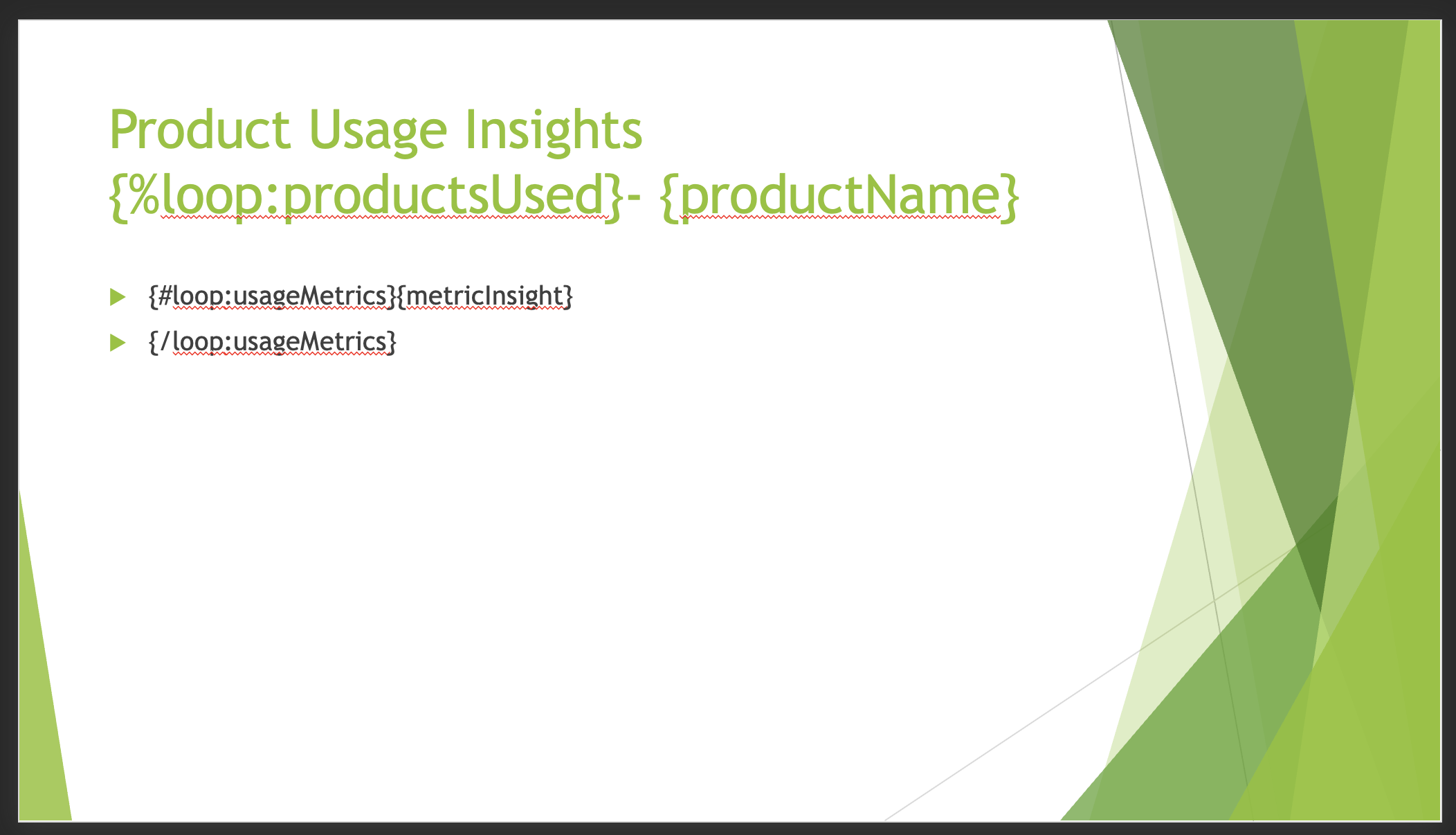
Use slide loops to create multiple slides from a single template slide.
**Syntax:** Add `{%loop:arrayName}` anywhere in a text box on the slide to repeat that entire slide for each item in the array.
### Slide loops
Use slide loops to create multiple slides from a single template slide.
**Syntax:** Add `{%loop:arrayName}` anywhere in a text box on the slide to repeat that entire slide for each item in the array.
 ### Section loops
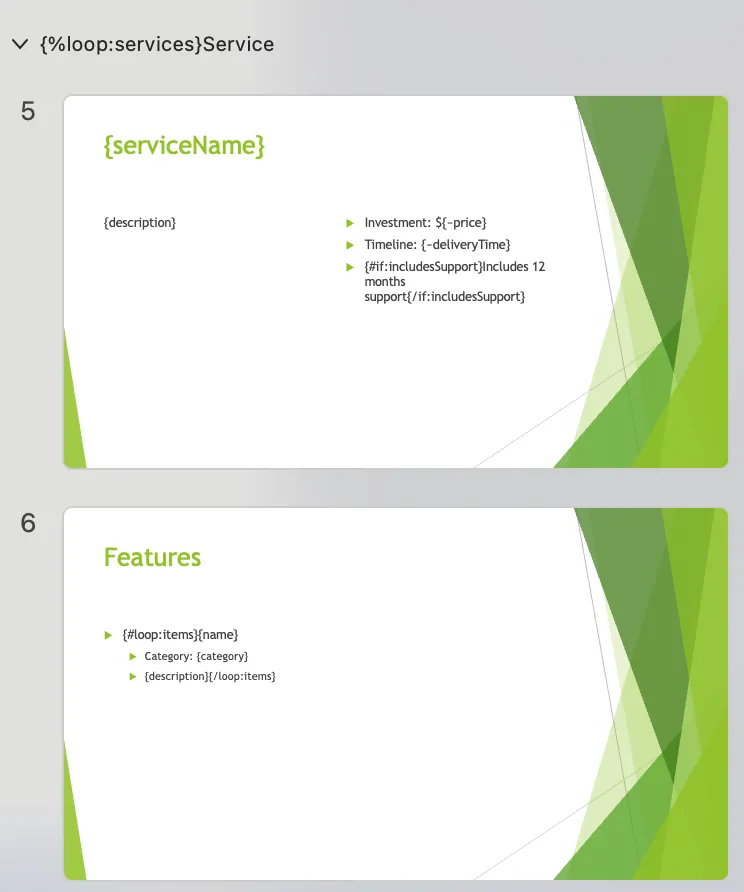
Use section loops to repeat multiple slides as a group for each item in an array.
**Syntax:** In the left side panel, right-click to **Add Section**. Then include `{%loop:arrayName}` in your section name.
### Section loops
Use section loops to repeat multiple slides as a group for each item in an array.
**Syntax:** In the left side panel, right-click to **Add Section**. Then include `{%loop:arrayName}` in your section name.
 ### Variable scope in loops
When you're inside a loop, you can access both properties of the current item and properties from outside the loop:
1. **Properties of the current item** — use the field names directly like `{productName}` and `{usageMetrics}`
2. **Properties from outside the loop** — these remain accessible like `{clientName}`
### Data format for loops
If your template has this loop:
```
{#loop:featureList}
▶ {featureDescription}
{/loop:featureList}
```
Your data must have an array with properties that match the placeholder names exactly:
```json theme={null}
{
"featureList": [
{"featureDescription": "Advanced Analytics Dashboard"},
{"featureDescription": "Real-time Collaboration Tools"},
{"featureDescription": "Enhanced Security Features"}
]
}
```
## Troubleshooting
If you see template tags in the final output, double-check that the names of your template tags match the names of your data fields exactly. For example, `{clientName}` in your template must correspond to the exact field name in your data.
* Confirm `%if:` conditions reference boolean values in your data
* Verify `%loop:` references array names that exist in your data
* Check that slide control tags are placed in text boxes (not in slide notes or other areas)
## Related
* [Create Word from Template](/reference/actions/create-word-from-template)
* [Create Excel from Template](/reference/actions/create-excel-from-template)
* [Create files with Workflows](/guides/create-files)
### Variable scope in loops
When you're inside a loop, you can access both properties of the current item and properties from outside the loop:
1. **Properties of the current item** — use the field names directly like `{productName}` and `{usageMetrics}`
2. **Properties from outside the loop** — these remain accessible like `{clientName}`
### Data format for loops
If your template has this loop:
```
{#loop:featureList}
▶ {featureDescription}
{/loop:featureList}
```
Your data must have an array with properties that match the placeholder names exactly:
```json theme={null}
{
"featureList": [
{"featureDescription": "Advanced Analytics Dashboard"},
{"featureDescription": "Real-time Collaboration Tools"},
{"featureDescription": "Enhanced Security Features"}
]
}
```
## Troubleshooting
If you see template tags in the final output, double-check that the names of your template tags match the names of your data fields exactly. For example, `{clientName}` in your template must correspond to the exact field name in your data.
* Confirm `%if:` conditions reference boolean values in your data
* Verify `%loop:` references array names that exist in your data
* Check that slide control tags are placed in text boxes (not in slide notes or other areas)
## Related
* [Create Word from Template](/reference/actions/create-word-from-template)
* [Create Excel from Template](/reference/actions/create-excel-from-template)
* [Create files with Workflows](/guides/create-files)