> ## Documentation Index
> Fetch the complete documentation index at: https://docs.cassidyai.com/llms.txt
> Use this file to discover all available pages before exploring further.
# Extract information
> Extract specific data points from text using AI, with support for structured fields and lists.
Extract specific pieces of information from text using AI. Define the fields you want to extract and the AI pulls them from the source content. Use this to parse emails, documents, or any unstructured text into structured data.
In the Workflow builder, click **+** between blocks and select **Extract Information** from the action library.
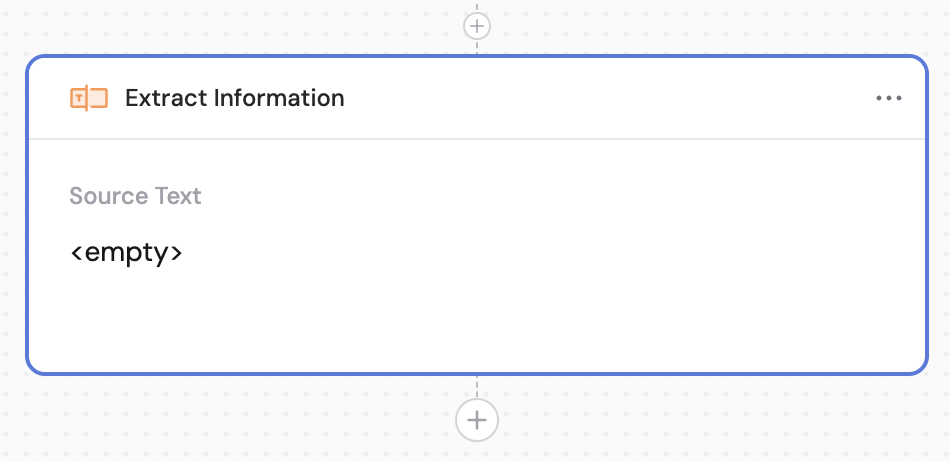
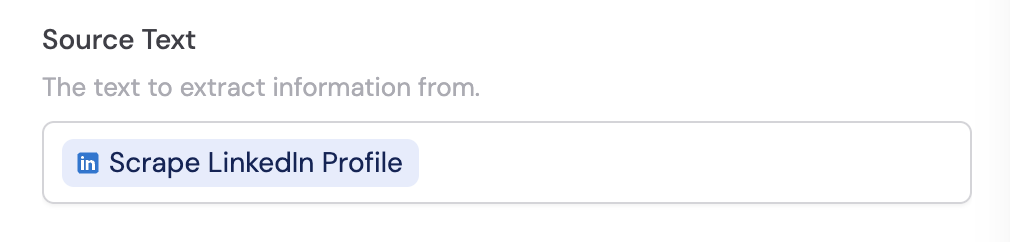
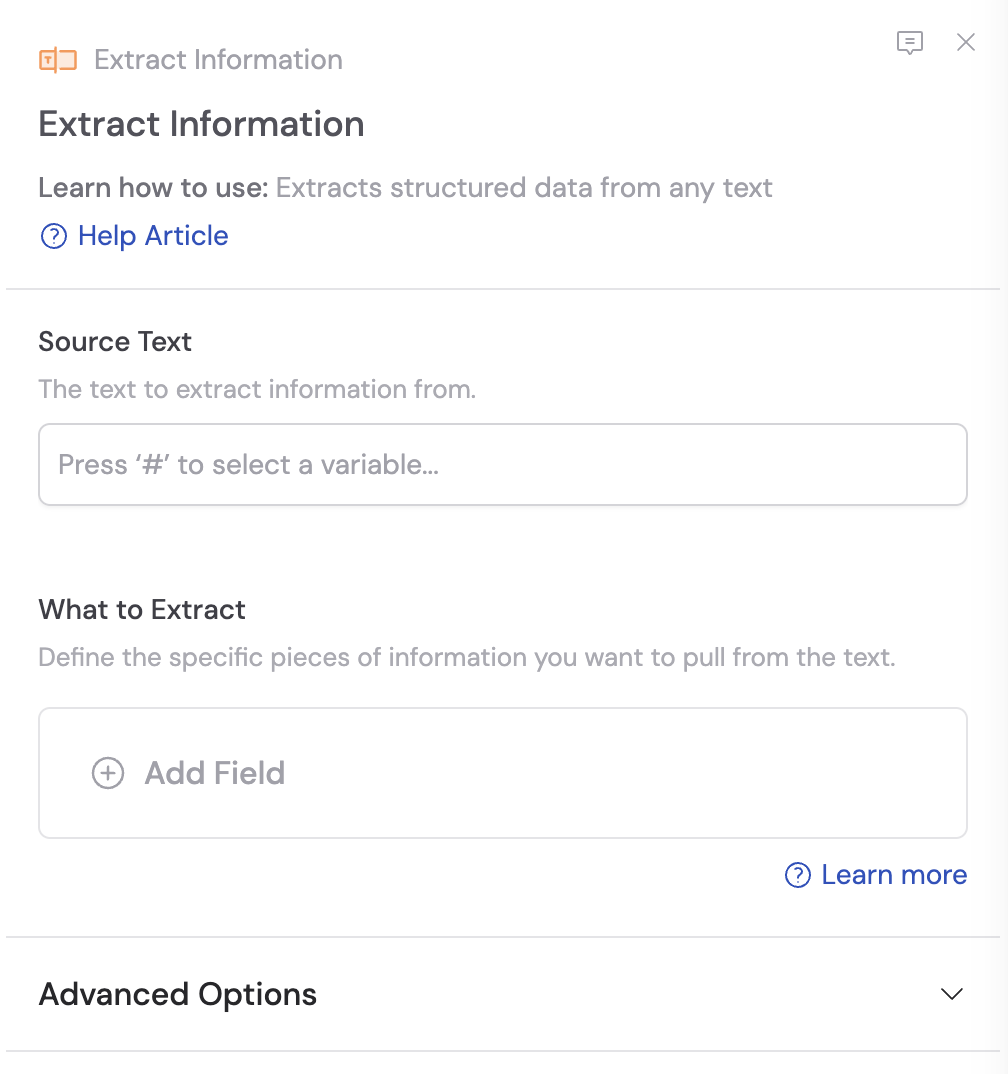 In the **Source Text** field, provide the text you want to extract information from. Use **#** to [reference variables](/guides/prompt-engineering#workflow-prompts) from previous steps or the trigger.
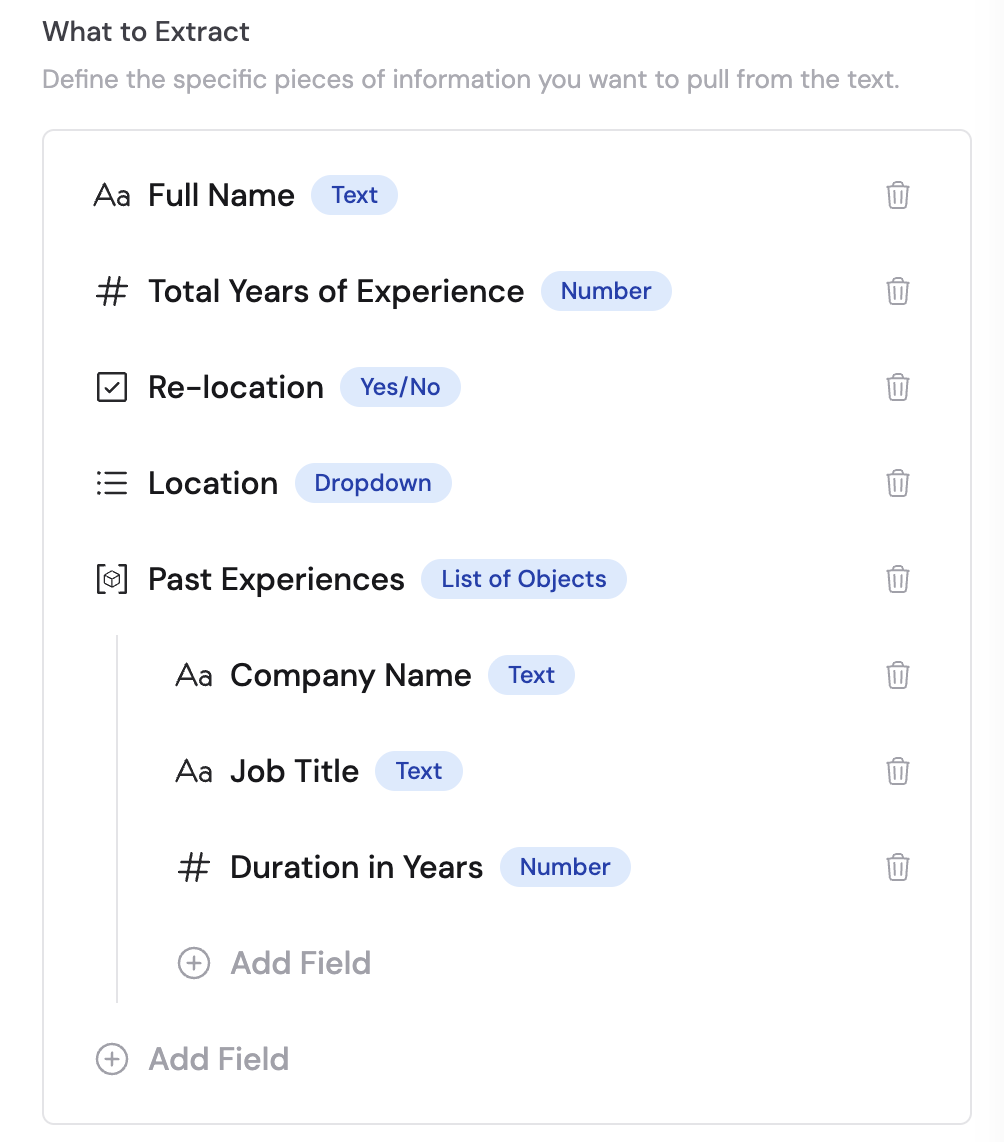
 Under **What to Extract**, click **+ Add Field** to create each field you want to extract from the source text.
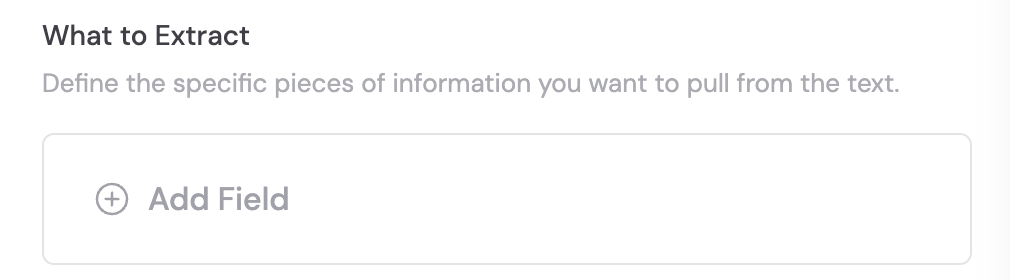 For each field, configure the field name, type, description, and whether it's required. For detailed information on setting up fields, see [Structured Output Fields](/workflows/advanced/structured-output-fields).
 Under **Advanced Options**, you can:
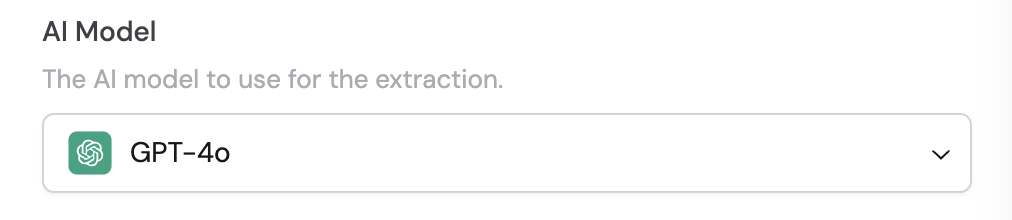
* **Select the AI model** — Choose which model to use for the extraction. Each model has different strengths — see [Choose an AI model](/guides/choose-ai-model) for guidance.
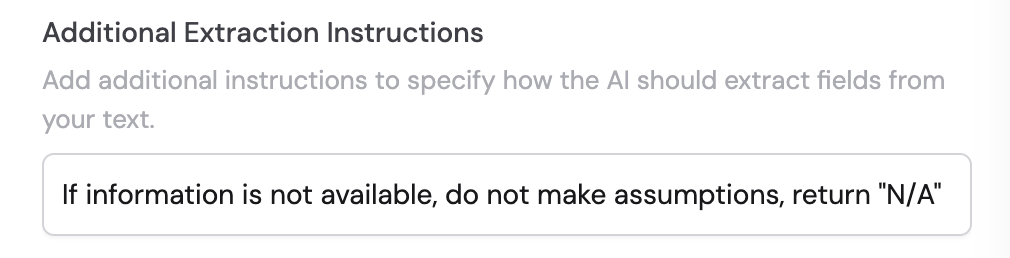
* **Add additional extraction instructions** — Provide specific guidance or context to help the AI extract information more accurately.
Under **Advanced Options**, you can:
* **Select the AI model** — Choose which model to use for the extraction. Each model has different strengths — see [Choose an AI model](/guides/choose-ai-model) for guidance.
* **Add additional extraction instructions** — Provide specific guidance or context to help the AI extract information more accurately.
 In subsequent Workflow steps, reference the specific fields from this action's output using the field names you defined. Each extracted field becomes its own variable.
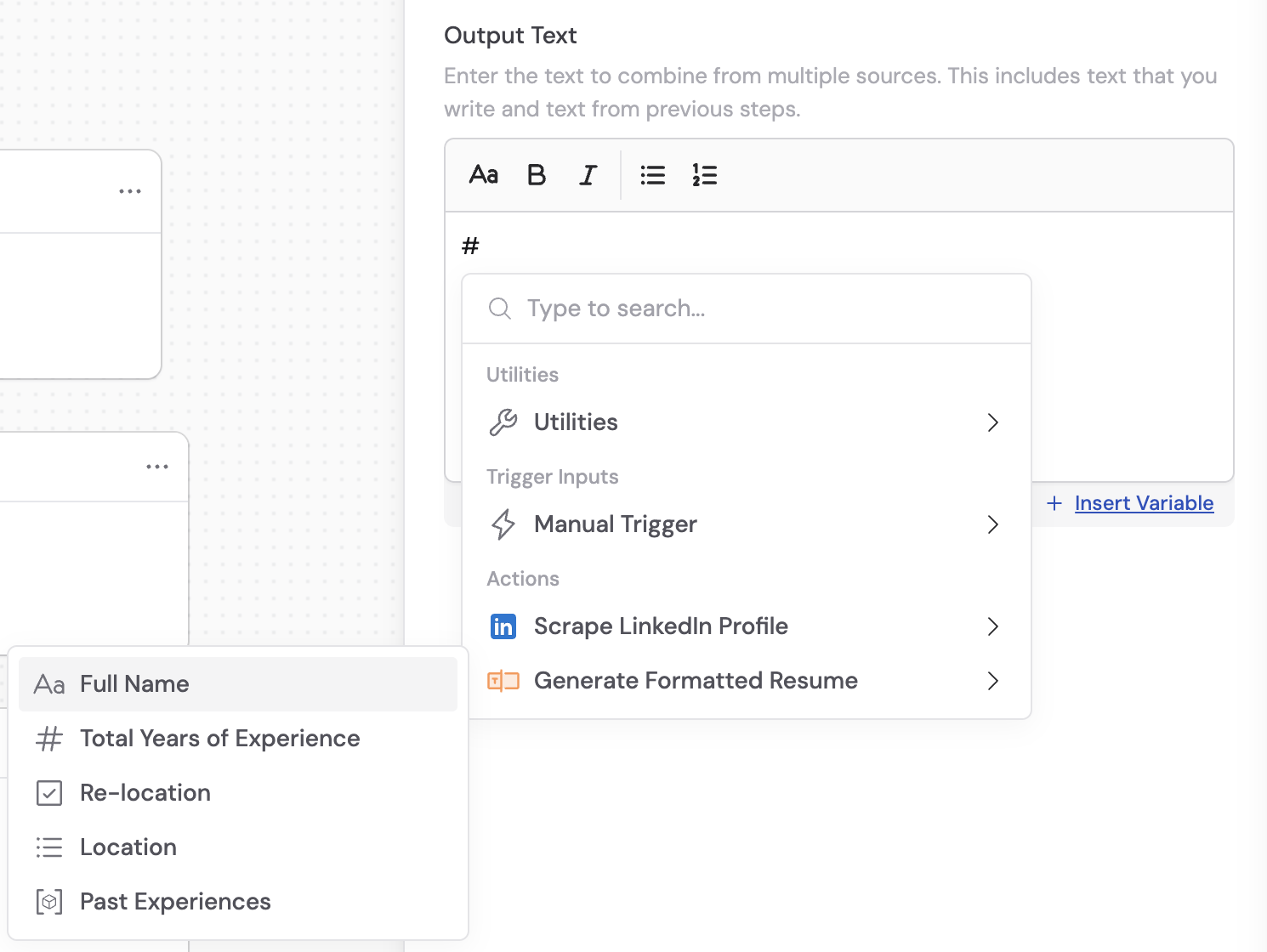 Extracted fields become individual variables you can reference in later steps — making this action ideal for feeding structured data into other actions like [Update HubSpot Record](/integrations/hubspot/workflows) or [Send Email](/reference/actions/send-email).
## Related
* [Create Summary](/reference/actions/create-summary)
* [Categorize Text](/reference/actions/categorize-text)
* [Structured Output Fields](/workflows/advanced/structured-output-fields)
Extracted fields become individual variables you can reference in later steps — making this action ideal for feeding structured data into other actions like [Update HubSpot Record](/integrations/hubspot/workflows) or [Send Email](/reference/actions/send-email).
## Related
* [Create Summary](/reference/actions/create-summary)
* [Categorize Text](/reference/actions/categorize-text)
* [Structured Output Fields](/workflows/advanced/structured-output-fields)