> ## Documentation Index
> Fetch the complete documentation index at: https://docs.cassidyai.com/llms.txt
> Use this file to discover all available pages before exploring further.
# Get Knowledge Base folder contents
> Retrieve the list of files within a Knowledge Base folder to use in a Workflow.
Retrieve the contents of a [Knowledge Base](/knowledge-base/overview) folder within a [Workflow](/workflows/overview). Returns a list of files in the folder that you can loop over or reference.
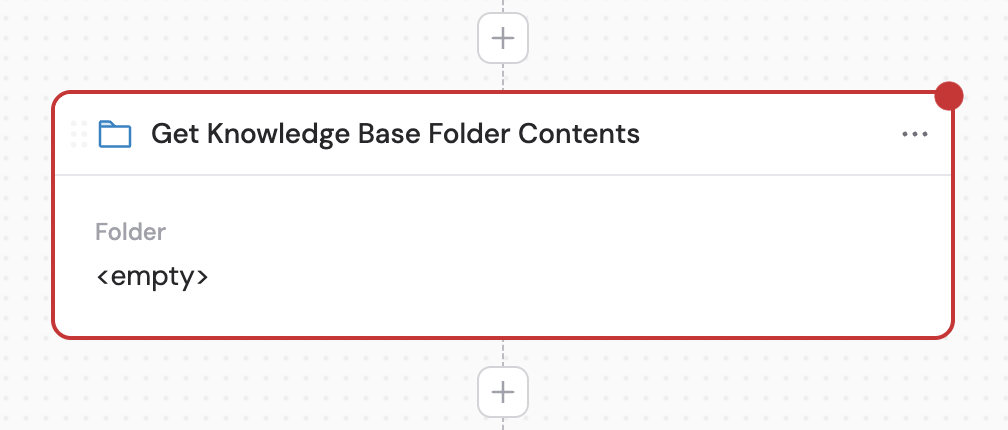
In the Workflow builder, click **+** between blocks and select **Get Knowledge Base Folder Contents** from the action library.
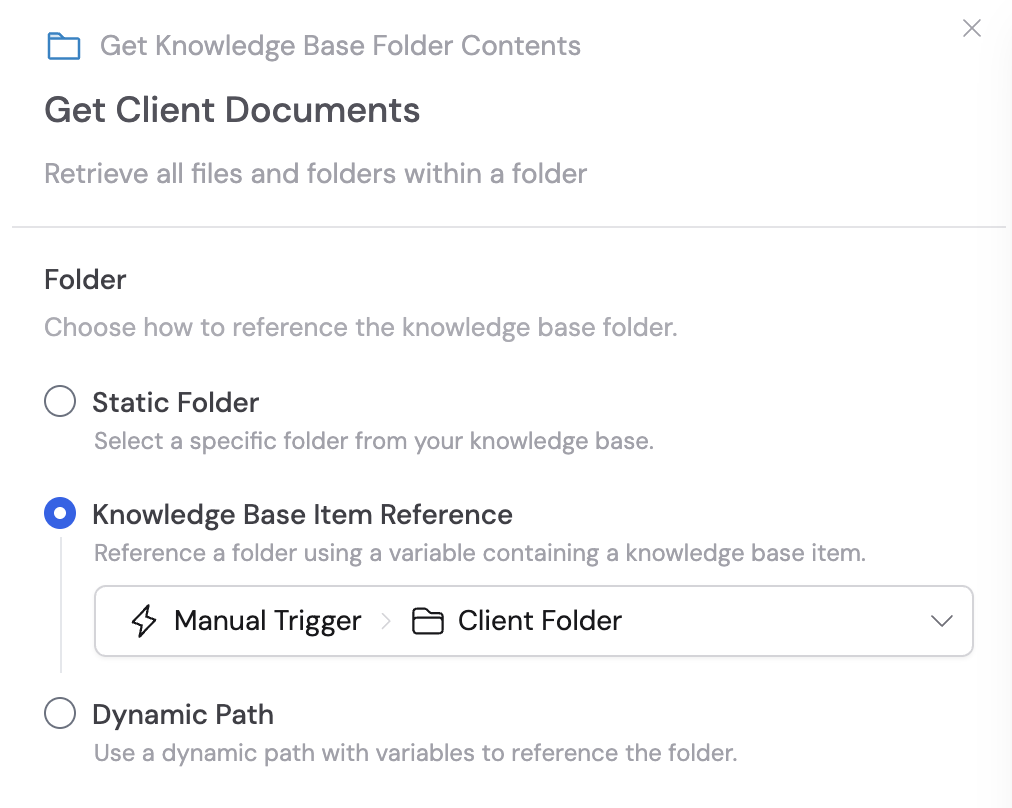
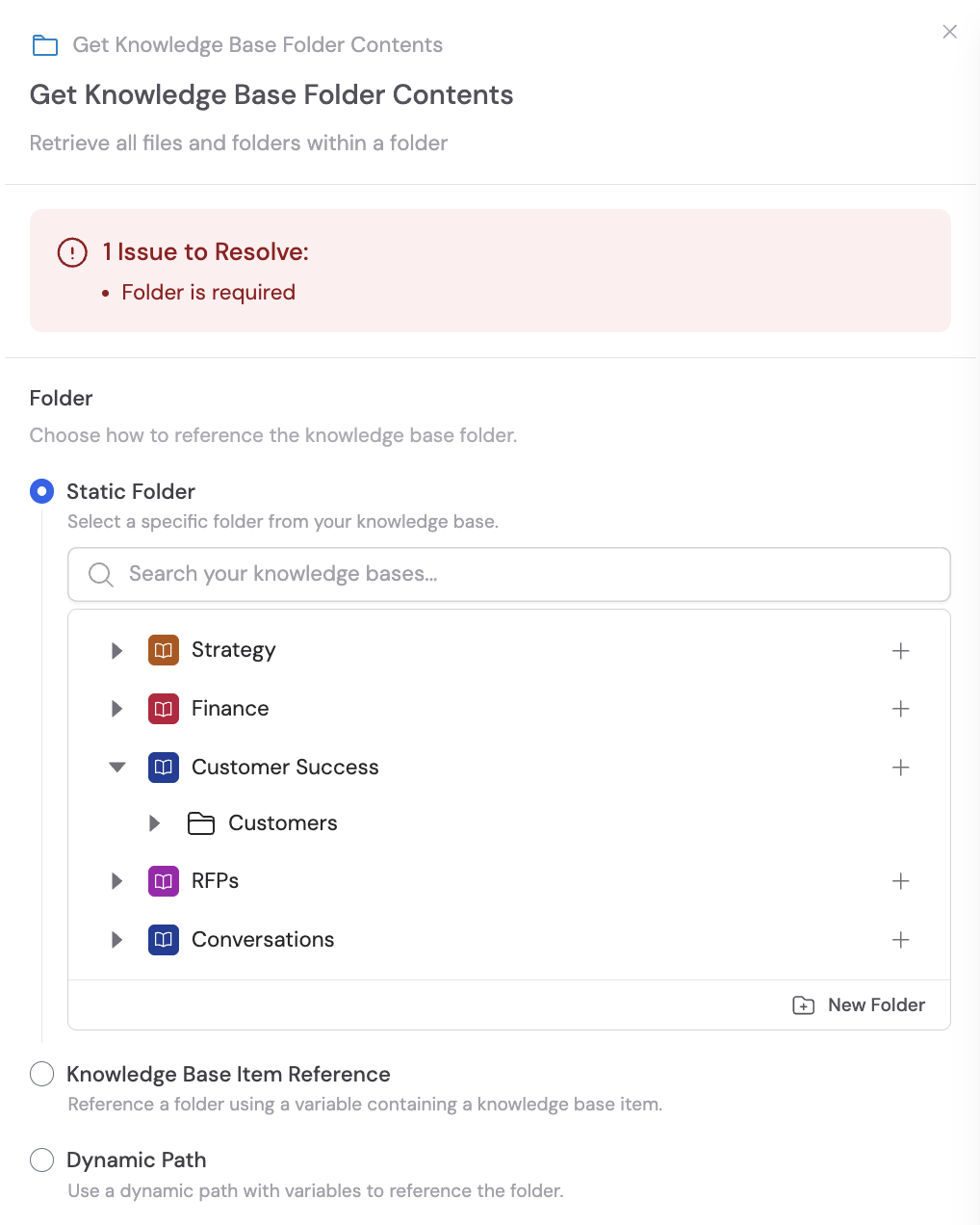 Choose how to reference the Knowledge Base folder using one of three options:
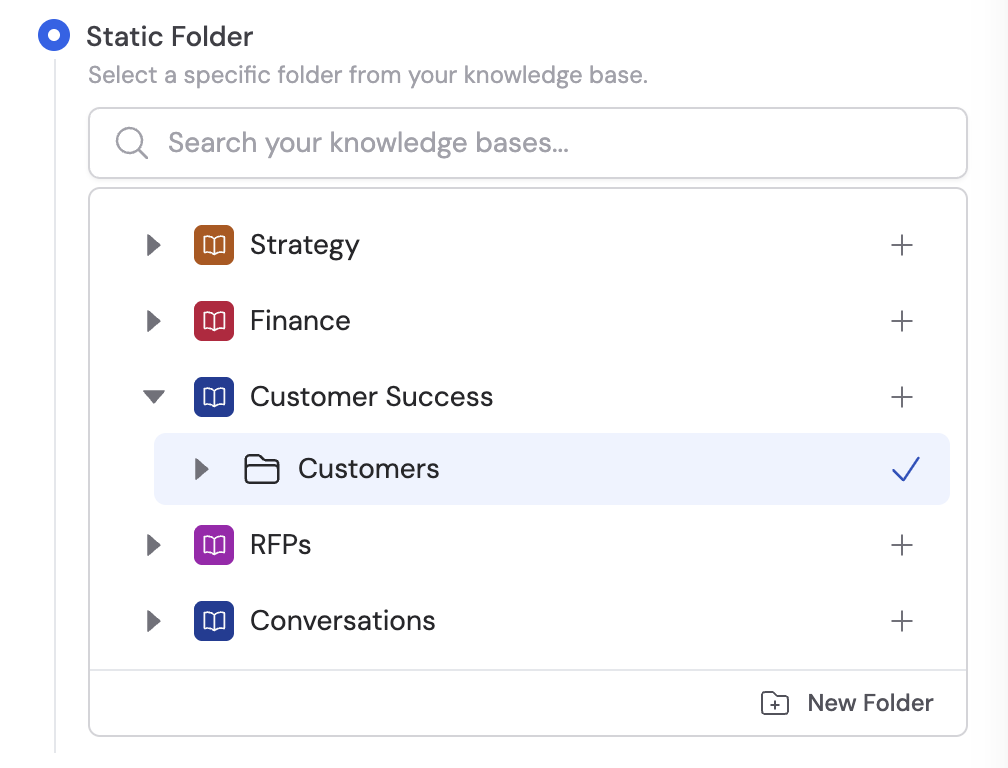
* **Static folder** — Select a specific folder directly from your Knowledge Base. Best when you always need the same folder, such as a client's document folder or a specific project directory.
Choose how to reference the Knowledge Base folder using one of three options:
* **Static folder** — Select a specific folder directly from your Knowledge Base. Best when you always need the same folder, such as a client's document folder or a specific project directory.
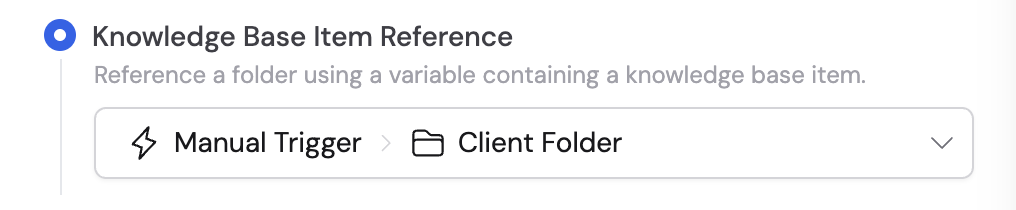
 * **Knowledge Base Item Reference** — Use a variable that references a Knowledge Base folder. Useful for dynamically selecting folders based on client names or project IDs from previous Workflow steps.
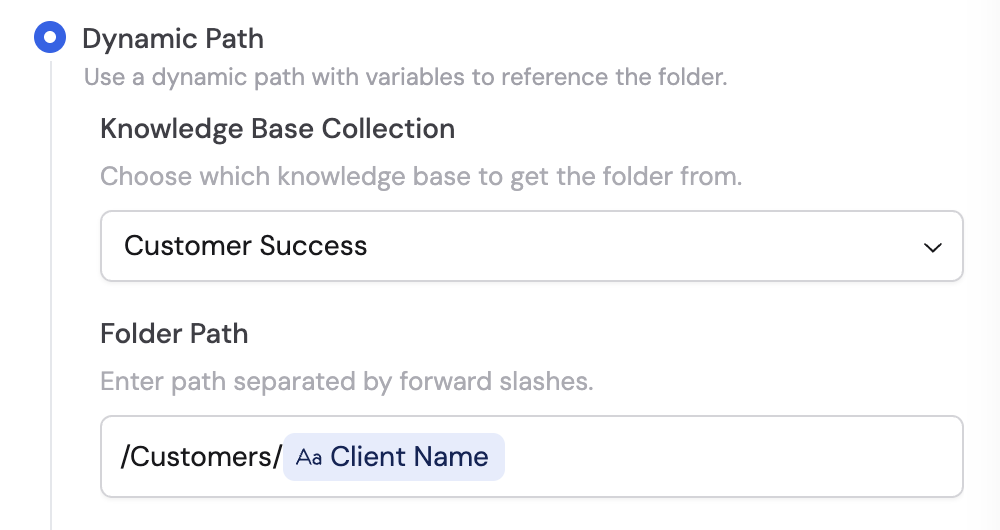
 * **Dynamic Path** — Specify a folder path using variables or naming conventions. Select the **Knowledge Base Collection** where the folder is located, then enter the **Folder Path** separated by forward slashes. Useful for accessing folders based on dynamic inputs like client names or date-based directories.
 Once configured, the following variables are available in later Workflow steps:
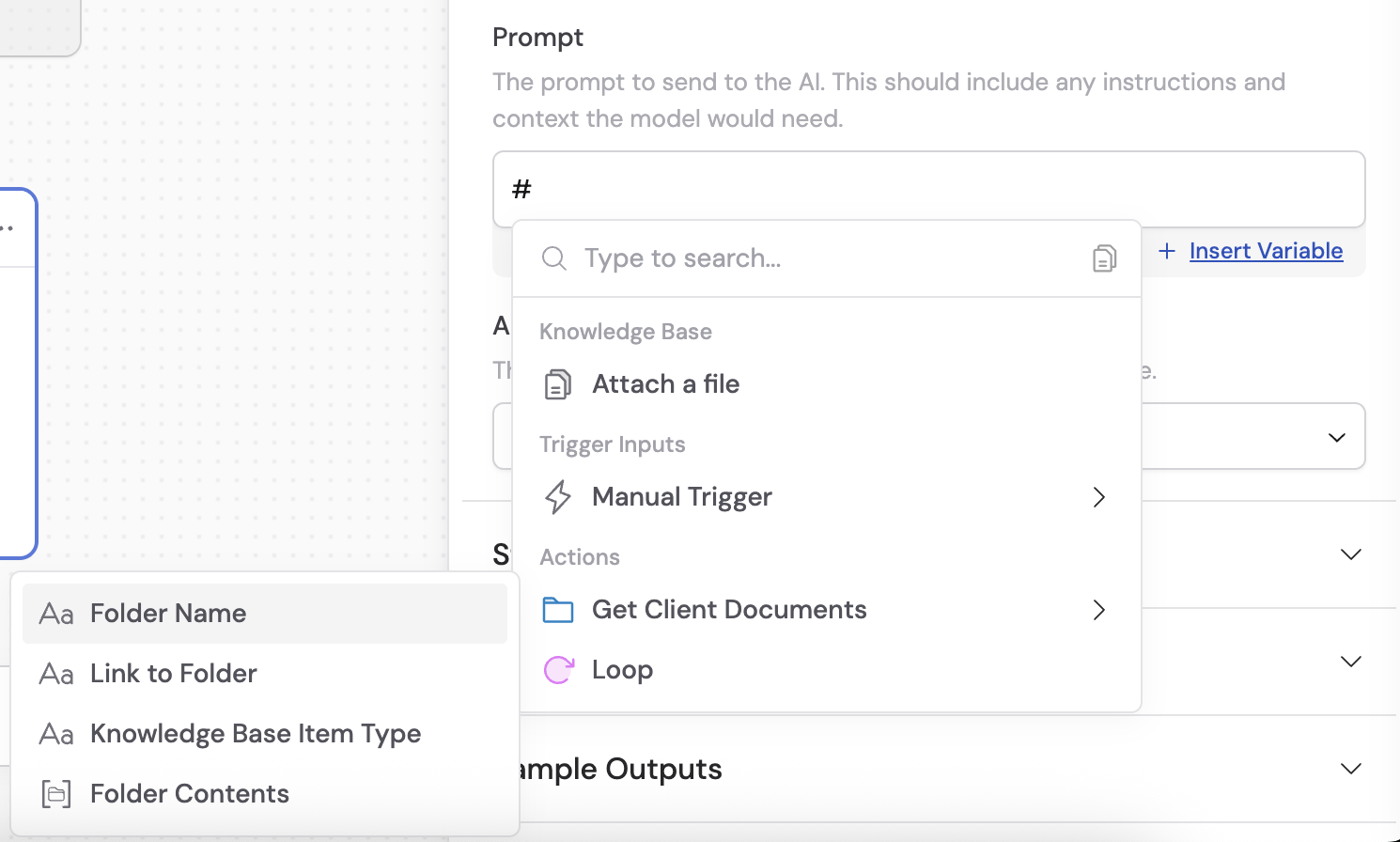
* **Folder Name** — The name of the retrieved folder
* **Link to Folder** — A direct link to the folder in the Knowledge Base
* **Knowledge Base Item Type** — The type (e.g., Folder, Collection)
* **Folder Contents** — A list of the item names within the folder
Once configured, the following variables are available in later Workflow steps:
* **Folder Name** — The name of the retrieved folder
* **Link to Folder** — A direct link to the folder in the Knowledge Base
* **Knowledge Base Item Type** — The type (e.g., Folder, Collection)
* **Folder Contents** — A list of the item names within the folder
 **Common pattern: Loop + Get Knowledge Base File**
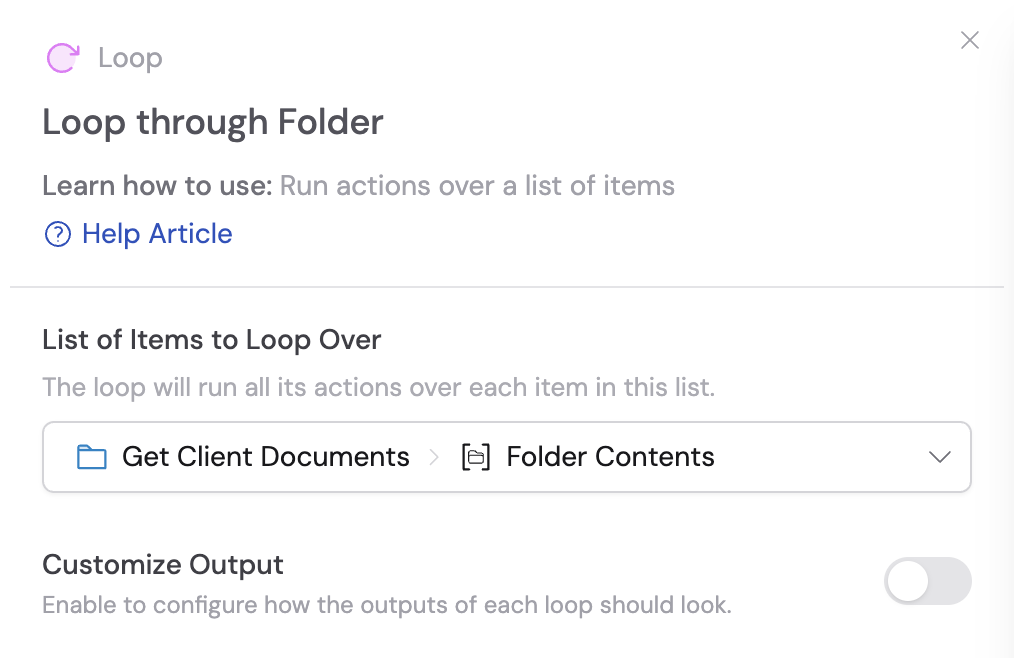
A powerful combination is to use **Get Knowledge Base Folder Contents** with a [Loop](/reference/actions/loop) and [Get Knowledge Base File](/reference/actions/get-knowledge-base-file) to process each file in a folder individually. For example, retrieve a client folder containing multiple contracts and proposals, then loop through each document to generate summaries or extract key terms.
1. Use **Get Knowledge Base Folder Contents** to retrieve all files in a folder
2. Add a **Loop** action that iterates over the folder contents
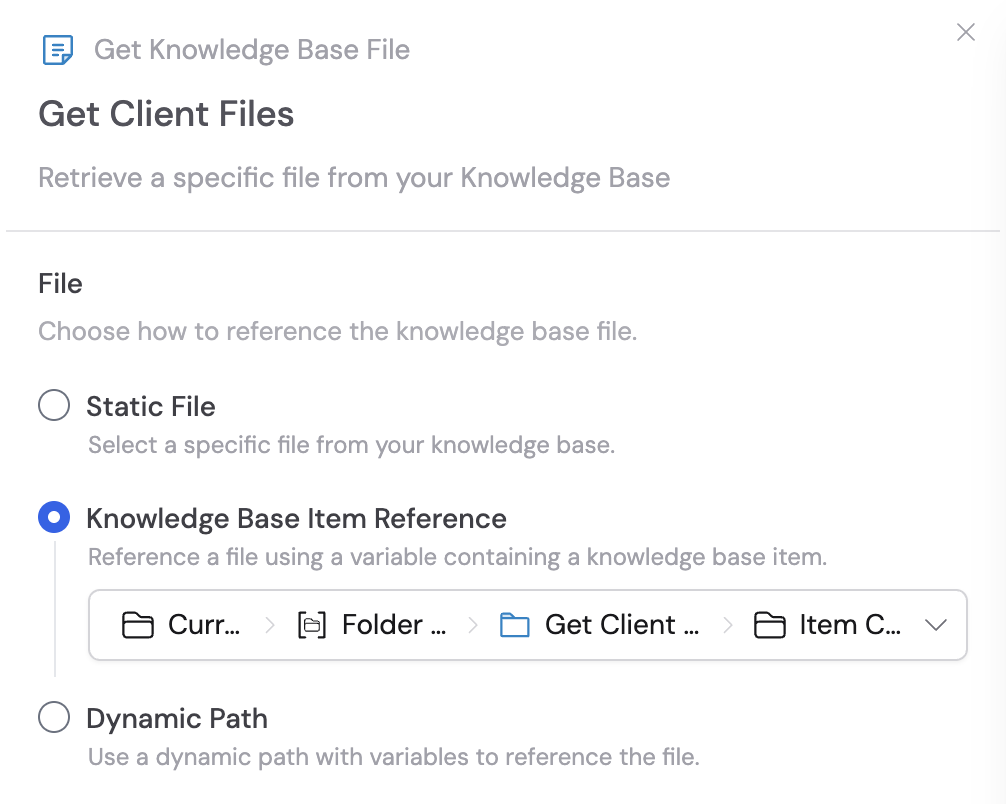
3. Within the Loop, use **Get Knowledge Base File** to retrieve each individual file's content
4. Process each file (e.g., summarize, extract information, or analyze)
**Common pattern: Loop + Get Knowledge Base File**
A powerful combination is to use **Get Knowledge Base Folder Contents** with a [Loop](/reference/actions/loop) and [Get Knowledge Base File](/reference/actions/get-knowledge-base-file) to process each file in a folder individually. For example, retrieve a client folder containing multiple contracts and proposals, then loop through each document to generate summaries or extract key terms.
1. Use **Get Knowledge Base Folder Contents** to retrieve all files in a folder
2. Add a **Loop** action that iterates over the folder contents
3. Within the Loop, use **Get Knowledge Base File** to retrieve each individual file's content
4. Process each file (e.g., summarize, extract information, or analyze)
 ## Related
* [Get Knowledge Base File](/reference/actions/get-knowledge-base-file)
* [Loop](/reference/actions/loop)
* [Knowledge Base overview](/knowledge-base/overview)
## Related
* [Get Knowledge Base File](/reference/actions/get-knowledge-base-file)
* [Loop](/reference/actions/loop)
* [Knowledge Base overview](/knowledge-base/overview)