> ## Documentation Index
> Fetch the complete documentation index at: https://docs.cassidyai.com/llms.txt
> Use this file to discover all available pages before exploring further.
# Request approval to continue
> Pause a Workflow and request approval from a team member before proceeding — use it for sign-off on sensitive actions.
Pause a [Workflow](/workflows/overview) and request approval from a team member before the next step executes. Use this for sign-off on sensitive actions — like sending an email to a customer, updating a CRM record, or publishing content.
In the Workflow builder, click **+** between blocks and select **Request Approval to Continue** from the action library.
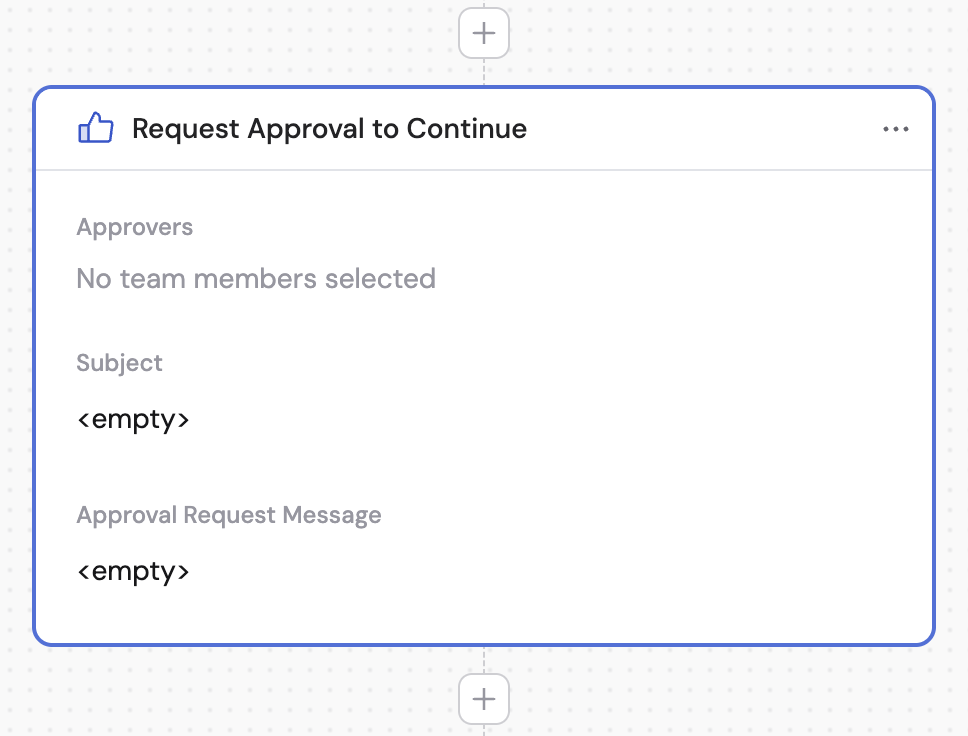
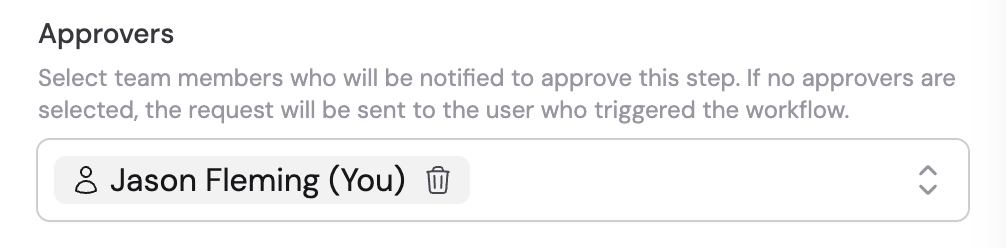
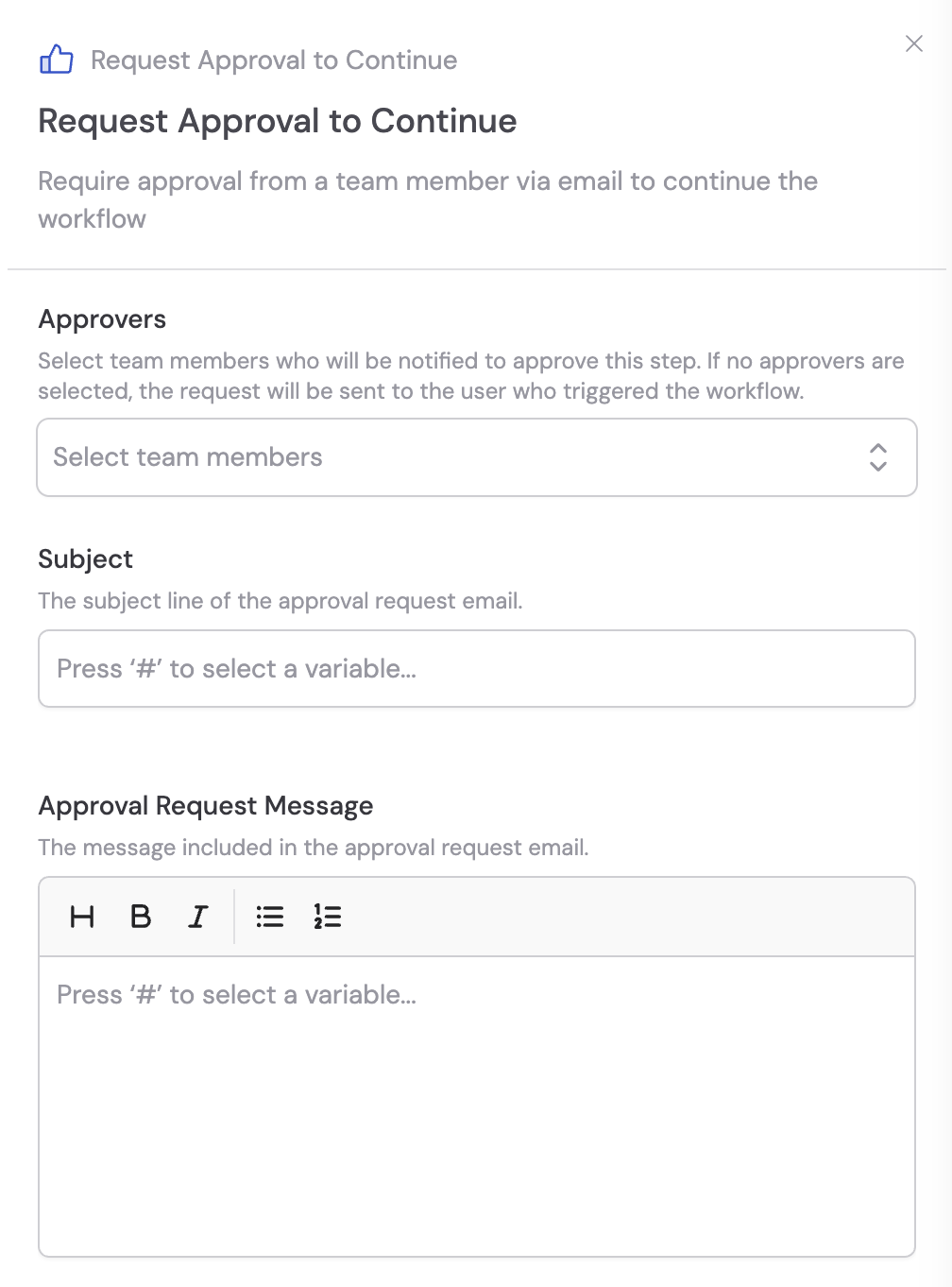 Choose team members who will be notified to approve this step. If no approvers are selected, the request is sent to the user who triggered the Workflow.
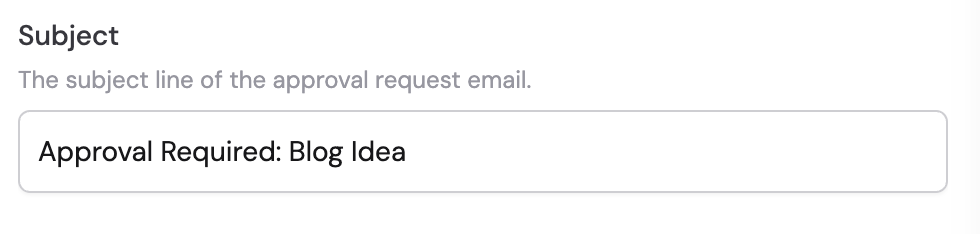
 Provide a clear subject line that describes what needs approval. Use **#** to [insert variables](/guides/prompt-engineering#workflow-prompts) from previous steps.
 Write the message that approvers will see in the email notification. Use **#** to reference variables from previous steps so the approver has full context on what they're reviewing.
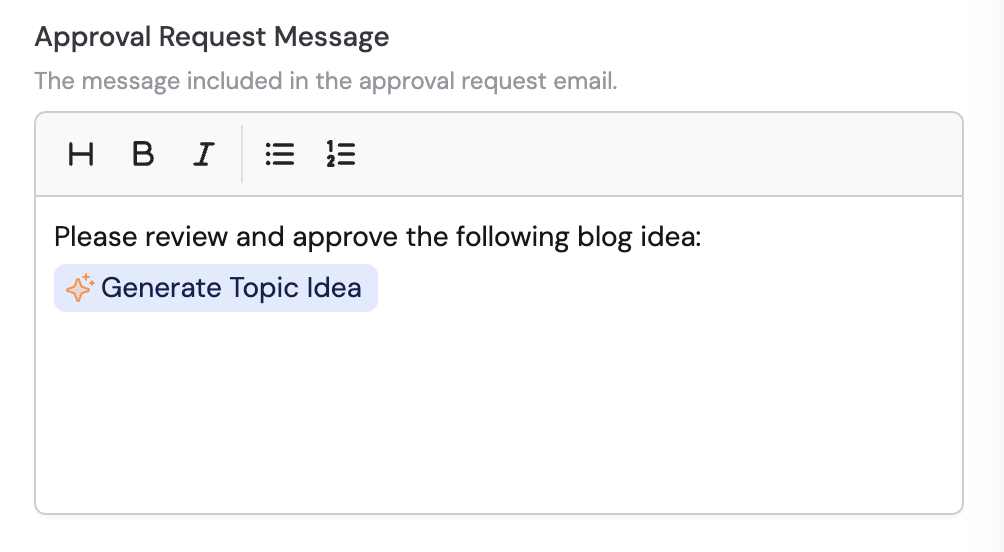 ## How approvers respond
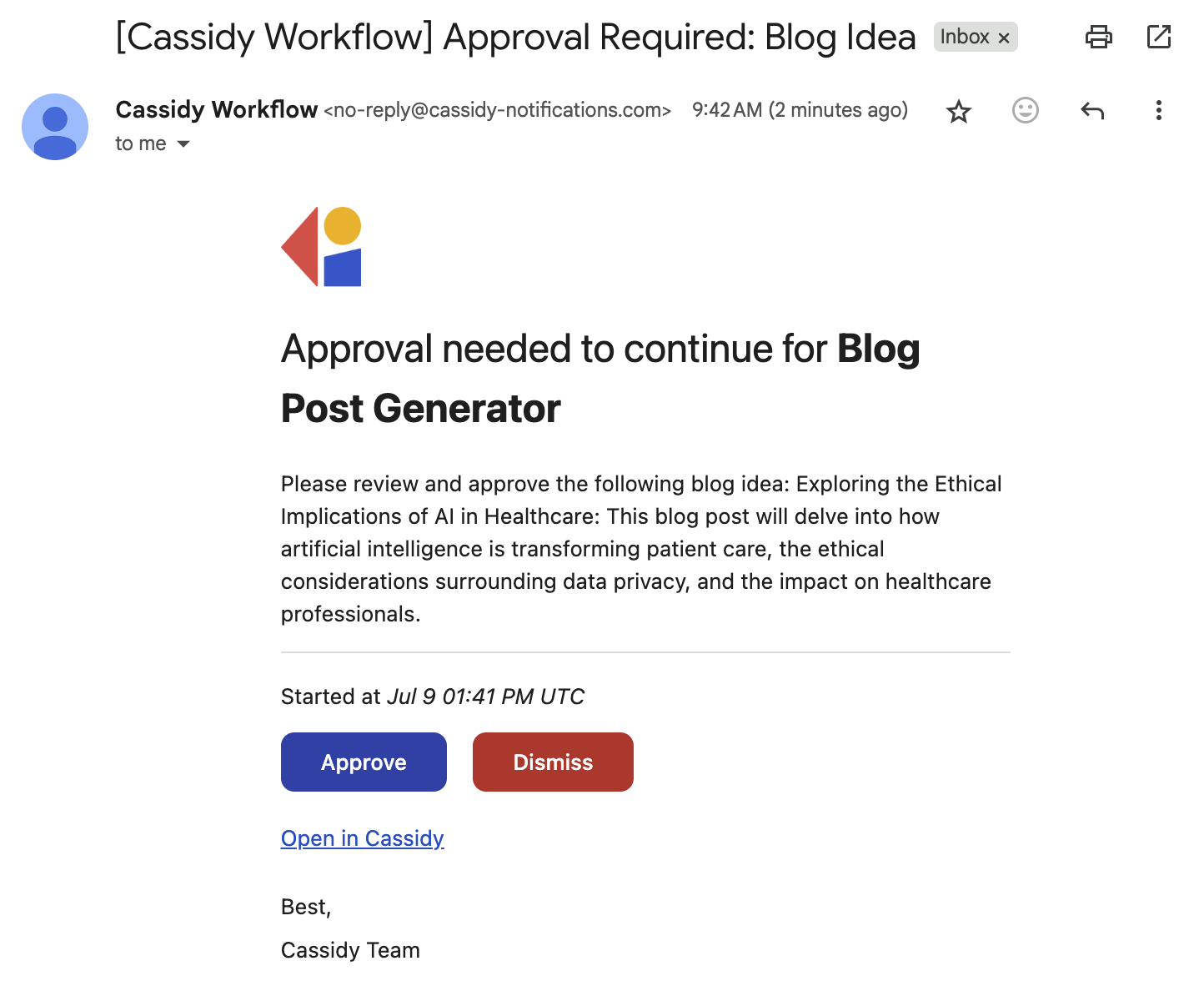
When the Workflow reaches this action, selected approvers receive an email notification with the approval request.
## How approvers respond
When the Workflow reaches this action, selected approvers receive an email notification with the approval request.
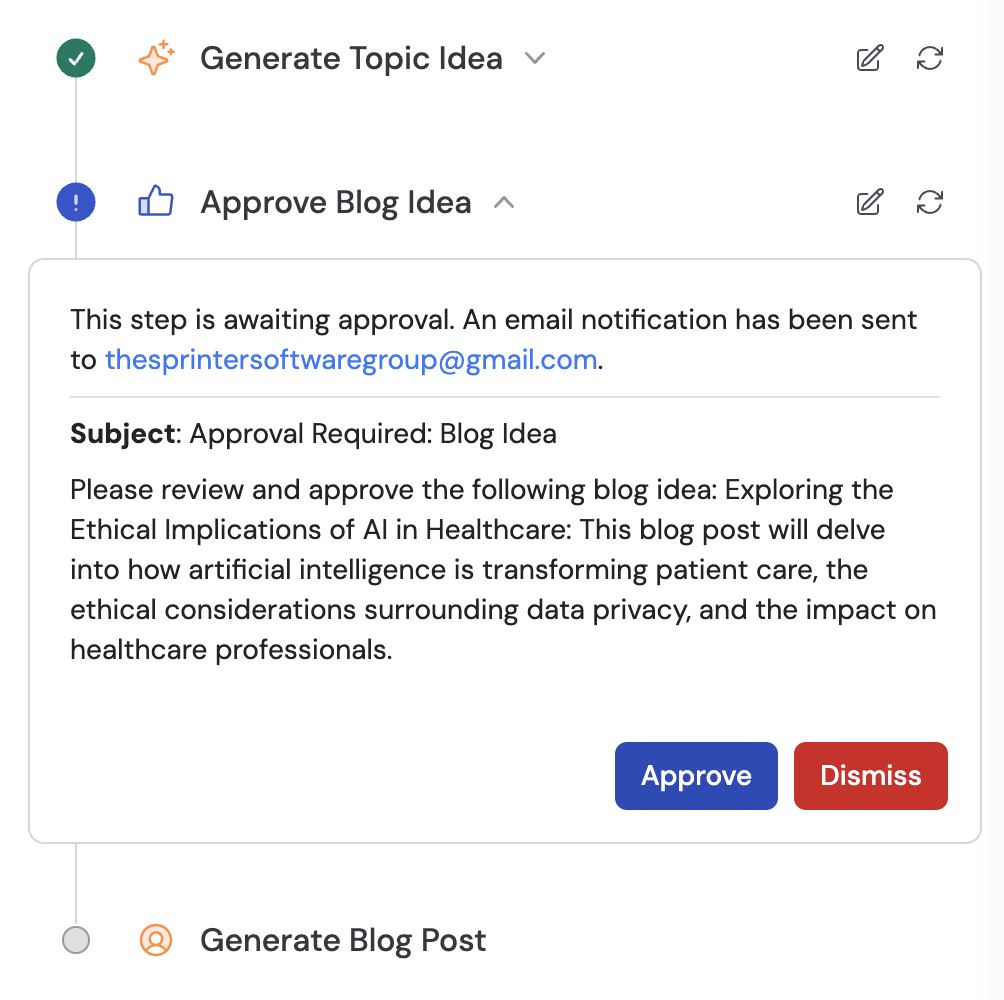
 Approvers can also manage approval requests directly in the Cassidy Workflow UI.
 The approver clicks **Approve** to continue the Workflow, **Dismiss** to stop it, or **View in Run** to review the full context in the Cassidy UI.
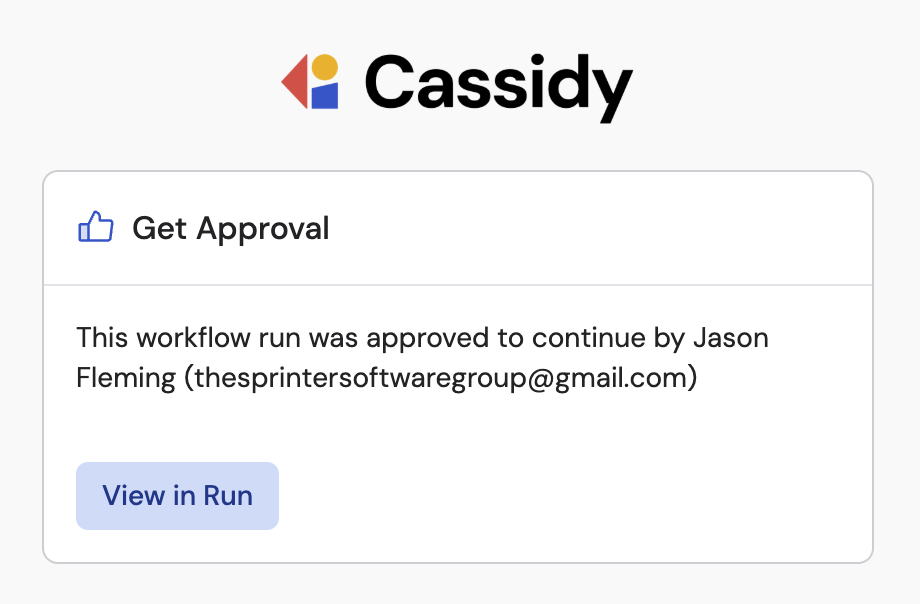 If the approver clicks **Approve**, the Workflow continues to the next step. If they dismiss the request, the Workflow stops executing.
## Related
* [Request Input from Team](/reference/actions/request-input)
* [Build and configure Workflows](/workflows/building)
If the approver clicks **Approve**, the Workflow continues to the next step. If they dismiss the request, the Workflow stops executing.
## Related
* [Request Input from Team](/reference/actions/request-input)
* [Build and configure Workflows](/workflows/building)