> ## Documentation Index
> Fetch the complete documentation index at: https://docs.cassidyai.com/llms.txt
> Use this file to discover all available pages before exploring further.
# Request input from team
> Pause a Workflow and request input from a team member before continuing — use it for human-in-the-loop steps.
Pause a [Workflow](/workflows/overview) and send a request to a team member for input before continuing. Use this for human-in-the-loop steps where you need someone to provide additional information, review content, or make edits mid-Workflow — for example, generating a draft email and requesting a team member to review and edit it before sending.
In the Workflow builder, click **+** between blocks and select **Request Input from Team** from the action library.
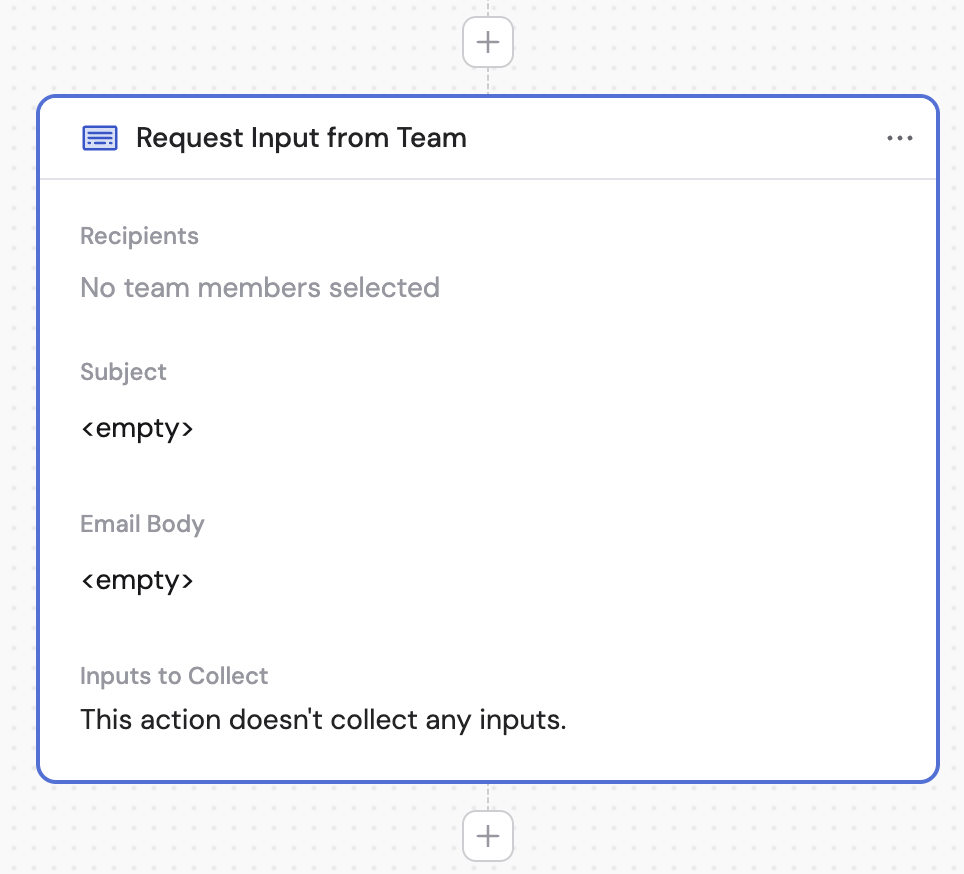
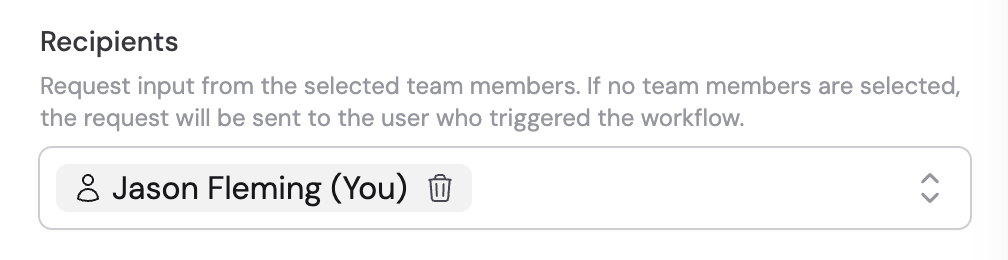
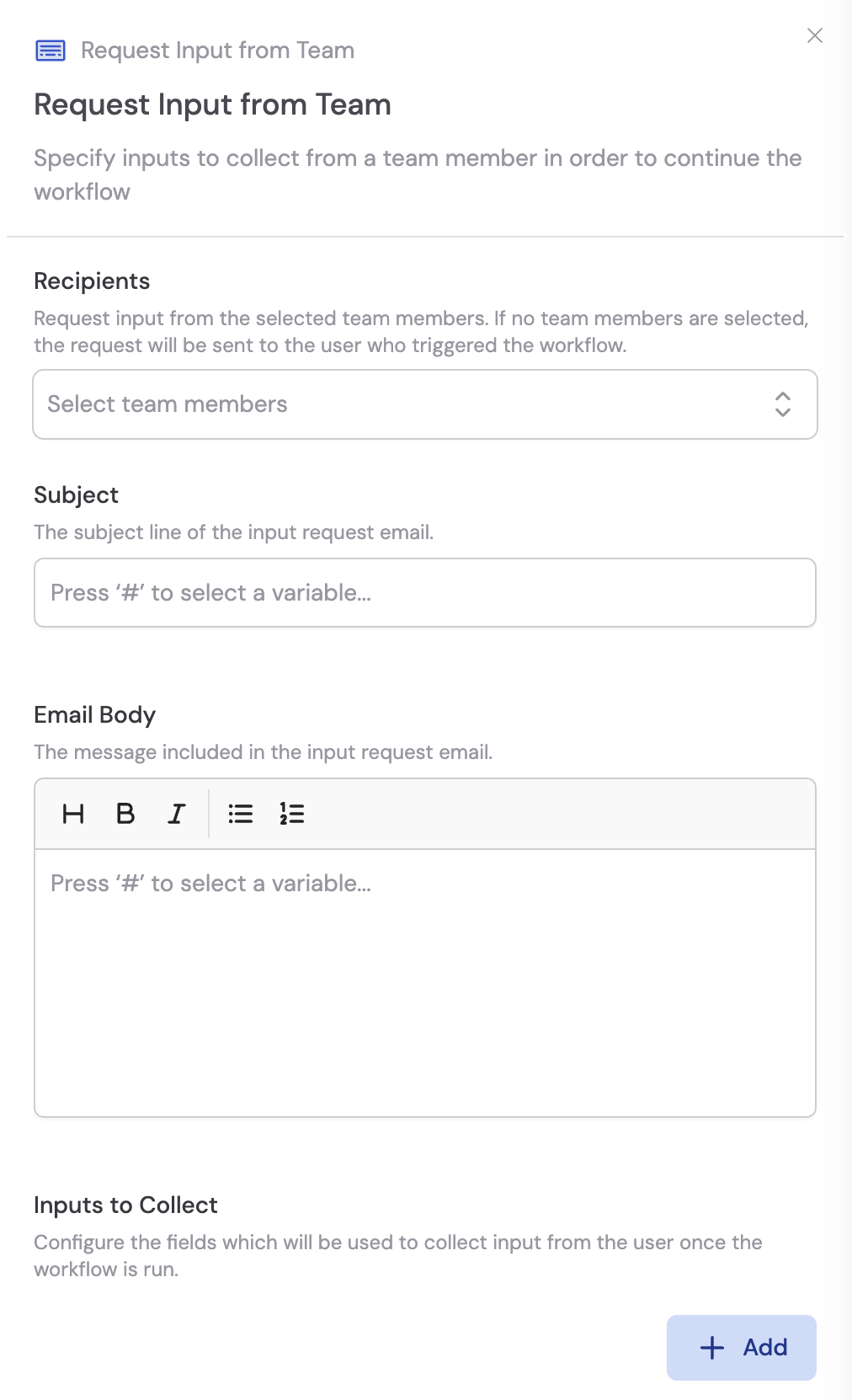 Choose team members who will be notified to provide input. If no recipients are selected, the request is sent to the user who triggered the Workflow.
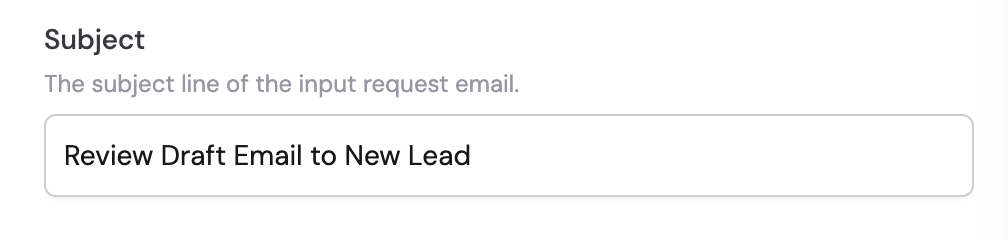
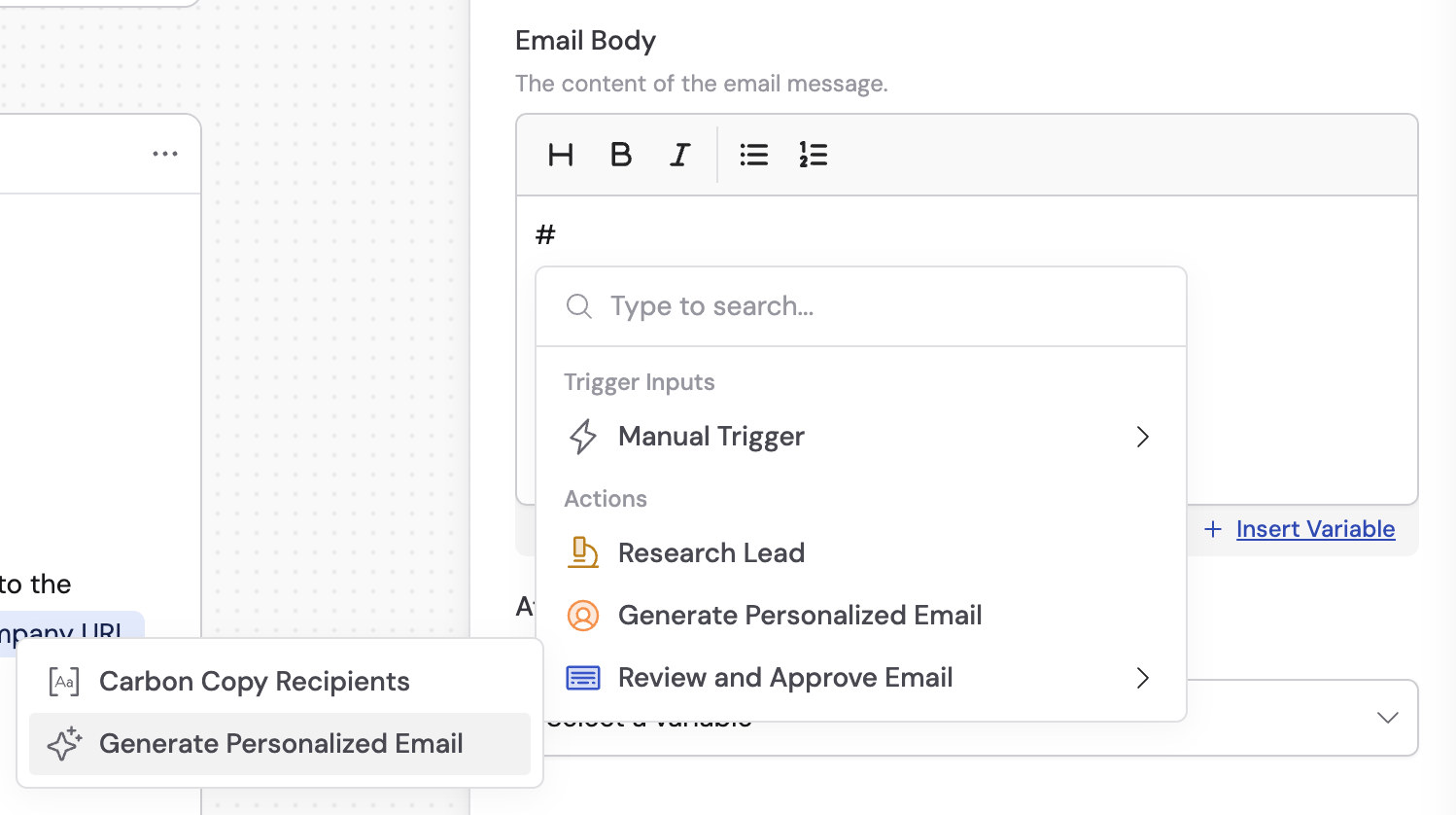
 Provide a clear subject line that describes what input is needed. Use **#** to [insert variables](/guides/prompt-engineering#workflow-prompts) from previous steps.
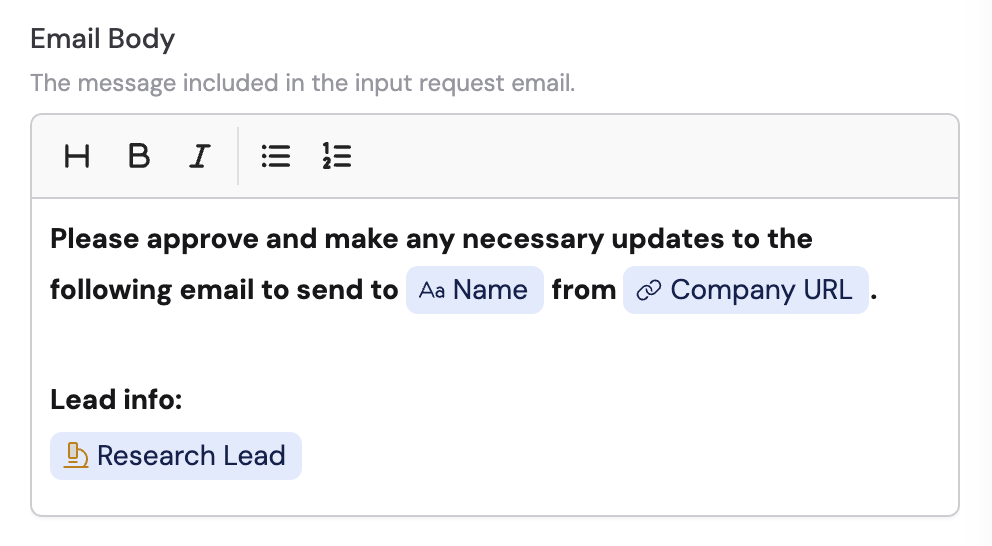
 Write the message that recipients will see in the email notification. Use **#** to reference variables from previous steps to provide context about what input is needed.
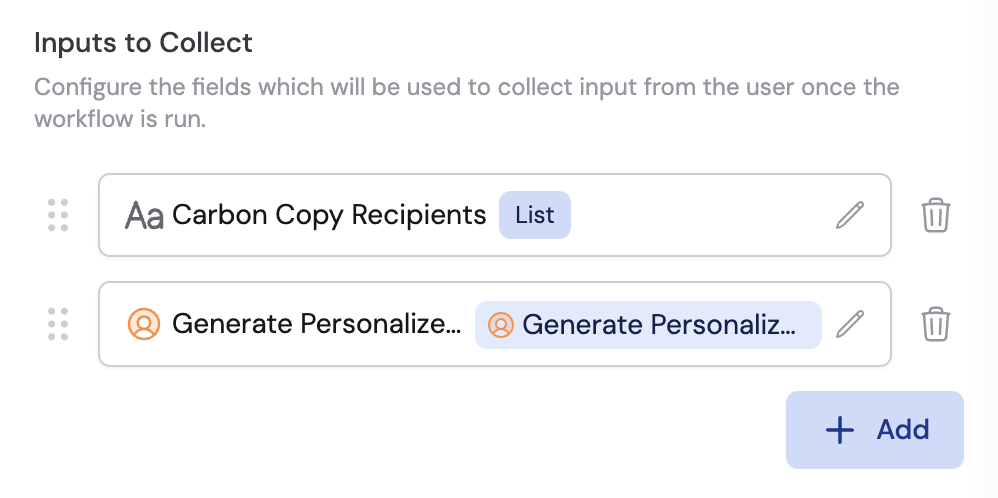
 Configure the fields that recipients will fill out. Click **+ Add** and choose one of two options:
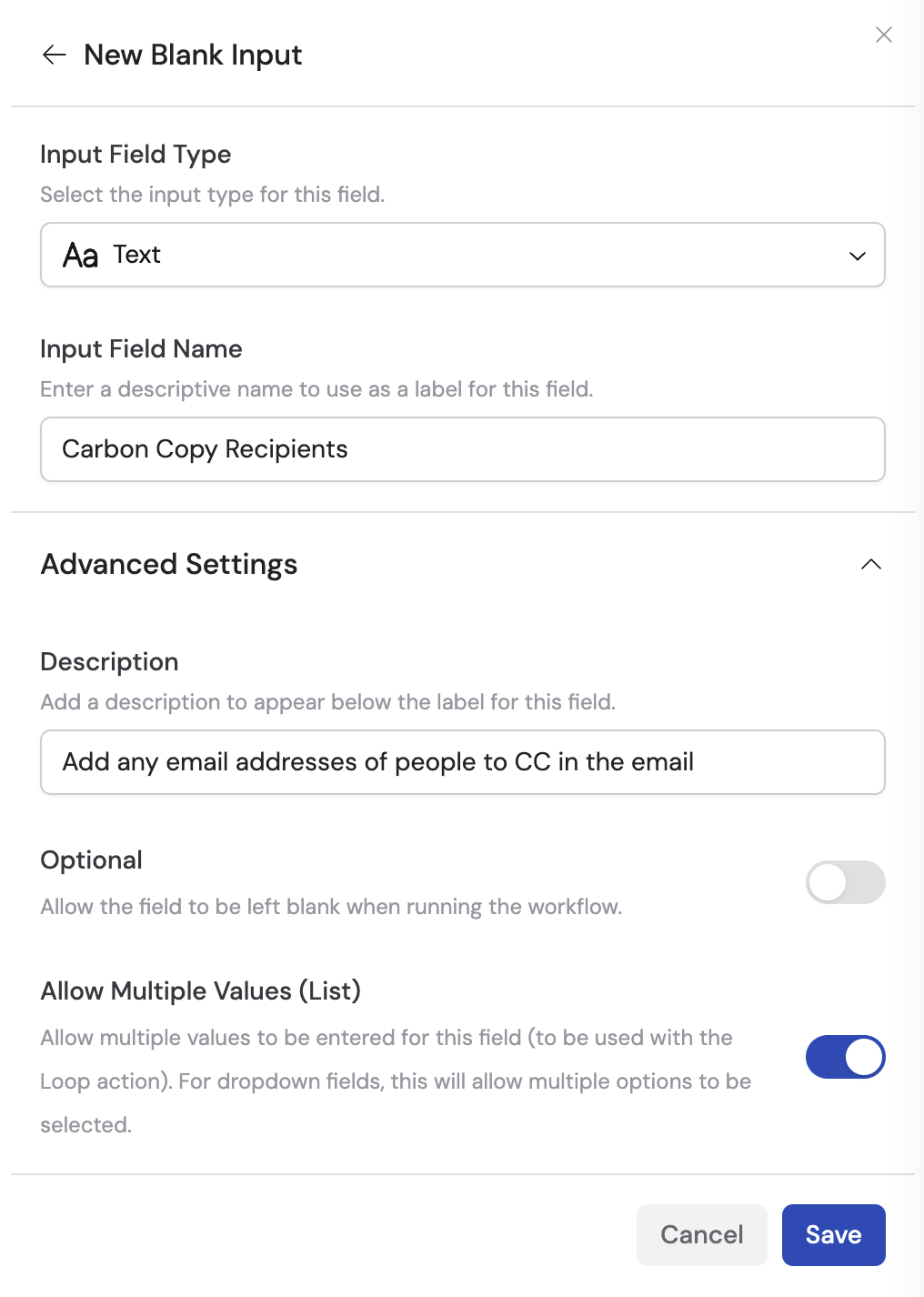
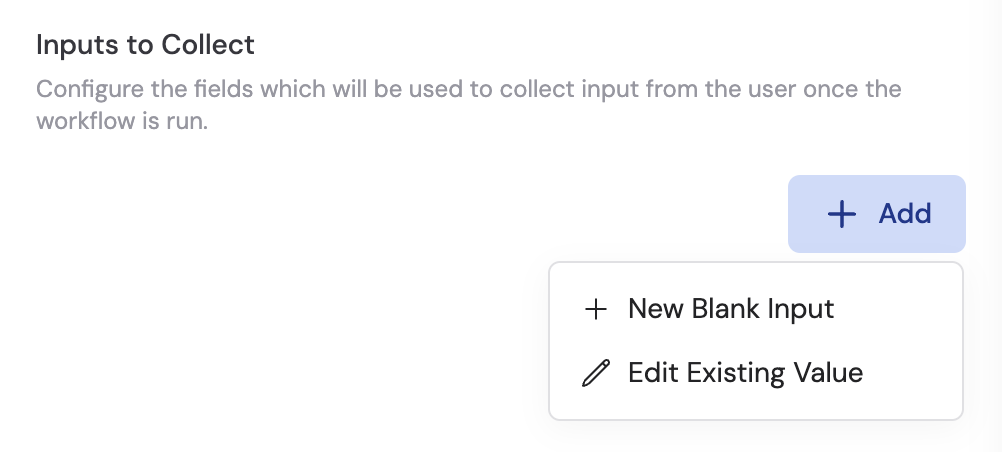 * **New Blank Input** — The recipient provides new information to use in subsequent Workflow steps (e.g., additional email recipients, extra notes). Configure the input type and label the same way you would for a [Manual Trigger](/reference/triggers/manual).
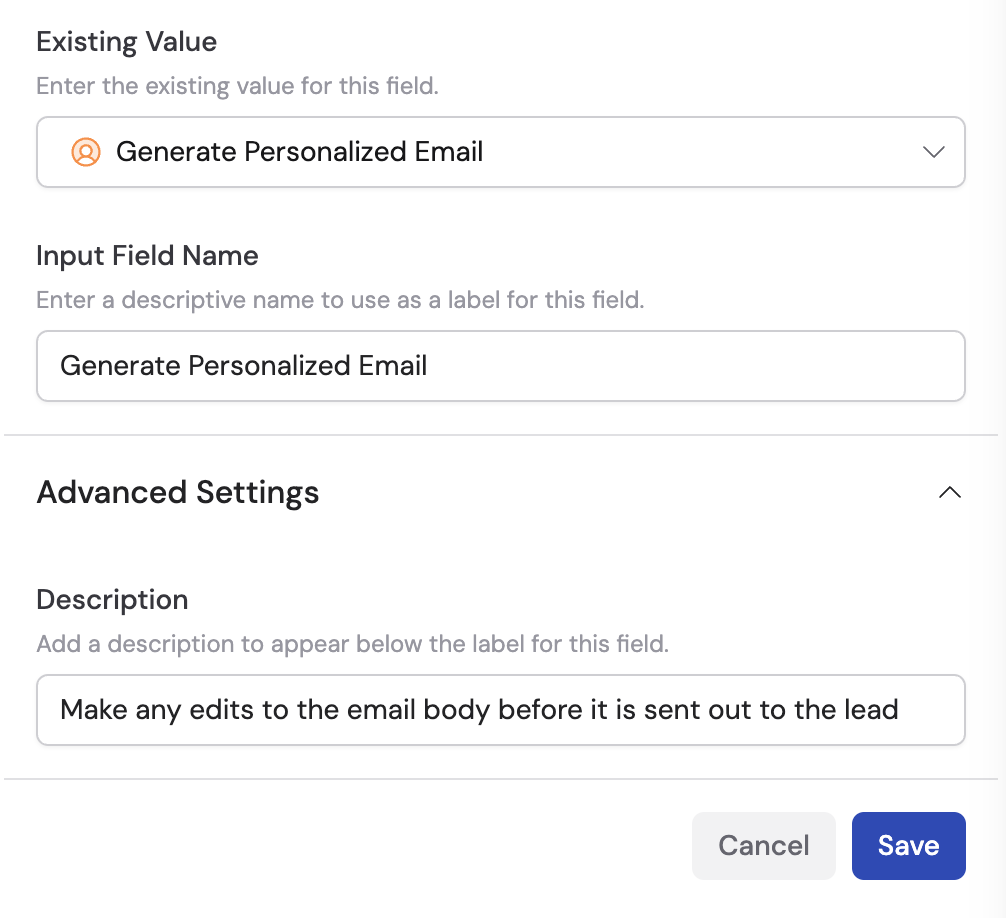
 * **Edit Existing Value** — The recipient can edit an output from a previous step (e.g., a generated email body before it's sent). Select the **Existing Value** (a variable from a previous step), then enter the **Input Field Name** and optionally a description under **Advanced Settings**.
 Reorder inputs by dragging and dropping them into position. Click the pencil icon to edit an input, or the trash icon to delete it.
 Use the collected inputs as variables in subsequent Workflow steps. Each input you configured is available as its own variable.
 ## How recipients respond
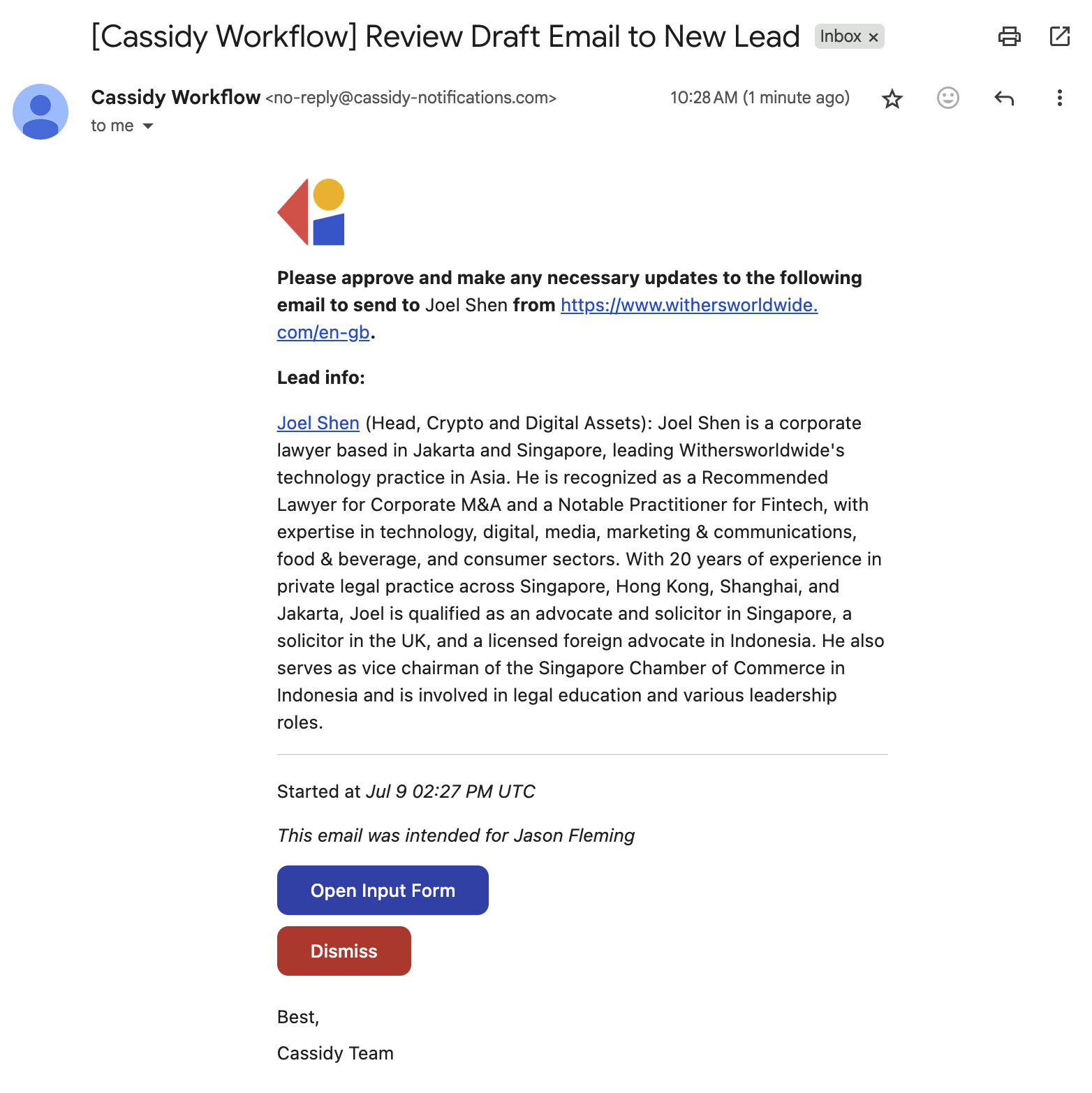
When the Workflow reaches this action, selected recipients receive an email notification with the input request.
## How recipients respond
When the Workflow reaches this action, selected recipients receive an email notification with the input request.
 Recipients can also manage input requests directly in the Cassidy Workflow UI.
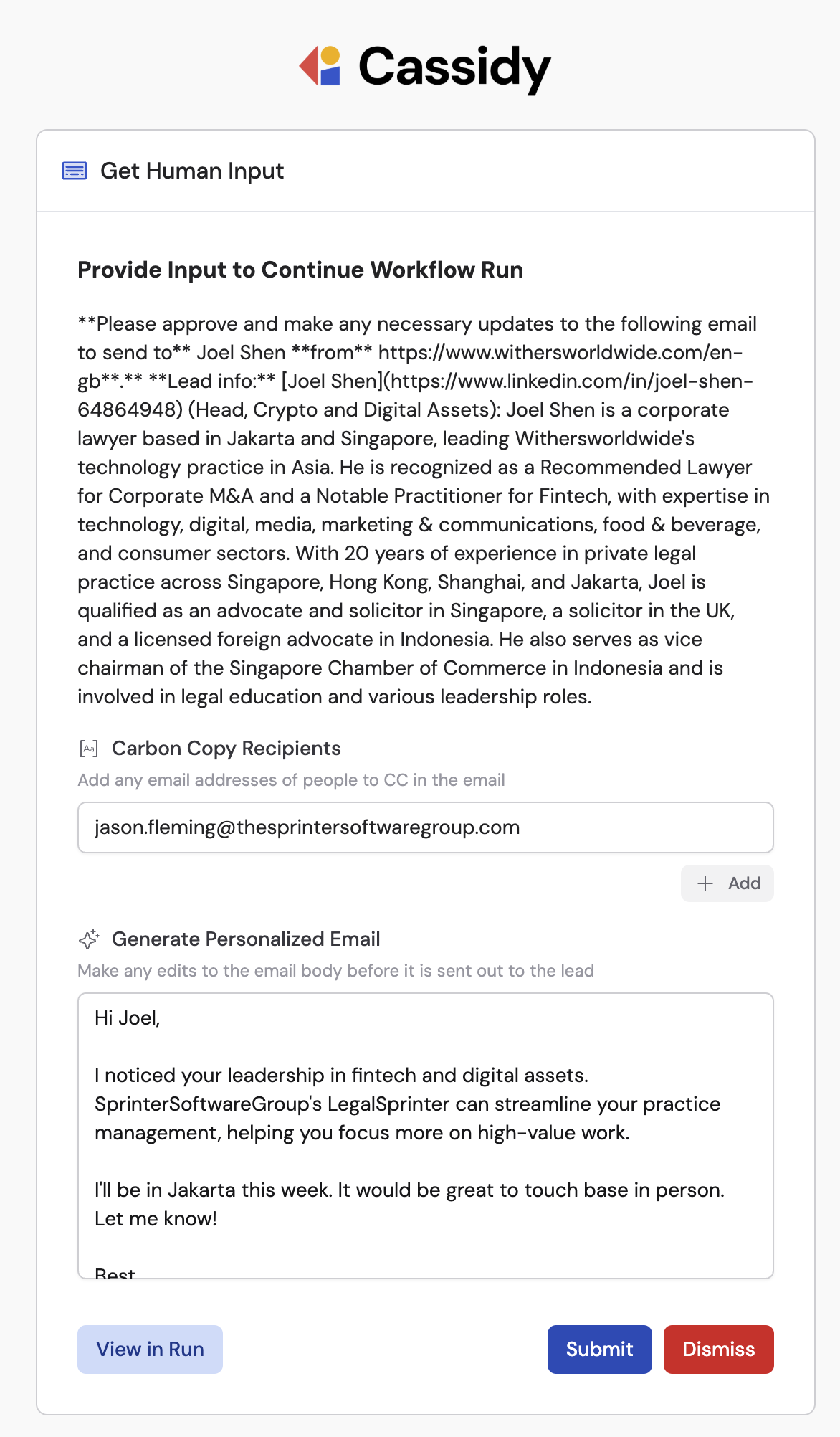
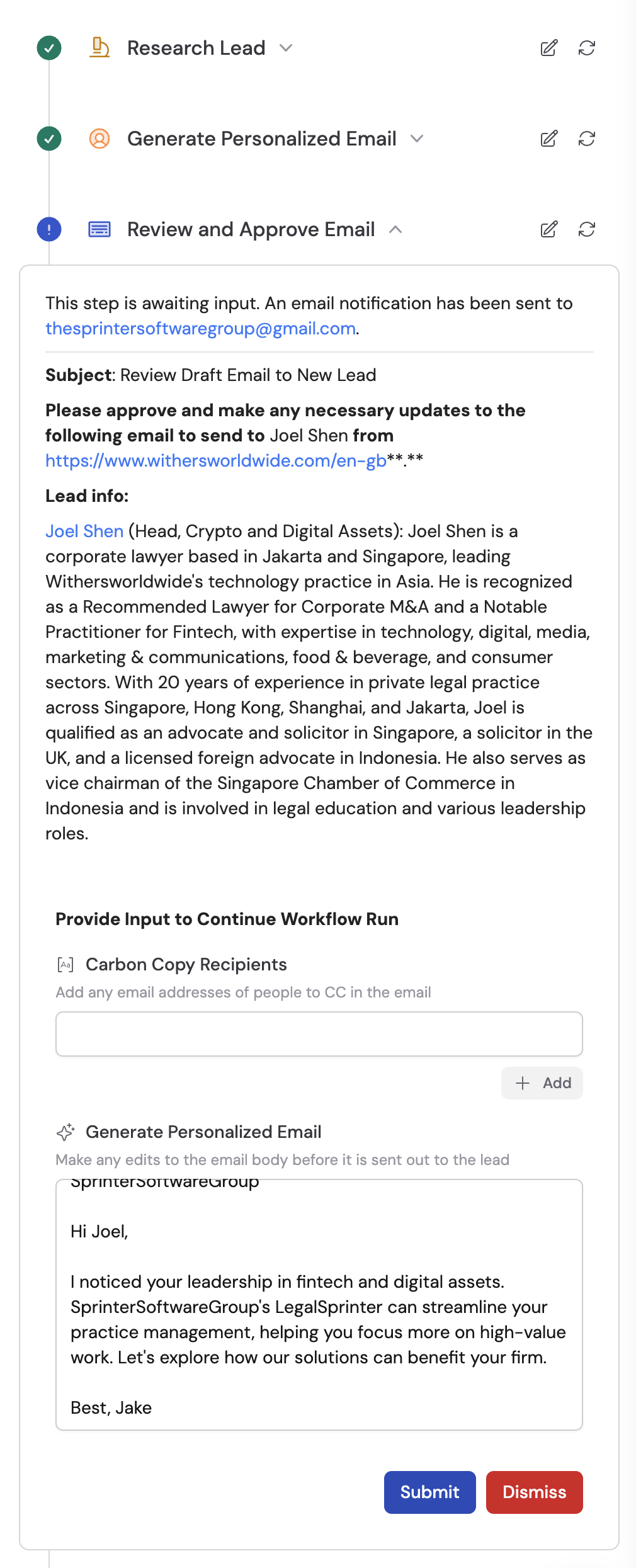 The recipient clicks **Open Input Form** to fill in the fields and make any edits, then clicks **Submit**. They can also click **Dismiss** to cancel the request, or **View in Run** to review it in the Cassidy UI.
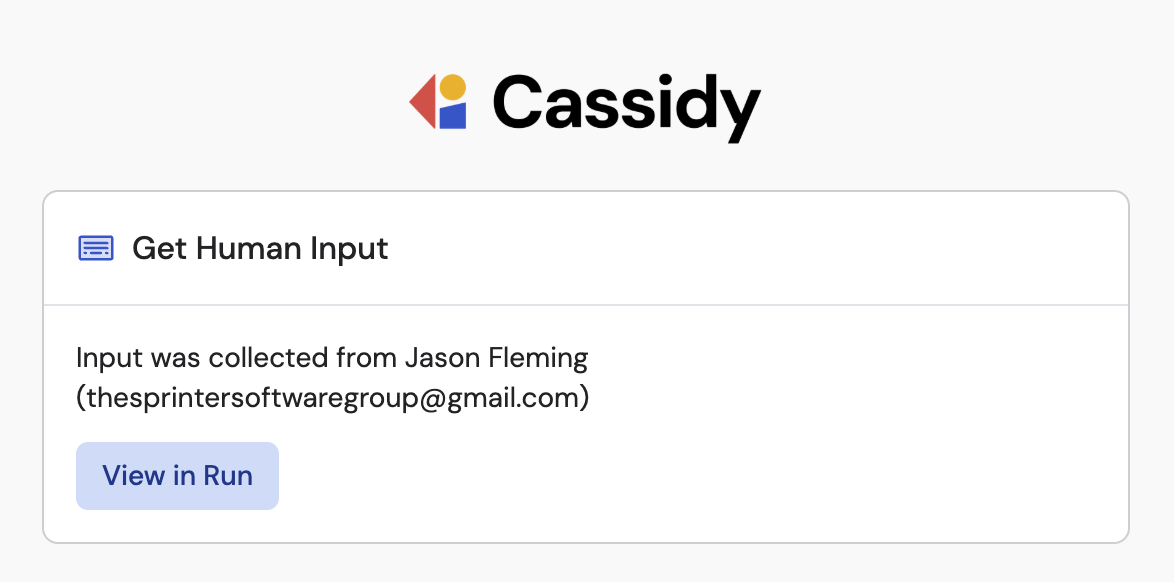
 After submitting, the recipient sees a confirmation and the Workflow continues to the next step with the collected data available as variables.
 ## Related
* [Request Approval to Continue](/reference/actions/request-approval)
* [Build and configure Workflows](/workflows/building)
## Related
* [Request Approval to Continue](/reference/actions/request-approval)
* [Build and configure Workflows](/workflows/building)