> ## Documentation Index
> Fetch the complete documentation index at: https://docs.cassidyai.com/llms.txt
> Use this file to discover all available pages before exploring further.
# Research Agent
> Use an AI research agent to autonomously gather and synthesize information from the web on any topic.
Use an AI research agent to autonomously search the web, gather information, and synthesize findings into a comprehensive report. Unlike more predefined actions, the Research Agent can navigate the internet, find and analyze information, and adapt to deliver the results you need — whether that's competitor analysis, lead generation, or market research.
There are two ways to use the Research Agent action: **pre-built agents** and **custom agents**.
* **Pre-built Research Agents** come with predefined instructions designed for common use cases, making them easy to set up and use.
* **Custom Research Agents** let you provide your own instructions, giving you more flexibility and control over the agent's behavior.
## Pre-built Research Agents
Pre-built agents handle common research tasks out of the box. In this example, we'll use the "Find LinkedIn Company Profile" agent.
In the [Workflow](/workflows/overview) builder, click **+** between blocks and select **Research Agent** from the action library. Choose a pre-built agent from the list.
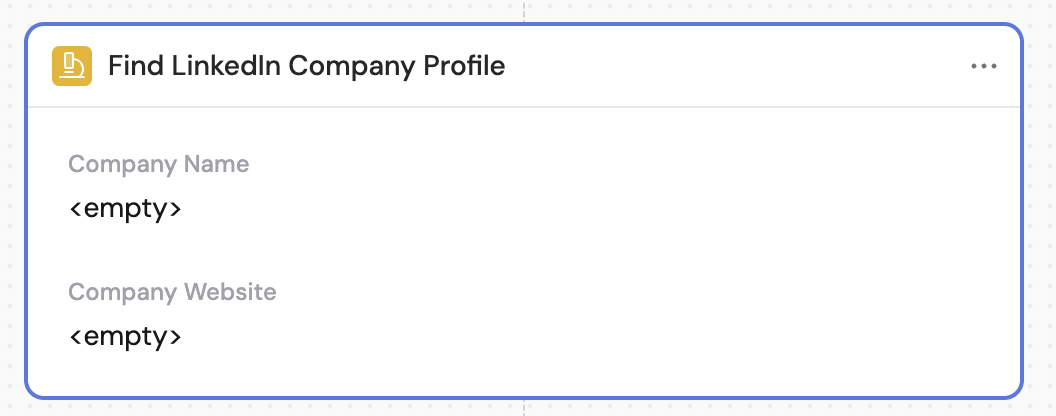
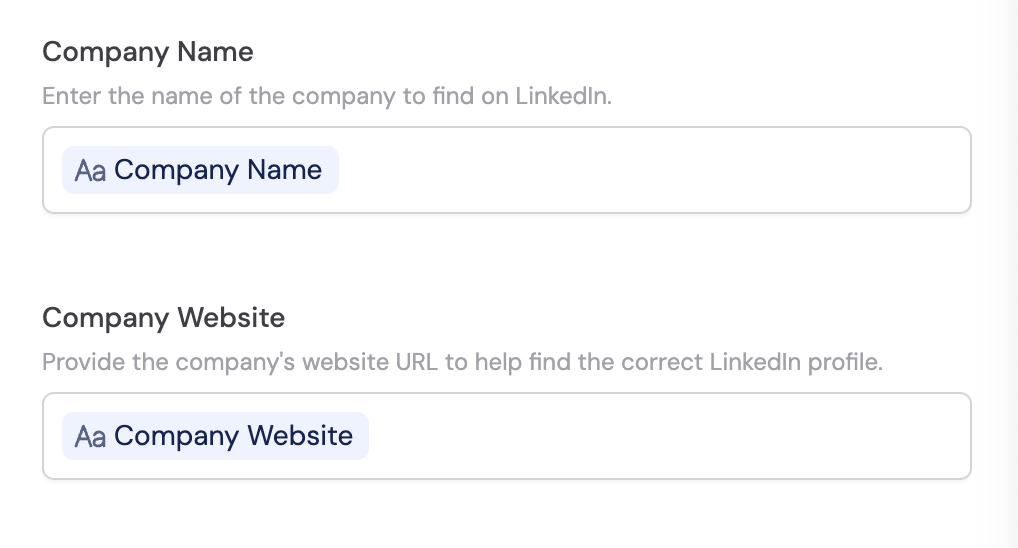
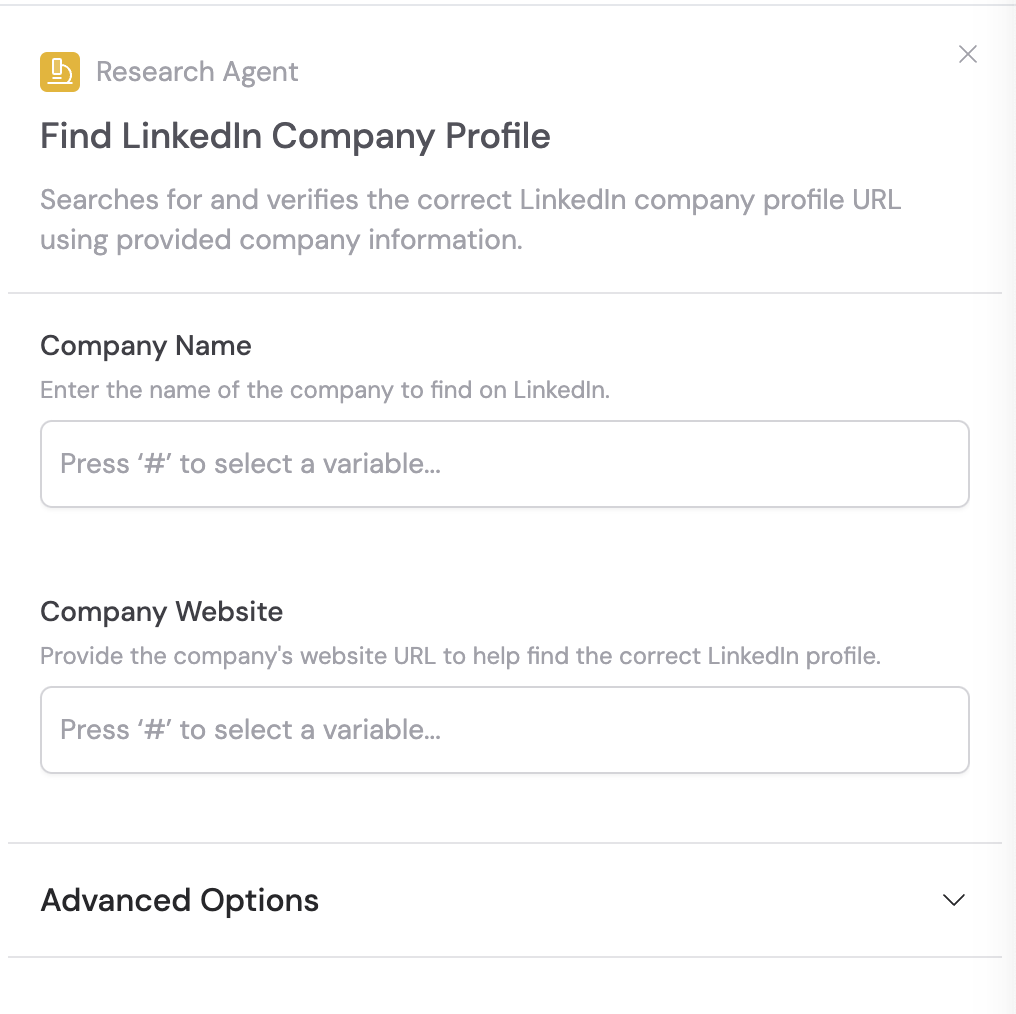 Enter the information required by the specific pre-built agent. For the LinkedIn Company Profile example, input the **Company Name** and **Company Website**. You can [reference variables](/guides/prompt-engineering#workflow-prompts) from previous steps using **#**.
 The agent instructions are pre-populated and will automatically use the inputs you provided. To see what steps the agent will take, open the **Advanced Options** tab to view the **Instructions for the Research Agent** field. You can also select a different **AI Model** from this tab.
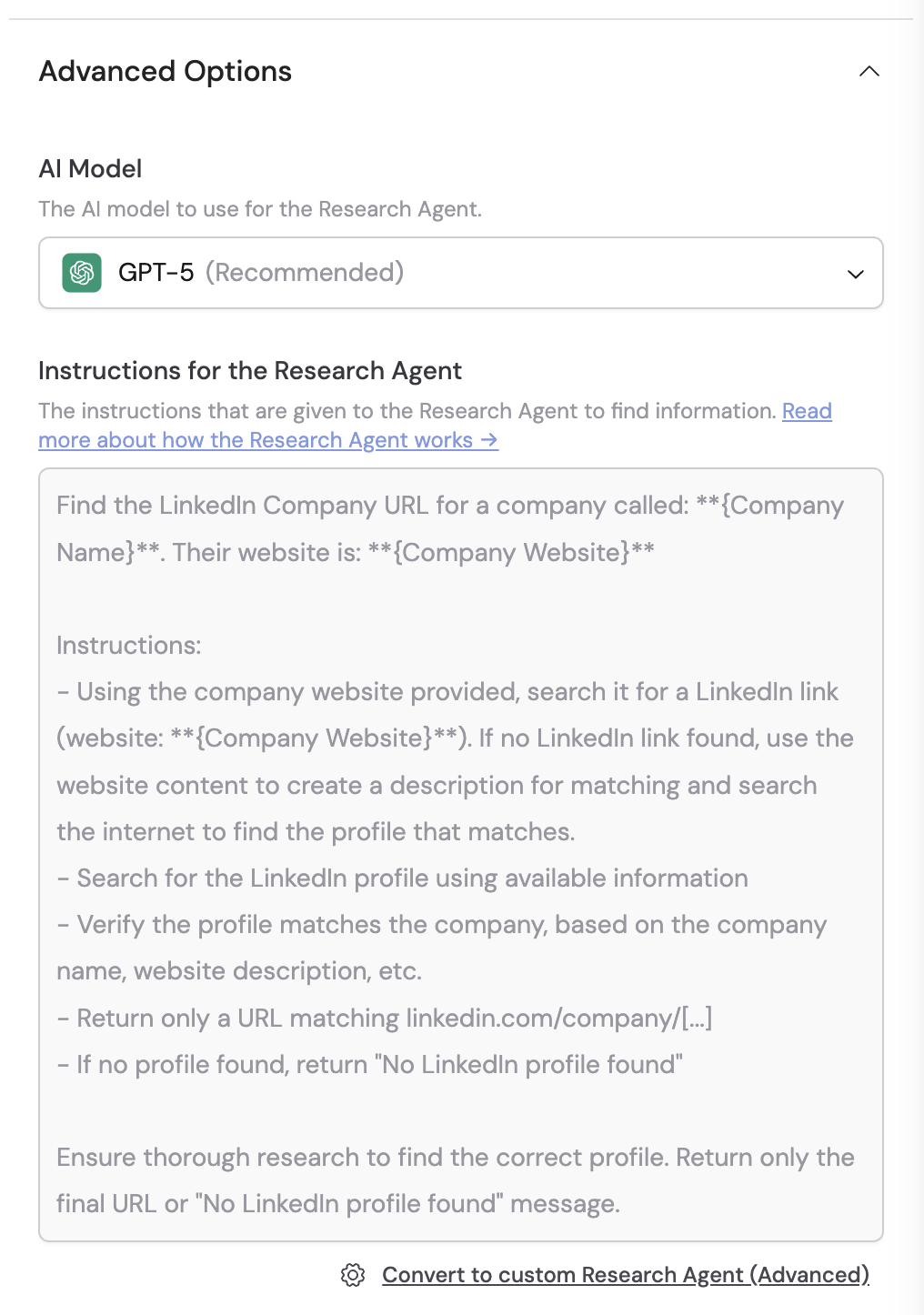 If you want to modify the default instructions, click **Convert to custom Research Agent (Advanced)**. This creates a custom research agent that you can fully edit — see the custom agent steps below.
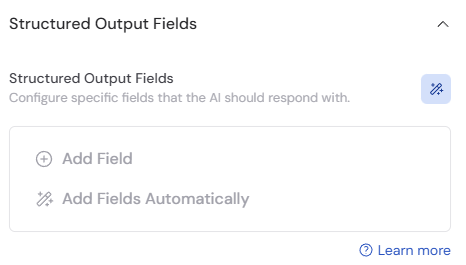
Optionally, use [structured output fields](/workflows/advanced/structured-output-fields) to have the AI return data in a specific format. Define field names, data types, and formats to get consistent, structured results.
If you want to modify the default instructions, click **Convert to custom Research Agent (Advanced)**. This creates a custom research agent that you can fully edit — see the custom agent steps below.
Optionally, use [structured output fields](/workflows/advanced/structured-output-fields) to have the AI return data in a specific format. Define field names, data types, and formats to get consistent, structured results.
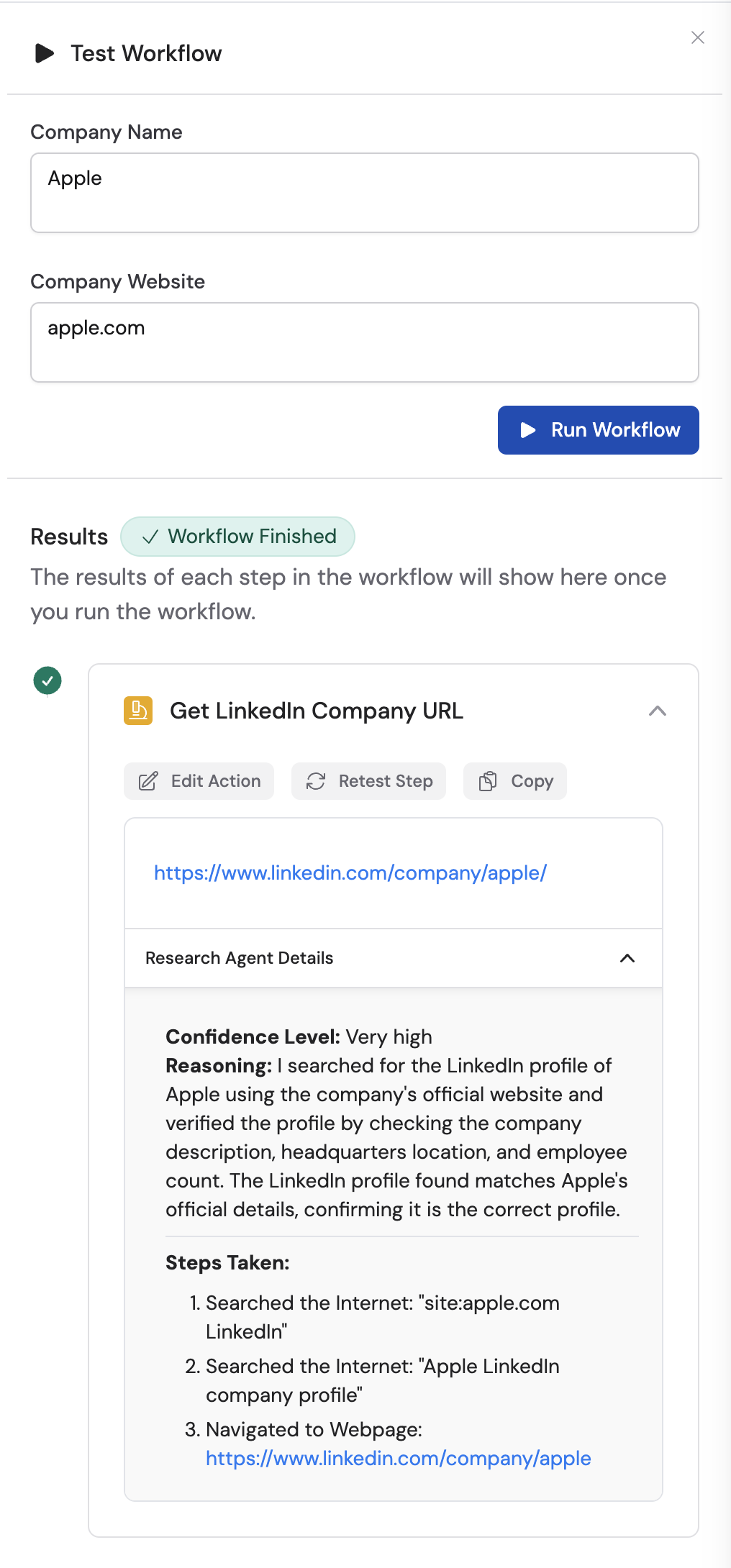
 When you run the [Workflow](/workflows/overview), the Research Agent output displays the information you requested. Open the **Research Agent Details** to see the confidence level, reasoning behind the result, and the steps the agent took to obtain the information.
 ## Custom Research Agents
Custom agents let you write your own instructions for full control over the research task.
In the [Workflow](/workflows/overview) builder, click **+** between blocks and select **Research Agent** from the action library. Choose **Custom Research Agent**.
## Custom Research Agents
Custom agents let you write your own instructions for full control over the research task.
In the [Workflow](/workflows/overview) builder, click **+** between blocks and select **Research Agent** from the action library. Choose **Custom Research Agent**.
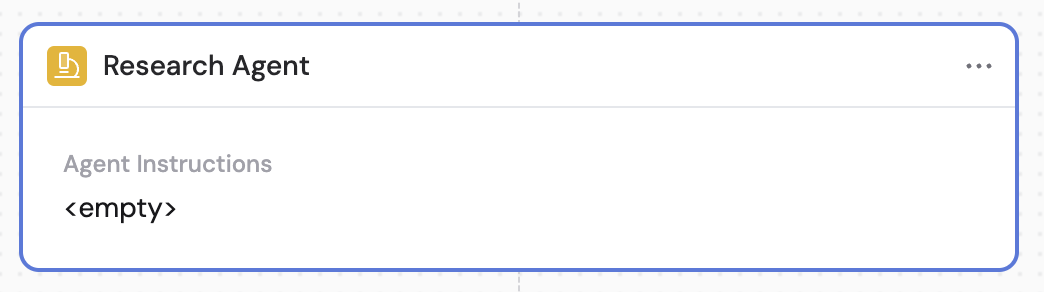
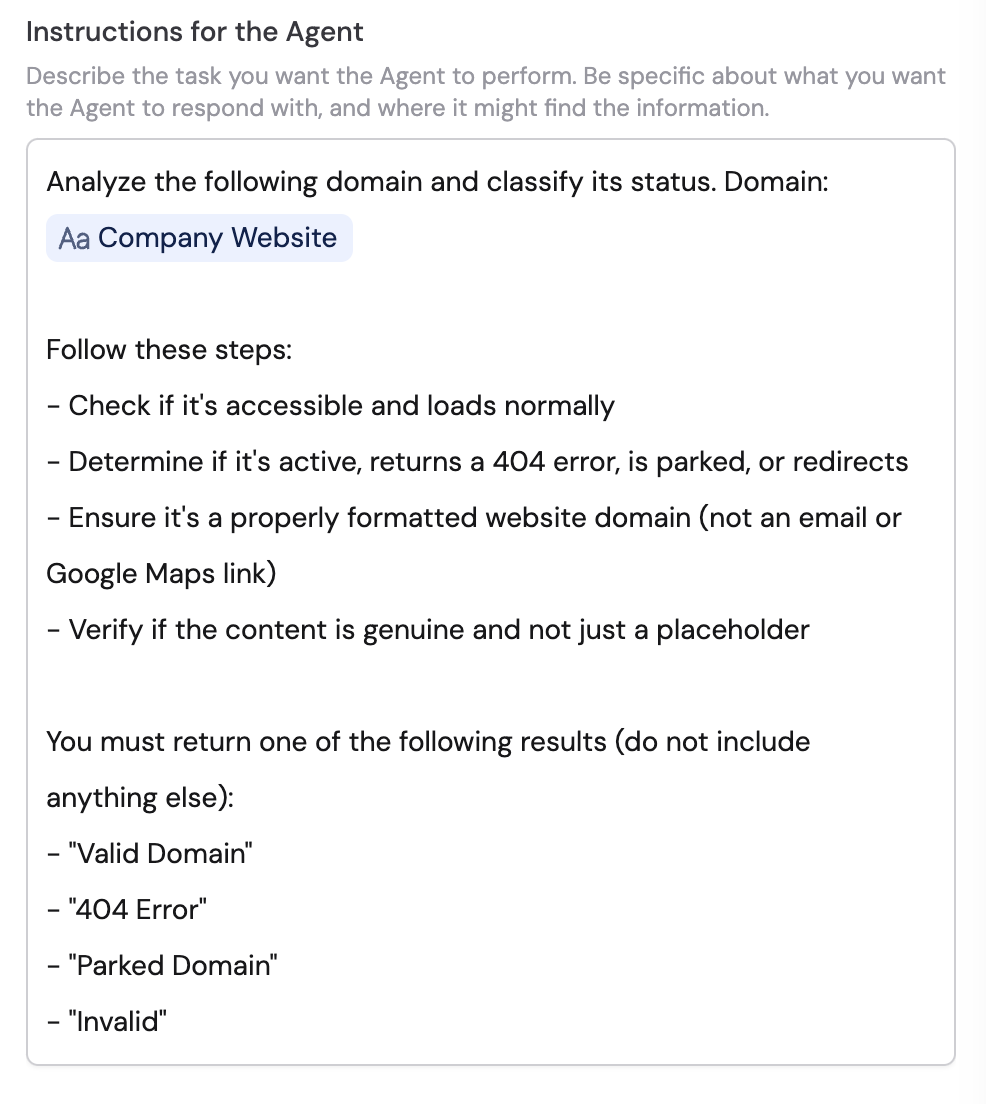
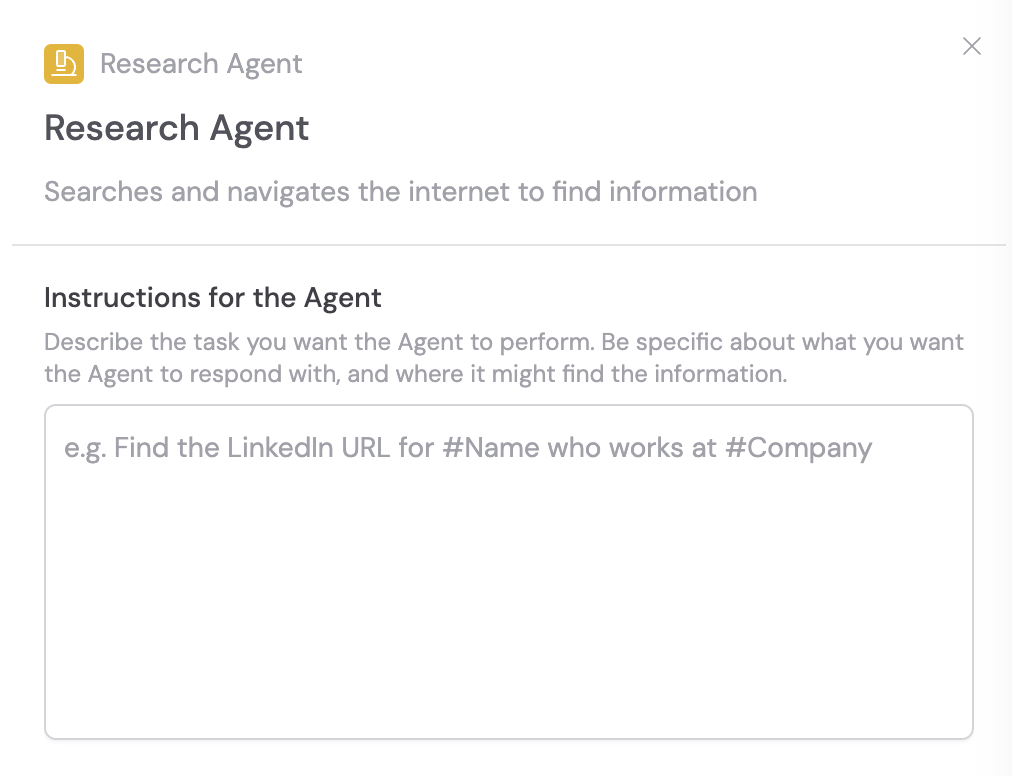 Provide detailed instructions describing the task you want the agent to perform. The agent can search the internet, scrape webpages, and perform multiple steps autonomously.
When writing instructions:
* Be specific about the desired response and potential information sources
* [Reference variables](/guides/prompt-engineering#workflow-prompts) using **#** to provide necessary context
* Include the order of operations and directions
* Specify when assumptions can be made and what the agent shouldn't do
* Define the expected output format (e.g., "valid domain" for a positive case or "no results found" for a negative case)
Provide detailed instructions describing the task you want the agent to perform. The agent can search the internet, scrape webpages, and perform multiple steps autonomously.
When writing instructions:
* Be specific about the desired response and potential information sources
* [Reference variables](/guides/prompt-engineering#workflow-prompts) using **#** to provide necessary context
* Include the order of operations and directions
* Specify when assumptions can be made and what the agent shouldn't do
* Define the expected output format (e.g., "valid domain" for a positive case or "no results found" for a negative case)
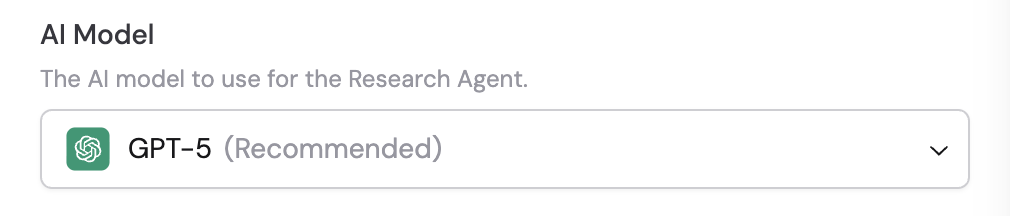
 Choose the **AI Model** to customize the Research Agent's performance based on your specific needs.
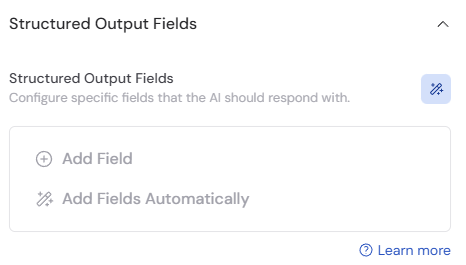
 Optionally, set up [structured output fields](/workflows/advanced/structured-output-fields) to have the AI return data in a specific format with defined field names, data types, and formats for consistent results.
 Run the [Workflow](/workflows/overview) and review the output to ensure it meets your expectations. Check the **Research Agent Details** for the confidence level, reasoning, and the steps taken. Refine the instructions if needed for better results.
 ## Related
* [Search Internet](/reference/actions/search-internet)
* [Scrape Webpage](/reference/actions/scrape-webpage)
* [Deep Research for Agents](/agents/deep-research)
## Related
* [Search Internet](/reference/actions/search-internet)
* [Scrape Webpage](/reference/actions/scrape-webpage)
* [Deep Research for Agents](/agents/deep-research)