> ## Documentation Index
> Fetch the complete documentation index at: https://docs.cassidyai.com/llms.txt
> Use this file to discover all available pages before exploring further.
# Search Knowledge Base
> Search your Cassidy Knowledge Base for relevant information and optionally generate an AI-powered answer.
Search your [Knowledge Base](/knowledge-base/overview) for information relevant to a query. Use this to retrieve company knowledge within a Workflow — either as raw search results or as an AI-generated answer with citations.
In the Workflow builder, click **+** between blocks and select **Search Knowledge Base** from the action library.
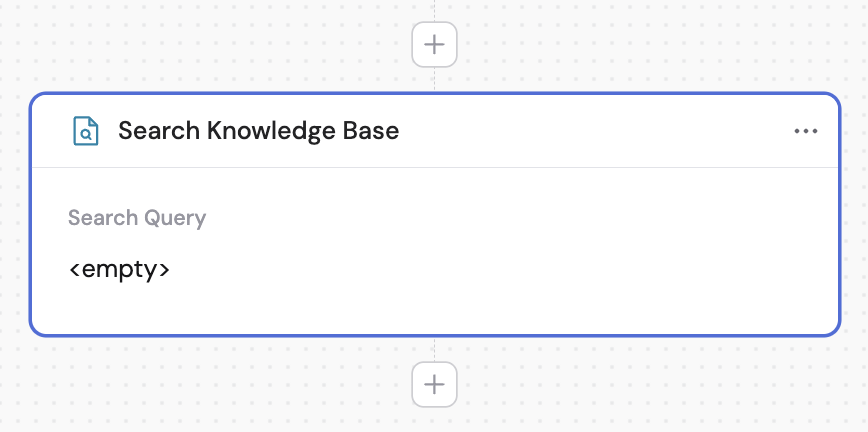
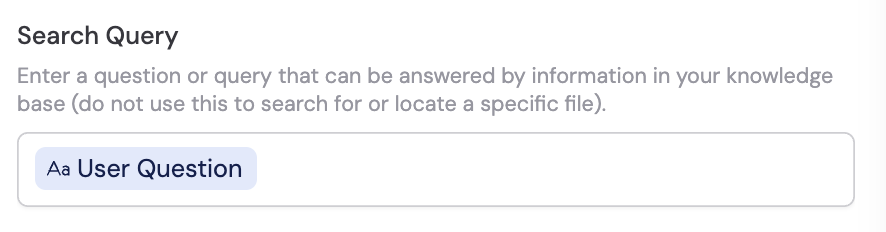
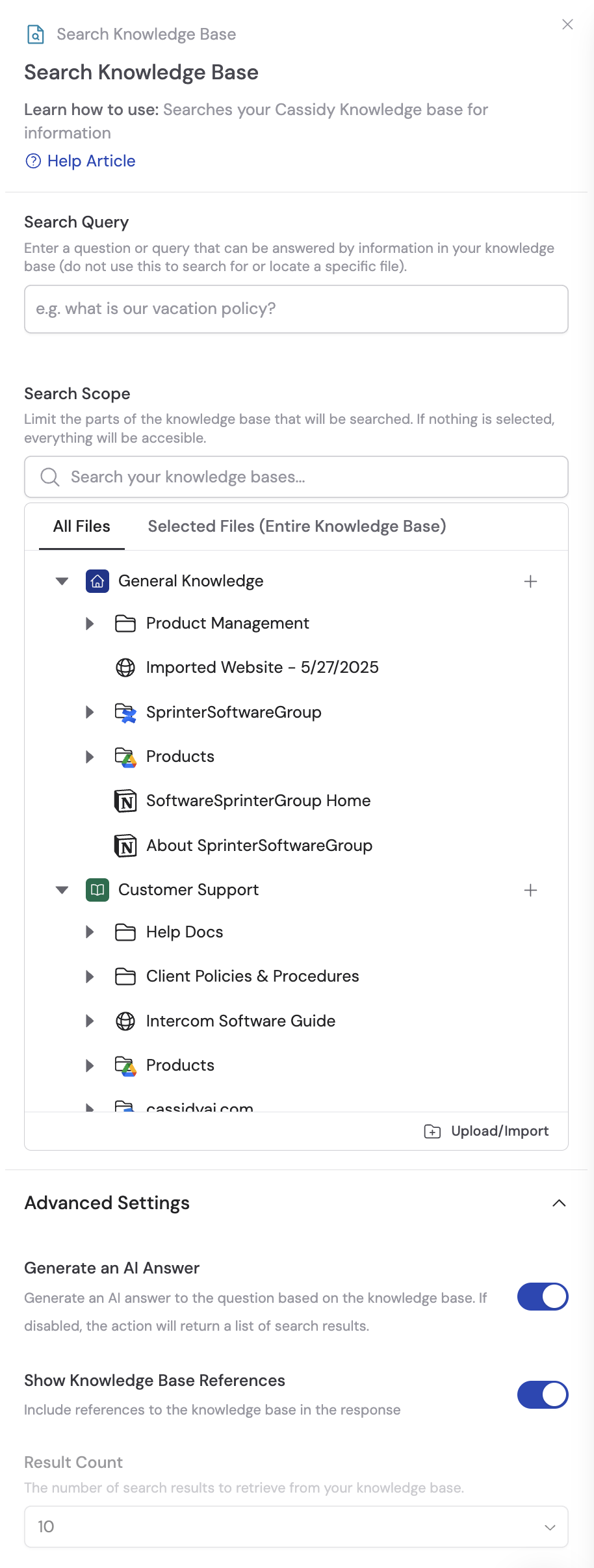 In the **Search Query** field, enter a question or search term. [Reference variables](/guides/prompt-engineering#workflow-prompts) from previous steps or the trigger using **#** to make the query dynamic.
 Expand the advanced settings section to access additional options:
* **Generate an AI answer** — When on, returns an AI-generated answer using Knowledge Base context. When off, returns a list of summarized search results instead.
Expand the advanced settings section to access additional options:
* **Generate an AI answer** — When on, returns an AI-generated answer using Knowledge Base context. When off, returns a list of summarized search results instead.
 * **Show Knowledge Base References** — Controls whether source references appear in the output.
 * **Result Count** — Select how many search results to retrieve (only applies when **Generate an AI answer** is off).
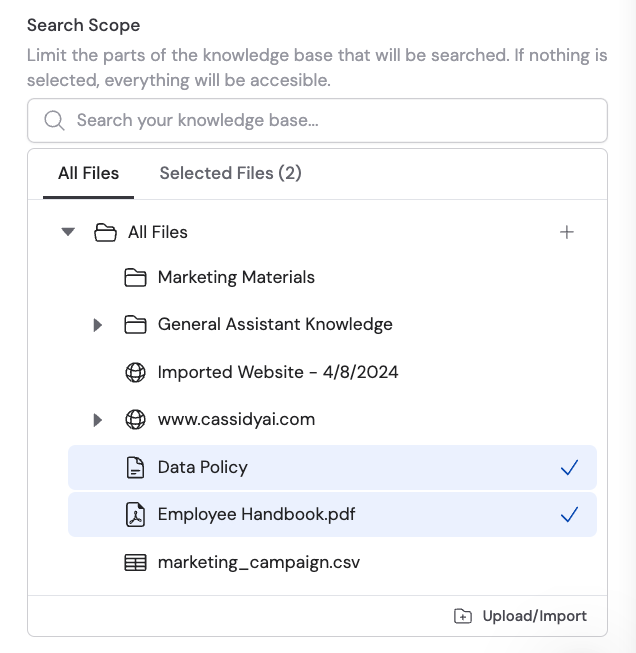
 Choose which parts of your Knowledge Base to search. If no scope is selected, the search includes all available content.
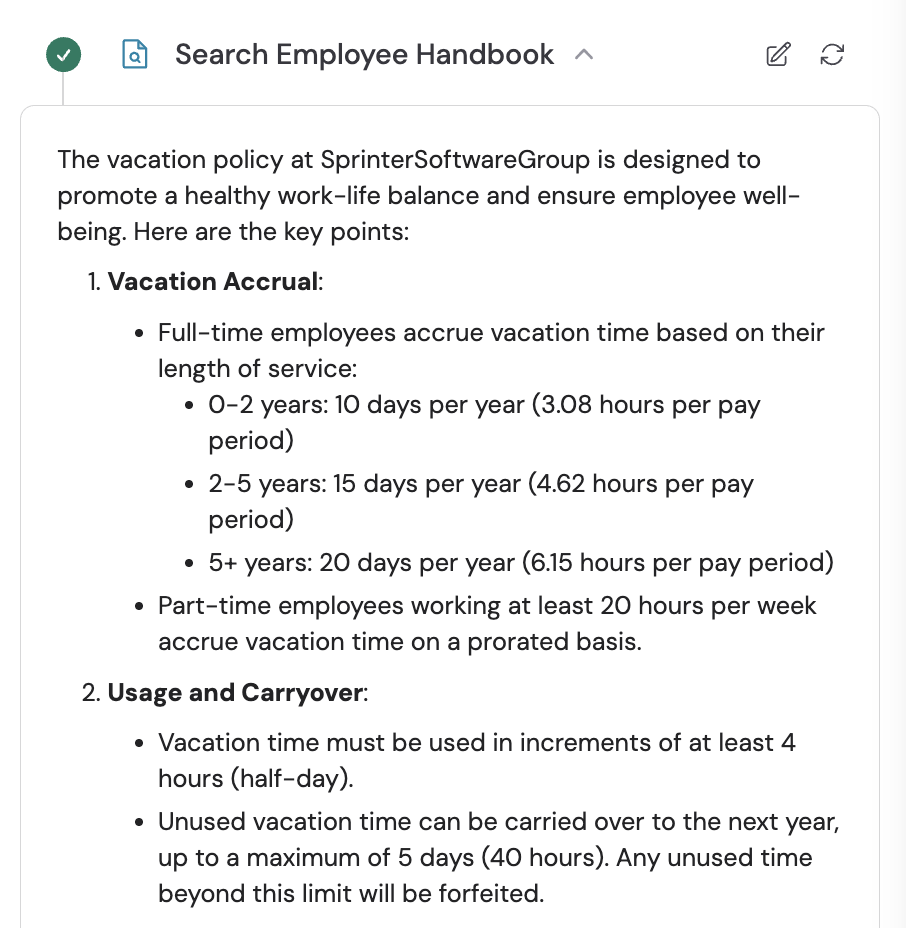
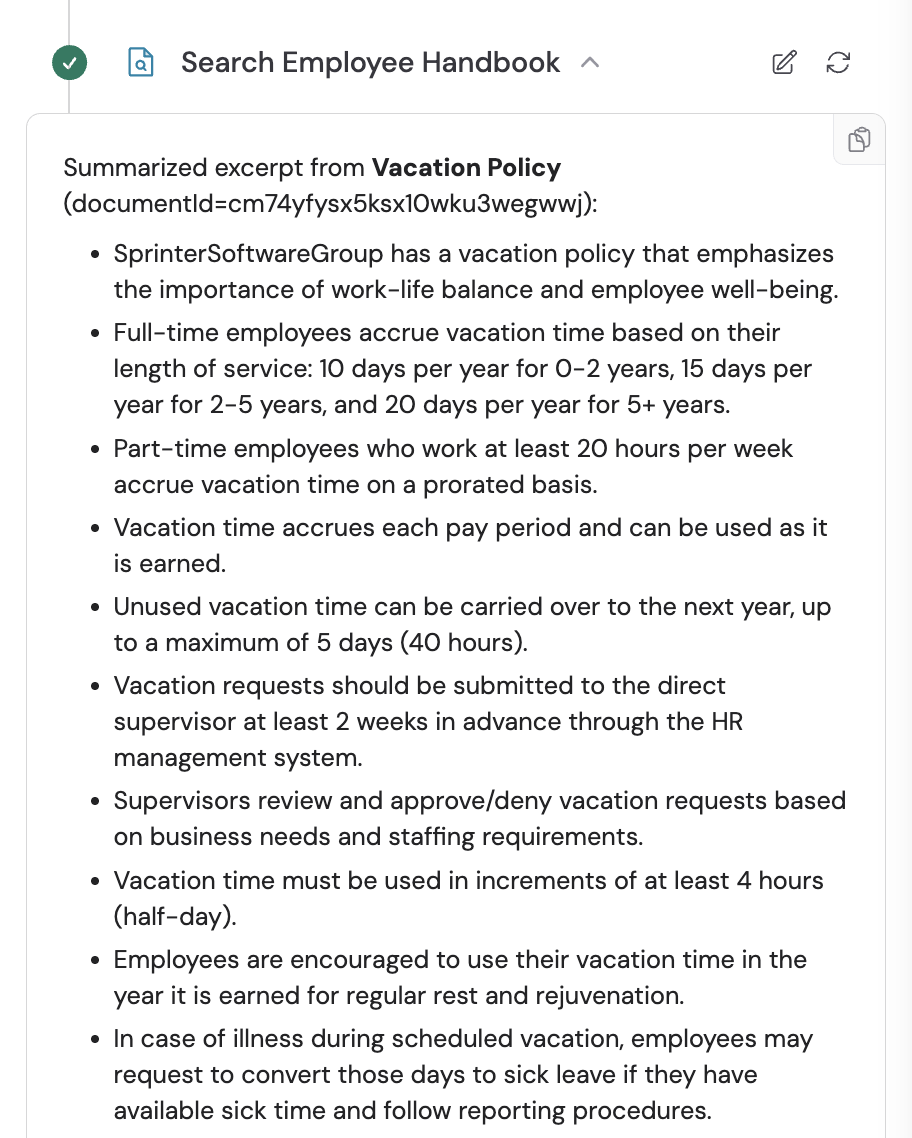
 When **Generate an AI answer** is on, the output is a single AI-generated response with citations. When it's off, the output is a list of summarized search results:
 ## Related
* [Knowledge Base overview](/knowledge-base/overview)
* [Set up your Knowledge Base](/knowledge-base/setup)
* [Generate Text](/reference/actions/generate-text)
## Related
* [Knowledge Base overview](/knowledge-base/overview)
* [Set up your Knowledge Base](/knowledge-base/setup)
* [Generate Text](/reference/actions/generate-text)