> ## Documentation Index
> Fetch the complete documentation index at: https://docs.cassidyai.com/llms.txt
> Use this file to discover all available pages before exploring further.
# Send API request
> Send an HTTP request to any external API endpoint from within a Workflow.
Send an HTTP request to any external API from within a [Workflow](/workflows/overview). Use this to connect to services that don't have a native Cassidy integration, or to interact with custom APIs.
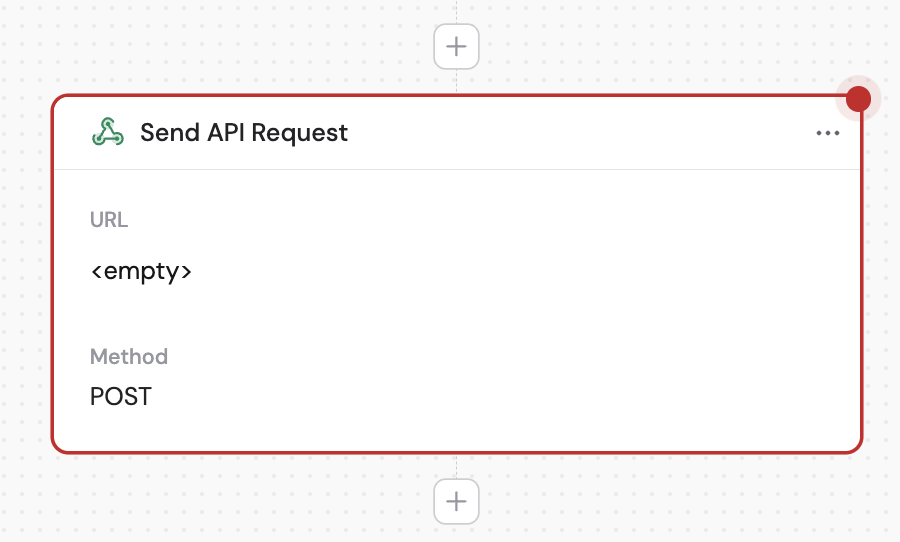
In the Workflow builder, click **+** between blocks and select **Send API Request** from the action library.
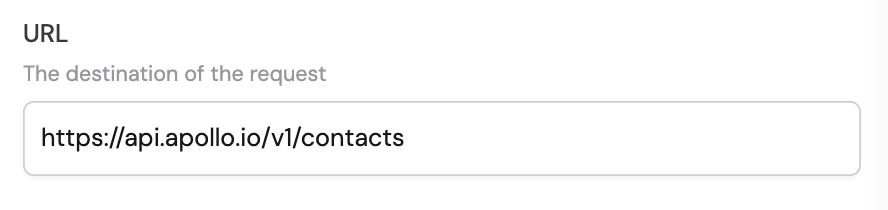
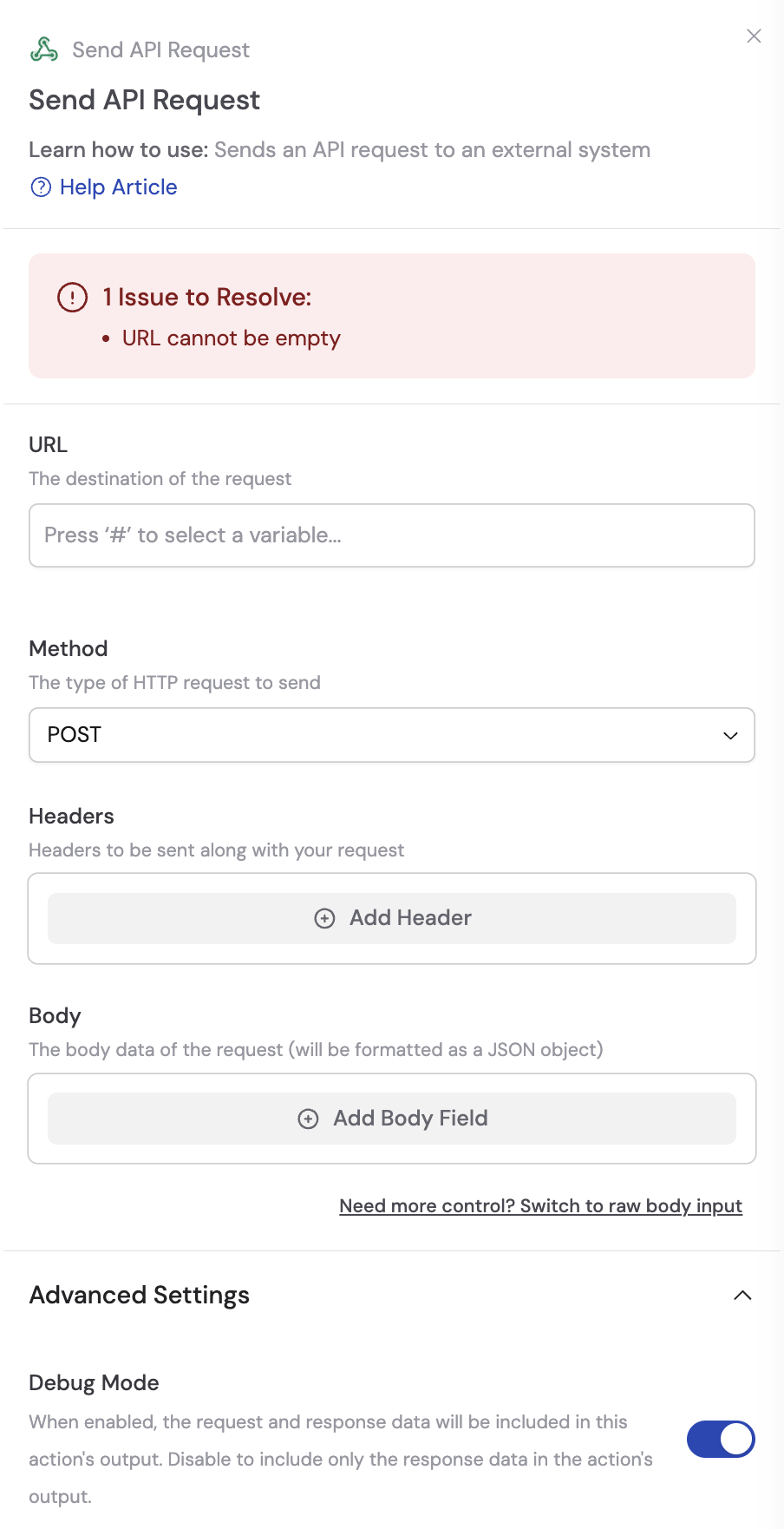 In the **URL** field, enter the destination for the API request. You can hardcode the URL or use **#** to [insert variables](/guides/prompt-engineering#workflow-prompts) from previous steps or the trigger to build it dynamically.
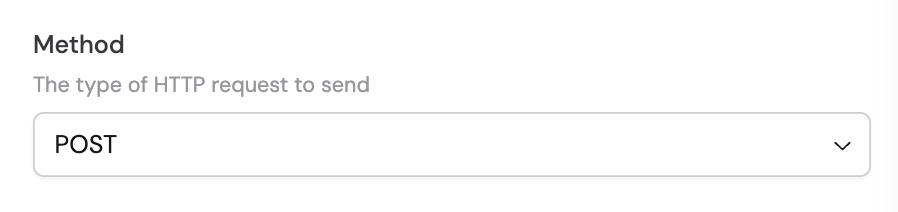
 Choose the HTTP method that matches your API endpoint's requirements:
* **GET** — Retrieve data
* **POST** — Create a new resource
* **PUT** — Replace an existing resource
* **PATCH** — Partially update a resource
* **DELETE** — Remove a resource
Choose the HTTP method that matches your API endpoint's requirements:
* **GET** — Retrieve data
* **POST** — Create a new resource
* **PUT** — Replace an existing resource
* **PATCH** — Partially update a resource
* **DELETE** — Remove a resource
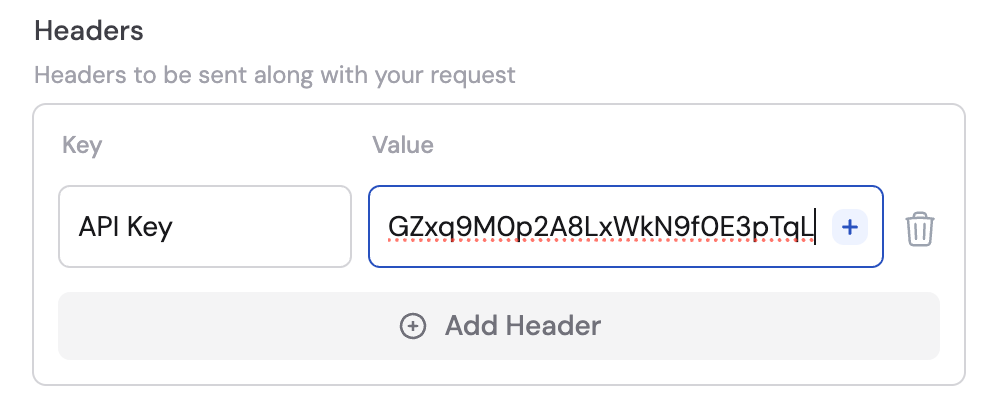
 If the API requires specific headers (such as authentication or content type), click **+ Add Header**. Fill in the **Key** and **Value** fields for each header. You can reference variables in header values using **#**.
For sensitive values like API keys, use [Secret Keys](/workflows/advanced/secret-keys) instead of pasting credentials directly.
Click the trash icon next to a header to remove it.
If the API requires specific headers (such as authentication or content type), click **+ Add Header**. Fill in the **Key** and **Value** fields for each header. You can reference variables in header values using **#**.
For sensitive values like API keys, use [Secret Keys](/workflows/advanced/secret-keys) instead of pasting credentials directly.
Click the trash icon next to a header to remove it.
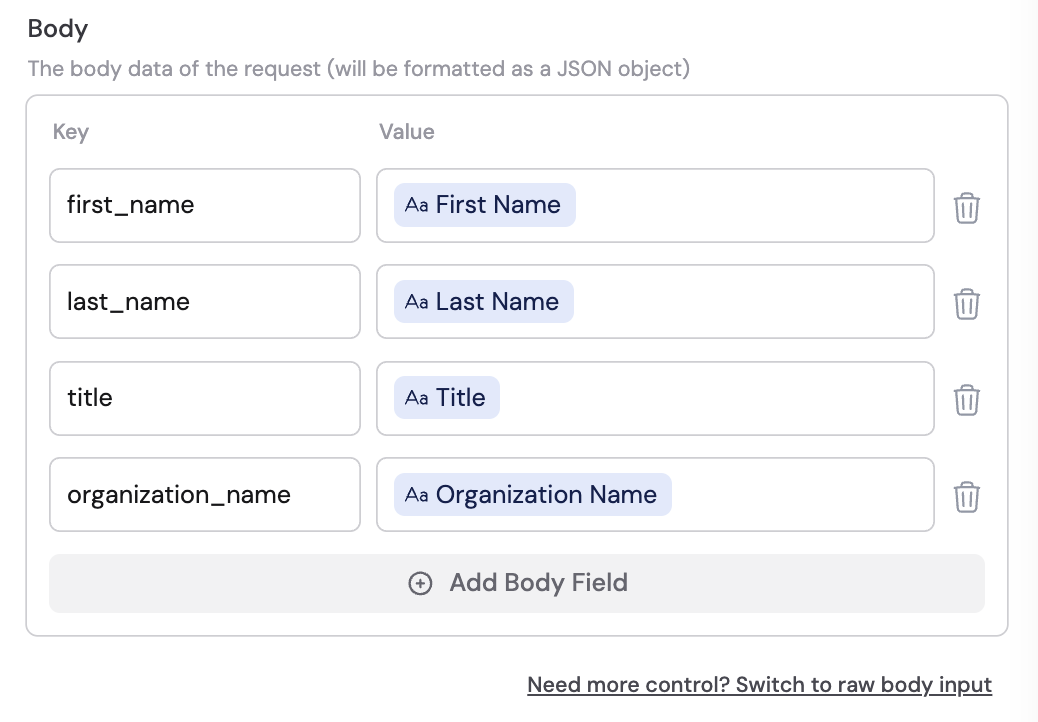
 Depending on the HTTP method, you may need to include a request body. Click **+ Add Body Field** and fill in **Key** and **Value** pairs. You can reference variables in body values using **#**.
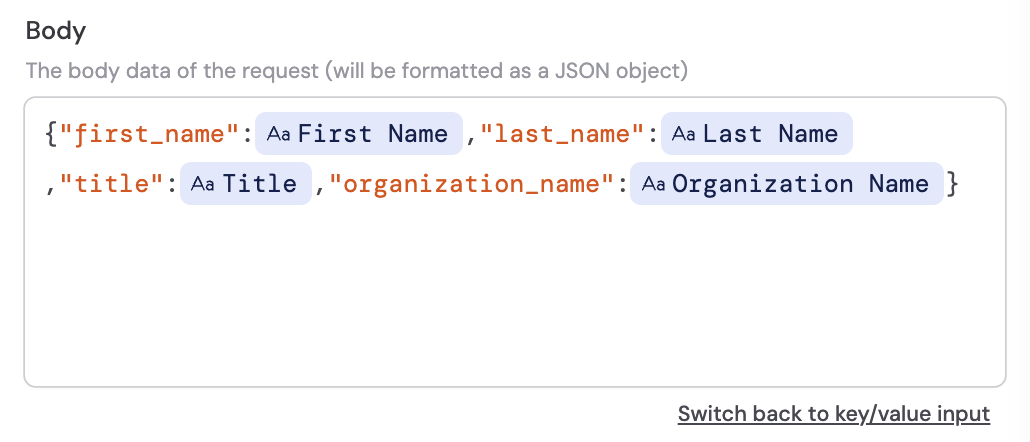
 If you need full control over the JSON structure, click **Switch to raw body input** to enter your own JSON object directly.
 The response body and status code are available as variables in subsequent steps.
For sensitive values like API keys, use [Secret Keys](/workflows/advanced/secret-keys) instead of hardcoding credentials in your Workflow.
## Related
* [Secret Keys](/workflows/advanced/secret-keys)
* [Webhooks](/integrations/webhooks)
* [Connect non-native apps](/integrations/connect-non-native-apps)
The response body and status code are available as variables in subsequent steps.
For sensitive values like API keys, use [Secret Keys](/workflows/advanced/secret-keys) instead of hardcoding credentials in your Workflow.
## Related
* [Secret Keys](/workflows/advanced/secret-keys)
* [Webhooks](/integrations/webhooks)
* [Connect non-native apps](/integrations/connect-non-native-apps)