> ## Documentation Index
> Fetch the complete documentation index at: https://docs.cassidyai.com/llms.txt
> Use this file to discover all available pages before exploring further.
# Wait / Delay
> Pause Workflow execution for a specified duration or until a specific date and time.
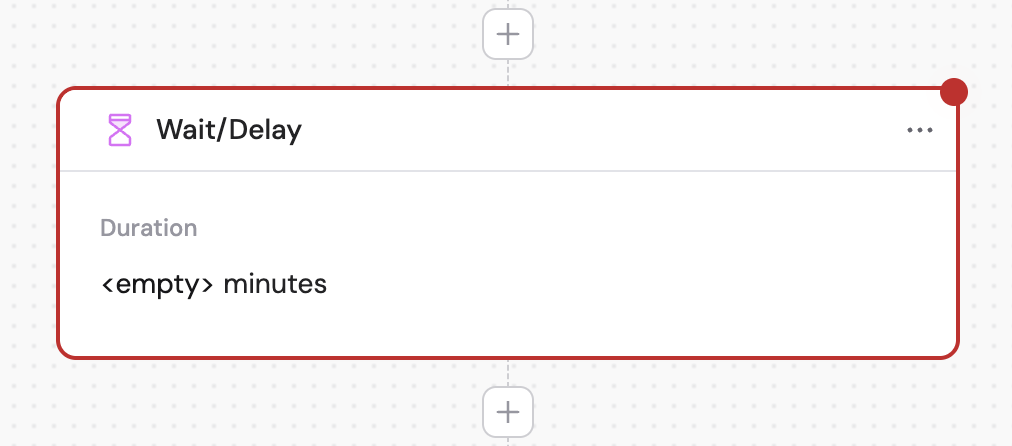
Pause a [Workflow](/workflows/overview) before continuing to the next step. Use this to add delays between steps — for example, waiting before sending a follow-up email, spacing out API calls, or scheduling an action to run at a specific time.
In the Workflow builder, click **+** between blocks and select **Wait/Delay** from the action library.
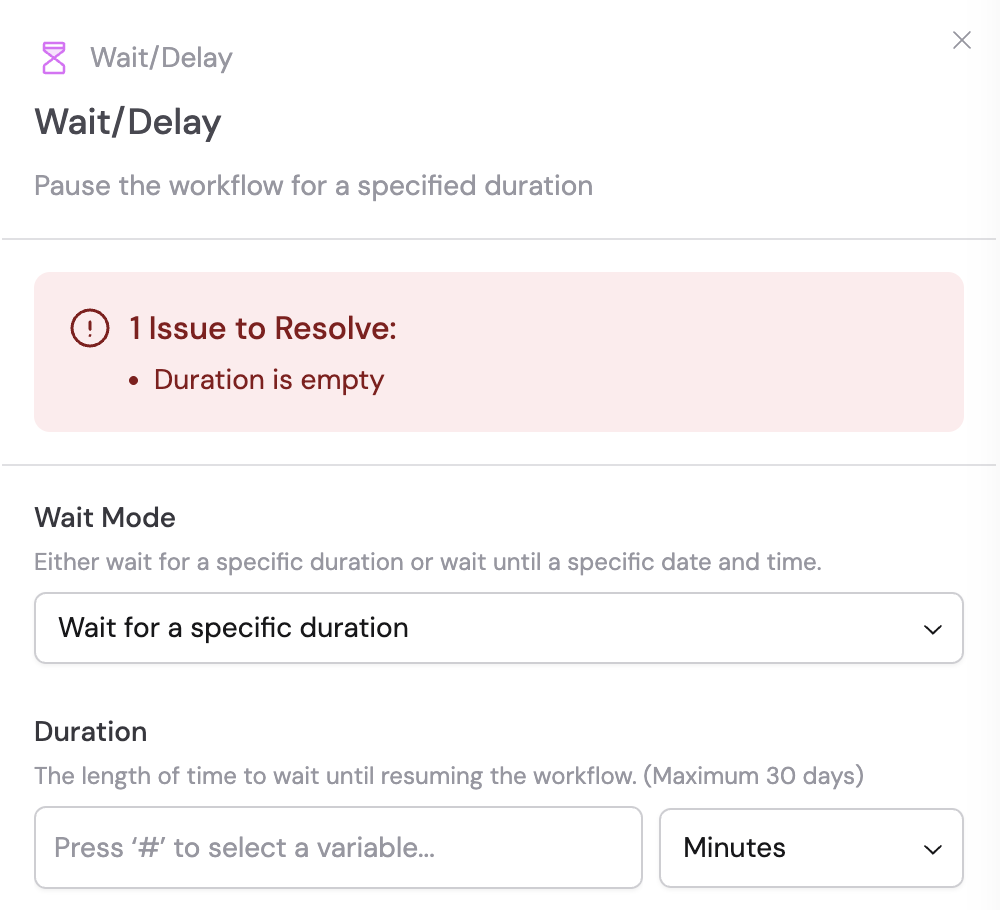 Choose between two wait options:
* **Wait for a specific duration** — Pause the Workflow for a set amount of time
* **Wait until a specific date and time** — Pause the Workflow until a particular date and time is reached
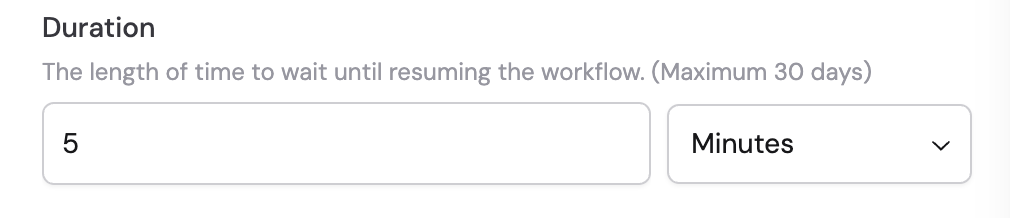
If you selected **Wait for a specific duration**:
1. **Duration** — Enter a number or reference a variable from previous steps using **#**
2. **Unit** — Choose the time unit from the dropdown: seconds, minutes, or hours
The maximum wait duration is 30 days.
Choose between two wait options:
* **Wait for a specific duration** — Pause the Workflow for a set amount of time
* **Wait until a specific date and time** — Pause the Workflow until a particular date and time is reached
If you selected **Wait for a specific duration**:
1. **Duration** — Enter a number or reference a variable from previous steps using **#**
2. **Unit** — Choose the time unit from the dropdown: seconds, minutes, or hours
The maximum wait duration is 30 days.
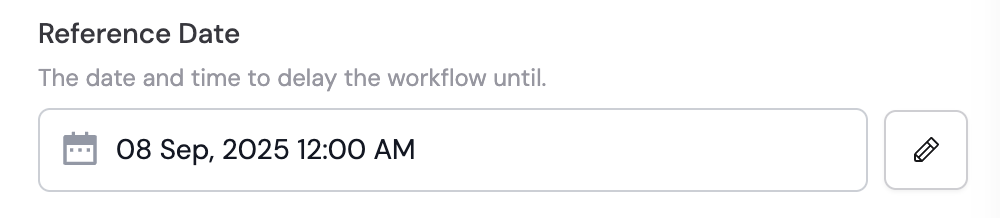
 If you selected **Wait until a specific date and time**:
1. **Reference Date** — Select the target date using the date picker, or click the pencil icon to enter it directly. You can reference variables from previous steps or the trigger using **#**.
If you selected **Wait until a specific date and time**:
1. **Reference Date** — Select the target date using the date picker, or click the pencil icon to enter it directly. You can reference variables from previous steps or the trigger using **#**.
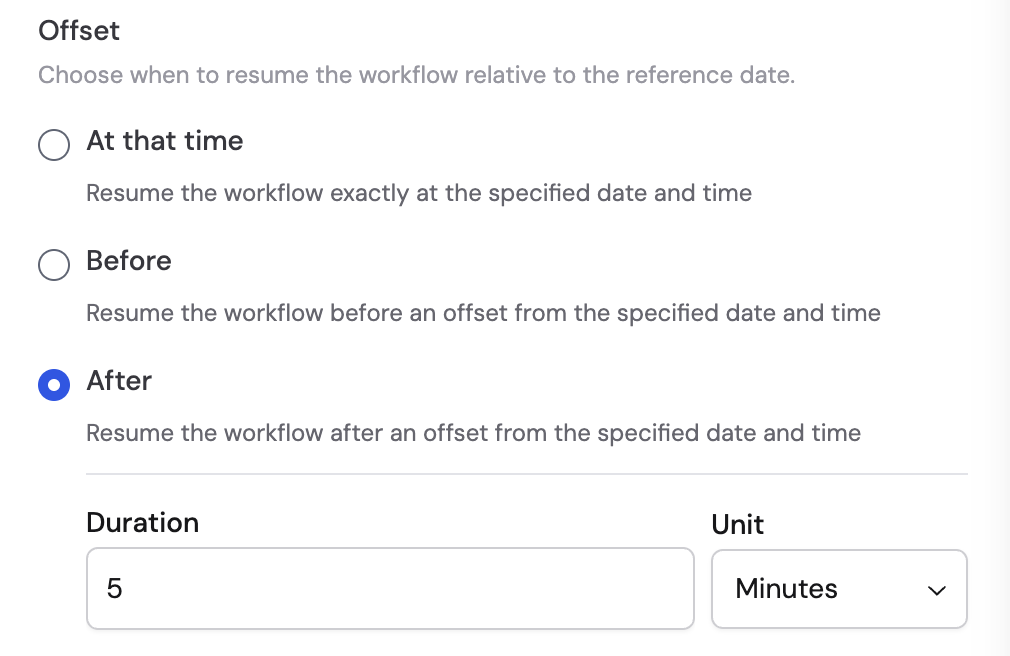
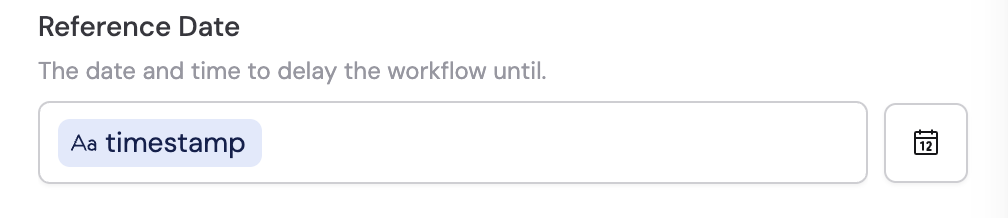 2. **Offset** — Choose when to resume the Workflow relative to the reference date:
* **At that time** — Resume exactly at the specified date and time
* **Before** — Resume a set amount of time before the reference date
* **After** — Resume a set amount of time after the reference date
For the **Before** and **After** options, enter the offset **Duration** and select the **Unit** (seconds, minutes, or hours).
2. **Offset** — Choose when to resume the Workflow relative to the reference date:
* **At that time** — Resume exactly at the specified date and time
* **Before** — Resume a set amount of time before the reference date
* **After** — Resume a set amount of time after the reference date
For the **Before** and **After** options, enter the offset **Duration** and select the **Unit** (seconds, minutes, or hours).
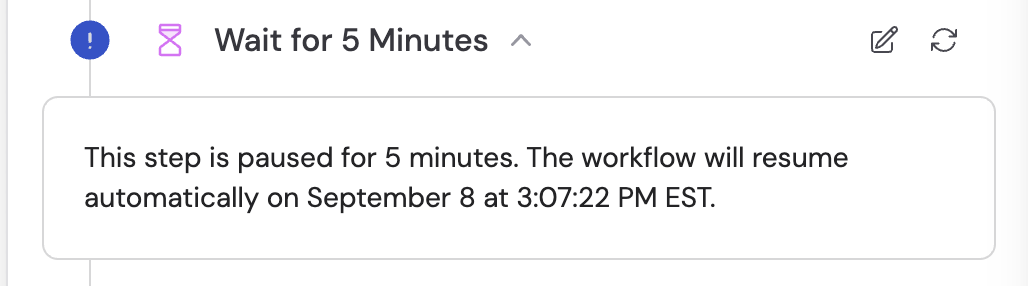
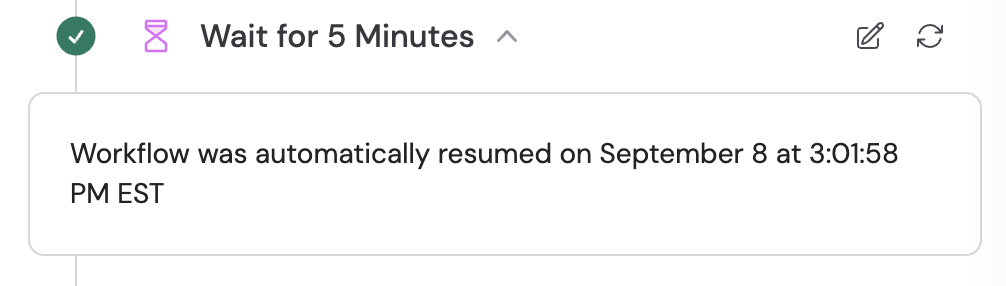
 When the Workflow is paused, a waiting status indicator appears on the step. Once the wait period completes, the Workflow continues to the next action automatically.
 ## Related
* [Build and configure Workflows](/workflows/building)
## Related
* [Build and configure Workflows](/workflows/building)