> ## Documentation Index
> Fetch the complete documentation index at: https://docs.cassidyai.com/llms.txt
> Use this file to discover all available pages before exploring further.
# Manual trigger
> Start a Workflow on demand with custom input fields you define.
Manually start a [Workflow](/workflows/overview) with custom inputs whenever you need. The Manual trigger is the default trigger type and is ideal for Workflows you want to run on demand.
Create a new Workflow with a Manual trigger, or change an existing Workflow's trigger type to Manual.
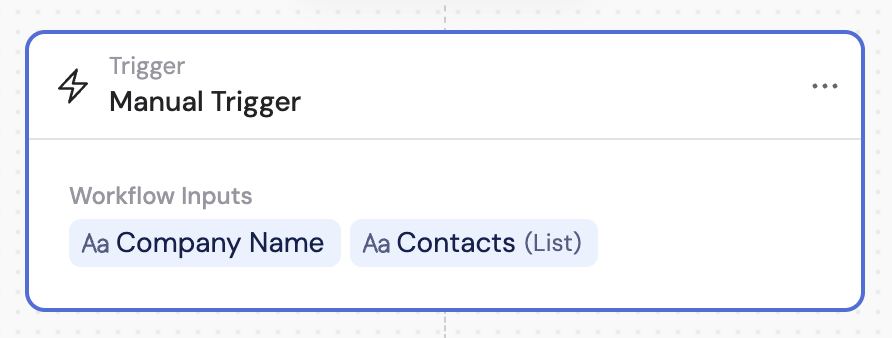 Click **+ Add** to create input fields for your Manual trigger. Input fields let you provide data that the rest of the Workflow can reference.
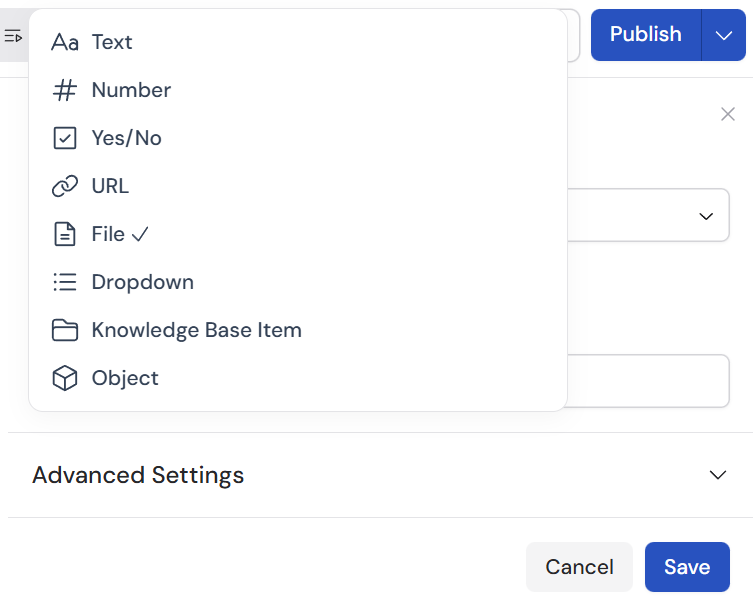
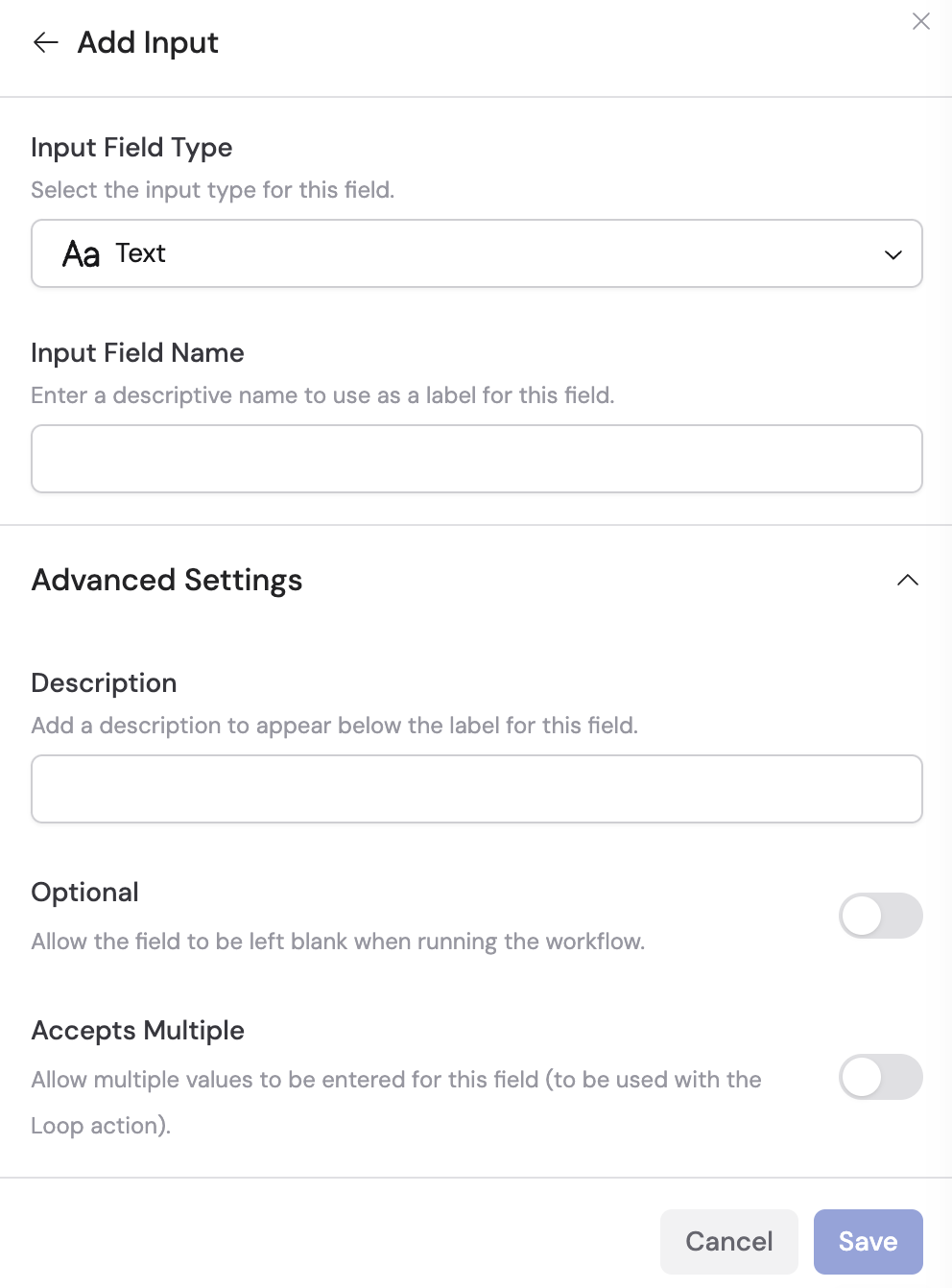 Select the type that matches your data:
| Type | Description |
| ----------------------- | ------------------------------------------------------------------------------------------------------------- |
| **Text** | Free-form text input |
| **Number** | Numerical values for calculations or data processing |
| **Yes/No** | Boolean toggle for true/false decisions |
| **URL** | A web link — Cassidy extracts the text content from the page |
| **File** | Upload PDFs, Word docs, spreadsheets, images, audio, or video. Images and media are automatically transcribed |
| **Dropdown** | Predefined options the user selects from |
| **Knowledge Base Item** | Select a specific file or folder from your [Knowledge Base](/knowledge-base/overview) |
| **Object** | A structured group of fields you define |
Select the type that matches your data:
| Type | Description |
| ----------------------- | ------------------------------------------------------------------------------------------------------------- |
| **Text** | Free-form text input |
| **Number** | Numerical values for calculations or data processing |
| **Yes/No** | Boolean toggle for true/false decisions |
| **URL** | A web link — Cassidy extracts the text content from the page |
| **File** | Upload PDFs, Word docs, spreadsheets, images, audio, or video. Images and media are automatically transcribed |
| **Dropdown** | Predefined options the user selects from |
| **Knowledge Base Item** | Select a specific file or folder from your [Knowledge Base](/knowledge-base/overview) |
| **Object** | A structured group of fields you define |
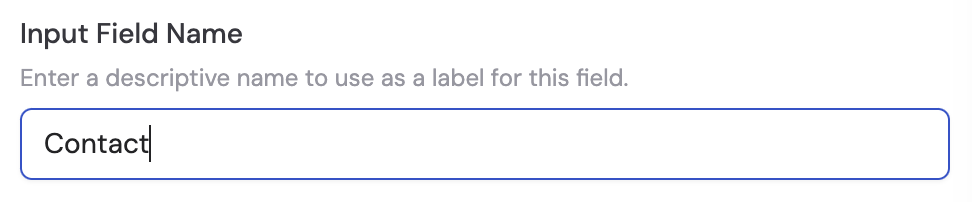
 Give each field a descriptive name so it's easy to reference later as a variable in other actions.
 Expand the field settings to access additional options:
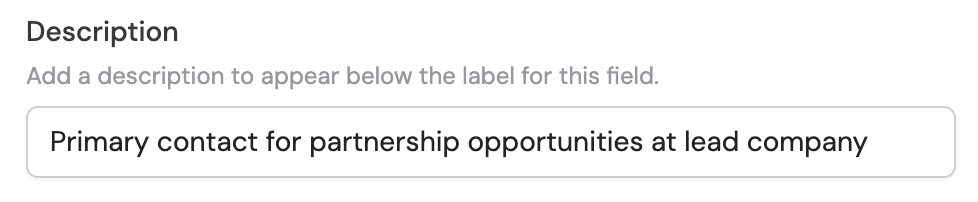
* **Description** — Add context or instructions for the person running the Workflow
* **Optional** — Toggle on if the Workflow should proceed even when this field is left empty
* **Accepts Multiple** — Allow multiple values for the same field (useful for lists of URLs or files)
Expand the field settings to access additional options:
* **Description** — Add context or instructions for the person running the Workflow
* **Optional** — Toggle on if the Workflow should proceed even when this field is left empty
* **Accepts Multiple** — Allow multiple values for the same field (useful for lists of URLs or files)
 Drag input fields to reorder them. Click the pencil icon to edit a field, or the trash icon to remove it.
When you run the Workflow, fields with **Accepts Multiple** enabled show a **+ Add** button so you can provide additional values as a list.
## Related
* [Build and configure Workflows](/workflows/building)
* [Run and test Workflows](/workflows/running-and-testing)
* [Bulk runs](/workflows/bulk-runs)
Drag input fields to reorder them. Click the pencil icon to edit a field, or the trash icon to remove it.
When you run the Workflow, fields with **Accepts Multiple** enabled show a **+ Add** button so you can provide additional values as a list.
## Related
* [Build and configure Workflows](/workflows/building)
* [Run and test Workflows](/workflows/running-and-testing)
* [Bulk runs](/workflows/bulk-runs)