> ## Documentation Index
> Fetch the complete documentation index at: https://docs.cassidyai.com/llms.txt
> Use this file to discover all available pages before exploring further.
# Audit Logs
> Review who viewed or changed Agents, Workflows, and other resources in your organization. Search, filter, and export those events for security investigations.
Audit logs give admins a searchable record of activity in your Cassidy organization — including [Agents](/agents/overview), [Workflows](/workflows/overview), and other resources. Use them to investigate access, review configuration changes, and export evidence for security or compliance reviews.
Each event answers the same question: **who** did **what** to **which resource**, and optionally **what else was involved**.
Audit logs are available on **Enterprise** plans and need to be enabled by our
team. [Contact us](mailto:support@cassidyai.com) if you need access to the
dashboard.
## How to read an audit event
The table uses a few terms that stay consistent across every event:
| Term | What it means |
| ----------------- | ----------------------------------------------------------------------------------------------------------------------------------------------------------------------------------------------------------------------- |
| **Actor** | The person or system that performed the action. Most events come from a team member. Automated Cassidy jobs appear as **Cassidy**. People using a website embed or similar external surface appear as an external user. |
| **Event** | The action that occurred, written as `resource-type.action` — for example, `agent.updated` or `workflow.created`. Hover an event to see a short description when one is available. |
| **Resource type** | The kind of thing the event is about, such as `agent`, `workflow`, or `group`. This is the first part of the event name. In some places this is also called the **subject type**. |
| **Resource** | The primary item the event is about — the specific Agent, Workflow, group, or other object. This is also called the **subject**. Opening a list of items uses that resource type with no specific item. |
| **Target** | A second item involved in the same action, when there is one. For example, if someone is added to a group, the group is the resource and the person is the target. |
| **Operation** | The category of change: **Read**, **Create**, **Update**, **Delete**, or **Execute**. |
| **Details** | Extra context for some events, such as a sharing role or a version ID. Details never include message text, prompts, document contents, or secrets. |
| **IP address** | The source IP when Cassidy recorded one, usually for actions in the Cassidy app. |
| **Time** | When the event occurred. |
Read an event as a sentence: **\[Actor] performed \[action] on \[resource],
involving \[target]**.
## Open audit logs
Click your account name at the bottom of the sidebar, then click the **gear icon** next to your organization name.
In the left sidebar, under **Security & Audit**, click **Audit Logs**.
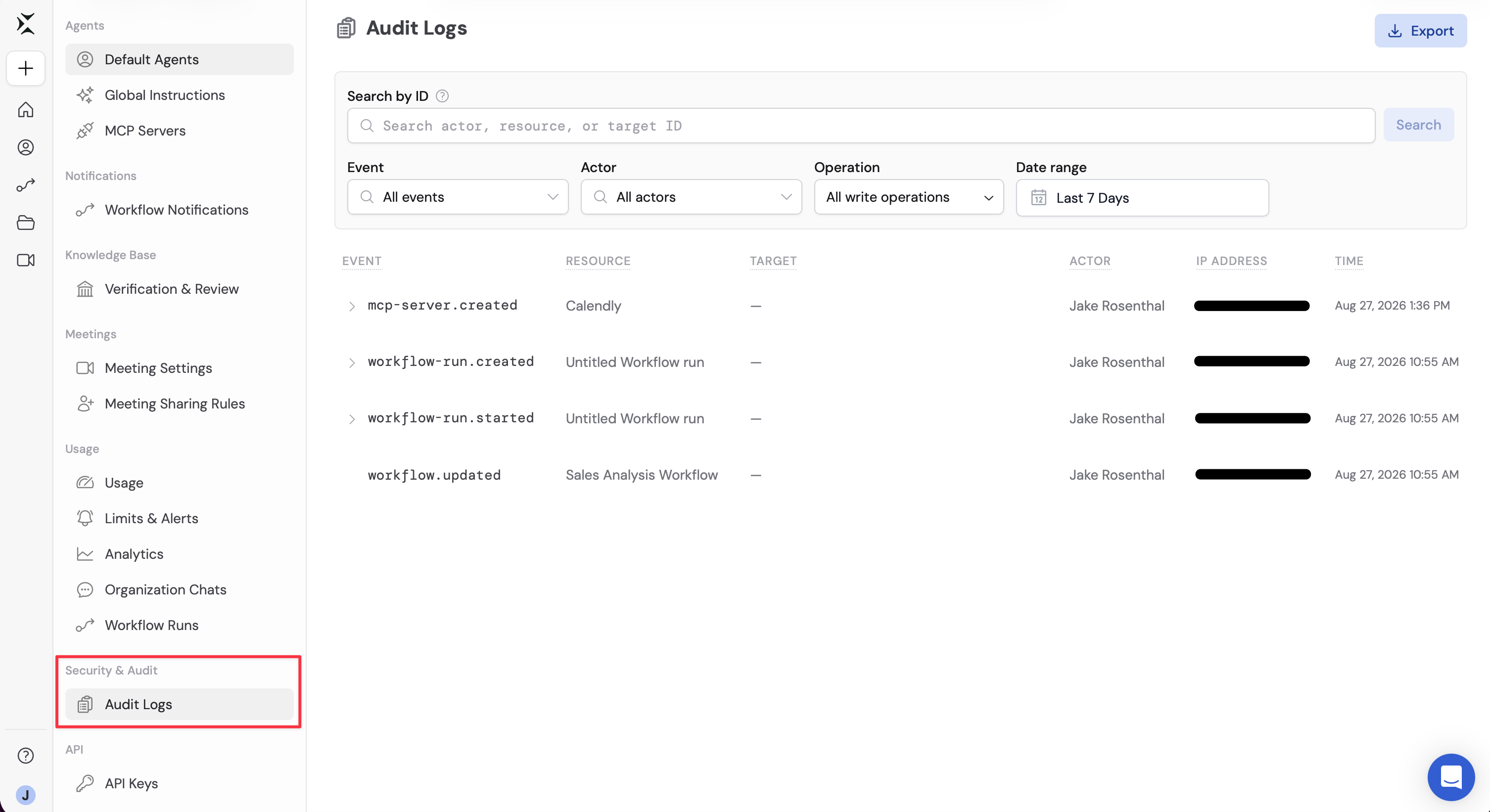 If you don't see **Audit Logs**, they may not have been enabled by our team yet, or you may not have the **Manage Audit Logs** privilege. Admins have this privilege by default. To grant it without full Admin access, add it to a [custom role](/settings/roles-and-groups). [Contact us](mailto:support@cassidyai.com) to request access to the dashboard.
The page defaults to **All write operations** for the last 7 days. That includes create, update, delete, and execute events, and it excludes reads. Switch **Operation** to **All operations** or **Read** when you need view history.
## Search and filter events
Combine filters to narrow the log. Every filter applies together, including **Export**.
### Filter by event, actor, operation, or date
| Filter | What it does |
| -------------- | ------------------------------------------------------------------------------------------------------------------------------------ |
| **Event** | Limit results to one event, such as `agent.deleted` or `workflow.published`. |
| **Actor** | Limit results to one team member, or to **Cassidy** for automated system activity. |
| **Operation** | Limit results to reads, writes, or a specific operation type. **All write operations** includes create, update, delete, and execute. |
| **Date range** | Limit results to a window of up to **3 months**. |
The audit log page includes events from August 13th, 2026 onwards. Logs of older events may be available by request.
If you don't see **Audit Logs**, they may not have been enabled by our team yet, or you may not have the **Manage Audit Logs** privilege. Admins have this privilege by default. To grant it without full Admin access, add it to a [custom role](/settings/roles-and-groups). [Contact us](mailto:support@cassidyai.com) to request access to the dashboard.
The page defaults to **All write operations** for the last 7 days. That includes create, update, delete, and execute events, and it excludes reads. Switch **Operation** to **All operations** or **Read** when you need view history.
## Search and filter events
Combine filters to narrow the log. Every filter applies together, including **Export**.
### Filter by event, actor, operation, or date
| Filter | What it does |
| -------------- | ------------------------------------------------------------------------------------------------------------------------------------ |
| **Event** | Limit results to one event, such as `agent.deleted` or `workflow.published`. |
| **Actor** | Limit results to one team member, or to **Cassidy** for automated system activity. |
| **Operation** | Limit results to reads, writes, or a specific operation type. **All write operations** includes create, update, delete, and execute. |
| **Date range** | Limit results to a window of up to **3 months**. |
The audit log page includes events from August 13th, 2026 onwards. Logs of older events may be available by request.
 ### Search by ID
Use **Search by ID** when you already have a Cassidy ID and want events tied to that person or item.
Paste a full ID into **Search by ID**, or type a qualifier to search one field:
| Query | What it matches |
| -------------------- | --------------------------------------------- |
| `abc123` | The same ID on the actor, resource, or target |
| `actor_id:abc123` | Events performed by that user |
| `resource_id:abc123` | Events whose primary resource has that ID |
| `target_id:abc123` | Events whose target has that ID |
Separate multiple queries with spaces. Cassidy treats every query as **AND**, so all of them must match. You can use up to **4** queries at once.
Click **Search** or press **Enter**. The table updates to the events that match your ID search and the other filters.
Click an actor, resource, or target in the table, then choose **Filter by this actor**, **Filter by this resource**, or **Filter by this target**. If the item can be opened in Cassidy, choose **Open**.
Partial matches, quotes, wildcards (`*`), `AND`/`OR`/`NOT`, and minus-sign exclusions are not supported. Use letters, numbers, periods, underscores, and hyphens.
## Understand read events
Write events (create, update, delete, and execute) are recorded each time the change succeeds.
Read events are recorded when a team member views or otherwise accesses a resource. That includes both opening it themselves and indirect access on their behalf - for example, when an [Agent](/agents/overview) accesses a resource during a chat.
To keep read events manageable, repeated read events for the same actor and resource are recorded at most once per hour.
## Export audit logs
Export downloads the events that match your **current filters** as a JSON file.
Apply the same event, actor, operation, date range, and ID search you want
in the file.
Click **Export** in the top-right corner of the page. Cassidy downloads a
file named like `audit-logs-2026-08-27.json`.
### Search by ID
Use **Search by ID** when you already have a Cassidy ID and want events tied to that person or item.
Paste a full ID into **Search by ID**, or type a qualifier to search one field:
| Query | What it matches |
| -------------------- | --------------------------------------------- |
| `abc123` | The same ID on the actor, resource, or target |
| `actor_id:abc123` | Events performed by that user |
| `resource_id:abc123` | Events whose primary resource has that ID |
| `target_id:abc123` | Events whose target has that ID |
Separate multiple queries with spaces. Cassidy treats every query as **AND**, so all of them must match. You can use up to **4** queries at once.
Click **Search** or press **Enter**. The table updates to the events that match your ID search and the other filters.
Click an actor, resource, or target in the table, then choose **Filter by this actor**, **Filter by this resource**, or **Filter by this target**. If the item can be opened in Cassidy, choose **Open**.
Partial matches, quotes, wildcards (`*`), `AND`/`OR`/`NOT`, and minus-sign exclusions are not supported. Use letters, numbers, periods, underscores, and hyphens.
## Understand read events
Write events (create, update, delete, and execute) are recorded each time the change succeeds.
Read events are recorded when a team member views or otherwise accesses a resource. That includes both opening it themselves and indirect access on their behalf - for example, when an [Agent](/agents/overview) accesses a resource during a chat.
To keep read events manageable, repeated read events for the same actor and resource are recorded at most once per hour.
## Export audit logs
Export downloads the events that match your **current filters** as a JSON file.
Apply the same event, actor, operation, date range, and ID search you want
in the file.
Click **Export** in the top-right corner of the page. Cassidy downloads a
file named like `audit-logs-2026-08-27.json`.
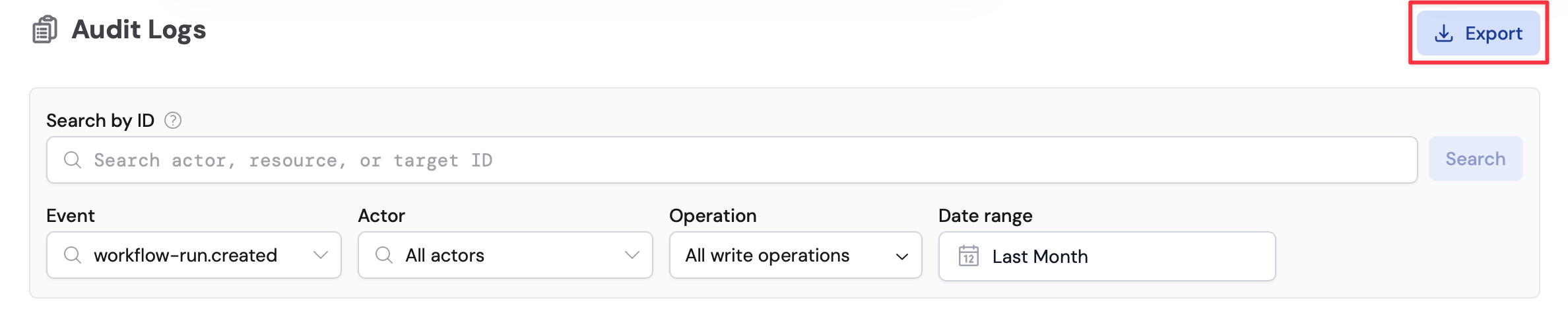 Exports include up to **10,000** matching events, newest first. Narrow the date range or add filters if you need a smaller, complete set.
## Next steps
Grant **Manage Audit Logs** with a custom role, without making someone a
full Admin.
See the other access, SSO, and governance controls available to Enterprise
teams.
Track credit consumption and other organization usage alongside audit
activity.
Require team members to sign in through your identity provider.
Exports include up to **10,000** matching events, newest first. Narrow the date range or add filters if you need a smaller, complete set.
## Next steps
Grant **Manage Audit Logs** with a custom role, without making someone a
full Admin.
See the other access, SSO, and governance controls available to Enterprise
teams.
Track credit consumption and other organization usage alongside audit
activity.
Require team members to sign in through your identity provider.