> ## Documentation Index
> Fetch the complete documentation index at: https://docs.cassidyai.com/llms.txt
> Use this file to discover all available pages before exploring further.
# Configure default Agents
> Set which Agents appear by default for your team when they open a new chat.
Default Agents are the pre-built [Agents](/agents/overview) that appear in the Agent selector when your team opens a new chat. As an Admin, you can control which default Agents are available to help manage costs, ensure compliance, and surface the most relevant tools for your team.
Only **Admins** can configure default Agents. This setting applies to the **Chat** experience only — it does not affect the base model selection when building custom Agents or the model used in [Workflow](/workflows/overview) actions.
## Manage default Agents
Click your account name at the bottom of the sidebar, then click the **gear icon** next to your organization name.
In the left sidebar, click **Default Agents** under the **Agents** section.
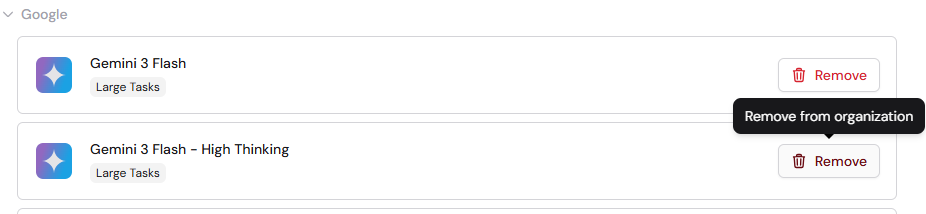
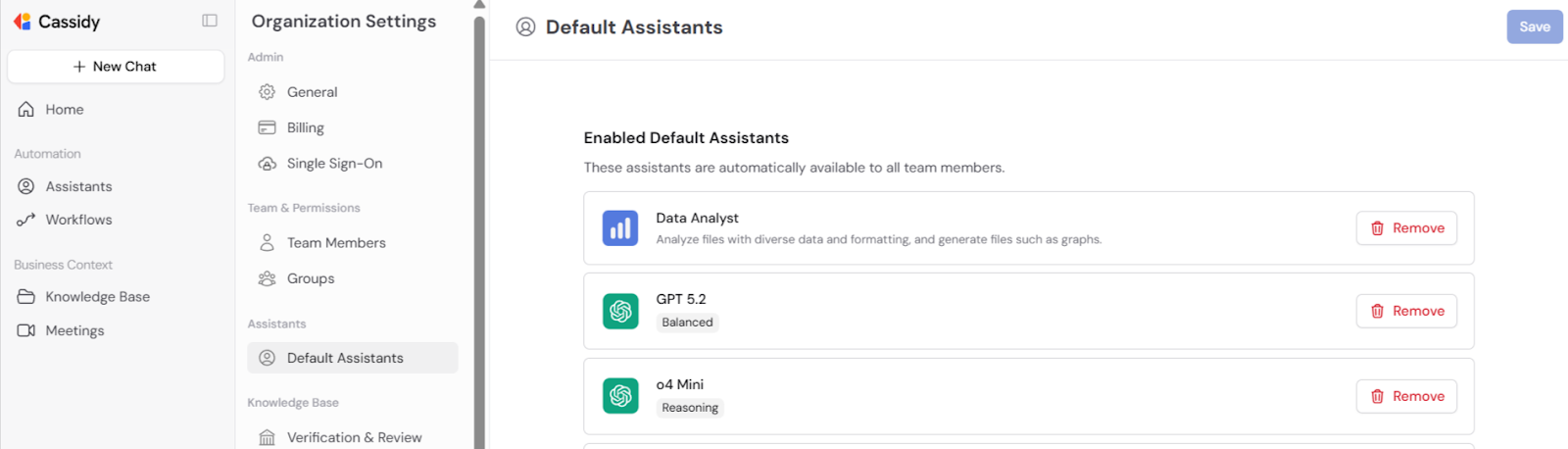 Click the **remove** button next to any default Agent you want to hide from your team's chat selector. Removing a default Agent doesn't delete it — it simply hides it from the default list.
 Click **Add Agent** to browse and select from the available default Agents. Search by name or capability to find the right ones for your team.
 Click **Save** to apply your changes. The **Save** button only becomes active after you've made at least one change.
Your default Agent configuration is updated. Team members will see the new set of default Agents the next time they open a chat.
## Where default Agents appear
Default Agents show up in the **Agent selector** when a user starts a new chat. They appear under the **Default** section, separate from any custom Agents the user or their team has built.
Click **Save** to apply your changes. The **Save** button only becomes active after you've made at least one change.
Your default Agent configuration is updated. Team members will see the new set of default Agents the next time they open a chat.
## Where default Agents appear
Default Agents show up in the **Agent selector** when a user starts a new chat. They appear under the **Default** section, separate from any custom Agents the user or their team has built.
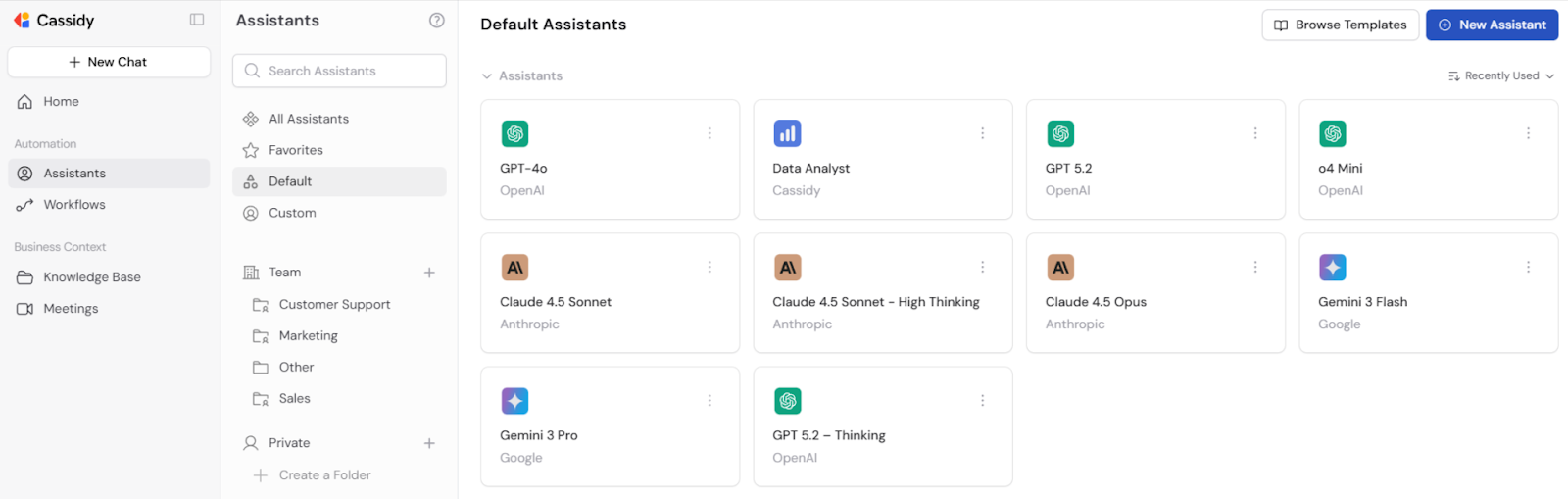
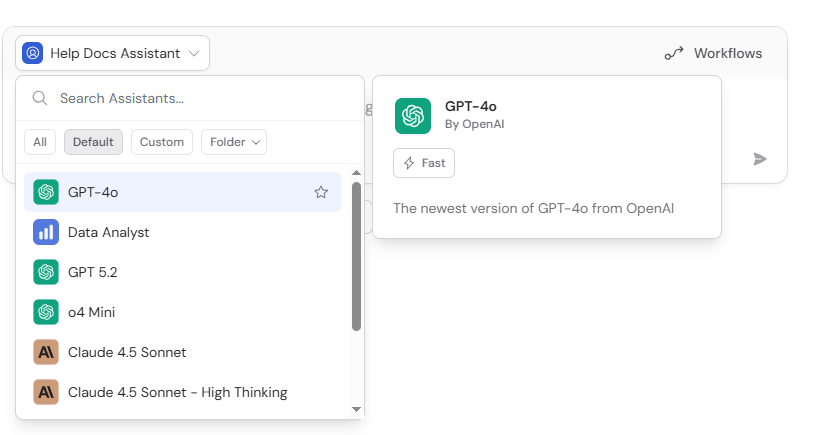 Curate your defaults to match your team's most common use cases. For example, a sales team might benefit from a writing-focused Agent and a research Agent, while a support team might need an Agent with [Knowledge Base](/knowledge-base/overview) access to your help center.
## Next steps
Create custom Agents tailored to your team's specific needs.
Set organization-wide AI behavior rules for all Agents.
Curate your defaults to match your team's most common use cases. For example, a sales team might benefit from a writing-focused Agent and a research Agent, while a support team might need an Agent with [Knowledge Base](/knowledge-base/overview) access to your help center.
## Next steps
Create custom Agents tailored to your team's specific needs.
Set organization-wide AI behavior rules for all Agents.