> ## Documentation Index
> Fetch the complete documentation index at: https://docs.cassidyai.com/llms.txt
> Use this file to discover all available pages before exploring further.
# Manage Connectors for your organization
> Control which Connectors your organization can use, which actions are enabled, and when people must approve external actions.
Decide which business apps your organization's [Agents](/agents/overview),
[Skills](/skills/overview), and [Workflow](/workflows/overview) AI actions can
reach, which actions are allowed, and when actions need a person's approval.
You need the **Manage Connectors** privilege to change these settings, and the
**Manage Organization Settings** privilege for the **Controls** page. In many
organizations, Admins have both by default. See [Assign roles and
groups](/settings/roles-and-groups#connector-privileges).
## Common setups
* **Let people use everything, but ask before changes** — Leave Connectors
enabled and set the organization approval default to **Ask before changes**.
* **Read-only for now** — Open each Connector's **Action permissions** and turn
off its write actions. Set **New actions** to **Turn on read actions only**.
* **Pause one app** — Open the Connector and choose **Disable for everyone**.
Connections and settings are kept for when you enable it again.
## Open Connector management
Open your account menu from the sidebar and select **Organization
Settings**.
Select **Connectors** in the organization settings sidebar.
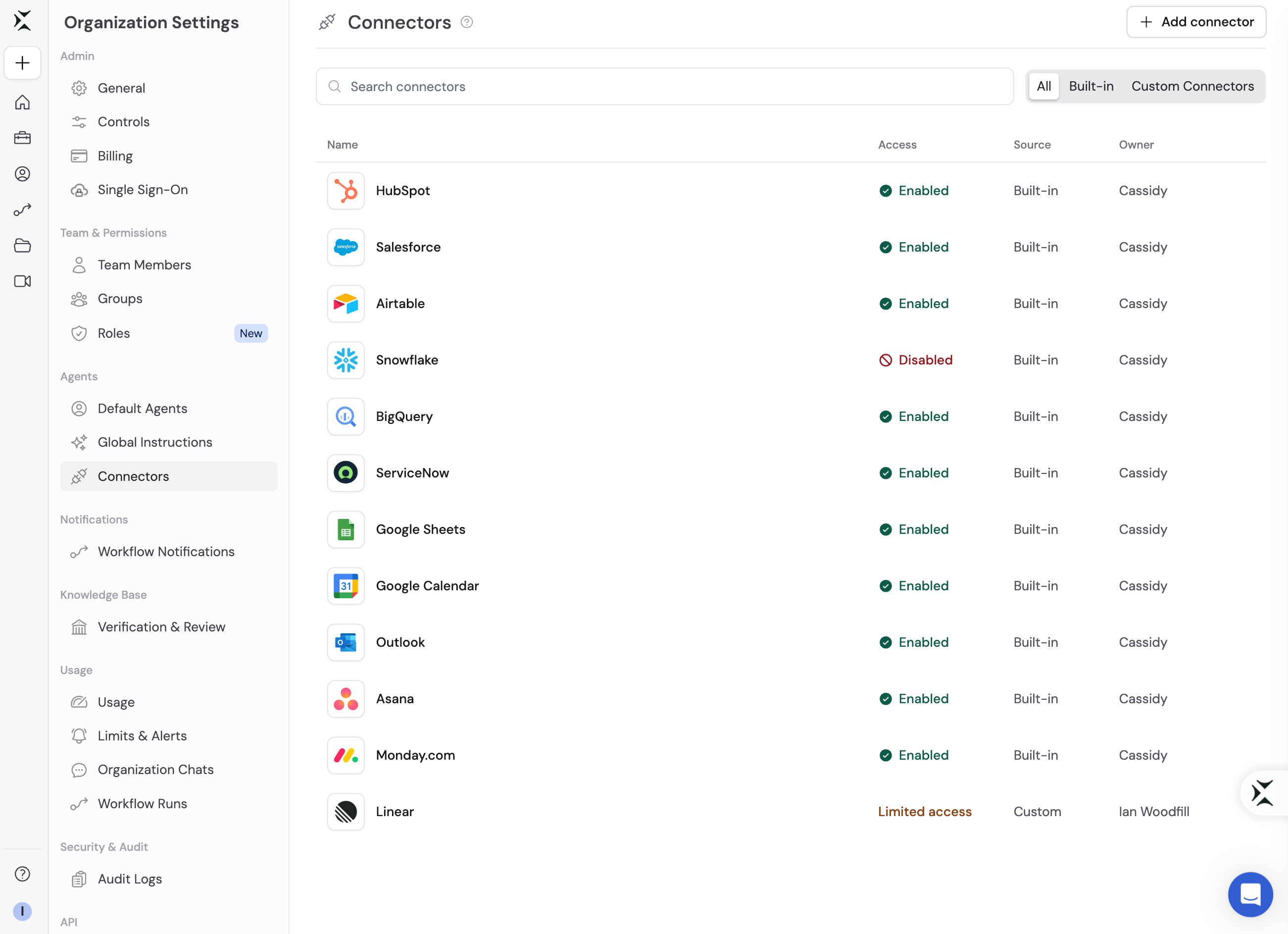
Use the **All**, **Built-in**, and **Custom Connectors** tabs to find the
Connector you want to manage.
 ## Connector statuses
* **Enabled** — Anyone with the right role privilege can use the Connector.
* **Restricted** — A Custom Connector is shared only with selected people or
groups.
* **Disabled** — Nobody can use the Connector. Connections and settings are
kept.
Disabled beats everything else. No role privilege or access rule can grant
access to a disabled Connector.
## Enable or disable a Connector
Open a Connector and use its status menu to enable or disable it for everyone.
Built-in Connectors use [role privileges](#control-access-with-roles) to decide
who can connect them. Custom Connectors are shared with the whole organization
or with selected people and groups, like other shared resources.
## Control what a connector can do
Open a Connector to manage which actions are available and when approval is
required.
## Connector statuses
* **Enabled** — Anyone with the right role privilege can use the Connector.
* **Restricted** — A Custom Connector is shared only with selected people or
groups.
* **Disabled** — Nobody can use the Connector. Connections and settings are
kept.
Disabled beats everything else. No role privilege or access rule can grant
access to a disabled Connector.
## Enable or disable a Connector
Open a Connector and use its status menu to enable or disable it for everyone.
Built-in Connectors use [role privileges](#control-access-with-roles) to decide
who can connect them. Custom Connectors are shared with the whole organization
or with selected people and groups, like other shared resources.
## Control what a connector can do
Open a Connector to manage which actions are available and when approval is
required.
 ## Action permissions
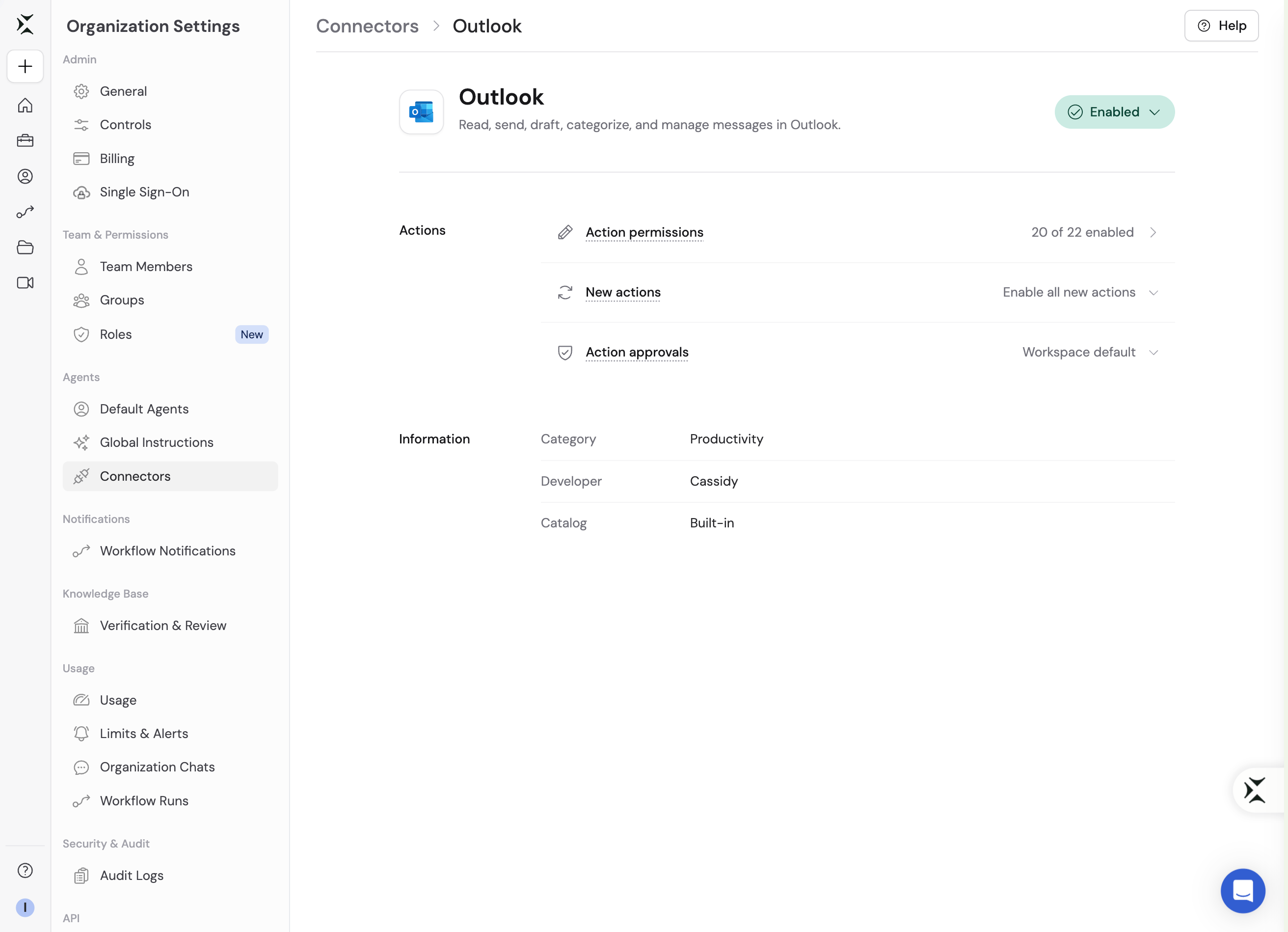
Use **Action permissions** to turn individual actions on or off for everyone.
Built-in Connectors group actions into categories specific to the app. Custom
Connectors use Read, Write, and Other categories.
An action that is off can't be used by any Agent, Skill, or Workflow.
## Action permissions
Use **Action permissions** to turn individual actions on or off for everyone.
Built-in Connectors group actions into categories specific to the app. Custom
Connectors use Read, Write, and Other categories.
An action that is off can't be used by any Agent, Skill, or Workflow.
 ## New actions
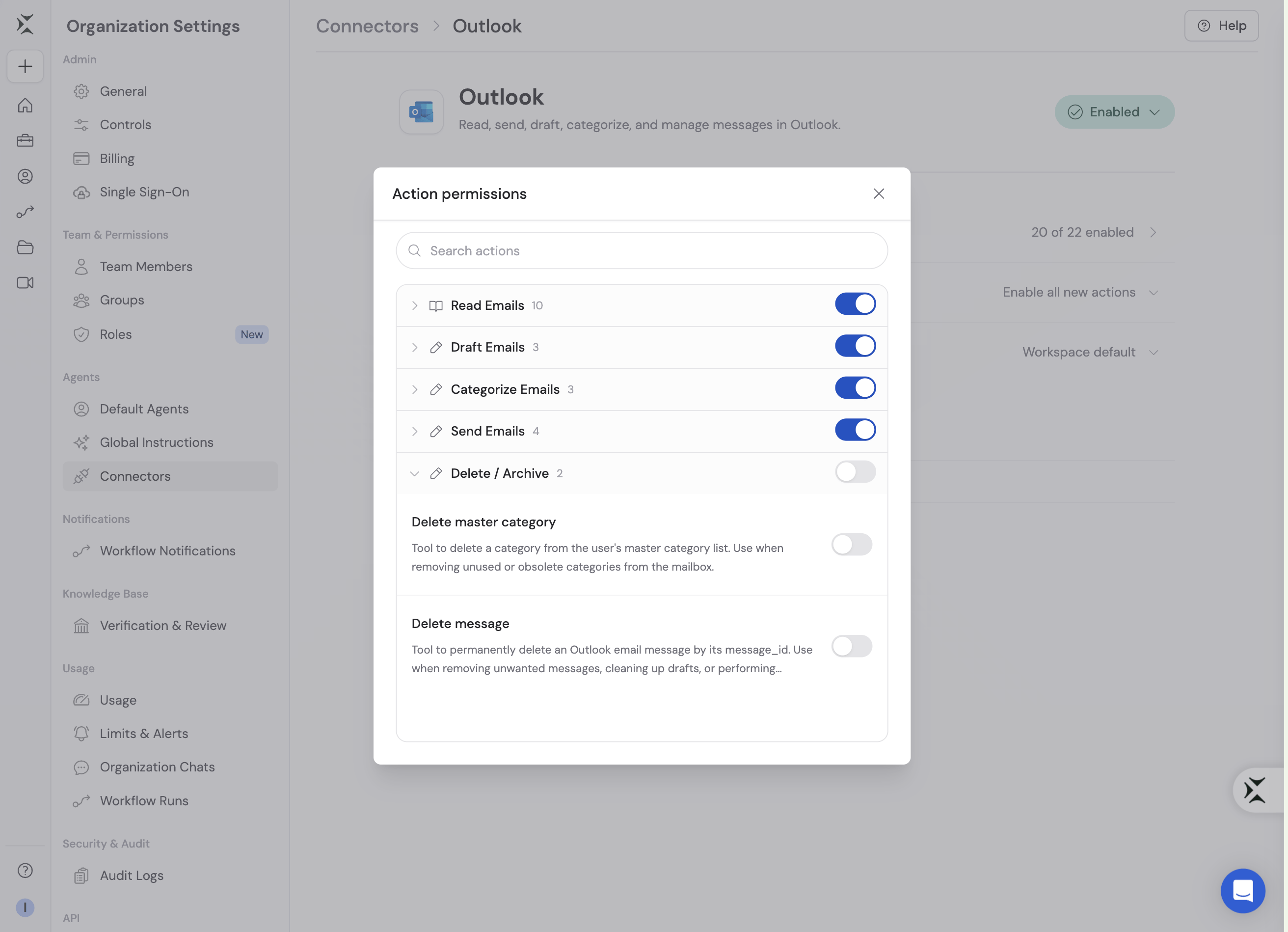
Use **New actions** to decide what happens when a Connector adds actions:
* **Turn on** — New read and write actions are on.
* **Turn on read actions only** — New read actions are on; other new actions
are off.
* **Turn off** — Every new action is off until you review it.
## Action approvals
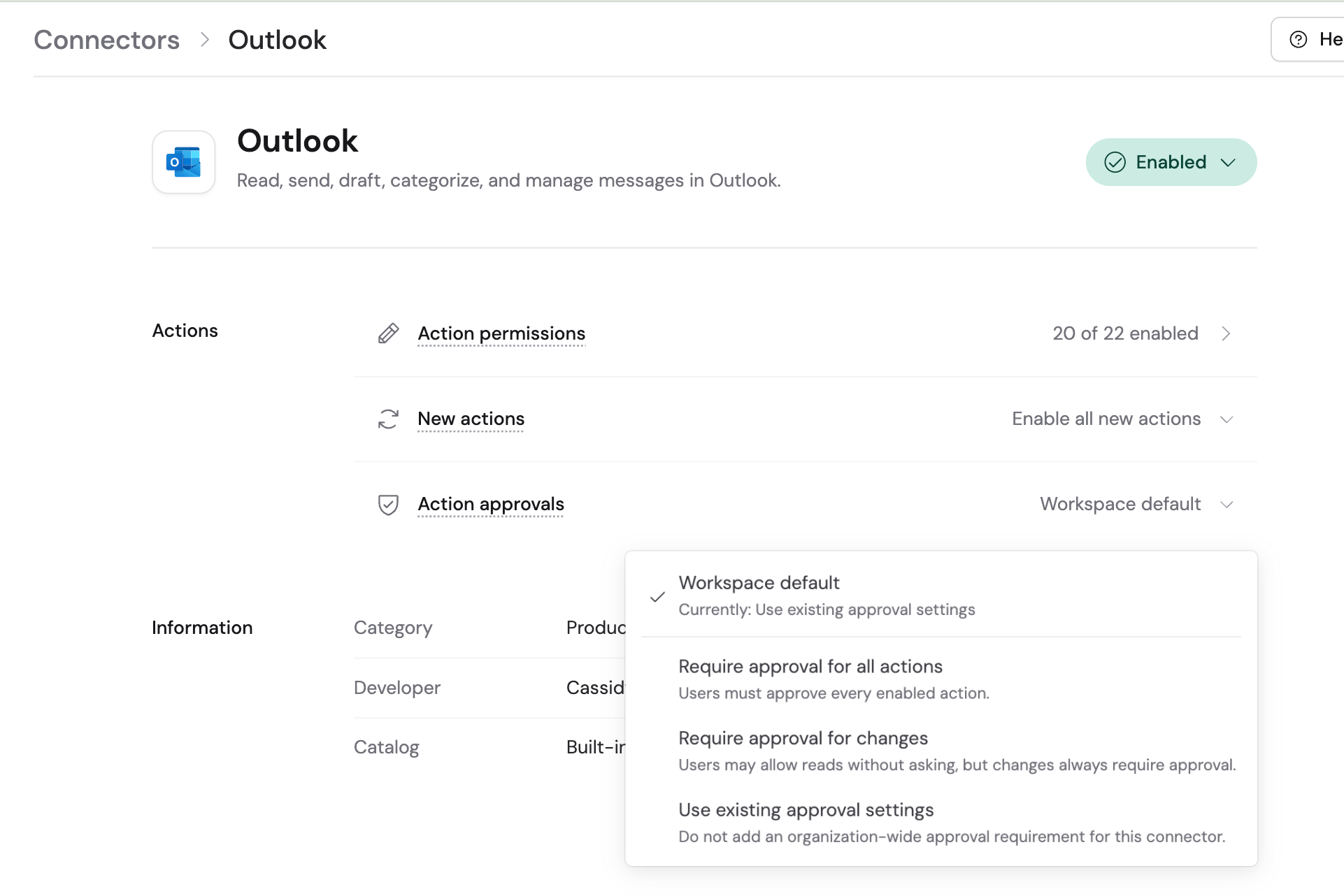
Use **Action approvals** to set the least approval anyone can choose for this
Connector's actions:
* **Organization default** — Follow the [organization
default](#set-the-organization-approval-default).
* **Ask every time** — Every action needs approval.
* **Ask before changes** — Reading is allowed. Changes need approval, so
Workflows can't run them.
* **No extra approval** — Agents and people keep their own settings.
## New actions
Use **New actions** to decide what happens when a Connector adds actions:
* **Turn on** — New read and write actions are on.
* **Turn on read actions only** — New read actions are on; other new actions
are off.
* **Turn off** — Every new action is off until you review it.
## Action approvals
Use **Action approvals** to set the least approval anyone can choose for this
Connector's actions:
* **Organization default** — Follow the [organization
default](#set-the-organization-approval-default).
* **Ask every time** — Every action needs approval.
* **Ask before changes** — Reading is allowed. Changes need approval, so
Workflows can't run them.
* **No extra approval** — Agents and people keep their own settings.
 People can add approval on top of this setting, but can't remove it.
## Set the organization approval default
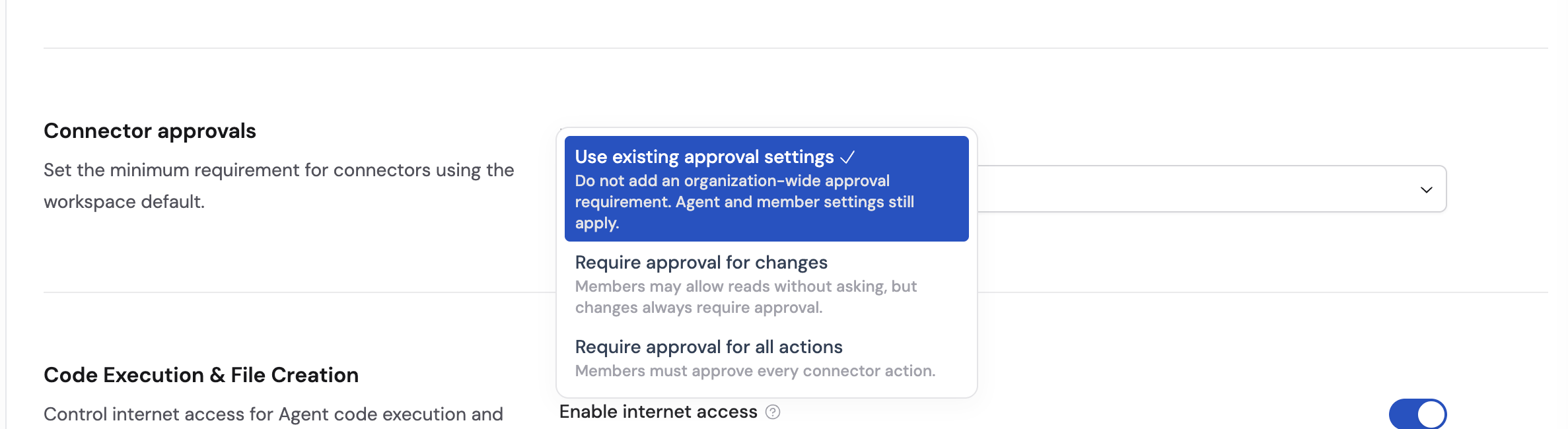
Open **Organization Settings** → **Controls** → **Connector approvals** to set
the default used by Connectors on **Organization default**. The options are the
same: **No extra approval**, **Ask before changes**, and **Ask every time**.
People can add approval on top of this setting, but can't remove it.
## Set the organization approval default
Open **Organization Settings** → **Controls** → **Connector approvals** to set
the default used by Connectors on **Organization default**. The options are the
same: **No extra approval**, **Ask before changes**, and **Ask every time**.
 ## Control Connector suggestions in chat
The **Connector discovery** toggle on the same **Controls** page decides whether
Agents may suggest a relevant Connector during a chat — for example, offering
the Asana Connector when someone asks about their Asana tasks. It is on by
default.
A suggestion never connects an app on its own. The person in the chat chooses
**Add** or **Not now**, and nothing is shared with the app until they connect it
and an action runs. See [Connector suggestions in
chat](/agents/connectors/overview#connector-suggestions-in-chat) for what
people see.
Suggestions respect every other control on this page. Agents only suggest
Connectors that are enabled, that the person has the [role
privilege](#control-access-with-roles) to connect, and that aren't already
active in the Agent or connected in the person's own settings. Suggestions
appear only in the Cassidy web app.
Turning **Connector discovery** off removes the suggestions and changes nothing
else.
## Control access with roles
Use roles to decide which built-in Connectors a person can connect:
* Grant **Agent Connectors** for access to every enabled built-in Connector.
* Grant an individual Connector privilege for access to only that app.
* Grant **Custom connectors** to let someone connect their own account to
Custom Connectors shared with them.
* Grant **Manage Connectors** only to people who should change these settings
and create, edit, share, or delete Custom Connectors.
Learn how to [assign Connector privileges with roles](/settings/roles-and-groups#connector-privileges).
For setting up a Custom Connector, see [Custom
Connectors](/agents/connectors/mcp-servers).
## Next steps
Grant Connector privileges through managed or custom roles.
See how your team connects and uses Connectors day to day.
## Control Connector suggestions in chat
The **Connector discovery** toggle on the same **Controls** page decides whether
Agents may suggest a relevant Connector during a chat — for example, offering
the Asana Connector when someone asks about their Asana tasks. It is on by
default.
A suggestion never connects an app on its own. The person in the chat chooses
**Add** or **Not now**, and nothing is shared with the app until they connect it
and an action runs. See [Connector suggestions in
chat](/agents/connectors/overview#connector-suggestions-in-chat) for what
people see.
Suggestions respect every other control on this page. Agents only suggest
Connectors that are enabled, that the person has the [role
privilege](#control-access-with-roles) to connect, and that aren't already
active in the Agent or connected in the person's own settings. Suggestions
appear only in the Cassidy web app.
Turning **Connector discovery** off removes the suggestions and changes nothing
else.
## Control access with roles
Use roles to decide which built-in Connectors a person can connect:
* Grant **Agent Connectors** for access to every enabled built-in Connector.
* Grant an individual Connector privilege for access to only that app.
* Grant **Custom connectors** to let someone connect their own account to
Custom Connectors shared with them.
* Grant **Manage Connectors** only to people who should change these settings
and create, edit, share, or delete Custom Connectors.
Learn how to [assign Connector privileges with roles](/settings/roles-and-groups#connector-privileges).
For setting up a Custom Connector, see [Custom
Connectors](/agents/connectors/mcp-servers).
## Next steps
Grant Connector privileges through managed or custom roles.
See how your team connects and uses Connectors day to day.