> ## Documentation Index
> Fetch the complete documentation index at: https://docs.cassidyai.com/llms.txt
> Use this file to discover all available pages before exploring further.
# Manage credits
> Understand how Cassidy credits work, track usage, and purchase additional credits when needed.
Credits are how Cassidy measures AI usage across [Agents](/agents/overview) and [Workflows](/workflows/overview). Every AI interaction — from a chat message to a Workflow run — consumes credits based on the complexity of the request and the AI model used.
## How credits work
When you send a message to an Agent or run a Workflow, Cassidy makes API calls to AI models. Each call processes **input tokens** (your prompt, instructions, and [Knowledge Base](/knowledge-base/overview) context) and generates **output tokens** (the AI's response). The number of tokens determines how many credits are consumed.
### Credit usage by feature
| Feature | What affects cost |
| ---------------- | -------------------------------------------------------------------------------------------------------------------- |
| **Agent chat** | Message length, Knowledge Base context pulled in, model selected, [capabilities](/agents/capabilities/overview) used |
| **Workflow run** | Number of actions, input size, model selected per action |
Simpler models and shorter prompts use fewer credits. Choose the right model for the task — you don't always need the most powerful option. See [Choose the right AI model](/guides/choose-ai-model) for guidance.
## Check your credit balance
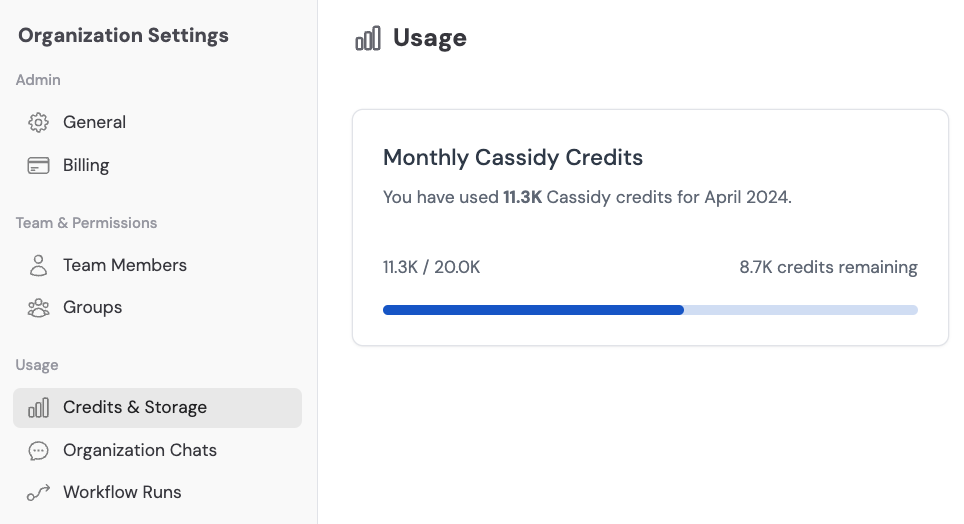
Click your account name at the bottom of the sidebar, then click the **gear icon** next to your organization name.
In the left sidebar, click **Usage**. You'll see your current credit balance, usage for the billing period, and storage consumption.
 ## Get more credits
If your team is running low on credits, you have a few options:
* **Upgrade your plan** — Higher-tier plans include more monthly credits. See [Manage plans](/settings/manage-plans).
* **Contact support** — For custom credit packages or Enterprise plans, email [support@cassidyai.com](mailto:support@cassidyai.com).
## Frequently asked questions
Credits reset each billing period and do not roll over — with the exception of **Enterprise** plans, which may include rollover depending on your agreement. Contact your account manager for details.
A few strategies to optimize credit consumption:
* Use a lighter AI model when the task doesn't require the most powerful option
* Write concise, specific instructions to reduce input tokens
* Limit the amount of Knowledge Base context pulled into each interaction
* Use [credit usage alerts](/settings/credit-alerts-and-limits) to stay on top of consumption
When your credit balance is exhausted, AI-powered features (Agent chats, Workflow runs) will be temporarily unavailable until credits are replenished — either at the start of your next billing period or by upgrading your plan.
Yes. Visit the **Usage** tab in Organization Settings to see a breakdown of credit consumption by team member. You can also set [per-user credit limits](/settings/credit-alerts-and-limits) to control spending.
## Next steps
Set up notifications and per-user spending caps.
Track credits, storage, and meeting hours across your organization.
## Get more credits
If your team is running low on credits, you have a few options:
* **Upgrade your plan** — Higher-tier plans include more monthly credits. See [Manage plans](/settings/manage-plans).
* **Contact support** — For custom credit packages or Enterprise plans, email [support@cassidyai.com](mailto:support@cassidyai.com).
## Frequently asked questions
Credits reset each billing period and do not roll over — with the exception of **Enterprise** plans, which may include rollover depending on your agreement. Contact your account manager for details.
A few strategies to optimize credit consumption:
* Use a lighter AI model when the task doesn't require the most powerful option
* Write concise, specific instructions to reduce input tokens
* Limit the amount of Knowledge Base context pulled into each interaction
* Use [credit usage alerts](/settings/credit-alerts-and-limits) to stay on top of consumption
When your credit balance is exhausted, AI-powered features (Agent chats, Workflow runs) will be temporarily unavailable until credits are replenished — either at the start of your next billing period or by upgrading your plan.
Yes. Visit the **Usage** tab in Organization Settings to see a breakdown of credit consumption by team member. You can also set [per-user credit limits](/settings/credit-alerts-and-limits) to control spending.
## Next steps
Set up notifications and per-user spending caps.
Track credits, storage, and meeting hours across your organization.