> ## Documentation Index
> Fetch the complete documentation index at: https://docs.cassidyai.com/llms.txt
> Use this file to discover all available pages before exploring further.
# Manage plans
> View your current plan, compare options, and upgrade or downgrade your Cassidy subscription.
Manage your Cassidy subscription from **Organization Settings** — choose between monthly or annual billing, compare plan tiers, and upgrade or downgrade as your team's needs change.
Only **Admins** have full access to billing settings. Members can view available plans and initiate an upgrade, but organization-wide billing management requires Admin permissions.
## Change your plan
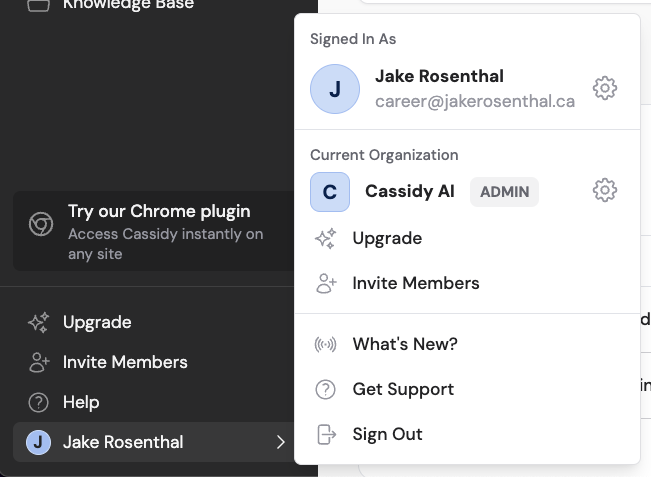
Click your account name at the bottom of the sidebar, then click the **gear icon** next to your organization name to open **Organization Settings**.
 In the left sidebar of Organization Settings, click **Billing**. You'll see your current plan, billing cycle, and usage summary.
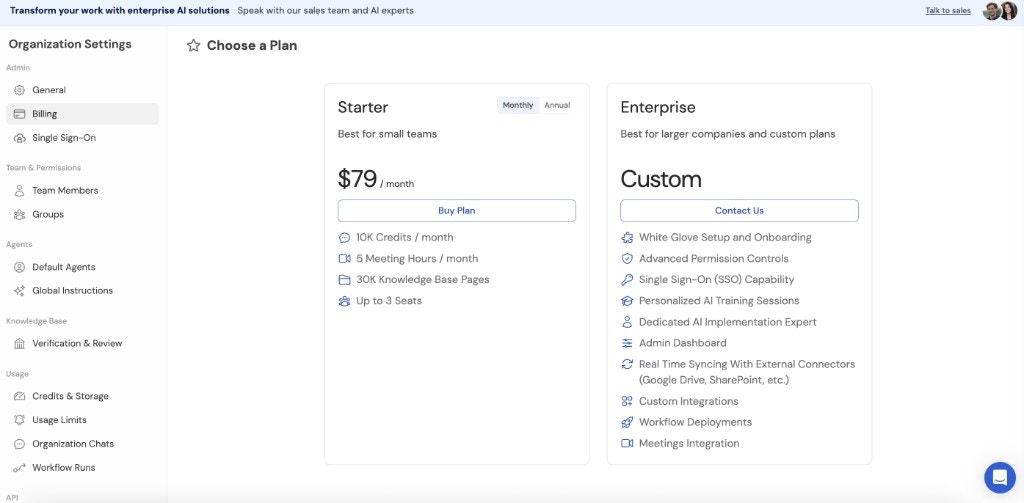 Toggle between **Monthly** and **Annual** billing at the top of the plans comparison. Annual billing includes a discount compared to paying month-to-month.
Review the available plans and click **Buy Plan** under the tier that fits your team. You'll be redirected to Stripe to complete checkout.
Toggle between **Monthly** and **Annual** billing at the top of the plans comparison. Annual billing includes a discount compared to paying month-to-month.
Review the available plans and click **Buy Plan** under the tier that fits your team. You'll be redirected to Stripe to complete checkout.
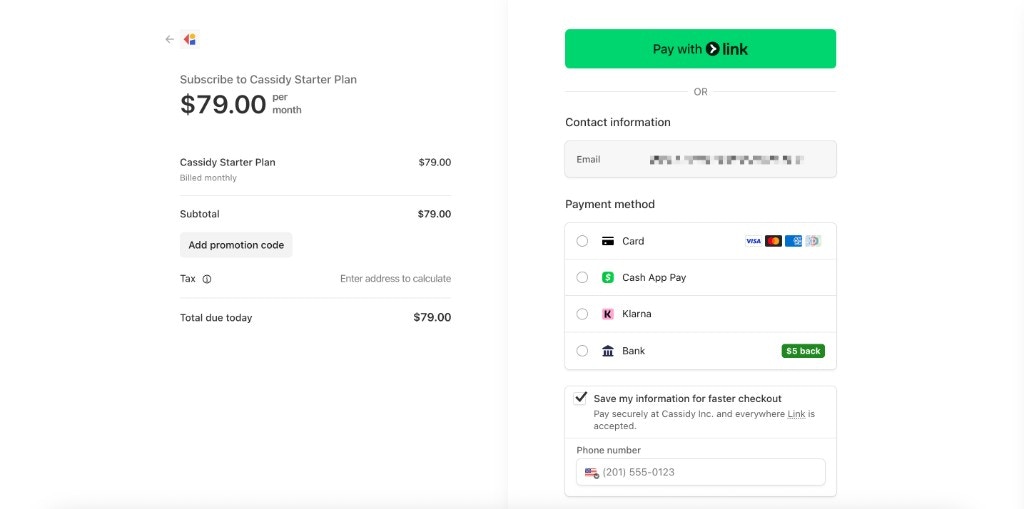 Enter your payment information on the Stripe checkout page. Once payment is confirmed, your new plan takes effect immediately.
Your plan is now active. You'll see the updated plan reflected on the Billing page.
Need an **Enterprise** plan with custom limits, SSO, dedicated support, or advanced security features? Click **Contact Us** on the plans page or email [support@cassidyai.com](mailto:support@cassidyai.com).
## Next steps
Understand how credits work and track your team's usage.
Add colleagues to your Cassidy workspace.
Enter your payment information on the Stripe checkout page. Once payment is confirmed, your new plan takes effect immediately.
Your plan is now active. You'll see the updated plan reflected on the Billing page.
Need an **Enterprise** plan with custom limits, SSO, dedicated support, or advanced security features? Click **Contact Us** on the plans page or email [support@cassidyai.com](mailto:support@cassidyai.com).
## Next steps
Understand how credits work and track your team's usage.
Add colleagues to your Cassidy workspace.