> ## Documentation Index
> Fetch the complete documentation index at: https://docs.cassidyai.com/llms.txt
> Use this file to discover all available pages before exploring further.
# Monitor usage
> Track how your team uses credits, storage, and meeting hours across your Cassidy organization.
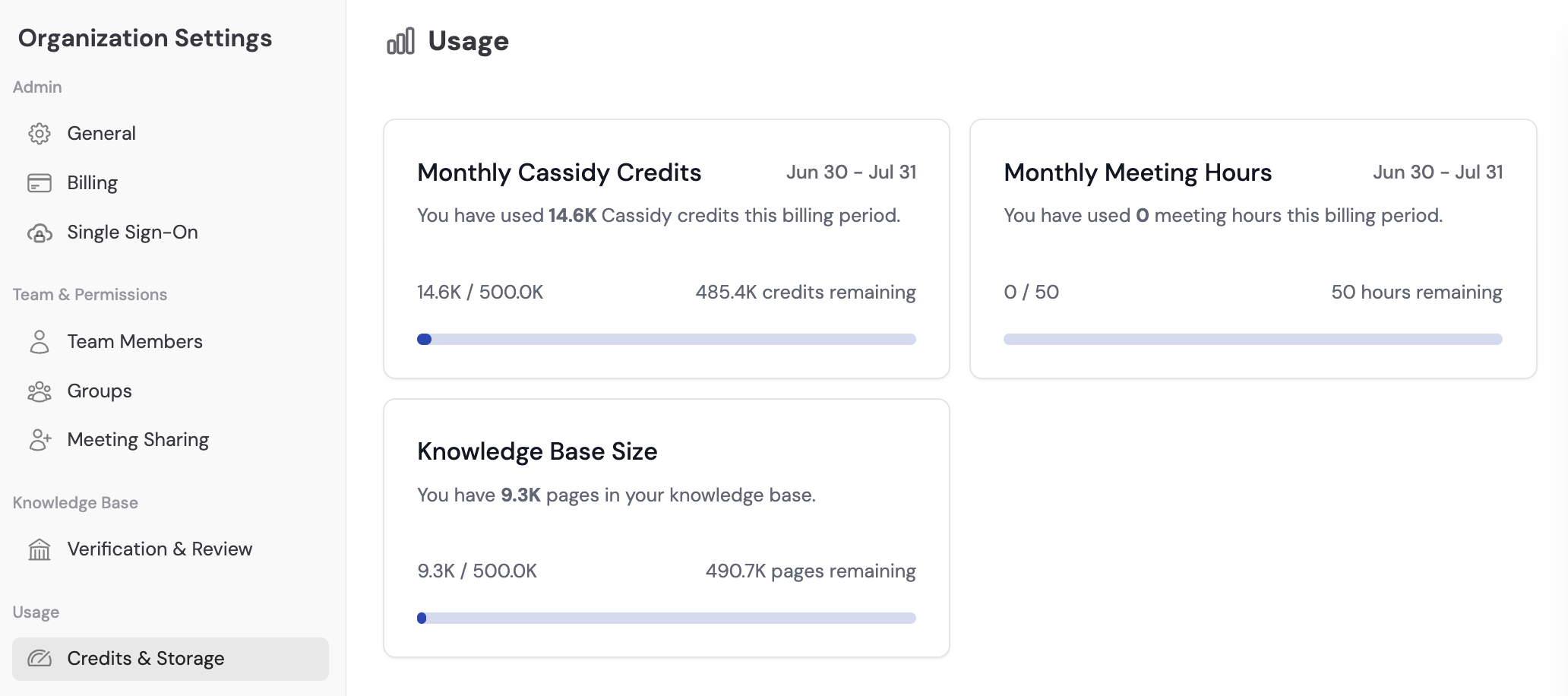
The usage dashboard in Organization Settings gives you a real-time view of your team's consumption across credits, [Knowledge Base](/knowledge-base/overview) storage, [Meeting](/meetings/getting-started) hours, and more. Use it to spot trends, identify heavy users, and make informed decisions about your [plan](/settings/manage-plans).
## View your usage dashboard
Click your account name at the bottom of the sidebar, then click the **gear icon** next to your organization name.
In the left sidebar, click **Usage**. The dashboard shows key metrics for your organization:
 ## What you can track
| Metric | What it measures |
| ---------------------------- | --------------------------------------------------------------------------------------------------------------------------- |
| **Credits used** | Total AI credits consumed this billing period |
| **Knowledge Base storage** | Total storage used by uploaded documents and imported content |
| **Meeting hours** | Total hours of [Meetings](/meetings/getting-started) recorded this billing period |
| **Monthly Cassidy Actions** | Every time an [Agent](/agents/overview) uses a tool or a [Workflow](/workflows/overview) runs an action this billing period |
| **Monthly active workflows** | [Workflows](/workflows/overview) that have been run regularly this billing period |
| **Monthly active agents** | Custom [Agents](/agents/overview) with consistent chat activity this billing period |
Usage data updates in **real time**. Refresh the page to see the latest numbers.
## What happens when you exceed limits
| Limit exceeded | What happens |
| ----------------- | --------------------------------------------------------------------------------------------------------------- |
| **Credits** | AI-powered features (Agent chats, Workflow runs) are temporarily unavailable until credits reset or you upgrade |
| **Storage** | You won't be able to upload new documents until you free up space or upgrade your plan |
| **Meeting hours** | Meeting recording is disabled until hours reset or you upgrade |
If your team is consistently hitting limits, consider upgrading your plan for higher allocations. See [Manage plans](/settings/manage-plans).
## Next steps
Set up automatic alerts and per-user spending caps.
Understand how credits work and explore options for getting more.
## What you can track
| Metric | What it measures |
| ---------------------------- | --------------------------------------------------------------------------------------------------------------------------- |
| **Credits used** | Total AI credits consumed this billing period |
| **Knowledge Base storage** | Total storage used by uploaded documents and imported content |
| **Meeting hours** | Total hours of [Meetings](/meetings/getting-started) recorded this billing period |
| **Monthly Cassidy Actions** | Every time an [Agent](/agents/overview) uses a tool or a [Workflow](/workflows/overview) runs an action this billing period |
| **Monthly active workflows** | [Workflows](/workflows/overview) that have been run regularly this billing period |
| **Monthly active agents** | Custom [Agents](/agents/overview) with consistent chat activity this billing period |
Usage data updates in **real time**. Refresh the page to see the latest numbers.
## What happens when you exceed limits
| Limit exceeded | What happens |
| ----------------- | --------------------------------------------------------------------------------------------------------------- |
| **Credits** | AI-powered features (Agent chats, Workflow runs) are temporarily unavailable until credits reset or you upgrade |
| **Storage** | You won't be able to upload new documents until you free up space or upgrade your plan |
| **Meeting hours** | Meeting recording is disabled until hours reset or you upgrade |
If your team is consistently hitting limits, consider upgrading your plan for higher allocations. See [Manage plans](/settings/manage-plans).
## Next steps
Set up automatic alerts and per-user spending caps.
Understand how credits work and explore options for getting more.