> ## Documentation Index
> Fetch the complete documentation index at: https://docs.cassidyai.com/llms.txt
> Use this file to discover all available pages before exploring further.
# Create your first Skill
> Turn a repeatable task into a tested Skill with Cassidy's help, then publish it privately and try it in a real conversation.
Create a reusable Customer Follow-up Email Skill from a plain-language description, test it in chat, and improve it before sharing it with your team.
**Before you start:** You need permission to create Skills. This tutorial
includes sample content, so you do not need to prepare your own examples.
## What you will build
In this tutorial, you will create a Skill that helps customer-facing teams write follow-up emails.
The Skill will:
* Use your organization's tone
* Lead with the customer's stated goal
* Follow an approved structure
* Include clear next steps
* Avoid commitments the sender has not approved
Complete this example first. Afterward, you can use the same steps for another repeatable task.
## Create the Skill
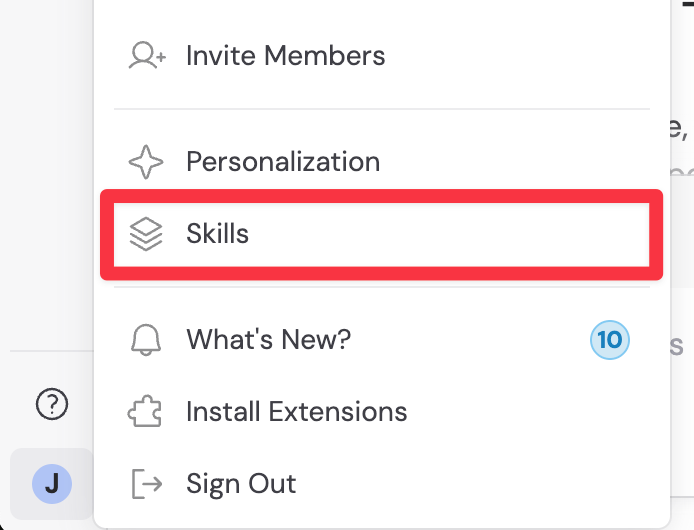
Click your name in the bottom-left corner of Cassidy, then select **Skills**.
 Click **New Skill**. Under **Create a Custom Skill**, describe the reusable work you want Cassidy to learn.
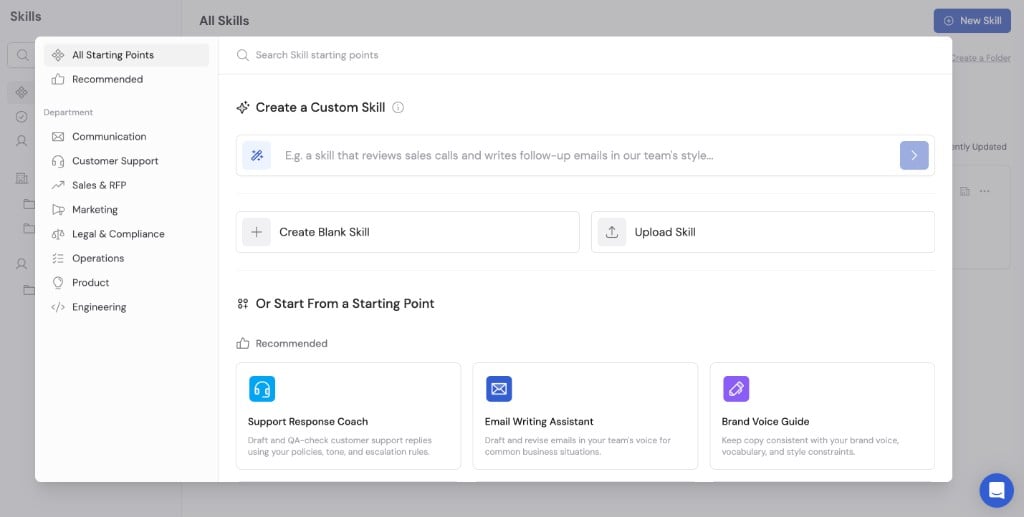 A useful request explains the audience, desired result, standards, source material, and boundaries. For example:
> Create a Customer Follow-up Email Skill for our sales and customer success teams. It should summarize the customer's stated goal, connect our recommendation to that goal, and end with clear next steps. Use a warm, concise tone. Follow the email examples I provide. Never invent commitments, pricing, dates, or product capabilities. Ask the sender to review any commitment before including it.
You do not need to write perfect instructions. Start with what your team is trying to accomplish and the rules that matter most.
Cassidy may ask focused follow-up questions or request examples.
Provide:
* One or two strong follow-up emails
* Your brand or communication guidelines
* Required sections or formatting
* Situations that require human review
* Requests the Skill should not handle
If the Skill depends on company facts, identify the relevant [Knowledge Base](/knowledge-base/overview) sources.
When Cassidy creates the draft, open it and review:
* **Name:** Is it easy for coworkers to recognize?
* **Description:** Does it clearly say when the Skill should be used?
* **Instructions:** Do they match your real process?
* **Examples and files:** Are they current and appropriate to share?
* **Boundaries:** Does the Skill know when to ask for human review?
A draft is not yet available in chats you start directly in Cassidy. You decide when to publish it.
Click **Publish**, choose **Private**, and confirm.
Publishing privately makes the Skill usable without sharing it with the rest of your organization. This gives you a safe place to test the first version.
## Confirm installation and test it
Publishing automatically installs the Skill for the person who publishes it.
Open the published Skill and confirm that it appears under **Installed**.
The Skill now follows you across chats you start directly in Cassidy with default and custom Agents that have **Code Execution & File Creation** enabled.
Open a new chat and send this request:
> Draft a follow-up email from these notes: Northstar Health wants to reduce support-ticket routing time. Priya will send pilot requirements Thursday, and Jordan will schedule a review Tuesday. We did not discuss pricing or a launch date.
Check that the result:
* Uses the expected structure and tone
* Reflects the customer's actual goal
* Includes accurate next steps
* Does not invent commitments
The response progress shows **Used \[Skill name]** when Cassidy uses the Skill.
Try at least two more requests:
* An incomplete request that should make the Agent ask for information
* An unrelated request that should not use the Skill
If the Skill is selected too often, make its description more specific. If the result misses an important rule, add that rule to the instructions.
Return to the Skill editor, update the draft, and publish the improved version.
When you are satisfied with the results, move the Skill to **Team** or a shared folder so other people can find it.
You now have a tested, published Skill that you can continue improving.
## Other ways to start
After you understand the standard creation flow, you can also:
* Choose a **starting point** for a guided beginning
* Choose **Create Blank Skill** when you already know exactly how to configure it
* Choose **Upload Skill** when you have an existing compatible Skill package
See [Build and improve Skills](/skills/build-and-configure) for detailed authoring guidance.
## Next steps
Write clearer instructions, add resources, and test difficult cases.
Choose who can find and use the finished Skill.
A useful request explains the audience, desired result, standards, source material, and boundaries. For example:
> Create a Customer Follow-up Email Skill for our sales and customer success teams. It should summarize the customer's stated goal, connect our recommendation to that goal, and end with clear next steps. Use a warm, concise tone. Follow the email examples I provide. Never invent commitments, pricing, dates, or product capabilities. Ask the sender to review any commitment before including it.
You do not need to write perfect instructions. Start with what your team is trying to accomplish and the rules that matter most.
Cassidy may ask focused follow-up questions or request examples.
Provide:
* One or two strong follow-up emails
* Your brand or communication guidelines
* Required sections or formatting
* Situations that require human review
* Requests the Skill should not handle
If the Skill depends on company facts, identify the relevant [Knowledge Base](/knowledge-base/overview) sources.
When Cassidy creates the draft, open it and review:
* **Name:** Is it easy for coworkers to recognize?
* **Description:** Does it clearly say when the Skill should be used?
* **Instructions:** Do they match your real process?
* **Examples and files:** Are they current and appropriate to share?
* **Boundaries:** Does the Skill know when to ask for human review?
A draft is not yet available in chats you start directly in Cassidy. You decide when to publish it.
Click **Publish**, choose **Private**, and confirm.
Publishing privately makes the Skill usable without sharing it with the rest of your organization. This gives you a safe place to test the first version.
## Confirm installation and test it
Publishing automatically installs the Skill for the person who publishes it.
Open the published Skill and confirm that it appears under **Installed**.
The Skill now follows you across chats you start directly in Cassidy with default and custom Agents that have **Code Execution & File Creation** enabled.
Open a new chat and send this request:
> Draft a follow-up email from these notes: Northstar Health wants to reduce support-ticket routing time. Priya will send pilot requirements Thursday, and Jordan will schedule a review Tuesday. We did not discuss pricing or a launch date.
Check that the result:
* Uses the expected structure and tone
* Reflects the customer's actual goal
* Includes accurate next steps
* Does not invent commitments
The response progress shows **Used \[Skill name]** when Cassidy uses the Skill.
Try at least two more requests:
* An incomplete request that should make the Agent ask for information
* An unrelated request that should not use the Skill
If the Skill is selected too often, make its description more specific. If the result misses an important rule, add that rule to the instructions.
Return to the Skill editor, update the draft, and publish the improved version.
When you are satisfied with the results, move the Skill to **Team** or a shared folder so other people can find it.
You now have a tested, published Skill that you can continue improving.
## Other ways to start
After you understand the standard creation flow, you can also:
* Choose a **starting point** for a guided beginning
* Choose **Create Blank Skill** when you already know exactly how to configure it
* Choose **Upload Skill** when you have an existing compatible Skill package
See [Build and improve Skills](/skills/build-and-configure) for detailed authoring guidance.
## Next steps
Write clearer instructions, add resources, and test difficult cases.
Choose who can find and use the finished Skill.