> ## Documentation Index
> Fetch the complete documentation index at: https://docs.cassidyai.com/llms.txt
> Use this file to discover all available pages before exploring further.
# Manage Skill versions
> Understand Skill drafts, save checkpoints, publish updates, compare changes, and safely return to an earlier published version.
Improve a Skill without changing what people use until you are ready to publish.
## Understand the three states
### Current draft
The current draft contains your latest edits. Changes save automatically, but they do not affect the Skill people and Agents use.
### Saved version
A saved version is a checkpoint you can name and return to later. Saving a version does not make it live unless you publish it.
### Published version
The published version is the live version used in chats, Agents, and Workflow AI actions.
Editing affects the current draft. Publishing changes the live Skill.
## Save a checkpoint without publishing
Save a version when you want a stable checkpoint before testing, collecting feedback, or making a larger change.
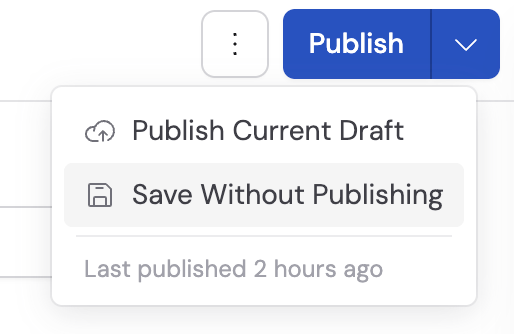
Click the arrow beside **Publish**.
Select **Save Without Publishing**.
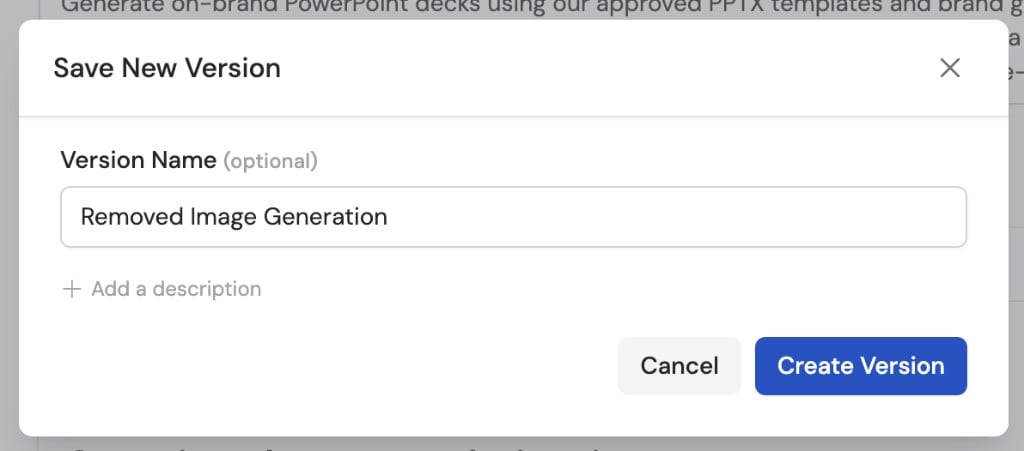
 Add an optional version name and description, then click **Create Version**.
Use the description to explain what changed or what still needs review.
Add an optional version name and description, then click **Create Version**.
Use the description to explain what changed or what still needs review.
 The published Skill remains unchanged.
## Publish a version
Publishing makes your changes available to everyone currently using the Skill.
Click **Publish**, or open the publish menu and select **Publish Current Draft**.
Add an optional version name and description.
Useful notes explain the outcome, such as “Adds escalation guidance for refund requests.”
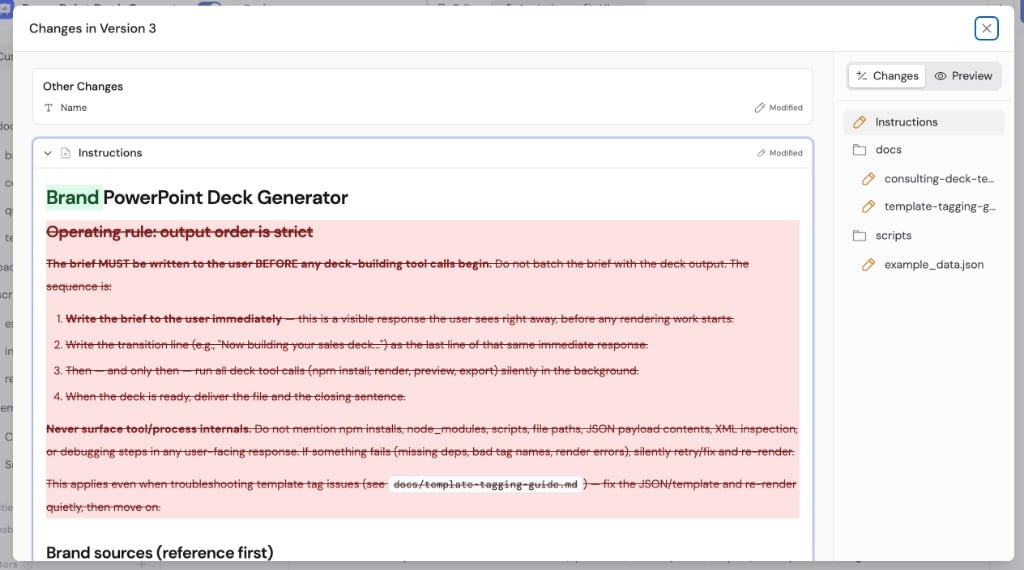
Review **Changes Being Published**. Use **View All Changes** when you need to inspect instructions, files, resources, or tools in detail.
The published Skill remains unchanged.
## Publish a version
Publishing makes your changes available to everyone currently using the Skill.
Click **Publish**, or open the publish menu and select **Publish Current Draft**.
Add an optional version name and description.
Useful notes explain the outcome, such as “Adds escalation guidance for refund requests.”
Review **Changes Being Published**. Use **View All Changes** when you need to inspect instructions, files, resources, or tools in detail.
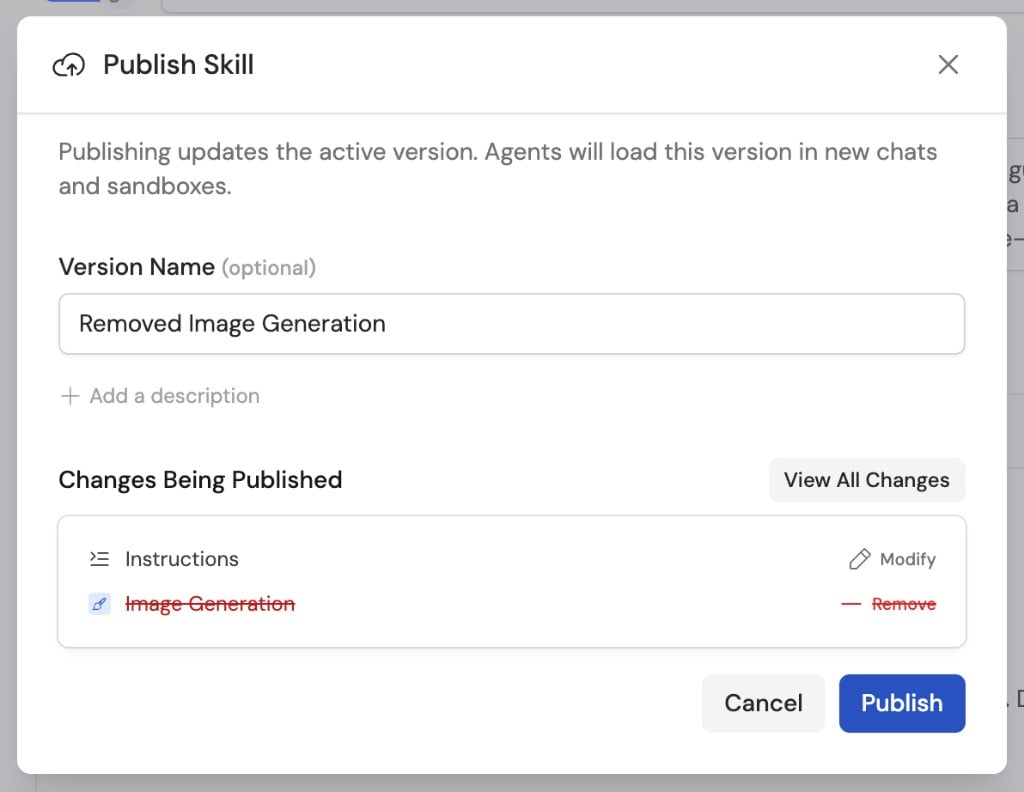 Click **Publish**.
The new version becomes live immediately for personal installations, admin distribution, Agent attachments, and Workflow AI actions.
A published Skill requires a name and description.
## Review version history
Open the version selector beside the Skill name to see:
* The current draft
* Saved and published versions
* Who created each version
* When each version was created
* Which version is currently published
Click **Publish**.
The new version becomes live immediately for personal installations, admin distribution, Agent attachments, and Workflow AI actions.
A published Skill requires a name and description.
## Review version history
Open the version selector beside the Skill name to see:
* The current draft
* Saved and published versions
* Who created each version
* When each version was created
* Which version is currently published
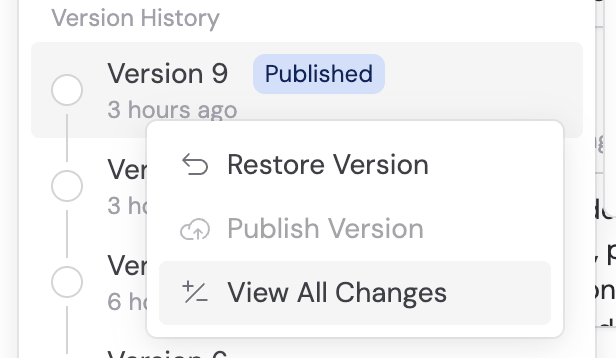
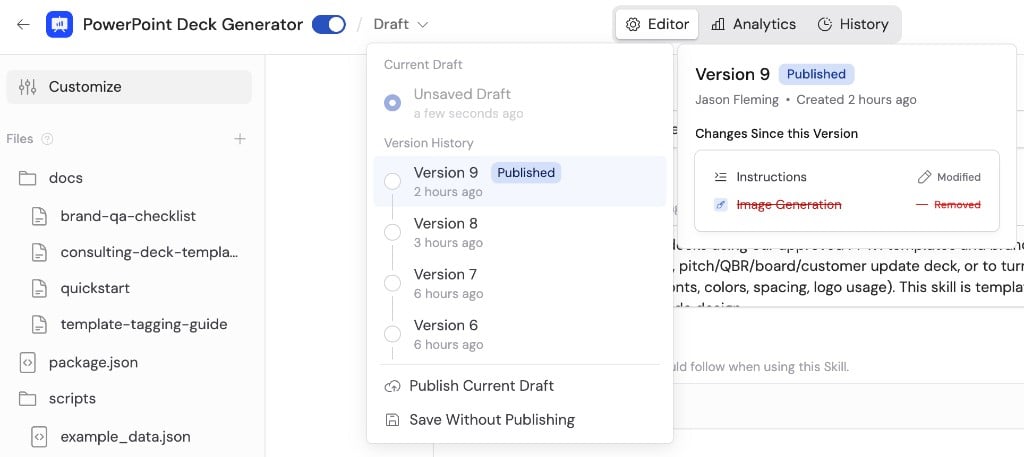 From a version's **...** menu, you can compare changes, publish that saved version, or restore it.
 ## Publish a saved version
Publishing a saved version makes that checkpoint live. It is different from publishing the current draft.
Publishing a saved version also replaces the current draft with that version. Save newer draft work as a separate version first if you need to preserve it.
Before publishing, review the selected version carefully so you know which instructions and files will become active.
## Publish a saved version
Publishing a saved version makes that checkpoint live. It is different from publishing the current draft.
Publishing a saved version also replaces the current draft with that version. Save newer draft work as a separate version first if you need to preserve it.
Before publishing, review the selected version carefully so you know which instructions and files will become active.
 ## Restore an earlier version
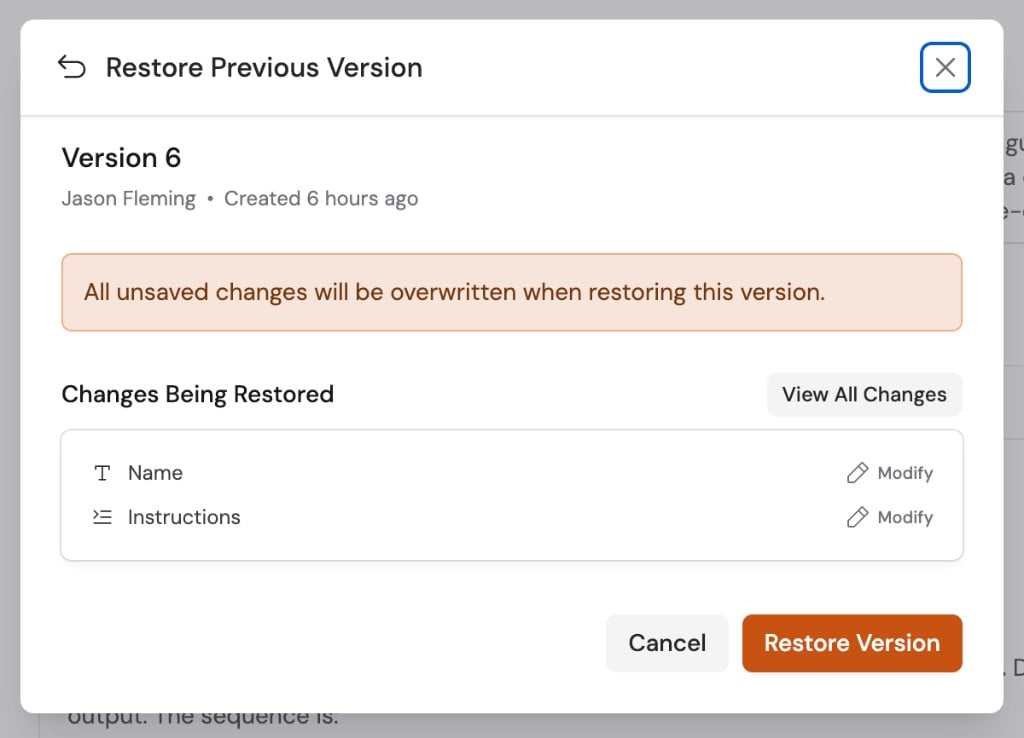
Restoring immediately makes the selected version the live published version.
It also replaces the current unpublished draft. Save a checkpoint first if you
want to keep current draft changes.
Open **Version History**, open the version's **...** menu, and select **Restore Version**.
Review **Changes Being Restored**.
## Restore an earlier version
Restoring immediately makes the selected version the live published version.
It also replaces the current unpublished draft. Save a checkpoint first if you
want to keep current draft changes.
Open **Version History**, open the version's **...** menu, and select **Restore Version**.
Review **Changes Being Restored**.
 Click **Restore Version**.
The selected version becomes both the current draft and the live published version.
Restoring does not delete newer versions. You can return to them later.
## Publish changes proposed in chat
When Cassidy proposes an update in chat, it creates **Draft Skill Changes**.
Open the proposal, review the differences, and publish only when the change is ready. Agents can propose and save draft changes, but they cannot publish a Skill.
## Next steps
Edit and test the draft before publishing.
Understand reach and usage before changing a widely used Skill.
Click **Restore Version**.
The selected version becomes both the current draft and the live published version.
Restoring does not delete newer versions. You can return to them later.
## Publish changes proposed in chat
When Cassidy proposes an update in chat, it creates **Draft Skill Changes**.
Open the proposal, review the differences, and publish only when the change is ready. Agents can propose and save draft changes, but they cannot publish a Skill.
## Next steps
Edit and test the draft before publishing.
Understand reach and usage before changing a widely used Skill.