> ## Documentation Index
> Fetch the complete documentation index at: https://docs.cassidyai.com/llms.txt
> Use this file to discover all available pages before exploring further.
# Create and export presentations with Cassidy Slides
> Learn how to create, refine, present, and export polished presentations with Cassidy Slides directly from an Agent conversation.
Cassidy Slides is Cassidy's purpose-built system for creating polished, on-brand presentations with an Agent. The Agent can create custom layouts from your source material and refine any part of the presentation through conversation.
Create and present the finished deck directly in Cassidy, or export it as an editable PowerPoint or PDF when you are ready.
**Creating a reusable design?** [Create and manage slide templates →](/slides/manage-slide-templates)
 ## Find slide templates
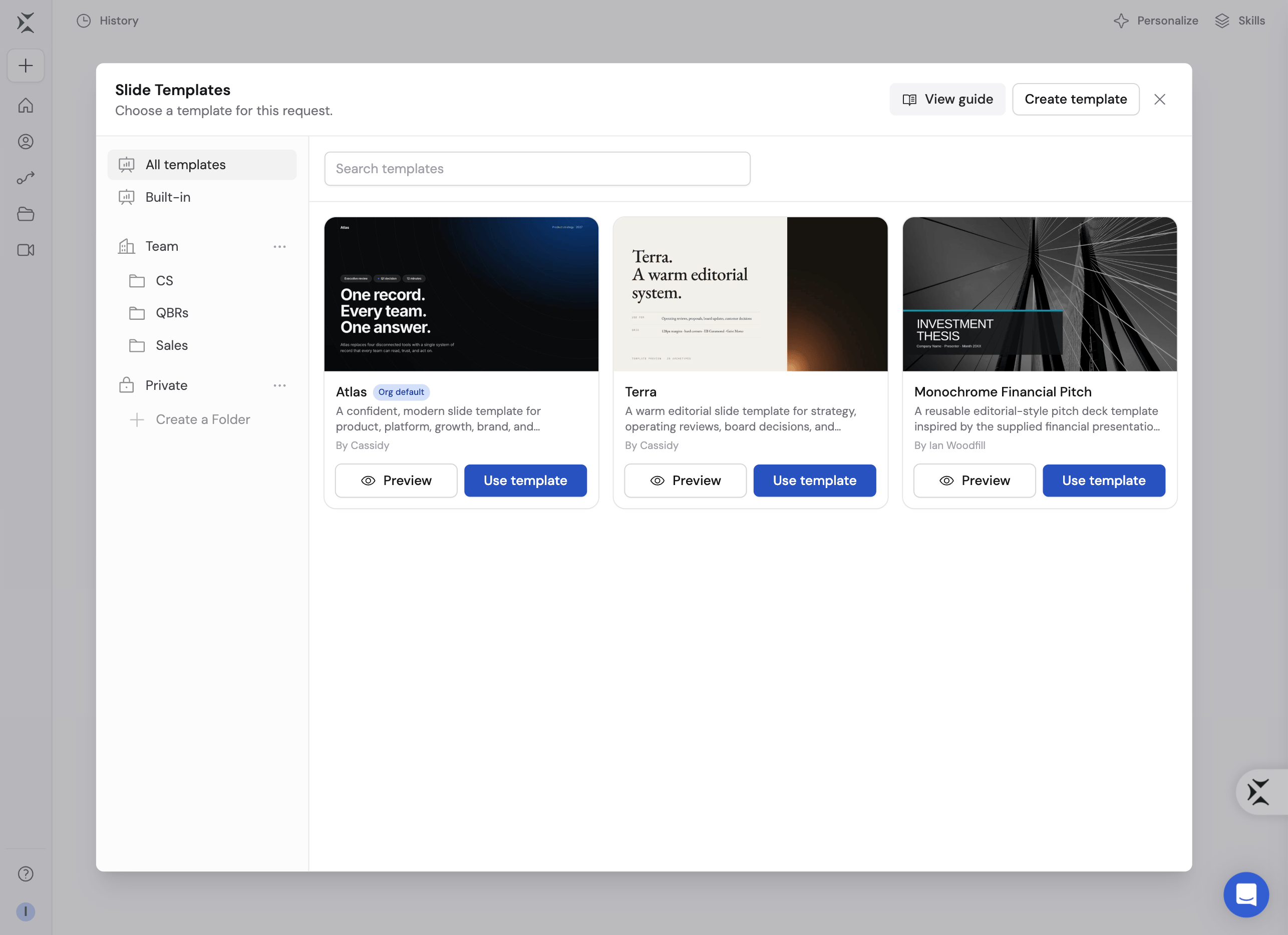
Slide templates are available from any Agent chat:
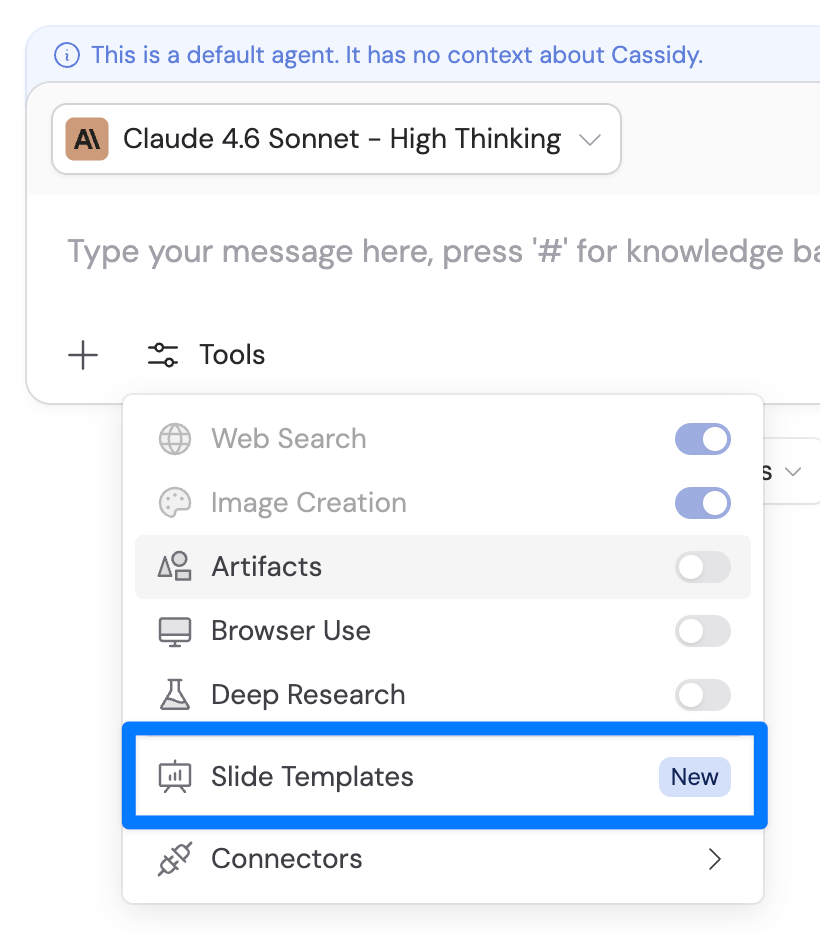
* Open **Tools** and select **Slide Templates** to browse the full library.
* Type `/` in the message box to choose one of your recently used templates. Select **Manage** beside **Slide Templates** to open the full library.
## Find slide templates
Slide templates are available from any Agent chat:
* Open **Tools** and select **Slide Templates** to browse the full library.
* Type `/` in the message box to choose one of your recently used templates. Select **Manage** beside **Slide Templates** to open the full library.
 ## When to use Cassidy Slides
Use Cassidy Slides when you want an [Agent](/agents/overview) to create a new presentation or make substantial changes to a deck through conversation.
* **Create a new presentation** for a sales meeting, Quarterly Business Review, proposal, training, research summary, or internal update.
* **Turn source material into a deck** by attaching documents, spreadsheets, images, or other supporting files.
* **Refine the presentation collaboratively** by asking for changes to its content, structure, and visual design.
* **Present or export the result** as PowerPoint, a Google Slides-compatible PowerPoint file, or PDF.
For quick native edits to an existing PowerPoint file, use the [Microsoft Office extension](/extensions/microsoft-office). For a repeatable Workflow that fills fixed placeholders with structured data, use [Create PowerPoint from template](/reference/actions/create-powerpoint-from-template).
## Create a presentation
Open a new [Agent chat](/guides/chatting-with-an-agent). You can use an Agent that already knows your company, or attach the source material the presentation should use.
To use a specific design, open **Tools**, select **Slide Templates**, and browse the available built-in, team, private, and shared templates. Preview a template, then click **Use template**.
## When to use Cassidy Slides
Use Cassidy Slides when you want an [Agent](/agents/overview) to create a new presentation or make substantial changes to a deck through conversation.
* **Create a new presentation** for a sales meeting, Quarterly Business Review, proposal, training, research summary, or internal update.
* **Turn source material into a deck** by attaching documents, spreadsheets, images, or other supporting files.
* **Refine the presentation collaboratively** by asking for changes to its content, structure, and visual design.
* **Present or export the result** as PowerPoint, a Google Slides-compatible PowerPoint file, or PDF.
For quick native edits to an existing PowerPoint file, use the [Microsoft Office extension](/extensions/microsoft-office). For a repeatable Workflow that fills fixed placeholders with structured data, use [Create PowerPoint from template](/reference/actions/create-powerpoint-from-template).
## Create a presentation
Open a new [Agent chat](/guides/chatting-with-an-agent). You can use an Agent that already knows your company, or attach the source material the presentation should use.
To use a specific design, open **Tools**, select **Slide Templates**, and browse the available built-in, team, private, and shared templates. Preview a template, then click **Use template**.
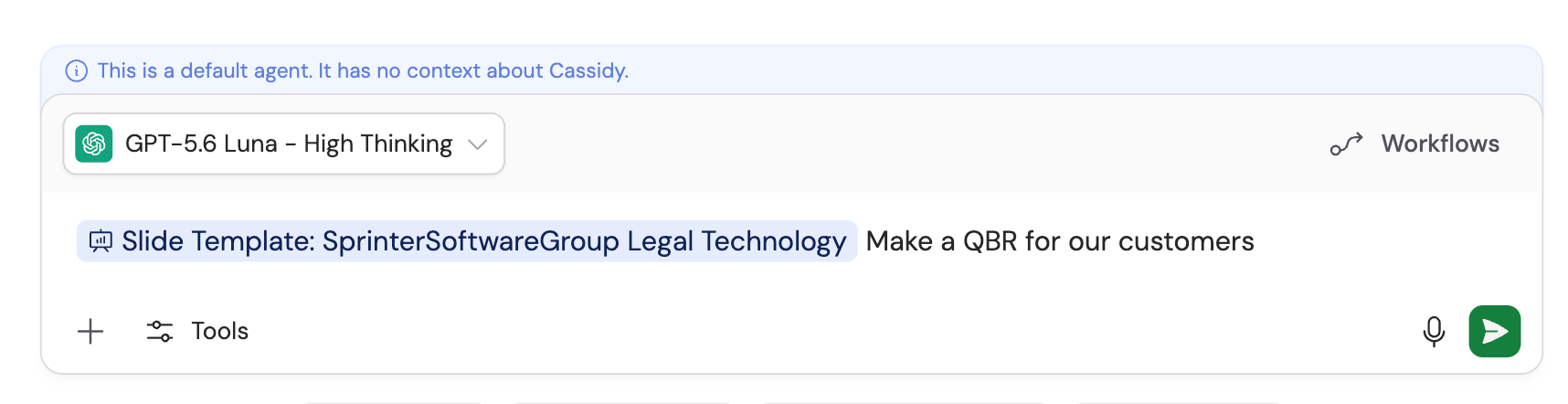
 The selected template appears in your message. It applies to that request and overrides your organization's default slide template.
 If you do not choose a template, Cassidy uses your organization's default. If your organization has not selected one, Cassidy uses its standard built-in template.
Ask for the outcome you want. For example:
> Create a 10-slide Quarterly Business Review for the Acme account. Use the attached call notes and usage spreadsheet. The audience is Acme's executive team, so lead with outcomes, keep the language concise, and include speaker notes for each slide.
You can also specify:
* Required sections or messages
* Facts, files, or [Knowledge Base](/knowledge-base/overview) sources to use
* Charts or comparisons to include
* Brand, tone, and image preferences
* Information that must not appear
Include the presentation's audience, purpose, approximate length, and
desired tone. The Agent can make stronger decisions when it understands
where and how the deck will be used.
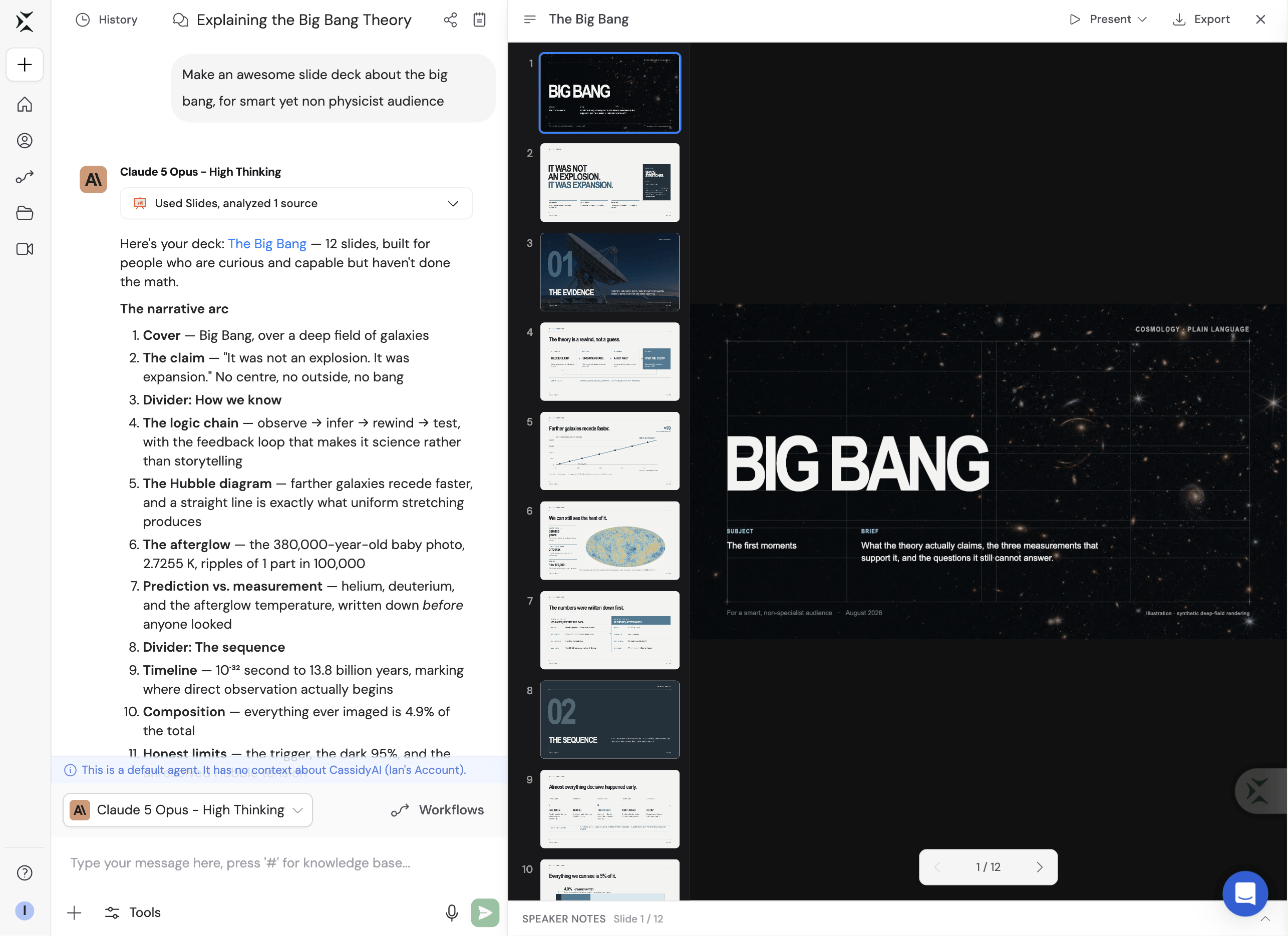
The Agent creates a Cassidy presentation and opens it in the deck viewer. Use the thumbnail sidebar or arrow keys to move between slides. Expand **Speaker notes** below the deck to review notes for the current slide.
Check the storyline and accuracy before focusing on small visual changes. It is usually faster to fix the overall structure first.
## Refine the presentation
Continue the conversation to revise the deck. Be specific about what should change and what should stay the same.
Cassidy Slides is powered by an Agent, so you can describe the result you want
in plain language instead of finding every setting yourself. The Agent may not
always recognize that a design choice looks wrong to you. Tell it what you see,
which slide or element is affected, and what you want instead.
Useful follow-up requests include:
* "Shorten slide 2 and make the recommendation the main headline."
* "Replace the chart on slide 5 with a three-column comparison."
* "Move the implementation plan before the pricing section."
* "Use a more restrained visual style, but keep the current layout."
* "Add speaker notes that explain the assumptions behind each forecast."
* "The text on slide 8 overlaps the chart. Rework the layout so both are easy to read."
### Reference a specific slide element
When you want to change one part of a slide, click the text, image, chart, or shape in the deck preview. Click **Add to chat**, then describe the change.
If you do not choose a template, Cassidy uses your organization's default. If your organization has not selected one, Cassidy uses its standard built-in template.
Ask for the outcome you want. For example:
> Create a 10-slide Quarterly Business Review for the Acme account. Use the attached call notes and usage spreadsheet. The audience is Acme's executive team, so lead with outcomes, keep the language concise, and include speaker notes for each slide.
You can also specify:
* Required sections or messages
* Facts, files, or [Knowledge Base](/knowledge-base/overview) sources to use
* Charts or comparisons to include
* Brand, tone, and image preferences
* Information that must not appear
Include the presentation's audience, purpose, approximate length, and
desired tone. The Agent can make stronger decisions when it understands
where and how the deck will be used.
The Agent creates a Cassidy presentation and opens it in the deck viewer. Use the thumbnail sidebar or arrow keys to move between slides. Expand **Speaker notes** below the deck to review notes for the current slide.
Check the storyline and accuracy before focusing on small visual changes. It is usually faster to fix the overall structure first.
## Refine the presentation
Continue the conversation to revise the deck. Be specific about what should change and what should stay the same.
Cassidy Slides is powered by an Agent, so you can describe the result you want
in plain language instead of finding every setting yourself. The Agent may not
always recognize that a design choice looks wrong to you. Tell it what you see,
which slide or element is affected, and what you want instead.
Useful follow-up requests include:
* "Shorten slide 2 and make the recommendation the main headline."
* "Replace the chart on slide 5 with a three-column comparison."
* "Move the implementation plan before the pricing section."
* "Use a more restrained visual style, but keep the current layout."
* "Add speaker notes that explain the assumptions behind each forecast."
* "The text on slide 8 overlaps the chart. Rework the layout so both are easy to read."
### Reference a specific slide element
When you want to change one part of a slide, click the text, image, chart, or shape in the deck preview. Click **Add to chat**, then describe the change.
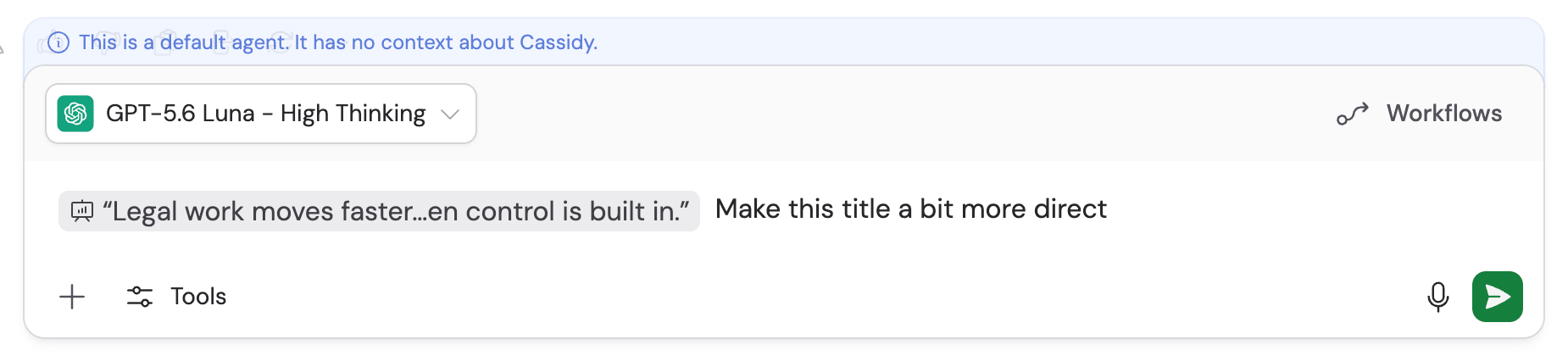
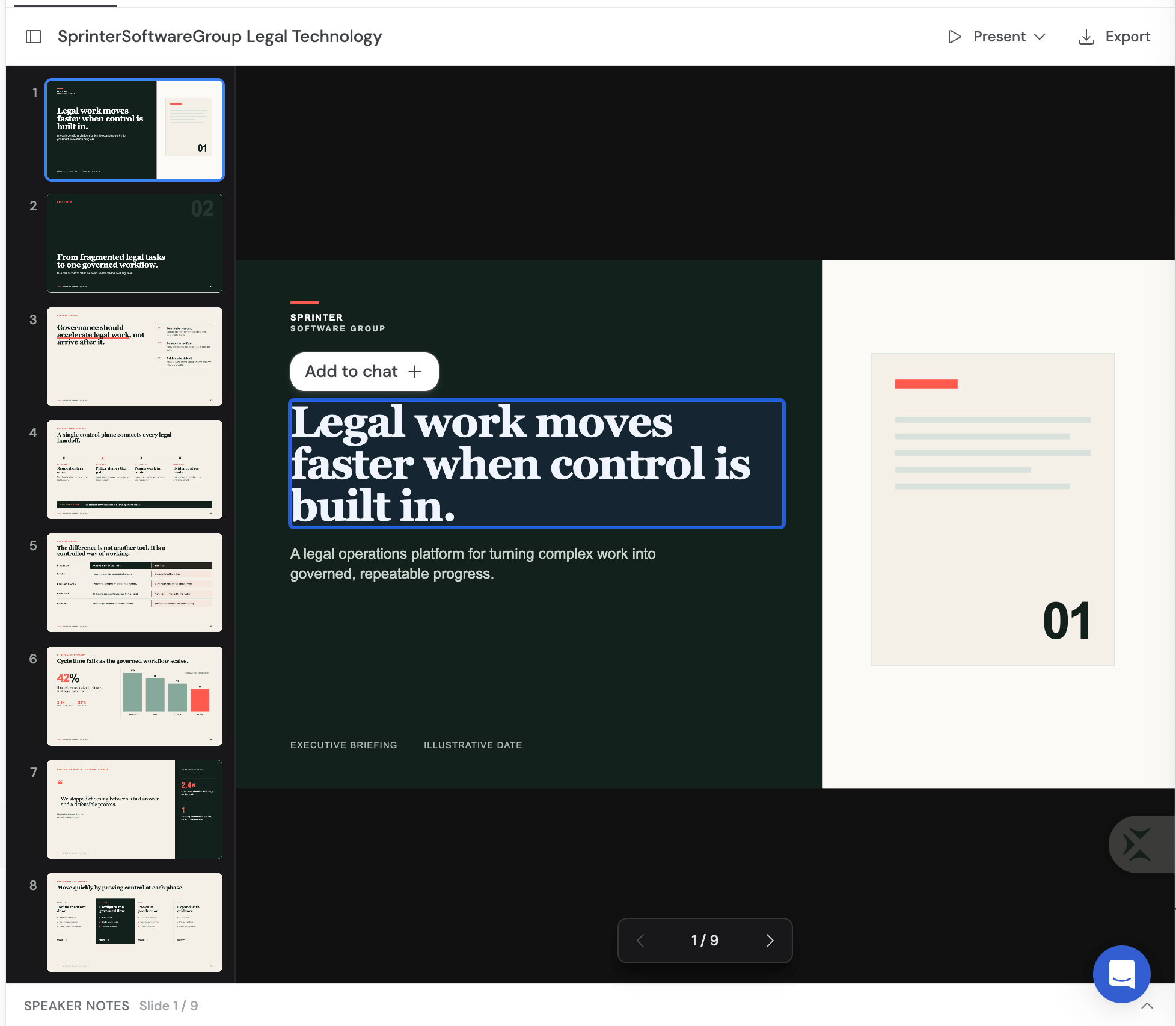 The reference identifies the exact slide element for the Agent. You can write a focused request such as:
> Make this headline more direct and keep it on one line.
The reference identifies the exact slide element for the Agent. You can write a focused request such as:
> Make this headline more direct and keep it on one line.
 Ask the Agent to preserve anything that is already correct. For example:
"Update only the selected chart. Keep the slide title, commentary, and layout
unchanged."
## Present from Cassidy
Open the **Present** menu in the deck toolbar and choose the view that fits your setup:
* **Present in this tab** opens a clean presentation in the current browser tab.
* **Present fullscreen** uses the full screen for the deck.
* **Open in new tab** opens the presentation separately.
* **Presenter view** opens controls for the presenter, including elapsed time, the current slide, the next slide, and speaker notes.
Ask the Agent to preserve anything that is already correct. For example:
"Update only the selected chart. Keep the slide title, commentary, and layout
unchanged."
## Present from Cassidy
Open the **Present** menu in the deck toolbar and choose the view that fits your setup:
* **Present in this tab** opens a clean presentation in the current browser tab.
* **Present fullscreen** uses the full screen for the deck.
* **Open in new tab** opens the presentation separately.
* **Presenter view** opens controls for the presenter, including elapsed time, the current slide, the next slide, and speaker notes.
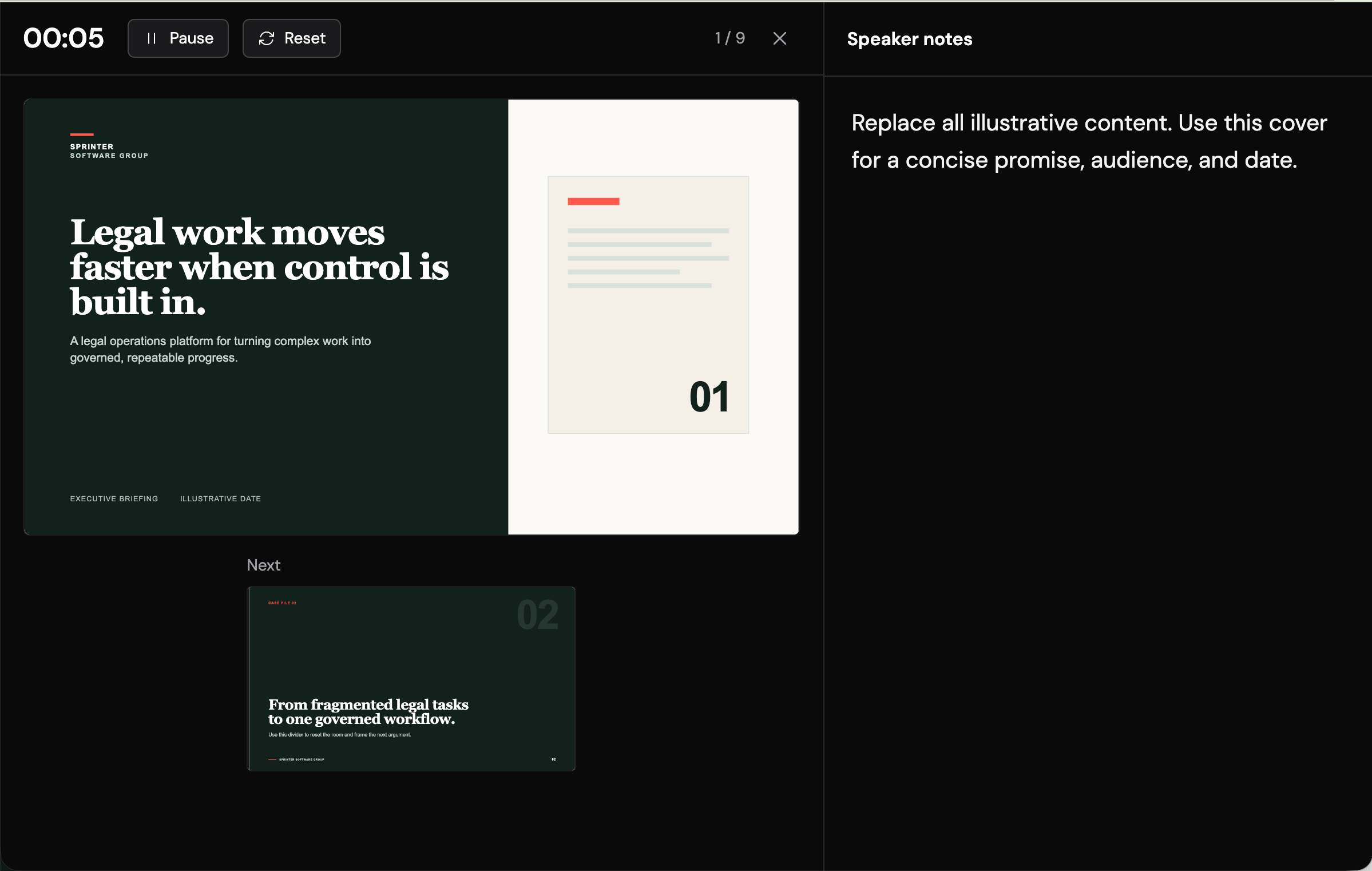 Use the arrow keys to navigate. Press **Escape** to leave presentation mode in the current tab or fullscreen view.
## Export the presentation
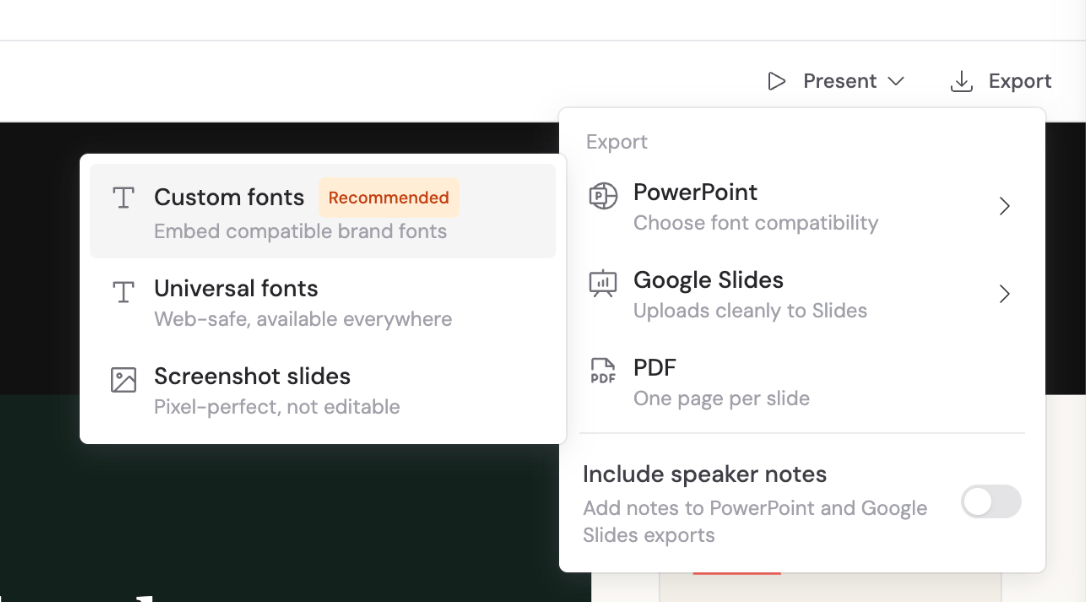
Click **Export** in the deck toolbar and choose a format.
You can also ask the Agent to export the presentation directly. For example:
> Export this as an editable PowerPoint using universal fonts and include the
> speaker notes.
Use the arrow keys to navigate. Press **Escape** to leave presentation mode in the current tab or fullscreen view.
## Export the presentation
Click **Export** in the deck toolbar and choose a format.
You can also ask the Agent to export the presentation directly. For example:
> Export this as an editable PowerPoint using universal fonts and include the
> speaker notes.
 ### PowerPoint
Choose the PowerPoint option that matches how the file will be used:
* **Custom fonts** creates an editable `.pptx` using compatible font files from
the selected slide template or fonts available through
[Google Fonts](https://fonts.google.com/), when their format and license
permit embedding. To supply your own brand fonts, include them when you
[create a custom slide template](/slides/manage-slide-templates#create-a-slide-template).
* **Universal fonts** creates an editable `.pptx` using broadly available fonts. Use this when recipients may not have your brand fonts.
* **Screenshot slides** prioritizes visual consistency by turning each slide into an image. Recipients can present the deck, but they cannot edit individual slide elements.
Editable exports preserve supported text, shapes, and images. Cassidy may convert complex visual effects into images when PowerPoint cannot represent them reliably.
### Google Slides
The Google Slides options download a `.pptx` designed to import cleanly into Google Slides. Cassidy does not create a native Google Slides presentation or upload the file to Google Drive.
After downloading:
1. Open Google Slides.
2. Upload or import the `.pptx` file.
3. Review fonts and layout before sharing the presentation.
Choose **Editable** to preserve editable elements with Google Slides-compatible fonts. Choose **Screenshot slides** when matching the Cassidy preview matters more than editing each element.
### PDF
Choose **PDF** to create a fixed document with one page per slide. PDF is useful for sharing a final, non-editable version.
### Include speaker notes
Turn on **Include speaker notes** in the export menu when you want notes included in PowerPoint or Google Slides-compatible exports. Speaker notes do not apply to PDF exports.
### Review the downloaded file
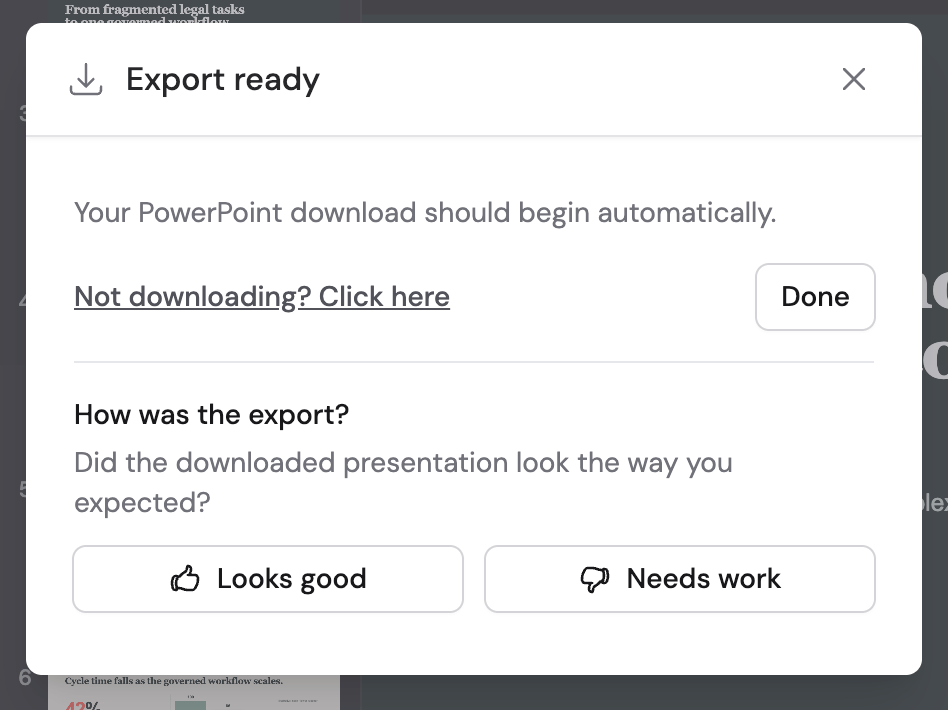
When the export is ready, the download starts automatically. The export dialog
keeps a manual download link and the quality feedback controls together. Click
**Needs work** and describe any layout, font, image, or compatibility issue so
Cassidy can improve future exports.
### PowerPoint
Choose the PowerPoint option that matches how the file will be used:
* **Custom fonts** creates an editable `.pptx` using compatible font files from
the selected slide template or fonts available through
[Google Fonts](https://fonts.google.com/), when their format and license
permit embedding. To supply your own brand fonts, include them when you
[create a custom slide template](/slides/manage-slide-templates#create-a-slide-template).
* **Universal fonts** creates an editable `.pptx` using broadly available fonts. Use this when recipients may not have your brand fonts.
* **Screenshot slides** prioritizes visual consistency by turning each slide into an image. Recipients can present the deck, but they cannot edit individual slide elements.
Editable exports preserve supported text, shapes, and images. Cassidy may convert complex visual effects into images when PowerPoint cannot represent them reliably.
### Google Slides
The Google Slides options download a `.pptx` designed to import cleanly into Google Slides. Cassidy does not create a native Google Slides presentation or upload the file to Google Drive.
After downloading:
1. Open Google Slides.
2. Upload or import the `.pptx` file.
3. Review fonts and layout before sharing the presentation.
Choose **Editable** to preserve editable elements with Google Slides-compatible fonts. Choose **Screenshot slides** when matching the Cassidy preview matters more than editing each element.
### PDF
Choose **PDF** to create a fixed document with one page per slide. PDF is useful for sharing a final, non-editable version.
### Include speaker notes
Turn on **Include speaker notes** in the export menu when you want notes included in PowerPoint or Google Slides-compatible exports. Speaker notes do not apply to PDF exports.
### Review the downloaded file
When the export is ready, the download starts automatically. The export dialog
keeps a manual download link and the quality feedback controls together. Click
**Needs work** and describe any layout, font, image, or compatibility issue so
Cassidy can improve future exports.
 If the downloaded file does not look right, return to the conversation and tell
the Agent what is wrong. Include the slide number, describe the expected result,
and attach a screenshot or the exported file when useful. The Agent can often
adjust the presentation and create a new export, but it needs your feedback when
the problem is not visible from the request alone.
## Improve presentation quality
* **Provide trusted source material.** Attach the documents or data the deck should rely on instead of asking the Agent to infer important facts.
* **Name the audience and decision.** A board update, sales pitch, and training deck should not use the same structure.
* **Separate content review from visual review.** Confirm the facts and narrative before requesting detailed design changes.
* **Give focused feedback.** One clear revision request is easier to apply than several conflicting visual directions.
* **Test the final destination.** Review an exported file in Microsoft PowerPoint or Google Slides before presenting it externally.
## Troubleshooting
Cassidy Slides must be available for your organization and the chat must support file creation. Try another Agent that can create files. If the option is still missing, contact your Cassidy administrator.
Element selection is available in a normal deck preview inside Chat. Exit
presentation mode, return to the chat preview, then click the element again.
Confirm that you chose an editable PowerPoint or Google Slides option instead
of **Screenshot slides**. Some complex browser-based effects still need to be
converted into images because PowerPoint cannot reproduce them as native
editable objects.
Export with **Custom fonts** when you have compatible, license-permitted brand
font files. Use **Universal fonts** for broader PowerPoint compatibility or
the editable **Google Slides** option for Google Slides-compatible fonts.
Always review the exported deck in its destination app.
Wait for the conversion to finish. The download starts automatically when
the export is ready. If it does not start, click **Not downloading? Click
here** in the export dialog.
If the download problem continues, contact support at [support@cassidy.ai](mailto:support@cassidy.ai)
and include a link to the chat.
## Next steps
Create reusable branded templates, publish updates, manage access, and
choose an organization default.
Learn how to attach files, reference company knowledge, and refine outputs
through conversation.
Compare Cassidy Slides with other ways to create files through Chat and
Workflows.
Work with an Agent inside an existing PowerPoint file.
If the downloaded file does not look right, return to the conversation and tell
the Agent what is wrong. Include the slide number, describe the expected result,
and attach a screenshot or the exported file when useful. The Agent can often
adjust the presentation and create a new export, but it needs your feedback when
the problem is not visible from the request alone.
## Improve presentation quality
* **Provide trusted source material.** Attach the documents or data the deck should rely on instead of asking the Agent to infer important facts.
* **Name the audience and decision.** A board update, sales pitch, and training deck should not use the same structure.
* **Separate content review from visual review.** Confirm the facts and narrative before requesting detailed design changes.
* **Give focused feedback.** One clear revision request is easier to apply than several conflicting visual directions.
* **Test the final destination.** Review an exported file in Microsoft PowerPoint or Google Slides before presenting it externally.
## Troubleshooting
Cassidy Slides must be available for your organization and the chat must support file creation. Try another Agent that can create files. If the option is still missing, contact your Cassidy administrator.
Element selection is available in a normal deck preview inside Chat. Exit
presentation mode, return to the chat preview, then click the element again.
Confirm that you chose an editable PowerPoint or Google Slides option instead
of **Screenshot slides**. Some complex browser-based effects still need to be
converted into images because PowerPoint cannot reproduce them as native
editable objects.
Export with **Custom fonts** when you have compatible, license-permitted brand
font files. Use **Universal fonts** for broader PowerPoint compatibility or
the editable **Google Slides** option for Google Slides-compatible fonts.
Always review the exported deck in its destination app.
Wait for the conversion to finish. The download starts automatically when
the export is ready. If it does not start, click **Not downloading? Click
here** in the export dialog.
If the download problem continues, contact support at [support@cassidy.ai](mailto:support@cassidy.ai)
and include a link to the chat.
## Next steps
Create reusable branded templates, publish updates, manage access, and
choose an organization default.
Learn how to attach files, reference company knowledge, and refine outputs
through conversation.
Compare Cassidy Slides with other ways to create files through Chat and
Workflows.
Work with an Agent inside an existing PowerPoint file.