> ## Documentation Index
> Fetch the complete documentation index at: https://docs.cassidyai.com/llms.txt
> Use this file to discover all available pages before exploring further.
# Bug Capture from Calls
> Capturing bug reports from customer calls to create formal support tickets.
 ## What does this mean?
Enhances customer service by ensuring issues are tracked, documented, and addressed swiftly, improving support accuracy and facilitating effective communication between support and development teams.
Captures bug reports discussed in customer interactions and transcribes them into formal support tickets with detailed context and necessary follow-up actions.
## Workflow steps
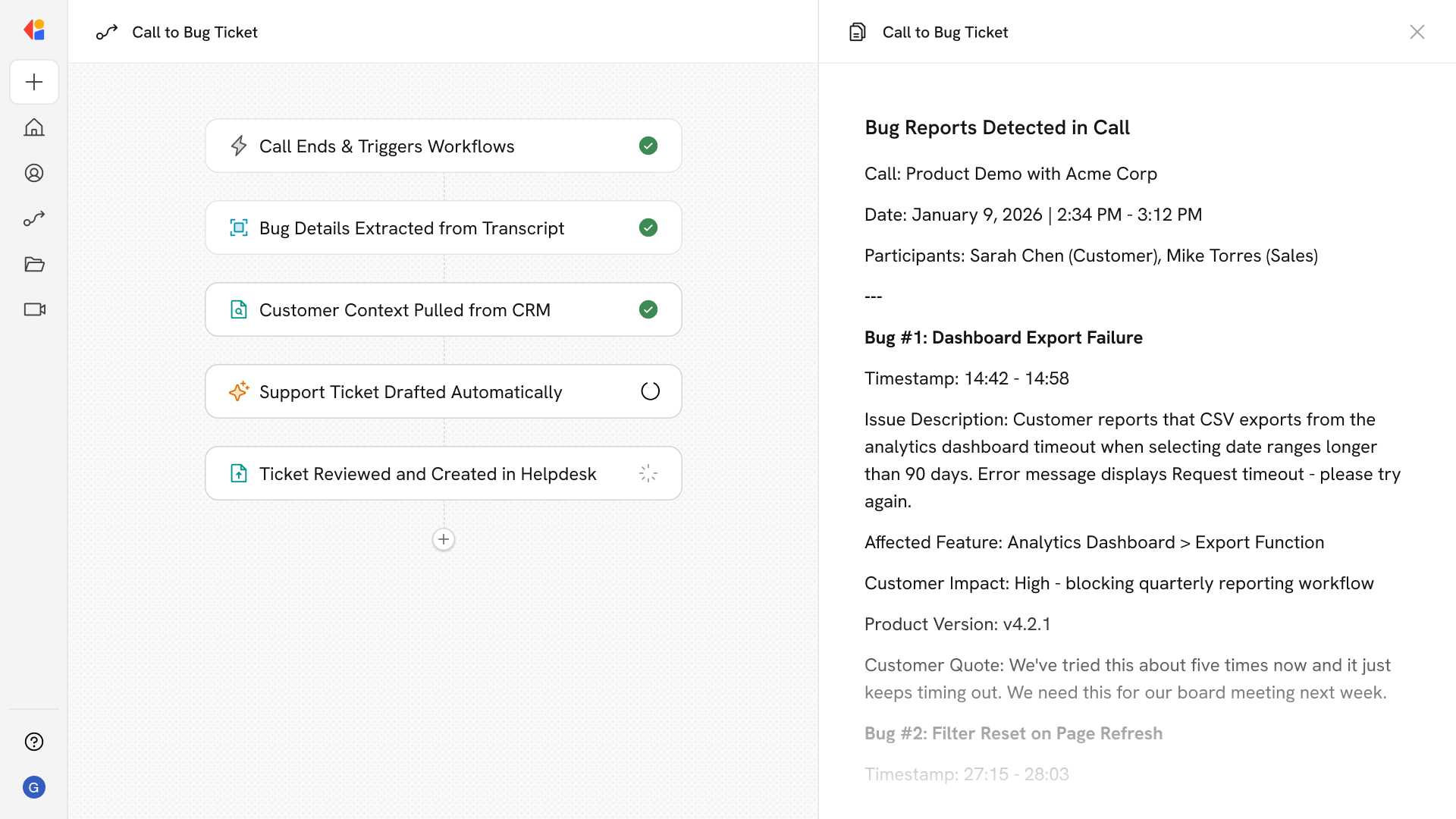
The Workflow activates automatically when a customer call ends, capturing the conversation as soon as it wraps up.
Cassidy processes the call recording and identifies bug reports mentioned during the conversation, pulling out key details like issue descriptions, error messages, affected features, and customer impact.
The Workflow gathers relevant customer information from your CRM and Knowledge Base, adding account history, product version, and any related past issues to give your support team the full picture.
Using the extracted bug details and customer context, Cassidy drafts a structured support ticket with clear reproduction steps, priority level, and recommended follow-up actions for the development team.
The draft ticket is sent to a support team member for human-in-the-loop approval. Once validated, the Workflow creates the ticket in your helpdesk system and logs the activity back to your CRM for complete visibility.
## Related
Create a custom Agent with tailored instructions and Knowledge Base access.
Add your company documents so Agents can reference them.
## What does this mean?
Enhances customer service by ensuring issues are tracked, documented, and addressed swiftly, improving support accuracy and facilitating effective communication between support and development teams.
Captures bug reports discussed in customer interactions and transcribes them into formal support tickets with detailed context and necessary follow-up actions.
## Workflow steps
The Workflow activates automatically when a customer call ends, capturing the conversation as soon as it wraps up.
Cassidy processes the call recording and identifies bug reports mentioned during the conversation, pulling out key details like issue descriptions, error messages, affected features, and customer impact.
The Workflow gathers relevant customer information from your CRM and Knowledge Base, adding account history, product version, and any related past issues to give your support team the full picture.
Using the extracted bug details and customer context, Cassidy drafts a structured support ticket with clear reproduction steps, priority level, and recommended follow-up actions for the development team.
The draft ticket is sent to a support team member for human-in-the-loop approval. Once validated, the Workflow creates the ticket in your helpdesk system and logs the activity back to your CRM for complete visibility.
## Related
Create a custom Agent with tailored instructions and Knowledge Base access.
Add your company documents so Agents can reference them.