> ## Documentation Index
> Fetch the complete documentation index at: https://docs.cassidyai.com/llms.txt
> Use this file to discover all available pages before exploring further.
# Continuous Help Center Content Pipeline
> Seamlessly transform raw notes into polished help articles.
 ## What does this mean?
Reduces repeat questions and improves customer satisfaction by turning real resolutions into searchable, consistent self-serve content—keeping the Help Center fresh without manual rewrites.
Converts resolved tickets and rough notes into polished, on-brand help articles by extracting the key problem, steps, and answers from past conversations and documentation to fill knowledge gaps and enable fast reuse.
## Workflow steps
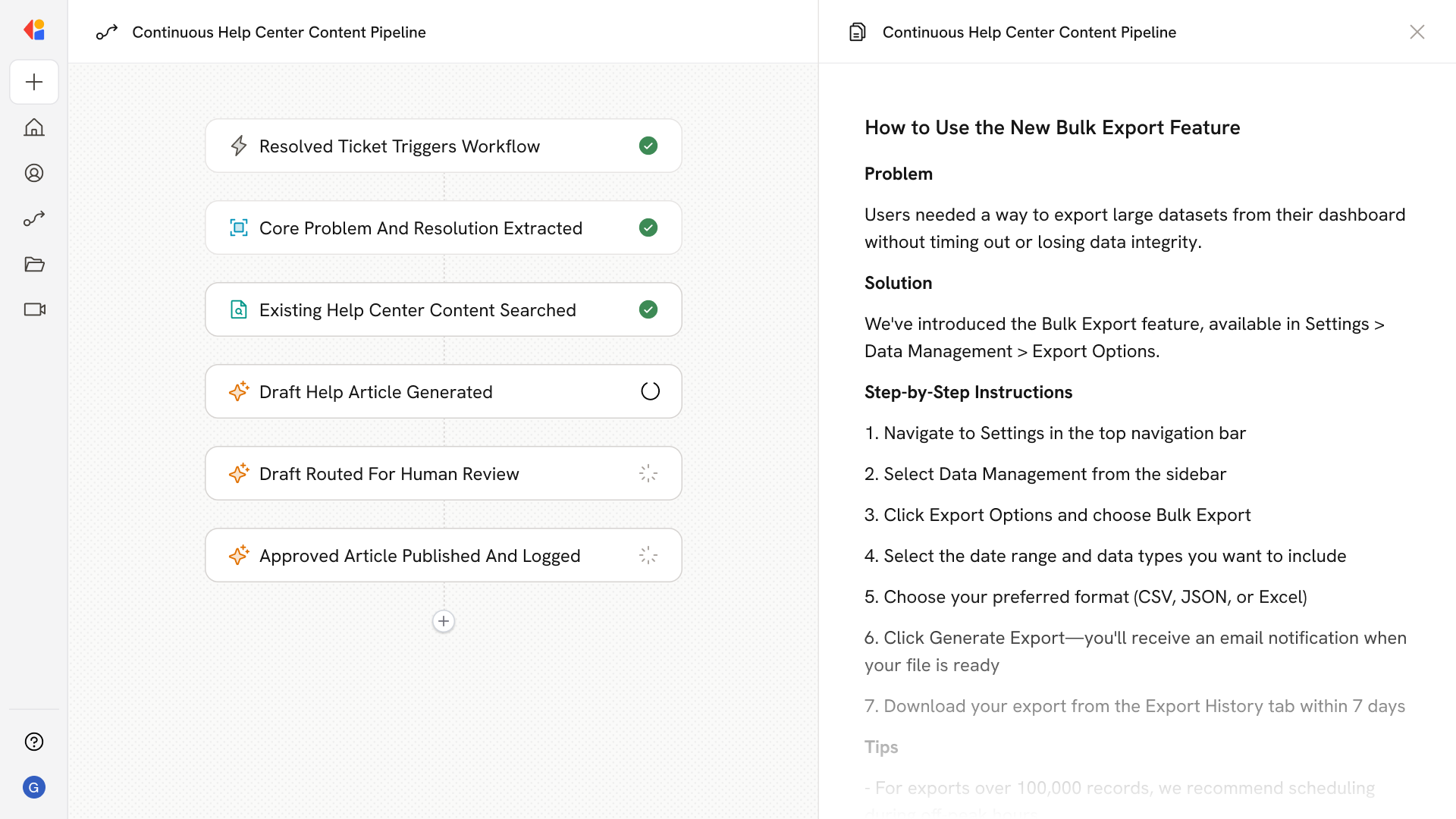
The Workflow activates when a support ticket is marked as resolved in Zendesk, signaling that a customer issue has been successfully addressed.
Cassidy analyzes the ticket conversation, notes, and any attached documentation to identify the key issue, the steps taken to resolve it, and the final solution.
The Workflow checks your Knowledge Base to see if a related article already exists, flagging gaps where new content is needed or identifying articles that could be updated.
Cassidy transforms the raw resolution into a clear, on-brand help article—complete with problem statement, step-by-step instructions, and any relevant tips.
The draft article is sent to a team member via Slack for approval, edits, or rejection—keeping a human in the loop before anything goes live.
Once approved, the Workflow publishes the article directly to your Help Center and logs the update, keeping your self-serve content fresh and your team informed.
## Related
Create a custom Agent with tailored instructions and Knowledge Base access.
Add your company documents so Agents can reference them.
## What does this mean?
Reduces repeat questions and improves customer satisfaction by turning real resolutions into searchable, consistent self-serve content—keeping the Help Center fresh without manual rewrites.
Converts resolved tickets and rough notes into polished, on-brand help articles by extracting the key problem, steps, and answers from past conversations and documentation to fill knowledge gaps and enable fast reuse.
## Workflow steps
The Workflow activates when a support ticket is marked as resolved in Zendesk, signaling that a customer issue has been successfully addressed.
Cassidy analyzes the ticket conversation, notes, and any attached documentation to identify the key issue, the steps taken to resolve it, and the final solution.
The Workflow checks your Knowledge Base to see if a related article already exists, flagging gaps where new content is needed or identifying articles that could be updated.
Cassidy transforms the raw resolution into a clear, on-brand help article—complete with problem statement, step-by-step instructions, and any relevant tips.
The draft article is sent to a team member via Slack for approval, edits, or rejection—keeping a human in the loop before anything goes live.
Once approved, the Workflow publishes the article directly to your Help Center and logs the update, keeping your self-serve content fresh and your team informed.
## Related
Create a custom Agent with tailored instructions and Knowledge Base access.
Add your company documents so Agents can reference them.