> ## Documentation Index
> Fetch the complete documentation index at: https://docs.cassidyai.com/llms.txt
> Use this file to discover all available pages before exploring further.
# Create Support Ticket from Issue Raised on Call
> Speed up issue resolution, enhance team responsiveness, and ensure customer concerns are tracked and addressed efficiently.
 ## What does this mean?
Speeds up issue resolution, enhances team responsiveness, and ensures customer concerns are tracked and addressed efficiently.
Records meetings to identify and capture issues discussed during calls, automatically creating support tickets in your system with details, priority, and context from the conversation.
## Workflow steps
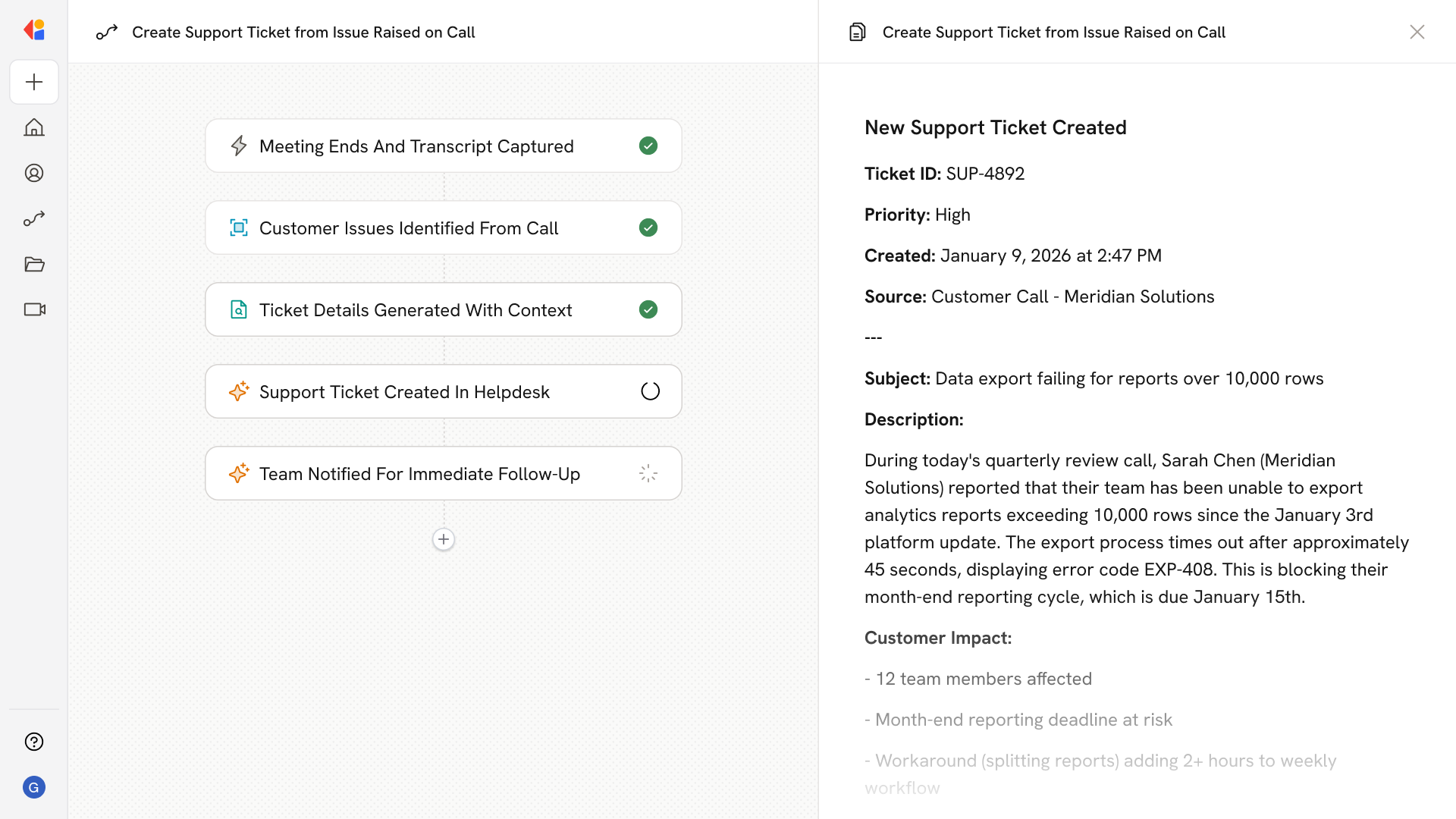
The Workflow activates automatically when a customer call or meeting ends, capturing the full transcript and conversation details.
Using context from your Knowledge Base, Cassidy analyzes the transcript to identify customer issues, concerns, or problems raised during the conversation.
For each issue identified, Cassidy generates structured ticket information—including a summary, priority level, relevant context from the call, and any action items discussed.
The Workflow sends the ticket details directly to your support system (such as Zendesk, Jira, or ServiceNow), automatically creating a new ticket with full context from the conversation.
A notification is sent to the appropriate team member or channel—via Slack, email, or Microsoft Teams—alerting them to the new ticket so follow-up can begin immediately.
## Related
Create a custom Agent with tailored instructions and Knowledge Base access.
Add your company documents so Agents can reference them.
## What does this mean?
Speeds up issue resolution, enhances team responsiveness, and ensures customer concerns are tracked and addressed efficiently.
Records meetings to identify and capture issues discussed during calls, automatically creating support tickets in your system with details, priority, and context from the conversation.
## Workflow steps
The Workflow activates automatically when a customer call or meeting ends, capturing the full transcript and conversation details.
Using context from your Knowledge Base, Cassidy analyzes the transcript to identify customer issues, concerns, or problems raised during the conversation.
For each issue identified, Cassidy generates structured ticket information—including a summary, priority level, relevant context from the call, and any action items discussed.
The Workflow sends the ticket details directly to your support system (such as Zendesk, Jira, or ServiceNow), automatically creating a new ticket with full context from the conversation.
A notification is sent to the appropriate team member or channel—via Slack, email, or Microsoft Teams—alerting them to the new ticket so follow-up can begin immediately.
## Related
Create a custom Agent with tailored instructions and Knowledge Base access.
Add your company documents so Agents can reference them.