> ## Documentation Index
> Fetch the complete documentation index at: https://docs.cassidyai.com/llms.txt
> Use this file to discover all available pages before exploring further.
# Sentiment-Based SLA Prioritization
> Prevent churn and brand damage by prioritizing high-impact issues for faster, consistent support.
 ## What does this mean?
Prevents slow, impersonal support from escalating into churn, negative reviews, and brand damage by ensuring the most sensitive, high‑impact issues are handled first with fast, consistent responses.
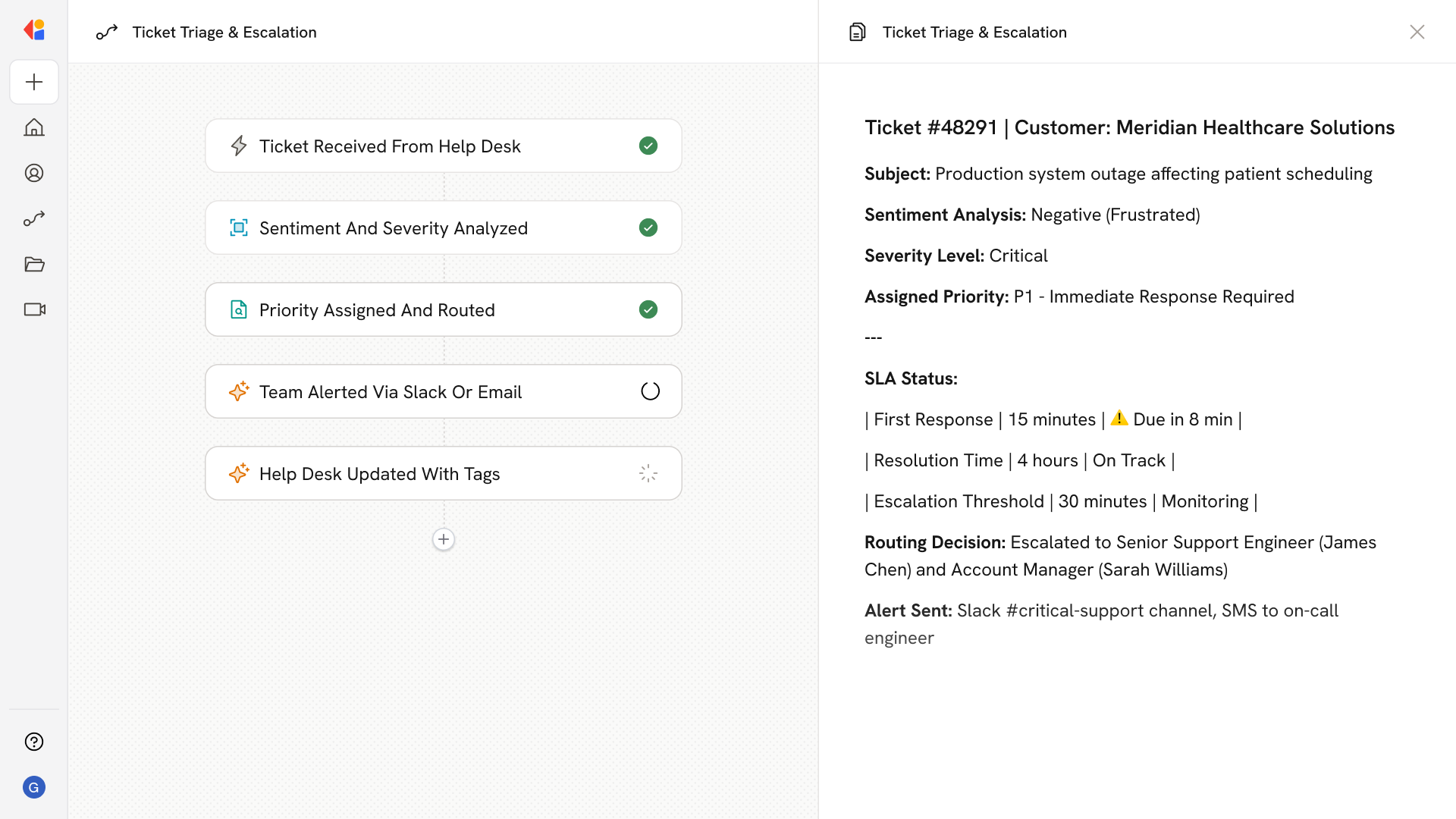
Intelligently reads and analyzes each incoming ticket from the help desk (e.g., Zendesk, Intercom), categorizes it on a sentiment and severity scale, sets priority, and alerts or escalates to the right people when heightened attention is warranted.
## Workflow steps
The Workflow activates automatically when a new ticket arrives in your help desk—whether from Zendesk, Intercom, or another connected support platform.
Cassidy reads the ticket content and assesses the customer's emotional tone and the severity of the issue, categorizing it on a sentiment and impact scale.
Based on the analysis, the Workflow assigns a priority level to the ticket. High-severity or negative-sentiment tickets are flagged for immediate attention, while lower-priority issues follow standard routing.
When a ticket warrants heightened attention, the Workflow sends an alert—via Slack, email, or your preferred channel—to notify the appropriate team member or escalate to a manager.
The Workflow updates the original ticket with the assigned priority, sentiment tags, and any escalation notes, keeping your help desk organized and giving your team full visibility into high-impact issues.
## Related
Create a custom Agent with tailored instructions and Knowledge Base access.
Add your company documents so Agents can reference them.
## What does this mean?
Prevents slow, impersonal support from escalating into churn, negative reviews, and brand damage by ensuring the most sensitive, high‑impact issues are handled first with fast, consistent responses.
Intelligently reads and analyzes each incoming ticket from the help desk (e.g., Zendesk, Intercom), categorizes it on a sentiment and severity scale, sets priority, and alerts or escalates to the right people when heightened attention is warranted.
## Workflow steps
The Workflow activates automatically when a new ticket arrives in your help desk—whether from Zendesk, Intercom, or another connected support platform.
Cassidy reads the ticket content and assesses the customer's emotional tone and the severity of the issue, categorizing it on a sentiment and impact scale.
Based on the analysis, the Workflow assigns a priority level to the ticket. High-severity or negative-sentiment tickets are flagged for immediate attention, while lower-priority issues follow standard routing.
When a ticket warrants heightened attention, the Workflow sends an alert—via Slack, email, or your preferred channel—to notify the appropriate team member or escalate to a manager.
The Workflow updates the original ticket with the assigned priority, sentiment tags, and any escalation notes, keeping your help desk organized and giving your team full visibility into high-impact issues.
## Related
Create a custom Agent with tailored instructions and Knowledge Base access.
Add your company documents so Agents can reference them.