> ## Documentation Index
> Fetch the complete documentation index at: https://docs.cassidyai.com/llms.txt
> Use this file to discover all available pages before exploring further.
# New Lead Research Brief
> Automated research enriches signups from CRM, web forms, and other sources with comprehensive company insights and talking points.
 ## What does this mean?
Reps qualify and personalize first outreach in minutes, improving speed to lead, relevance, and conversion without manual research.
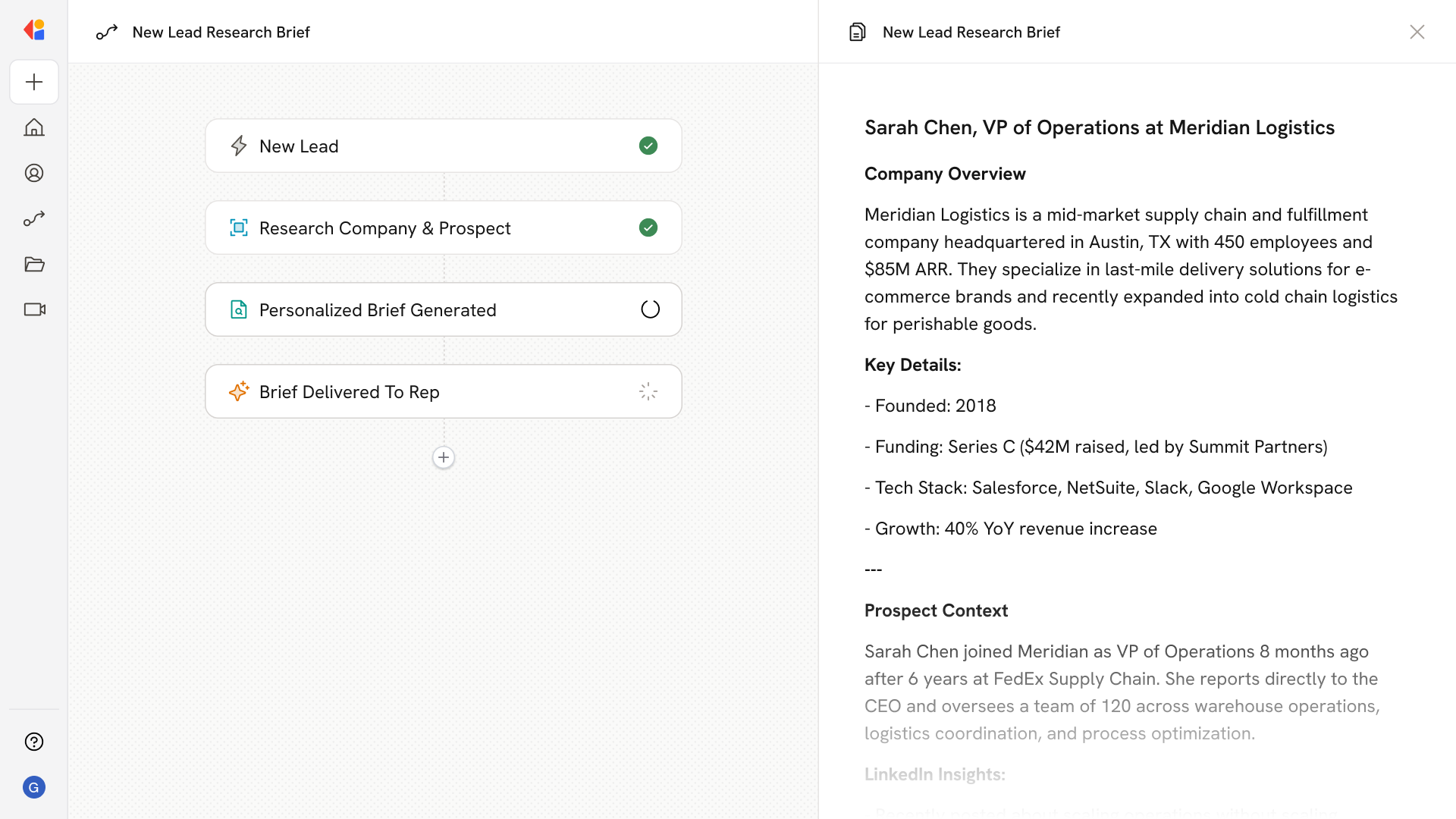
Pulls each new signup from the CRM, website forms, and other lead sources, enriches it with LinkedIn, online research, and firmographic data, and produces a concise brief with company overview, role context, recent news, and value-based talking points.
## Workflow steps
The Workflow activates automatically when a new lead enters your CRM, web form, or other lead source—integrating directly with Salesforce, HubSpot, or your existing signup flow.
Cassidy searches the web and LinkedIn to gather firmographic data, company details, recent news, and role-specific context about the new lead.
Cassidy compiles findings into a concise brief—including company overview, the lead's role context, relevant news, and value-based talking points tailored to your offering.
The completed research brief is sent directly to the assigned rep via Slack, email, or logged to the CRM record—so they can qualify and personalize outreach in minutes without manual research.
## Related
Create a custom Agent with tailored instructions and Knowledge Base access.
Add your company documents so Agents can reference them.
## What does this mean?
Reps qualify and personalize first outreach in minutes, improving speed to lead, relevance, and conversion without manual research.
Pulls each new signup from the CRM, website forms, and other lead sources, enriches it with LinkedIn, online research, and firmographic data, and produces a concise brief with company overview, role context, recent news, and value-based talking points.
## Workflow steps
The Workflow activates automatically when a new lead enters your CRM, web form, or other lead source—integrating directly with Salesforce, HubSpot, or your existing signup flow.
Cassidy searches the web and LinkedIn to gather firmographic data, company details, recent news, and role-specific context about the new lead.
Cassidy compiles findings into a concise brief—including company overview, the lead's role context, relevant news, and value-based talking points tailored to your offering.
The completed research brief is sent directly to the assigned rep via Slack, email, or logged to the CRM record—so they can qualify and personalize outreach in minutes without manual research.
## Related
Create a custom Agent with tailored instructions and Knowledge Base access.
Add your company documents so Agents can reference them.