> ## Documentation Index
> Fetch the complete documentation index at: https://docs.cassidyai.com/llms.txt
> Use this file to discover all available pages before exploring further.
# Real-Time Lead Scoring
> Improve lead conversion rates and speed to engagement by focusing on the most promising leads.
 ## What does this mean?
Reps focus first on the most promising leads, improving speed to engagement and conversion rates without extra manual review.
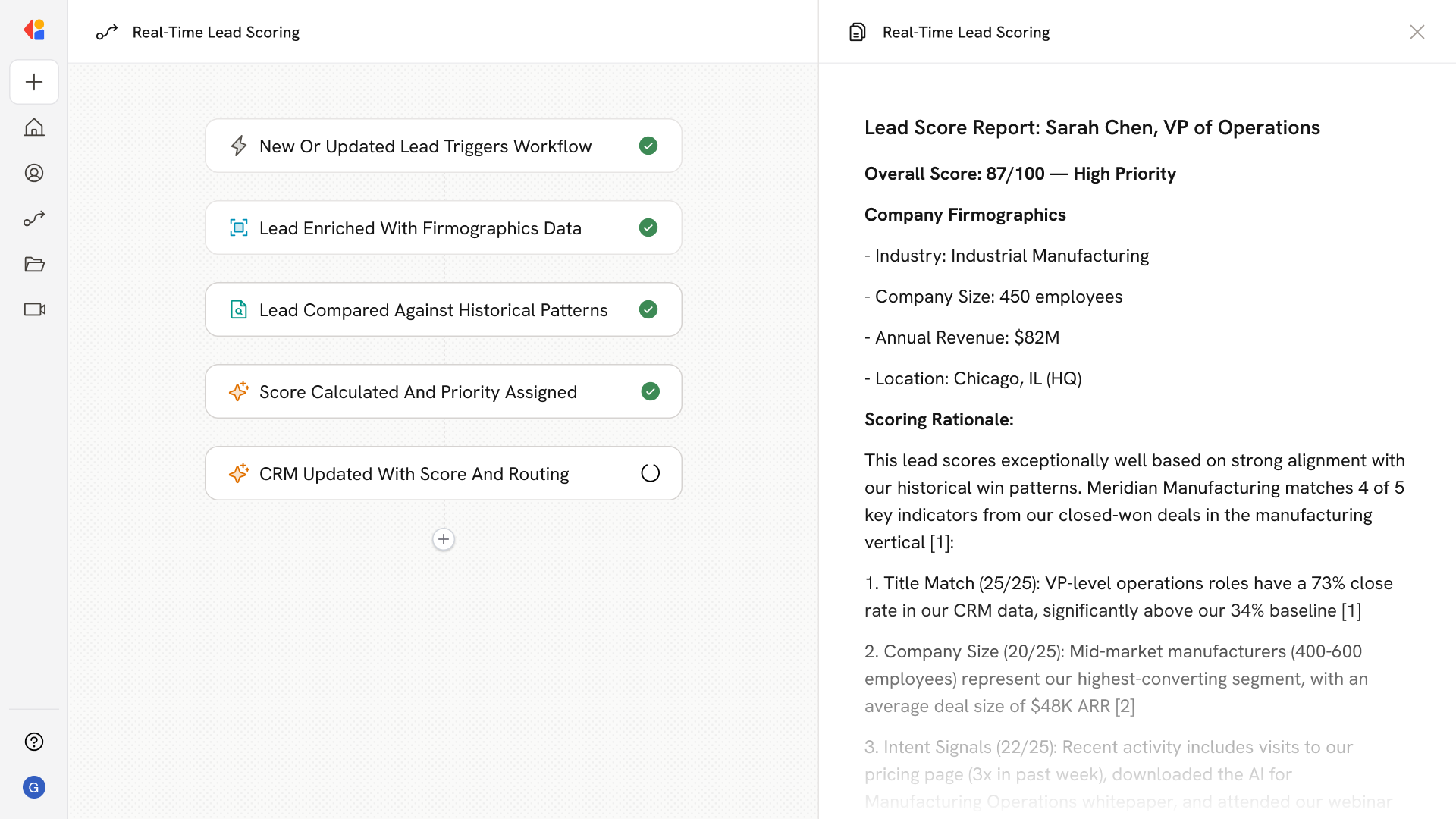
Pulls new and updated leads from the CRM, enriches them with firmographics and intent data, compares them to historical win patterns, and writes a numeric score with route/priority fields back to the CRM.
## Workflow steps
The Workflow activates automatically when a new lead is created or an existing lead record is updated in your CRM—whether that's Salesforce, HubSpot, or another system.
Cassidy uses a Research Agent to pull company firmographics, role details, and intent signals—building a complete picture of who the lead is and how engaged they might be.
The Workflow analyzes the enriched lead against your Knowledge Base of past closed-won deals, identifying similarities in company size, industry, title, and buying signals.
Based on the comparison, Cassidy generates a numeric score and determines the appropriate priority level and routing—flagging high-potential leads for immediate follow-up.
The Workflow updates the lead record in your CRM with the calculated score, priority tier, and recommended owner or queue—so reps see qualified leads surface automatically in their pipeline.
## Related
Create a custom Agent with tailored instructions and Knowledge Base access.
Add your company documents so Agents can reference them.
## What does this mean?
Reps focus first on the most promising leads, improving speed to engagement and conversion rates without extra manual review.
Pulls new and updated leads from the CRM, enriches them with firmographics and intent data, compares them to historical win patterns, and writes a numeric score with route/priority fields back to the CRM.
## Workflow steps
The Workflow activates automatically when a new lead is created or an existing lead record is updated in your CRM—whether that's Salesforce, HubSpot, or another system.
Cassidy uses a Research Agent to pull company firmographics, role details, and intent signals—building a complete picture of who the lead is and how engaged they might be.
The Workflow analyzes the enriched lead against your Knowledge Base of past closed-won deals, identifying similarities in company size, industry, title, and buying signals.
Based on the comparison, Cassidy generates a numeric score and determines the appropriate priority level and routing—flagging high-potential leads for immediate follow-up.
The Workflow updates the lead record in your CRM with the calculated score, priority tier, and recommended owner or queue—so reps see qualified leads surface automatically in their pipeline.
## Related
Create a custom Agent with tailored instructions and Knowledge Base access.
Add your company documents so Agents can reference them.