> ## Documentation Index
> Fetch the complete documentation index at: https://docs.cassidyai.com/llms.txt
> Use this file to discover all available pages before exploring further.
# Set fallback values
> Configure default values for Workflow actions so your automation continues running even when individual steps fail.
Some [Workflow](/workflows/overview) actions -- like scraping a webpage, looking up a LinkedIn profile, or calling an external API -- can fail due to bad data, network issues, or rate limits. Fallback values let you define a default output for these actions so the rest of your Workflow keeps running instead of stopping entirely.
## Configure a fallback value
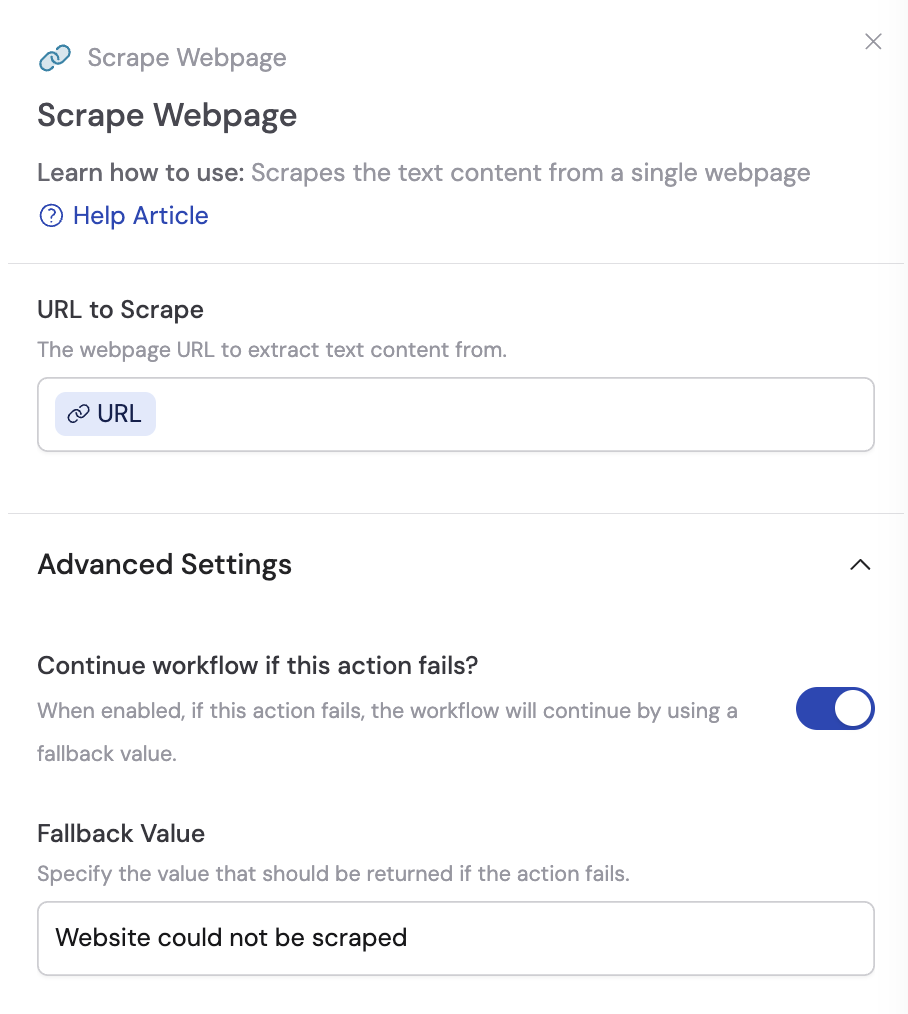
In the [Workflow editor](/workflows/building), click the action you want to protect. The settings sidebar opens.
Scroll down to the **Advanced Settings** section in the sidebar.
Toggle on **Continue workflow if this action fails?**. This allows the Workflow to proceed to the next action even if this one encounters an error.
In the **Fallback Value** field that appears, type the default value that should be used when the action fails. Choose something descriptive that downstream steps can recognize:
* `"No website found"` for a Scrape Webpage action
* `"Profile unavailable"` for a LinkedIn lookup
* `"API error - no data"` for an external API call
 ## Plan for fallback scenarios
Setting a fallback value is only half the solution -- you also need to account for it in your downstream steps.
In actions that reference the fallback-protected step's output, adjust your prompts to handle the fallback gracefully. For example, instruct the AI: *"If the website data says 'No website found', skip the website analysis section."*
## Plan for fallback scenarios
Setting a fallback value is only half the solution -- you also need to account for it in your downstream steps.
In actions that reference the fallback-protected step's output, adjust your prompts to handle the fallback gracefully. For example, instruct the AI: *"If the website data says 'No website found', skip the website analysis section."*
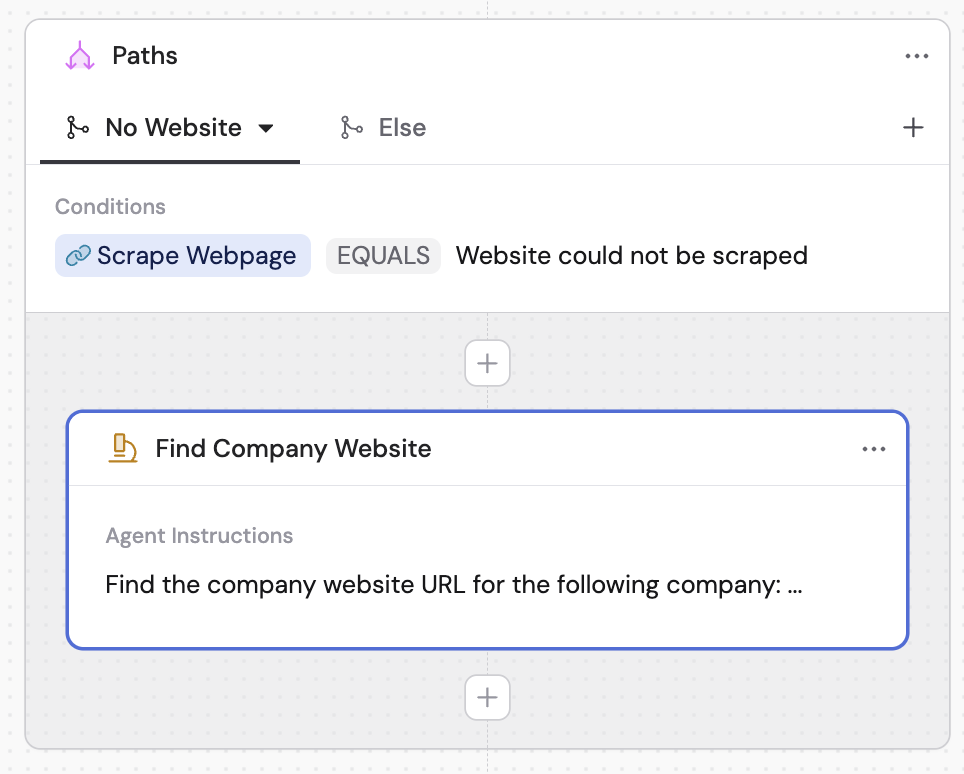
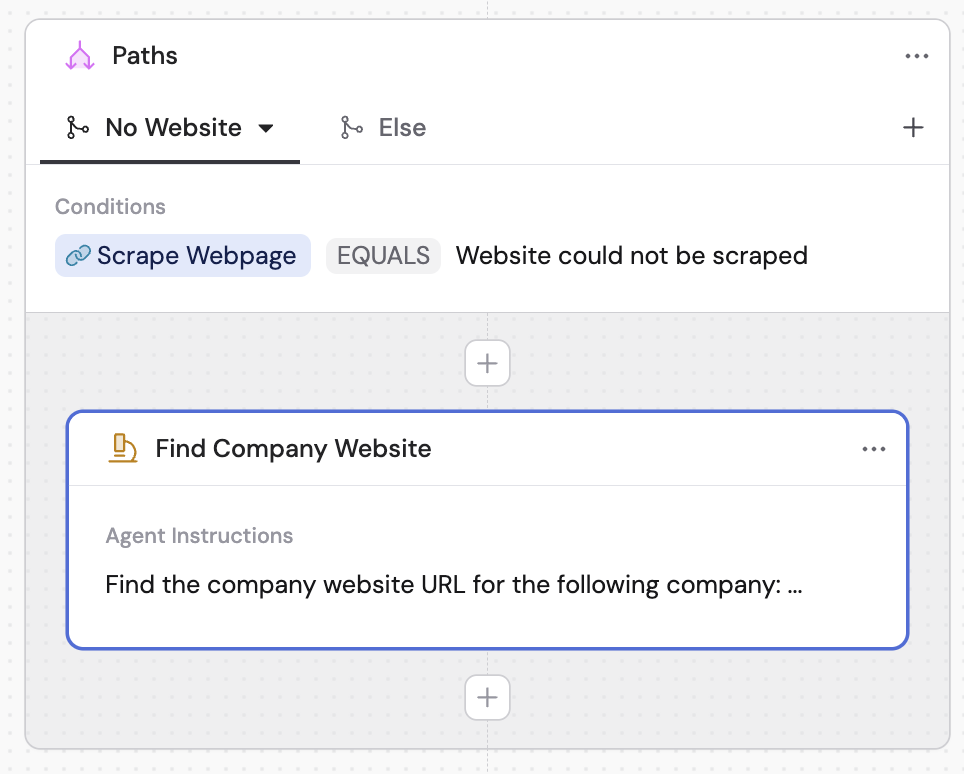 For more sophisticated handling, add a [Paths](/workflows/building#add-conditional-logic-with-paths) action after the fallback-protected step. Create one path for successful results and another for fallback values.
 Fallback values are useful for any action that depends on external data quality -- like web scraping, API calls, or profile lookups -- where the source may be unavailable or return unexpected results.
## Next steps
Learn about Paths, variables, and other Workflow building blocks.
Clean up your output by hiding intermediate steps from end users.
Fallback values are useful for any action that depends on external data quality -- like web scraping, API calls, or profile lookups -- where the source may be unavailable or return unexpected results.
## Next steps
Learn about Paths, variables, and other Workflow building blocks.
Clean up your output by hiding intermediate steps from end users.