> ## Documentation Index
> Fetch the complete documentation index at: https://docs.cassidyai.com/llms.txt
> Use this file to discover all available pages before exploring further.
# Use secret keys
> Securely store API keys, passwords, and sensitive values for use in Send API Request and Run Code actions.
Secret keys let you securely store sensitive values — like API keys, passwords, and tokens — so you can reference them in [Workflow](/workflows/overview) actions without exposing them in plain text. Once created, secret key values are encrypted and never displayed again.
Secret keys are used in **Send API Request** and **Run Code** actions within Workflows. They're ideal for connecting to external APIs that require authentication.
## Create a secret key
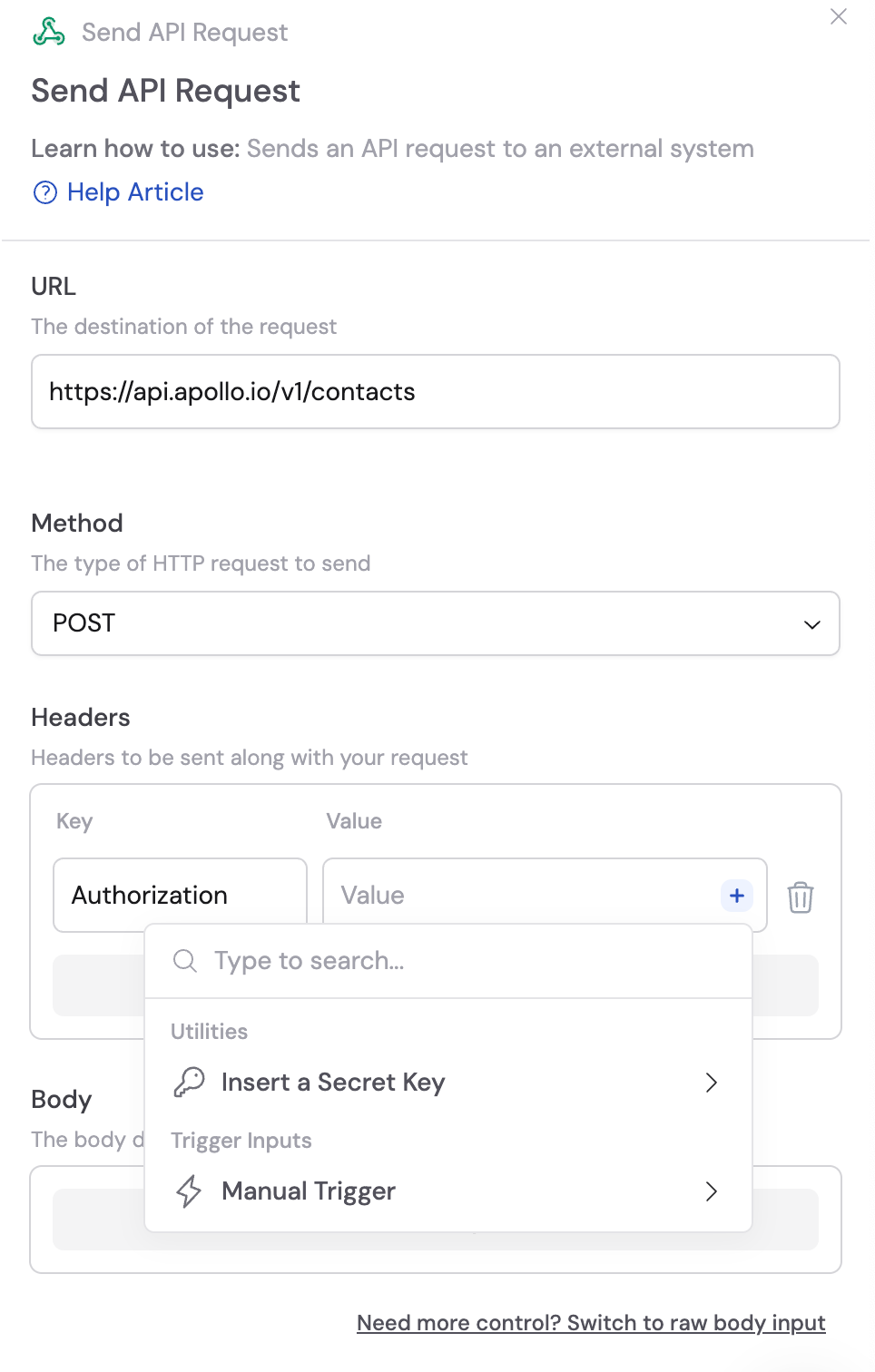
In the [Workflow builder](/workflows/building), add or open a **Send API Request** or **Run Code** action.
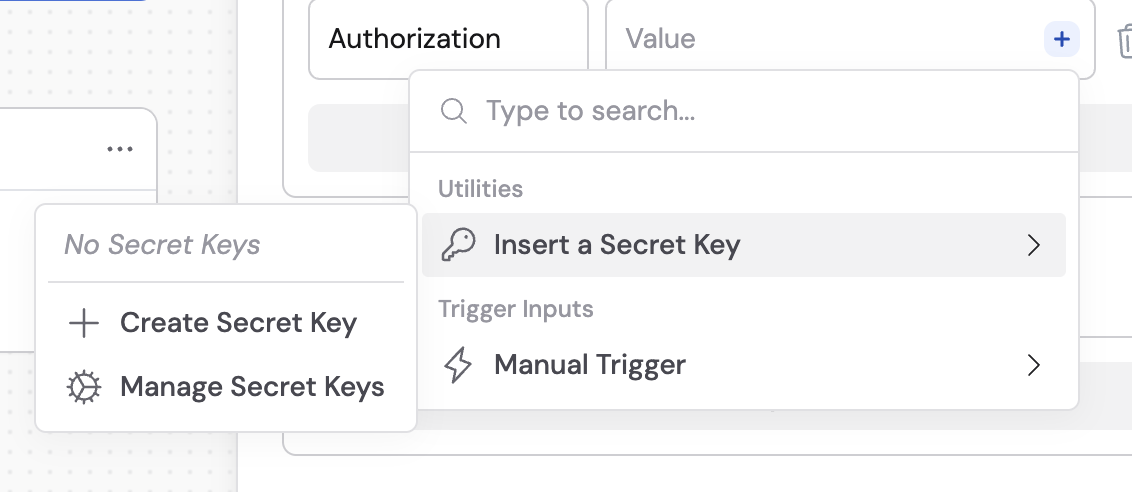
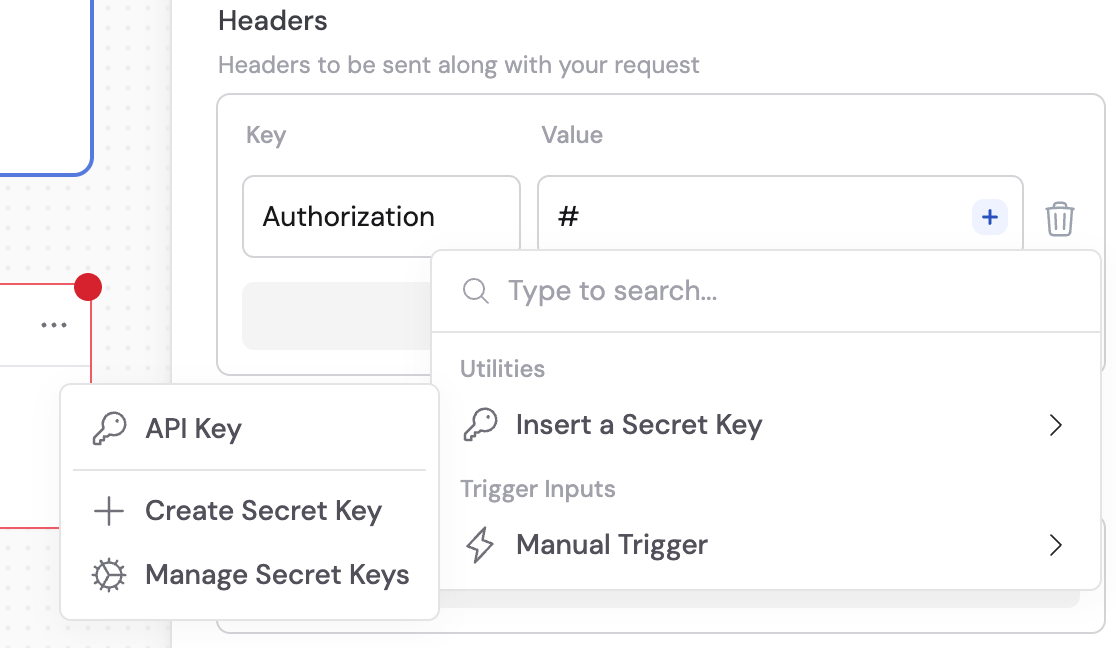
In the action's value field (e.g., a header value or code variable), click the **+** button next to the field. Hover over **Insert a Secret Key**, then click **Create Secret Key**.
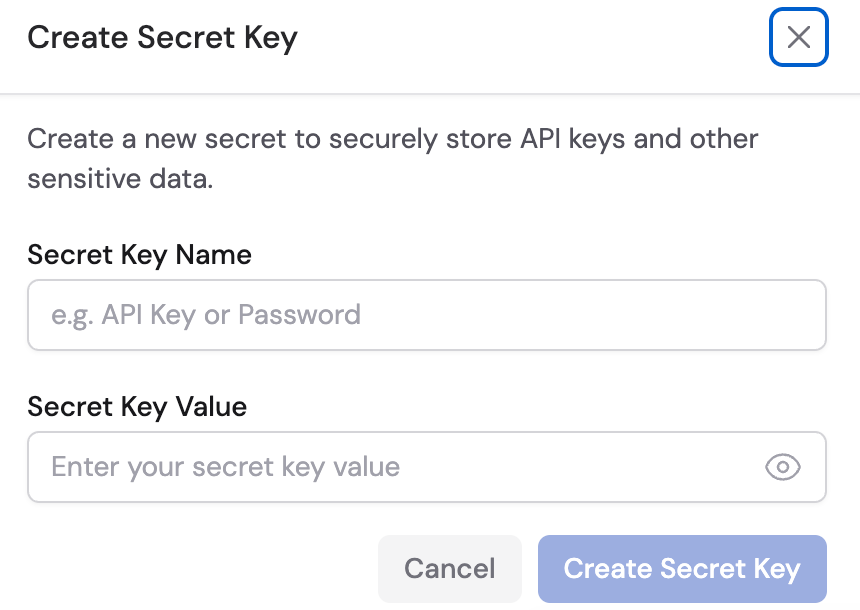 Fill in the following:
* **Name** — A descriptive label for the key (e.g., "Stripe API Key", "HubSpot Token").
* **Value** — The actual secret value (API key, password, etc.). This will be encrypted and hidden after creation.
Fill in the following:
* **Name** — A descriptive label for the key (e.g., "Stripe API Key", "HubSpot Token").
* **Value** — The actual secret value (API key, password, etc.). This will be encrypted and hidden after creation.
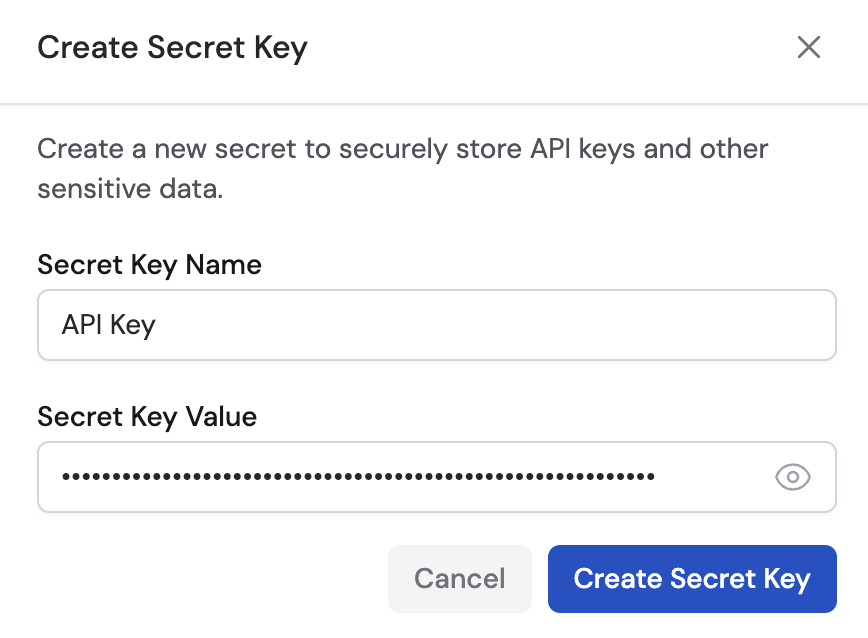 You won't be able to view the secret key value after saving. Make sure you've copied it correctly before proceeding.
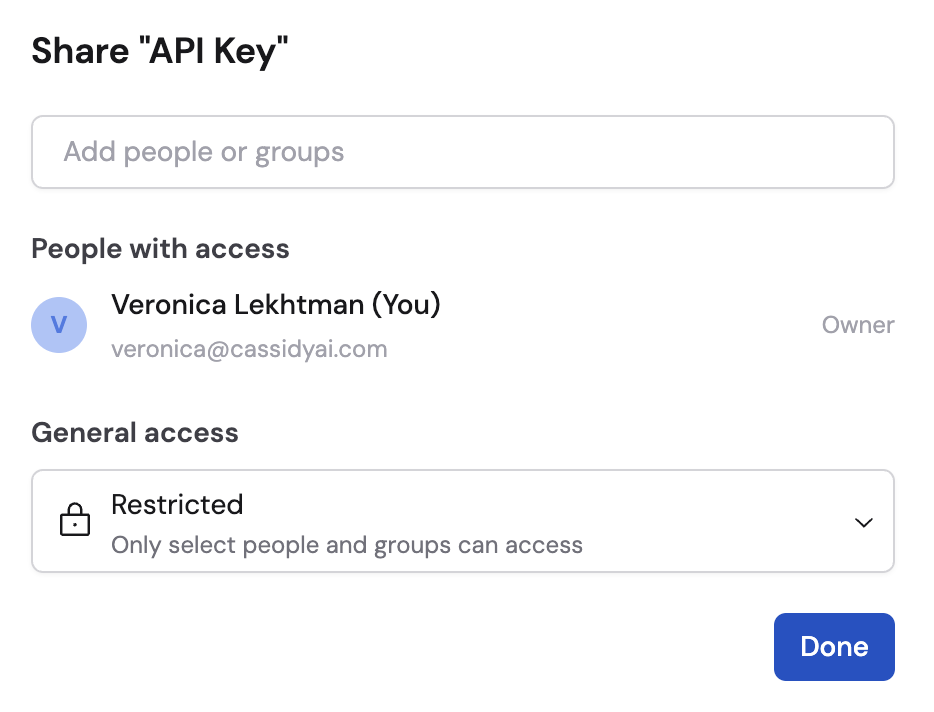
Choose who can use this secret key:
* **Team** — Everyone in your organization can use this key in their Workflows.
* **Restricted** — Only specific people or [groups](/settings/roles-and-groups) can use the key. Click **Add People/Groups** to select who has access.
For restricted keys, you can also set permission levels:
* **Use** — Can reference the key in Workflow actions
* **Manage** — Can update or delete the key
You won't be able to view the secret key value after saving. Make sure you've copied it correctly before proceeding.
Choose who can use this secret key:
* **Team** — Everyone in your organization can use this key in their Workflows.
* **Restricted** — Only specific people or [groups](/settings/roles-and-groups) can use the key. Click **Add People/Groups** to select who has access.
For restricted keys, you can also set permission levels:
* **Use** — Can reference the key in Workflow actions
* **Manage** — Can update or delete the key
 Click **Create**. The key is now stored securely and available for use.
Your secret key is created. It appears in the secret key picker and can be inserted into any supported Workflow action.
## Use a secret key in a Workflow
Once created, you can insert a secret key into any **Send API Request** or **Run Code** action:
1. Click the **+** button next to the value field.
2. Hover over **Insert a Secret Key**.
3. Select the key from the list.
The key is inserted as a variable reference — the actual value is never exposed in the Workflow builder or run results.
Click **Create**. The key is now stored securely and available for use.
Your secret key is created. It appears in the secret key picker and can be inserted into any supported Workflow action.
## Use a secret key in a Workflow
Once created, you can insert a secret key into any **Send API Request** or **Run Code** action:
1. Click the **+** button next to the value field.
2. Hover over **Insert a Secret Key**.
3. Select the key from the list.
The key is inserted as a variable reference — the actual value is never exposed in the Workflow builder or run results.
 ## Manage existing keys
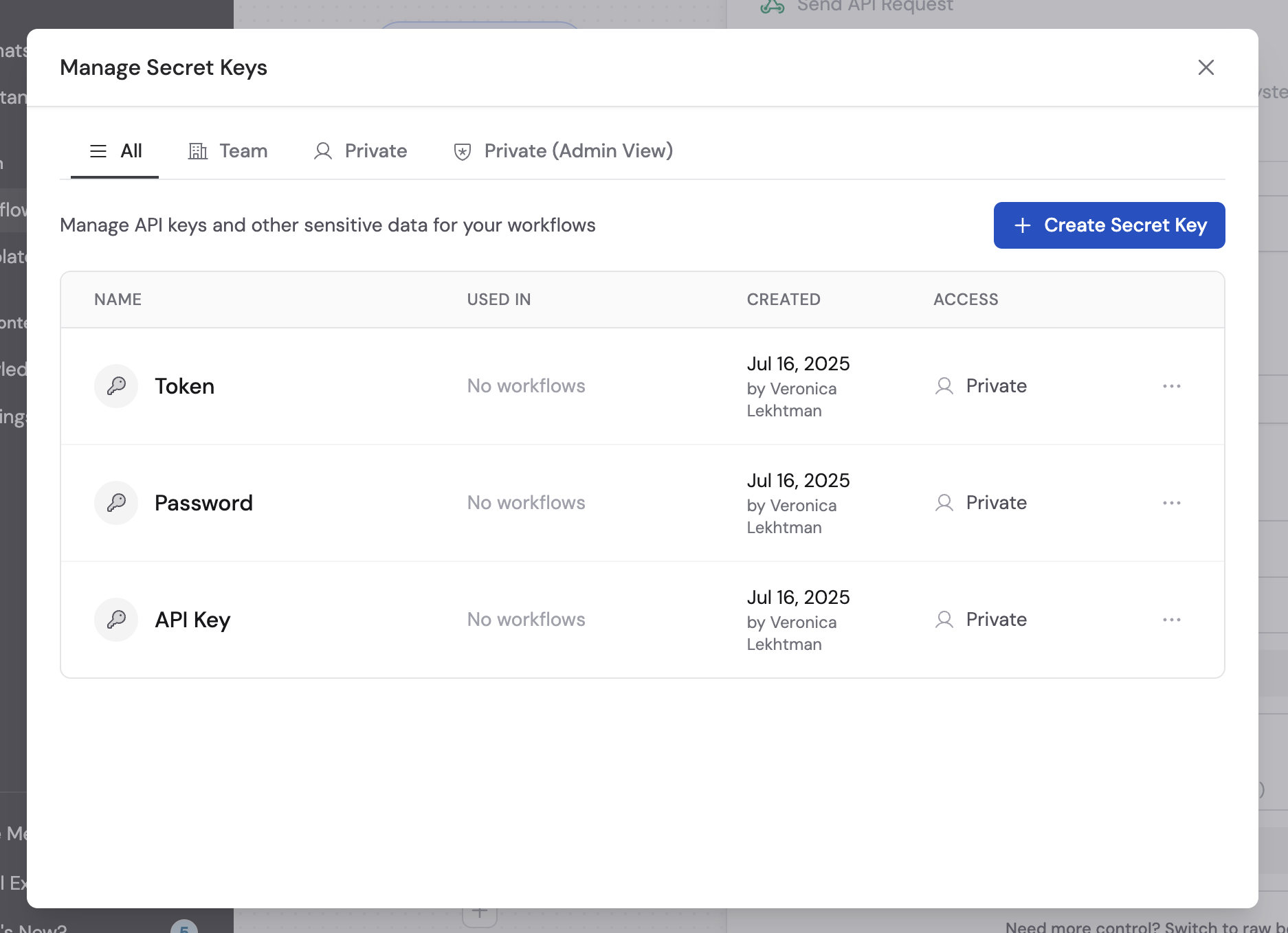
To view, update, or delete your secret keys:
1. In any Workflow action that supports secret keys, click the **+** button and select **Manage Secret Keys**.
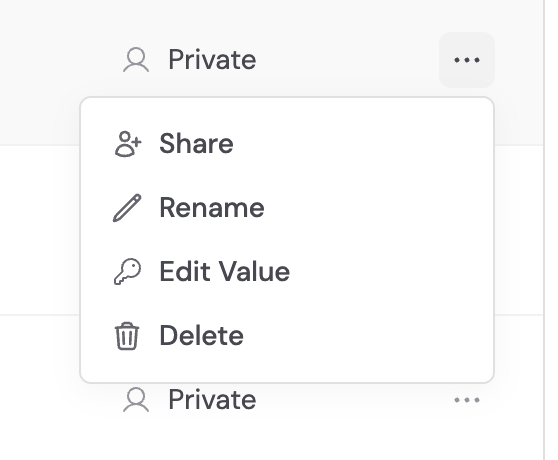
2. From the management panel, you can:
* **Rename** a key
* **Update** the value (you'll need to enter the new value — the old one can't be retrieved)
* **Change access permissions**
* **Delete** a key
## Manage existing keys
To view, update, or delete your secret keys:
1. In any Workflow action that supports secret keys, click the **+** button and select **Manage Secret Keys**.
2. From the management panel, you can:
* **Rename** a key
* **Update** the value (you'll need to enter the new value — the old one can't be retrieved)
* **Change access permissions**
* **Delete** a key
 Deleting a secret key will break any Workflow actions that reference it. Make sure no active Workflows depend on the key before removing it.
## Next steps
Create Workflows that use secret keys for API authentication.
Set up groups to control who can access restricted secret keys.
Deleting a secret key will break any Workflow actions that reference it. Make sure no active Workflows depend on the key before removing it.
## Next steps
Create Workflows that use secret keys for API authentication.
Set up groups to control who can access restricted secret keys.