> ## Documentation Index
> Fetch the complete documentation index at: https://docs.cassidyai.com/llms.txt
> Use this file to discover all available pages before exploring further.
# Use structured output fields
> Define specific data fields and types so your Workflow actions produce consistently formatted, machine-readable results.
Structured output fields let you define the exact data format you want an action to produce. Instead of receiving freeform text that you need to parse, the AI fills in specific fields with the correct data types -- making outputs consistent, reliable, and easy to reference in later steps.
Structured output fields are available on these actions: **Generate Text**, **Generate Text with Agent**, **Run Code**, and **Research Agent**.
## Set up structured output fields
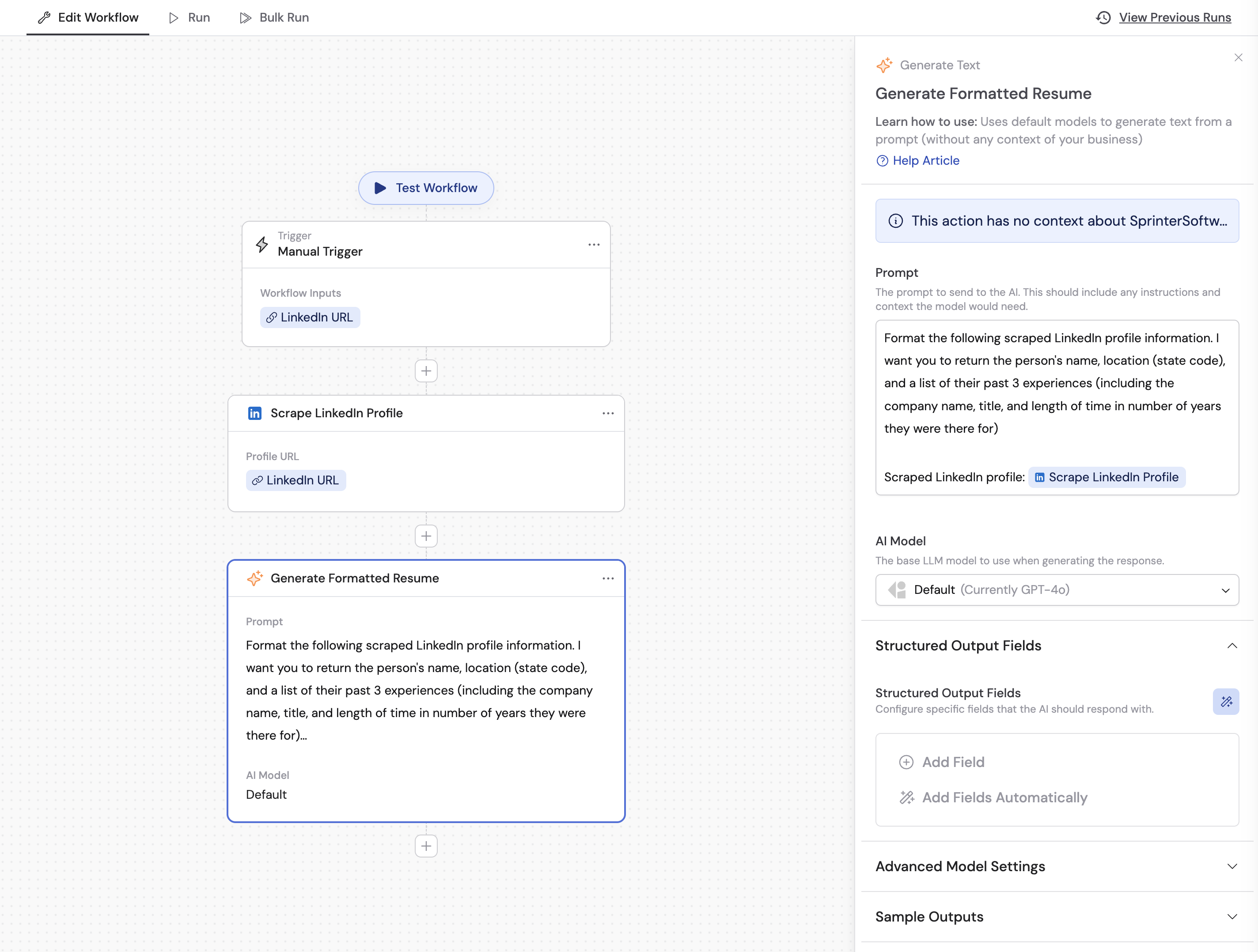
In the [Workflow editor](/workflows/building), click the action you want to configure. The settings sidebar opens.
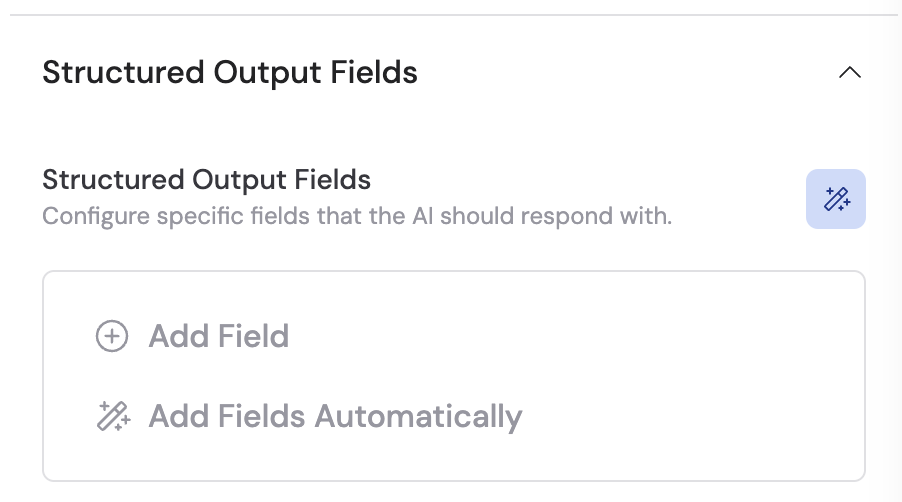
 Under **Structured Output Fields**, you have two options:
* **Add Fields Automatically** -- Cassidy analyzes your prompt and generates a suggested set of fields.
* **+ Add Field** -- manually create each field yourself.
Under **Structured Output Fields**, you have two options:
* **Add Fields Automatically** -- Cassidy analyzes your prompt and generates a suggested set of fields.
* **+ Add Field** -- manually create each field yourself.
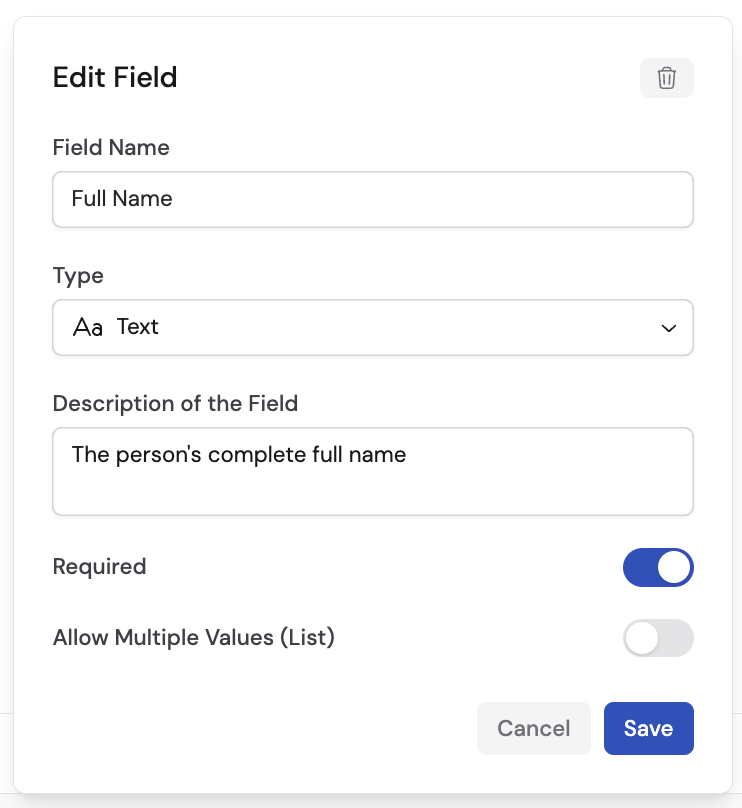
 For each field, specify:
* **Field Name** -- a descriptive label (e.g., "Full Name", "Location", "Score").
* **Type** -- the data type for this field (see the table below).
* **Description** -- help the AI understand what value to fill in (e.g., "The person's complete full name as listed on LinkedIn").
For each field, specify:
* **Field Name** -- a descriptive label (e.g., "Full Name", "Location", "Score").
* **Type** -- the data type for this field (see the table below).
* **Description** -- help the AI understand what value to fill in (e.g., "The person's complete full name as listed on LinkedIn").
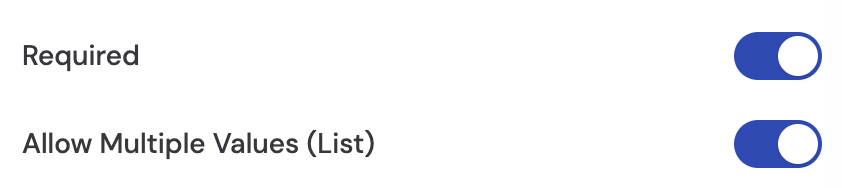
 Customize each field further:
* **Required** -- toggle on if this field must always be populated.
* **Allow Multiple Values (List)** -- toggle on if the AI should return more than one value (e.g., a list of skills or multiple work experiences).
Customize each field further:
* **Required** -- toggle on if this field must always be populated.
* **Allow Multiple Values (List)** -- toggle on if the AI should return more than one value (e.g., a list of skills or multiple work experiences).
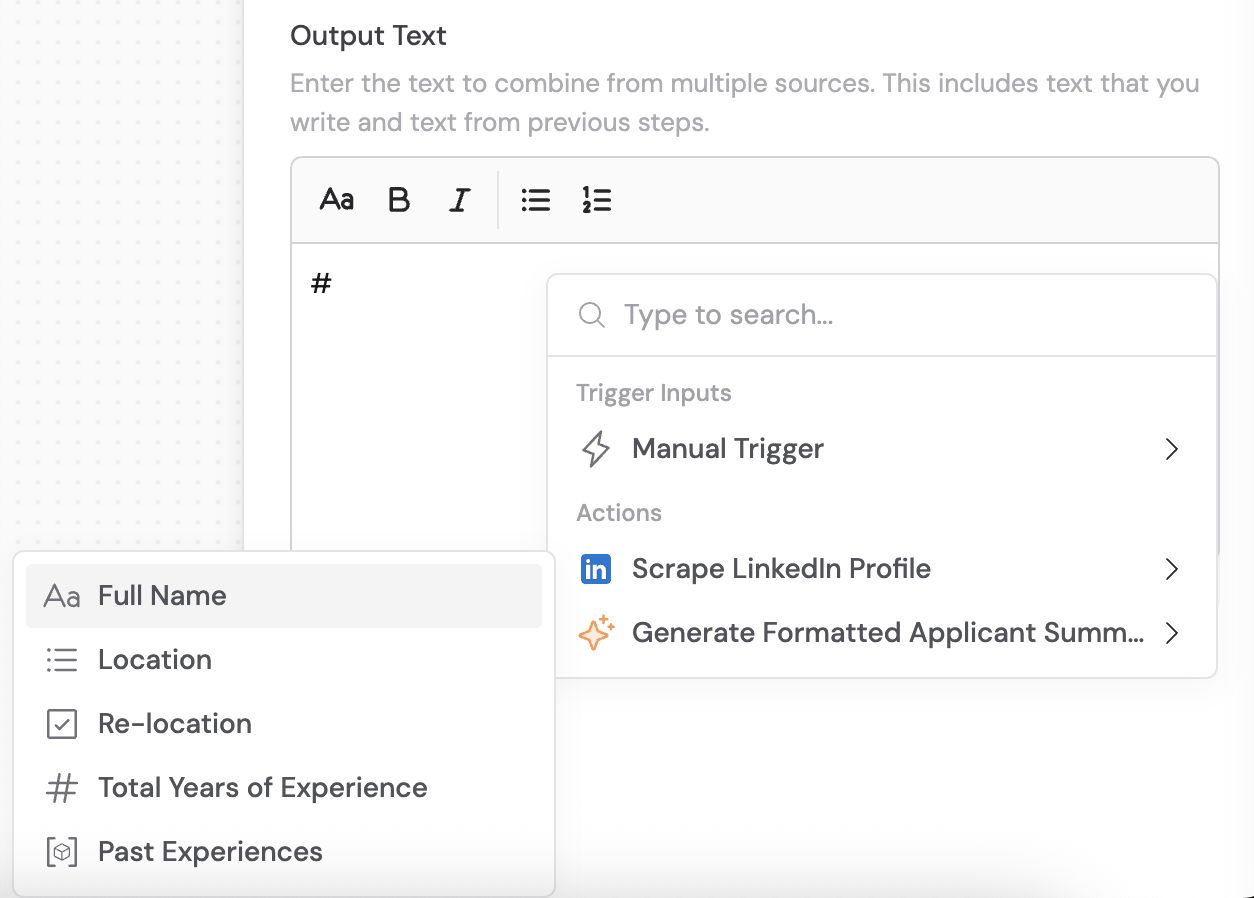
 In subsequent actions, [insert a variable](/workflows/building#reference-variables-between-steps) and you will see each structured field as an individual variable you can reference by name.
 ## Available field types
| Type | Description | Example |
| ------------ | ------------------------------------------------ | ----------------------------------------------------------------------------------- |
| **Text** | A single text value | `"Jane Smith"` |
| **Number** | A numerical value | `42` |
| **Yes/No** | A true/false toggle | `true` |
| **Dropdown** | A single value from a list of options you define | `"CA"` from a list of state codes |
| **Object** | A collection of sub-fields with their own types | A work experience with Company Name (Text), Job Title (Text), and Duration (Number) |
When using the **Object** type, you add sub-fields within the object by repeating the same field configuration process. Objects can be combined with **Allow Multiple Values** to create lists of structured records.
## Example: parse a LinkedIn profile
To illustrate, here is how you might extract structured data from a scraped LinkedIn profile:
1. **Full Name** -- Type: Text, Description: "The person's complete name"
2. **Location** -- Type: Dropdown, Options: `CA`, `NY`, `TX`, `FL` (state codes), Description: "The US state where the person is located"
3. **Past Experiences** -- Type: Object, Allow Multiple Values: on
* **Company Name** -- Type: Text
* **Job Title** -- Type: Text
* **Duration in Years** -- Type: Number
## Available field types
| Type | Description | Example |
| ------------ | ------------------------------------------------ | ----------------------------------------------------------------------------------- |
| **Text** | A single text value | `"Jane Smith"` |
| **Number** | A numerical value | `42` |
| **Yes/No** | A true/false toggle | `true` |
| **Dropdown** | A single value from a list of options you define | `"CA"` from a list of state codes |
| **Object** | A collection of sub-fields with their own types | A work experience with Company Name (Text), Job Title (Text), and Duration (Number) |
When using the **Object** type, you add sub-fields within the object by repeating the same field configuration process. Objects can be combined with **Allow Multiple Values** to create lists of structured records.
## Example: parse a LinkedIn profile
To illustrate, here is how you might extract structured data from a scraped LinkedIn profile:
1. **Full Name** -- Type: Text, Description: "The person's complete name"
2. **Location** -- Type: Dropdown, Options: `CA`, `NY`, `TX`, `FL` (state codes), Description: "The US state where the person is located"
3. **Past Experiences** -- Type: Object, Allow Multiple Values: on
* **Company Name** -- Type: Text
* **Job Title** -- Type: Text
* **Duration in Years** -- Type: Number
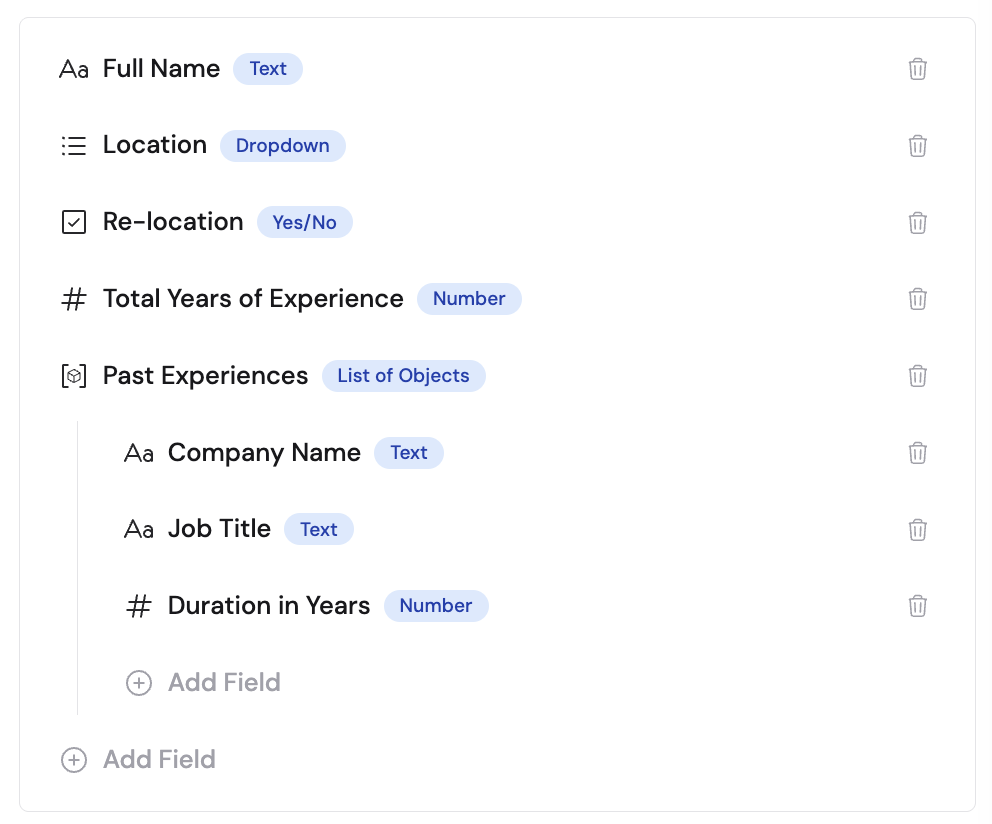 The action produces a clean, structured result where each field is individually referenceable in downstream steps.
## Next steps
Learn how to pass structured output data between Workflow steps.
Apply structured outputs across an entire dataset.
The action produces a clean, structured result where each field is individually referenceable in downstream steps.
## Next steps
Learn how to pass structured output data between Workflow steps.
Apply structured outputs across an entire dataset.