> ## Documentation Index
> Fetch the complete documentation index at: https://docs.cassidyai.com/llms.txt
> Use this file to discover all available pages before exploring further.
# Utility variables
> Access metadata about the current Workflow run, the user who triggered it, and the Workflow itself for logging, personalization, and conditional logic.
Utility variables provide metadata about the current [Workflow](/workflows/overview) execution. Use them to personalize outputs, create audit trails, send contextual notifications, and implement conditional logic based on run details.
## Access utility variables
While editing an action's prompt or input field, type **#** or click **Insert Variable**. A dropdown appears showing trigger inputs and action outputs.
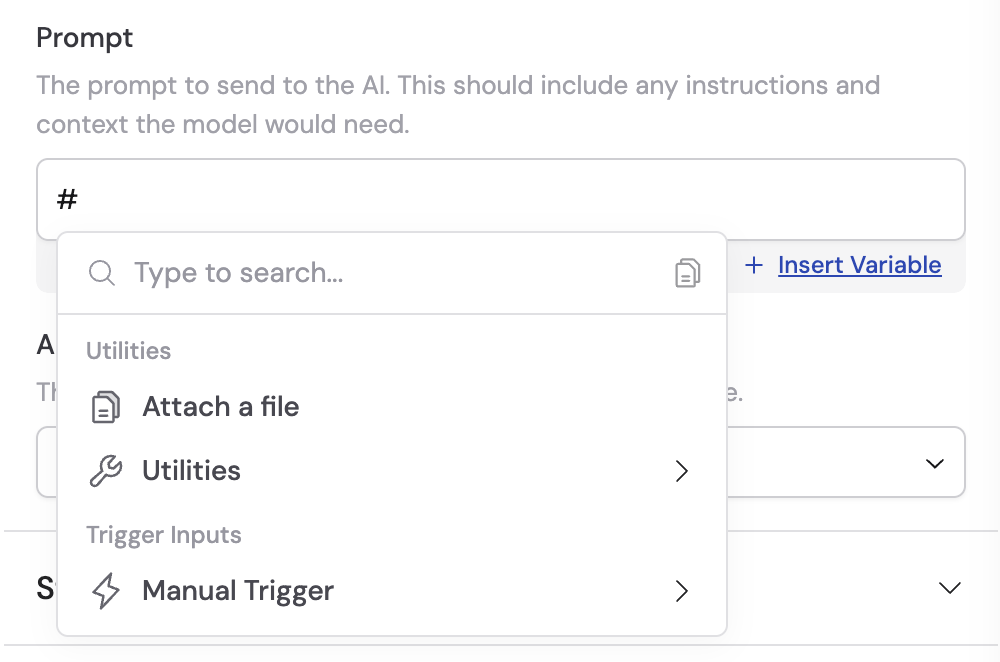 In the dropdown, hover over **Utilities** to expand the available utility variables.
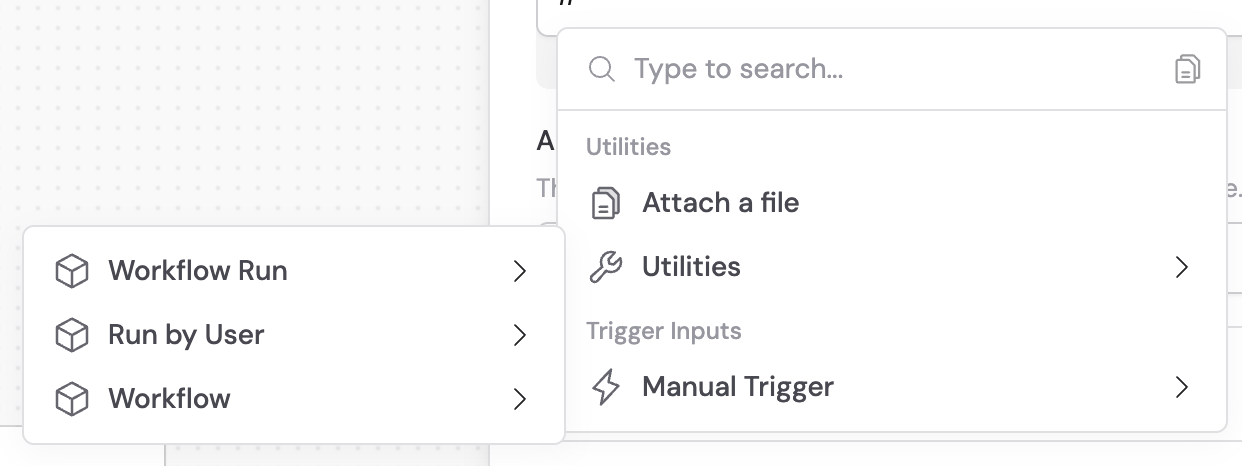 Click the variable you want to insert. Cassidy formats it with the correct syntax automatically.
For general information on variables, see [referencing variables](/workflows/building#reference-variables-between-steps).
## Available variables
### Workflow Run
| Variable | Description |
| -------------------------------- | ----------------------------------------------------------- |
| **ID** | Unique identifier for this specific run |
| **Link** | Direct URL to view this run in Cassidy |
| **Started At Date (UTC)** | The date the run began, in UTC |
| **Started At Date & Time (UTC)** | Full timestamp (date and time) when the run started, in UTC |
| **Is Test Run** | `true` if this is a test execution, `false` for live runs |
### Run by User
| Variable | Description |
| --------- | ------------------------------------------------- |
| **Name** | Full name of the user who initiated the run |
| **Email** | Email address of the user who triggered the run |
| **Role** | Organizational role of the user (Member or Admin) |
### Workflow
| Variable | Description |
| -------- | ---------------------------------------------------------------- |
| **Name** | Display name of the Workflow |
| **Link** | Direct URL to the Workflow configuration page |
| **ID** | Unique identifier for the Workflow itself (not the specific run) |
## Common use cases
Include the runner's name in email outputs or customize content based on their role. For example, add `"Prepared by: #Run by User > Name"` to a generated report.
Include the Run ID, user email, and timestamp in output files for compliance tracking. This is especially useful when Workflows process sensitive data or interact with external systems.
Send Slack messages or emails that include who ran the Workflow, when it started, and a link to the run for quick reference.
Use **Is Test Run** with [Paths](/workflows/building#add-conditional-logic-with-paths) to behave differently during testing vs live execution. For example, skip sending real emails during test runs, or write to a staging database instead of production.
Include the Workflow name and link in generated reports or communications so recipients can easily navigate back to the source automation.
## Next steps
Learn how to pass data between Workflow steps using all variable types.
Define consistent output formats for your Workflow actions.
Click the variable you want to insert. Cassidy formats it with the correct syntax automatically.
For general information on variables, see [referencing variables](/workflows/building#reference-variables-between-steps).
## Available variables
### Workflow Run
| Variable | Description |
| -------------------------------- | ----------------------------------------------------------- |
| **ID** | Unique identifier for this specific run |
| **Link** | Direct URL to view this run in Cassidy |
| **Started At Date (UTC)** | The date the run began, in UTC |
| **Started At Date & Time (UTC)** | Full timestamp (date and time) when the run started, in UTC |
| **Is Test Run** | `true` if this is a test execution, `false` for live runs |
### Run by User
| Variable | Description |
| --------- | ------------------------------------------------- |
| **Name** | Full name of the user who initiated the run |
| **Email** | Email address of the user who triggered the run |
| **Role** | Organizational role of the user (Member or Admin) |
### Workflow
| Variable | Description |
| -------- | ---------------------------------------------------------------- |
| **Name** | Display name of the Workflow |
| **Link** | Direct URL to the Workflow configuration page |
| **ID** | Unique identifier for the Workflow itself (not the specific run) |
## Common use cases
Include the runner's name in email outputs or customize content based on their role. For example, add `"Prepared by: #Run by User > Name"` to a generated report.
Include the Run ID, user email, and timestamp in output files for compliance tracking. This is especially useful when Workflows process sensitive data or interact with external systems.
Send Slack messages or emails that include who ran the Workflow, when it started, and a link to the run for quick reference.
Use **Is Test Run** with [Paths](/workflows/building#add-conditional-logic-with-paths) to behave differently during testing vs live execution. For example, skip sending real emails during test runs, or write to a staging database instead of production.
Include the Workflow name and link in generated reports or communications so recipients can easily navigate back to the source automation.
## Next steps
Learn how to pass data between Workflow steps using all variable types.
Define consistent output formats for your Workflow actions.