> ## Documentation Index
> Fetch the complete documentation index at: https://docs.cassidyai.com/llms.txt
> Use this file to discover all available pages before exploring further.
# Run Workflows in bulk
> Import CSV files or use Smart Import to extract data from unstructured documents and run a Workflow across an entire dataset.
Bulk runs let you execute a [Workflow](/workflows/overview) many times in parallel -- once per row in a dataset. This is ideal for tasks like generating personalized emails for a list of contacts, enriching CRM records, or processing a batch of support tickets.
**Prerequisite:** You need a published Workflow with a Manual trigger. The trigger's input fields define the columns in your bulk run dataset.
## Create a bulk run view
You can open **Bulk Run** from the Workflow's tab bar on the Run view, or switch to the **Bulk Run** tab while [editing](/workflows/building#the-workflow-editor) the same Manual-style Workflow (next to **Workflow** and **Interface**). The **Interface** tab is documented in [Customize the Workflow run view](/workflows/interface).
Navigate to the Workflow you want to run in bulk and click the **Bulk Run** tab.
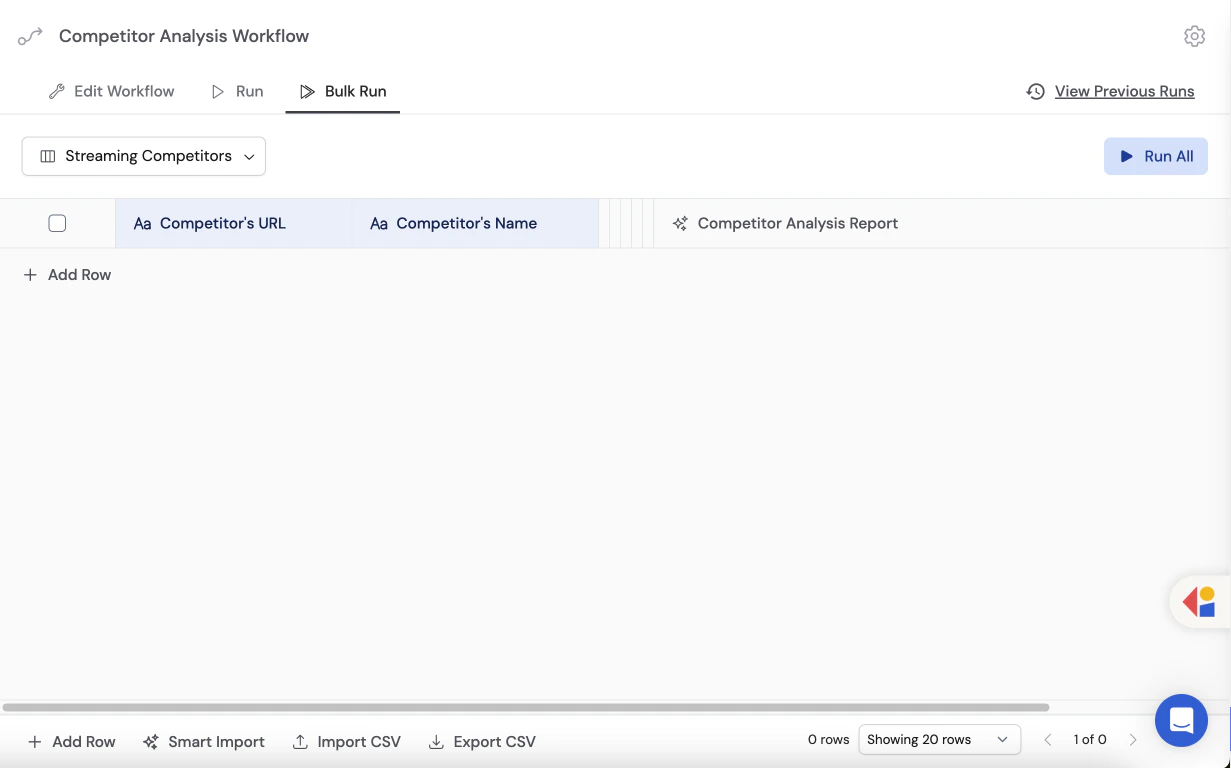 Click the dropdown menu and select **Create New View**, then give it a descriptive name (e.g., "Q1 Leads" or "Support Backlog"). You can also rename the default untitled view.
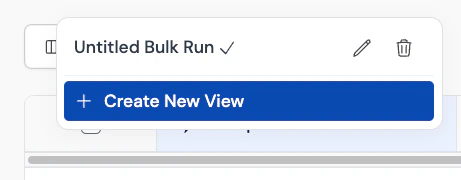 You can create multiple views for the same Workflow to keep different datasets organized.
## Import data
There are two ways to populate your bulk run view: **CSV Import** for structured tabular data, and **Smart Import** for unstructured files like PDFs, images, or messy spreadsheets.
Use CSV Import when your data is already organized into rows and columns.
At the bottom of the Bulk Run view, click the **Import CSV** button.
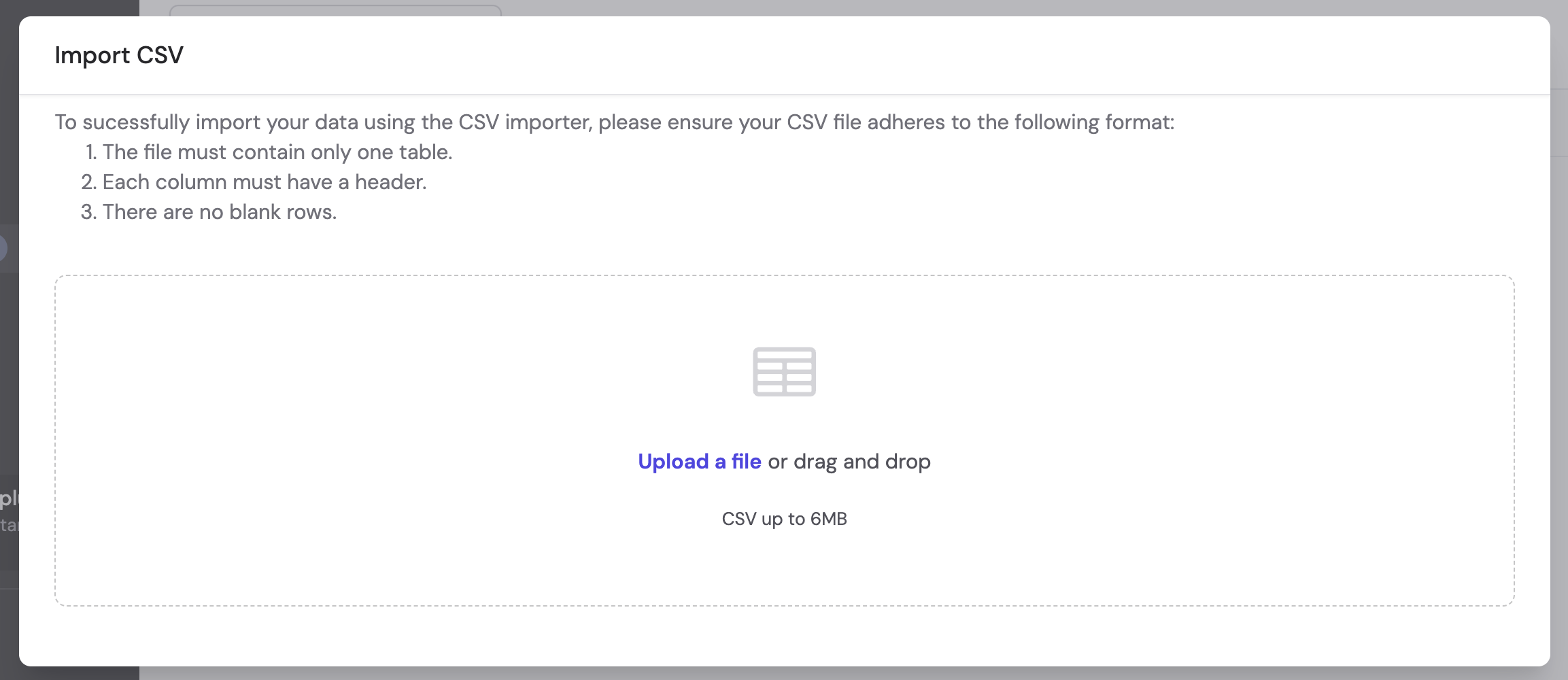
Select a CSV file from your computer or drag and drop it into the upload area.
You can create multiple views for the same Workflow to keep different datasets organized.
## Import data
There are two ways to populate your bulk run view: **CSV Import** for structured tabular data, and **Smart Import** for unstructured files like PDFs, images, or messy spreadsheets.
Use CSV Import when your data is already organized into rows and columns.
At the bottom of the Bulk Run view, click the **Import CSV** button.
Select a CSV file from your computer or drag and drop it into the upload area.
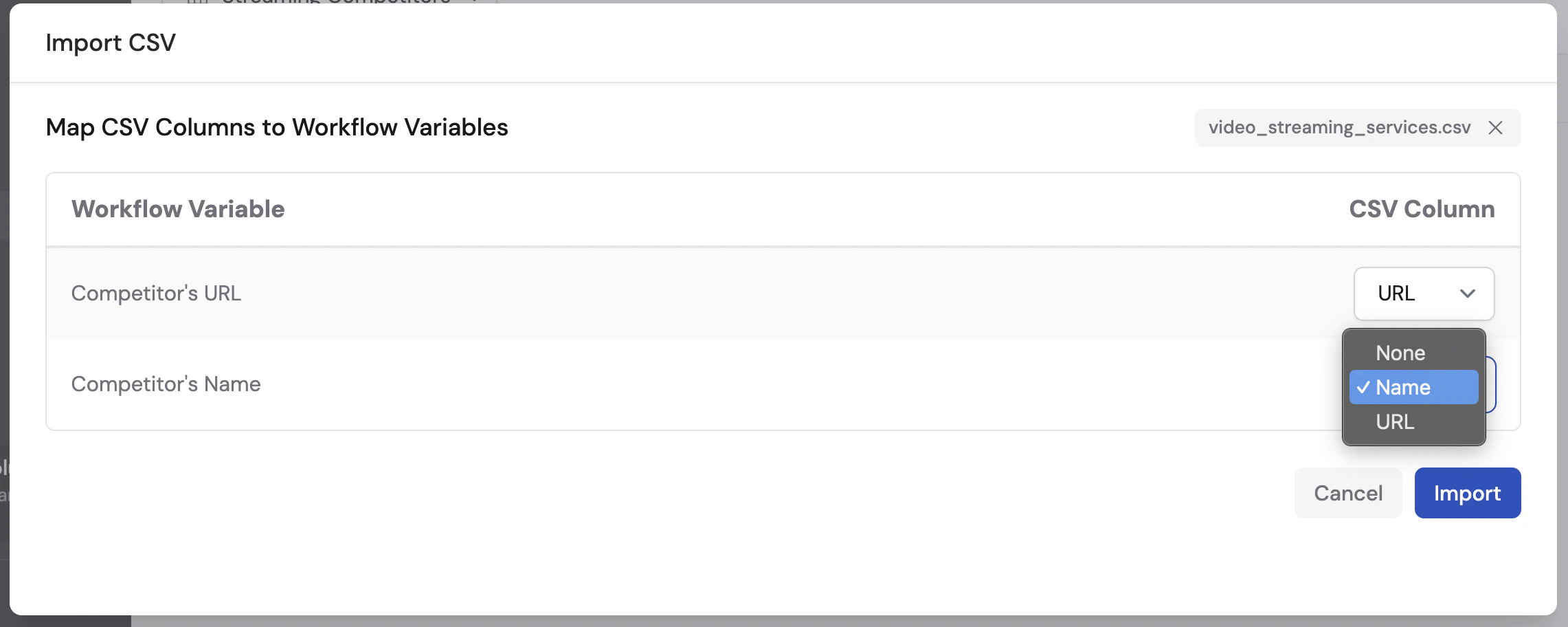
 Cassidy maps each CSV column to the corresponding trigger input variable. Review the mappings and adjust if needed, then click **Import**.
 Your rows appear in the bulk run table. Verify the data looks correct before running.
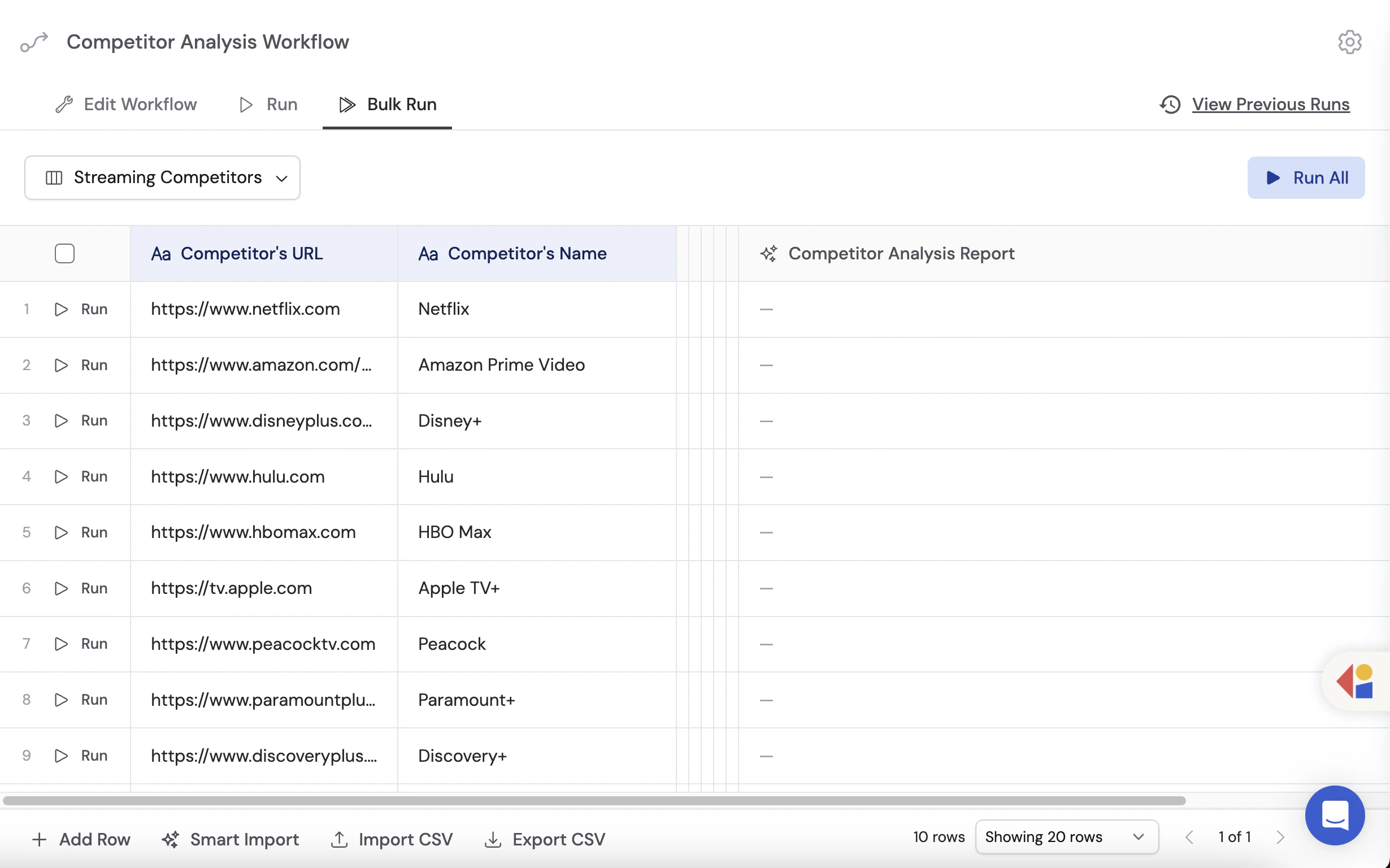 Use Smart Import when your data lives in unstructured documents, messy spreadsheets, PDFs, or images. Cassidy's AI extracts structured data from the file automatically.
At the bottom of the Bulk Run view, click the **Smart Import** button.
Select the file from your computer or drag and drop it. Smart Import supports documents, spreadsheets, PDFs, images, and other common file types.
Use Smart Import when your data lives in unstructured documents, messy spreadsheets, PDFs, or images. Cassidy's AI extracts structured data from the file automatically.
At the bottom of the Bulk Run view, click the **Smart Import** button.
Select the file from your computer or drag and drop it. Smart Import supports documents, spreadsheets, PDFs, images, and other common file types.
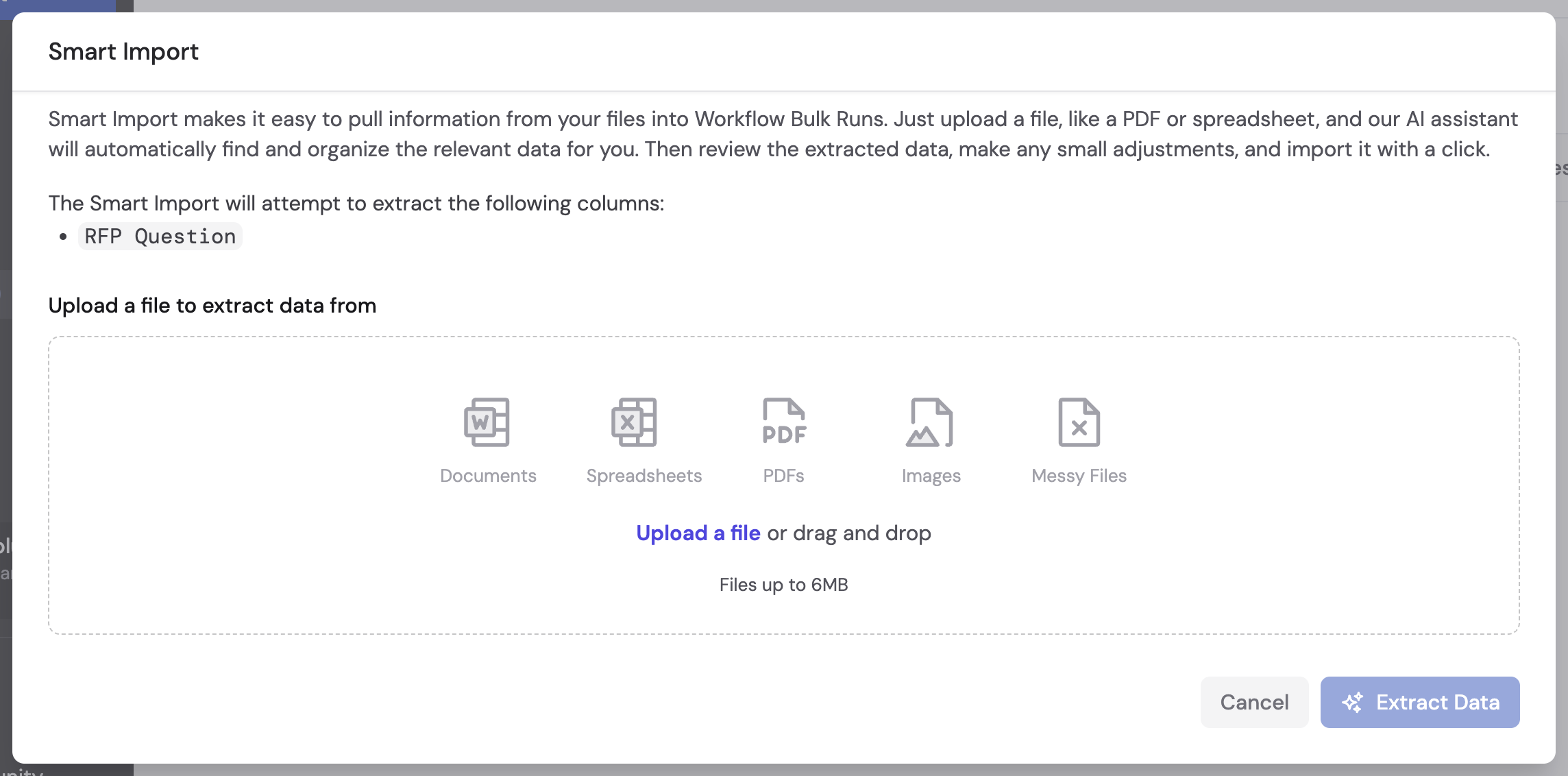 Click **Extract Data**. Cassidy's AI reads the file and produces structured rows mapped to your Workflow's trigger inputs.
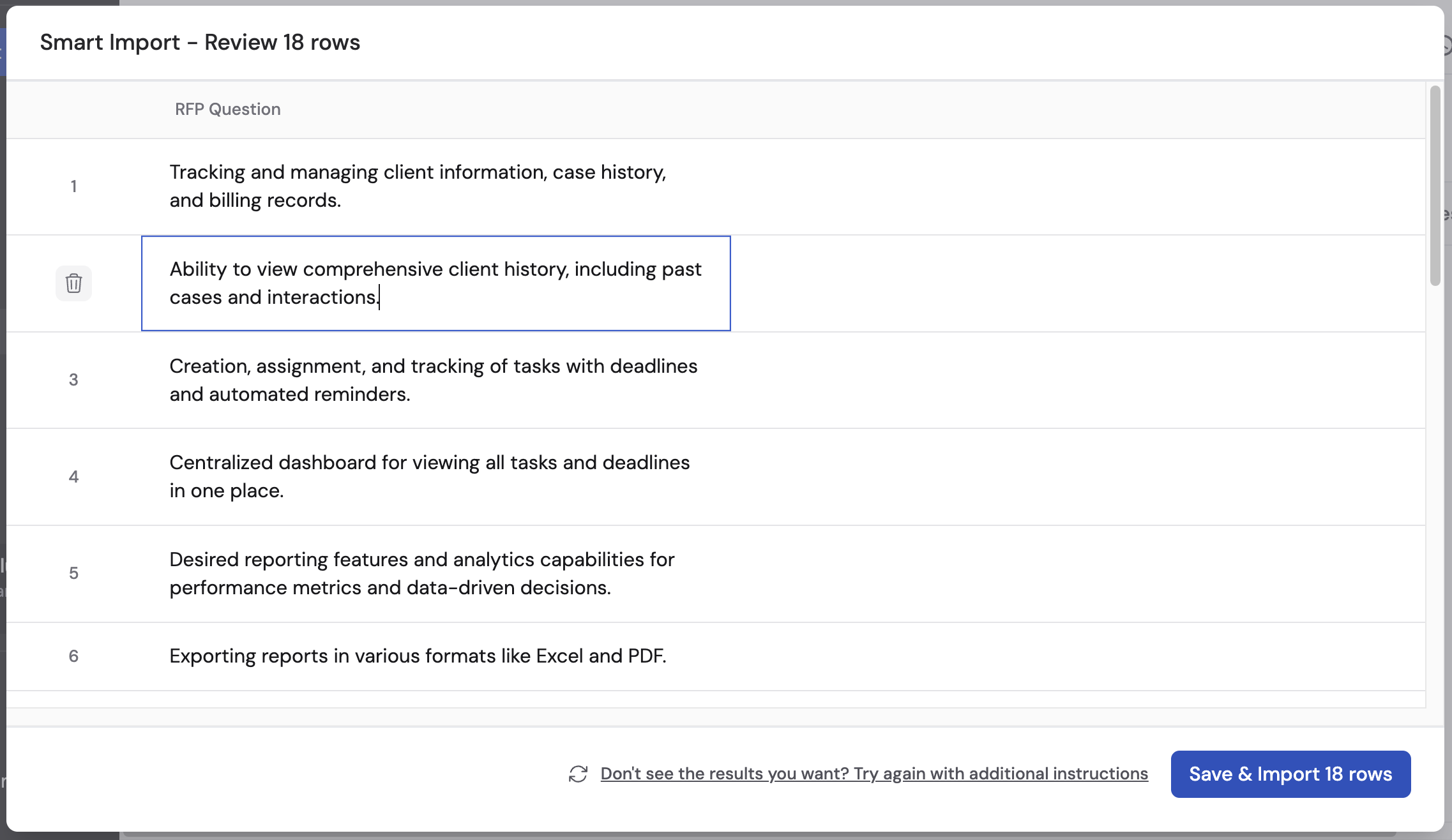 Check the extracted rows. You can edit individual cells, delete rows, or click **Try Again** with additional instructions if the extraction needs improvement.
When the data looks correct, click **Save & Import** to add the rows to your bulk run view.
You can also add rows manually by clicking into the table and typing values directly.
## Run and monitor
Choose individual rows by checking their boxes, or use one of the batch options:
* **Run All** -- processes every row in the view.
* **Run This Page** -- processes only the rows visible on the current page.
Check the extracted rows. You can edit individual cells, delete rows, or click **Try Again** with additional instructions if the extraction needs improvement.
When the data looks correct, click **Save & Import** to add the rows to your bulk run view.
You can also add rows manually by clicking into the table and typing values directly.
## Run and monitor
Choose individual rows by checking their boxes, or use one of the batch options:
* **Run All** -- processes every row in the view.
* **Run This Page** -- processes only the rows visible on the current page.
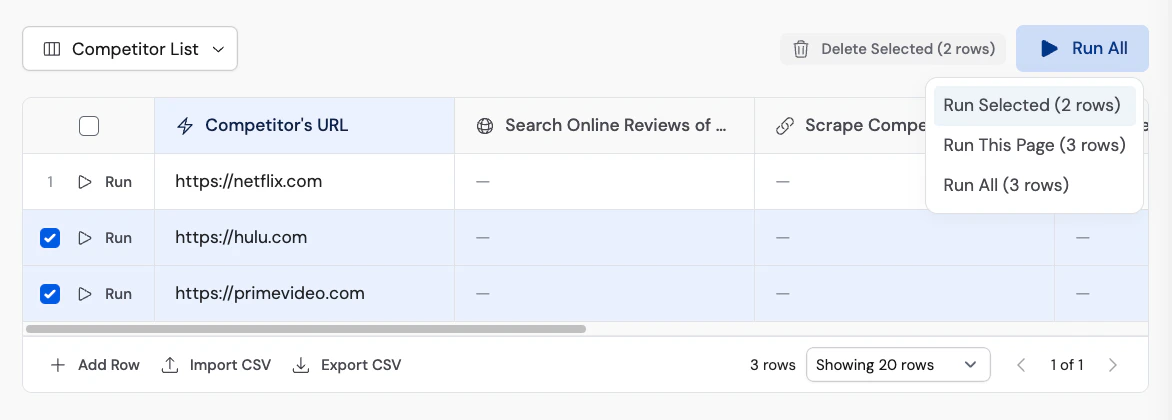 Multiple rows run simultaneously. Each row shows its status (running, completed, or failed) and the result updates in real time.
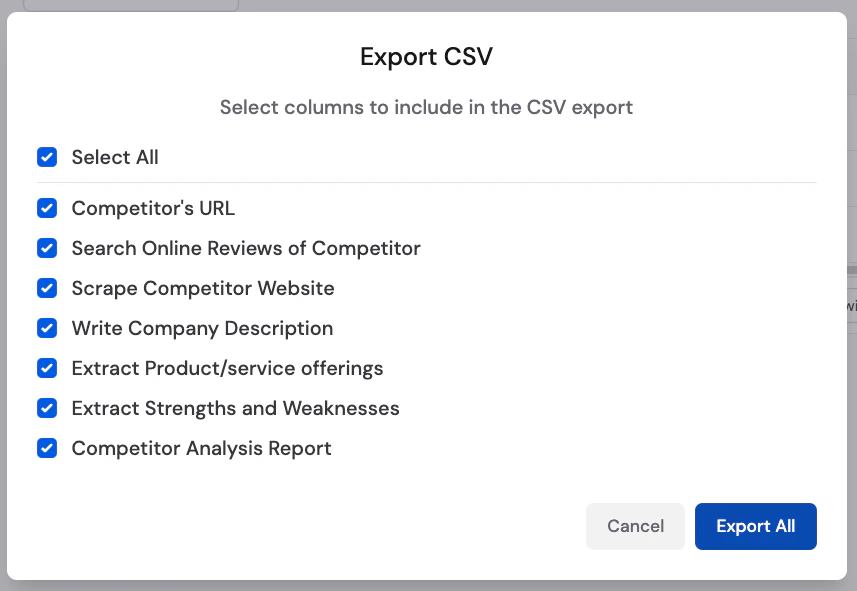
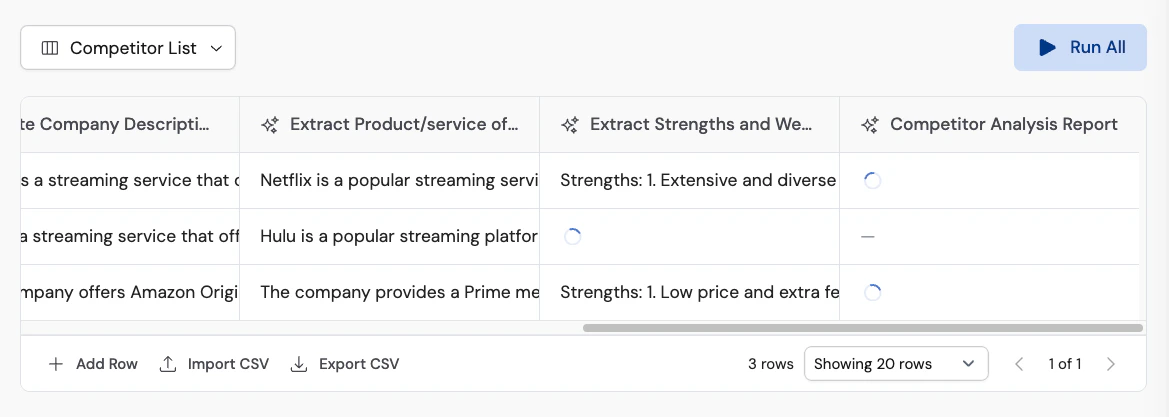 Once all rows have completed, click **Export** to download the results as a CSV file for further analysis or sharing.
 Failed rows can be re-run individually without affecting the rest of the dataset. Click a failed row to see the error and retry.
## Next steps
Learn about single runs, scheduled runs, and the testing interface.
Manage permissions and deploy Workflows externally.
Define consistent output formats for your Workflow results.
Handle errors gracefully so bulk runs keep processing.
Failed rows can be re-run individually without affecting the rest of the dataset. Click a failed row to see the error and retry.
## Next steps
Learn about single runs, scheduled runs, and the testing interface.
Manage permissions and deploy Workflows externally.
Define consistent output formats for your Workflow results.
Handle errors gracefully so bulk runs keep processing.