> ## Documentation Index
> Fetch the complete documentation index at: https://docs.cassidyai.com/llms.txt
> Use this file to discover all available pages before exploring further.
# Run and test a Workflow
> Execute your Workflows manually, on a schedule, or through integrations, and use the testing interface to debug each step.
Once you have [built a Workflow](/workflows/building), there are several ways to run it depending on your use case. You can also use Cassidy's testing interface to validate each step before going live.
## Run a single Workflow
Run a Workflow once with manually entered inputs. This is the usual experience for a [Manual trigger](/reference/triggers/manual); a few other trigger types use the same Run form inside Cassidy.
Builders can change how this page looks and which action results are highlighted from the **Interface** tab. See [Customize the Workflow run view](/workflows/interface).
Open the Workflow and click the **Run** tab.
Fill out the form fields defined by the Workflow (text, URLs, files, dropdowns, and so on).
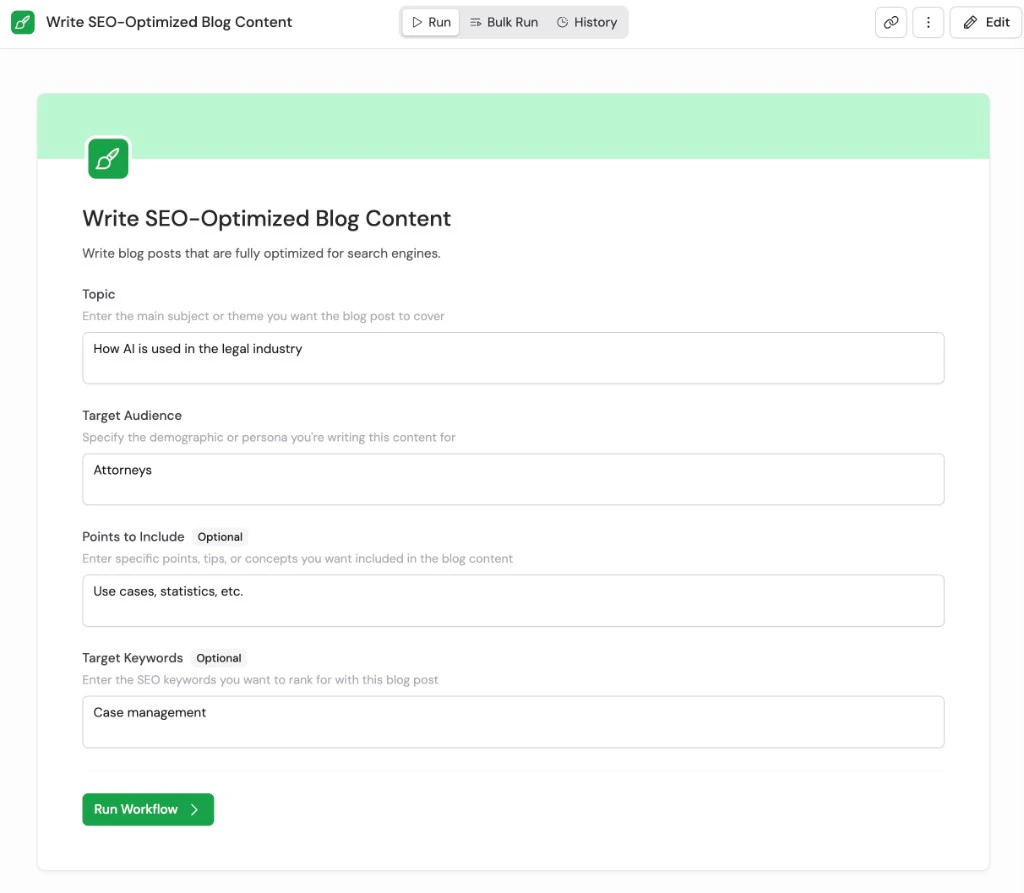 Click the run button (often **Run Workflow**, unless the builder changed the label on the **Interface** tab). The Workflow runs to completion; progress appears under **Steps** as each action finishes.
When the run succeeds, expand **Steps** to inspect every action, and **Outputs** if the builder added highlighted values on the **Interface** tab—see [Customize the Workflow run view](/workflows/interface).
Click the run button (often **Run Workflow**, unless the builder changed the label on the **Interface** tab). The Workflow runs to completion; progress appears under **Steps** as each action finishes.
When the run succeeds, expand **Steps** to inspect every action, and **Outputs** if the builder added highlighted values on the **Interface** tab—see [Customize the Workflow run view](/workflows/interface).
 Use **Copy Results Link** to share a link to this run's results. Use **New Run** to clear the form and run again with different inputs.
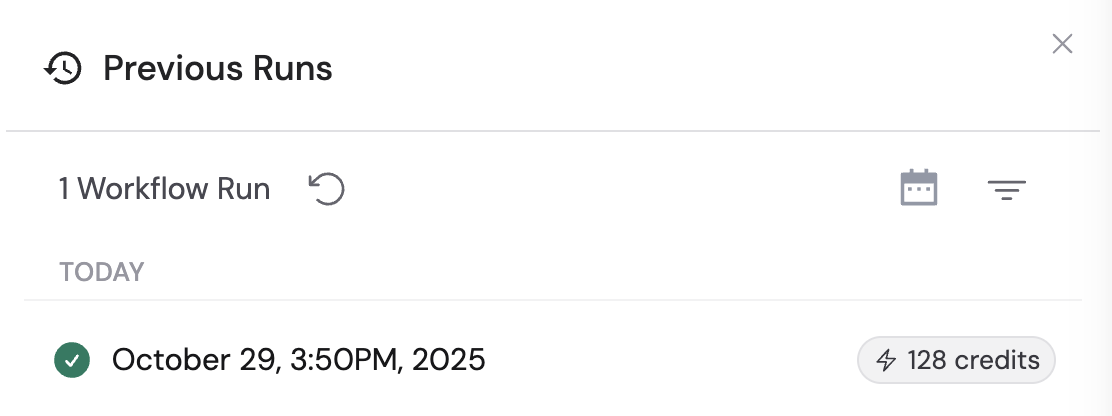
Check your previous Workflow runs and the credits they consumed by clicking **View Previous Runs** in the top-right corner of the Workflow details page.
## Schedule a Workflow
Set a Workflow to run automatically on a recurring basis.
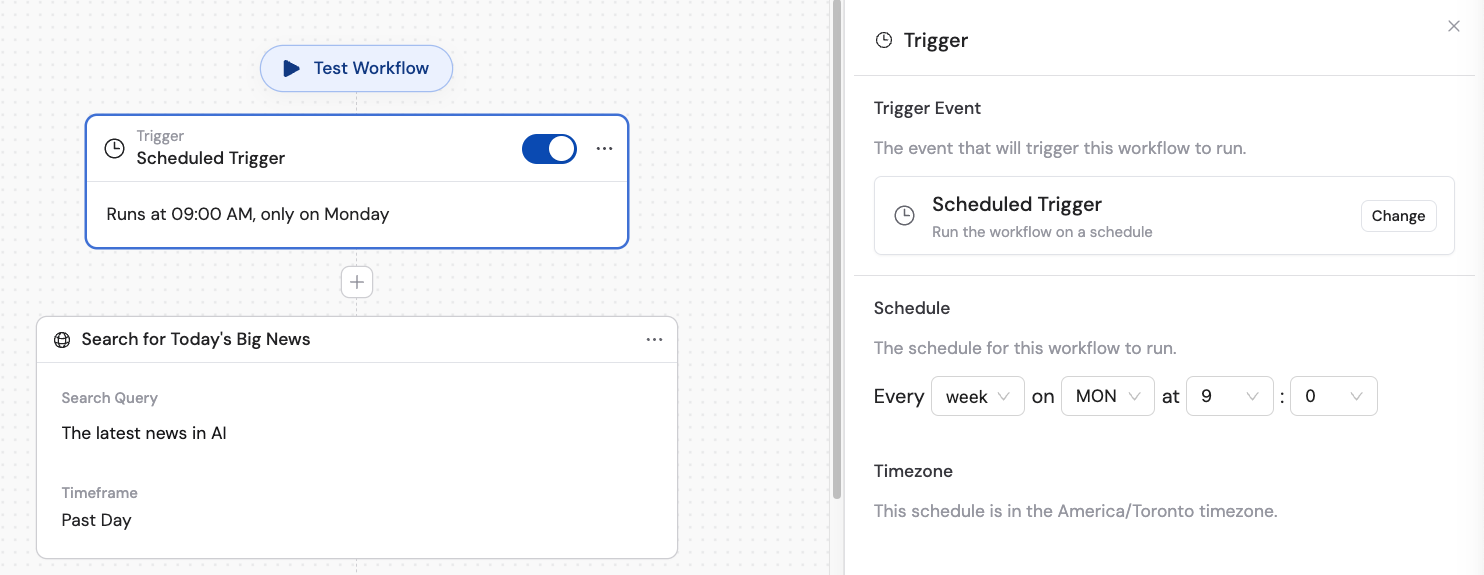
When [building your Workflow](/workflows/building#configure-the-trigger), select [**Scheduled**](/reference/triggers/scheduled) as the trigger type.
Set the frequency (e.g., every hour, daily, weekly) and the specific time. The Workflow runs automatically at the configured times without any manual input.
Use **Copy Results Link** to share a link to this run's results. Use **New Run** to clear the form and run again with different inputs.
Check your previous Workflow runs and the credits they consumed by clicking **View Previous Runs** in the top-right corner of the Workflow details page.
## Schedule a Workflow
Set a Workflow to run automatically on a recurring basis.
When [building your Workflow](/workflows/building#configure-the-trigger), select [**Scheduled**](/reference/triggers/scheduled) as the trigger type.
Set the frequency (e.g., every hour, daily, weekly) and the specific time. The Workflow runs automatically at the configured times without any manual input.
 ## Run an integrated Workflow
Trigger Workflows automatically from events in your connected tools.
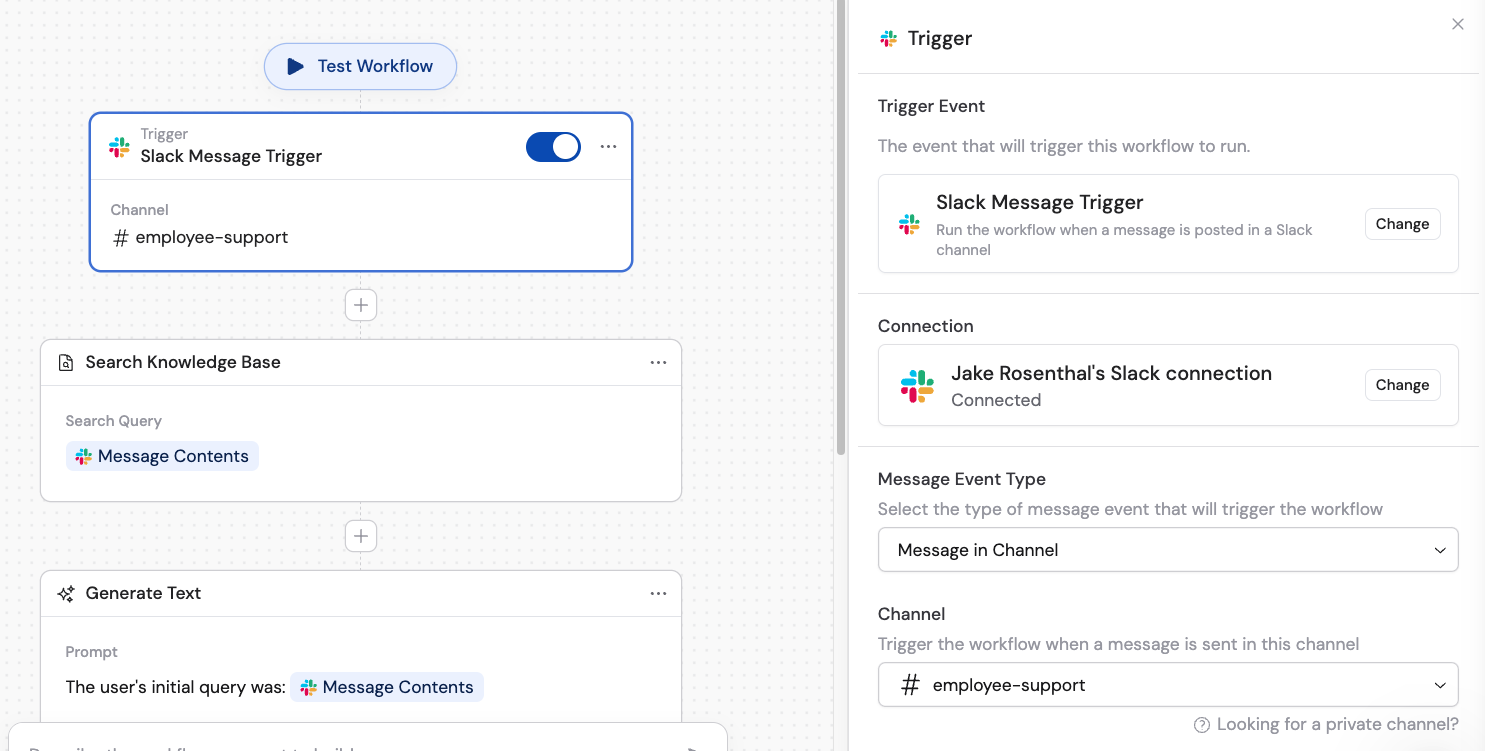
Select an integration trigger, a [Webhook](/integrations/webhooks) trigger, or an [Email](/reference/triggers/email) trigger when building your Workflow. Available integration triggers include:
* [Slack message](/integrations/slack/slack-message-trigger)
* [HubSpot record created](/integrations/hubspot/record-created-trigger) / [updated](/integrations/hubspot/record-updated-trigger)
* [Salesforce record created](/integrations/salesforce/record-created-trigger) / [updated](/integrations/salesforce/record-updated-trigger)
* [Zendesk new ticket](/integrations/zendesk/new-ticket-trigger) / [updated ticket](/integrations/zendesk/updated-ticket-trigger)
* [Gmail new email](/integrations/google-workspace/gmail/new-email-trigger)
* [Outlook new email](/integrations/microsoft-365/outlook/new-email-trigger)
* [Google Calendar event](/integrations/google-workspace/google-calendar/new-or-updated-event-trigger)
* [Outlook Calendar event](/integrations/microsoft-365/outlook/new-calendar-event-trigger)
* [Teams channel message](/integrations/microsoft-365/teams/new-channel-message-trigger) / [chat message](/integrations/microsoft-365/teams/new-chat-message-trigger)
* [Gong call transcript](/integrations/gong/new-call-transcript-trigger)
* [Zapier trigger](/integrations/zapier/zapier-trigger)
* [Meeting ended](/reference/triggers/meeting-ended)
Follow the prompts to authorize and configure the connected app. For webhooks, copy your unique webhook URL and configure your external system to send a POST request to it.
Once configured, the Workflow runs automatically whenever the specified event occurs. Results are logged in **View Previous Runs**.
## Run an integrated Workflow
Trigger Workflows automatically from events in your connected tools.
Select an integration trigger, a [Webhook](/integrations/webhooks) trigger, or an [Email](/reference/triggers/email) trigger when building your Workflow. Available integration triggers include:
* [Slack message](/integrations/slack/slack-message-trigger)
* [HubSpot record created](/integrations/hubspot/record-created-trigger) / [updated](/integrations/hubspot/record-updated-trigger)
* [Salesforce record created](/integrations/salesforce/record-created-trigger) / [updated](/integrations/salesforce/record-updated-trigger)
* [Zendesk new ticket](/integrations/zendesk/new-ticket-trigger) / [updated ticket](/integrations/zendesk/updated-ticket-trigger)
* [Gmail new email](/integrations/google-workspace/gmail/new-email-trigger)
* [Outlook new email](/integrations/microsoft-365/outlook/new-email-trigger)
* [Google Calendar event](/integrations/google-workspace/google-calendar/new-or-updated-event-trigger)
* [Outlook Calendar event](/integrations/microsoft-365/outlook/new-calendar-event-trigger)
* [Teams channel message](/integrations/microsoft-365/teams/new-channel-message-trigger) / [chat message](/integrations/microsoft-365/teams/new-chat-message-trigger)
* [Gong call transcript](/integrations/gong/new-call-transcript-trigger)
* [Zapier trigger](/integrations/zapier/zapier-trigger)
* [Meeting ended](/reference/triggers/meeting-ended)
Follow the prompts to authorize and configure the connected app. For webhooks, copy your unique webhook URL and configure your external system to send a POST request to it.
Once configured, the Workflow runs automatically whenever the specified event occurs. Results are logged in **View Previous Runs**.
 For more on external deployment, see [sharing and deployment](/workflows/sharing-and-deployment#deploy-externally).
## Run a Workflow in chat
You can execute Workflows directly within Cassidy's chat interface in two ways:
* **Run manually from chat** -- open the Workflows panel in a chat, select a Workflow, fill in the form, and generate results without leaving the conversation. See [chatting with an Agent](/guides/chatting-with-an-agent) for details.
* **Agent calls a Workflow automatically** -- equip an [Agent](/agents/overview) with the [Call Workflow](/agents/call-workflow) capability so it intelligently decides when to run a relevant Workflow during a conversation.
## Test a Workflow
Cassidy's testing interface lets you validate your Workflow step by step before processing live data.
Navigate to your Workflow and click **Edit** in the top-right corner.
For more on external deployment, see [sharing and deployment](/workflows/sharing-and-deployment#deploy-externally).
## Run a Workflow in chat
You can execute Workflows directly within Cassidy's chat interface in two ways:
* **Run manually from chat** -- open the Workflows panel in a chat, select a Workflow, fill in the form, and generate results without leaving the conversation. See [chatting with an Agent](/guides/chatting-with-an-agent) for details.
* **Agent calls a Workflow automatically** -- equip an [Agent](/agents/overview) with the [Call Workflow](/agents/call-workflow) capability so it intelligently decides when to run a relevant Workflow during a conversation.
## Test a Workflow
Cassidy's testing interface lets you validate your Workflow step by step before processing live data.
Navigate to your Workflow and click **Edit** in the top-right corner.
 Click the **Test Workflow** button in the editor toolbar.
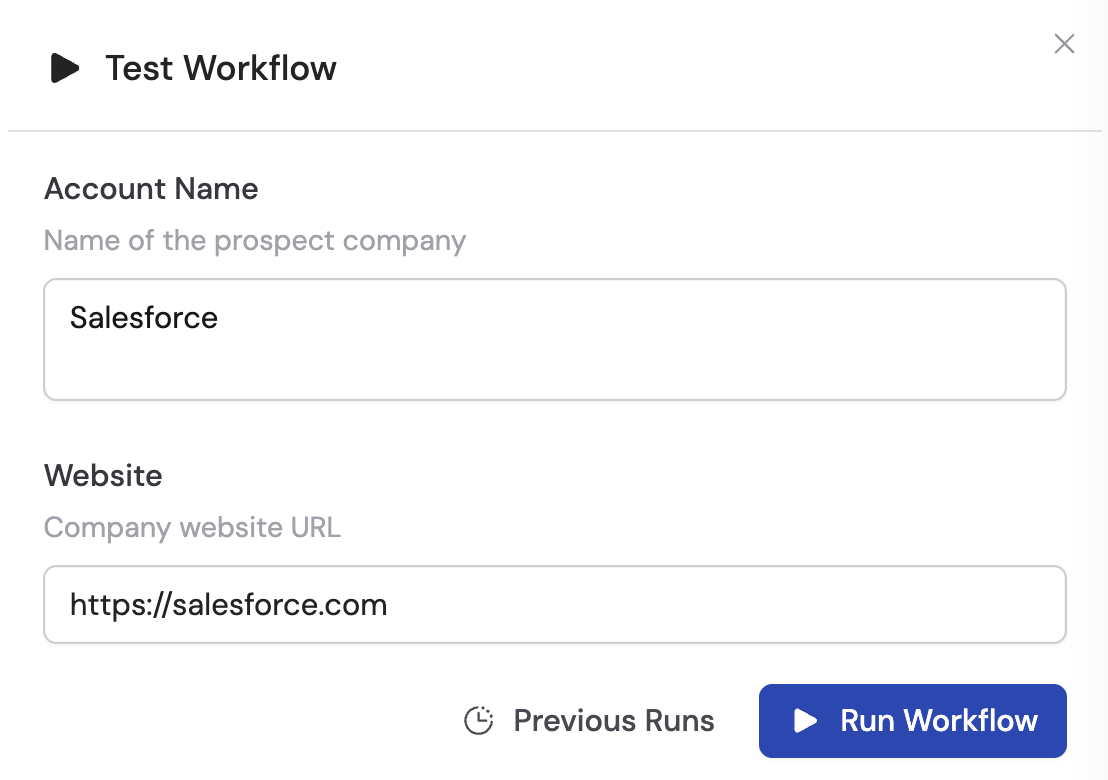
Fill in sample values for your trigger inputs and click **Run Workflow** to execute a full end-to-end test.
Click the **Test Workflow** button in the editor toolbar.
Fill in sample values for your trigger inputs and click **Run Workflow** to execute a full end-to-end test.
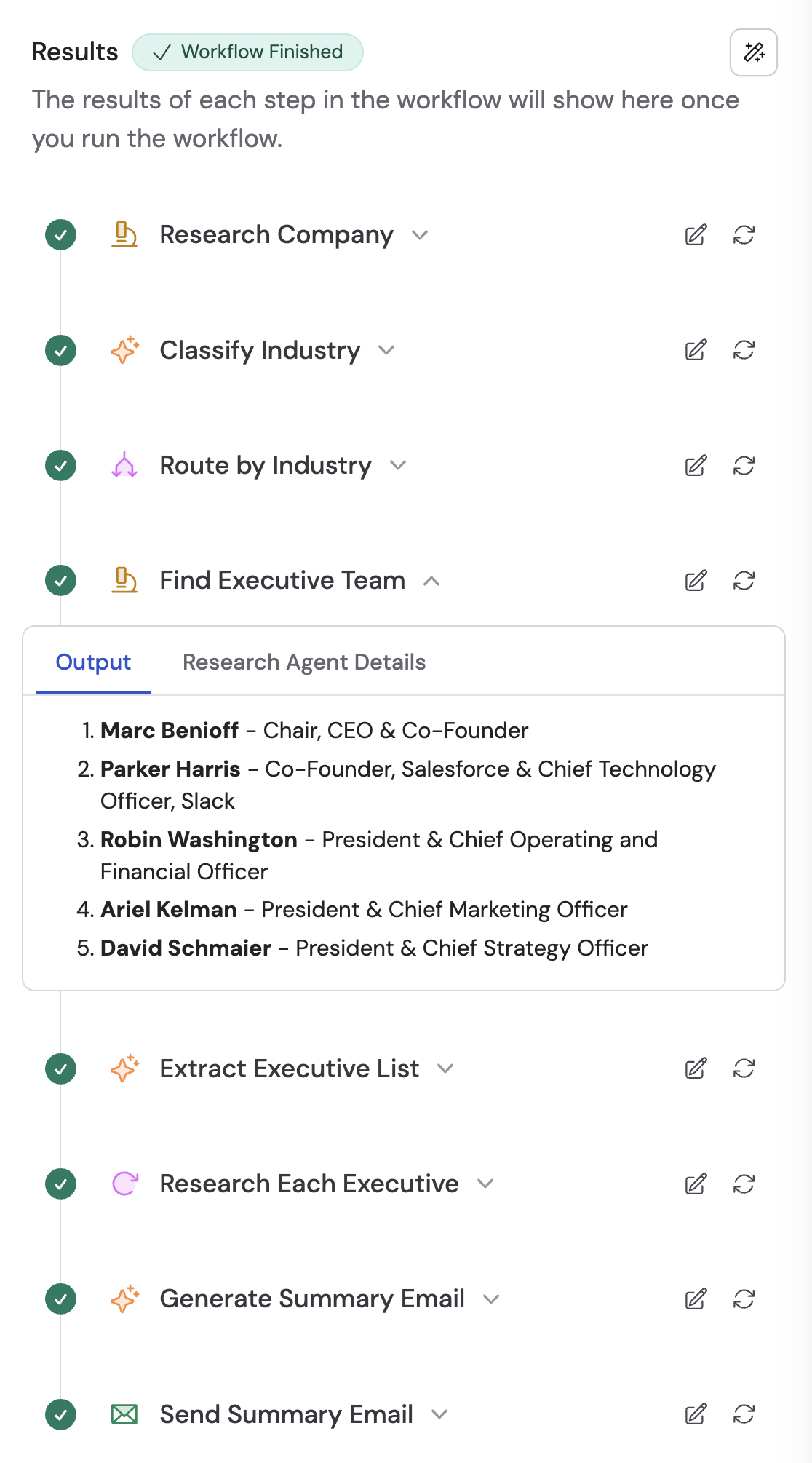
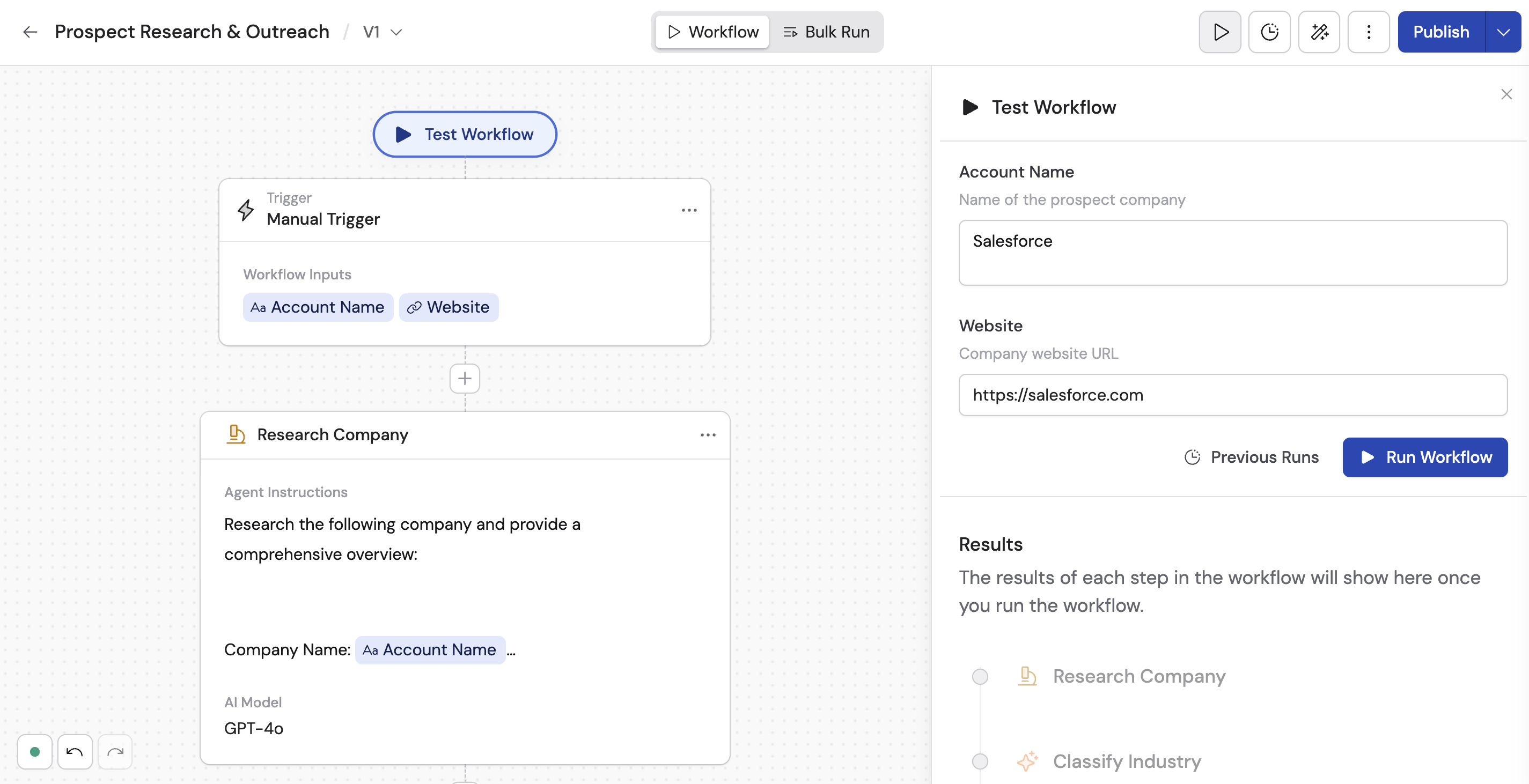 After the run completes, examine the results displayed for each action. Click the edit icon on any action block to jump to its configuration and make adjustments.
 ### Granular testing options
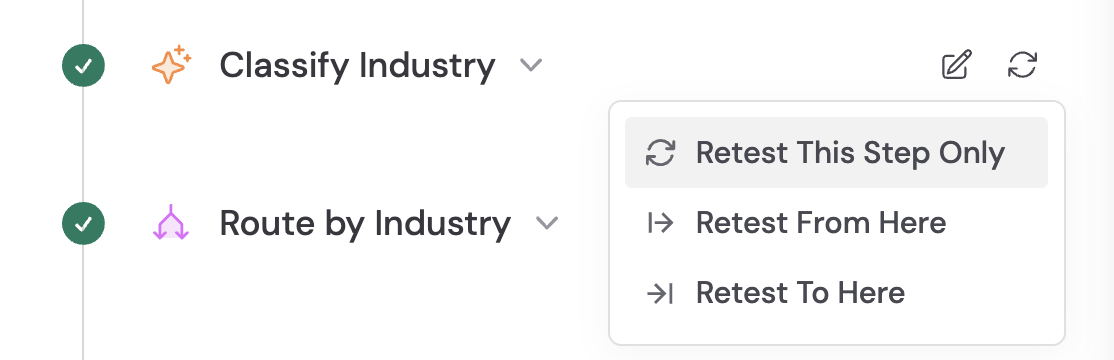
Once you have run a full test, you can retest individual steps without re-running the entire Workflow:
| Option | What it does | When to use it |
| ------------------------- | ---------------------------------------------------- | ------------------------------------------------------------- |
| **Retest This Step Only** | Reruns a single action in isolation | Debugging one specific action |
| **Retest From Here** | Runs the current action and everything after it | You changed an action that affects downstream steps |
| **Retest To Here** | Runs all actions up to and including the current one | The later steps work and you don't want to trigger them again |
Click the retest icon on any action block to access these options.
### Granular testing options
Once you have run a full test, you can retest individual steps without re-running the entire Workflow:
| Option | What it does | When to use it |
| ------------------------- | ---------------------------------------------------- | ------------------------------------------------------------- |
| **Retest This Step Only** | Reruns a single action in isolation | Debugging one specific action |
| **Retest From Here** | Runs the current action and everything after it | You changed an action that affects downstream steps |
| **Retest To Here** | Runs all actions up to and including the current one | The later steps work and you don't want to trigger them again |
Click the retest icon on any action block to access these options.
 ### Test nested actions
Workflows that use [Paths](/workflows/building#add-conditional-logic-with-paths) or Loops contain nested actions. Click into a nested action to access its individual testing options and configuration.
### Skip actions during testing
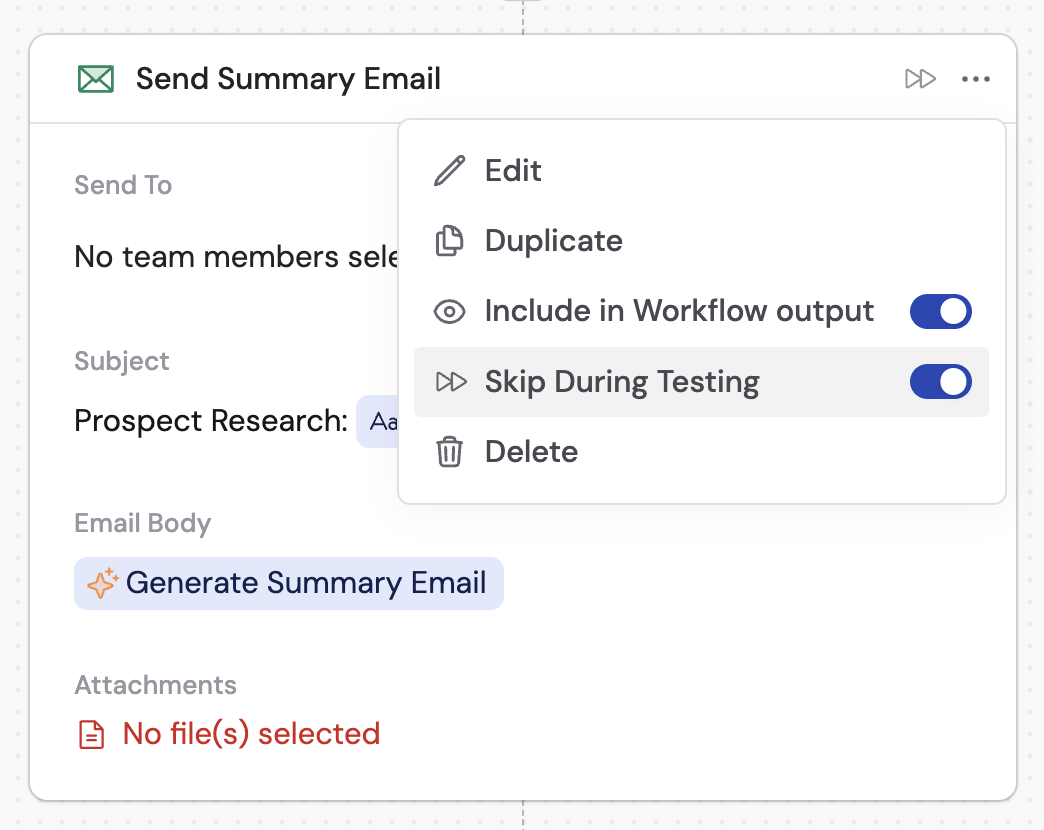
Some actions -- like sending emails or updating CRM records -- should not run during testing. Click the **...** menu on an action and toggle **Skip During Testing** to prevent it from executing in test runs. A visual indicator appears on the action block.
### Test nested actions
Workflows that use [Paths](/workflows/building#add-conditional-logic-with-paths) or Loops contain nested actions. Click into a nested action to access its individual testing options and configuration.
### Skip actions during testing
Some actions -- like sending emails or updating CRM records -- should not run during testing. Click the **...** menu on an action and toggle **Skip During Testing** to prevent it from executing in test runs. A visual indicator appears on the action block.
 ### Review previous test runs
Click **Previous Runs** in the test panel to see your testing history. You can review the inputs and outputs from each past test run, and click the clipboard icon to copy previous inputs into a new test.
### Review previous test runs
Click **Previous Runs** in the test panel to see your testing history. You can review the inputs and outputs from each past test run, and click the clipboard icon to copy previous inputs into a new test.
 ## Next steps
Import datasets and run your Workflow at scale.
Manage permissions and deploy via webhooks.
Use Code Execution & File Creation to generate insights, charts, and reports from files.
Keep your Workflow running even when individual actions fail.
Show only the most relevant outputs to end users.
## Next steps
Import datasets and run your Workflow at scale.
Manage permissions and deploy via webhooks.
Use Code Execution & File Creation to generate insights, charts, and reports from files.
Keep your Workflow running even when individual actions fail.
Show only the most relevant outputs to end users.