

The Admin API is available on Enterprise plans and needs to be enabled by
our team. Contact us if you require access.
You need the Manage Admin Keys privilege, which admins have by default.
See roles and groups.
Admin API keys vs. API keys
Admin API keys act as your organization, not as a user. They aren’t tied to anyone’s permissions, keep working when the person who created them leaves, and can only call the Admin API, which reads organization-wide data. API keys work the other way around. They act as the user who created them, with that user’s permissions, and let your applications chat with your Agents. Use an API key to call Cassidy as a specific user, and an Admin API key to report on your whole organization.Create an Admin API key
1
Open the Admin Keys settings
Go to Organization settings and select Admin Keys under API.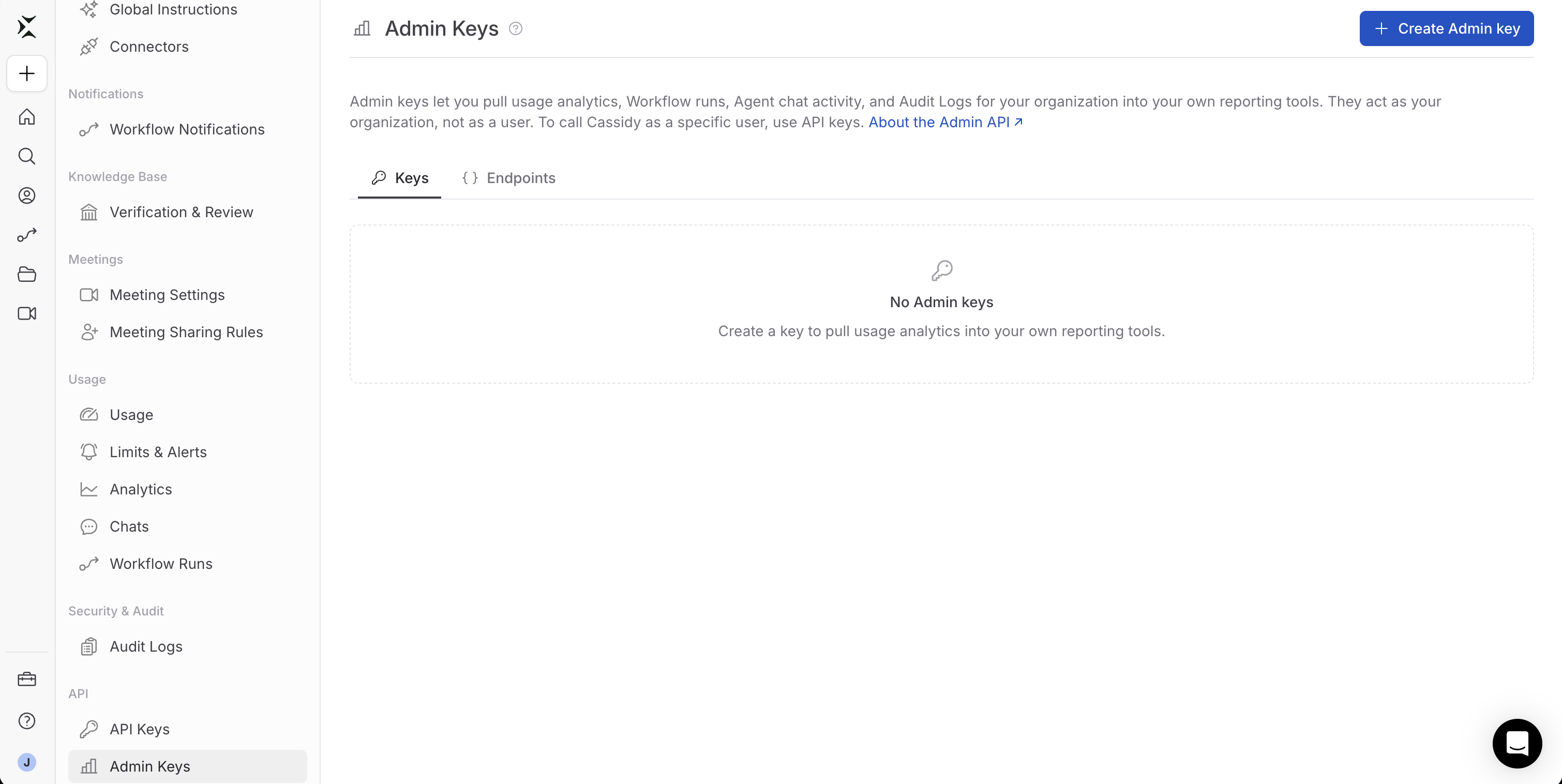
2
Create a key
Click Create Admin key and give the key a name that says where it is used. Choose its permissions and when it expires, then click Create key.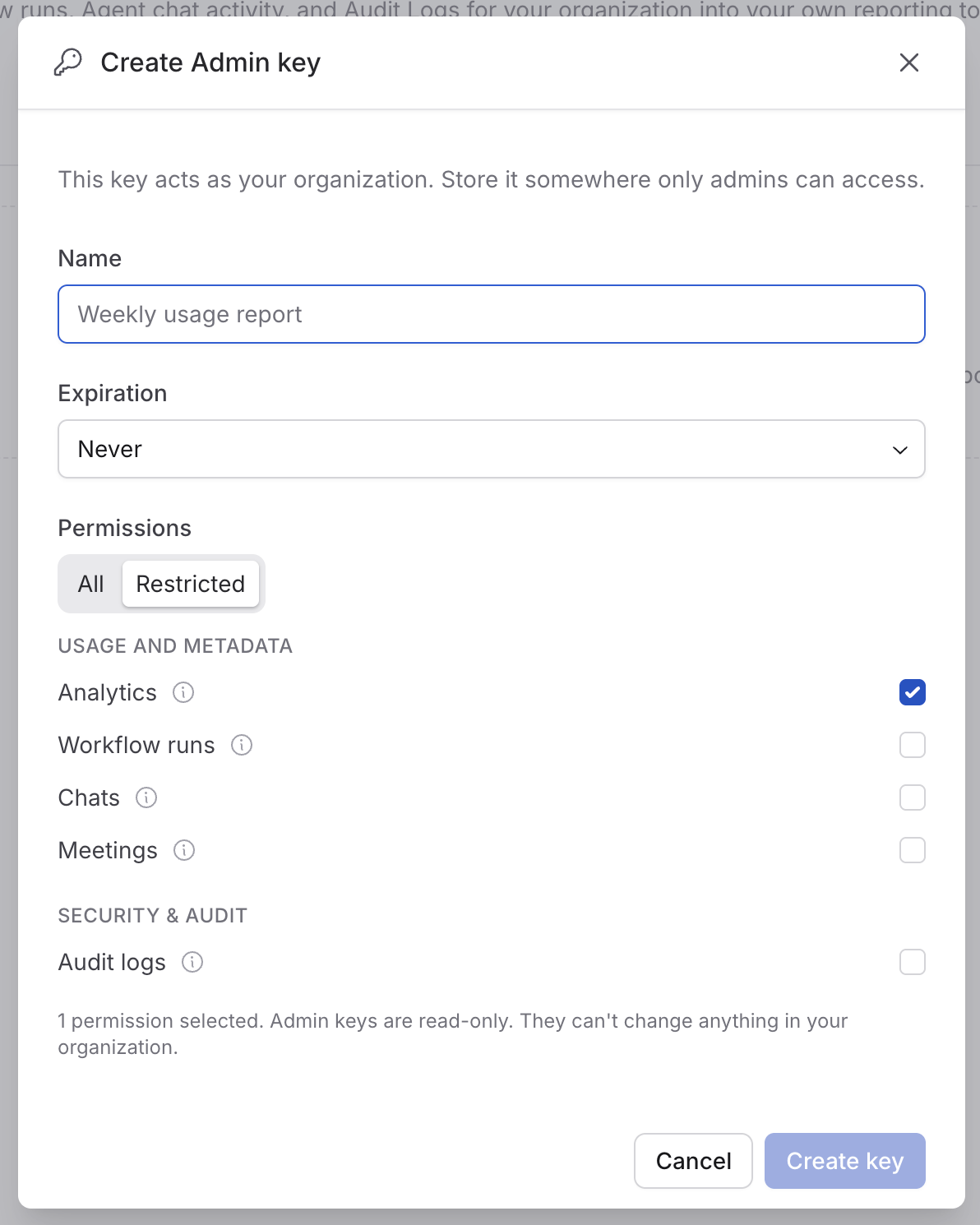
3
Copy the key
Copy the key and store it somewhere only admins can reach. Cassidy shows it once. If you lose it, revoke it and create a new one.
Permissions
Each key can call only the endpoints its permissions allow. Calling any other endpoint returns403 with the permission it needs. Choose All to grant every permission available to your organization, or Restricted to pick them one at a time. Give each key only what its job needs. For example, a usage dashboard only needs Analytics.
Admin API keys are read-only. They can’t change anything in your organization. A key’s permissions can’t be changed after you create it. To change them, create a new key and revoke the old one.
Expiration
Keys never expire unless you choose an expiration when you create them: 30, 60, or 90 days, 1 year, or a custom date. The Admin Keys page shows when each key expires and flags keys that expire within 7 days. Requests with an expired key return401.
Make your first request
Send the key as a bearer token. This request returns daily credits for September 2026:Download the API specification
Your organization’s OpenAPI specification describes every endpoint available to it. Use it to load the API into another tool, such as Postman or a code generator:What you can do
Measure usage
/metrics/timeseries charts a metric over time, by hour, day, week, or month. /metrics/breakdown totals a metric over a period for each user, group, Agent, Workflow, or source, so you can see who and what uses Cassidy most, and where people chat with Agents, such as Slack or Microsoft Teams.
You can narrow either one to a person, a group, a Workflow, a source, or specific Agents or models.
Measure meeting usage
meetingHours counts each recorded meeting once, from when the notetaker starts recording until it stops. This is the total you’re billed for, and it includes meetings that were deleted later.
Each meeting is attributed to one member, the person who first added the notetaker. To see who joined each meeting, use /meetings.
List Workflow runs
/workflow-runs lists individual Workflow runs with who started them, their status, and the credits they used. Filter by Workflow or person, or leave out test runs.
List chats
/chats lists Agent chats with their Agent, who started them, where they happened (such as Slack or a website embed), and the credits they used. Filter by person, Agent, model, or source.
A chat’s Agent is the one most recently used in it, and Agent and model filters match that Agent. Analytics count each reply under the Agent that wrote it, so when people switch Agents mid-chat, the same Agent filter can select different activity in /chats than in /metrics.
List meetings
/meetings lists recorded meetings with their hours, who added the notetaker, which members joined, and how many other people joined. Filter by person to list the meetings they joined. Deleted meetings aren’t listed.
List audit logs
/audit-logs lists the same events as the Audit Logs page, so you can archive them or analyze them in your own tools. Filter by category, person, resource, or type of operation. Events are newest first unless you pass order=asc.
List endpoints return one page at a time. Pass each response’s nextCursor as cursor to get the next page.
Send audit logs to your SIEM
For security information and event management (SIEM) tools that can poll a REST API on a schedule, use polling mode to fetch new events from/audit-logs. Start with order=asc and a from date, and leave out to:
nextCursor, and pass it as cursor on every later request. When you leave out to, nextCursor is always returned, even when there are no new events, so your tool can keep polling from where it stopped. Poll every few minutes, and keep any filters the same on every request.
- Events may appear up to 2 minutes late.
- Use
idto remove duplicates. If your tool retries a request with the same cursor, it can receive the same events again. - If your tool sends its own
fromandto, end each window a few minutes in the past. The 2-minute delay only applies when you leave outto, so a window that ends now can miss events that are still being recorded.
/audit-logs records an audit log export event. Those events are filtered out of results for the Admin key that made the call. Other keys and the Audit Logs page still show them.
Credits on records vs. analytics
Thecredits metric also includes other usage that isn’t a chat or a Workflow run, such as meeting recordings, file parsing, and more. To compare like with like, use the agent or workflow breakdown of credits, which count only Agent chats or only Workflow runs.
Even then, the totals may differ because:
- Deleted chats and Workflow runs aren’t listed, but the credits they used still count in analytics.
- Some chats aren’t listed.
/chatsleaves out chats run by Workflows and Agent test chats. - Ranges work differently. Lists count each chat’s or run’s credits in the range it started, while analytics counts credits on the day they were used.
Rate limits
Each key can make 60 requests per minute, and all of your organization’s keys together can make 300. When you exceed a limit, the API responds with429 and a Retry-After header. Recent results refresh every few minutes, and older ranges are cached for up to an hour.