

Audit logs are available on Enterprise plans and need to be enabled by our
team. Contact us if you need access to the
dashboard.
How to read an audit event
The table uses a few terms that stay consistent across every event:Open audit logs
1
Open organization settings
Click your account name at the bottom of the sidebar, then click the gear icon next to your organization name.
2
Go to Audit Logs
In the left sidebar, under Security & Audit, click Audit Logs.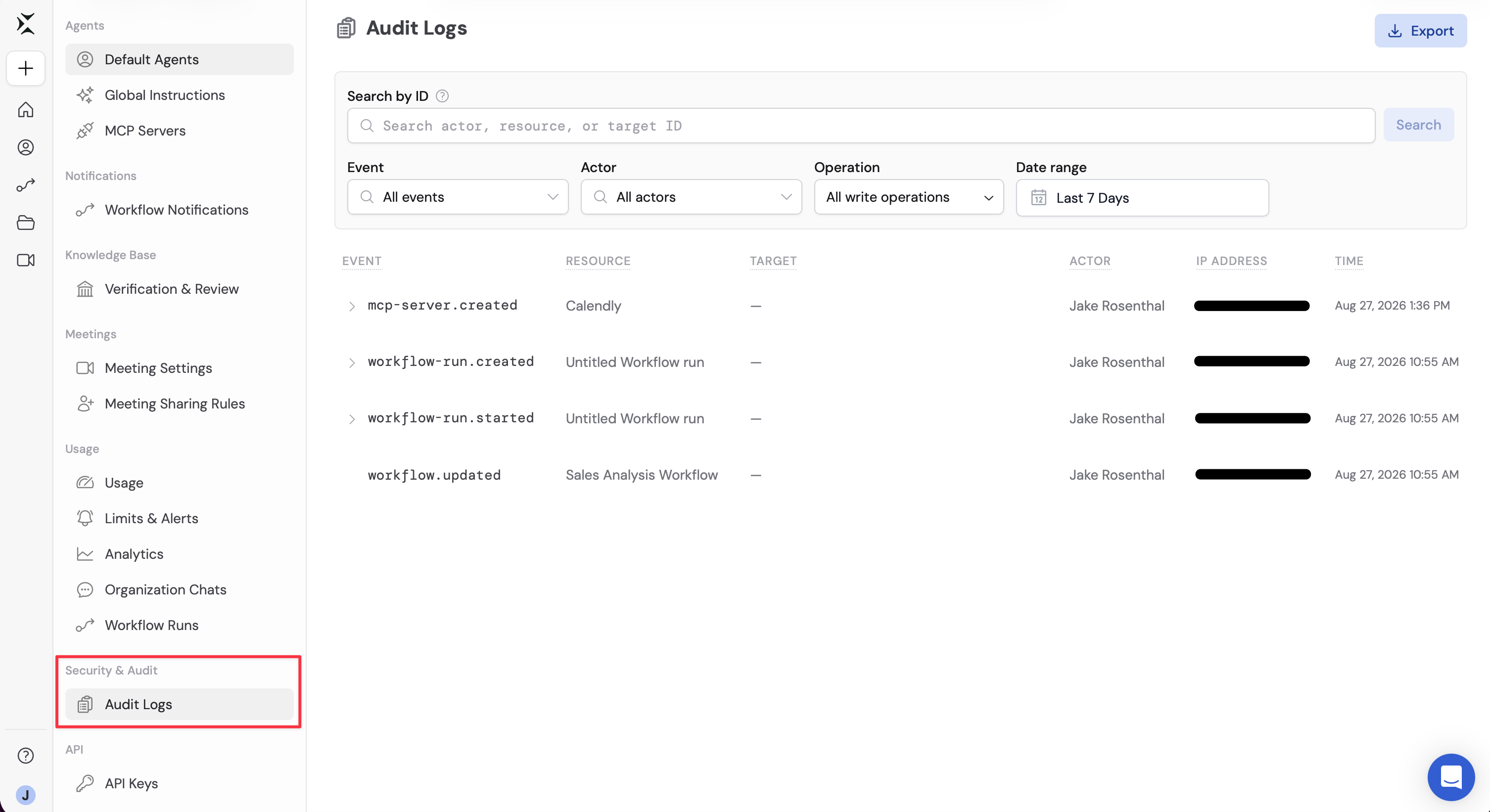
Search and filter events
Combine filters to narrow the log. Every filter applies together, including Export.Filter by event, actor, operation, or date
The audit log page includes events from August 13th, 2026 onwards. Logs of older events may be available by request.

Search by ID
Use Search by ID when you already have a Cassidy ID and want events tied to that person or item.1
Enter an ID or a field qualifier
Paste a full ID into Search by ID, or type a qualifier to search one field:
Separate multiple queries with spaces. Cassidy treats every query as AND, so all of them must match. You can use up to 4 queries at once.
2
Run the search
Click Search or press Enter. The table updates to the events that match your ID search and the other filters.
3
Filter from a row (optional)
Click an actor, resource, or target in the table, then choose Filter by this actor, Filter by this resource, or Filter by this target. If the item can be opened in Cassidy, choose Open.
*), AND/OR/NOT, and minus-sign exclusions are not supported. Use letters, numbers, periods, underscores, and hyphens.
Understand read events
Write events (create, update, delete, and execute) are recorded each time the change succeeds. Read events are recorded when a team member views or otherwise accesses a resource. That includes both opening it themselves and indirect access on their behalf - for example, when an Agent accesses a resource during a chat. To keep read events manageable, repeated read events for the same actor and resource are recorded at most once per hour.Export audit logs
Export downloads the events that match your current filters as a JSON file.1
Set the filters you need
Apply the same event, actor, operation, date range, and ID search you want
in the file.
2
Click Export
Click Export in the top-right corner of the page. Cassidy downloads a
file named like 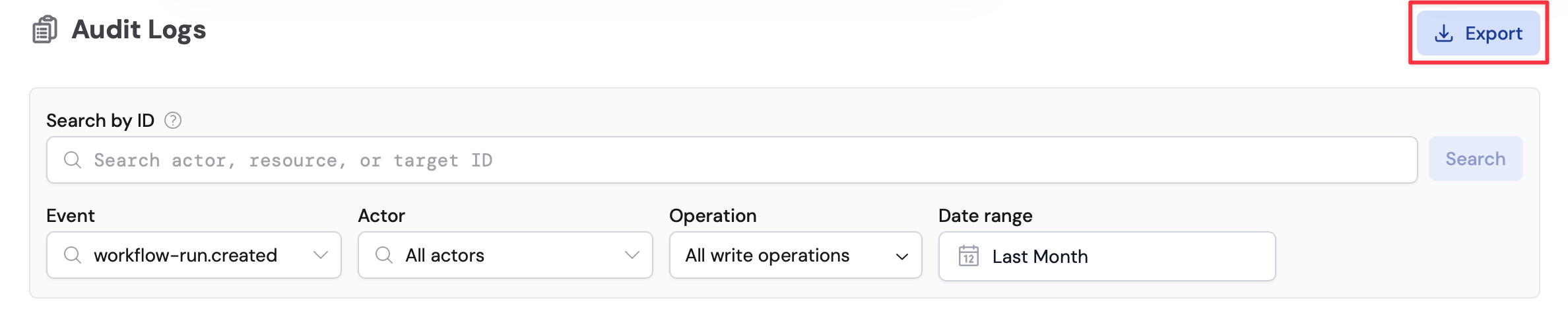
audit-logs-2026-08-27.json.Next steps
Assign roles and groups
Grant Manage Audit Logs with a custom role, without making someone a
full Admin.
Enterprise readiness
See the other access, SSO, and governance controls available to Enterprise
teams.
Monitor usage
Track credit consumption and other organization usage alongside audit
activity.
Set up SSO
Require team members to sign in through your identity provider.