

What you can create, edit, share, or set as the organization default depends
on your role and Slide Templates permissions. If an action is unavailable, ask
your Cassidy administrator to review your permissions.
Browse and use templates
1
Open the template library
In an Agent chat, open Tools and select Slide Templates.You can also type 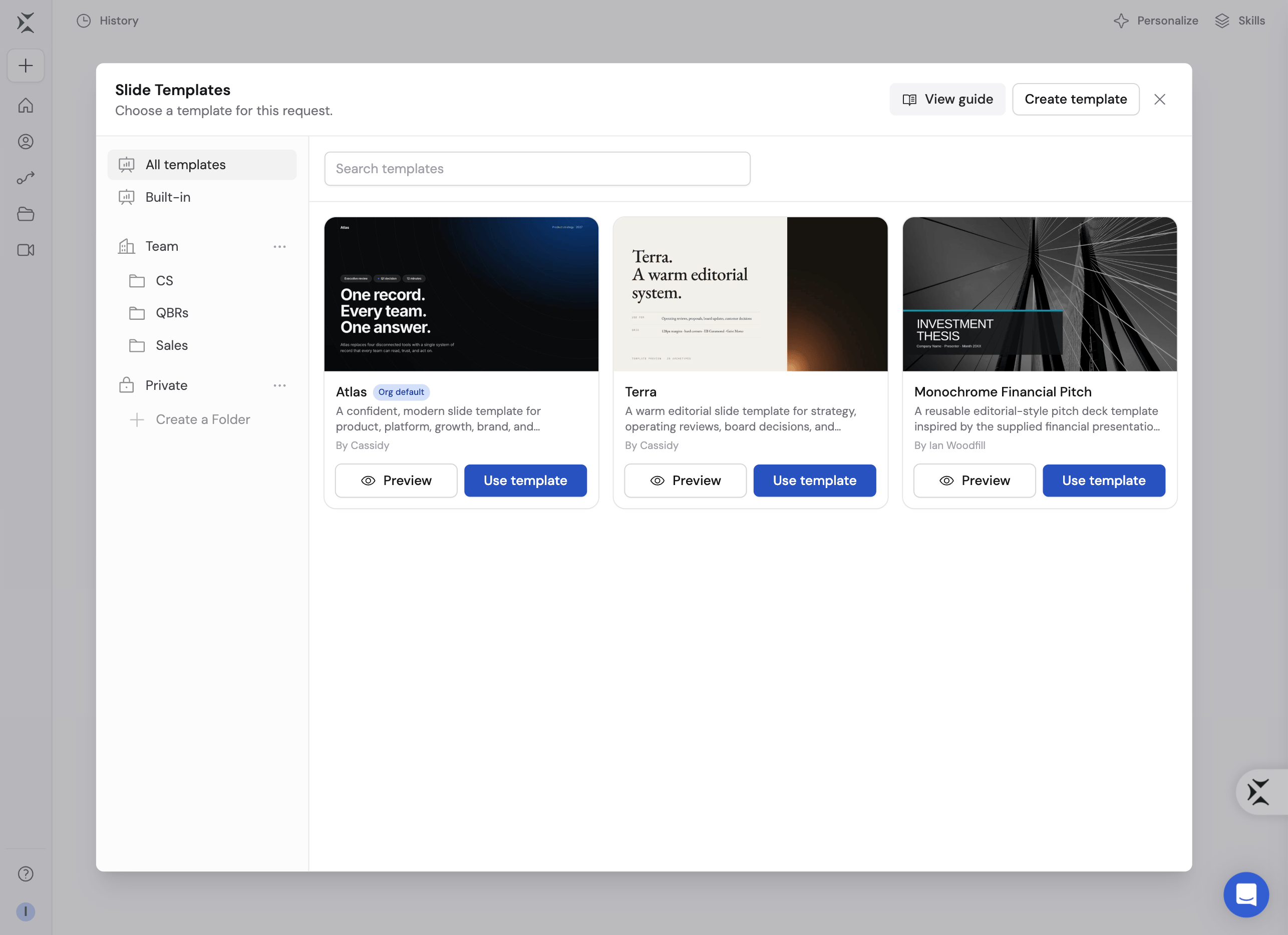
/ in the message box and select Manage beside Slide Templates.The library includes:- All templates for everything you can access
- Built-in templates developed by Cassidy, when enabled for your organization
- Team templates shared with your organization
- Private templates available only to you
- Shared and private folders created by your team
2
Preview a template
Select a template to open its preview.

- The Template tab shows the example deck and its slide designs.
- The Guidelines tab explains how the Agent should apply the template, including brand, layout, and typography guidance.
3
Use the template
Click Use template. Cassidy adds the template to your message so the Agent can use it for your next presentation request.The explicit selection overrides the organization default for that request. Learn how to complete the deck in Create and export presentations with Cassidy Slides.
Create a slide template
You can turn an existing PowerPoint into a reusable template or describe a new design from scratch.1
Start a new template
Open Tools → Slide Templates, then click Create template.
2
Choose a starting point
Cassidy gives you two ways to begin:
- Use an existing PowerPoint uploads a
.pptxpresentation and uses its design and recovered layouts as a reference for your reusable template. Choose this when you already have an approved sales deck, pitch deck, company presentation, or other PowerPoint that represents your brand. You can also upload a PDF or brand guide. - Build from scratch starts with a blank request in Chat. Choose this when you do not have an existing presentation, or when you want Cassidy to develop a new visual direction from your description and brand materials.
3
Complete and send the request
Add the template’s audience and the types of decks it should support, then
send the prepared message. Include as much relevant brand material as
possible:
- Logos and approved imagery
- Brand colors
- Typography rules and licensed font files
- Example presentations or page layouts
- Guidance for charts, tables, icons, and photography
- Writing style and tone
- Required or prohibited design patterns
Build a reusable slide template for customer-facing strategy presentations. Use the attached brand guide and sample deck. Keep layouts spacious and editorial, use our navy and coral palette, and include designs for title slides, section dividers, data charts, comparisons, timelines, quotes, and next steps.
4
Review the generated draft
The Agent builds the template and returns a New Slide Template Draft card. Open the card to review both the example slides and the written guidelines.Continue the conversation if the template needs changes. The draft is not available to other users until you publish it and share it.
5
Publish the template
Click Publish template, review the confirmation, and publish the draft.

Update a custom template
Built-in templates are read-only. You can update a custom template when you have edit access.1
Edit written guidelines directly
Open the custom template preview and select Guidelines. Click Edit guidelines, update the Markdown text, then click Review & publish and confirm Publish new version. Publishing makes the updated guidelines available to future presentation requests while preserving the previous version in the template’s history.Use direct editing when only the written brand, layout, typography, or content guidance needs to change. Ask the Agent to edit the template when you also need to change slide designs or assets.

2
Ask the Agent to edit the template
Open the template’s actions menu and select Edit Template. Cassidy adds the template to Chat with an update request.Describe the change you want. For example:
- “Add a case study slide with space for a customer quote and three results.”
- “Use the new logo and update the primary color to the blue in the attached brand guide.”
- “Make chart labels larger and add guidance for accessible color contrast.”
3
Review the proposed changes
The Agent returns a Draft Slide Template Changes card. Open the review to compare the proposed template with the version your team currently uses.Submitting changes creates a review draft. It does not update the live template automatically.
4
Publish the changes
Click Publish changes after you have reviewed the slides and guidelines. Future presentation requests can then use the updated template.
Edit the name or description
Open the custom template’s actions menu and select Edit Details. Update the name or description, then save your changes. Use a name that helps teammates recognize the intended purpose, such as “Enterprise sales deck” or “Quarterly business review.”Organize and share templates
Custom templates start in Private. Move a template to Team or a folder when other people should use it.1
Choose where the template belongs
Open the template’s actions menu and select Organize & Share Template. Choose Private, Team, or a folder.Moving a template to Team makes it available according to your organization’s sharing settings. Moving it to a folder applies that folder’s access.
2
Create a folder when needed
Use New Folder under Team or Private to group templates by department, brand, client, region, or presentation type.If you delete a folder, Cassidy moves its templates to Private. The templates themselves are not deleted.
3
Share the folder
Open the folder’s actions menu and select Share. Give access to everyone in the organization or to selected users and groups.
Set the organization default
The organization default is used when someone asks Cassidy to make a presentation without selecting another template. If your organization has not selected a default, administrators see a prompt in the template library to create a branded template or choose an available template as the default.You need permission to manage organization settings. The template must be
published and shared with everyone in the organization with at least view
access.
1
Open the template actions
In the template library, open the actions menu for the published template you want your organization to use.
2
Set the default
Select Set Organization Default, then confirm.If the template is not yet available to everyone, Cassidy asks you to share
it first. Click Organize & share and move the template to Team or an
organization-visible folder. Cassidy then returns you to the confirmation
so you can finish setting the organization default.
3
Verify the default
Return to All templates. The organization default should appear first and display its default indicator.Users can still choose a different template for an individual request.
Hide built-in slide templates
Hide built-in templates when everyone in your organization should use your own templates.You need permission to manage organization settings.
1
Open the template settings
In the Slide Templates library, click Settings.
2
Hide built-in templates
Turn on Hide built-in slide templates, then click Hide templates to confirm.
- No one in your organization, including Agents, can use built-in templates for new presentations.
- Existing presentations made with a built-in template export to PowerPoint without that template’s layouts.
- A built-in organization default stops applying. Cassidy uses no default until you set a custom one or show built-in templates again.
Delete templates and folders
- Delete a custom template from its actions menu when it should no longer exist. This permanently deletes the template and its version history.
- Delete a folder from the folder’s actions menu. Cassidy moves templates from that folder to Private instead of deleting them.
Troubleshooting
I cannot create or edit a template
I cannot create or edit a template
Your role may not include permission to create and edit Slide Templates, or the template may be read-only. Built-in templates cannot be edited. Ask your Cassidy administrator to review your access.
I do not see Cassidy's built-in templates
I do not see Cassidy's built-in templates
An administrator has hidden Cassidy’s built-in templates for your
organization. Ask them to turn off Hide built-in slide templates in the
Slide Templates library’s Settings if your team needs them.
I cannot set a private template as the organization default
I cannot set a private template as the organization default
The default must be visible to everyone in the organization with at least view
access. Move the published template to Team or an organization-visible
folder, then select Set Organization Default again.
My draft says newer changes must be reviewed
My draft says newer changes must be reviewed
Another update was published after your work began. Click Update draft with
Agent so Cassidy can reconcile your draft with the current template. Review
the resulting draft before publishing it.
A font does not appear correctly in PowerPoint
A font does not appear correctly in PowerPoint
Confirm that the template includes a compatible static font file and that your organization has permission to embed it. If embedding is unavailable, export with Universal fonts or replace the font with one available to recipients.
Next steps
Create a presentation
Use a template to create, refine, present, and export a deck through Chat.
Manage roles and groups
Control who can create, edit, and share resources in your organization.
Create files in Cassidy
Compare presentation creation with other Chat and Workflow file-generation
options.
Create PowerPoint from template
Build a repeatable Workflow that fills fixed PowerPoint placeholders with
data.