

Analytics measures usage, not output quality or business results. A change in
usage does not prove that a Skill update caused better or worse outcomes.
Who can access these views
- Analytics is available to people who can edit the Skill.
- History is only available to organization admins who can view organization chats.
Open Analytics
1
Open the Skill
Go to Skills and open a Skill you can edit.
2
Select Analytics
Click Analytics at the top of the Skill editor.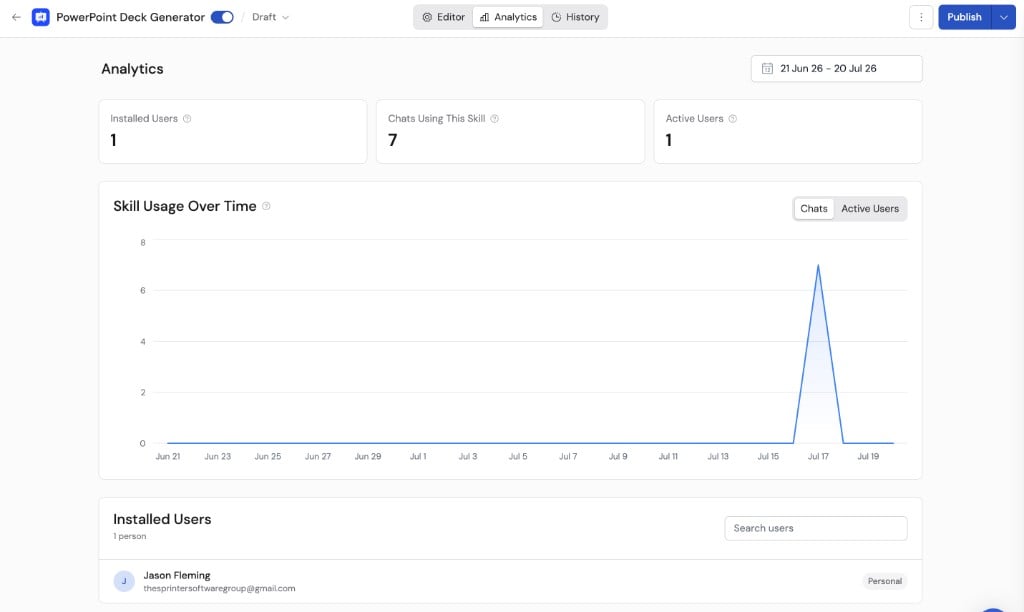
3
Choose a date range
Use the date picker to choose the period you want to review.
Understand the metrics
Installed Users
The number of people with a current installation record from:- Personal installation
- Group distribution
- Organization-wide distribution
Chats Using This Skill
The number of distinct chats with activity after the Skill became active during the selected date range. This count can include:- Normal interactive chats
- Chats created by Workflow activity
Active Users
The number of distinct people who sent an interactive chat message after the Skill became active during the selected date range. Workflow-generated messages contribute to Chats Using This Skill, but they do not count as an active user.Skill Usage Over Time
The chart shows either Chats or Active Users by day. Use it to spot patterns worth investigating, such as:- Usage beginning after a team rollout
- A Skill being installed widely but used rarely
- A noticeable change after publishing an update
Review installed users
The installed-user list shows how each person receives the Skill:- Personal: The person installed it themselves.
- Organization: The Skill is distributed to everyone.
- [Group name]: The Skill is distributed through that group.
Review Skill History
History shows chats where the Skill became active automatically or through explicit selection. Workflow-generated chats can contribute to Analytics, but they do not appear in History.1
Select History
Open the Skill and click History.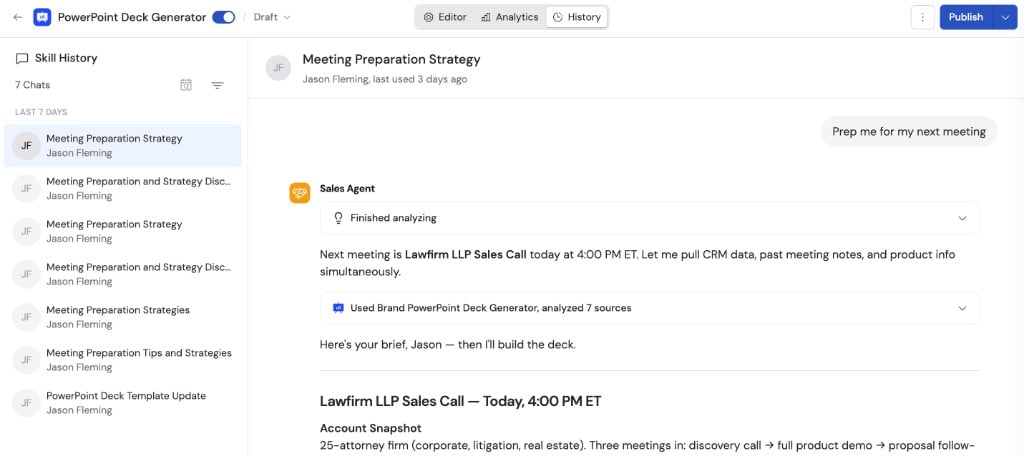
2
Filter the list
Filter by date or user when you need a representative group of conversations.
3
Open a conversation
Select a chat to review the request, how the Skill became relevant, and the resulting response.
- Which requests lead Cassidy to select the Skill
- Whether people choose it explicitly with /
- Where required information is missing
- Whether users encounter resource-access or tool-approval problems
- Whether the instructions produce the intended format and boundaries
Improve the Skill responsibly
Use this review loop:- Check Analytics for a usage pattern.
- Review a representative set of conversations in History when authorized.
- Form a specific hypothesis, such as “The description is too broad.”
- Update and test the Skill.
- Publish a version.
- Watch for usage changes and review new conversations.
Next steps
Build and improve Skills
Improve descriptions, instructions, resources, and testing.
Manage Skill versions
Save a checkpoint and publish a reviewed update.