

- Instructions: Context and guidance that Agents follow in every chat in the project.
- Chat history: When past chat search is on, Agents can look up other chats in the project, so a new chat can pick up where an earlier one left off.
- Memory: Details that only matter to the project are saved to the project. See Memory in projects.
- Access: Everyone you share the project with works from the same chats and instructions.
When to use a project
Create a project when work continues over time, produces more than one output, or needs the same context in every chat. Start a chat without a project when the work is a one-off question.- Customer accounts: Keep every chat about a renewal, implementation, or RFP together, with instructions that name the customer and their key details.
- Recurring work: Return to the same project for a weekly report or pipeline review instead of setting up context each time.
- Team efforts: Share a project for a launch, hiring process, or quarterly plan so everyone works from the same chats and instructions.
Create a project
1
Open Projects
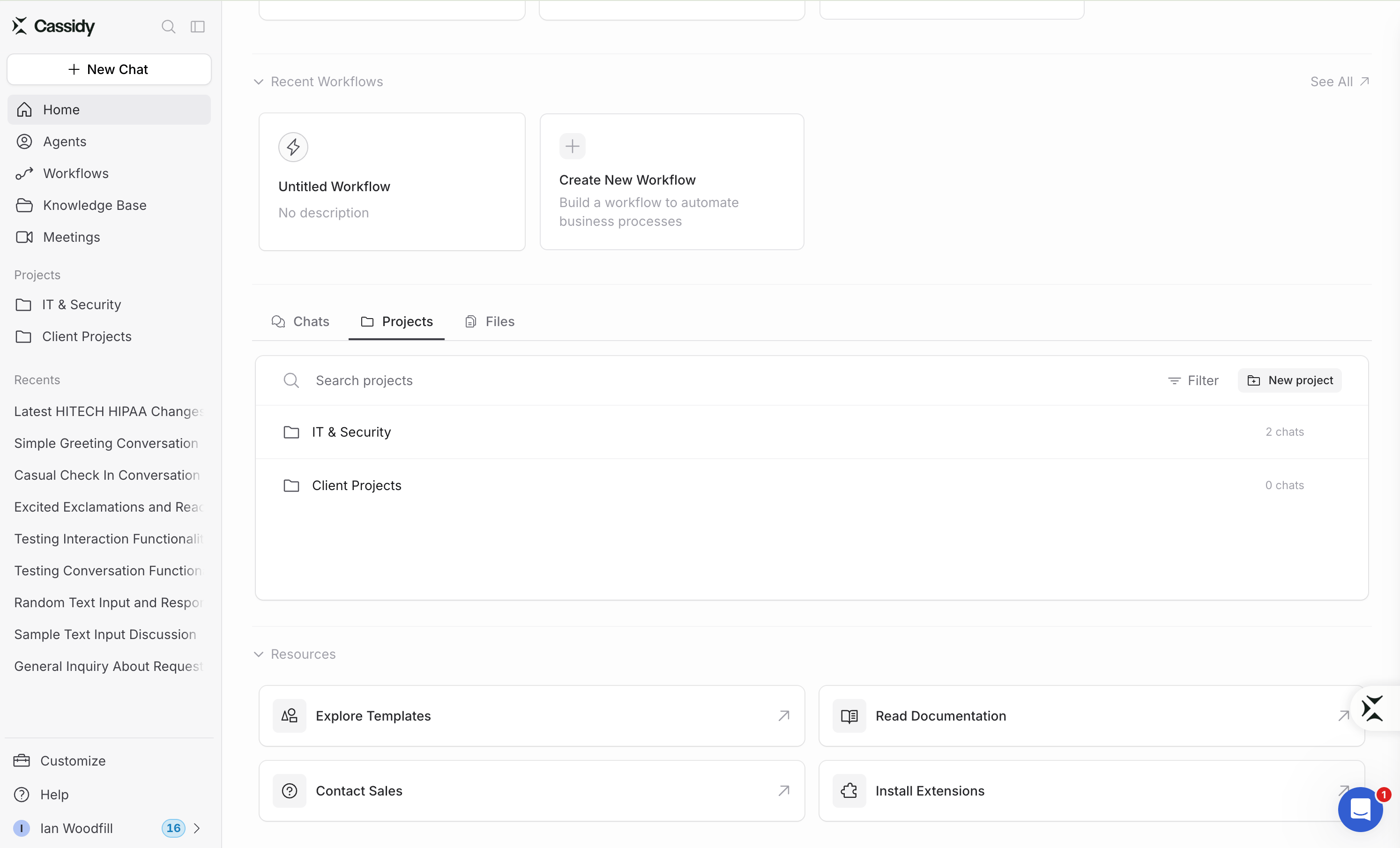
Go to Home and select the Projects tab. This page lists projects you own
and projects shared with you.
2
Create a project
Click New project on the Projects tab, or open the … menu
beside Projects in the sidebar and select New project. Enter a name,
and Cassidy suggests a matching icon. To pick a different icon and color, or
to remove the icon, use the button beside the name.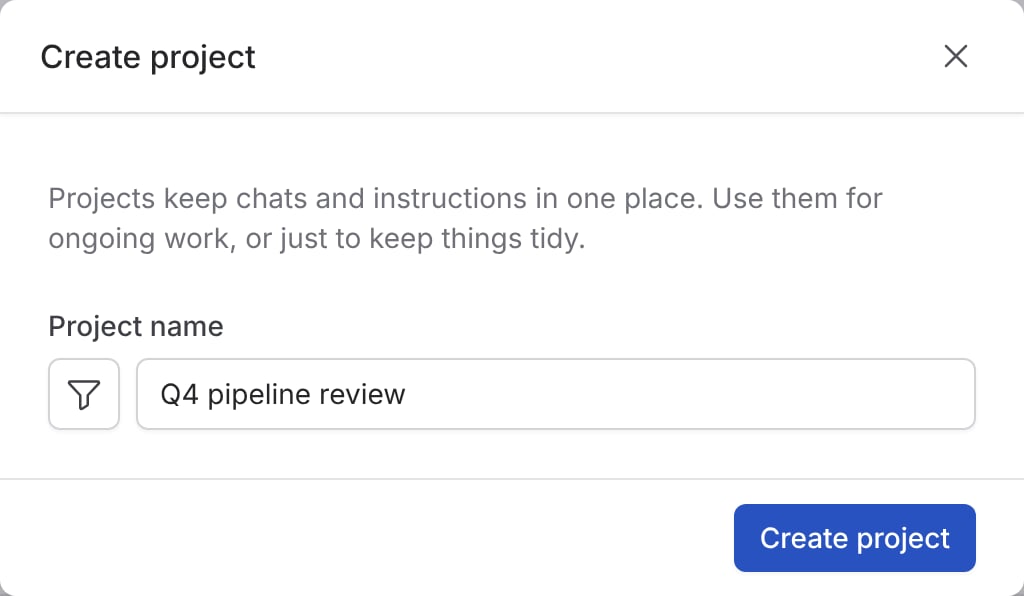
3
Choose a memory mode
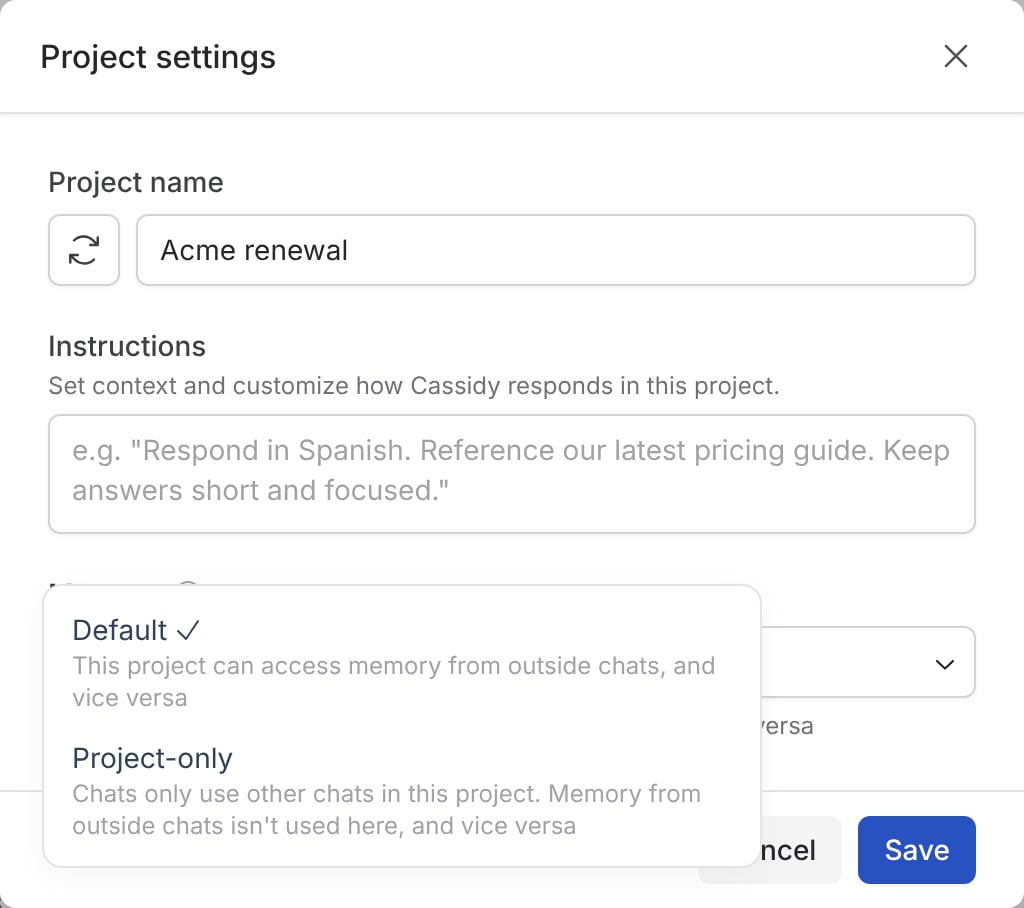
When memory is on, choose how the project uses it:
Default or Project-only. You can change this later. See Memory in
projects.
4
Click Create project
New projects are private to you until you share them.
Add chats to a project
To start a new chat in a project, hover the project in the sidebar and click the + button, or open its … menu and select New chat. The chat is saved to the project and follows its instructions and memory. To move an existing chat, open the chat’s … menu and select Move to project, then choose the project. If the Projects section is visible in your sidebar, you can also drag chats into and out of a project.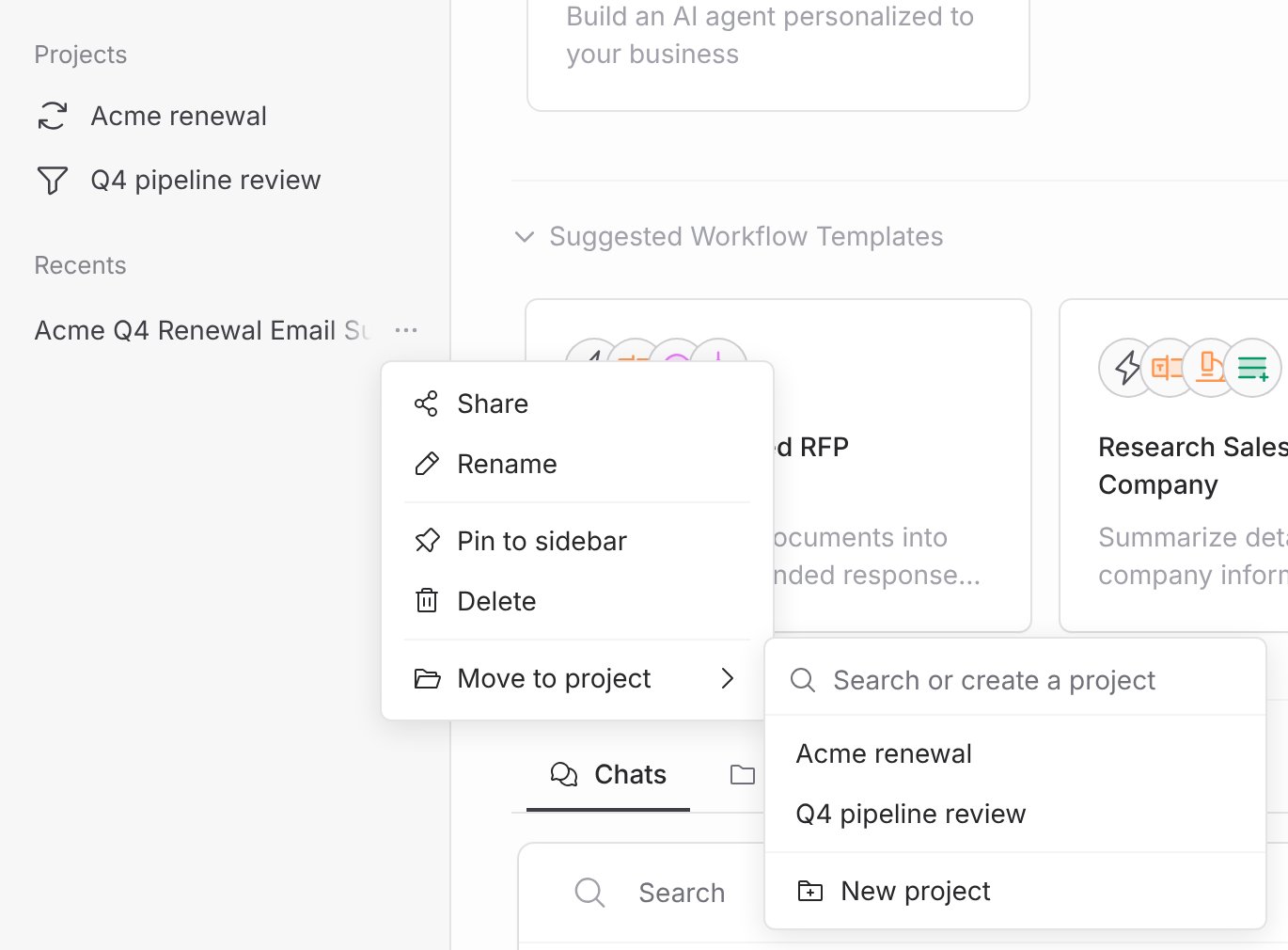
When you move a shared chat into or out of a project, its access changes to
match its new location. Cassidy shows how access will change before completing
the move.
Find your projects
Select a project on the Projects tab to see its chats. Cassidy returns to the Chats tab with the project added as a filter.Show projects in the sidebar
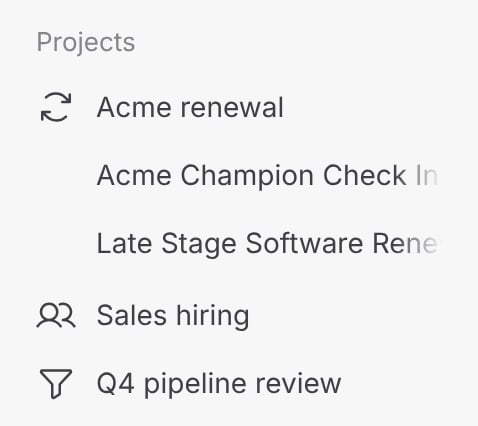
The Projects section appears in the sidebar automatically once you create, open, or are directly shared on a project. To turn it on yourself:1
Open the Recents menu
In the sidebar, hover Recents and click the … menu beside it.
2
Turn on the Projects section
Choose Customize sidebar, then turn on Show Projects section.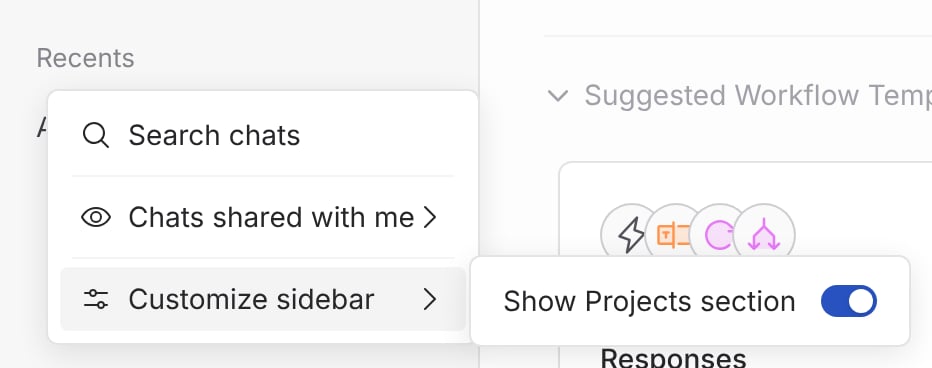
- Choose which projects appear: My projects, My projects and shared with me, or All projects I can access
- Sort by recent activity or by name
- Create a new project
Customize a project
Open a project’s … menu and select Project settings to change its name, icon, instructions, and memory mode. You need edit access to the project.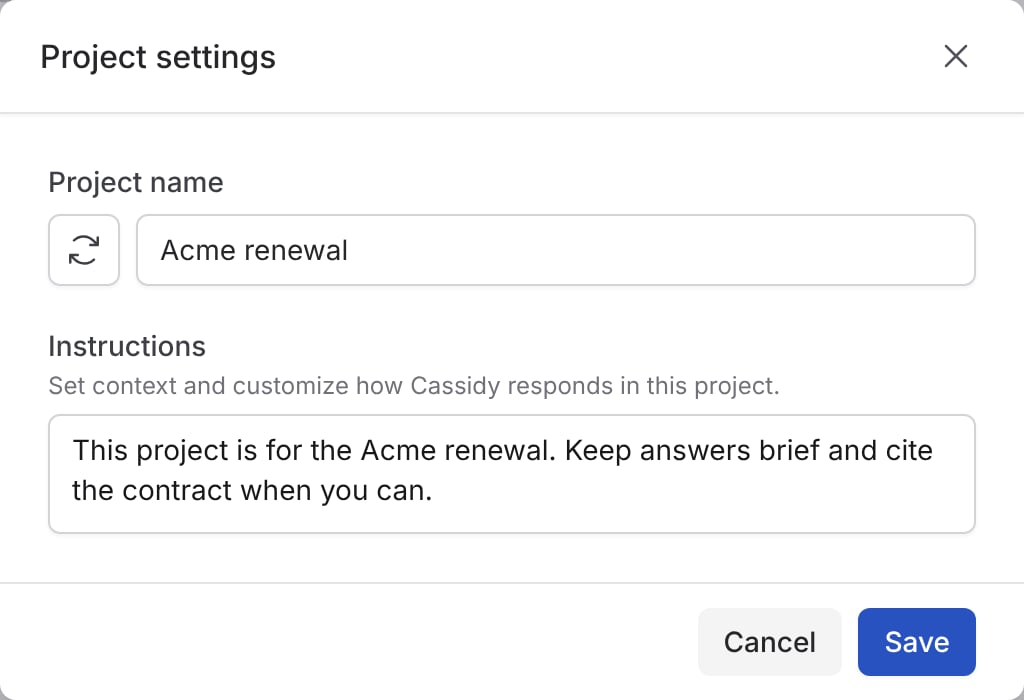
Project instructions
Agents follow project instructions in every chat in the project, alongside the Agent’s own instructions and your personalization. Good project instructions usually cover:- Context: What the project is about. “This project covers the Acme Corp renewal. Their contract renews March 1, and Dana Ruiz is our champion.”
- Process: How to approach the work. “Before drafting anything, check the latest usage numbers and summarize what changed.”
- Tone and format: How answers should read. “Keep answers brief, use bullet points, and write customer-facing drafts in a plain, measured tone.”
- Requirements: Rules that always apply. “Flag any non-standard contract terms, and cite the contract section when you can.”
Icon
Change the suggested icon or its color so the project is easy to spot in the sidebar and on the Projects tab, or remove the icon to show a folder.Memory in projects
When memory is on, each project has a memory mode:- Default: Details that only matter to the project, like a client’s name or a launch plan, are saved to the project’s own memory. Details about you are saved to your general memory. Chats in the project can use everything Agents remember about you.
- Project-only: Memory is off in the project. Agents only search other chats in the project, and chats outside it can’t see its memory.
Share a project
Projects use the same sharing model as Agents and Workflows. Open the project’s … menu and select Share project, then add teammates, groups, or your whole organization, and set each person’s access to View or Edit.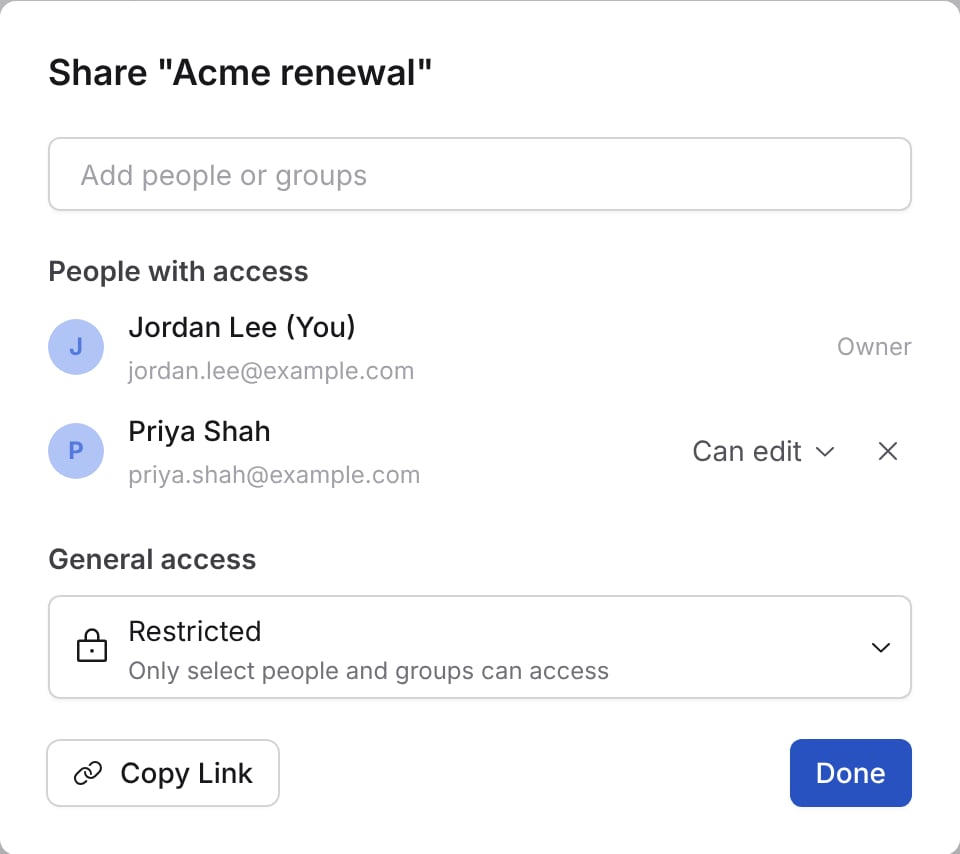
- View: Can read every chat in the project, but can’t send messages or change the project.
- Edit: Can start chats and send messages in the project, move chats in and out, change Project settings, share the project, and delete it.
Chats inside a project use the project’s sharing settings and can’t be shared
separately. To share one chat with different people, move it out of the
project first.
Delete a project
Open the project’s … menu and select Delete project.Projects or Agents?
Projects and Agents both give the AI more context, but they serve different purposes:- An Agent is a reusable setup with its own instructions, knowledge, and tools. Build one when many people need the same expertise across many situations, like an HR benefits Agent for the whole company.
- A project is a workspace for one body of work. Create one when the context belongs to a specific effort, like a customer renewal, and the chats about it should stay together.
Next steps
Memory
How Agents remember context inside and outside projects.
Chatting with an Agent
Learn the rest of the chat features.
Personalize your chats
Set preferences that apply in every chat.
Share and manage Agents
Learn how sharing and access levels work.