

Leave a comment
1
Open the meeting
Navigate to Meetings in the left sidebar and click the meeting you want to comment on.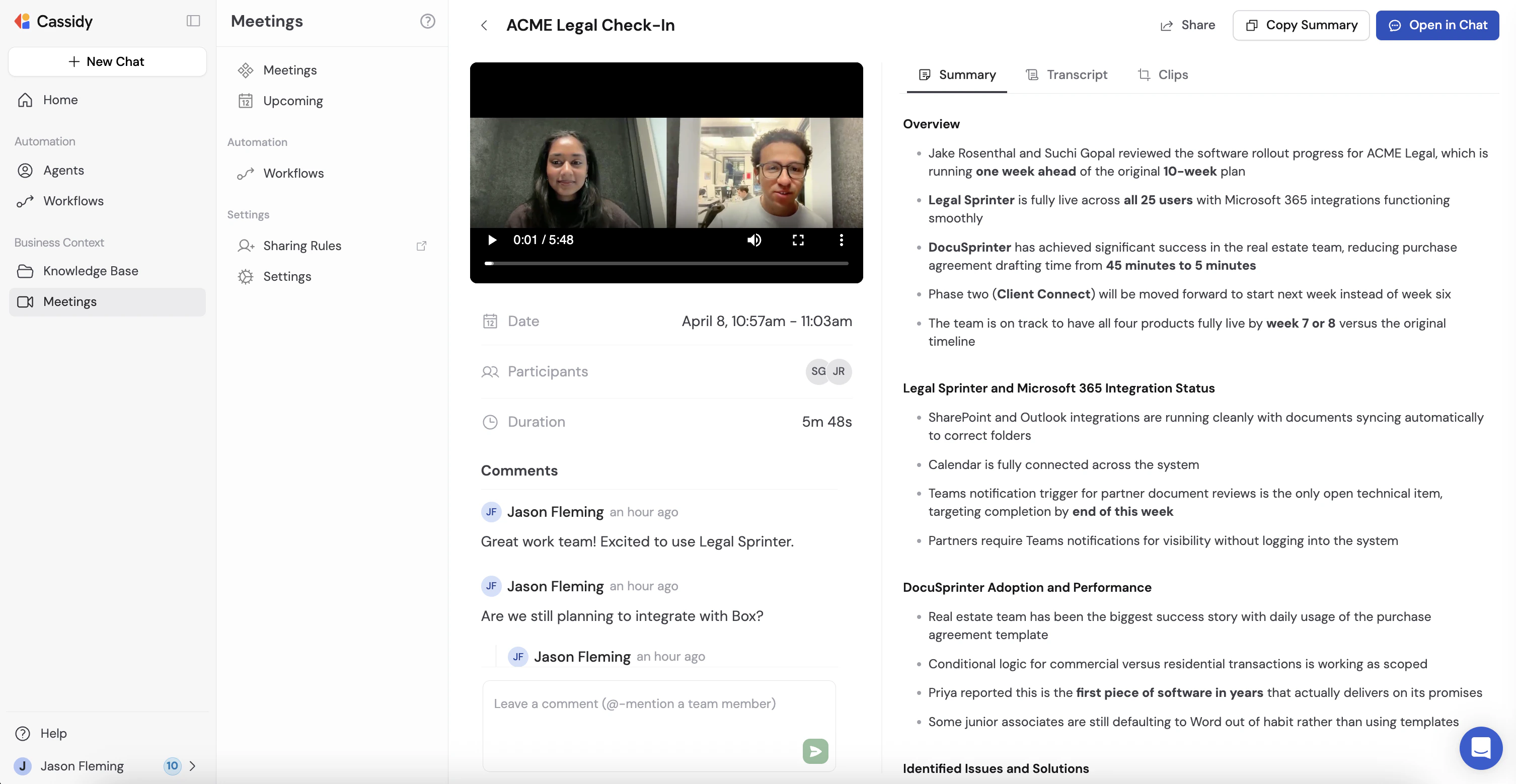
2
Write your comment
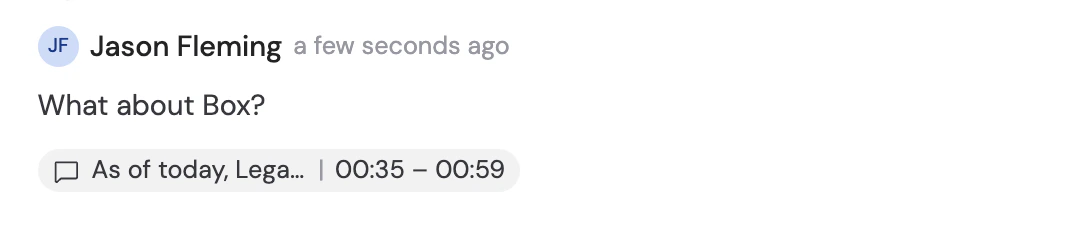
Click the comment input at the bottom of the panel and type your message. Press Enter or click the send button to post it.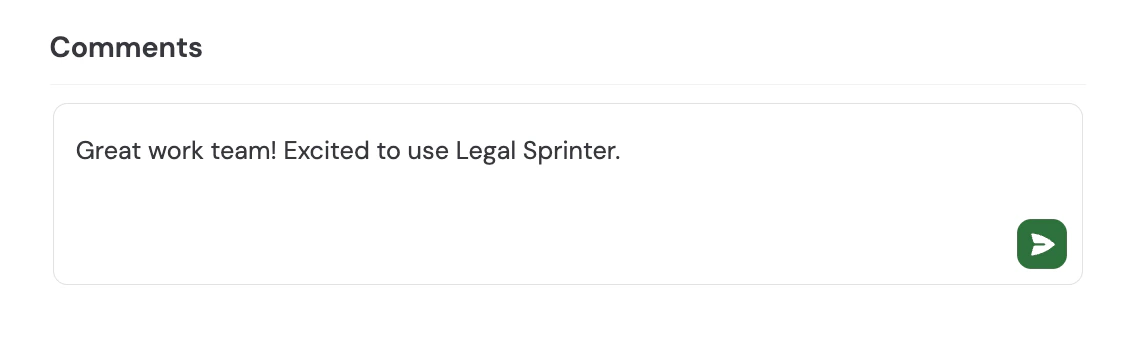
3
Reply to a comment (optional)
Hover over any comment to reveal action buttons in the top right. Click the Reply button (arrow icon) to open a reply input directly below that comment, then press Enter to post your reply. Click the X to dismiss without posting.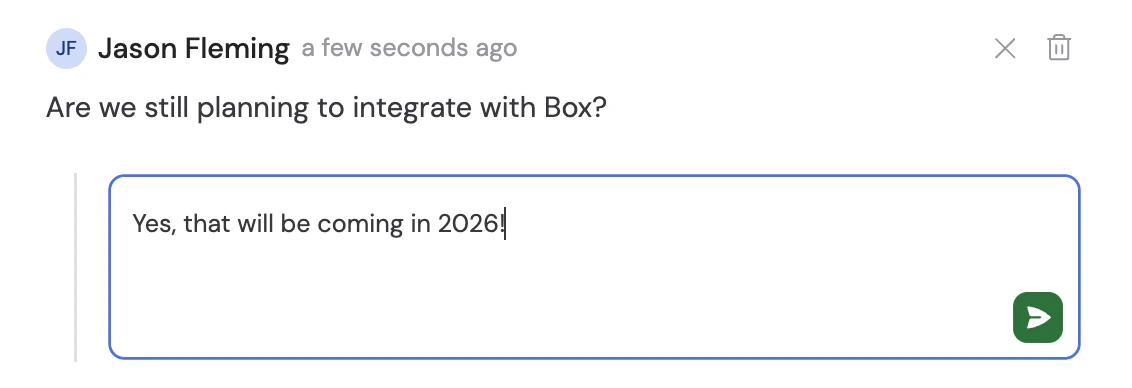
Anchor a comment to a transcript moment
You can link a comment to a specific section of the transcript so teammates can jump directly to that part of the recording.1
Open the Transcript tab
Click the Transcript tab in the main panel to see the full conversation with speaker labels.
2
Select a transcript range
Click and drag to highlight the transcript text you want to comment on. A Comment button appears above your selection.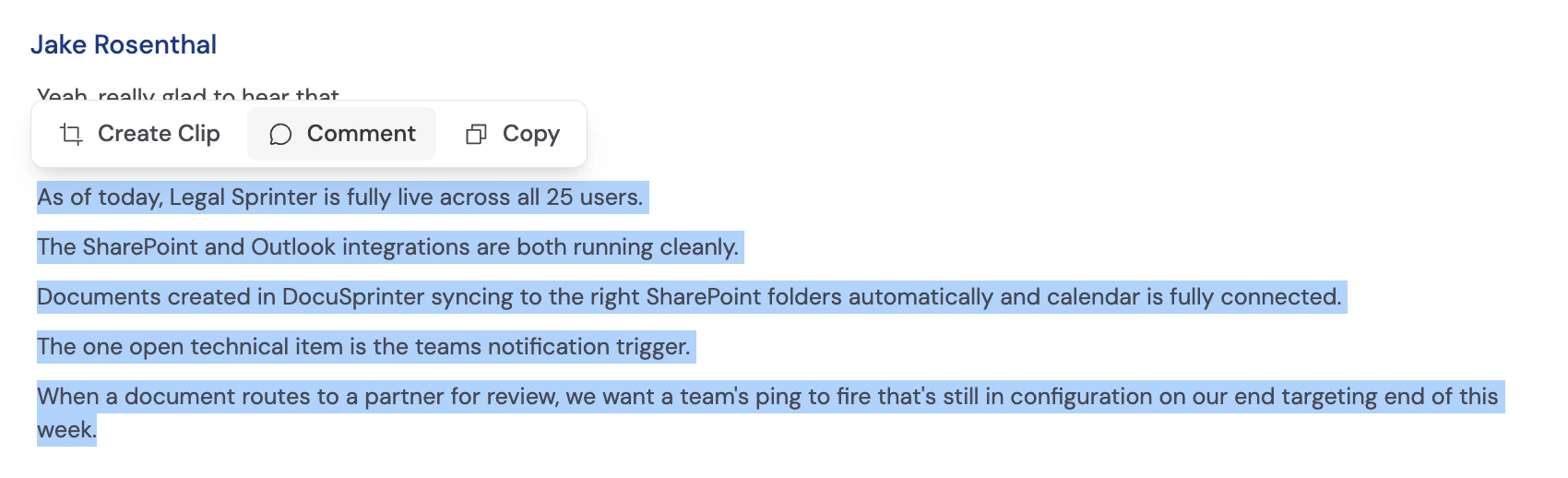
3
Add your comment
Click Comment. The selected transcript range appears as a tag in the comment input. Type your message and press Enter to post it.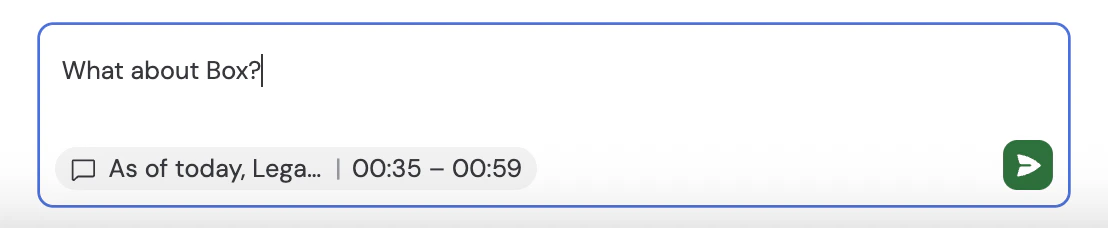
Mention a teammate
Type @ in the comment input to mention a team member. Cassidy autocompletes from your organization’s users as you type.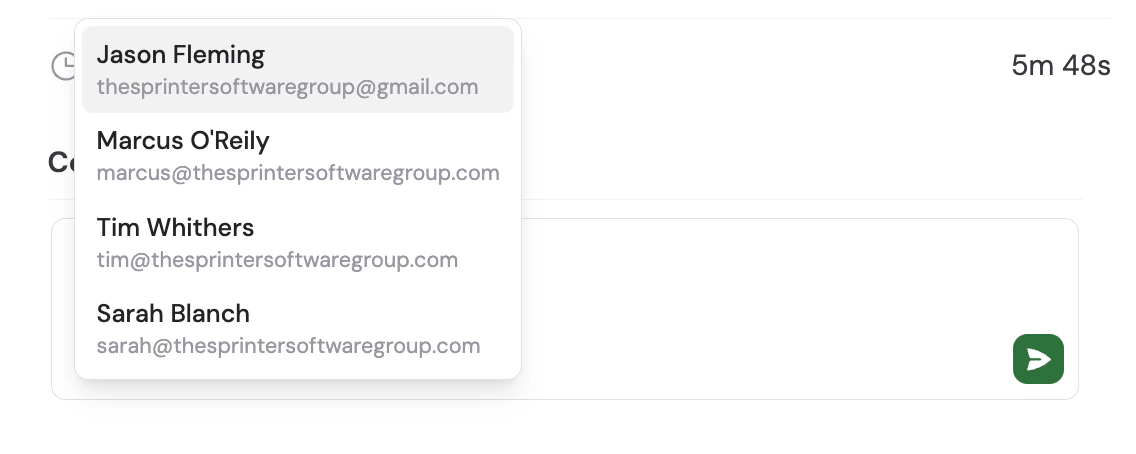
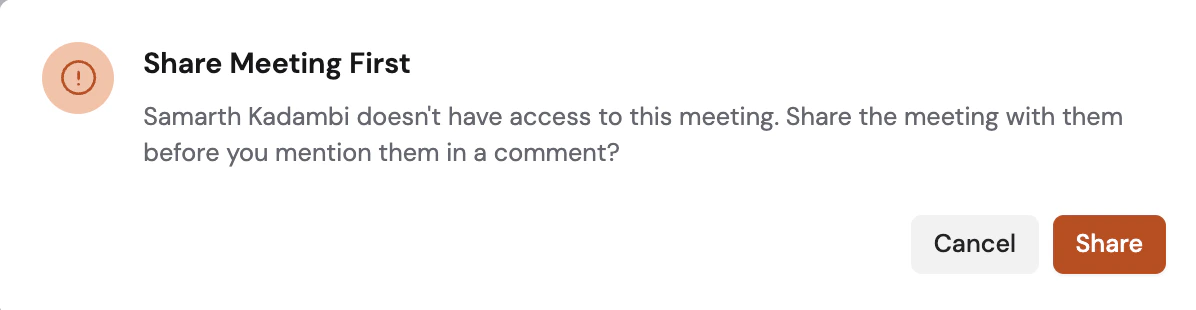
You need edit permission on the meeting to share it with someone directly from
a mention. If you don’t have edit permission, the mention is cancelled and
you’ll see a message letting you know.
Delete a comment
You can only delete your own comments. Hover over the comment and click the Delete button (trash icon) in the top right. A confirmation dialog appears before the comment is removed.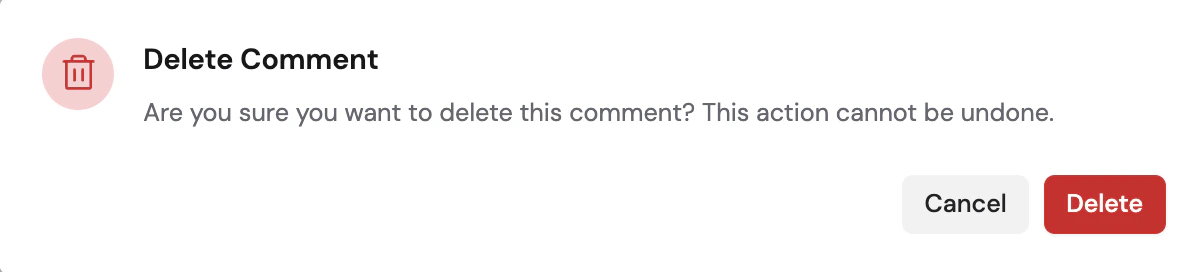
Email notifications
Cassidy sends email notifications to keep the conversation moving without requiring everyone to watch the page. Who gets notified: Anyone who has posted a comment or been @-mentioned in the thread. The person who just posted is never notified of their own comment. What triggers a notification: Any new comment or reply in a meeting thread where you’ve participated or been mentioned. @-mentions are highlighted in the email so it’s clear when you’re being called out directly. What the email contains: The comment text, the meeting title, and a direct link that opens the meeting on the Transcript tab with the relevant comment highlighted.Manage notification preferences
To opt out of comment email notifications:- Click your avatar in the bottom left and select Account Settings.
- Go to Notifications.
- Toggle off Meeting comment emails.

Comments on clips
Comments work the same way on meeting clips. Open a clip from the meeting detail page and use the Comments panel to leave notes anchored to the clip’s transcript. Clips have their own separate comment thread from the parent meeting. Notifications for clip comments follow the same rules as meeting comments.Next steps
Get started with Meetings
Connect your calendar and start recording.
Share a meeting
Control who can view and edit your meetings before mentioning teammates.
Automate with Workflows
Trigger Workflows automatically when a meeting ends.
Chat with your meetings
Ask questions across your full meeting library using the Meetings Connector.