

Send invitations
1
Open the invite modal
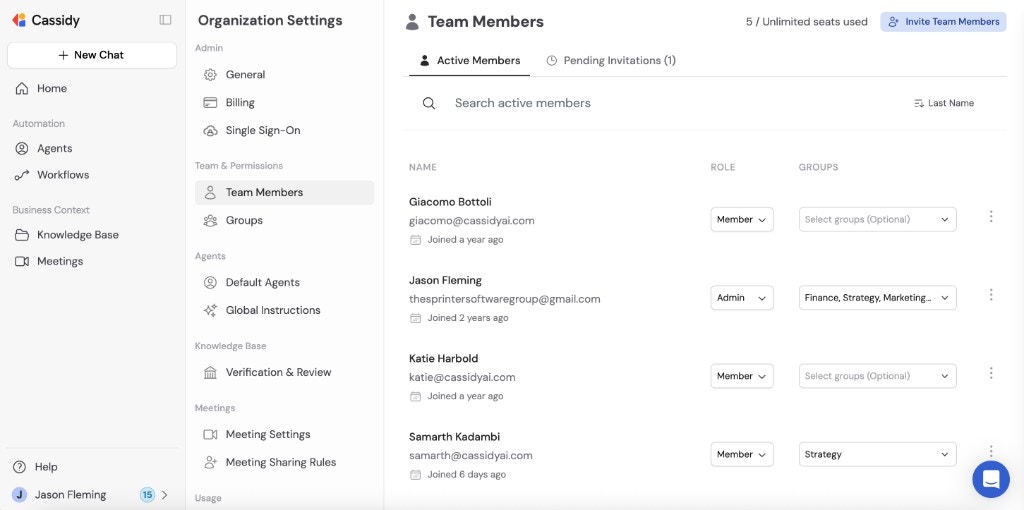
You can invite team members from two places: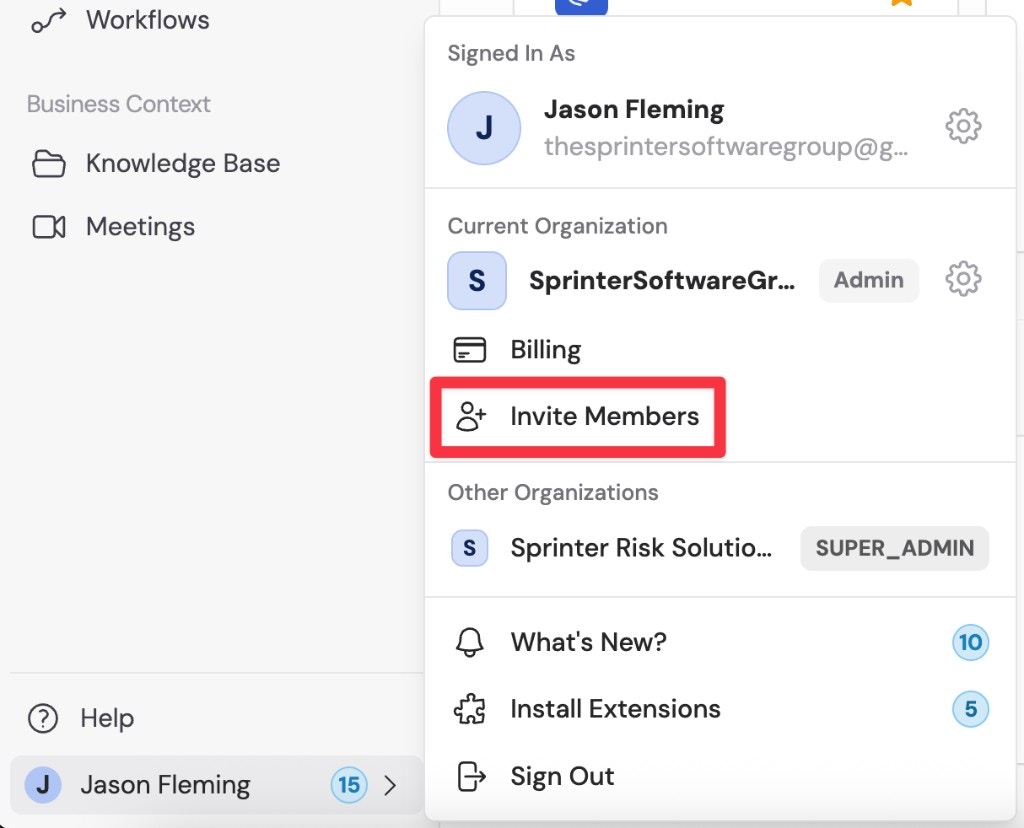
- Quick invite — Click Invite Members in the sidebar.
- Organization Settings — Open your account menu, select Organization Settings, go to Team Members, and click Invite Team Members.
2
Enter email addresses
Type one or more email addresses into the invite field. You can invite multiple people at once by separating emails with commas or pressing Enter after each one.
3
Assign roles
Choose one or more roles for each invitee. Roles control what the person can do in Cassidy.
- Viewer: Basic access to shared resources.
- Member: Standard access for regular team members.
- Admin: Administrative access for managing team settings, integrations, users, and workspace configuration.
- Custom roles: Workspace-specific privilege sets created by your team.
4
Add to groups (optional)
Select one or more groups to add the invitee to. Groups control which shared Agents, Workflows, Knowledge Base collections, chats, and meetings the user can access.
5
Send invites
Click Send Invites. Each invitee receives an email with a link to join your Cassidy workspace.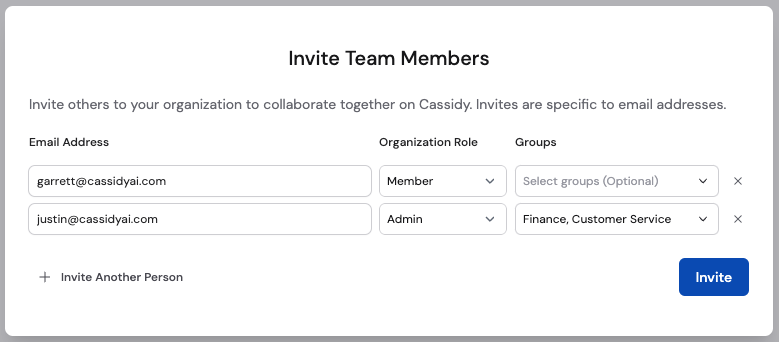
Invitations sent. You can track their status in Organization Settings under Team Members.
Accept an invitation
When someone invites you to a Cassidy workspace:1
Check your email
Look for an invitation email from Cassidy. Click the Join button in the email.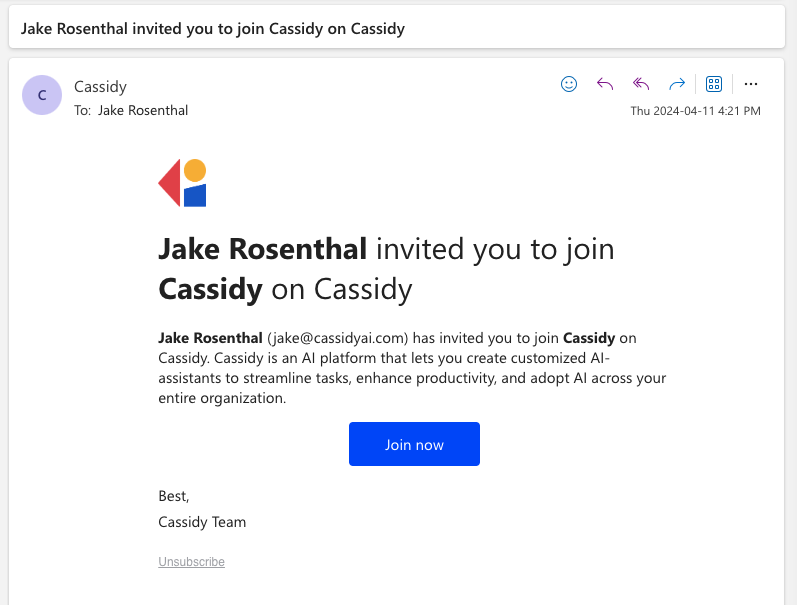
2
Create your account or sign in
If you’re new to Cassidy, create an account with the invited email address. When prompted during account creation, click the option to join the organization.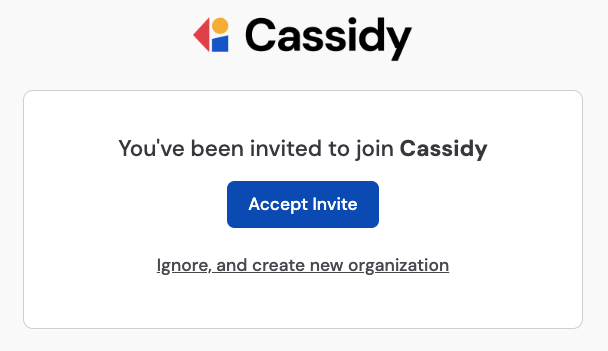
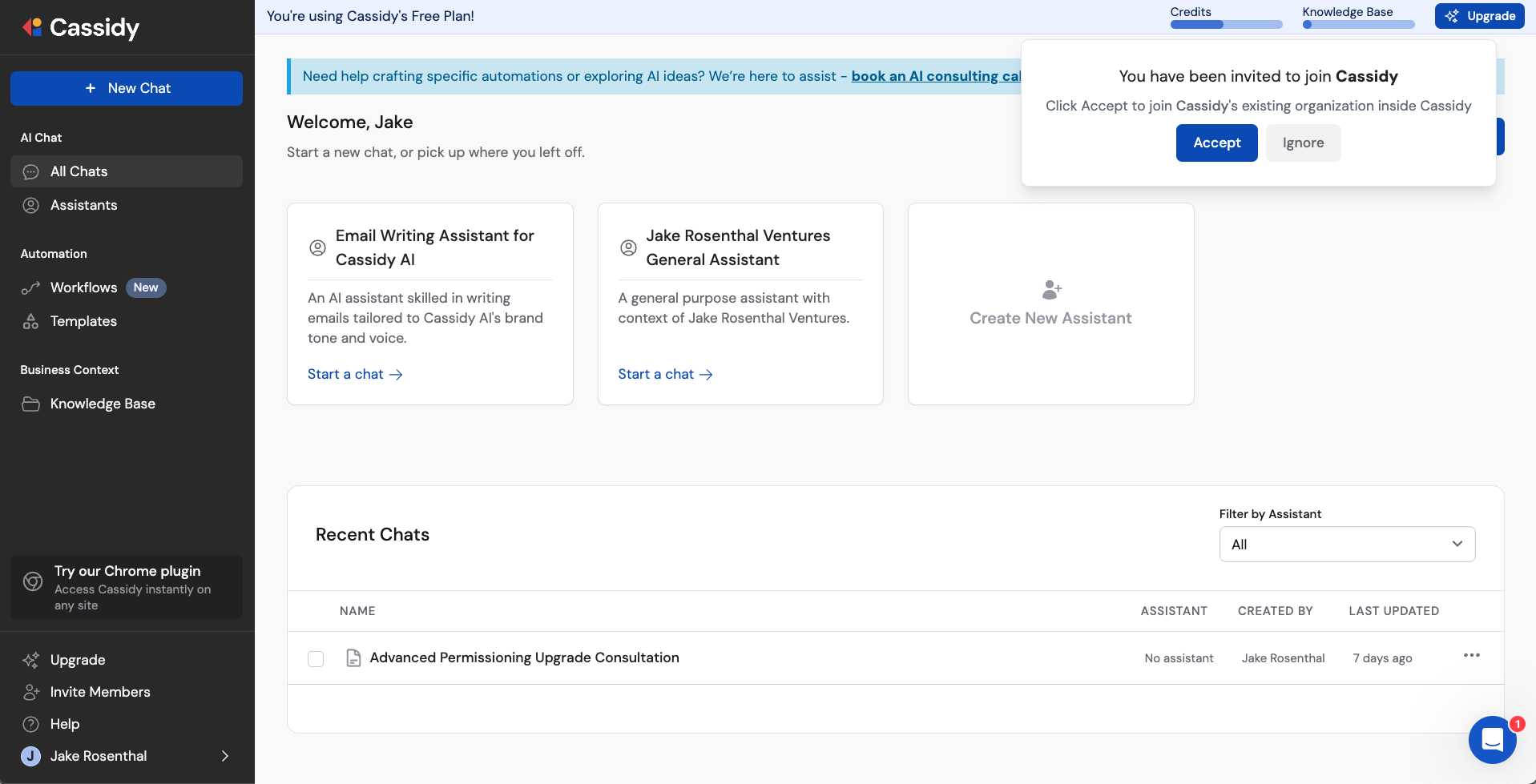
3
Manage pending invitations
You can access your pending invitations by clicking your name in the sidebar and selecting Pending Invitations.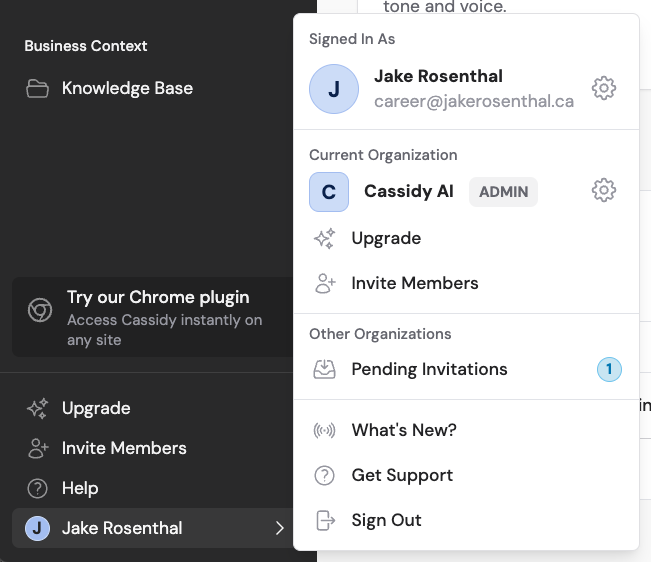
4
Accept or reject
In the Pending Invitations screen, click Accept Invitation to join the organization or Reject Invitation to decline.
5
Switch between organizations
Once you’ve accepted, you can switch between organizations by clicking your account name at the bottom of the sidebar.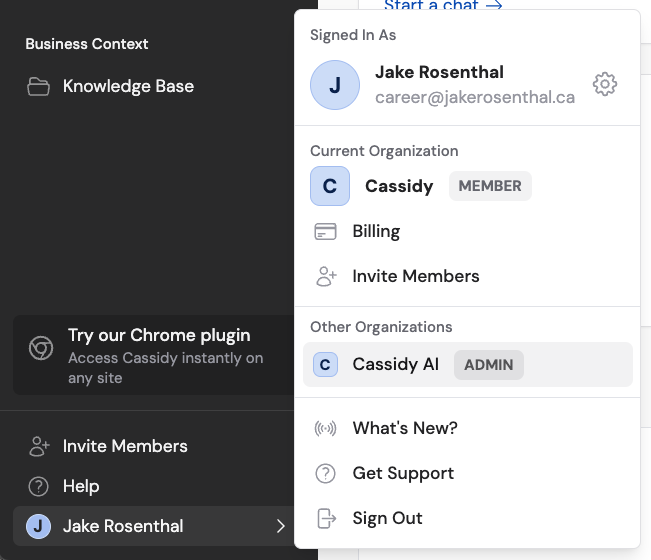
Manage invitations and members
From Organization Settings → Team Members, you can manage both pending invitations and existing members.Revoke a pending invitation
If you made a mistake or no longer want someone to join, click Revoke Invitation next to the pending invite.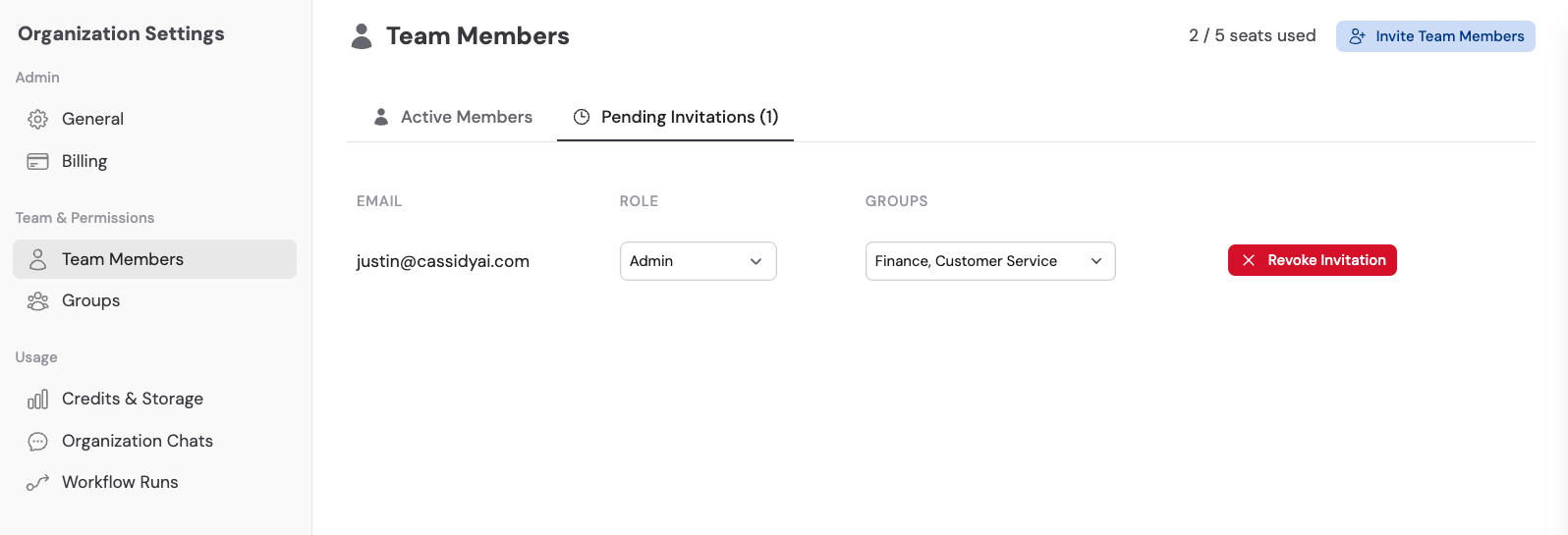
Remove an existing member
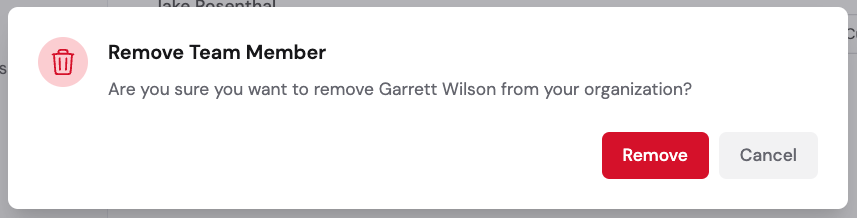
For members who have already joined, click the … menu next to their name and select Remove, then confirm the action.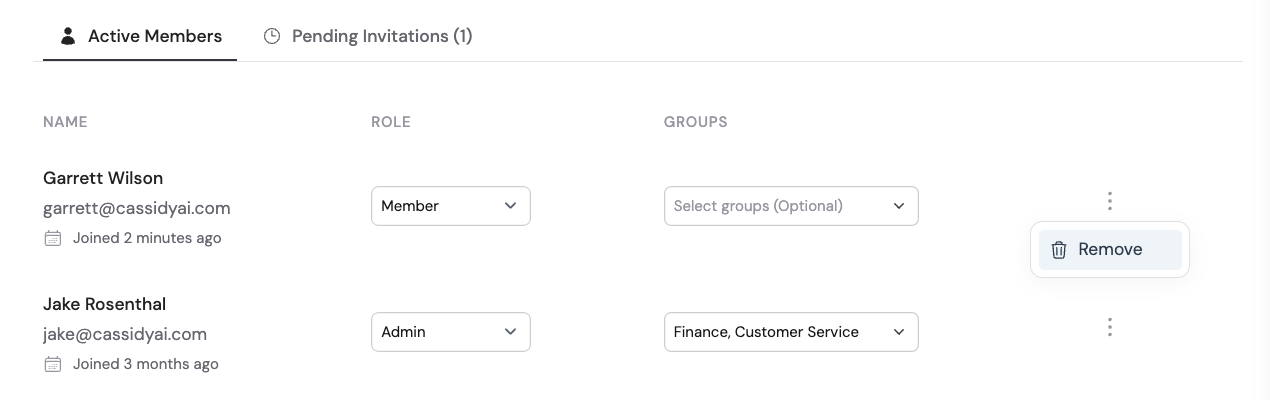
Next steps
Assign roles and groups
Control what team members can do and which resources they can access.
Set up SSO
Let your team sign in with your identity provider.