

Only Admins can configure default Agents. This setting applies to the
Chat experience only — it does not affect the base model selection when
building custom Agents or the model used in Workflow
actions.
Choose how new models are added
By default, Cassidy automatically adds newly released models as default Agents for your organization. Admins can change this behavior without affecting any default Agents that are already enabled.1
Open Controls
In Organization Settings, click Controls under the Admin section.
2
Set how new models are added
Leave Add new models automatically on to make newly released models
available to your team as default Agents.Turn this setting off if you want an Admin to review and enable each new
model first. When the setting is off, new models remain available from the
Default Agents page, where an Admin can add them manually.
Turning off Add new models automatically does not remove or disable any
default Agents that your organization already uses.
Manage default Agents
1
Open organization settings
Open your account menu from the sidebar and select Organization
Settings.
2
Go to Default Agents
In the left sidebar, click Default Agents under the Agents section.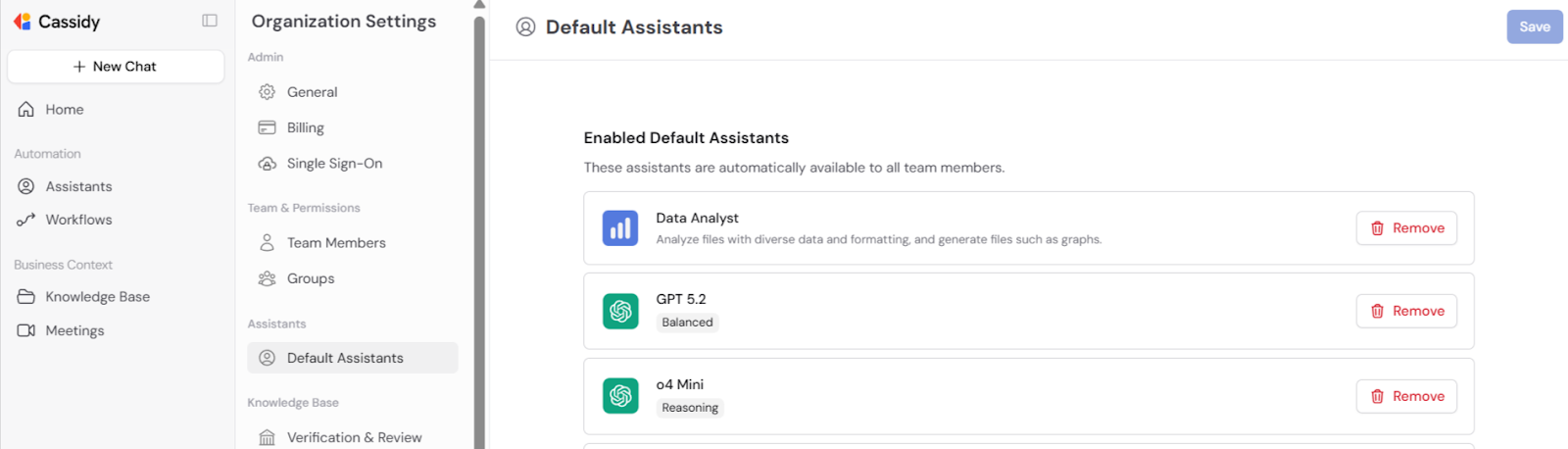
3
Remove Agents you don't need
Click the remove button next to any default Agent you want to hide from your team’s chat selector. Removing a default Agent doesn’t delete it — it simply hides it from the default list.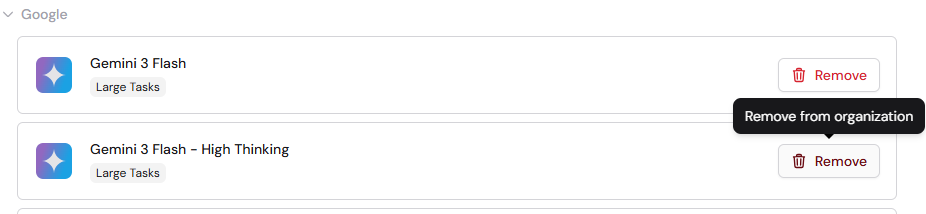
4
Add Agents
Click Add Agent to browse and select from the available default Agents. Search by name or capability to find the right ones for your team.
5
Save
Click Save to apply your changes. The Save button only becomes active after you’ve made at least one change.
Your default Agent configuration is updated. Team members will see the new set of default Agents the next time they open a chat.
Where default Agents appear
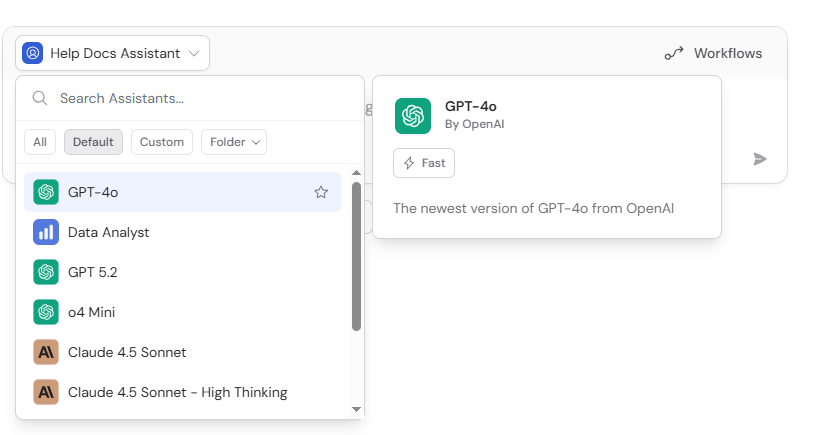
Default Agents show up in the Agent selector when a user starts a new chat. They appear under the Default section, separate from any custom Agents the user or their team has built.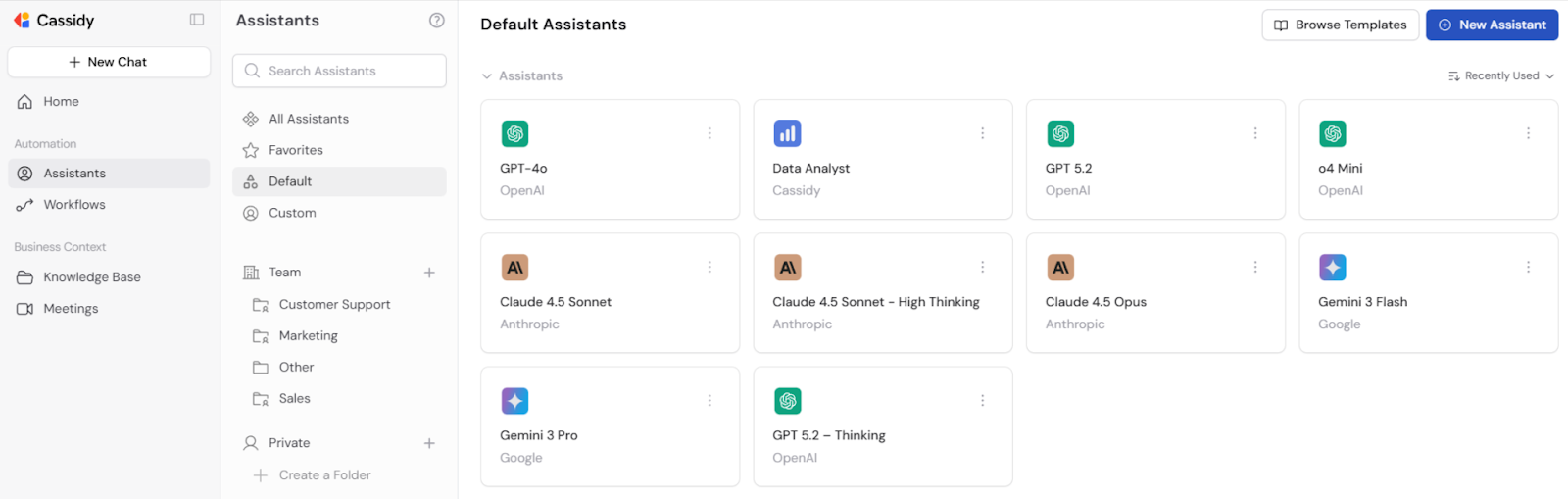
Next steps
Build and configure an Agent
Create custom Agents tailored to your team’s specific needs.
Configure global instructions
Set organization-wide AI behavior rules for all Agents.