

To manage roles, groups, or team members, you need the matching admin
privilege in Cassidy. In many organizations, Admins have these privileges by
default.
Understand roles and groups
- Current system
- Legacy workspaces
Use roles and groups together:For most teams, roles are based on responsibilities and groups are based on teams or departments. For example, a sales operations teammate might have a custom role that lets them create and edit Workflows, plus membership in the Sales group so they can access Sales resources.
Roles control actions
Roles define what someone can do in Cassidy, such as create Agents, edit Workflows, invite members, manage billing, or configure SSO.
Groups control visibility
Groups define which shared resources someone can access, such as Sales Agents, Sales Workflows, or Sales Knowledge Base collections.
Roles
Roles define a team member’s privileges across Cassidy. A person can have more than one role, and their effective privileges are the union of all assigned roles. Cassidy includes managed roles you can assign right away:Viewer
Basic access to shared resources. Best for people who need to view or use
resources but should not create or manage them.
Member
Standard access for regular team members. Best for people who use shared
Agents, Workflows, and Knowledge Base content.
Admin
Administrative access for managing team settings, integrations, users, and
workspace configuration.
Connector privileges
Connector privileges decide which built-in Connectors a person can connect their own account to. Shared connections don’t need a privilege; anyone who can use the Agent and the shared connection can use them.- Grant Agent Connectors to let the role connect every built-in Connector.
- Grant an individual Connector privilege to allow only specific apps.
- Grant Custom connectors to let the role connect their own account to Custom Connectors shared with them. This doesn’t allow creating or managing Custom Connectors.
- Grant Manage Connectors only to people who should change organization Connector settings and manage Custom Connectors.
Pinned resource privilege
Grant Customize Pinned Resources to people who should choose which published Agents and Workflows are pinned for your organization. Organization pins appear only to people who already have access to the resource; they do not change sharing permissions. This privilege does not control personal pins. Anyone can manage their own pinned chats, projects, Agents, and Workflows.Create a custom role
1
Open organization settings
Open your account menu from the sidebar and select Organization
Settings.
2
Go to Roles
Click Roles in the left sidebar.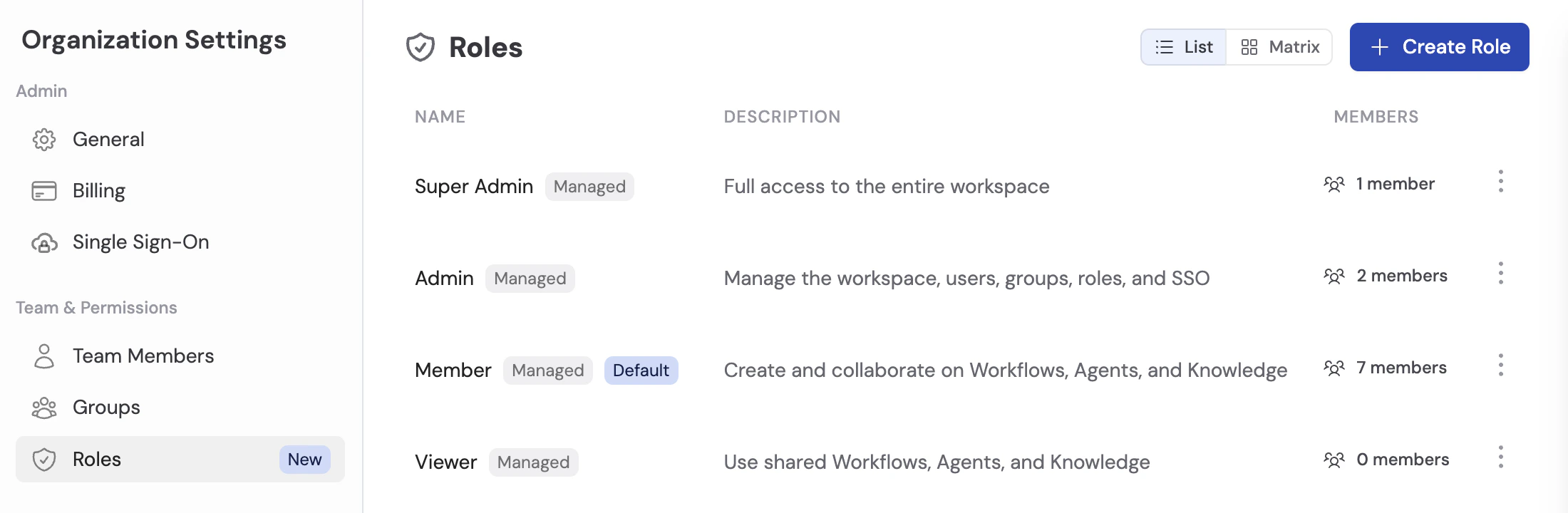
3
Create the role
Click Create Role. Add a clear name and description, such as Workflow Builder or Support Manager.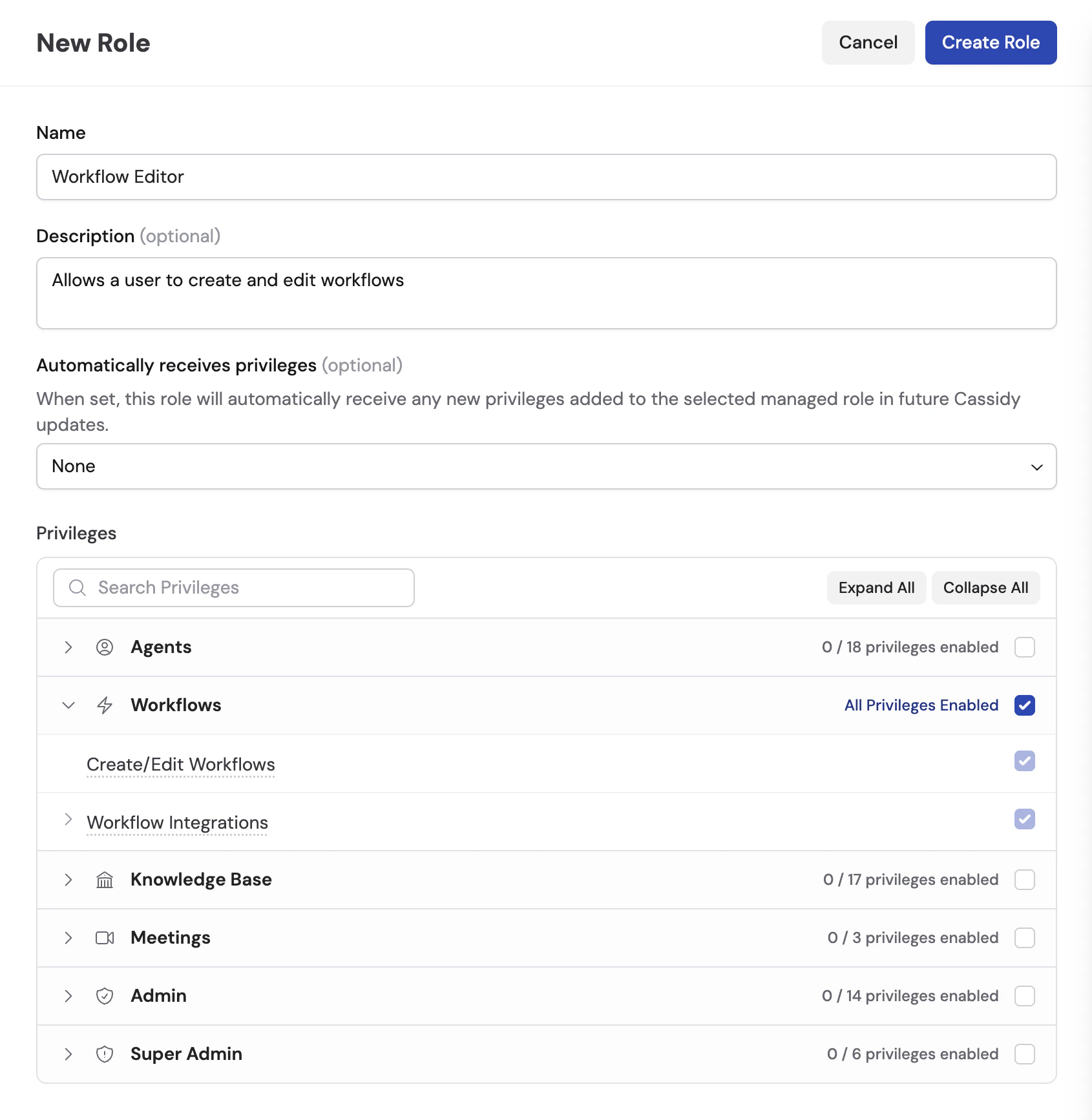
4
Choose automatic updates
Use Automatically receives privileges if the role should stay aligned with one of Cassidy’s managed roles.When this setting is enabled, Cassidy automatically adds future privileges from the selected managed role to your custom role. Use this for broad roles that should evolve with Cassidy, such as a custom role based on Member. Leave it blank for tightly controlled roles where you want to review every new privilege manually.
5
Select privileges
Turn on the privileges this role should grant. Privileges are grouped by area, such as Agents, Workflows, Knowledge Base, meetings, and admin settings.
6
Save the role
Click Create Role.
Your custom role is ready to assign to team members.
Assign roles to a team member
1
Open organization settings
Open your account menu from the sidebar and select Organization
Settings.
2
Go to Team Members
Click Team Members in the left sidebar. Find the user you want to update.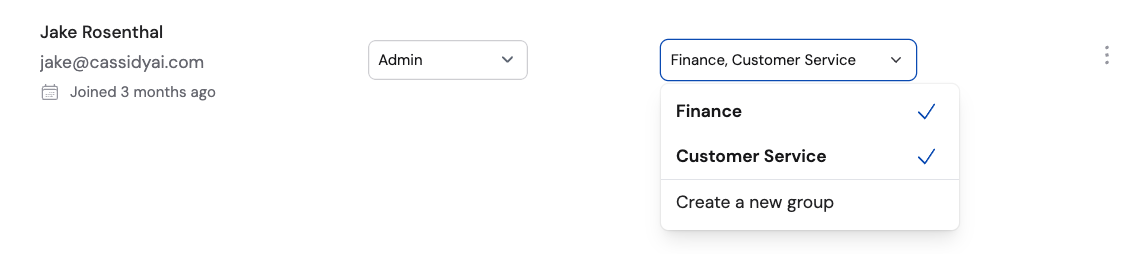
3
Update their roles
Click the role selector next to the user’s name. Add or remove managed roles and custom roles.
4
Save changes
Save the update. The team member’s privileges update immediately.
Groups
Groups organize team members so you can share resources with many people at once. Groups do not grant workspace privileges like creating Agents, editing Workflows, inviting members, or managing billing. Use roles for those privileges.When you share an Agent, Workflow, Knowledge Base collection, project, or Meeting folder, you can choose which groups and individuals can access it. See the sharing and permissions guides for each:
Create a group
1
Open organization settings
Open your account menu from the sidebar and select Organization
Settings.
2
Go to Groups
Click Groups in the left sidebar.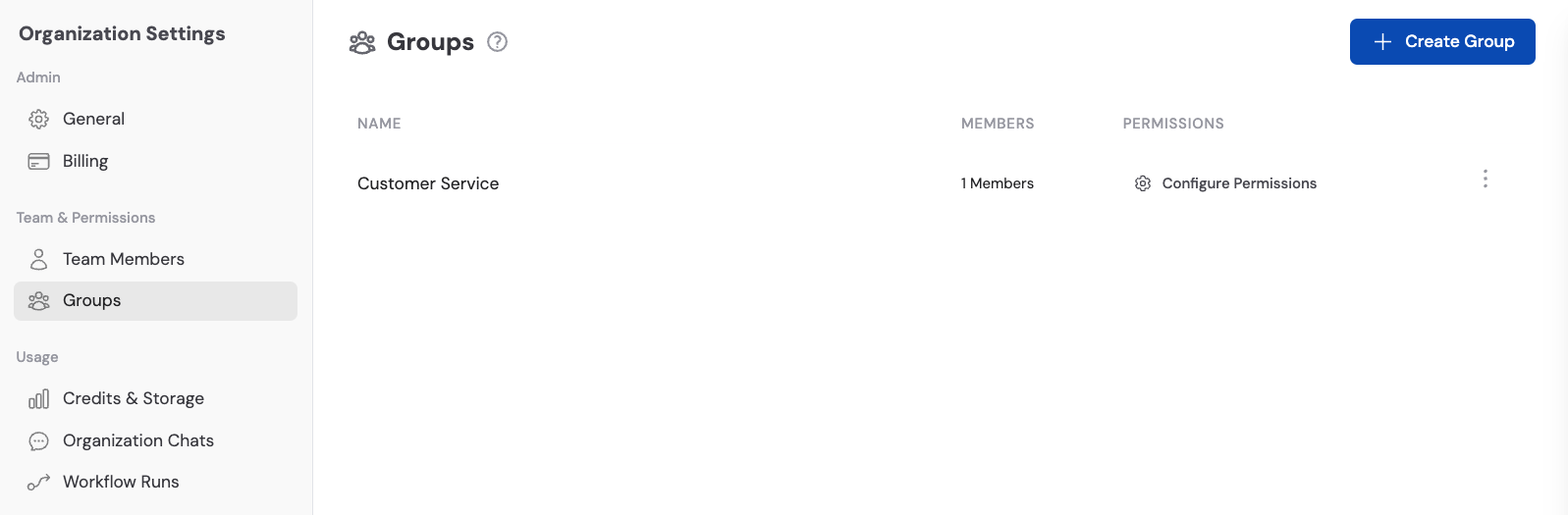
3
Create a new group
Click Create Group. Give the group a descriptive name (e.g., “Sales Team”, “Marketing”, “Customer Support”).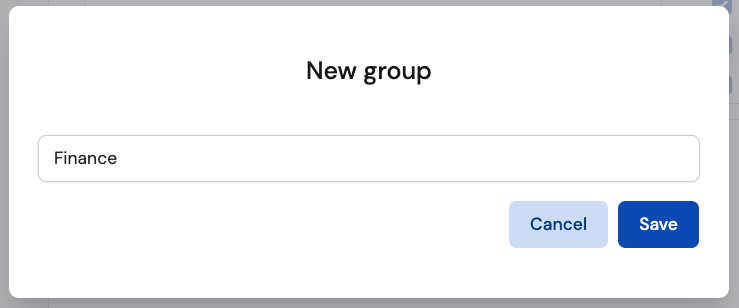
4
Add members
Search for and select team members to add to the group. You can also add members later.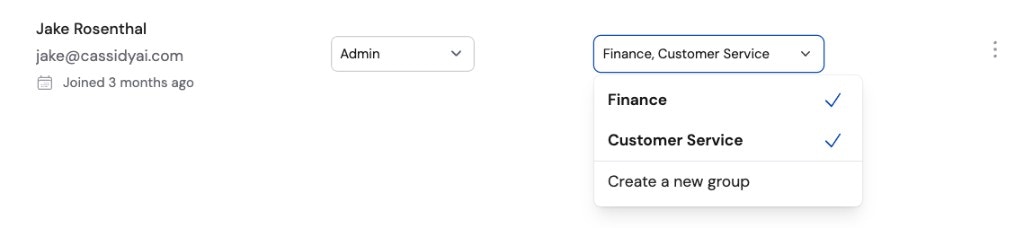
5
Save
Click Save to create the group.
Your group is now active. You can share Agents, Workflows, Knowledge Base collections, chats, and meetings with the group.
How multiple groups work now
A user can belong to multiple groups. Each group can make different shared resources visible to that user. For example, if a user is in the Sales group and the Customer Success group, they can see resources shared with either group. Whether they can create or edit resources depends on their roles.Advanced: designing a group structure
Advanced: designing a group structure
For most teams, a simple structure works well:
- All Employees: A broad group for resources everyone should see.
- Department groups: Sales, Marketing, Support, Operations, or other teams that need access to department-specific resources.
- Project groups: Temporary or cross-functional teams that need access to a focused set of Agents, Workflows, or Knowledge Base collections.
Next steps
Invite team members
Add colleagues to your workspace and assign their roles and groups.
Set up SSO
Automatically assign roles and groups based on your identity provider.