

Install the extension
Open the Microsoft Office Store
Go to the Cassidy Microsoft Office extension in the Microsoft Office Store.
Sign in to Microsoft
If you’re not already signed in, you’ll be prompted to log in to your Microsoft account before continuing.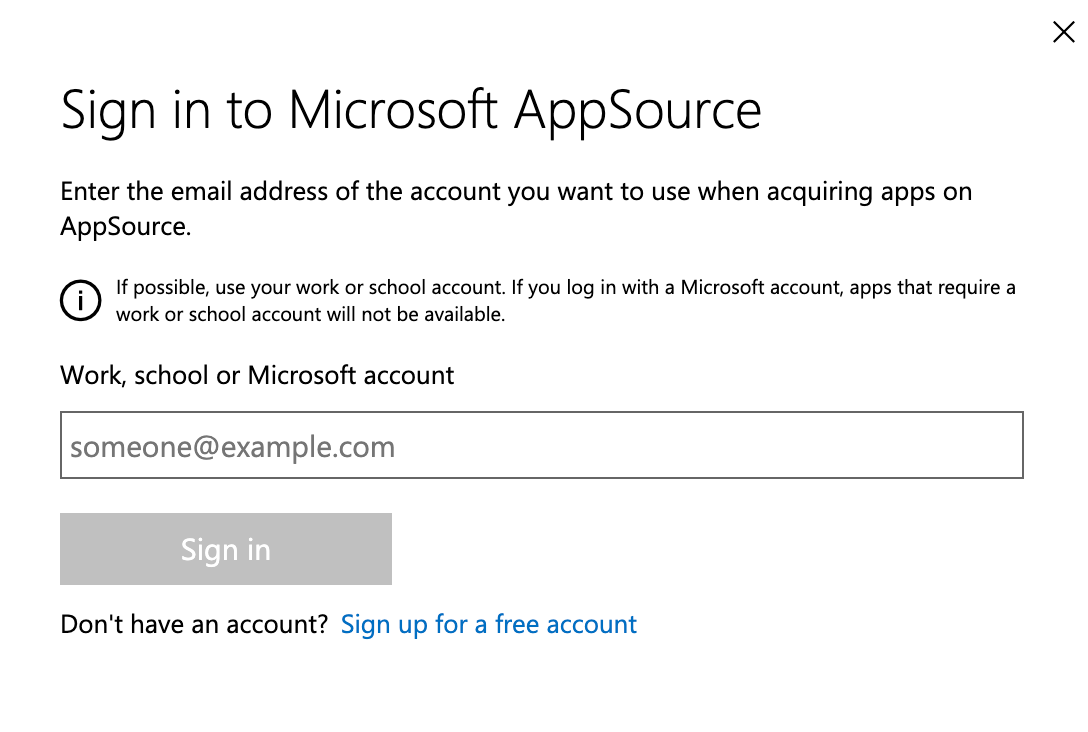
Confirm your account
A confirmation dialog shows your account information. Verify you’re signed in with the correct account and click Get it now. Click Edit your details if you need to make changes.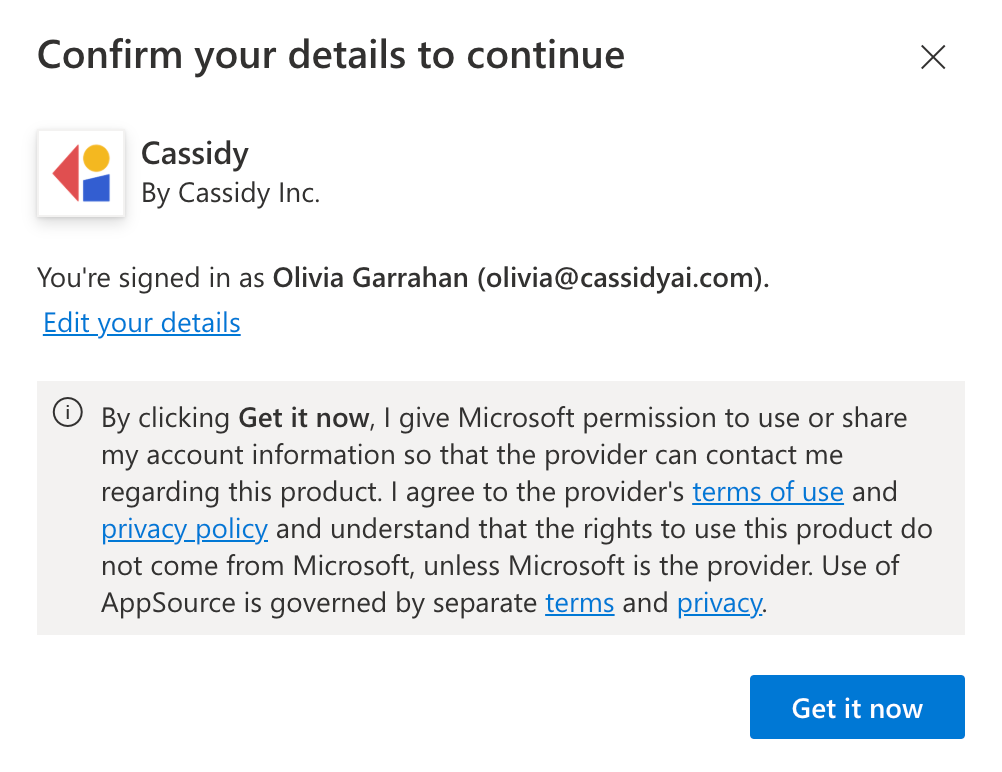
Accept the installation
A dialog asks if you’d like to install Cassidy for Word, Excel, and PowerPoint. Click Continue to proceed.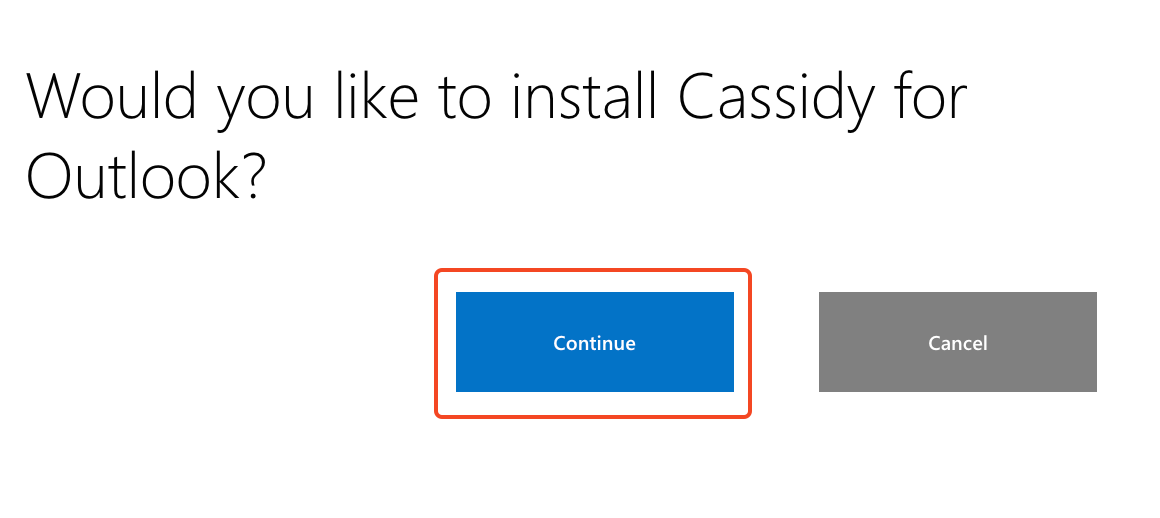
Access the extension
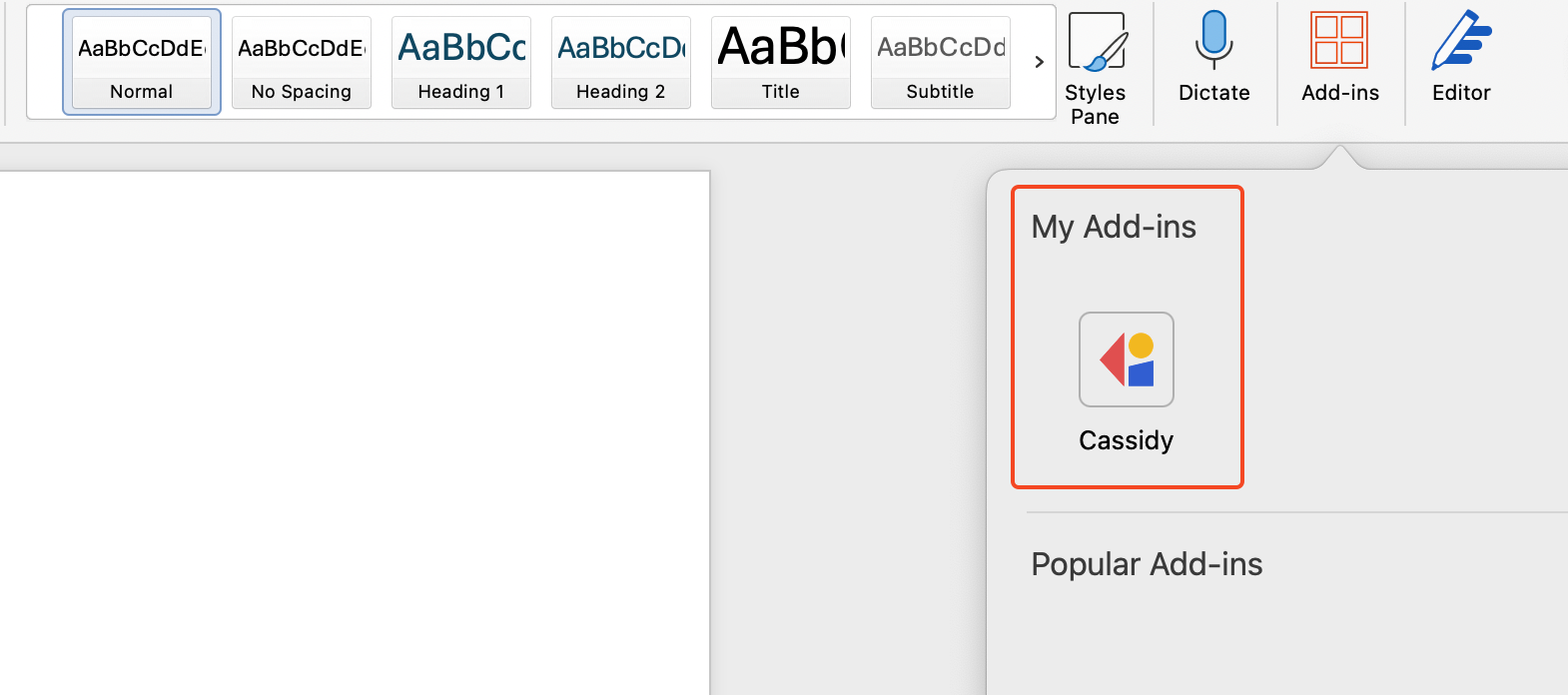
Once installed, you’ll see the Cassidy icon in the toolbar of Word, Excel, and PowerPoint. You can also find it through each app’s Add-ins menu.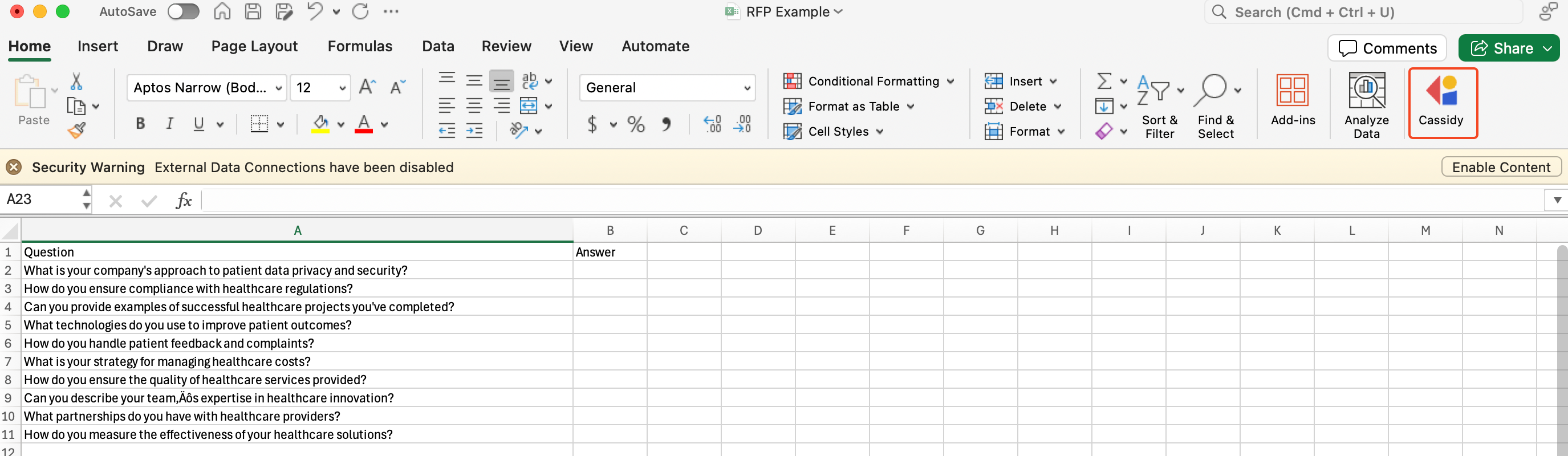
Use Cassidy in Word
Open the Cassidy Agent
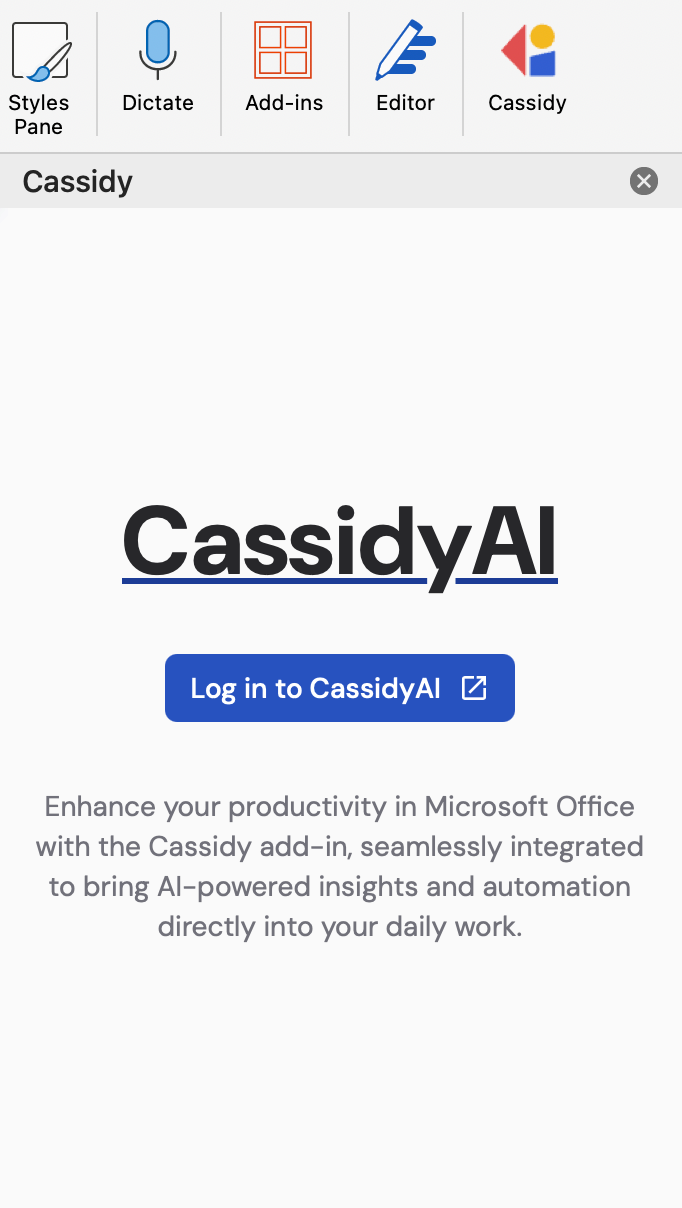
Click the Cassidy icon from your toolbar or the Add-ins menu. The Agent opens in a side panel.
Use or edit the suggested prompt
A prompt is automatically populated in the chat box based on your document, giving you a starting point. You can ask the Agent to draft new content, rewrite a section, summarize the document, or answer questions using your Knowledge Base.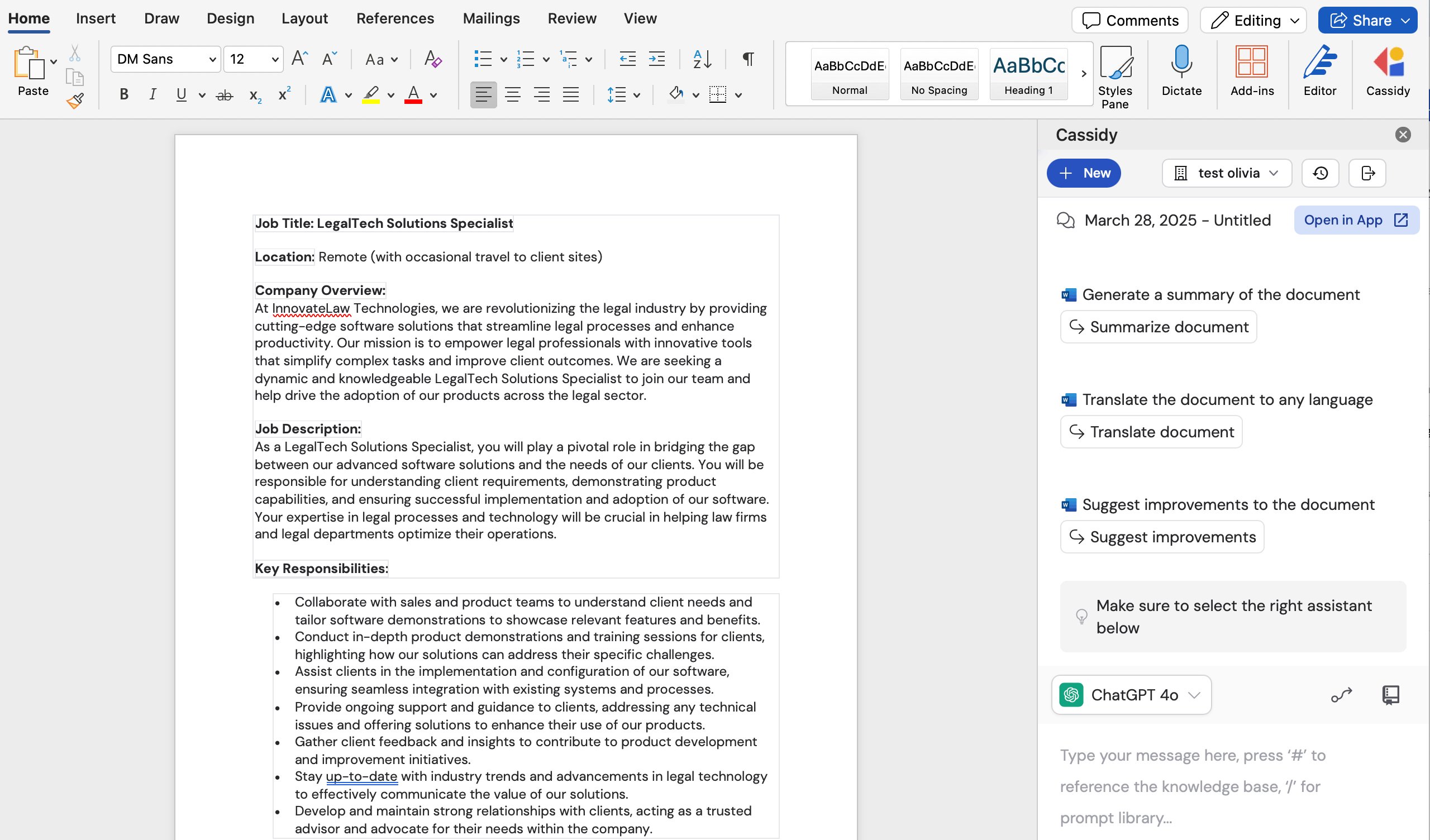
Use Cassidy in Excel
Use Cassidy in Excel when you want an Agent to help with the workbook you have open. Ask questions about your data, fill in spreadsheet answers, build charts, and more.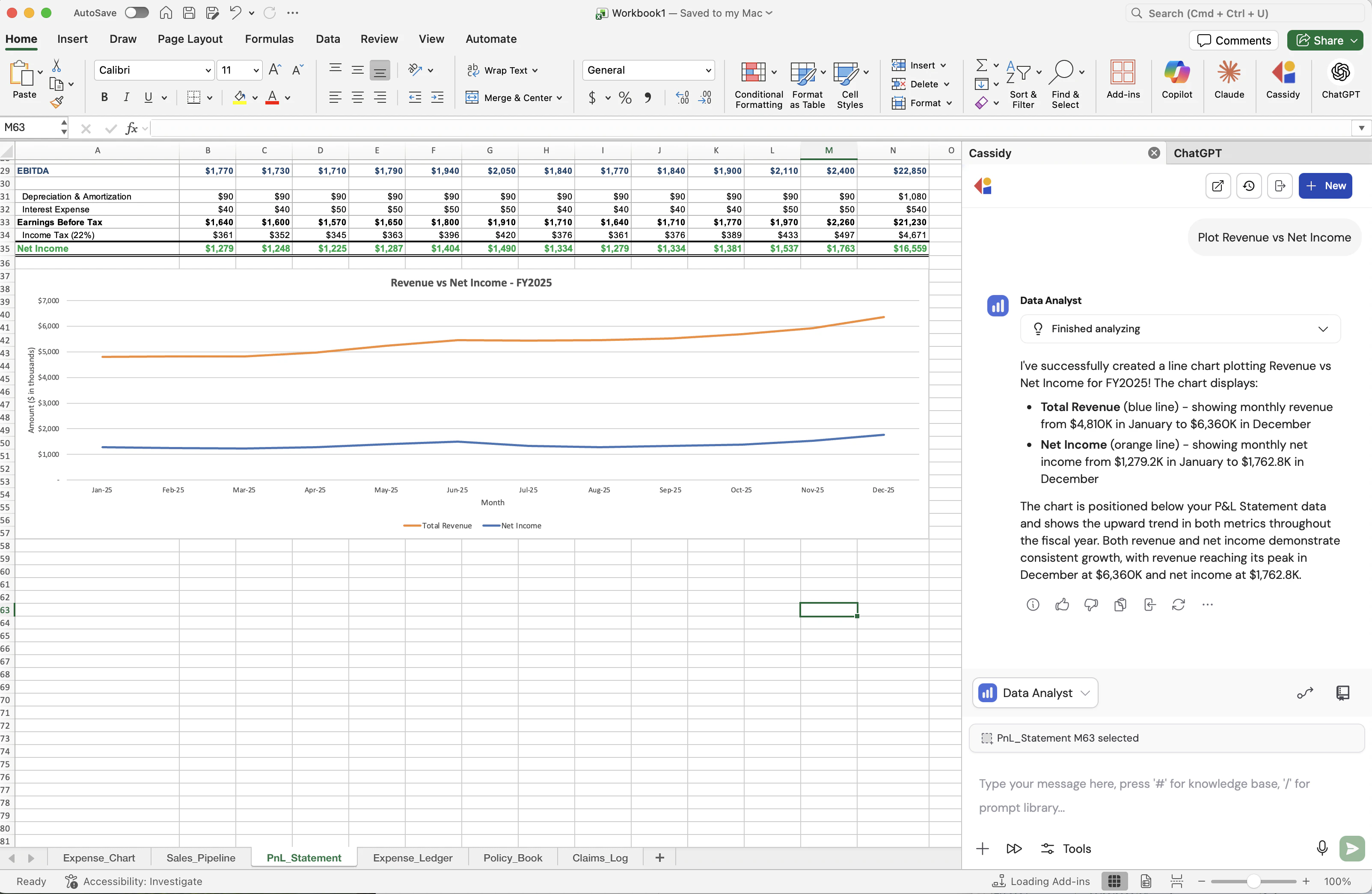
Select the relevant cells
Select the cell or range you want the Agent to work with. Cassidy shows your current Excel selection above the chat box so you can confirm the Agent has the right context.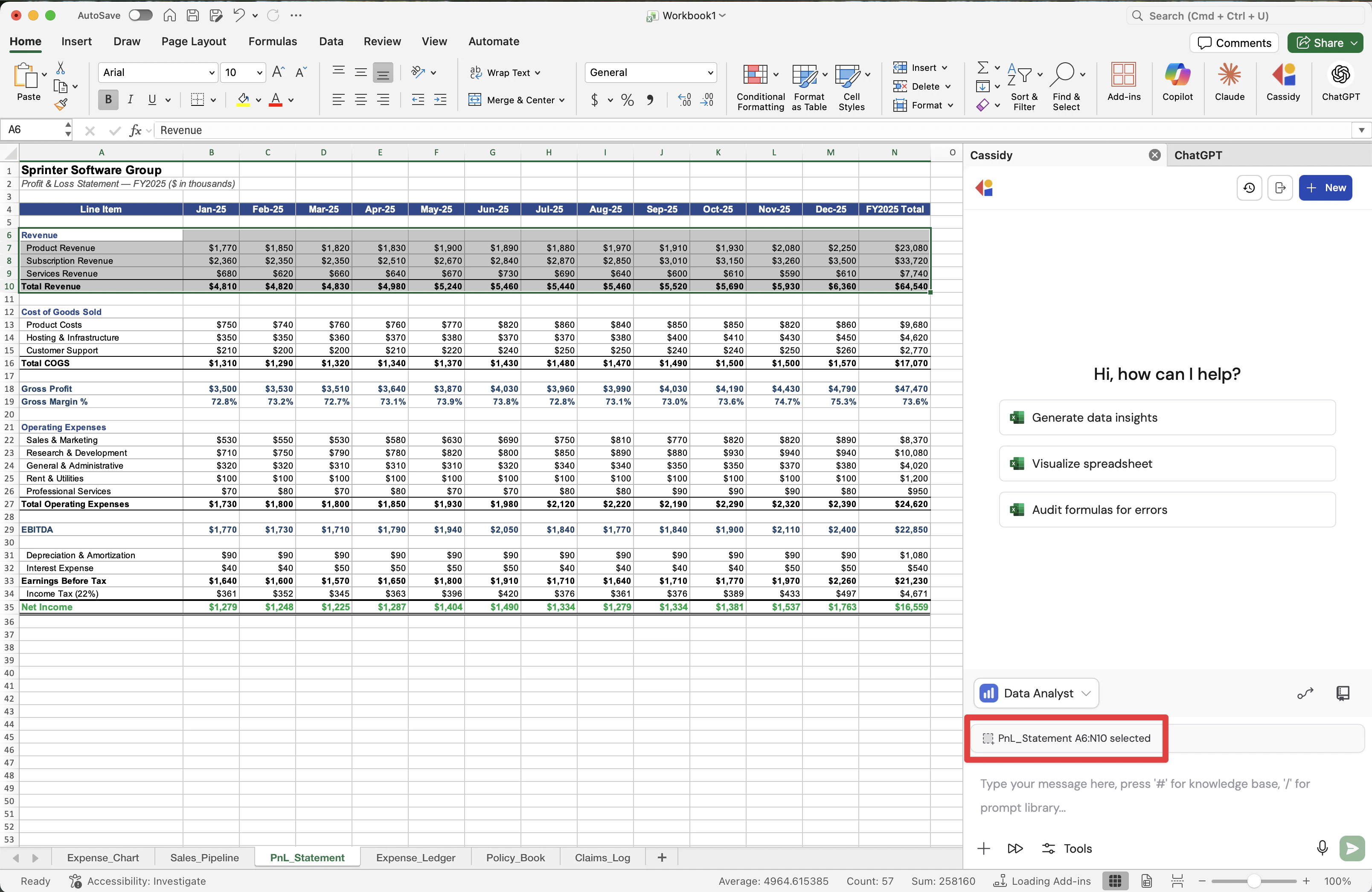
Ask the Agent what to do
Click the Cassidy icon from your toolbar and ask for the outcome you want. For example, ask the Agent to answer RFP questions, generate data insights, or create a chart.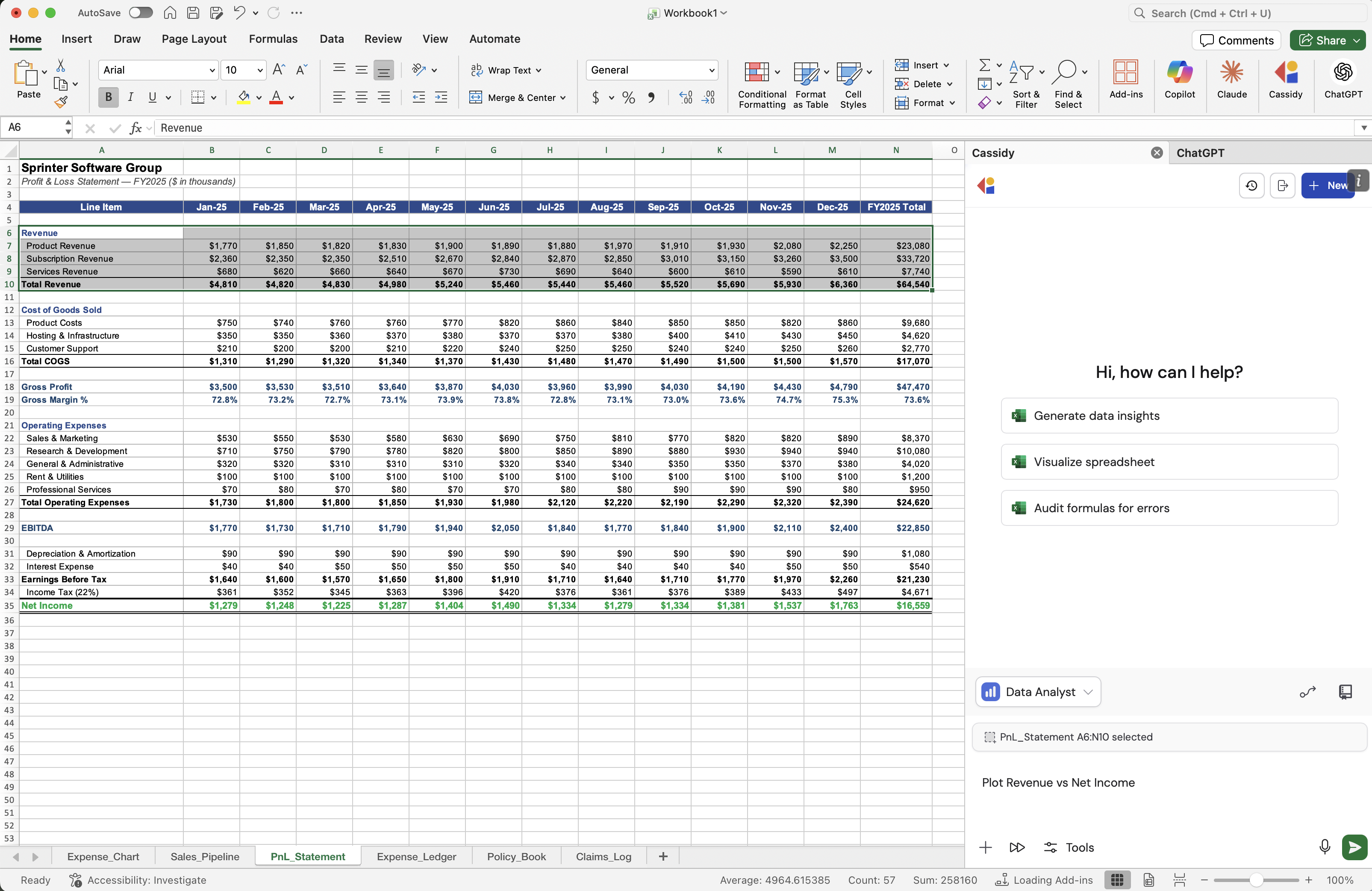
Review proposed edits
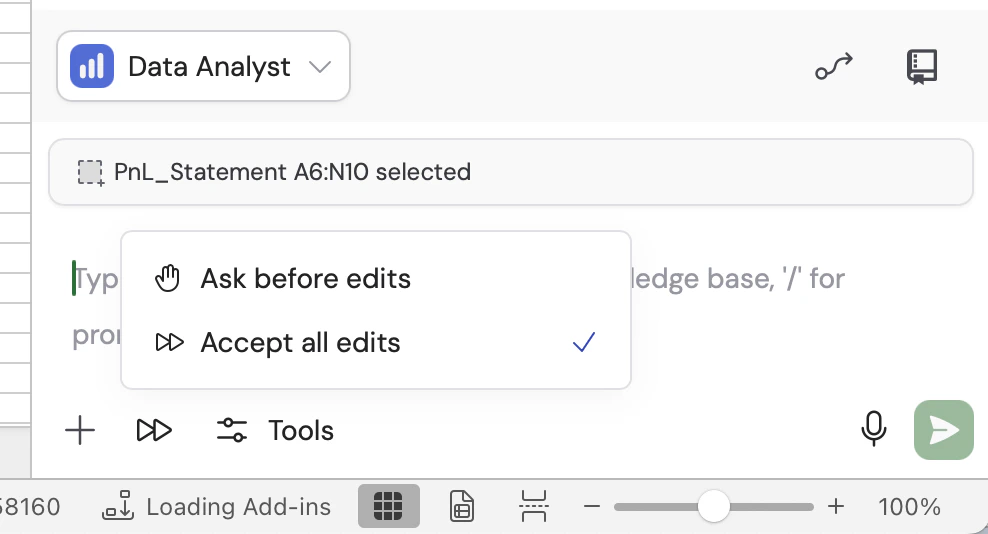
If the Agent needs to change your workbook, Cassidy shows an approval card before applying the edit. Review the pending edits, then choose Allow once, Allow all edits, or Deny.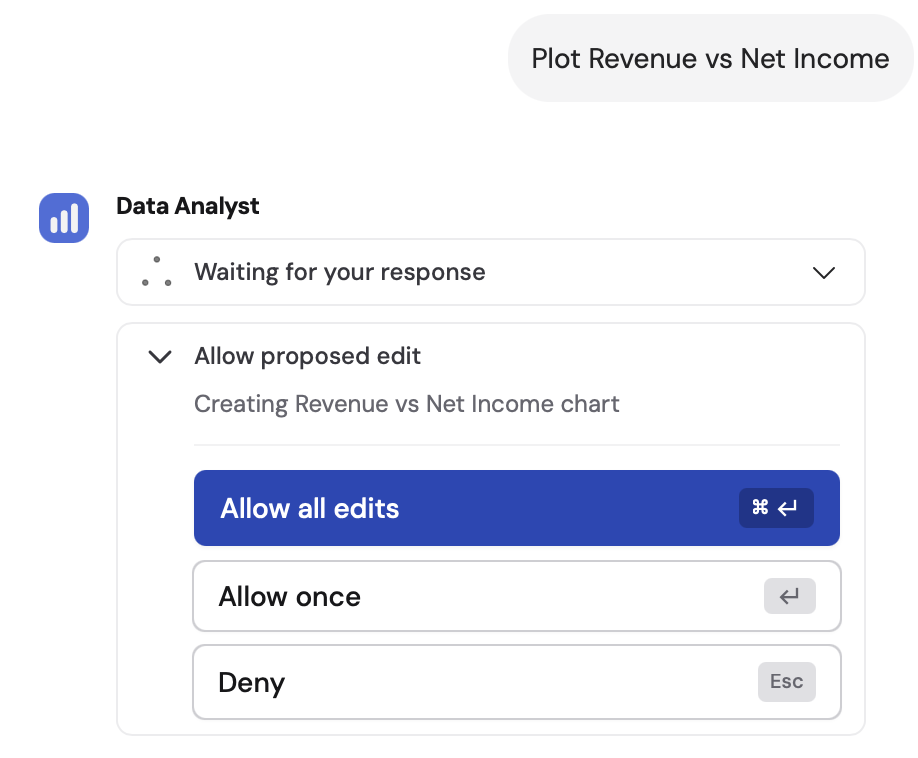
Use Cassidy in PowerPoint
Use Cassidy in PowerPoint when you want an Agent to help with the deck you have open. Generate new slides, rewrite copy, restructure bullets, draft speaker notes, and ask questions about your presentation — all without leaving PowerPoint.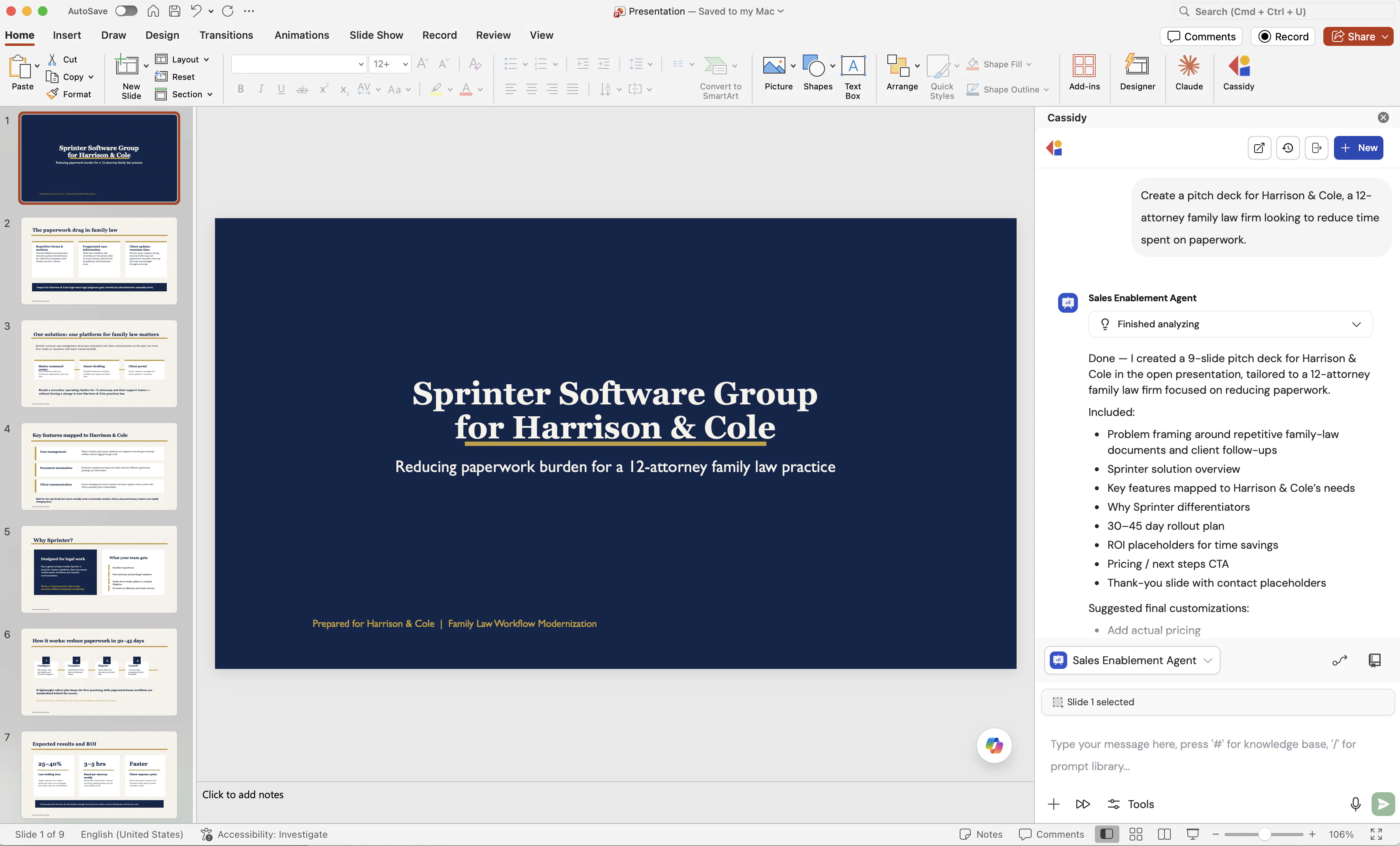
Select slides or shapes (optional)
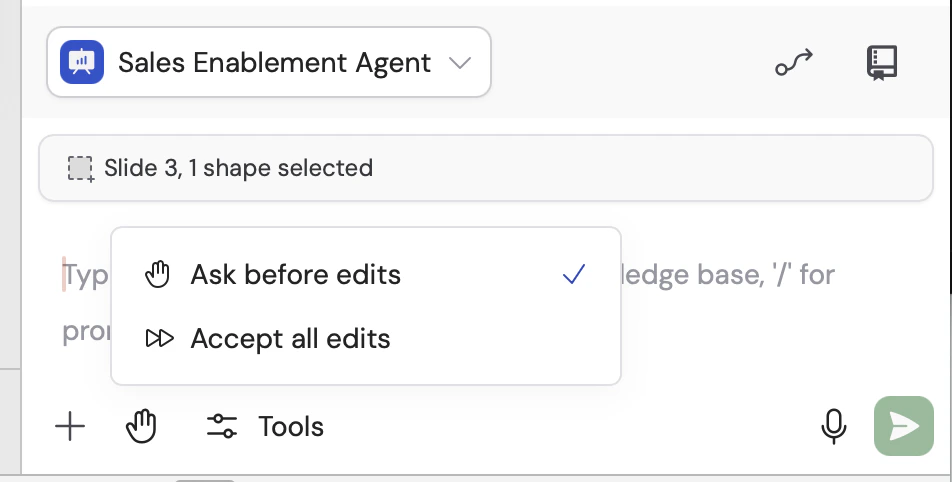
Select one or more slides in the thumbnail panel, or click a shape on a slide, when you want the Agent to focus on a specific part of the deck. Cassidy shows your selection above the chat box, and the Agent always has visibility into your full deck so it can place new slides in the right spot.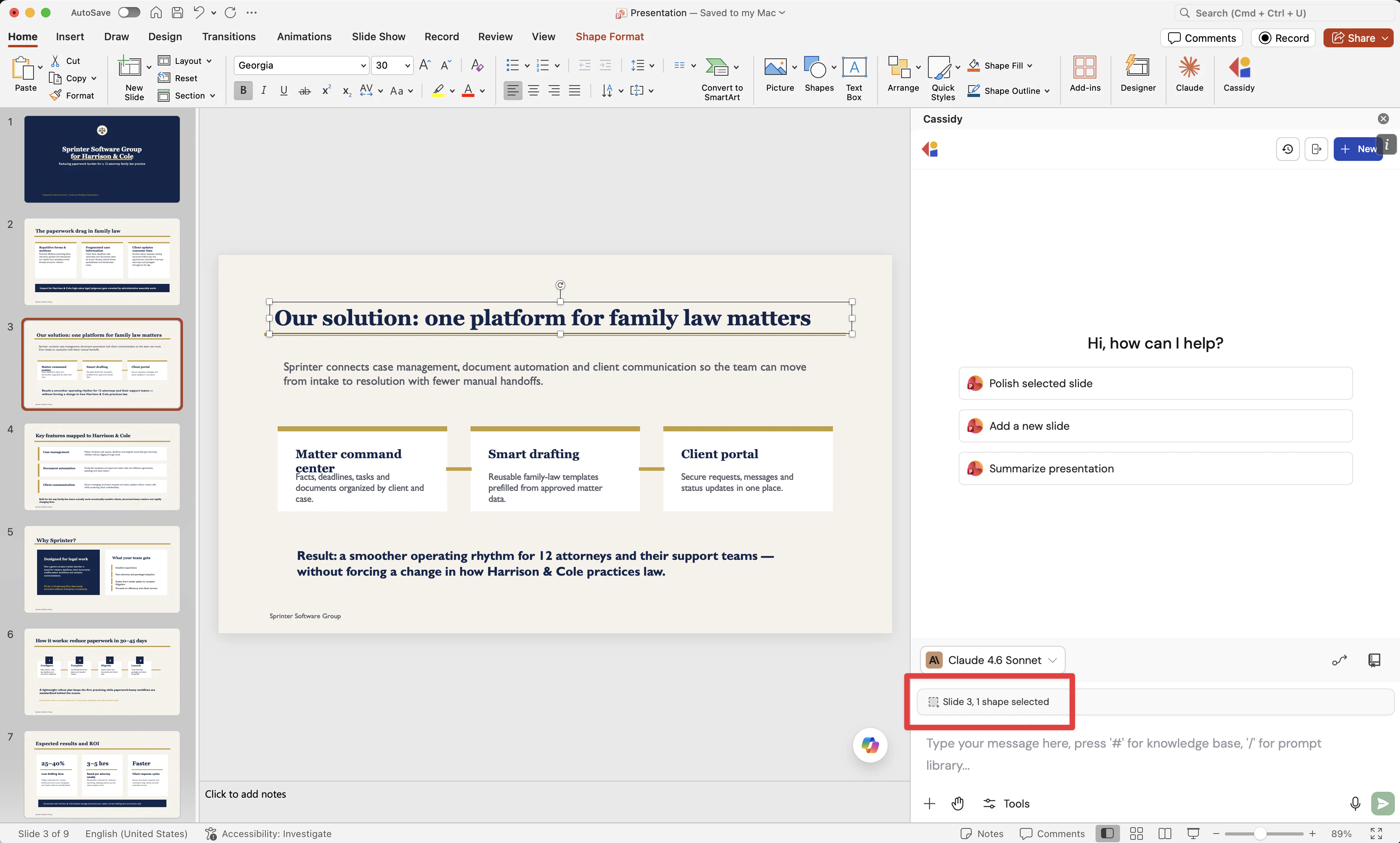
Ask the Agent what to do
Click the Cassidy icon from your toolbar and ask for the outcome you want. Common prompts: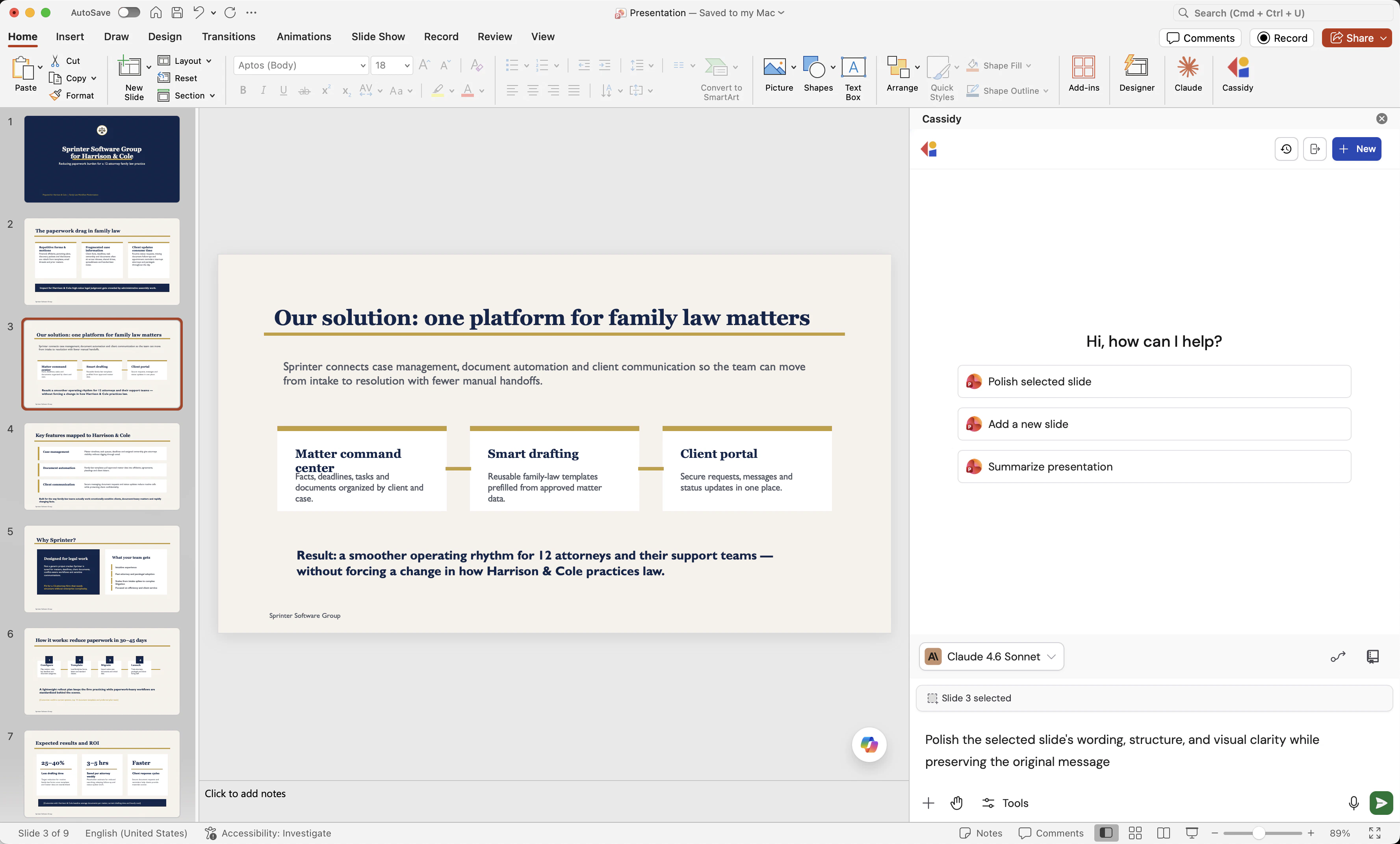
- Polish the selected slide’s wording, structure, and visual clarity
- Add a new slide to this presentation about a given topic
- Summarize this presentation
Review proposed edits
Before changing your deck, Cassidy shows an approval card describing what the Agent wants to do. Choose Allow once, Allow all edits, or Deny.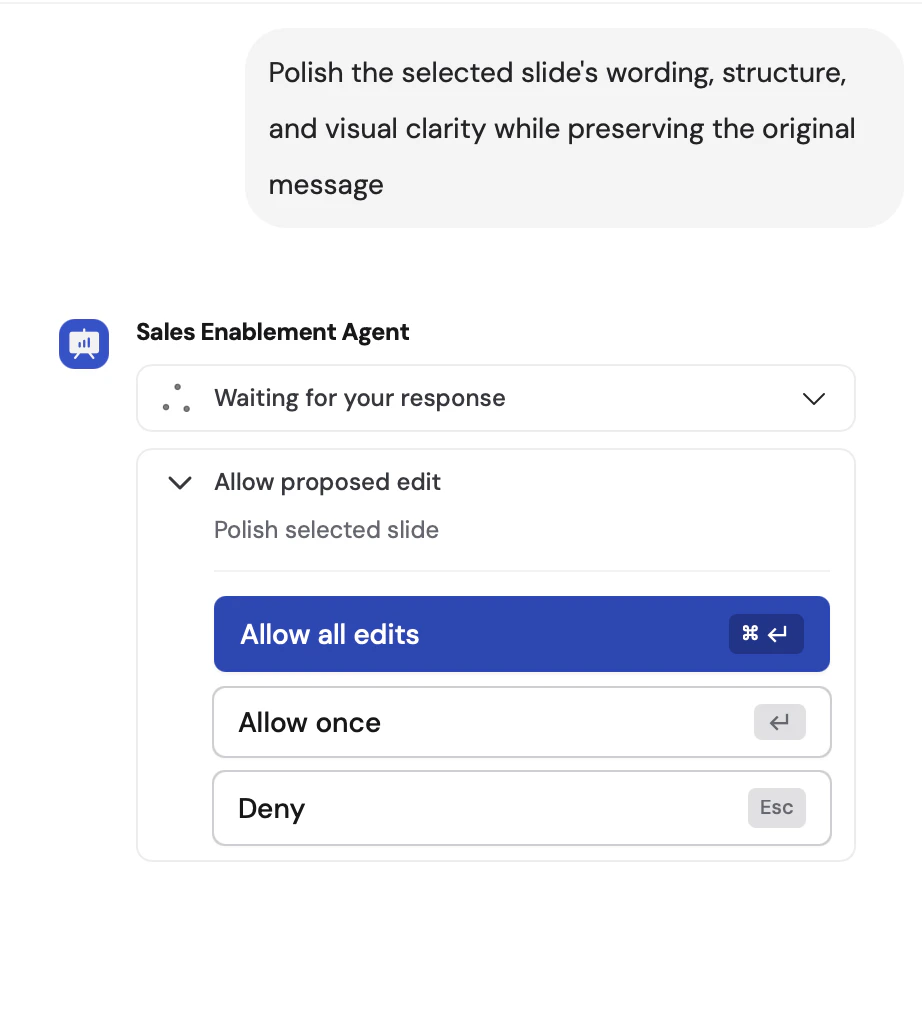
Next steps
Build and configure an Agent
Customize the Agent your extension uses with instructions, knowledge, and
capabilities.
Set up your Knowledge Base
Add company documents so your Agent gives accurate, context-aware answers
in Word, Excel, and PowerPoint.
Deploy extensions for your organization
Install Cassidy extensions for your entire team from the Microsoft 365 admin center.