

Create a new organization
1
Sign out of your current account
Click your account name at the bottom of the sidebar and select Sign Out.
2
Create a new account
Go to app.cassidy.ai and sign up with a different email address. Each Cassidy organization needs a unique owner email.
3
Set up the new organization
Complete the onboarding flow for the new organization — name it, invite team members, and configure your plan.
4
Link your accounts (optional)
To access both organizations from a single login, invite your primary email as a Member in the new organization. Then accept the invitation from your other account.This lets you switch between organizations without signing out.
Switch between organizations
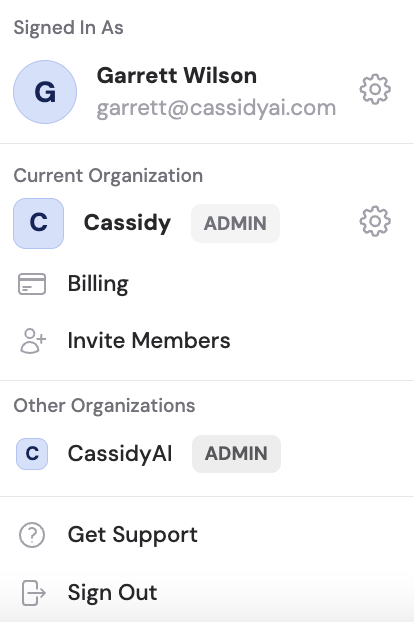
If your email is associated with multiple Cassidy organizations:- Click your account name at the bottom of the sidebar.
- You’ll see a list of all organizations you belong to.
- Select the organization you want to switch to.
Each organization has its own billing, credits, team members, and data. Nothing is shared between organizations — they are completely isolated.
Next steps
Invite team members
Add colleagues to any of your organizations.
Manage plans
Configure billing for each organization independently.