

Sharing and installation are different
Before changing access, remember:- Sharing controls who can find and open a Skill.
- Installation makes the Skill available across a person’s compatible Cassidy chats.
- Attachment makes the Skill available through a particular Agent or Workflow AI action.
Choose where a Skill lives
Each Skill has one location:- Private: Only the creator can access the Skill.
- Team: Everyone in the organization can find and view the Skill.
- Shared folder: The organization, selected groups, or selected people receive the access configured on that folder.
- Restricted folder: Only the creator and people or groups added to the folder can access it.
Share Skills with a folder
Use folders to organize and share Skills by department, use case, or audience.1
Create a folder
Open the … menu beside Team or Private, then select New Folder.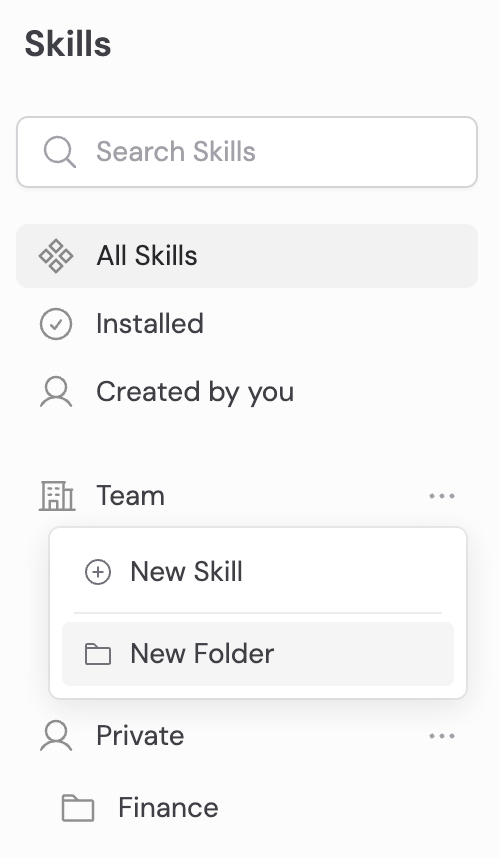
2
Choose who can access it
Give the whole organization access, or restrict the folder to selected people and groups.Choose whether each person or group can view or edit the folder’s Skills.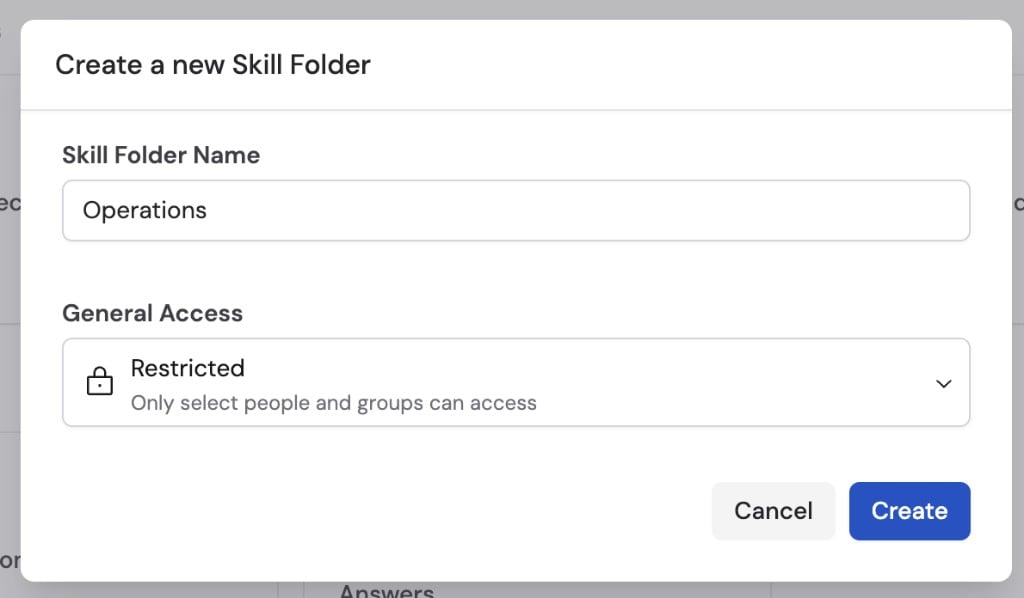
3
Add people or groups
Open the folder’s Share settings, add the intended audience, and review each access level.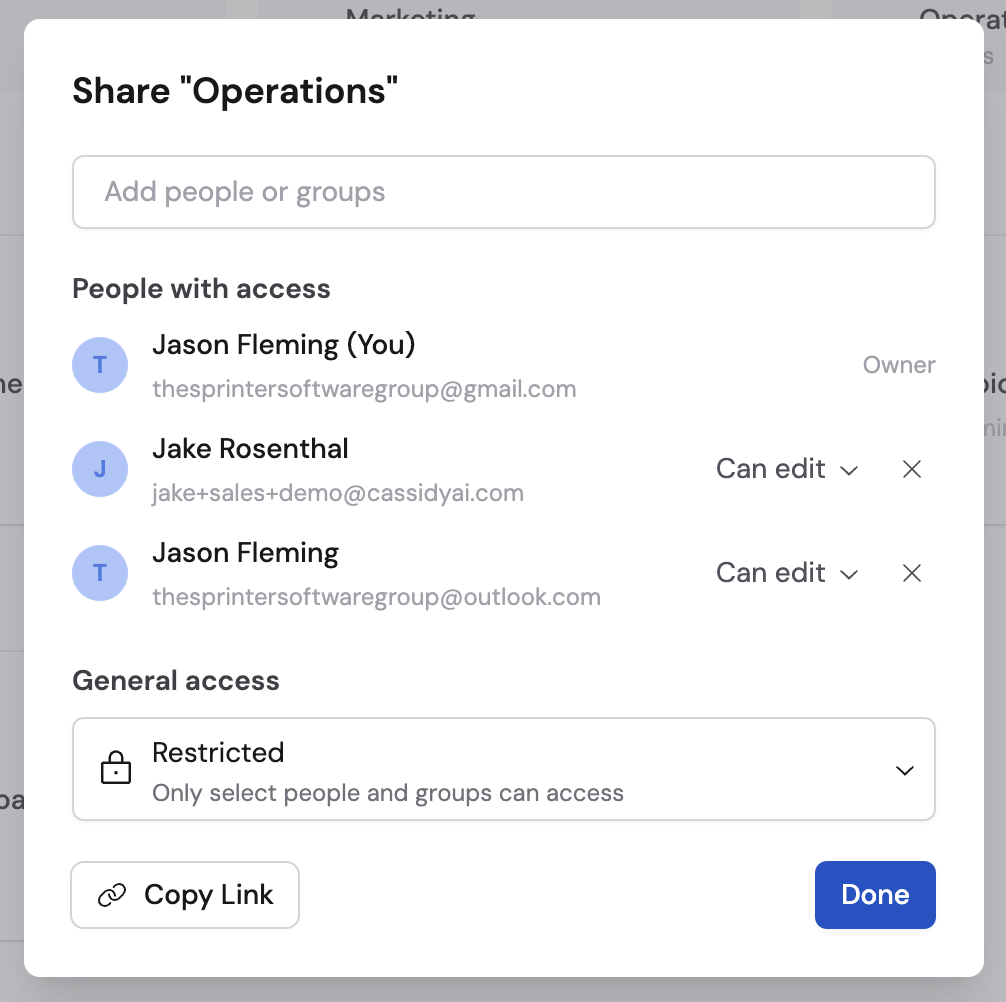
4
Move Skills into the folder
Drag a Skill into the folder, or open its More options menu and choose Move to Folder.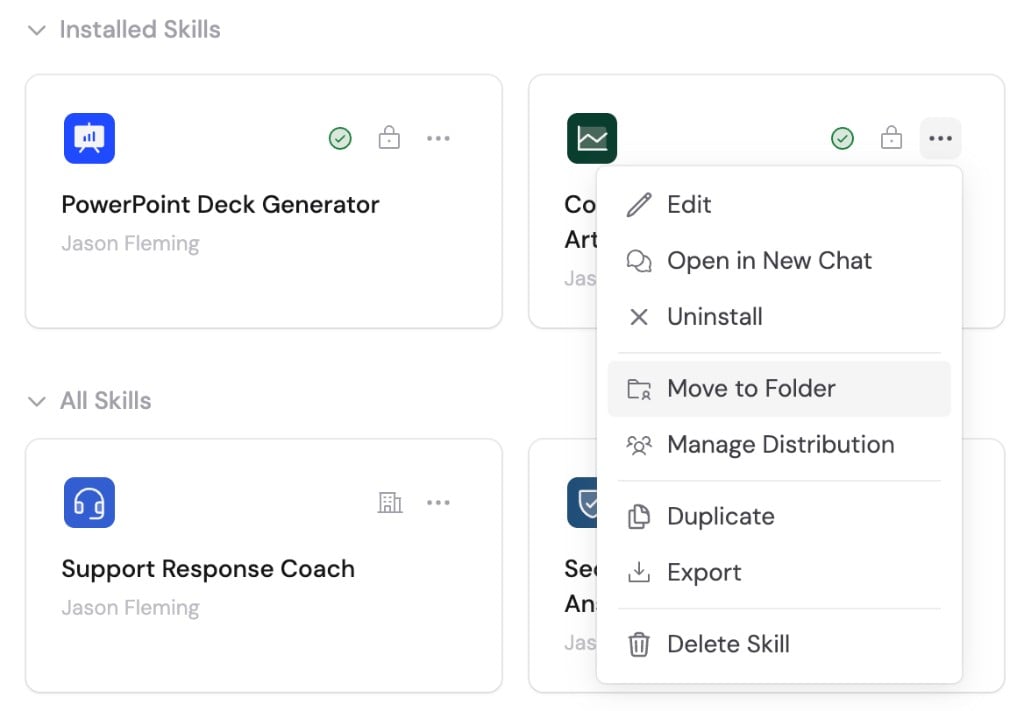
Make sure resources are also accessible
A person may be able to view a Skill but still lack access to something it uses. Sharing does not grant access to:- Knowledge Base sources
- Workflows
- External applications
- Connector accounts
- Other restricted company resources
Install an important Skill for a team
An administrator can automatically install a published Skill for selected groups or everyone in the organization. This is useful for required or organization-standard processes. It is not necessary for normal sharing: anyone with view access can install a published Skill personally. See Distribute Skills for the admin setup, access checks, and recipient behavior.Share a direct link
From the Skill editor, open More options → Sharing → Copy Link to Skill. The link does not change access. Only people who already have permission can open it.Create an independent copy
Choose Duplicate Skill when a person or team needs an editable variation that should no longer receive updates from the original. The duplicate is a separate Skill with its own draft, published versions, location, and installations.Move a Skill between organizations
Export
Export downloads a portable.skill package containing the Skill’s instructions and supporting files.
The editor exports the current Skill, which can include unpublished draft changes. Review the draft before exporting.
Secret values from API Keys & Headers are never included. External resources and authentication may need to be configured again after import.
1
Open Export Skill
Open the Skill’s menu and choose Export Skill.Export availability follows the same organization control used for Agent and Workflow exports.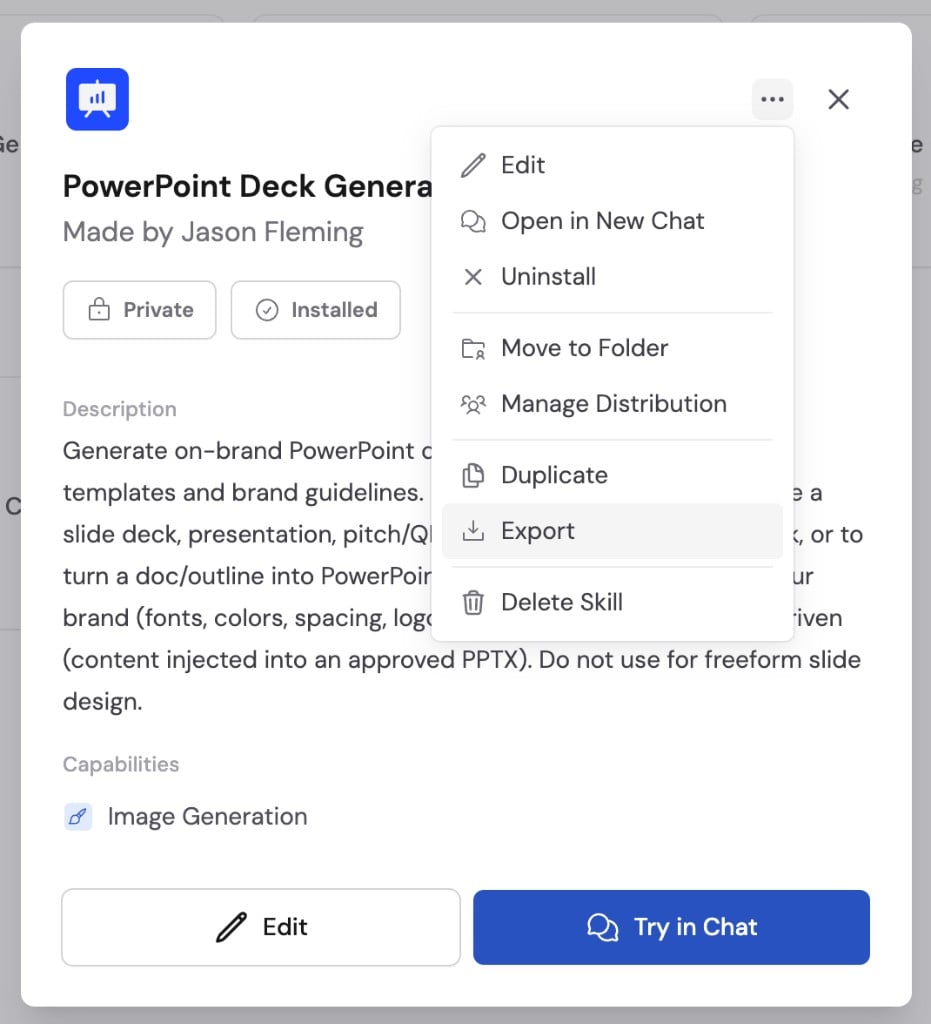
2
Store the package securely
The package may contain proprietary instructions, templates, examples, scripts, and files. Handle it according to your organization’s policies.
Import
1
Open Upload Skill
Open Customize → Skills, then open New Skill and choose
Upload Skill.
2
Choose the file
Upload a 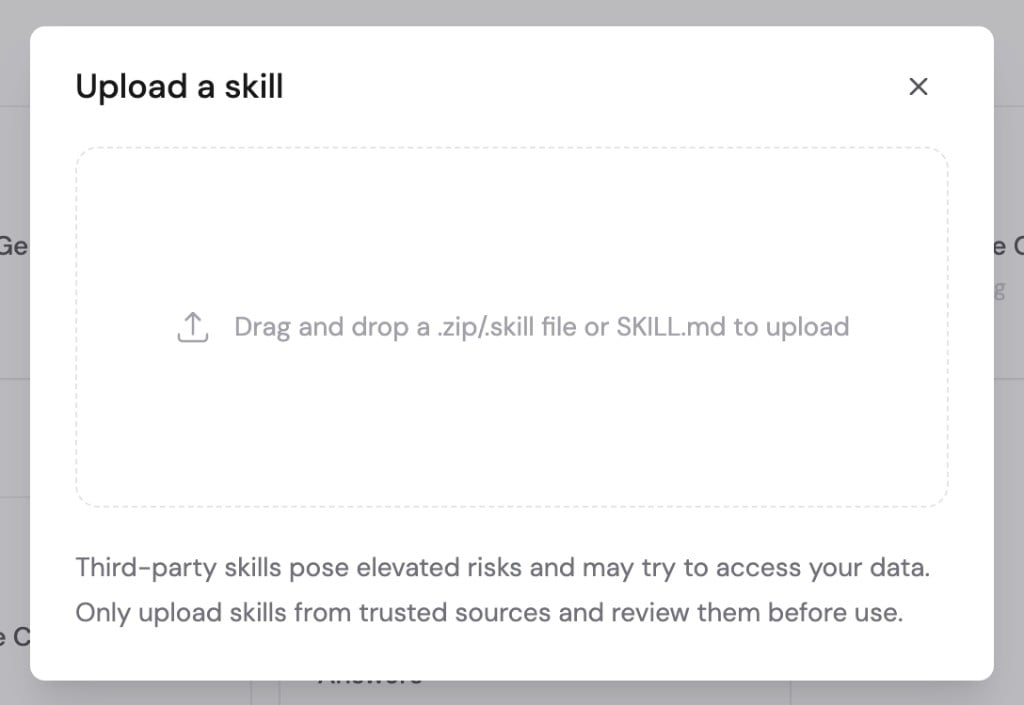
.skill, .zip, SKILL.md, or compatible Markdown file.A .skill or .zip archive must contain SKILL.md.3
Review the draft
Cassidy creates a new draft. Review every instruction, file, tool, and
reference before publishing.
4
Reconnect resources
Replace Knowledge Base sources, Workflows, Connectors, or other resources that do not exist or are not accessible in the new organization.
Delete a Skill safely
Open More options → Delete Skill. Deletion cannot be undone. Before deleting a shared Skill, check:- Who has installed it
- Whether it is distributed by an administrator
- Which Agents include it
- Which Workflow AI actions use it
- Whether recent usage suggests people still depend on it
Next steps
Use Skills
Install a Skill or make it available through an Agent or Workflow.
Distribute Skills
Automatically install a required Skill for groups or your organization.