

Create a new Workflow
1
Open the Workflows page
Click Workflows in the left sidebar of your Cassidy dashboard.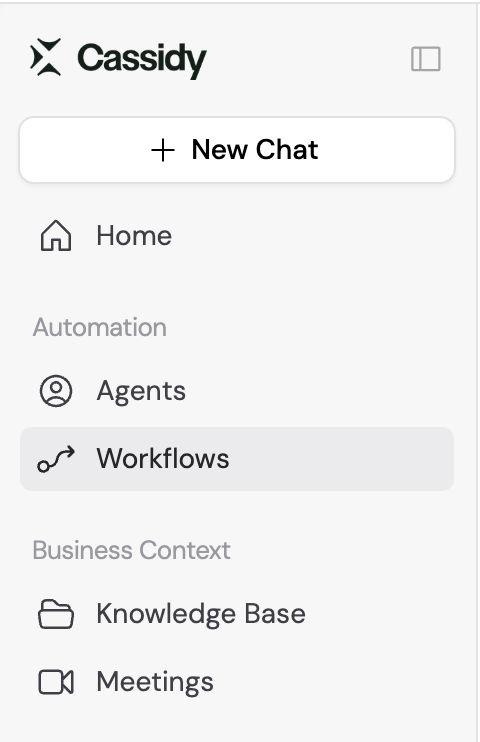
2
Click + New Workflow
In the top-right corner, click + New Workflow. Select one of four options: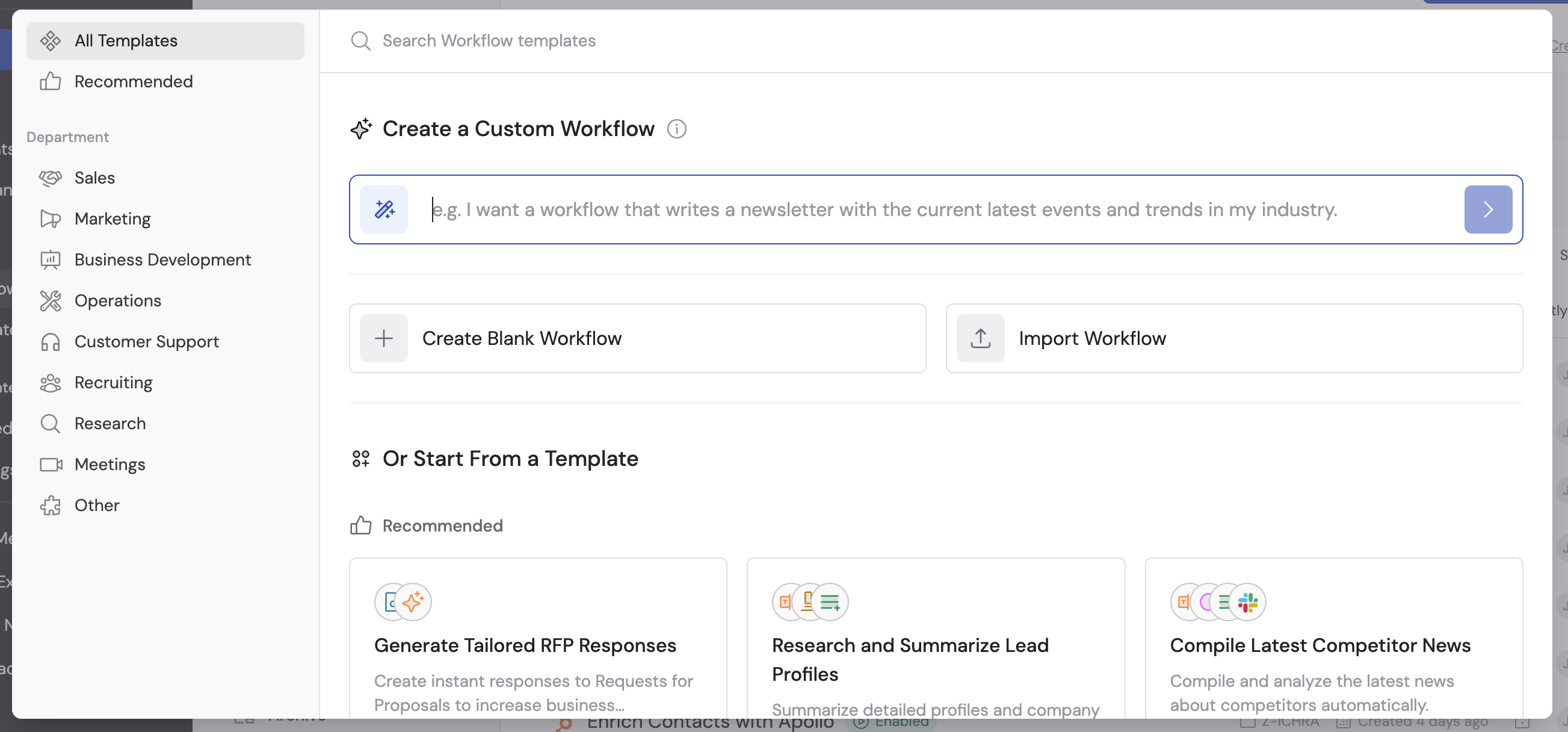
- Custom Workflow — Describe your automation in plain language and the Workflow Copilot generates it for you.
- Blank Workflow — Start from scratch with an empty canvas.
- Import Workflow — Upload a Workflow JSON file to add it to your organization.
- Template — Browse pre-built Workflows for common use cases and customize them.
3
Refine with the Workflow Copilot
If you selected Custom Workflow, the Workflow Copilot opens automatically. Describe what you want to automate, answer clarifying questions, and the Copilot builds out the trigger, actions, and configuration for you.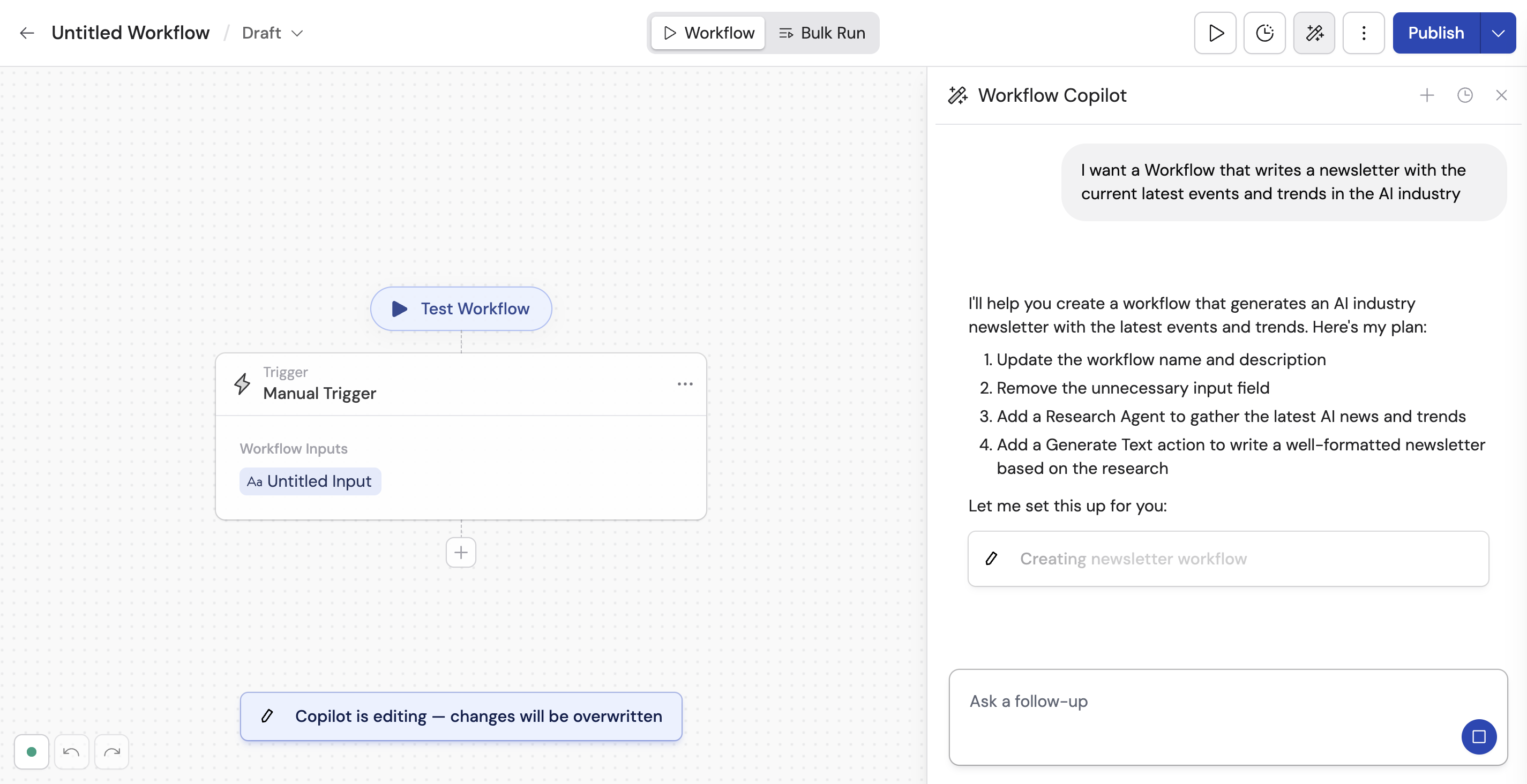
4
Review and customize
After creation, review and fine-tune your Workflow in the editor. You can adjust the trigger, add or remove actions, update prompts, and connect integrations at any time.
5
Publish your Workflow
When you’re satisfied, click Publish to make the Workflow available for your team. See Share and deploy Workflows for details on versioning, publishing, and permissions.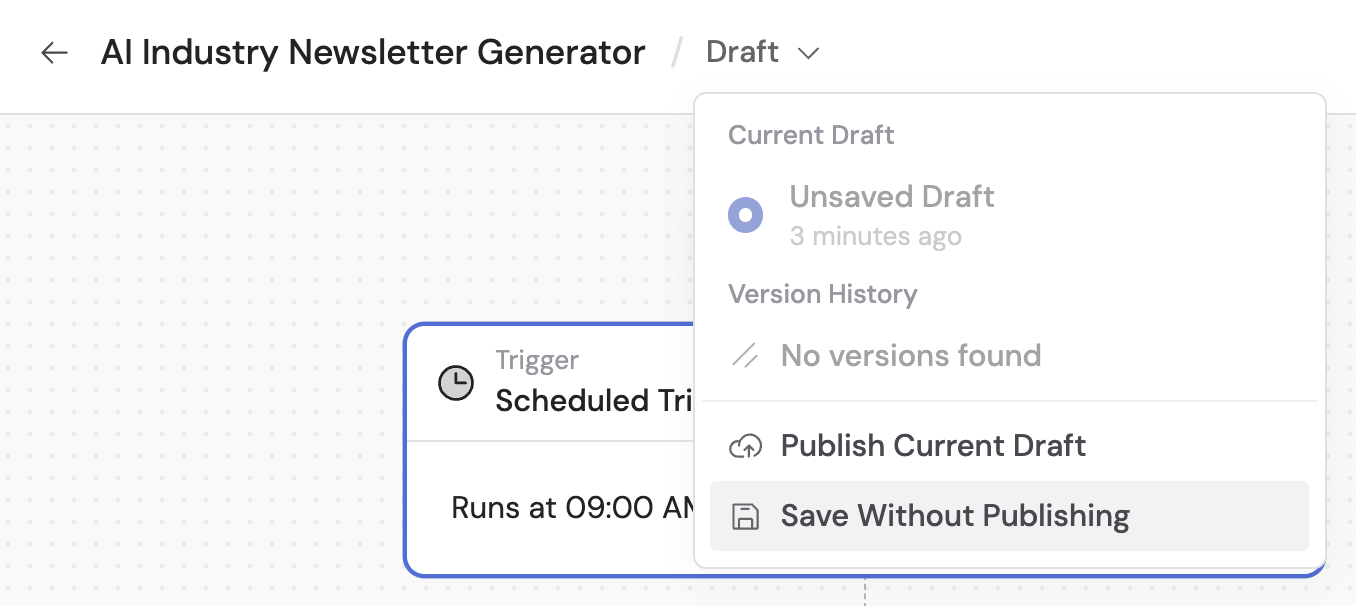
Start from a template
Templates are pre-built Workflows for common tasks like writing personalized sales emails, summarizing support tickets, or generating meeting follow-ups.1
Browse templates
Click + New Workflow and select Template, or click Browse Templates on the Workflows page.
2
Search and select
Use the search bar to find templates by keyword or browse by category. Click on a template that matches your goal.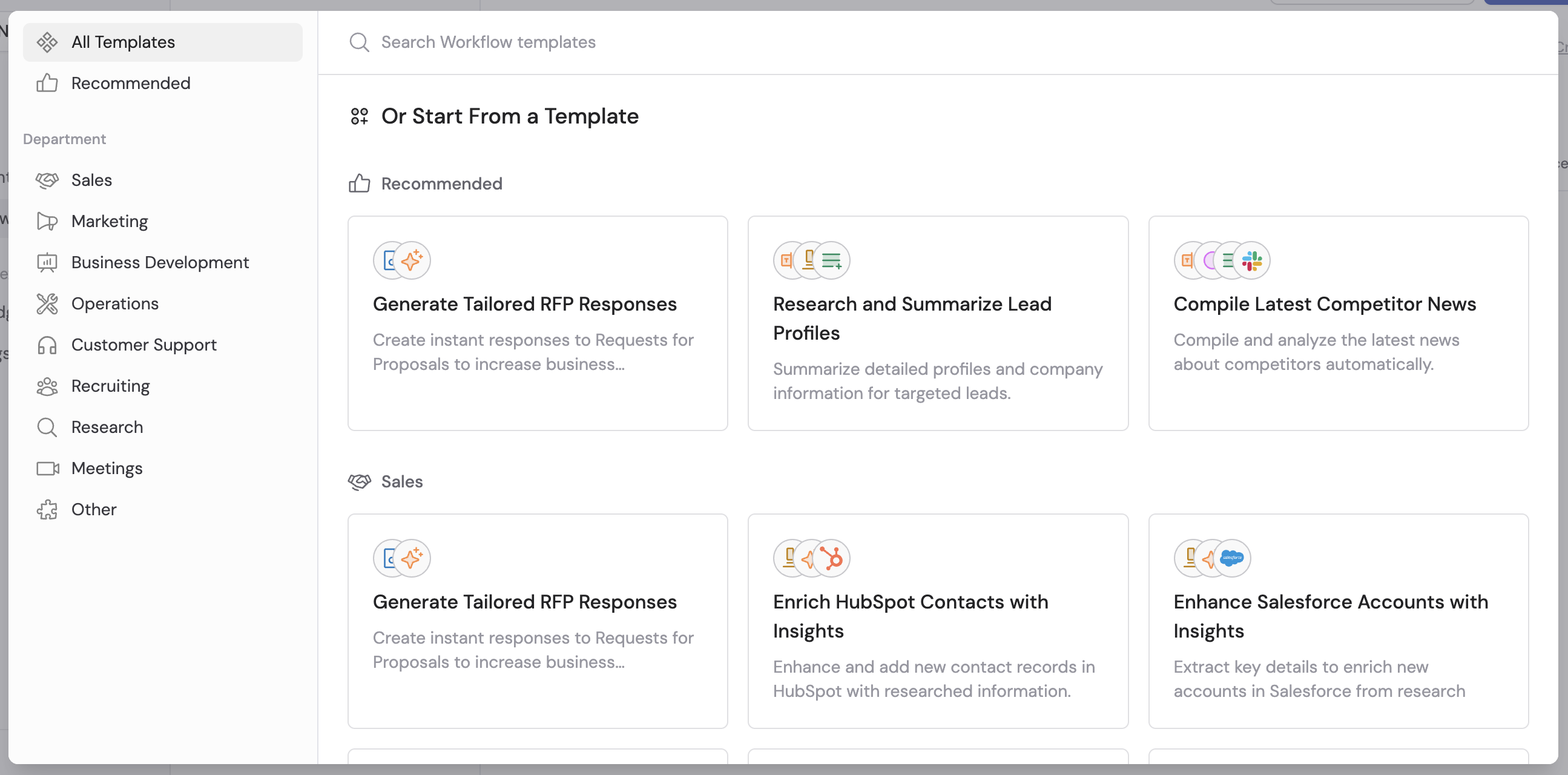
3
Configure template settings
Follow the guided setup process to customize the template: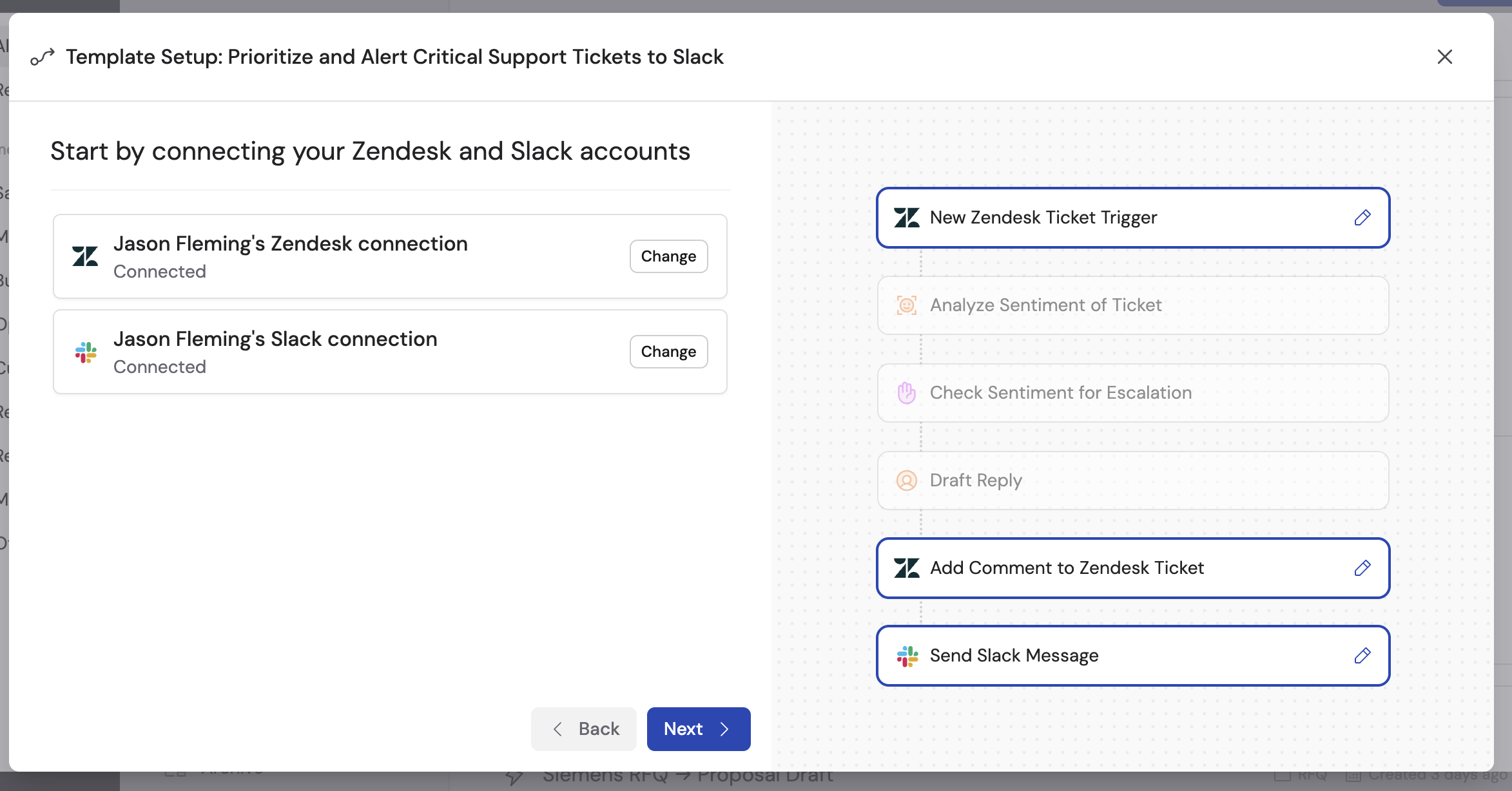
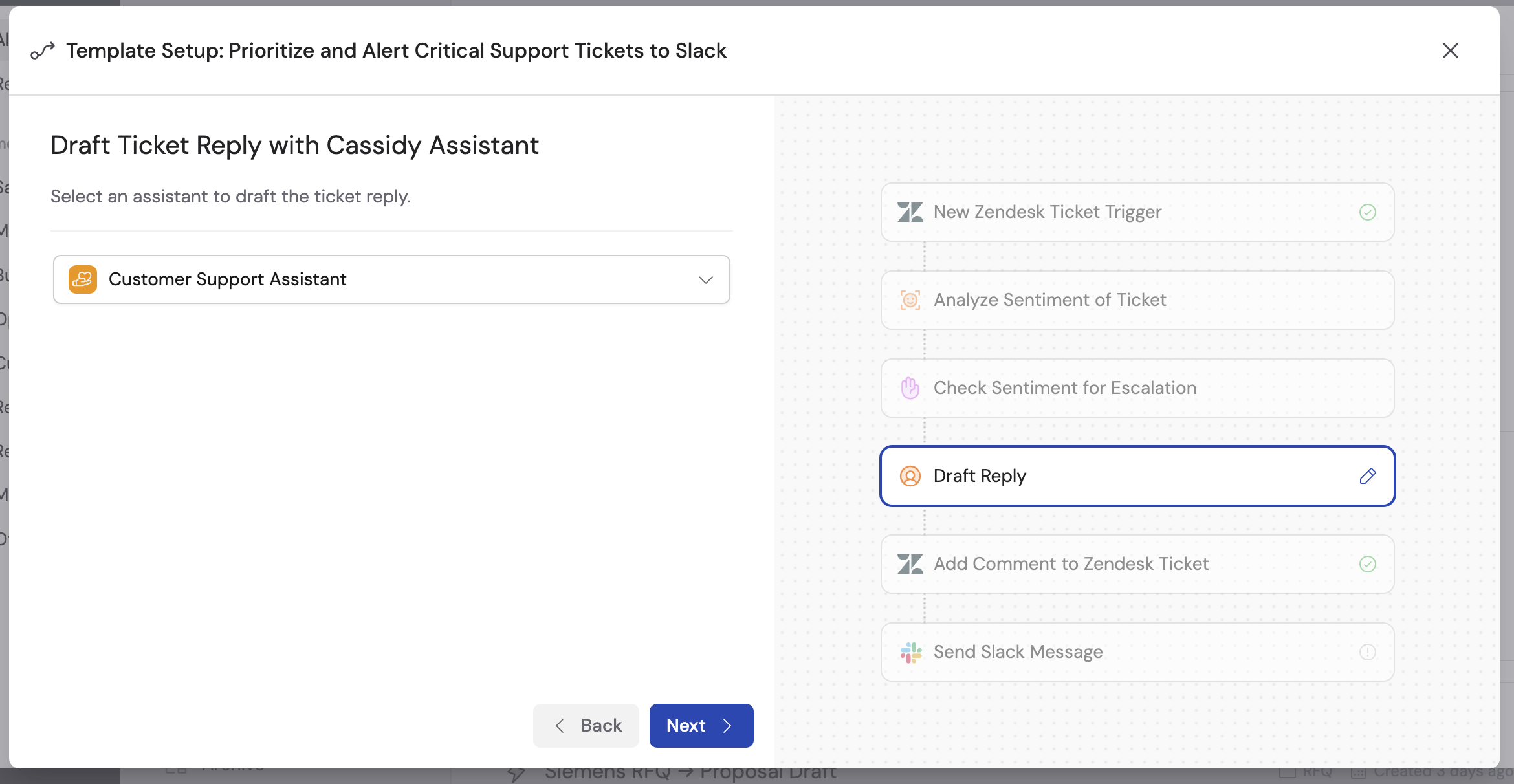
- For integrations, you’ll be prompted to authorize connections
- Select the Agent to use for certain steps
- Provide any other inputs needed for the specific Workflow
- Click Next to continue through each step
4
Set folder and permissions
Choose a folder to organize your Workflow and set permissions to control who can access it. Click Finish to complete creation.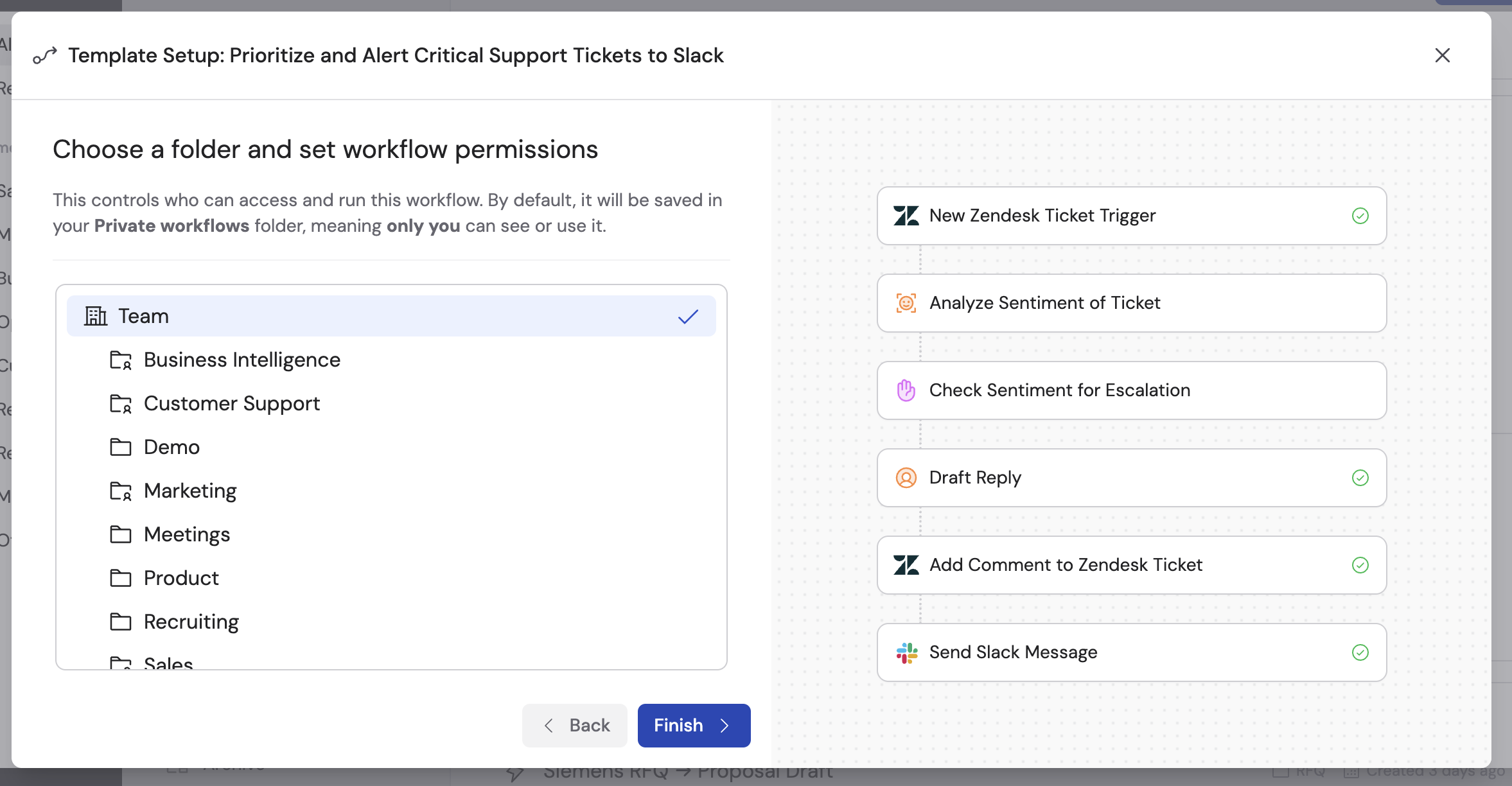
5
Customize further
After the template is added to your Workflows, you can run it as-is or open the editor to adjust triggers, actions, prompts, and variables to fit your exact needs.
The Workflow editor
The Workflow editor is where you build and configure your automation. You can configure your Workflow in two ways:- Manually — Edit each setting directly in the editor. The sections below walk through the trigger, actions, and variables.
- With the Workflow Copilot — Describe what you want in plain language and the Copilot updates the configuration for you. You can use the Copilot to build from scratch, make targeted changes, or troubleshoot issues.
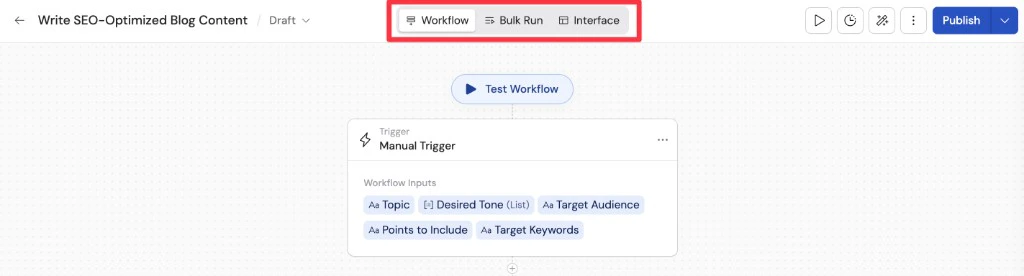
- Workflow — The canvas (trigger, actions in order) and the settings sidebar when you select a block.
- Bulk Run — Run the Workflow on a dataset.
- Interface — How the Run tab looks for people who run the Workflow after it is published.
Manual-style Workflows: Bulk Run and Interface show only when the trigger supports the interactive Run tab in Cassidy (for example Manual). Scheduled and integration triggers hide those two tabs.
Configure your Workflow
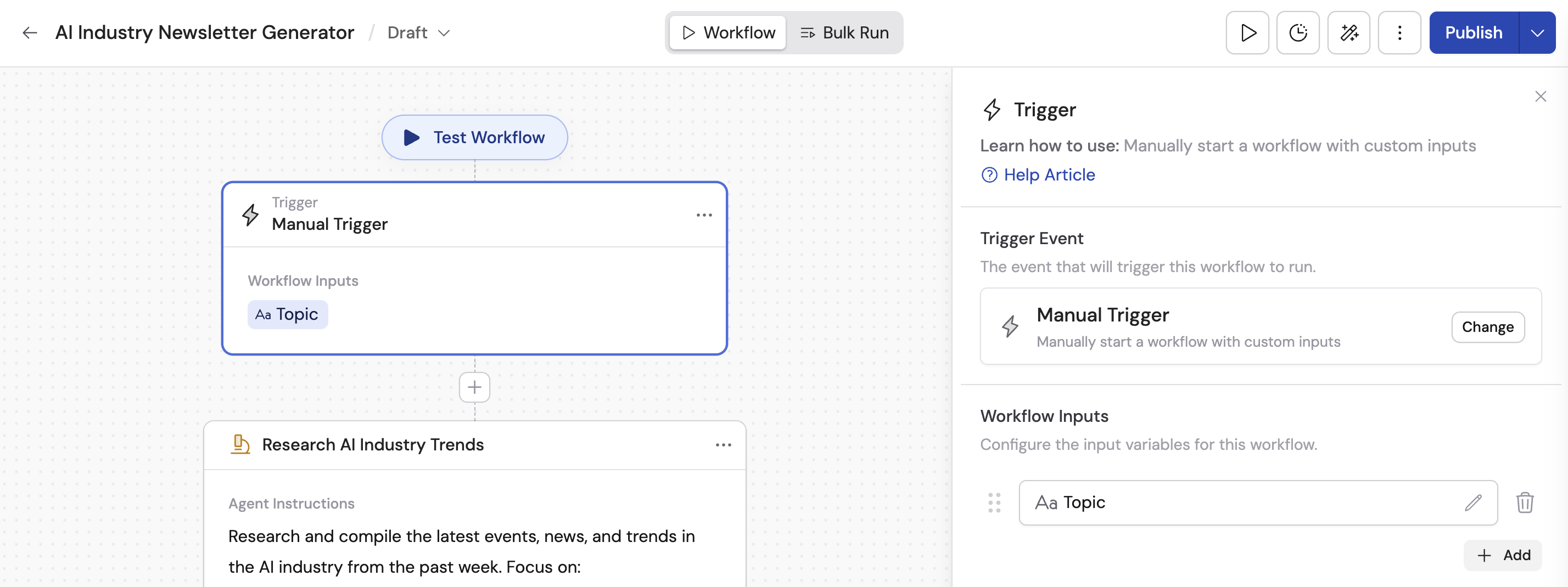
Trigger
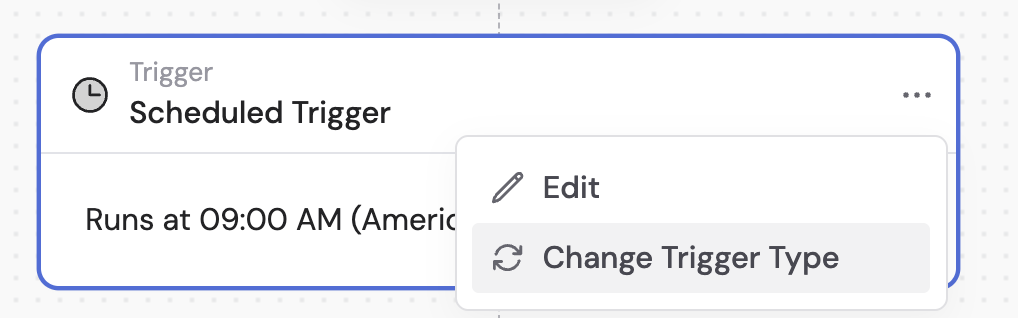
The trigger defines how and when your Workflow starts. Click the trigger block at the top of the editor to configure it.- Manual — Users fill in a form and click Run
- Scheduled — Runs automatically on a recurring schedule
- Webhook — Starts when an external system sends a POST request
- Email — Runs when an email is sent to the Workflow’s dedicated email address
- Integration trigger — Fires on events like a new Slack message, Zendesk ticket, HubSpot record, or Google Calendar event
Actions
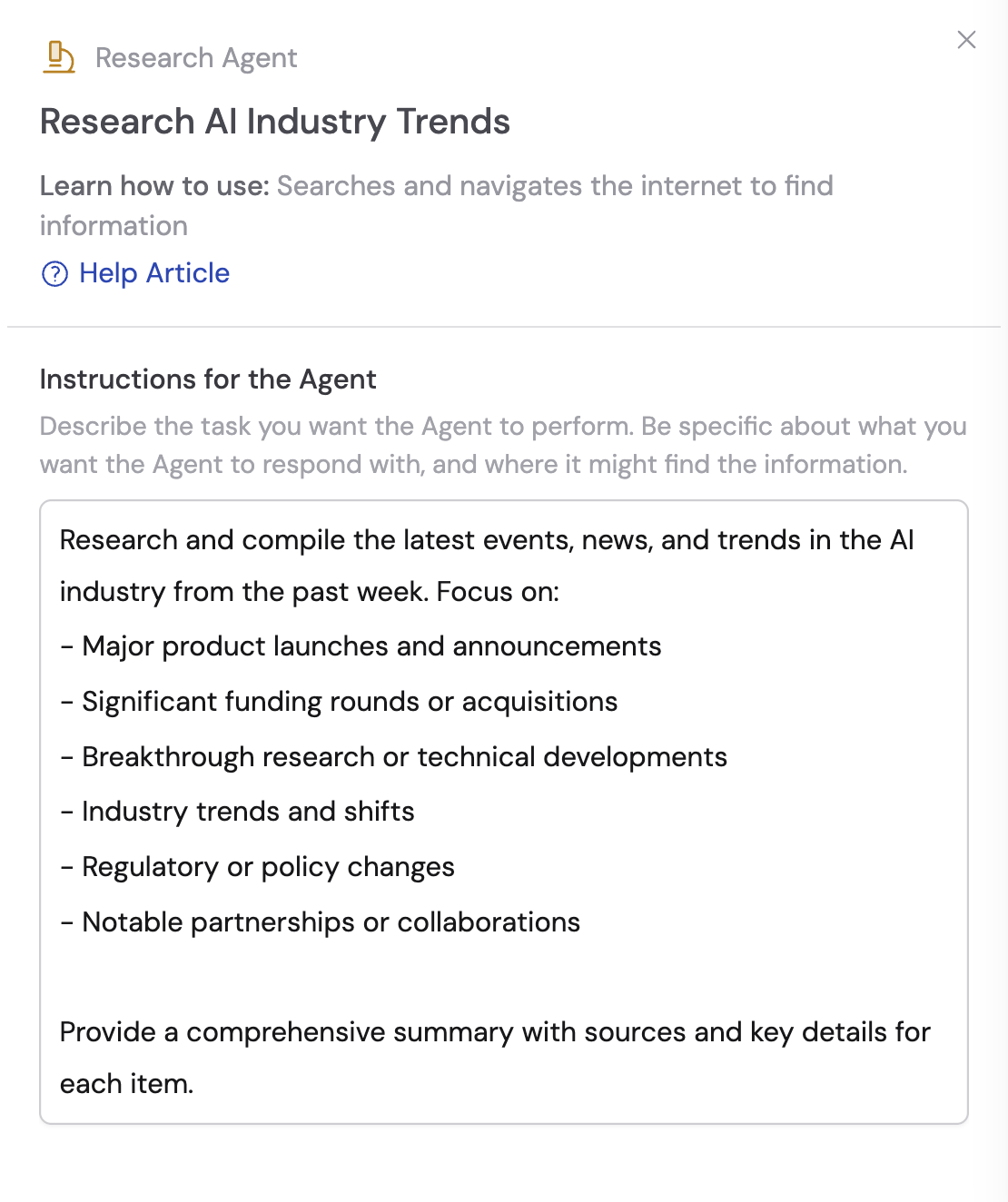
Actions are the steps your Workflow performs after the trigger fires. Click the + button between blocks to insert a new action. Browse or search the action library to find what you need — generate text, send an email, update a CRM record, run code, scrape a webpage, and more.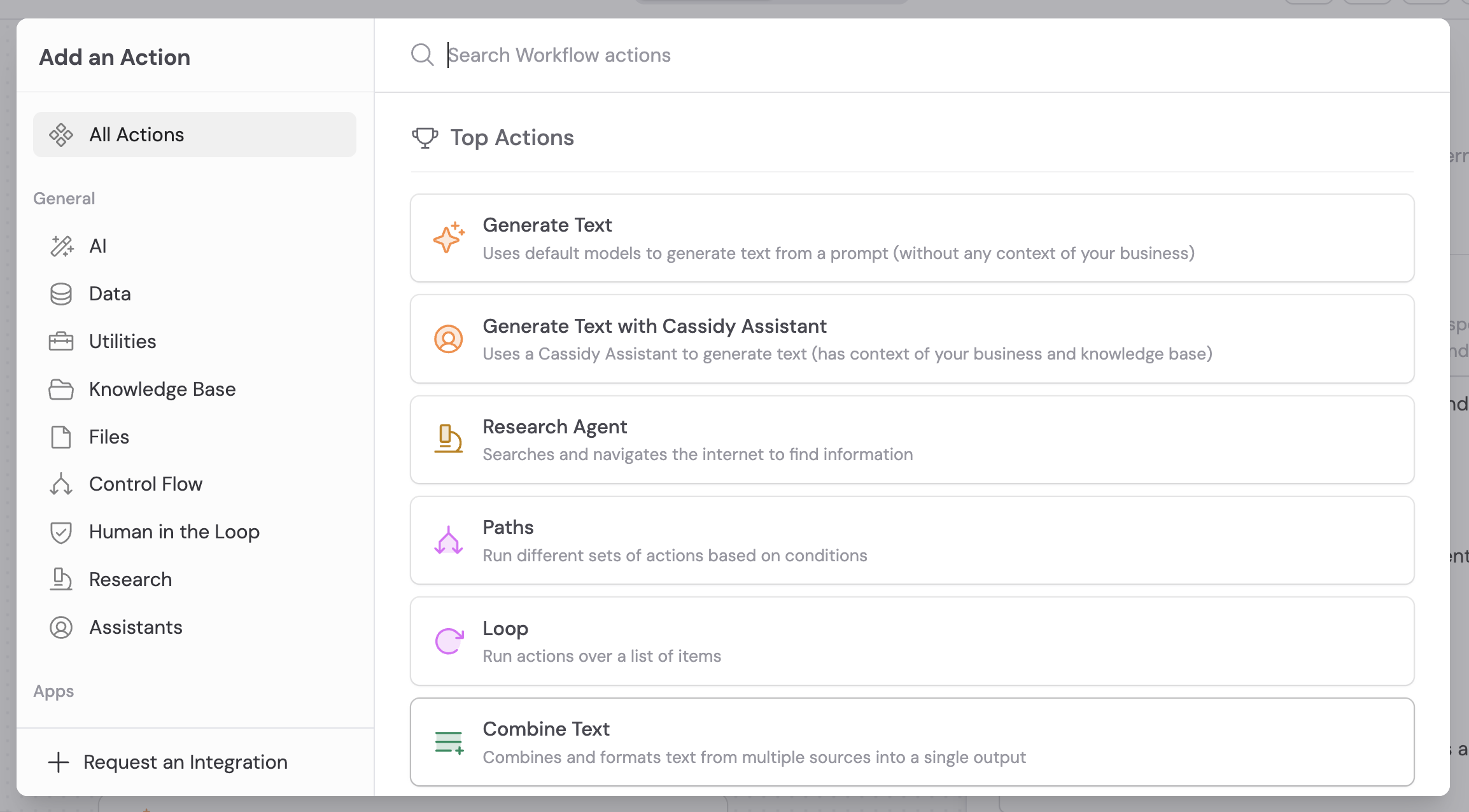
Variables
Variables let you pass data from the trigger and from previous action outputs into later steps. By default, actions do not have access to the output of earlier steps — you need to explicitly reference variables to connect them. For example, in a LinkedIn-enhanced cold email Workflow, the trigger collects a Name and Email address. These become variables you reference in later actions like “Summarize LinkedIn Profile” and “Write Company Description.”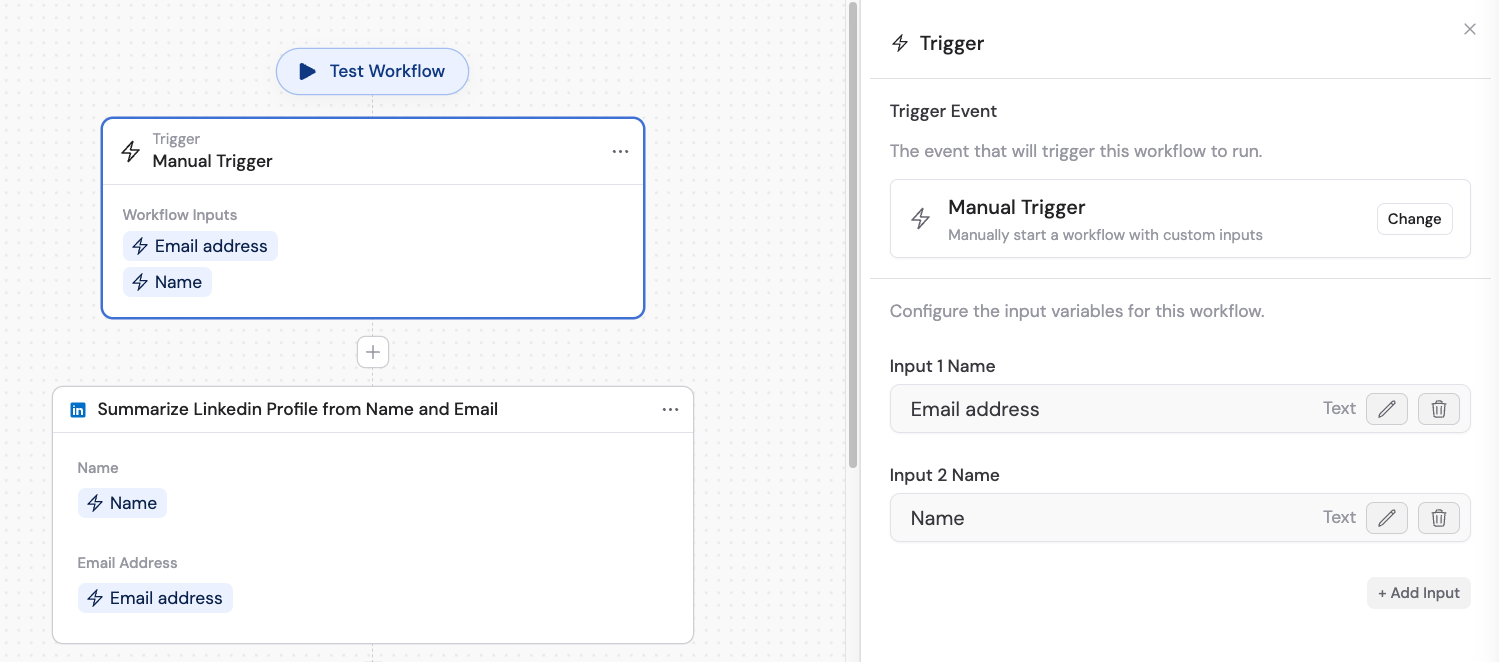
Trigger inputs become variables you can reference in later actions
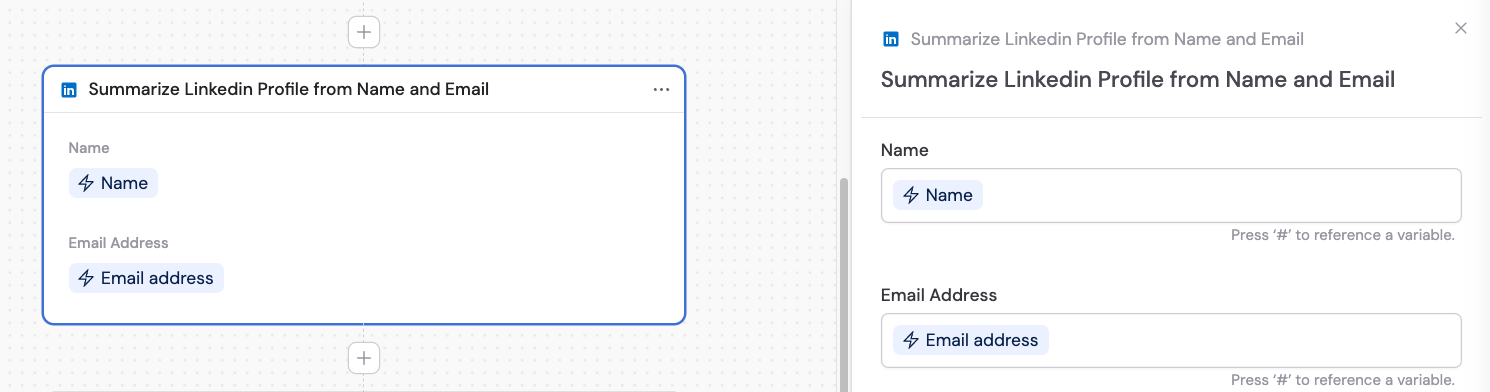
Map action inputs to variables from earlier steps
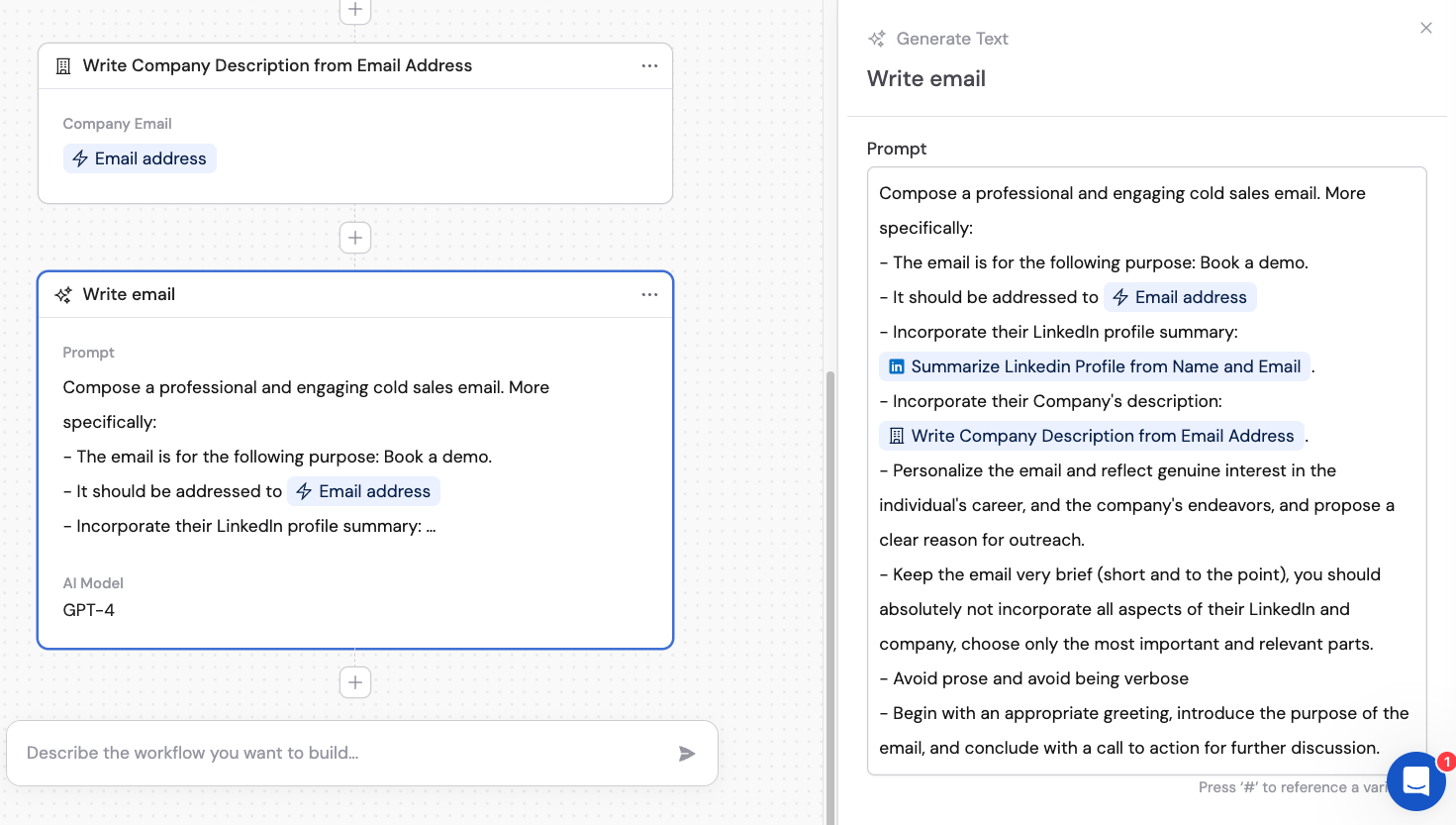
Combine variables from multiple steps in a prompt
Control flow
For branching logic, use Paths to route your Workflow based on conditions — like routing a support question to different Agents depending on the product mentioned. For repeating steps, use Loops. For pausing execution, use Wait/Delay or Request Approval.Run view and Interface (Manual-style Workflows)
For Manual-style Workflows, use the Interface tab to change what the Run tab looks like for people who run the Workflow after it is published—header, description, form fields, run button, and optional highlighted Outputs.
Interface tab with preview and settings: branding, inputs, and outputs configured for the Run tab.
Use the Workflow Copilot
The Workflow Copilot is an AI-powered building partner that helps you configure Workflows using plain language. Instead of editing each setting manually, describe what you want and the Copilot generates or updates the Workflow for you — including triggers, actions, prompts, and variable mappings. You can use the Copilot at any point: when creating a new Workflow from scratch, when starting from a template, or when refining an existing Workflow.Access the Copilot
- When creating a new Workflow: The Copilot opens automatically if you choose Custom Workflow.
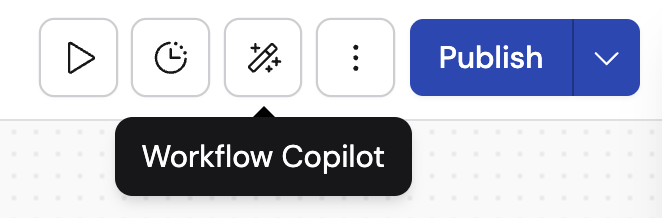
- When editing an existing Workflow: Click the wand icon in the top toolbar of the Workflow editor.
How the Copilot works
1
Describe what you want
Tell the Copilot what you want to automate in plain language. For example: “When a new Zendesk ticket arrives, summarize it using our product knowledge base and draft a reply.” The Copilot plans its approach and begins building.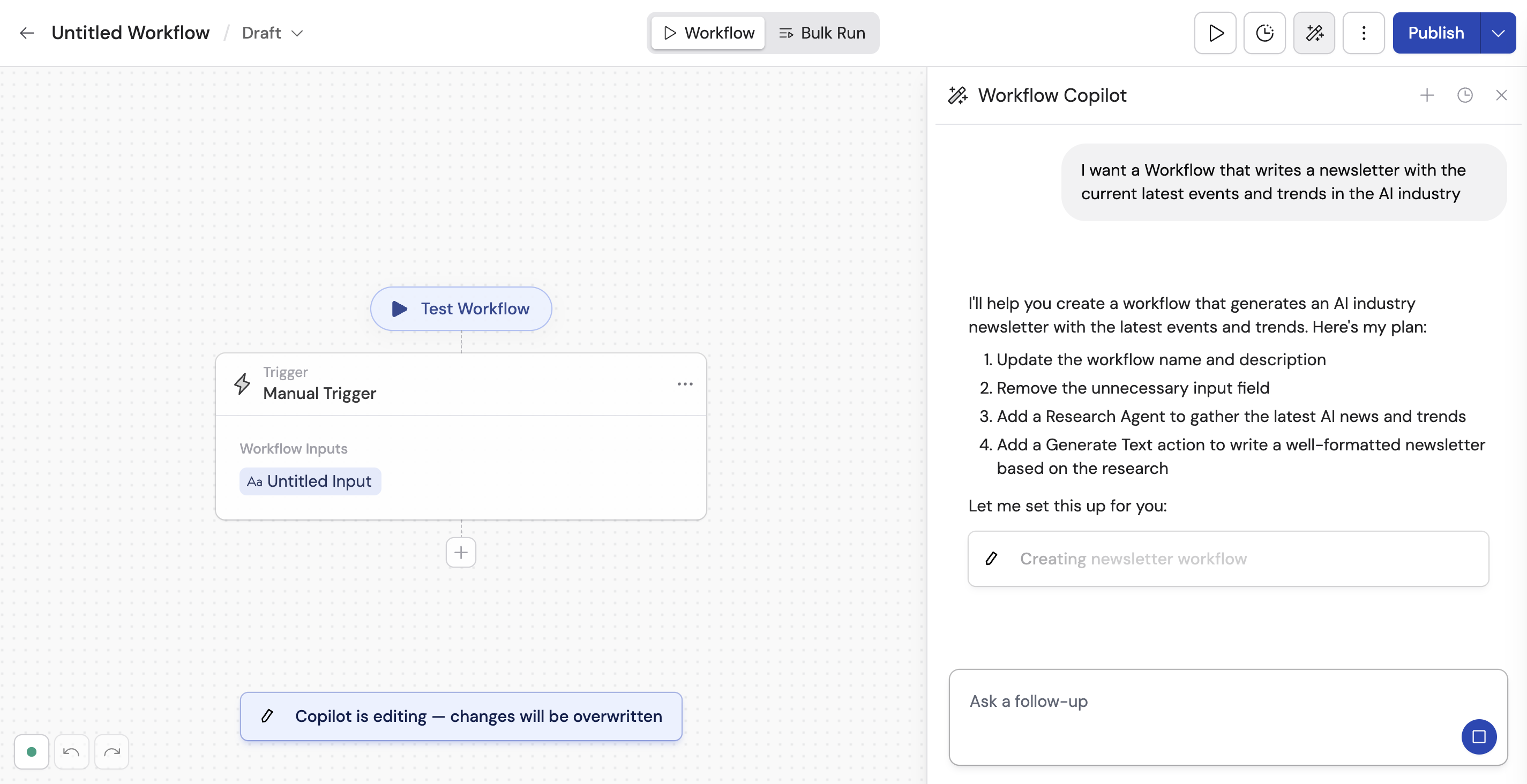
2
Review the initial version
The Copilot generates a complete Workflow. You can see the steps that were changed or added, along with a message from the Copilot explaining what it did.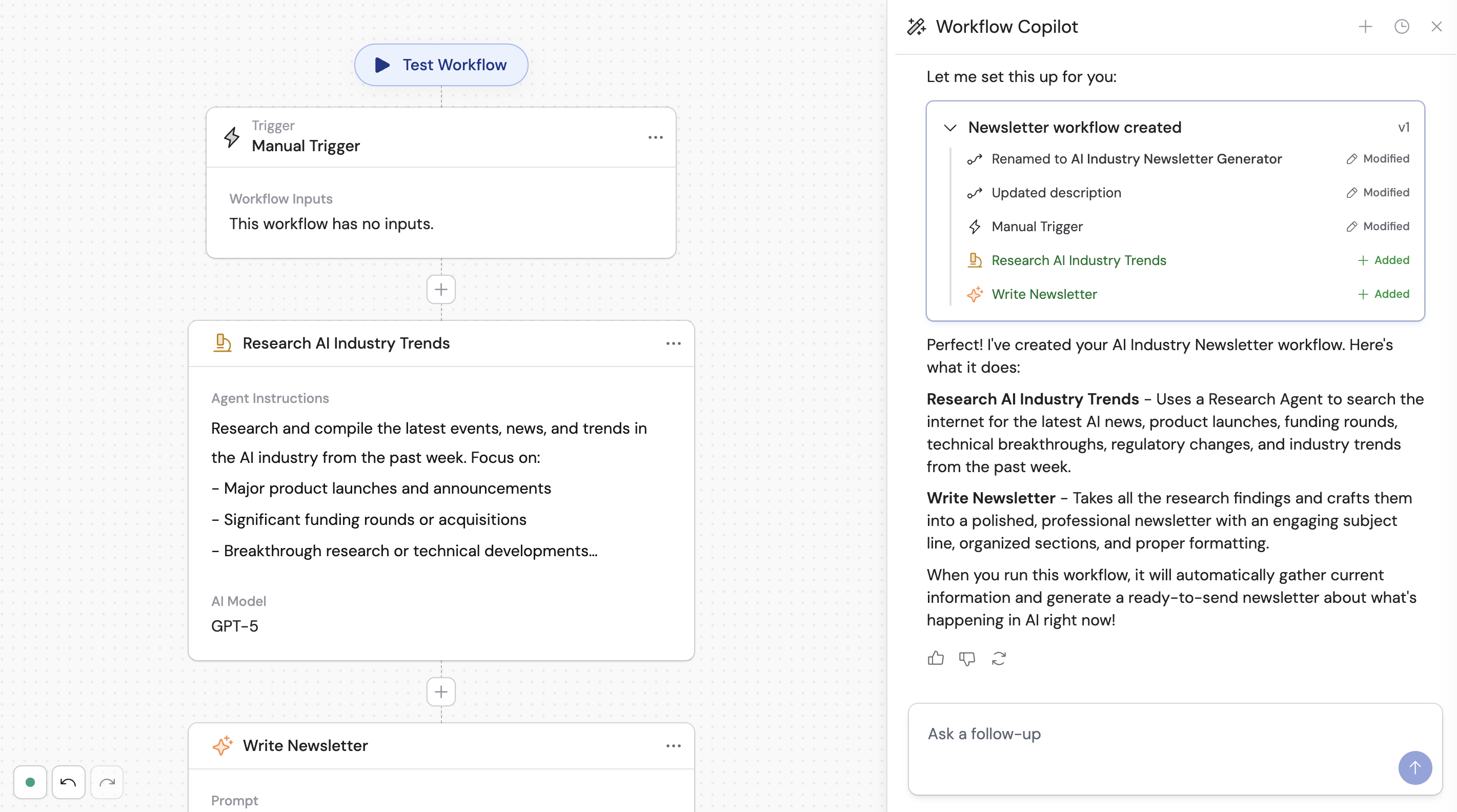
3
Continue iterating
Send follow-up messages to refine further. You can ask the Copilot to add steps, modify existing steps, swap models, adjust prompts, or connect different integrations.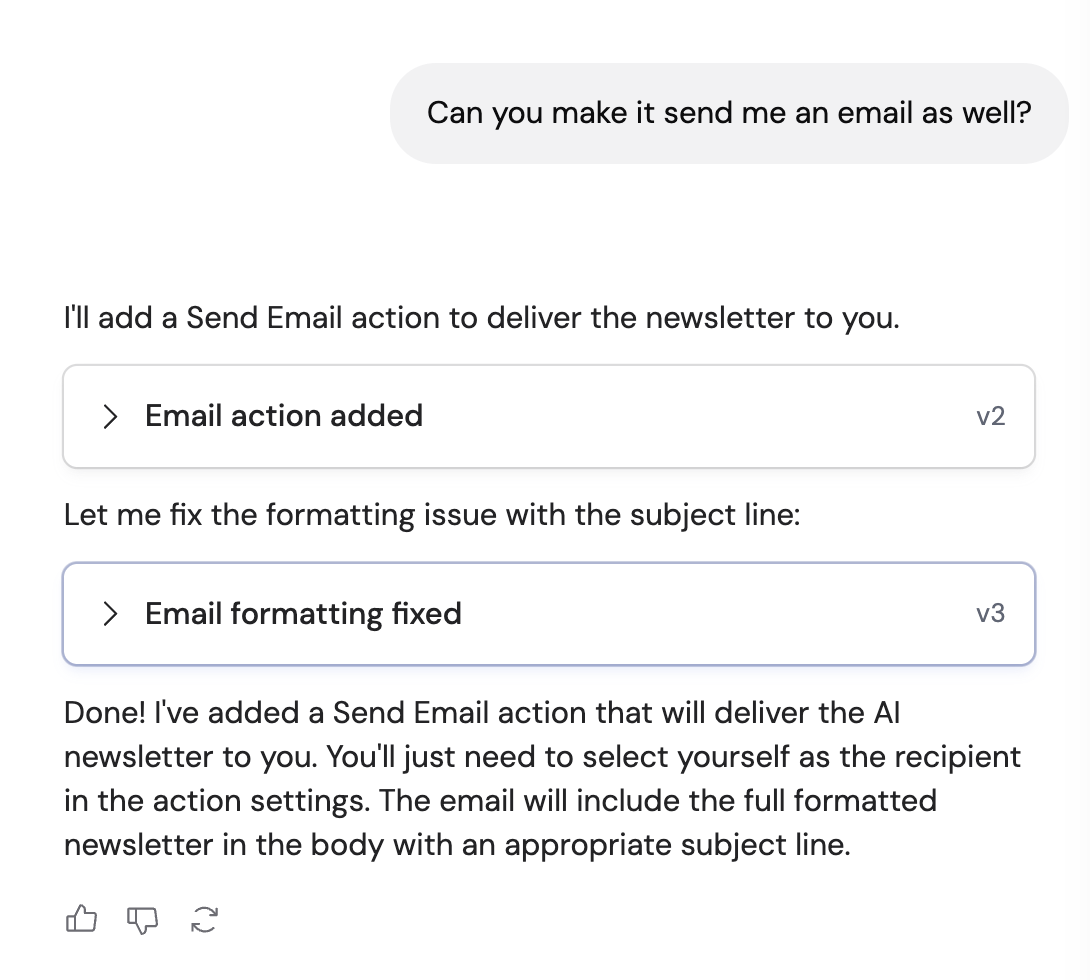
4
Test the result
Once you are satisfied, test the Workflow to verify it produces the output you expect.
Copilot controls
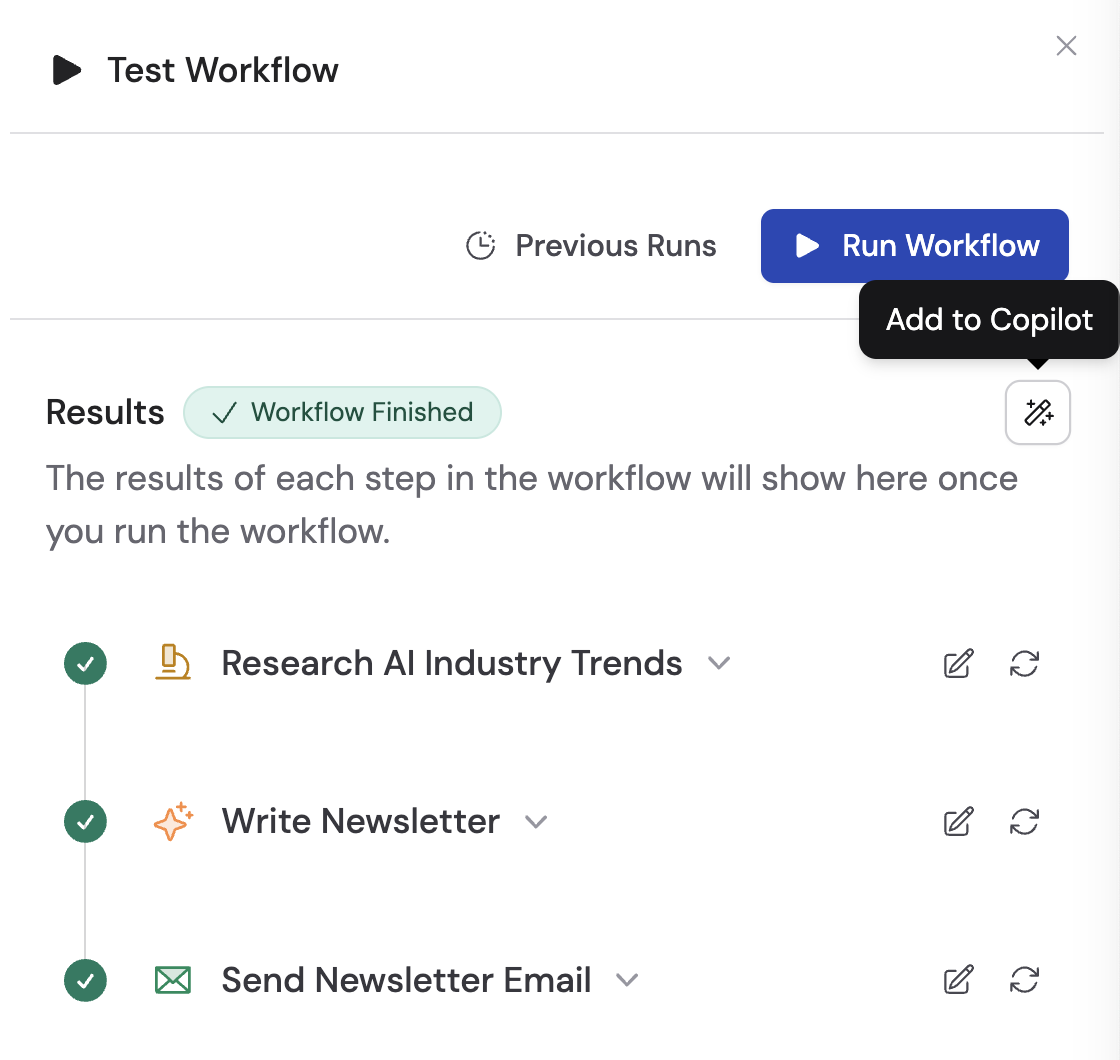
Use run results with the Copilot
When you test a Workflow or review a finished row in a bulk run, you can send the run to the Copilot for analysis:- Add to Copilot — Available when you have permissions to edit the Workflow. Click this icon to attach a finished run to the Copilot chat, then ask the Copilot to improve the results or update the Workflow. If you add a run from the published Bulk Run tab, Cassidy opens the Workflow editor with the run attached.
- Fix in Copilot — If a step produces an error during testing, click this icon to bring the error into the Copilot’s context so it can debug and resolve the issue.
Next steps
Customize the run view
Style the Run tab, Manual inputs, and highlighted outputs from the Interface tab.
Run and test your Workflow
Execute your Workflow and use the testing interface to debug each step.
Process data in bulk
Import a CSV or use Smart Import to run your Workflow across a full dataset.
Share and deploy
Manage permissions, publish versions, organize into folders, and deploy externally.
Advanced: Structured outputs
Define specific output fields for consistent, machine-readable results.