

Organize Agents with folders
Folders help keep your Agent library organized and let you set permissions at the folder level.1
Navigate to Agents
Click Agents in the left sidebar.
2
Create a folder
Click Create a Folder or the + icon next to the Folders heading in the sidebar.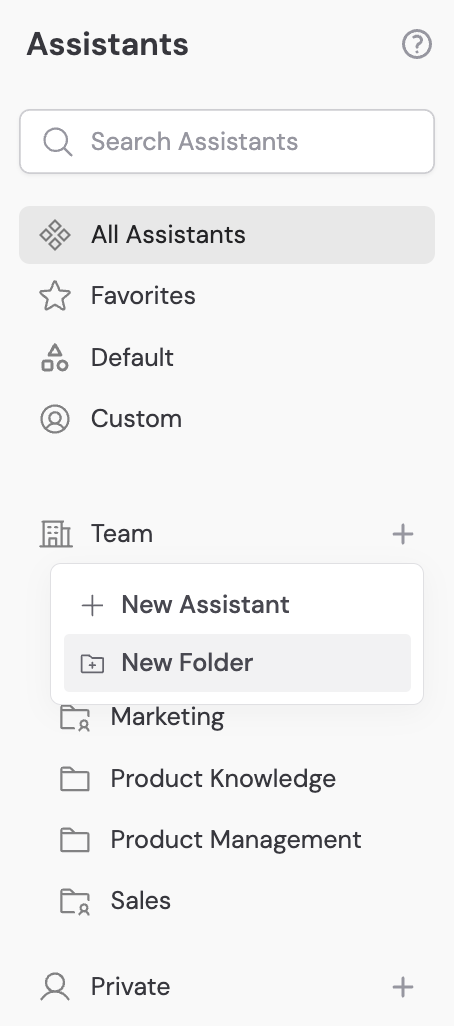
3
Name the folder and set permissions
Enter a name and choose an access level: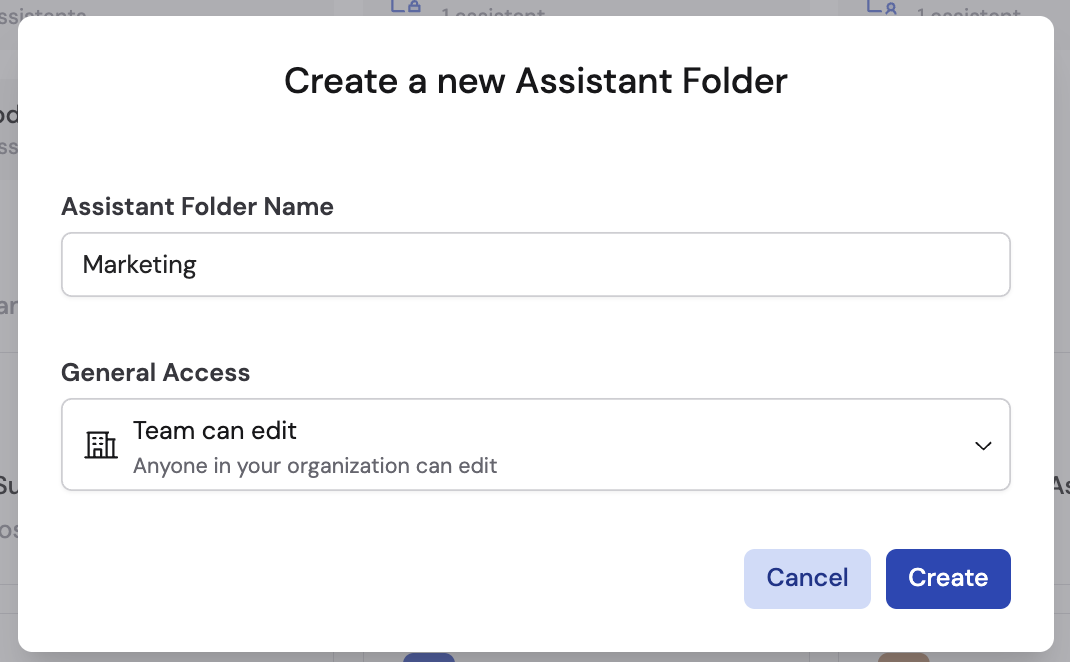
- Team can edit — Anyone in your organization can view and edit Agents in this folder.
- Team can view — Anyone can view but not edit.
- Restricted — Only specific people and groups you add can access the folder.
4
Move Agents into the folder
Drag and drop Agents from the main area into the folder. You can move Agents between folders at any time.
Manage permissions
From the Agents page
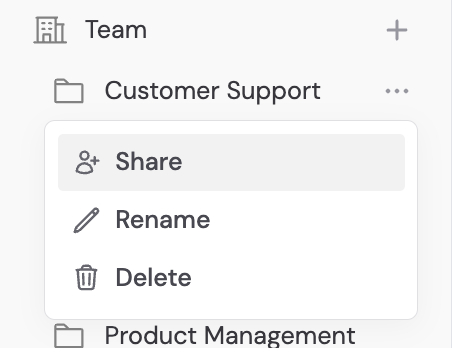
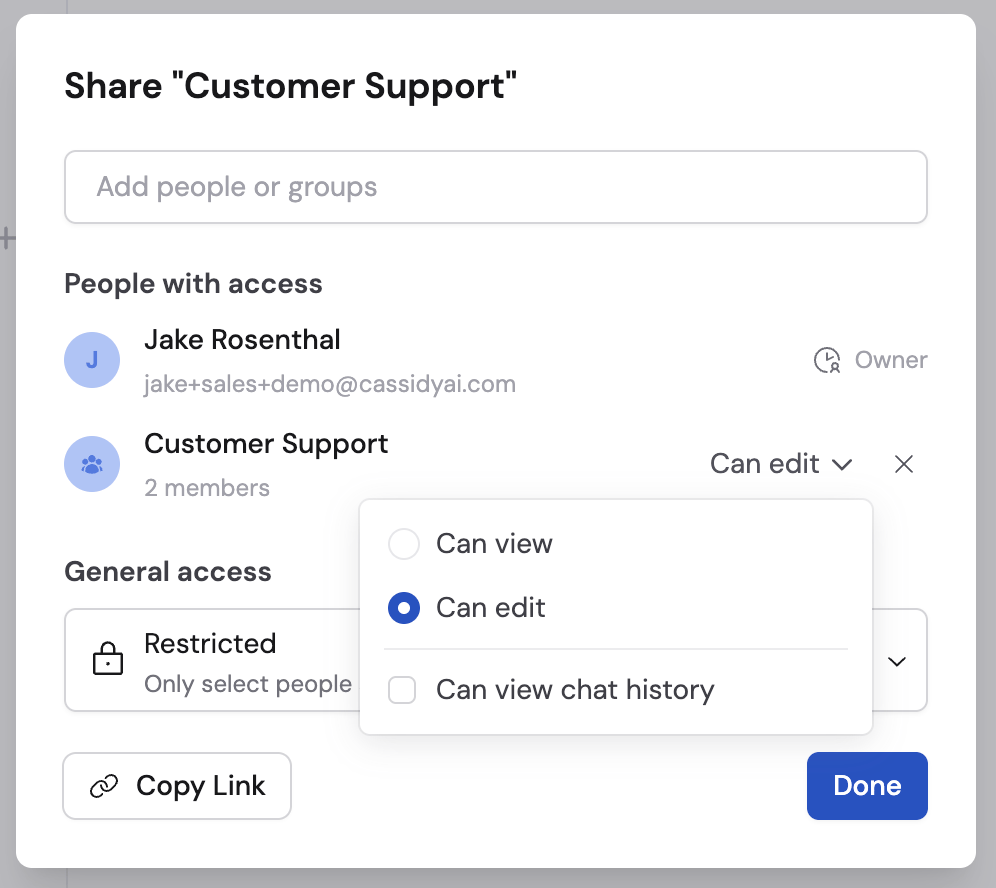
Update folder permissions by clicking … on a folder and selecting Share. From there you can:- Change the access type between Team can edit, Team can view, and Restricted.
- When using Restricted access, add specific people or groups who should have access. Start typing a name or email address and select from the list. For each person or group, set either Can edit or Can view permissions.
- Remove access by clicking the x next to a person or group.
Set up roles and groups to simplify permission
management. Instead of adding individuals one by one, create groups like
“Sales Team” or “Support Leads” and grant access to the entire group at once.
Grant access to Agent chat history
Sharing an Agent folder does not automatically let recipients view other team members’ conversations. You can separately grant a person or group access to all chat history for the Agents in that folder. By default, only Admins can grant or revoke chat history access. To delegate this responsibility, create a custom role with the Grant Access to Agent Chat History privilege.1
Open the folder sharing settings
On the Agents page, click … on the folder containing the Agents, then select Share.
2
Choose a person or group
Add a person or group, then choose whether they Can view or Can edit the Agents in the folder.To update someone who already has access, find the person or group in the sharing dialog and open the … menu next to their name.
3
Grant chat history access
Select Can view chat history, then confirm the warning. The person or group can now view conversations that any team member has had with the Agents in this folder.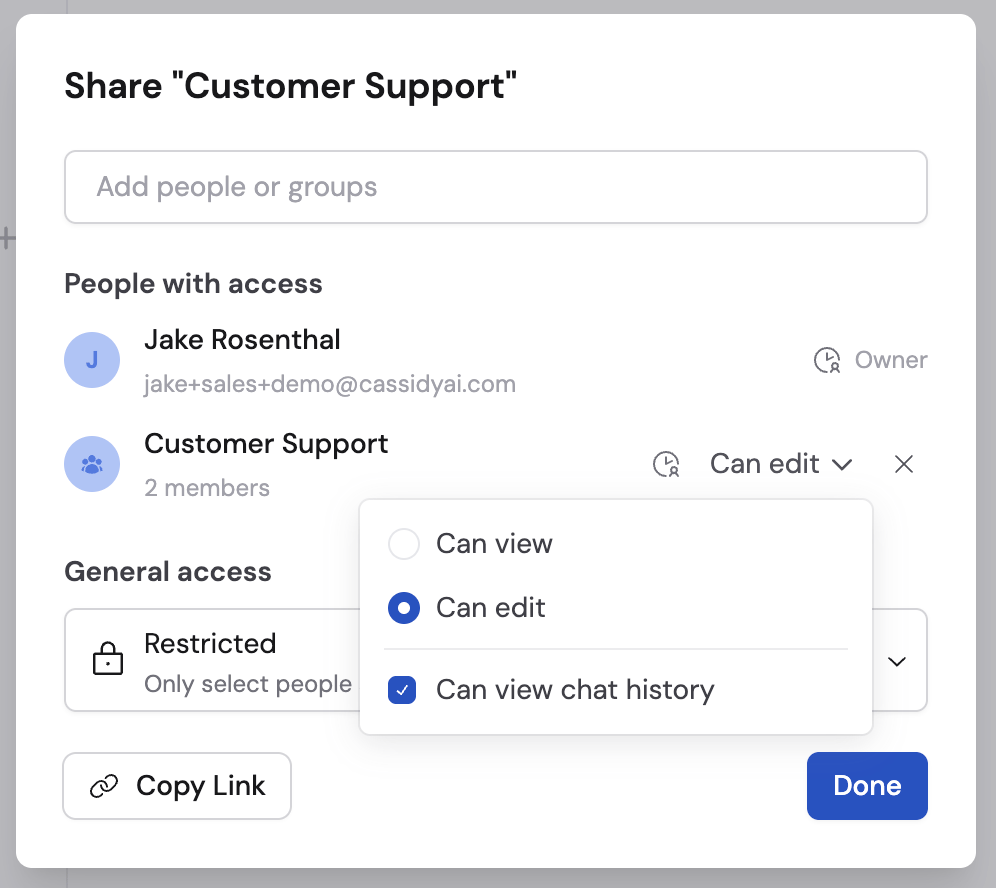
From the Agent editor
You can also manage permissions while editing an Agent:1
Open sharing options
In the Agent editor, click … and select Organize & Share Agent under Sharing.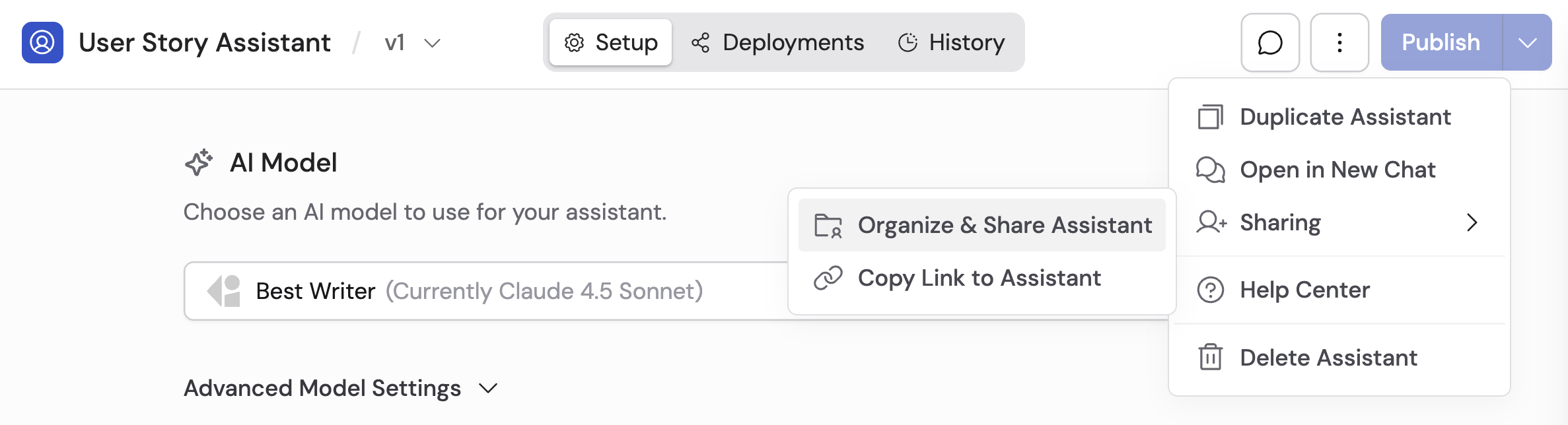
2
Choose a location
Select where to save the Agent — Team, Private, or a specific folder. You can create new folders directly from this dialog.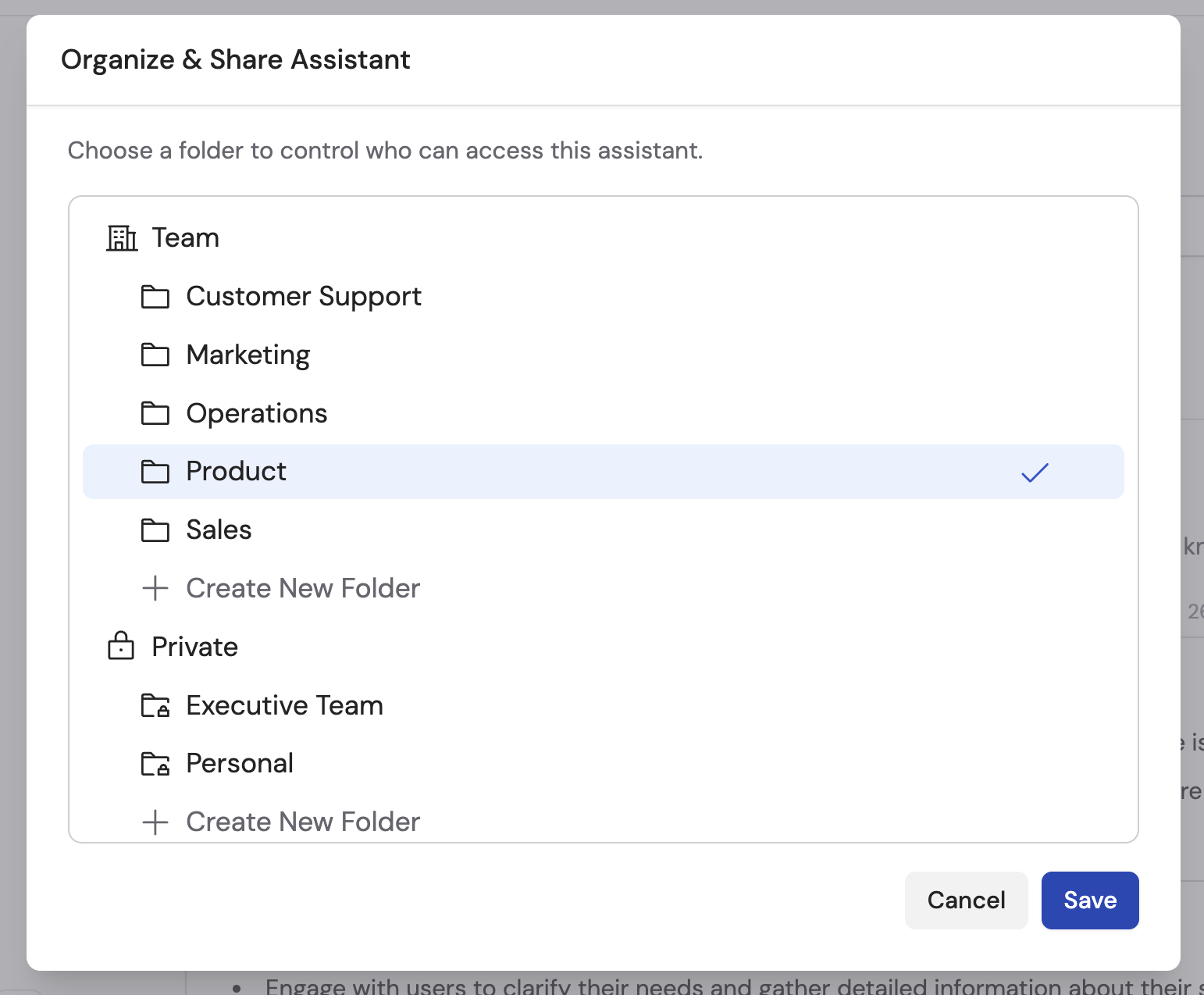
3
Save changes
Click Save to apply the new permissions.
Pin an Agent
Pin an Agent when you want quick access from the main sidebar and Agent selectors. Only published Agents can be pinned. Open the Agent’s … menu and select Pin to sidebar. Personal pins are visible only to you. Admins with the Customize Pinned Resources privilege can instead select Pin for organization. An organization pin appears for everyone who already has access to the Agent.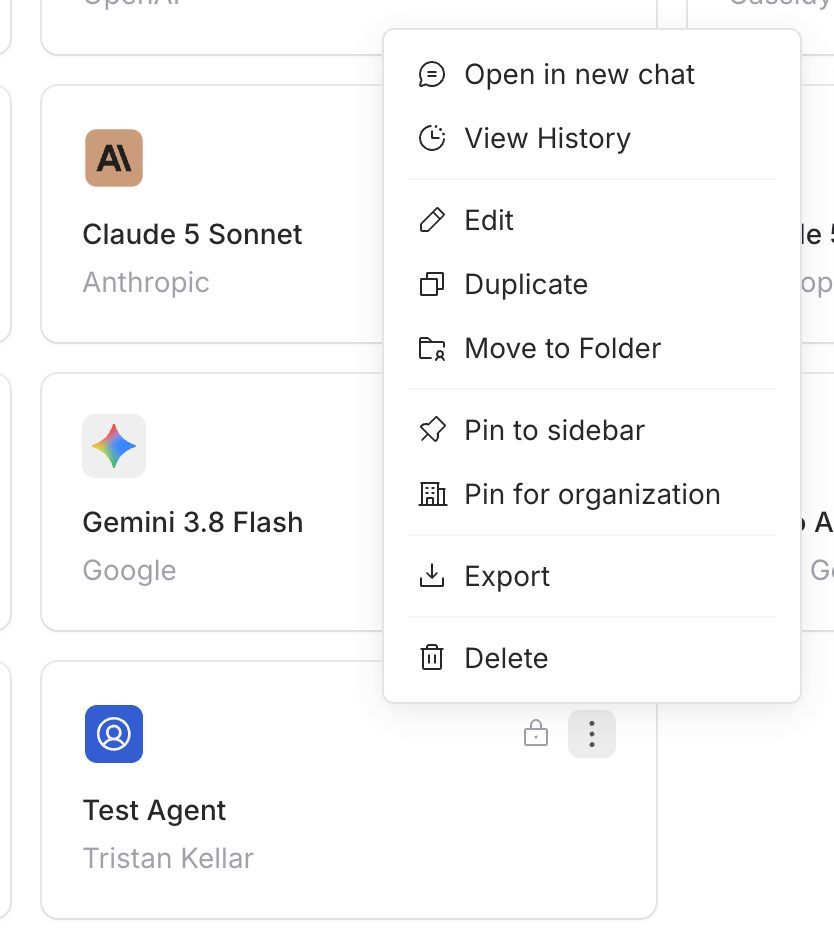
Publish versions and review history
Agents use a versioning system so you can test changes before making them live.Save drafts
While editing, click Draft then Save Without Publishing to save your changes without making them available to end users. This lets you iterate on changes over time.Publish a version
1
Open the publish dialog
Click Publish or go to Draft and select Publish Current Draft.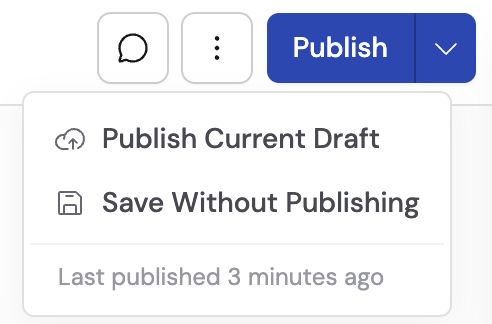
2
Add version details
Enter a Version Name and optional description to document what changed. This helps you track changes over time.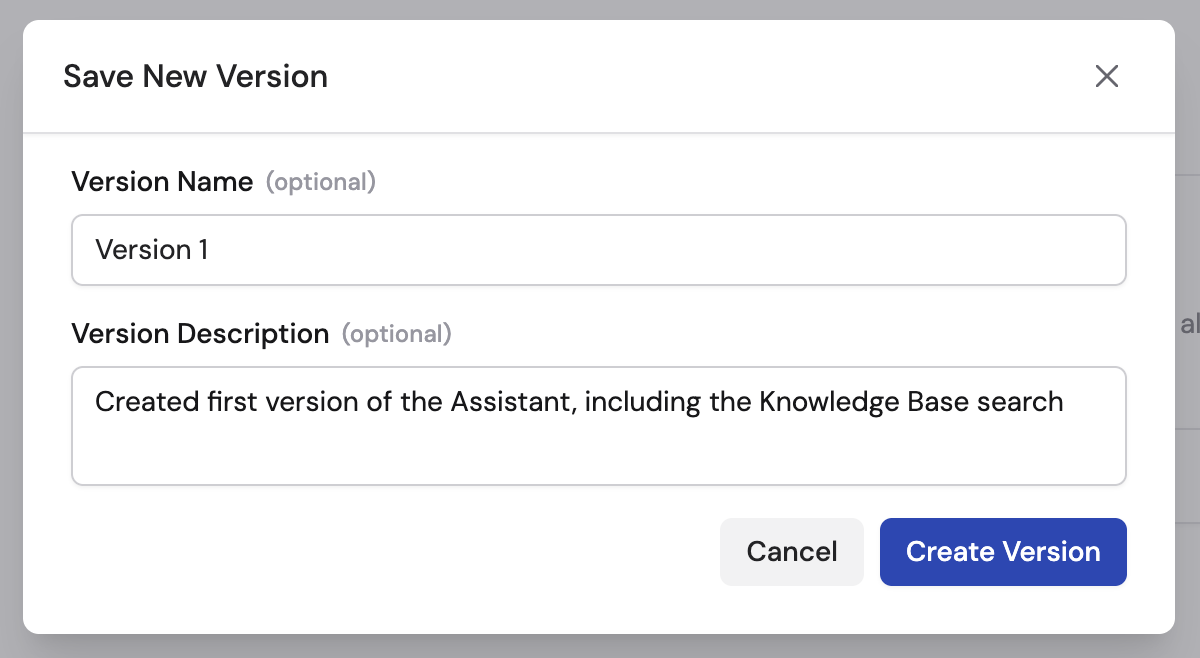
3
Confirm the publish
Click Create Version to save the version, or Publish to save and immediately make it live.
Review version history
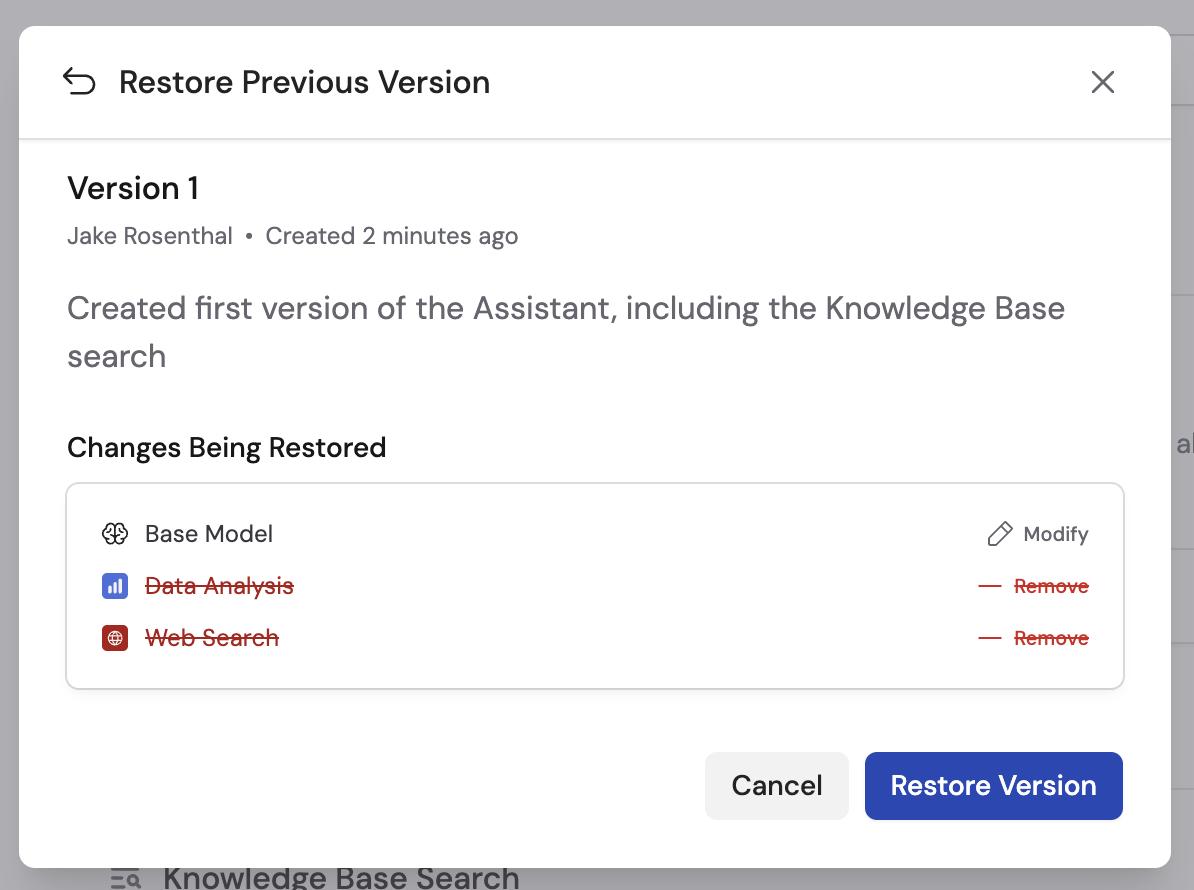
Open the Draft dropdown at the top of the Agent editor to see all published versions and what changed since each one.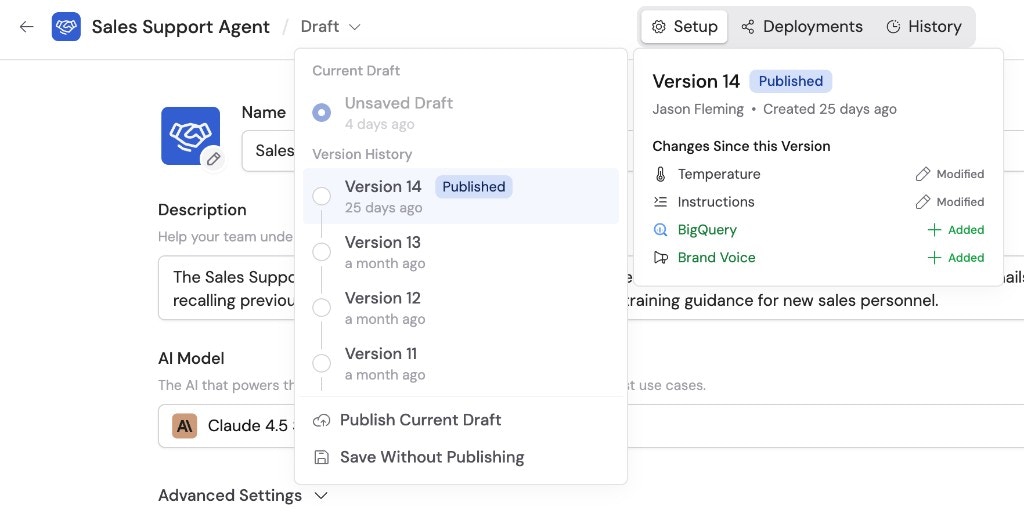
Next steps
Build and configure an Agent
Create a new Agent or edit an existing one.
Assign roles and groups
Set up user groups to simplify permission management.