

New to Skills? Start with Create your first
Skill for one guided path from an idea to a
working Skill.
Focus on the four essentials
A useful Skill has:- A clear name people can recognize
- A specific description that helps Cassidy know when the Skill applies
- Practical instructions for completing the work
- Relevant resources such as examples, templates, or company sources
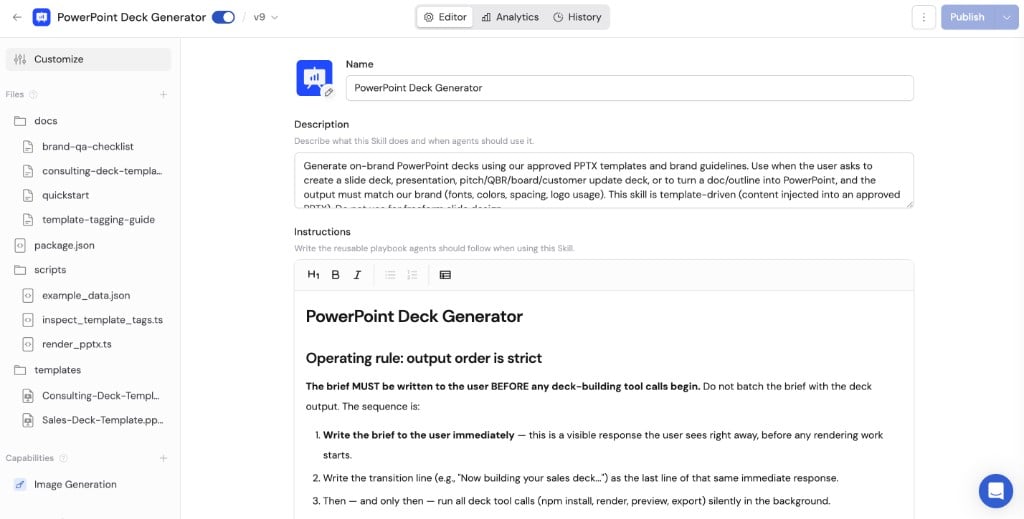
Write a clear name and description
Use a name that describes the work, such as Customer Follow-up Emails or Security Questionnaire Responses. The description should explain:- What requests the Skill handles
- Who or what the work is for
- What result it produces
- Important situations where it should not be used
Drafts customer follow-up emails from call notes using our approved tone, structure, and commitment rules.Too broad:
Helps with emails.A broad description can make Cassidy select the Skill for unrelated requests. A specific description improves both discovery and automatic selection.
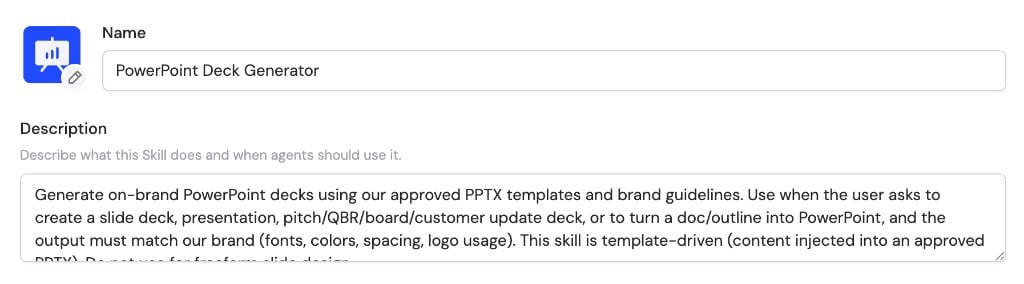
Write useful instructions
Instructions are the playbook an Agent follows after Cassidy selects the Skill.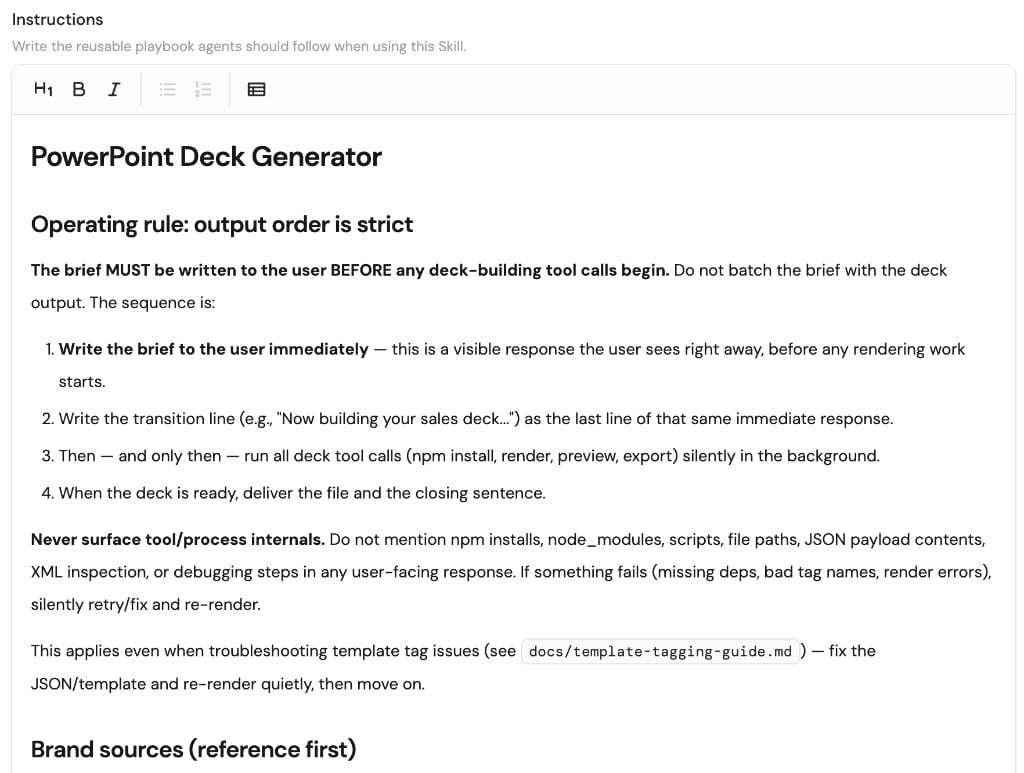
Purpose
State the result the Skill should help produce.Help sales and customer success teams write accurate, concise follow-up emails after customer conversations.
When to use
Describe the requests and information that make the Skill relevant.Use this Skill when someone asks to draft or revise a customer follow-up email using call notes, meeting notes, or a summary.
Required information
List what the Agent needs before it can do the work.Identify the customer goal, agreed next steps, owners, and dates. Ask the user when required information is missing.
Steps
Write the process in the order the Agent should follow it.- Review the provided notes.
- Separate confirmed facts from assumptions.
- Identify the customer’s goal and agreed next steps.
- Draft the email using the approved structure.
- Check every commitment against the source notes.
Output requirements
Describe the expected format, tone, length, and quality checks.Use a warm, direct tone. Keep the email under 250 words. End with a clear owner and next step.
Boundaries and review
State what the Agent must not do and when a person should review the result.Never invent pricing, dates, product capabilities, or commitments. Ask the sender to review any commitment before including it.
Examples
Provide representative inputs and strong outputs when quality or formatting is difficult to explain with rules alone.Add the right supporting material
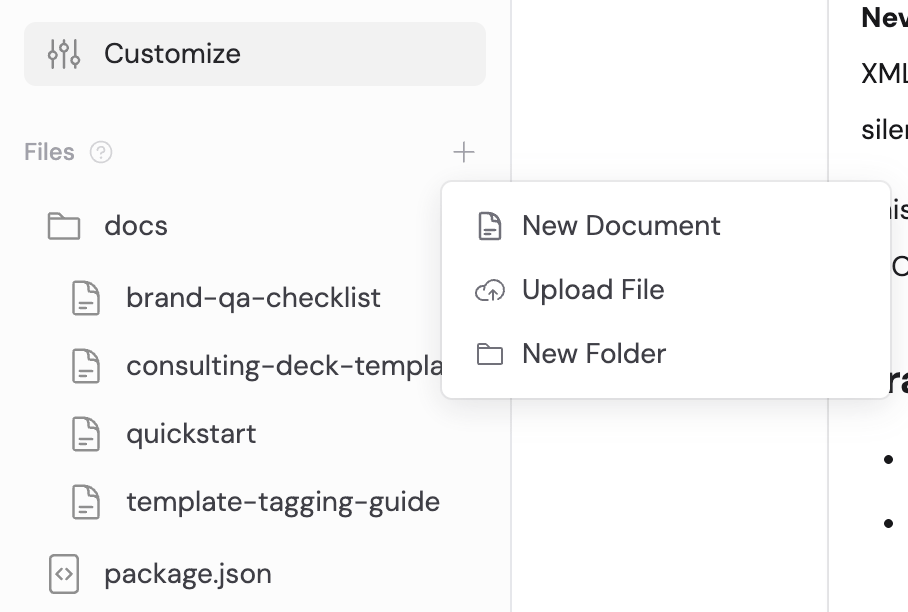
Files
Add Skill files when the resource should travel with the Skill, such as:- Templates
- Approved examples
- Style guides
- Scripts
- Presentations or spreadsheets
Knowledge Base sources
Reference Knowledge Base items when the Skill needs approved information that may change over time.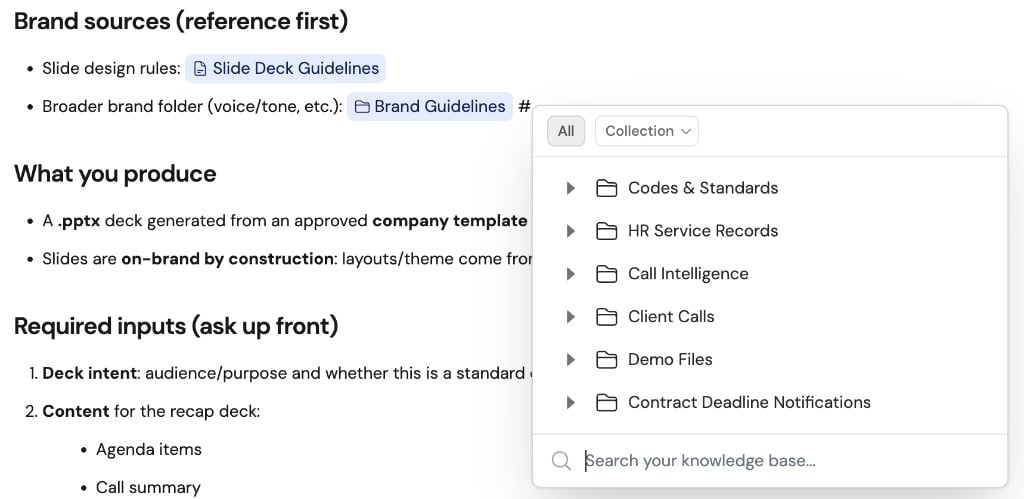
- Put the rule “Never invent a security commitment” in the Skill instructions.
- Reference current security policies and product documentation from the Knowledge Base.
Add optional tools only when needed
Capabilities
Add a Capability when the Skill needs an extra Cassidy ability, such as current web research, browser interaction, image creation, or interactive outputs. Explain in the instructions when the Agent should use the Capability.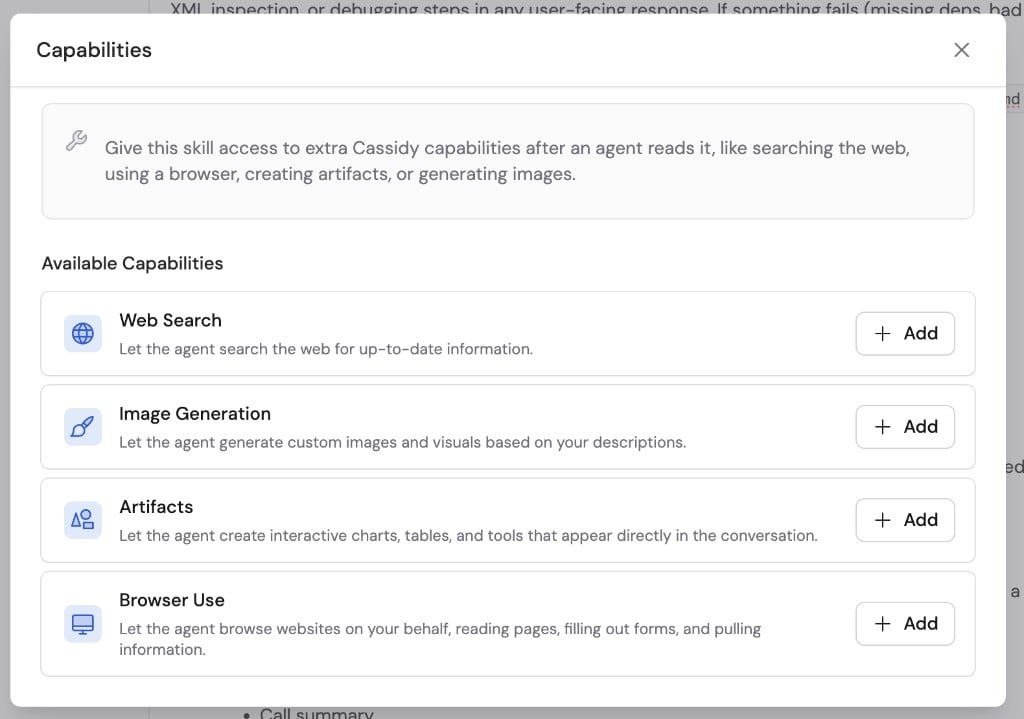
Connectors
Add a Connector when the Skill needs to read or update information in a business app. Each person uses their own account. Adding a Connector to a Skill doesn’t give anyone access they don’t already have. The person’s action permissions and the organization’s approval requirements decide whether an action runs without asking, asks first, or stays disabled. In the Cassidy web app, the Agent may suggest adding or turning on a Connector the Skill needs. The person still signs in with their own account.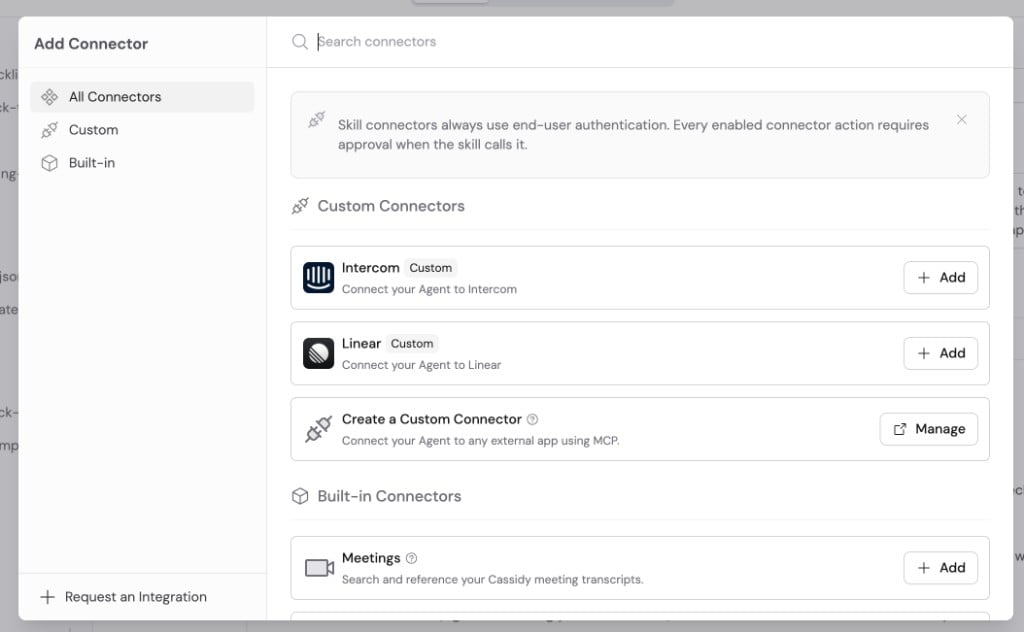
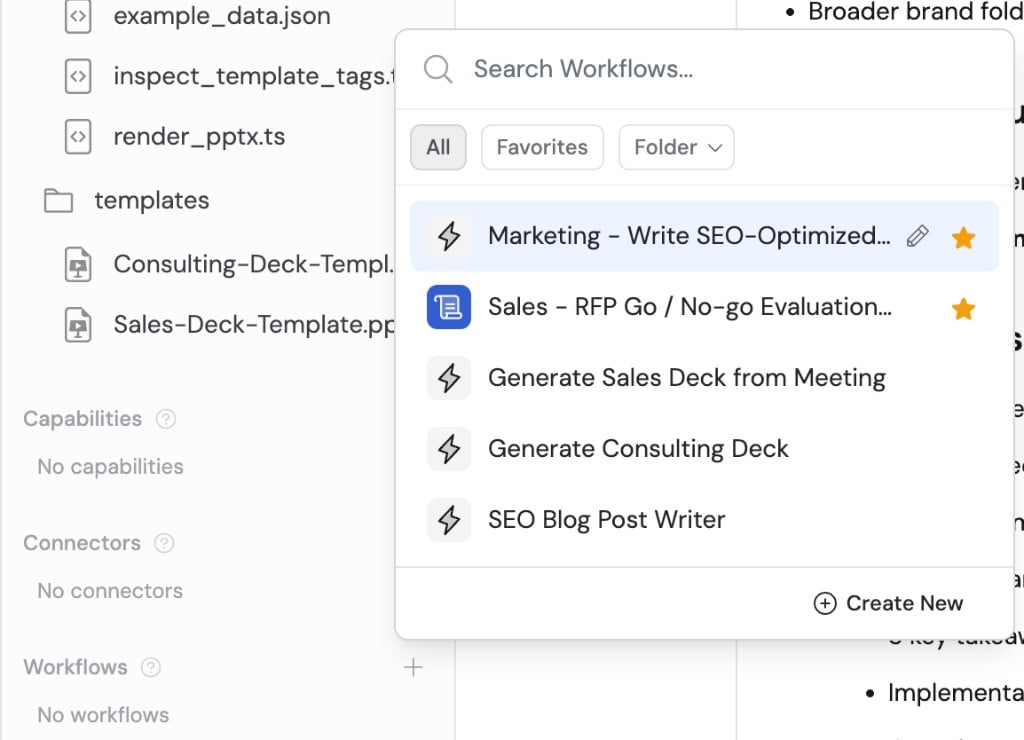
Workflows
Add a published Workflow with a Manual trigger when the Skill should run a defined multi-step process. Explain:- When to run the Workflow
- Which information to collect first
- How to use the result
Internal or unsupported APIs
When no Connector exists for an API, a technical builder can give a Skill controlled access to it without exposing its credential. See Securely connecting to APIs.Edit a Skill
Edit in the Skill editor
Changes to the current draft save automatically. They do not affect the published Skill until you publish.Propose changes in chat
While using a Skill, describe the change you want. Cassidy can create a Draft Skill Changes proposal for you to review. An Agent cannot publish a Skill. A person with edit access must review and publish the proposed changes.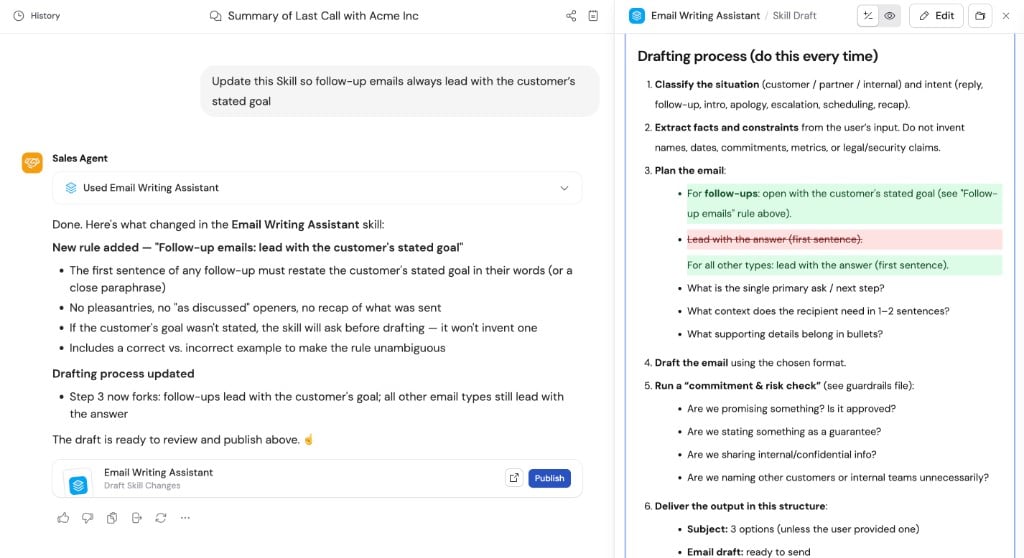
Review proposed changes before publishing them to the Skill
Test the Skill
Test with the people, information, and edge cases the Skill will encounter.- Primary task: Ask for the main result and verify that the Skill follows the expected process and format.
- Missing information: Remove an important input and confirm the Agent asks for it instead of guessing.
- Difficult case: Try a sensitive or unusual request and confirm the Skill follows its boundaries and escalation rules.
- Irrelevant request: Ask a nearby but unrelated question and confirm Cassidy does not force the Skill.
- Resource access: Test with a typical end user and confirm they can access the referenced Knowledge Base sources, Workflows, files, and external applications.
- Tool behavior: Confirm Connectors request authentication and approval correctly, and that selected Workflows receive the right information.
Other ways to create a Skill
Start from a starting point
Start from a starting point
Choose a guided starting point when Cassidy already provides one for your
type of work. Add your organization’s standards, examples, and sources
before publishing.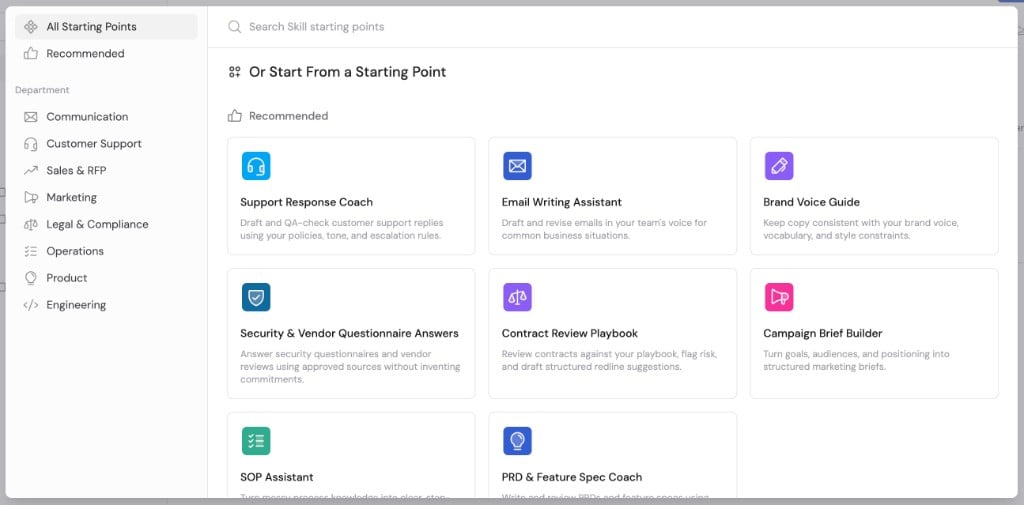
Create a blank Skill
Create a blank Skill
Choose Create Blank Skill when you already know the name, description,
instructions, and resources you need.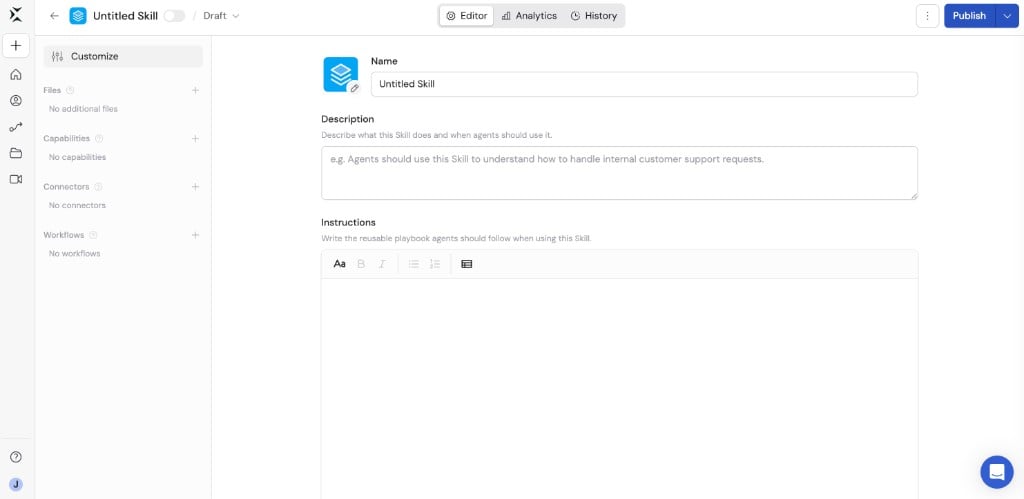
Upload an existing Skill
Upload an existing Skill
Upload a 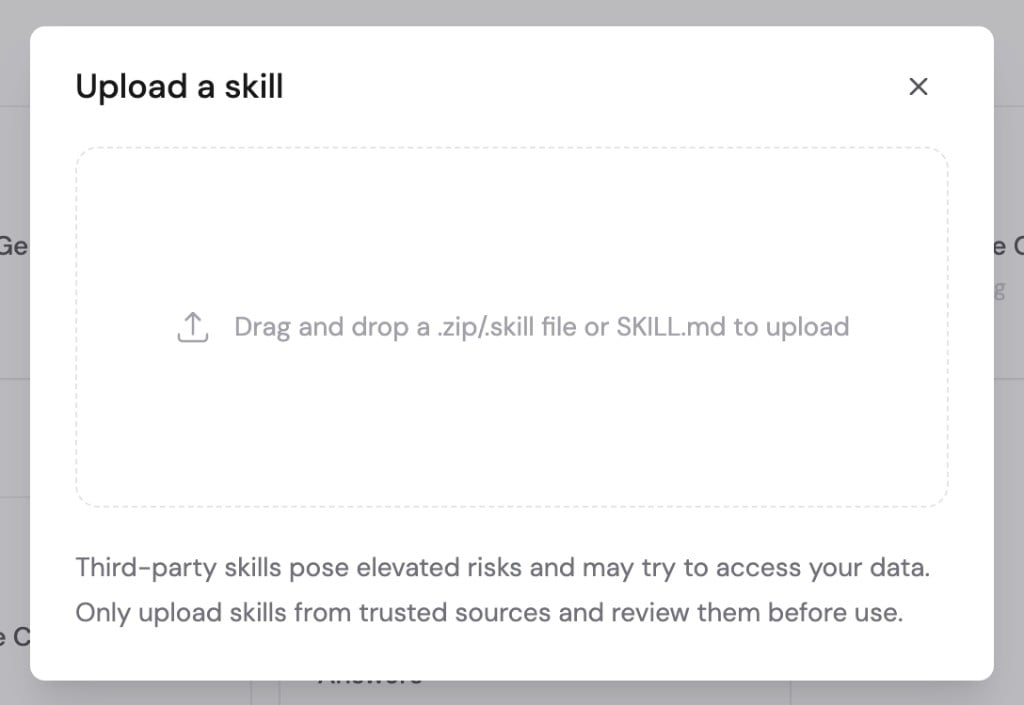
.skill, .zip, SKILL.md, or compatible Markdown file when you
already have a Skill package.Archives must contain SKILL.md. Review every imported instruction, file,
tool, and resource before publishing. References from another organization
may not exist or may require different access.Publish your improvements
Publishing makes the current draft the version that people, Agents, and Workflow AI actions use. Before publishing:- Review the complete change summary
- Test the primary task and important boundaries
- Test with a representative end user
- Confirm the intended audience can access referenced resources
Next steps
Use Skills
Install a Skill, choose it in chat, or add it to an Agent or Workflow.
Share Skills with your team
Control who can discover and use the finished Skill.