

How Connectors differ from other integrations
Cassidy has three types of integrations, each serving a different purpose:
Connectors vs. Knowledge Base integrations — Knowledge Base integrations import and index content so your Agents can search it semantically. Connectors skip the import entirely and query the external system live, which means results are always up to date but limited to what the external API exposes.
Connectors vs. Workflow integrations — Workflow integrations connect apps for repeatable, multi-step automations that run on a schedule or in response to a trigger. Connectors are for ad-hoc, real-time queries that happen naturally during a conversation with an Agent.
Available Connectors
Custom Connectors
Connect your own systems through MCP.
Cassidy Meetings
Search meeting transcripts, read AI summaries, and reference discussions
with timestamped citations.
HubSpot
Search and retrieve contacts, deals, companies, and tickets from your
HubSpot CRM.
Salesforce
Read and write records, opportunities, accounts, and cases in Salesforce.
Airtable
Read and write records across your Airtable bases and tables.
Snowflake
Query your Snowflake data warehouse directly from a conversation.
Asana
Look up and manage tasks, projects, and subtasks in Asana.
BigQuery
Query your BigQuery data warehouse directly from a conversation.
Google Calendar
View, create, and update calendar events from a conversation.
Google Sheets
Read and write data in Google Sheets spreadsheets.
SharePoint
Search and manage sites, documents, pages, folders, and lists in SharePoint.
Monday.com
Read and manage items, boards, and updates in Monday.com.
Outlook Calendar
Check availability, schedule meetings, and respond to invites in Outlook.
ServiceNow
Search, create, and manage ServiceNow records and incidents.
Add a Connector for yourself
Your personal Connectors are available across chats in the Cassidy web app.1
Open Connectors
Click Customize in the sidebar, then select Connectors.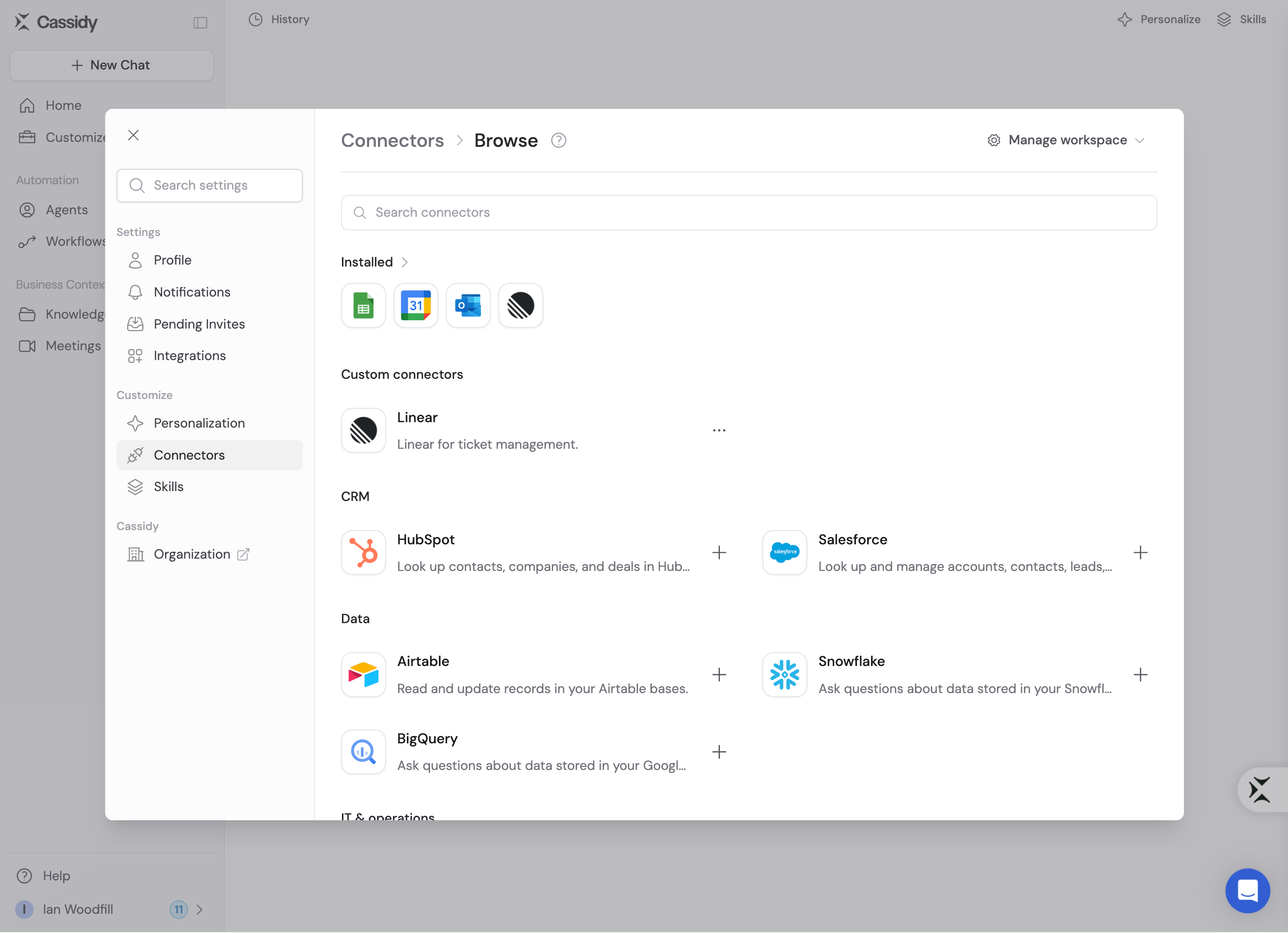
2
Browse available Connectors
Search for an app or browse the available categories.
3
Connect your account
Open a Connector and click Connect, then complete the app’s
authorization flow.
4
Review action permissions
Open the Connector to choose which actions run without asking, ask you
first, or stay disabled.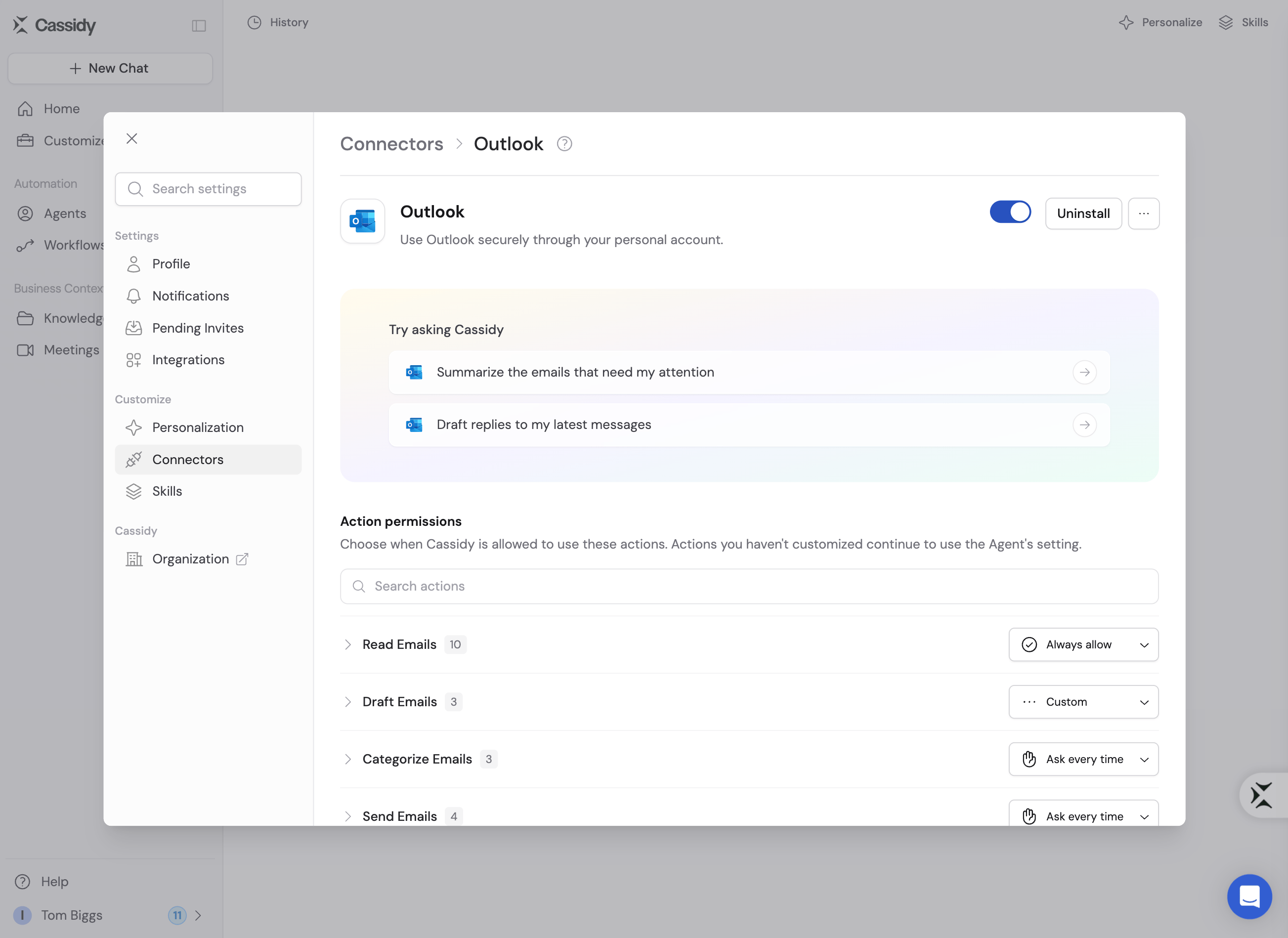
A Connector disabled by your organization still shows while browsing, but you
can’t connect it. Ask an admin to enable it.
Manage a personal Connector
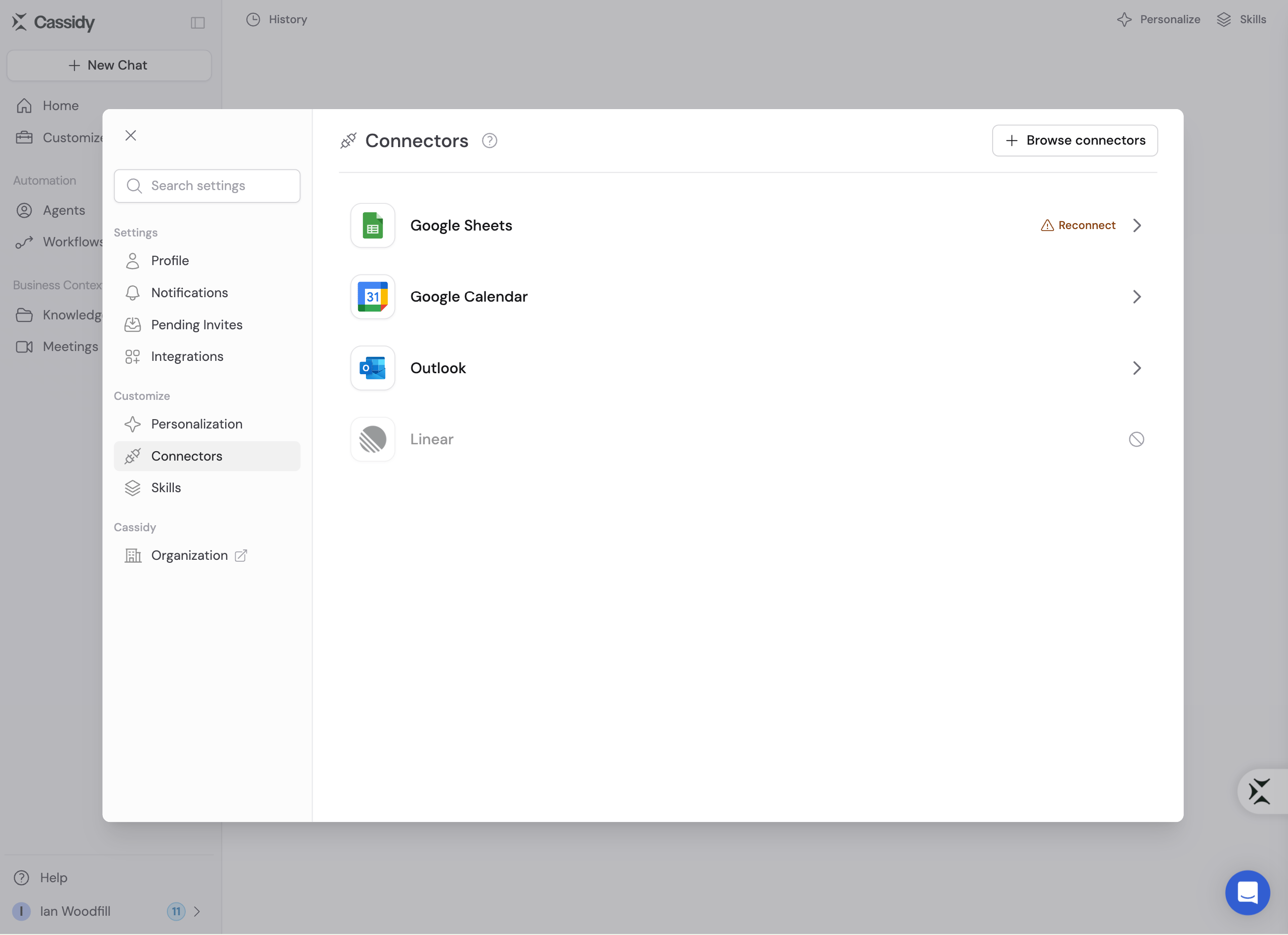
Open Customize → Connectors, click Manage connectors, then select a Connector. Connectors that need you to sign in again show a warning badge in the directory so you can jump directly to the fix.- Reconnect when your sign-in expires.
- Use the switch to turn the Connector off for yourself. Your connection and settings are kept.
- Remove takes the Connector off your list. You can add it again later.
- Change Action permissions to decide when Agents ask you before acting.
Connector suggestions in chat
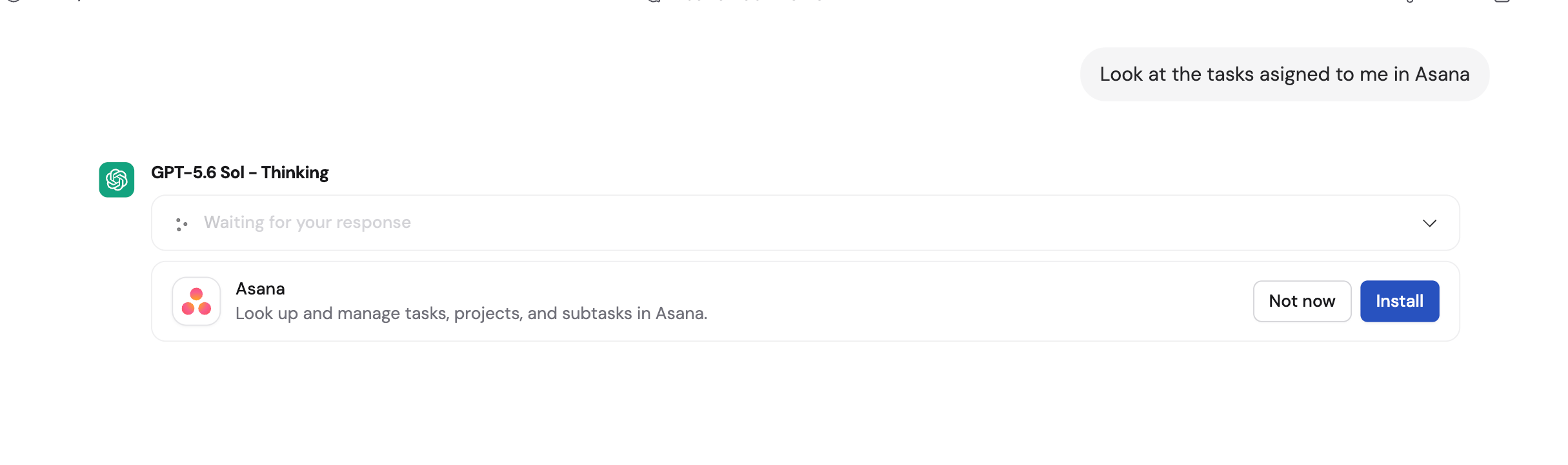
When a Connector would help with your request, the Agent can suggest it in chat. Choose Add to connect the app and continue, or Not now to continue without it. The Agent may also suggest reconnecting or turning on a Connector you already have.Suggestions appear only in the Cassidy web app. Admins can turn them off for
the
organization.
Add a Connector to an Agent
1
Open the Agent editor
Go to Agents, find the Agent you want to configure, and click Edit.
2
Navigate to Connectors
In the Setup tab, scroll to the Connectors section and click + Add.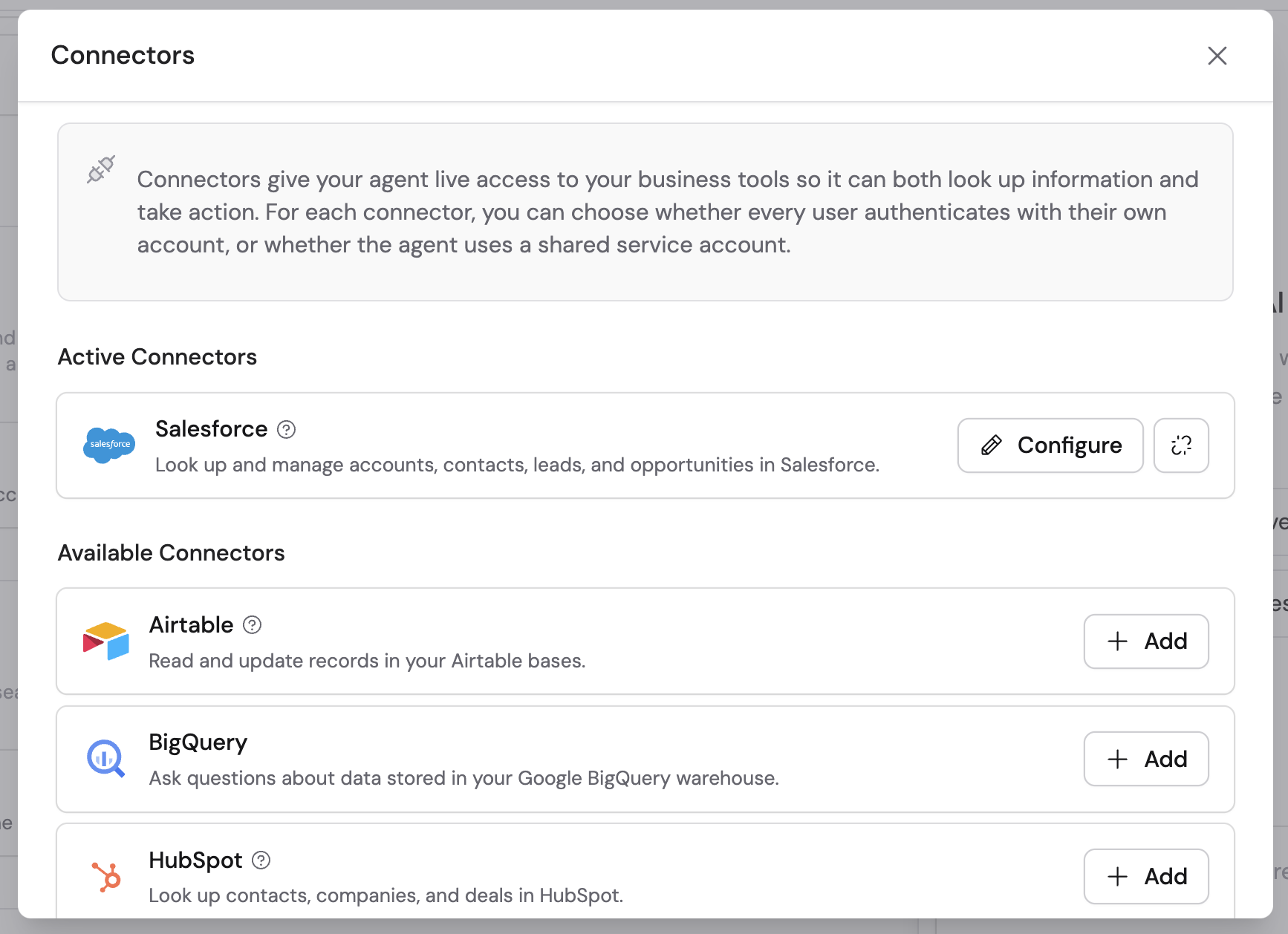
3
Select a Connector
Choose the Connector you want to enable from the list of built-in and
Custom Connectors.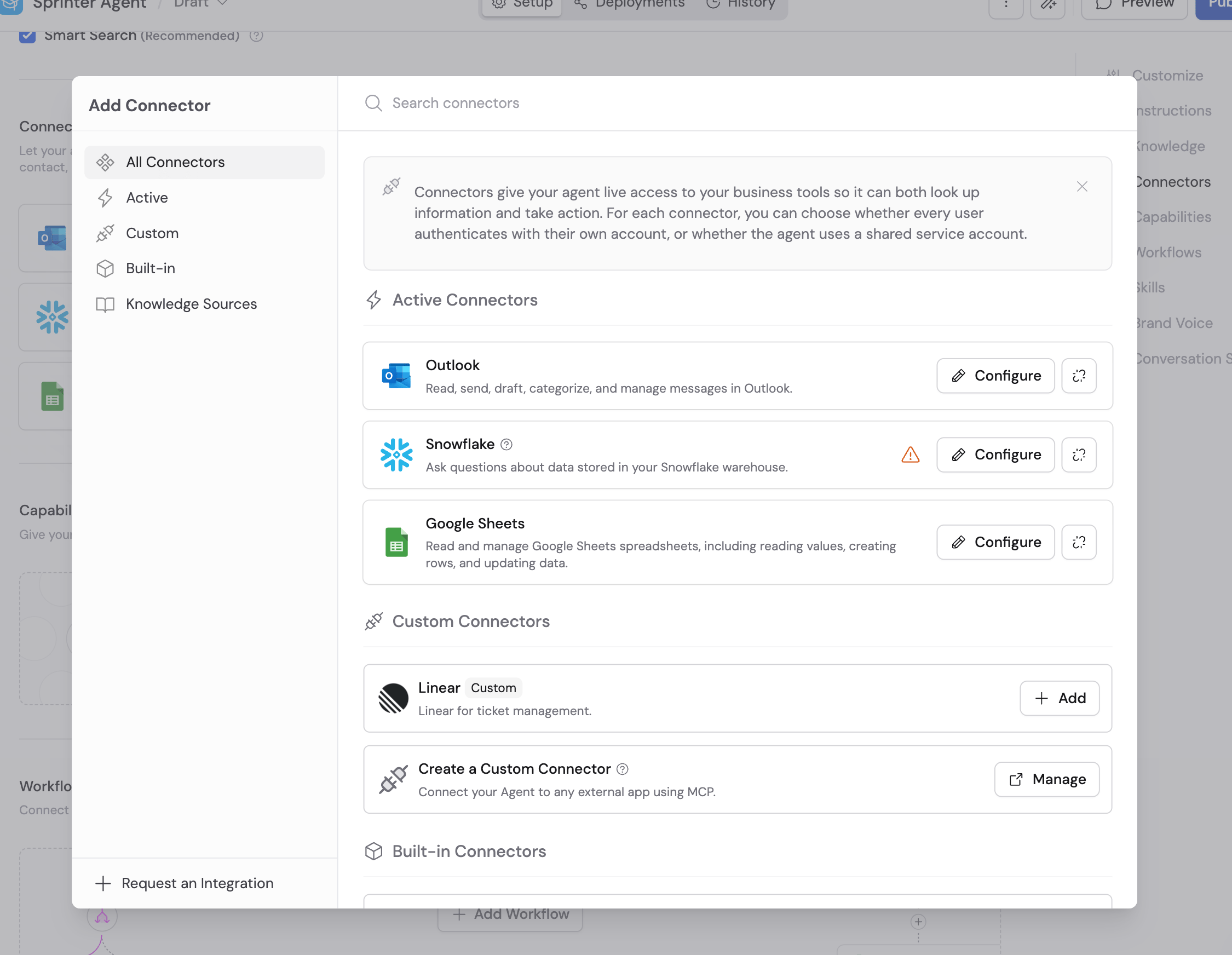
4
Choose a connection method
Choose whether each person connects their own account or everyone uses one
shared account. See Connection methods below.
5
Set action permissions
For each action, choose Always allow, Ask every time, or
Disabled. See Action approvals below.
6
Save and publish
Click Save or Publish to make the Connector available to users.
Connection methods
When you add a Connector to an Agent, choose how people sign in:- Each user connects their own account (recommended) — People sign in the first time the Agent needs the app. Each person sees only what they can already see in that app.
- Shared connection — Everyone uses one saved account and its permissions. Workflows always use a shared connection, because nobody is signed in when a Workflow runs.
Create a shared connection
Use a dedicated service account or shared mailbox when possible. During setup, you name the connection and choose who can use it.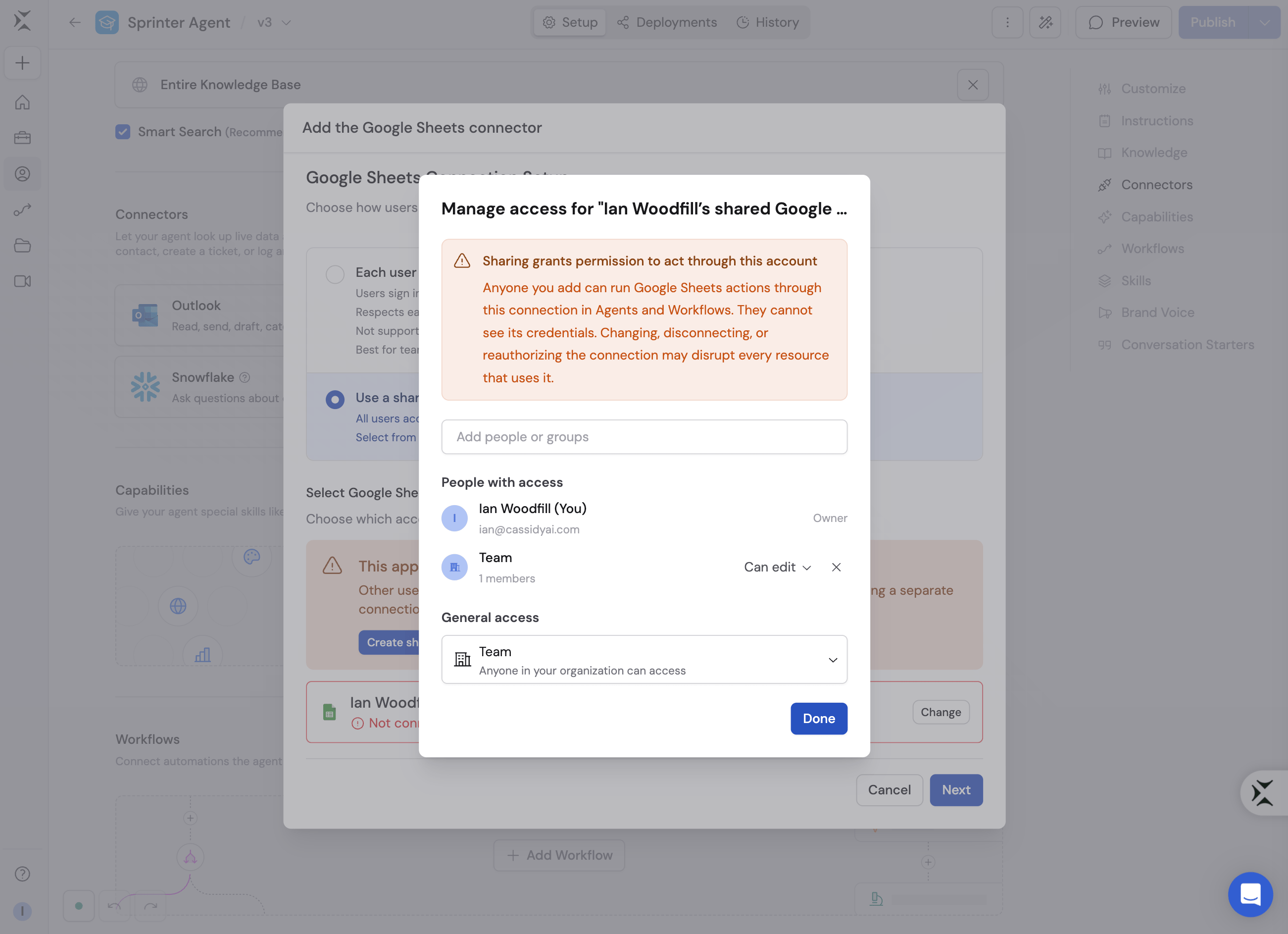
Action approvals
Each Connector action has one of three settings:- Always allow — The Agent runs the action without asking.
- Ask every time — The Agent asks you first.
- Disabled — The Agent can’t run the action.
Monitor Connector usage
When an Agent uses a Connector, expand the action in the response to see its input, result, and approval status. If an action is set to Ask every time, the chat pauses. You can allow it once, always allow it, or deny it. Always allow is unavailable when your admin requires approval for that action.Connectors in Workflows
Connectors aren’t limited to Agents — you can also add them directly to a Generate Text action in a Workflow. This lets the AI query live data from your business tools as part of an automated process, without needing a full Agent.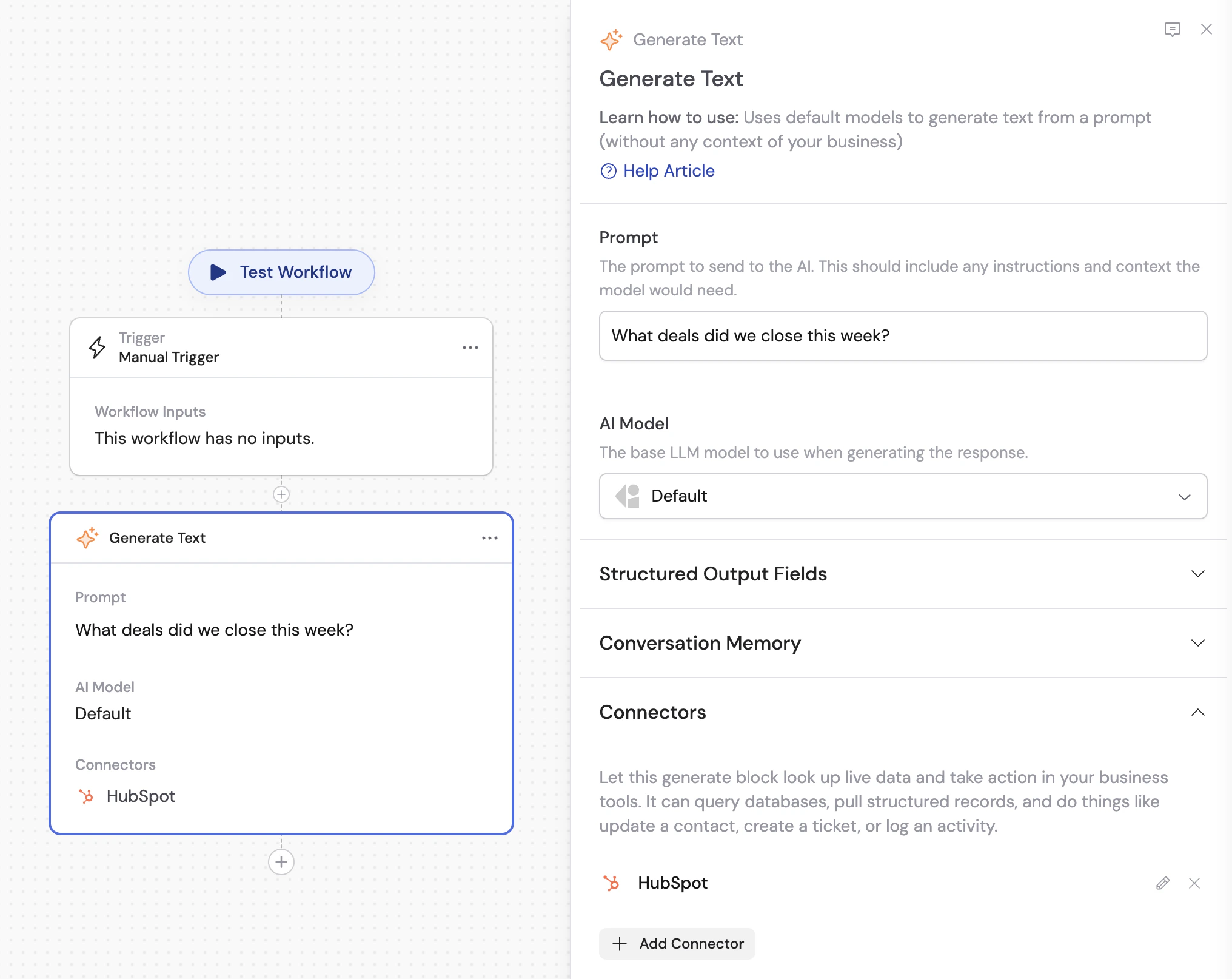
Manage Connectors as an admin
Admins control which Connectors and actions the organization can use, and when approval is required, without editing each Agent or person.Manage Connectors for your organization
Configure organization-wide Connector access, action permissions, new-action
policy, and approval requirements.
Next steps
Learn about Agents
Understand how Agents use Connectors, Knowledge Base, and Capabilities
together.
Explore Capabilities
Add built-in abilities like web search, image generation, artifacts, and
browser use.
Browse all integrations
See every app Cassidy connects to and the integration types available.
Build a Workflow
Create multi-step automations for repeatable processes.