

Set up the Airtable Connector
1
Navigate to your Agent
Go to Agents and select the Agent you want to configure.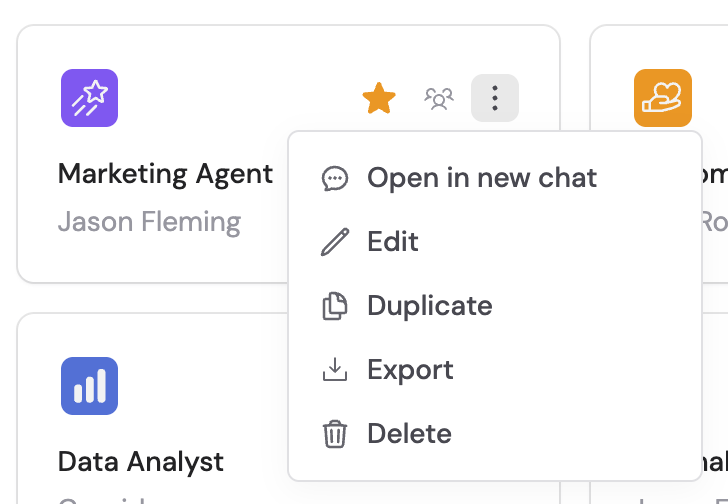
2
Open the Connectors section
Click the Setup tab and scroll to the Connectors section.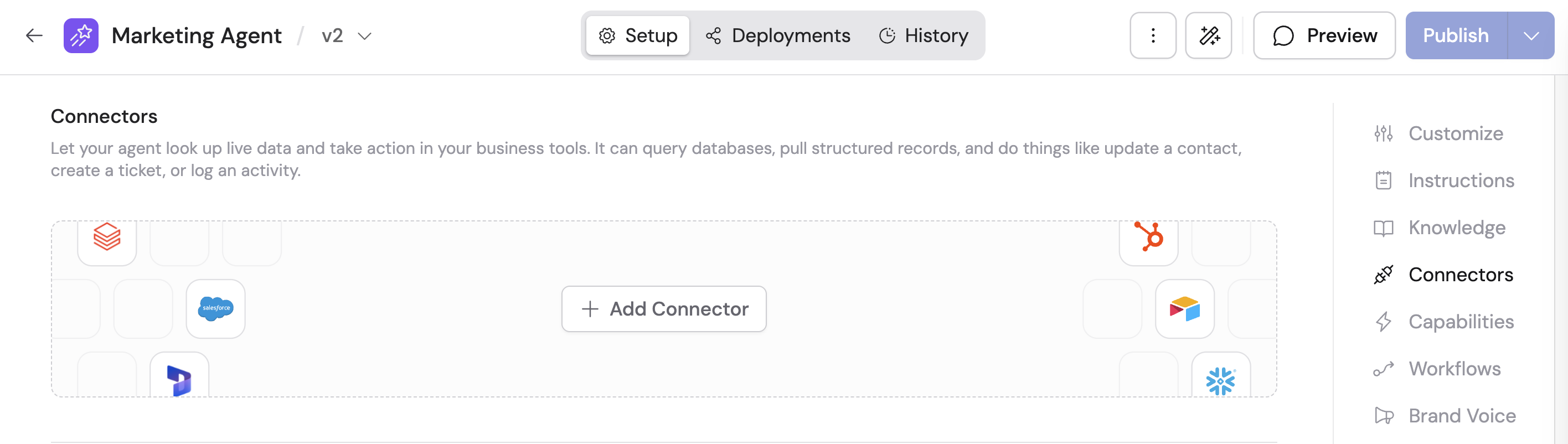
3
Add the Airtable Connector
Click + Add Connector and select Airtable.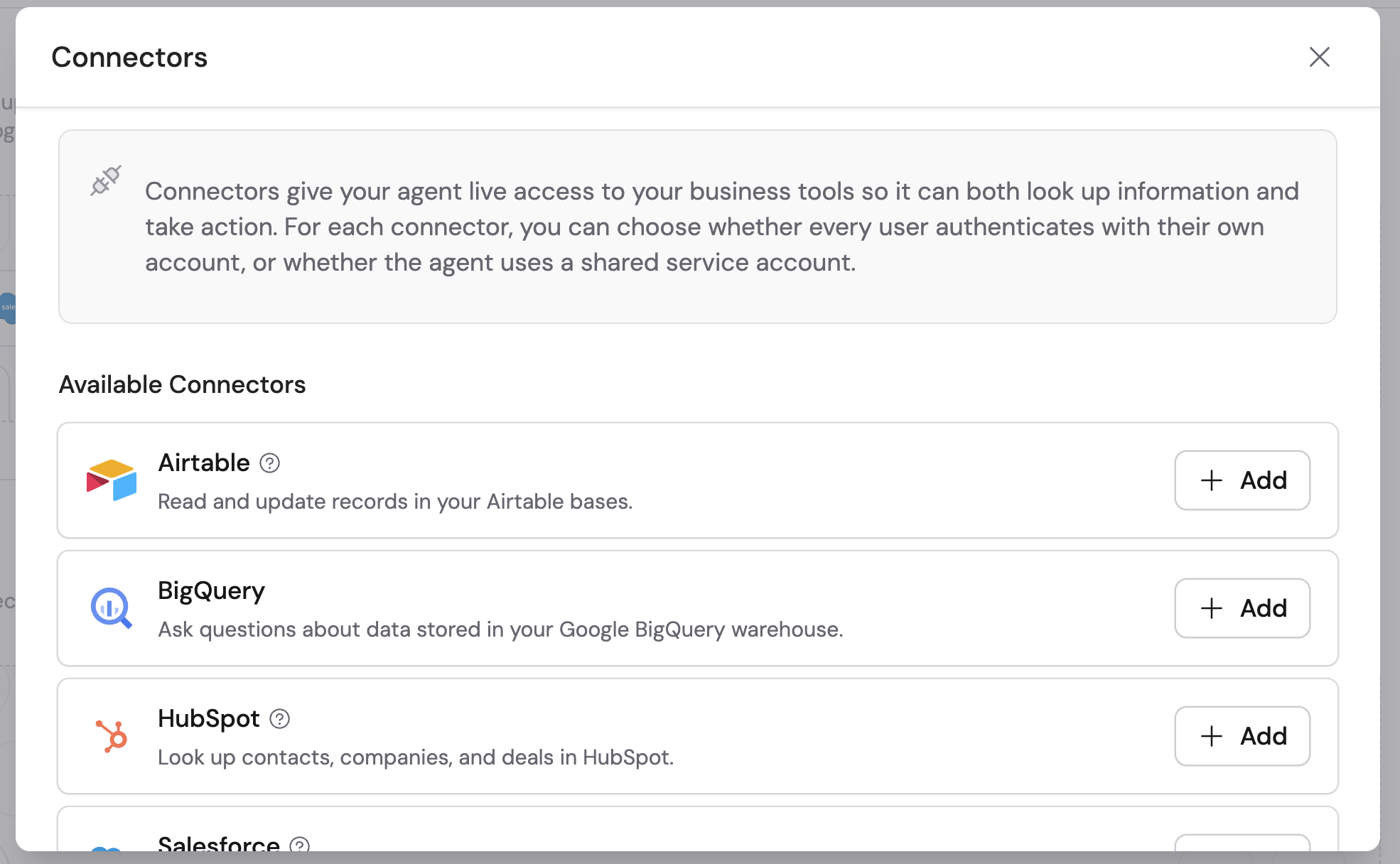
4
Choose a connection method
Select how users will authenticate: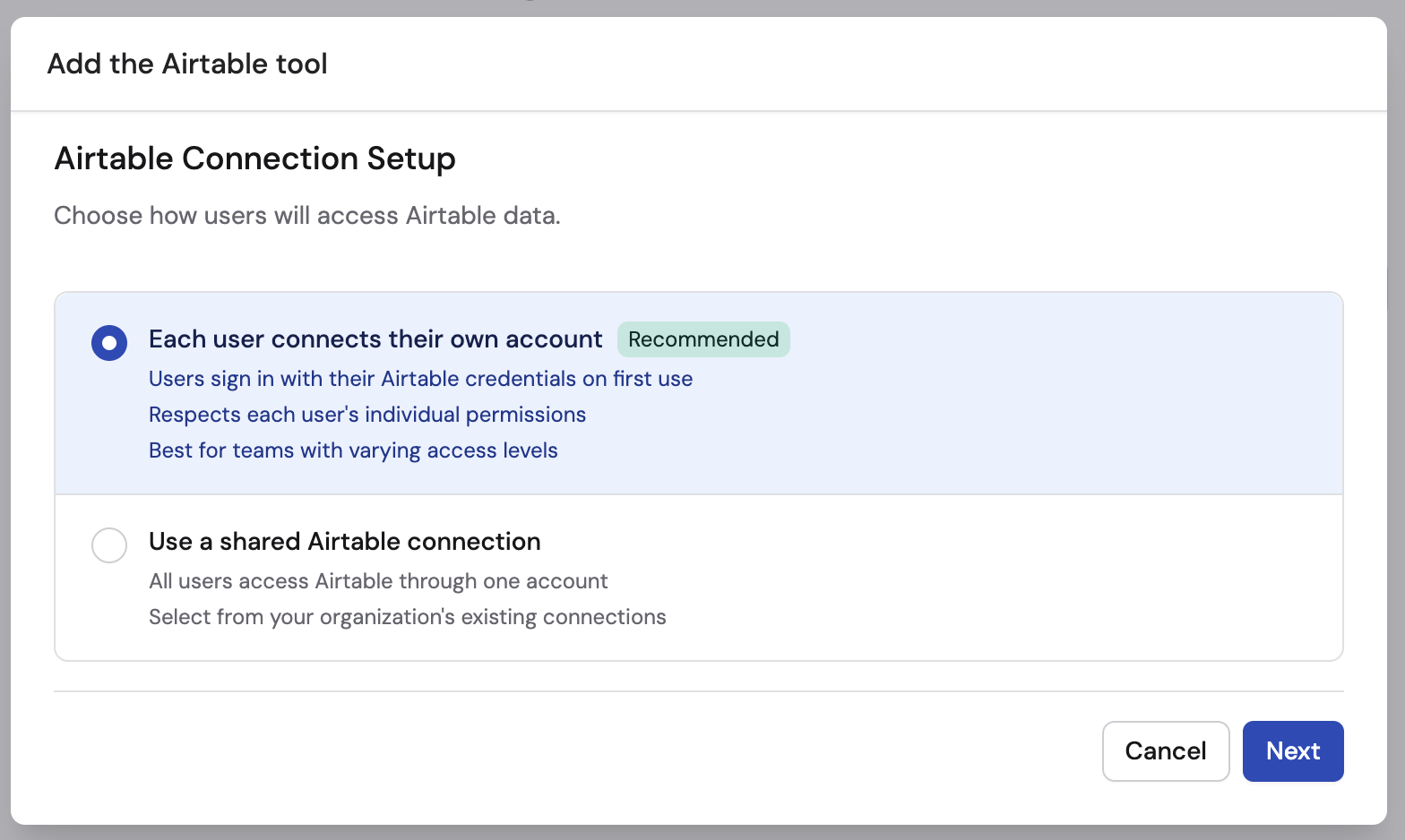
- Each user connects their own account (recommended) — each user signs in with their own Airtable credentials
- Use a shared connection — all users access Airtable through one shared account
5
Set up the connection
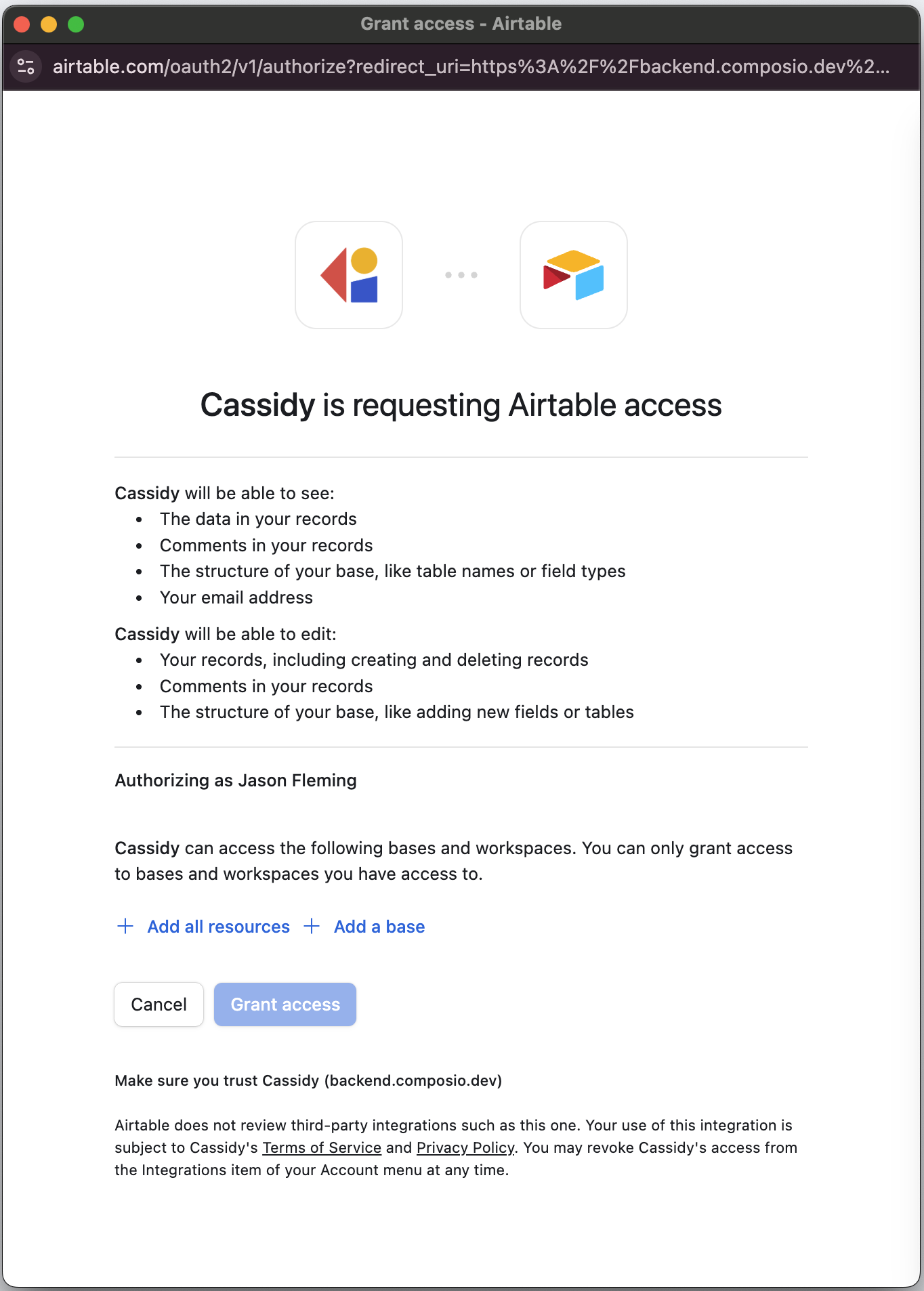
If using a shared connection, click Set up shared connection and sign in to Airtable. Before granting access, you’ll need to click either Add all resources to grant access to all your bases, or Add a base to select only the specific bases you want the Agent to access.
6
Configure action permissions
Set permissions for each action the Agent can perform:
- Always allow — The Agent performs the action automatically when needed
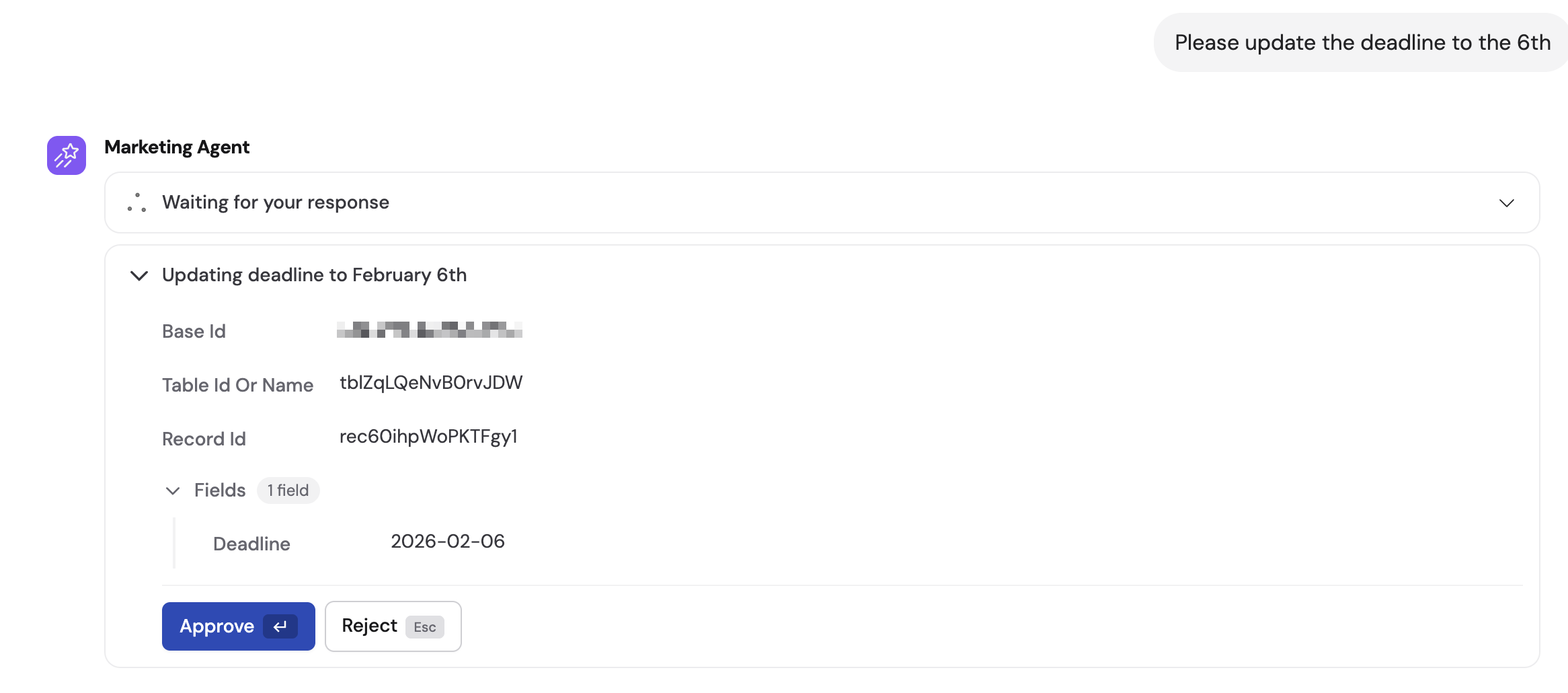
- Ask every time — The Agent asks the user before taking the action
- Disabled — The Agent cannot perform the action
7
Enable the Connector
Click Add to enable the Connector for this Agent.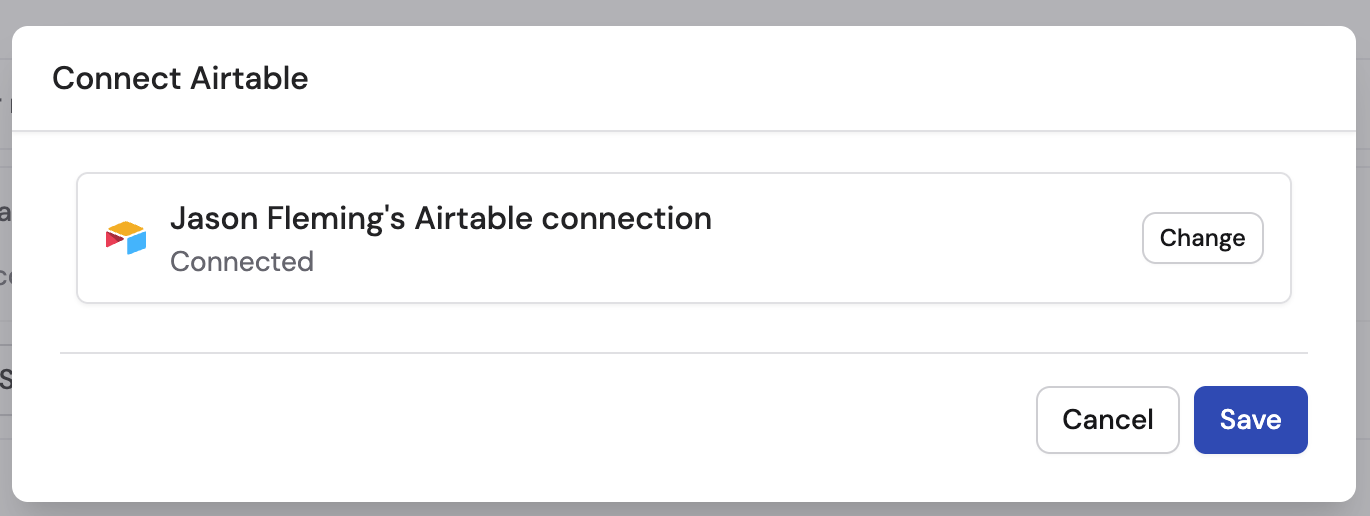
8
Start a conversation
Navigate to Chat and select the Agent with the Airtable Connector enabled.If you chose Each user connects their own account, users are prompted to connect their Airtable account from within the chat the first time they use the Connector.Once connected, your Agent can access Airtable data to answer questions about records, projects, campaigns, and other information stored in your bases — as well as create and update entries.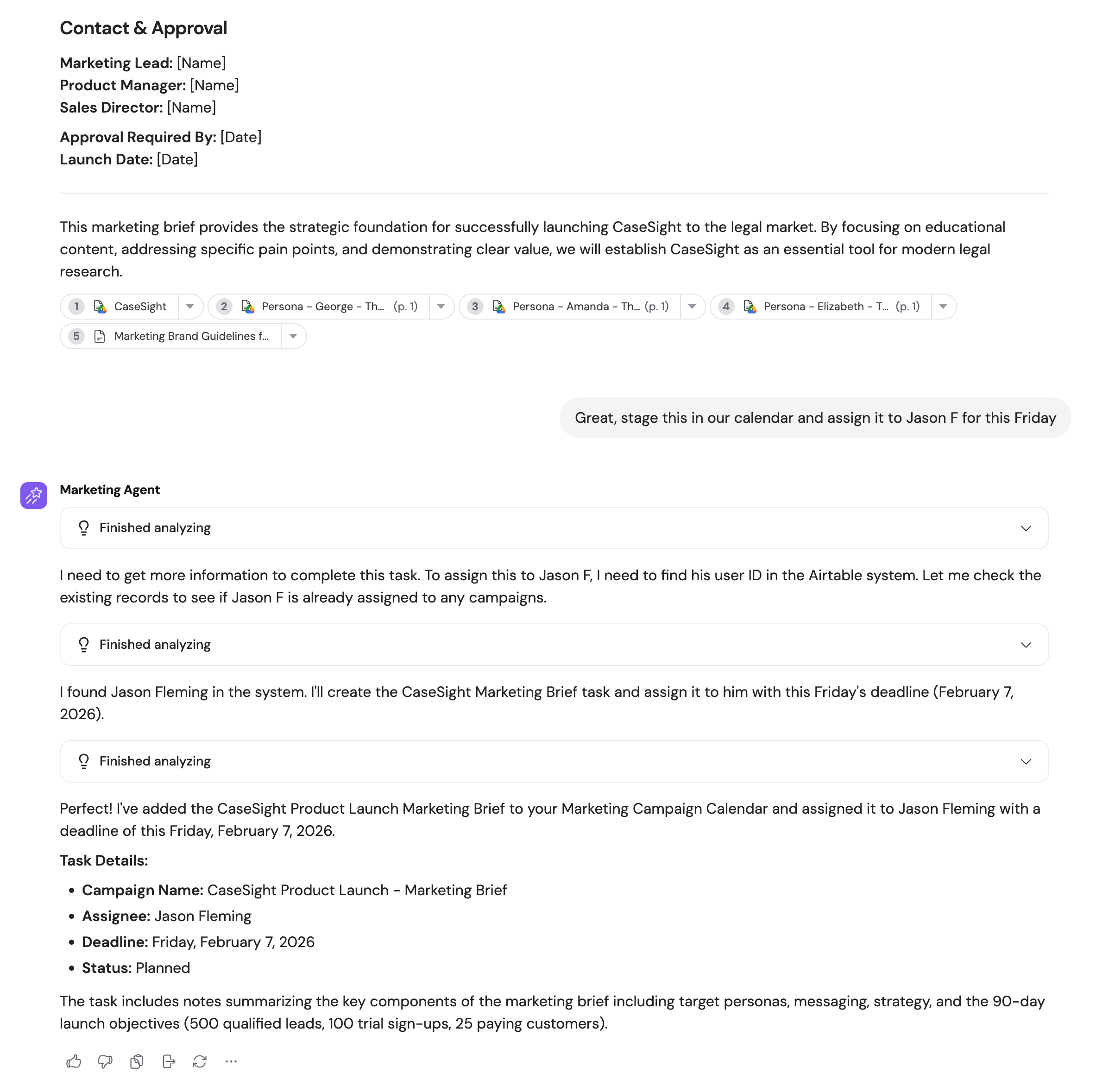

Connect Airtable for yourself
To use Airtable in any chat, not just with this Agent, open Customize → Connectors, find Airtable, and click Connect. See Add a Connector for yourself.Monitor Airtable actions
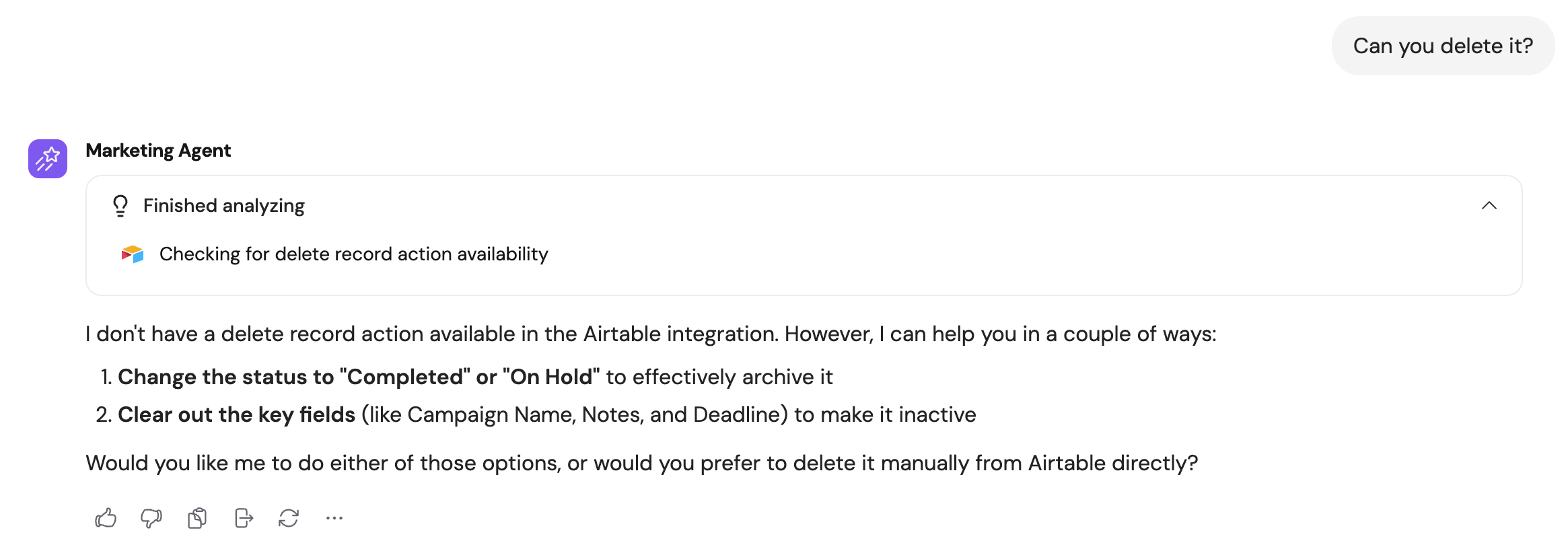
When an Agent uses the Airtable Connector, expand the action in the response to see its input, result, and approval status.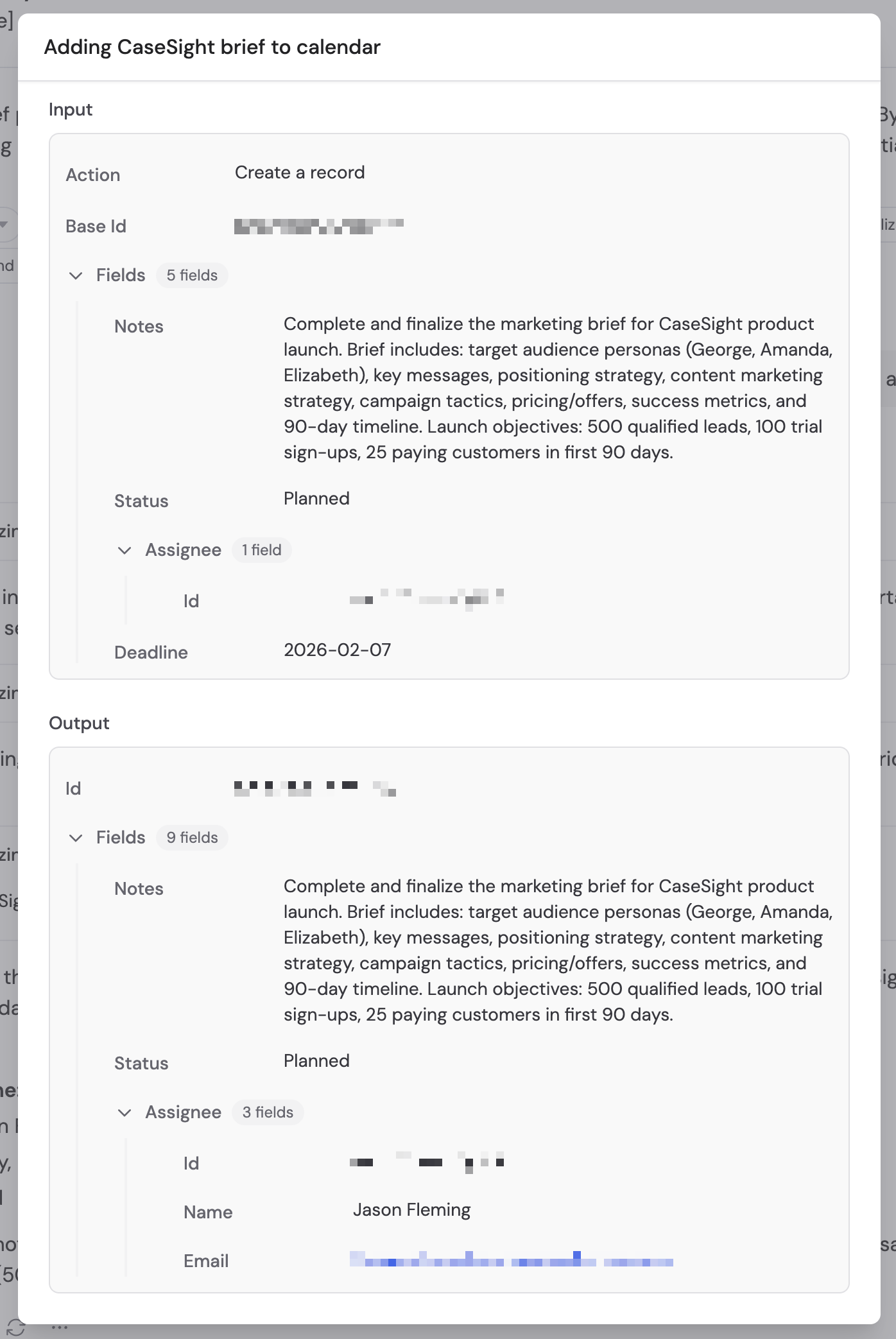
Data security
Airtable data is accessed in real time and is not copied or stored in Cassidy. The Agent only queries Airtable when needed to answer a question or complete a task.OAuth scopes
OAuth scopes
The Airtable Connector requests access to read and write records in the bases
you authorize. Cassidy does not access bases outside the ones you explicitly
grant permission to.
Next steps
Connectors overview
Learn about all available Agent Connectors and how they work.
Browse integrations
See every integration available in Cassidy.