

Run a single Workflow
Run a Workflow once with manually entered inputs. This is the usual experience for a Manual trigger; a few other trigger types use the same Run form inside Cassidy.Builders can change how this page looks and which action results are
highlighted from the Interface tab. See Customize the Workflow run
view.
1
Open the Run tab
Open the Workflow and click the Run tab.
2
Enter inputs
Fill out the form fields defined by the Workflow (text, URLs, files, dropdowns, and so on).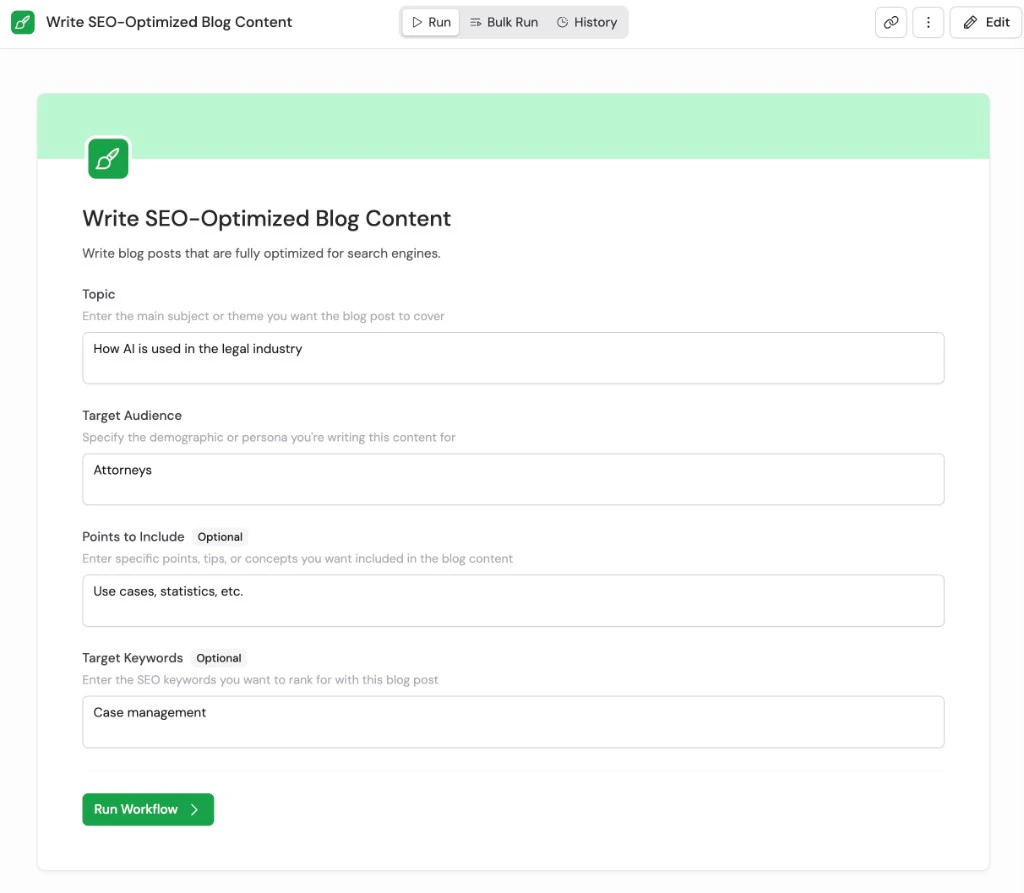
3
Start the run
Click the run button (often Run Workflow, unless the builder changed the label on the Interface tab). The Workflow runs to completion; progress appears under Steps as each action finishes.
4
Review results
When the run succeeds, expand Steps to inspect every action, and Outputs if the builder added highlighted values on the Interface tab—see Customize the Workflow run view.
Schedule a Workflow
Set a Workflow to run automatically on a recurring basis.1
Use a Scheduled trigger
When building your Workflow, select Scheduled as the trigger type.
2
Configure the schedule
Set the frequency (e.g., every hour, daily, weekly) and the specific time. The Workflow runs automatically at the configured times without any manual input.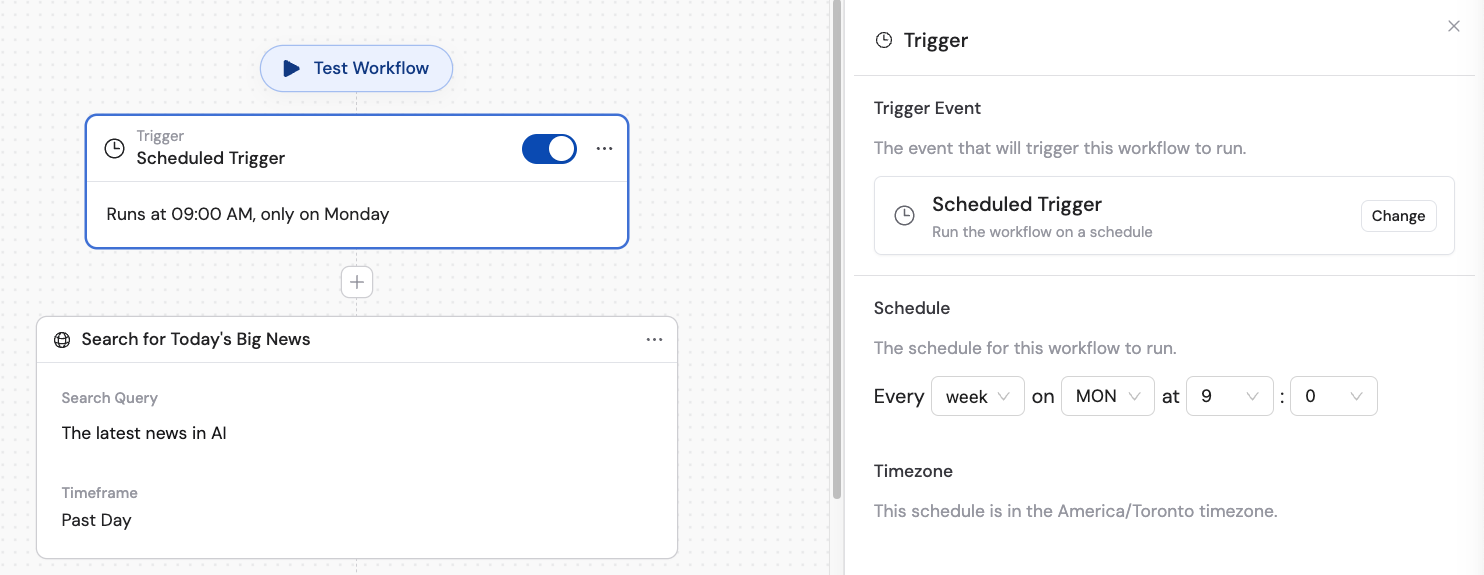
Run an integrated Workflow
Trigger Workflows automatically from events in your connected tools.1
2
Connect the integration
Follow the prompts to authorize and configure the connected app. For webhooks, copy your unique webhook URL and configure your external system to send a POST request to it.
3
Workflow runs in the background
Once configured, the Workflow runs automatically whenever the specified event occurs. Results are logged in View Previous Runs.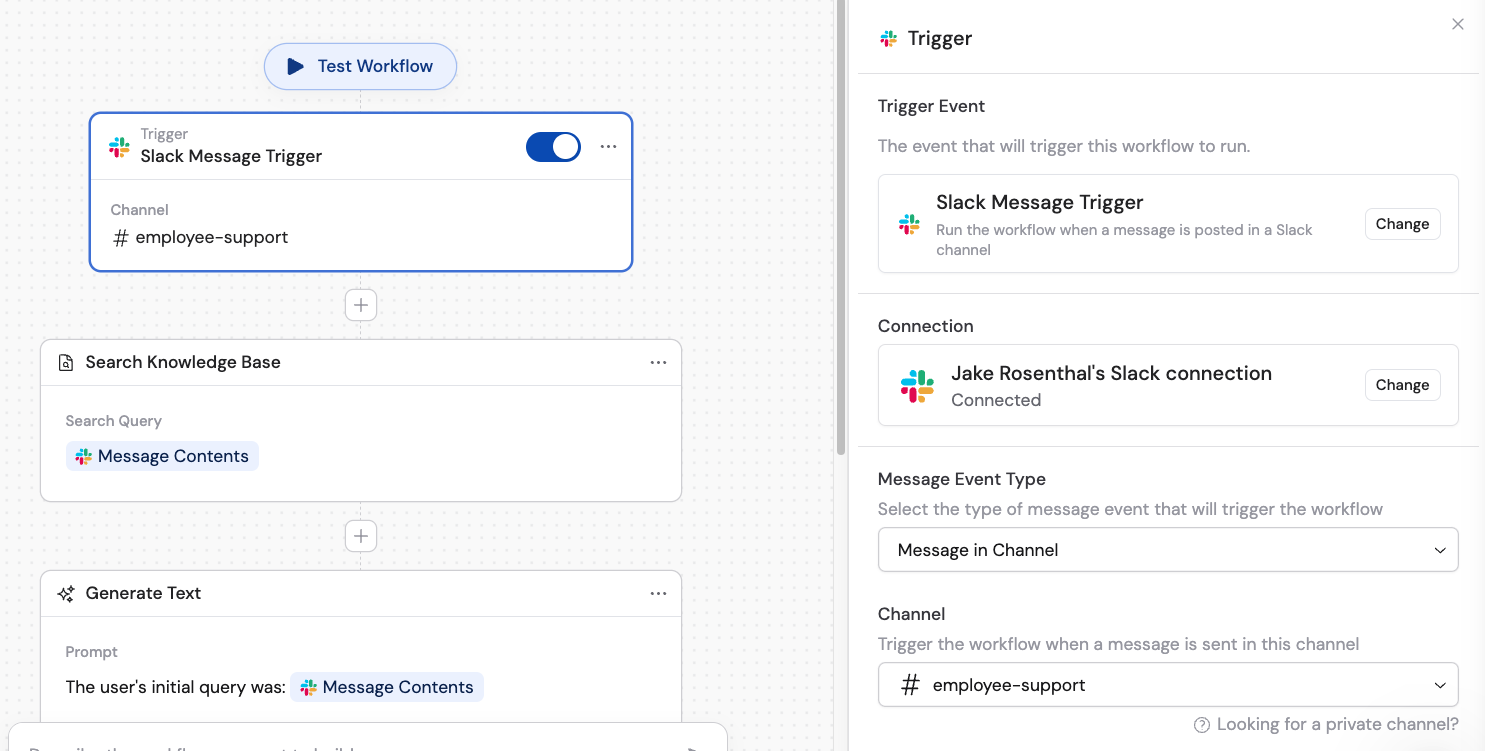
Run a Workflow in chat
You can execute Workflows directly within Cassidy’s chat interface in two ways:- Run manually from chat — open the Workflows panel in a chat, select a Workflow, fill in the form, and generate results without leaving the conversation. See chatting with an Agent for details.
- Agent calls a Workflow automatically — equip an Agent with the Call Workflow capability so it intelligently decides when to run a relevant Workflow during a conversation.
Test a Workflow
Cassidy’s testing interface lets you validate your Workflow step by step before processing live data.1
Open the editor
Navigate to your Workflow and click Edit in the top-right corner.
2
Click Test Workflow
Click the Test Workflow button in the editor toolbar.
3
Enter test values and run
Fill in sample values for your trigger inputs and click Run Workflow to execute a full end-to-end test.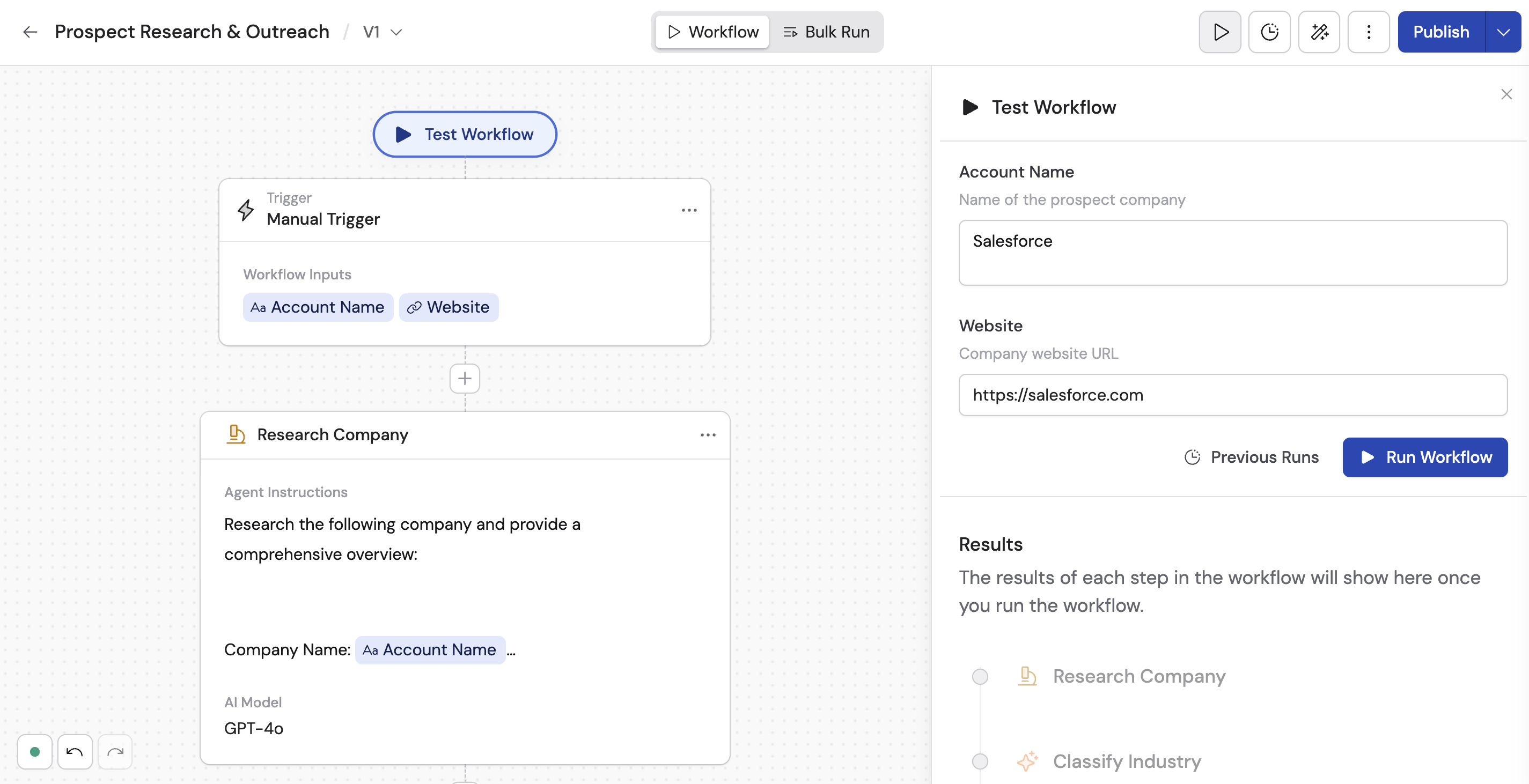
4
Review outputs
After the run completes, examine the results displayed for each action. Click the edit icon on any action block to jump to its configuration and make adjustments.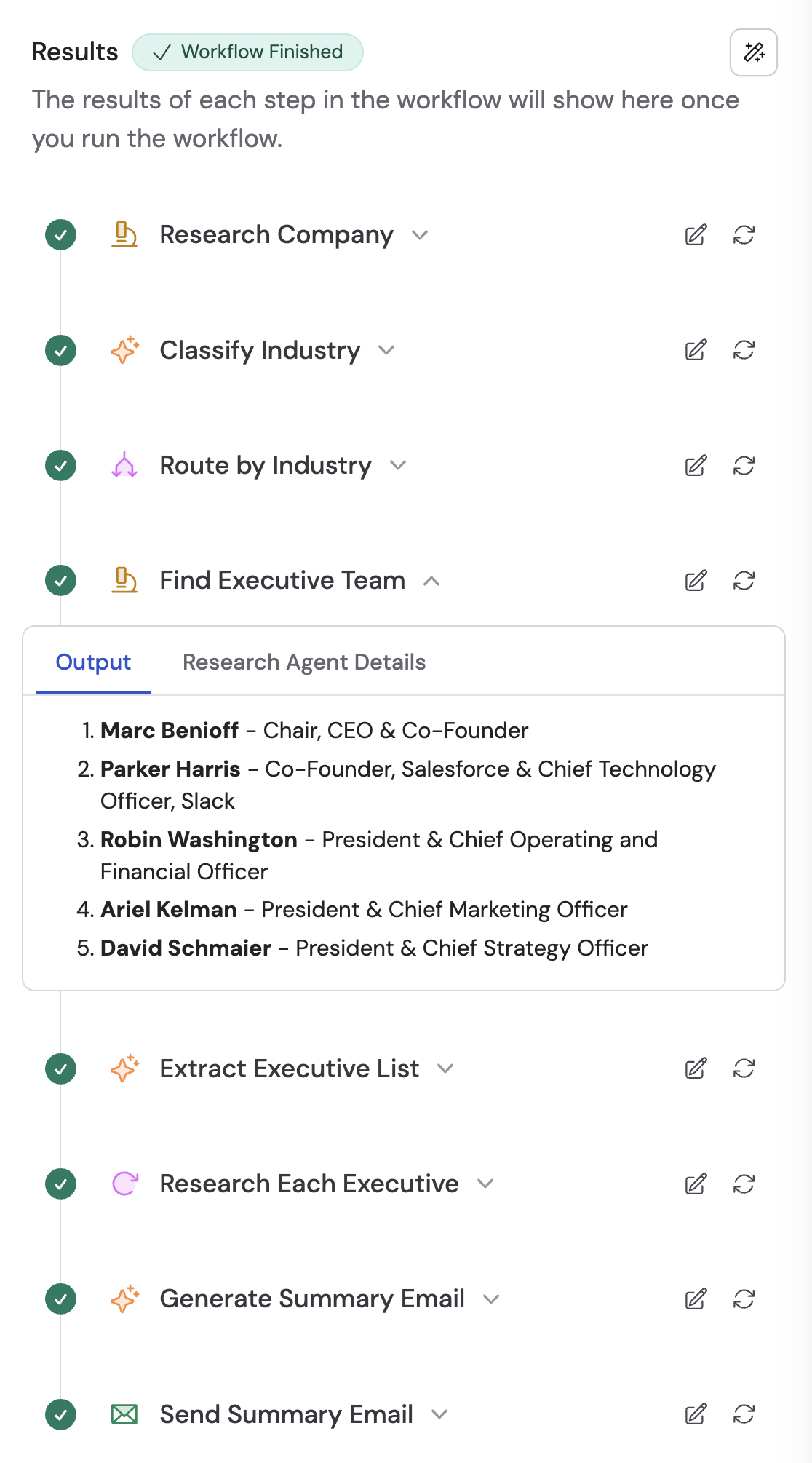
Granular testing options
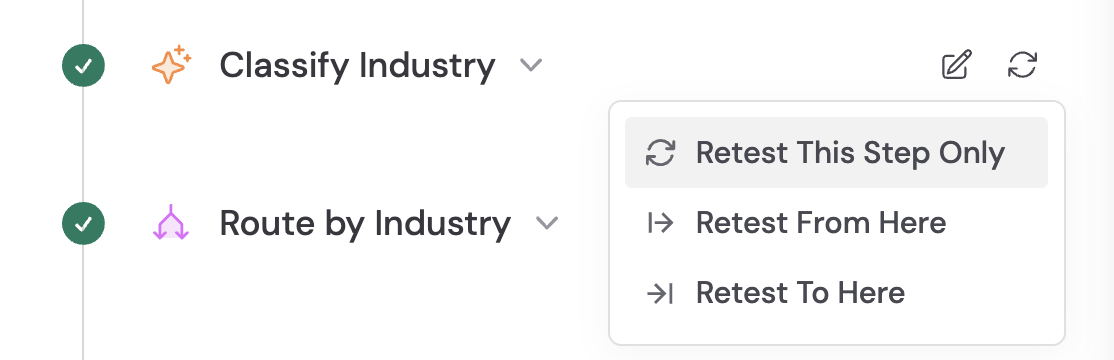
Once you have run a full test, you can retest individual steps without re-running the entire Workflow:
Click the retest icon on any action block to access these options.
Test nested actions
Workflows that use Paths or Loops contain nested actions. Click into a nested action to access its individual testing options and configuration.Skip actions during testing
Some actions — like sending emails or updating CRM records — should not run during testing. Click the … menu on an action and toggle Skip During Testing to prevent it from executing in test runs. A visual indicator appears on the action block.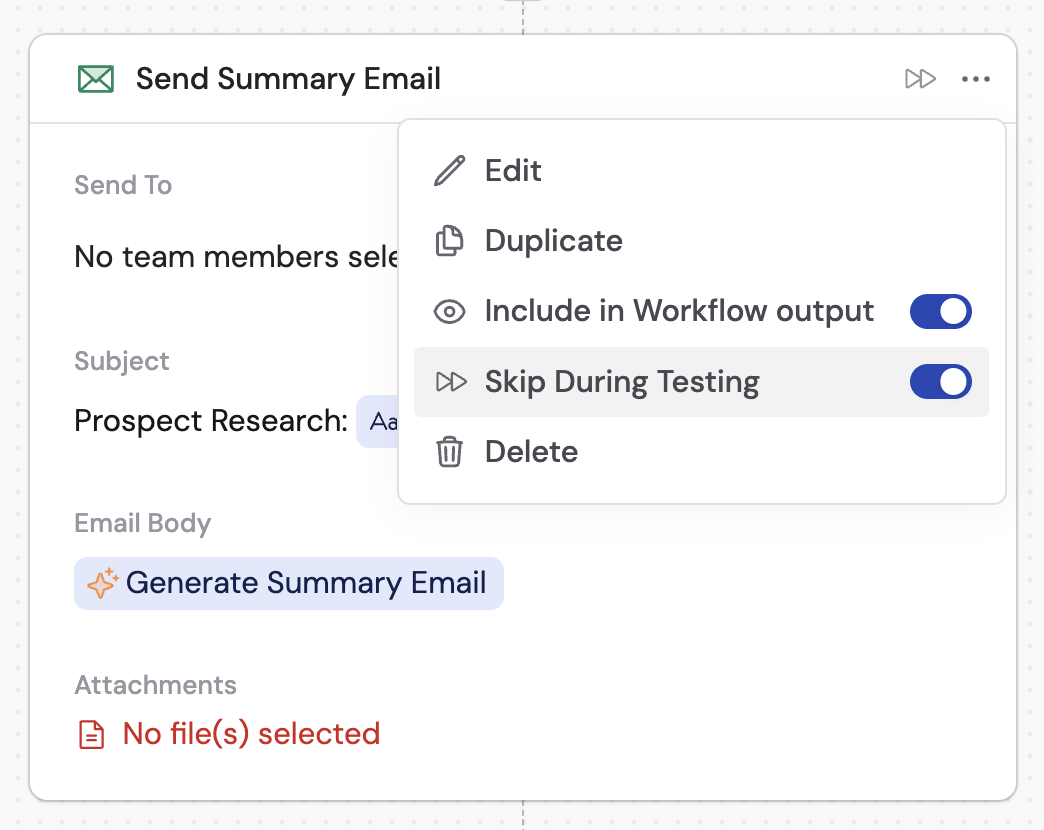

Review previous test runs
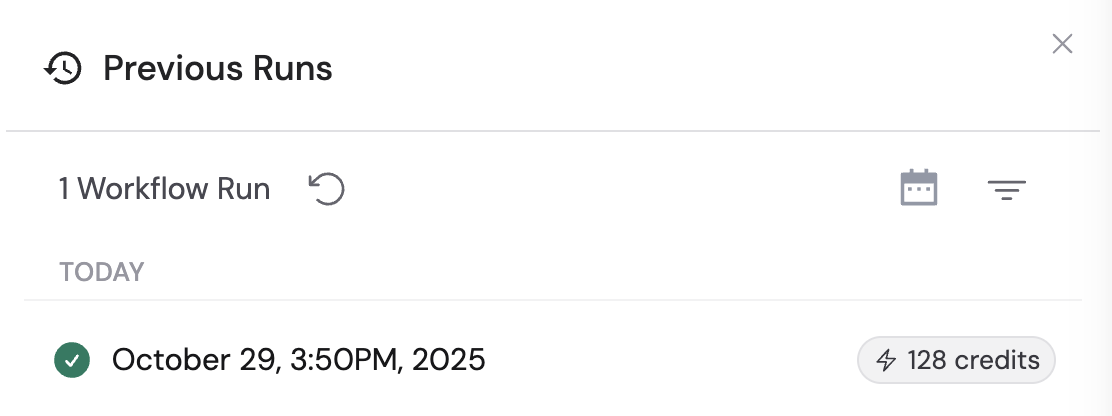
Click Previous Runs in the test panel to see your testing history. You can review the inputs and outputs from each past test run, and click the clipboard icon to copy previous inputs into a new test.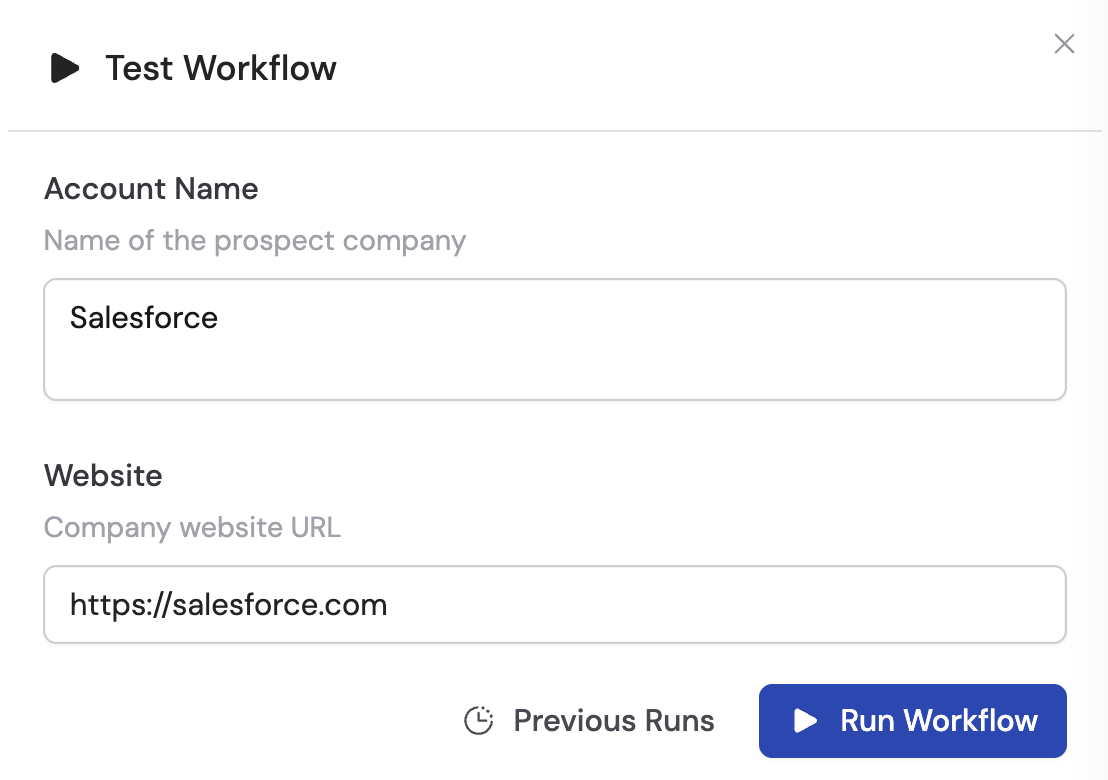
Next steps
Process data in bulk
Import datasets and run your Workflow at scale.
Share and deploy
Manage permissions and deploy via webhooks.
Analyze data
Use Code Execution & File Creation to generate insights, charts, and reports
from files.
Set fallback values
Keep your Workflow running even when individual actions fail.
Hide actions from results
Show only the most relevant outputs to end users.